
This section of the Competition administration tools allows the authorized Superuser to configure and organize specific competition roles. Competition roles differ from match roles in that persons added to the competition list (or catalogue) are pre-approved for match appointments within that competition. This ensures that only authorized officials can be assigned to matches.
Certain officials primarily serve at the competition level rather than the match level. Examples include:
-
Competition Manager – Oversees all match operations within the competition.
-
Disciplinary Manager – Handles disciplinary matters for the entire competition.
-
Referee Manager – Assigns referees to matches within the competition.
Adding a person to the competition list does not mean they are assigned to a match. Instead, it allows them to be selected for individual matches when needed.
Competition roles also define which Team Official roles are entered on the team rosters. See Team Official Roles below.
Administration of Competition Roles
To manage Competition Roles, navigate to the COMET Admin application. From there, navigate to the left-side menu and expand the Competition section to access competition-related settings. Click on Competition Roles to view the existing roles and configure new ones.
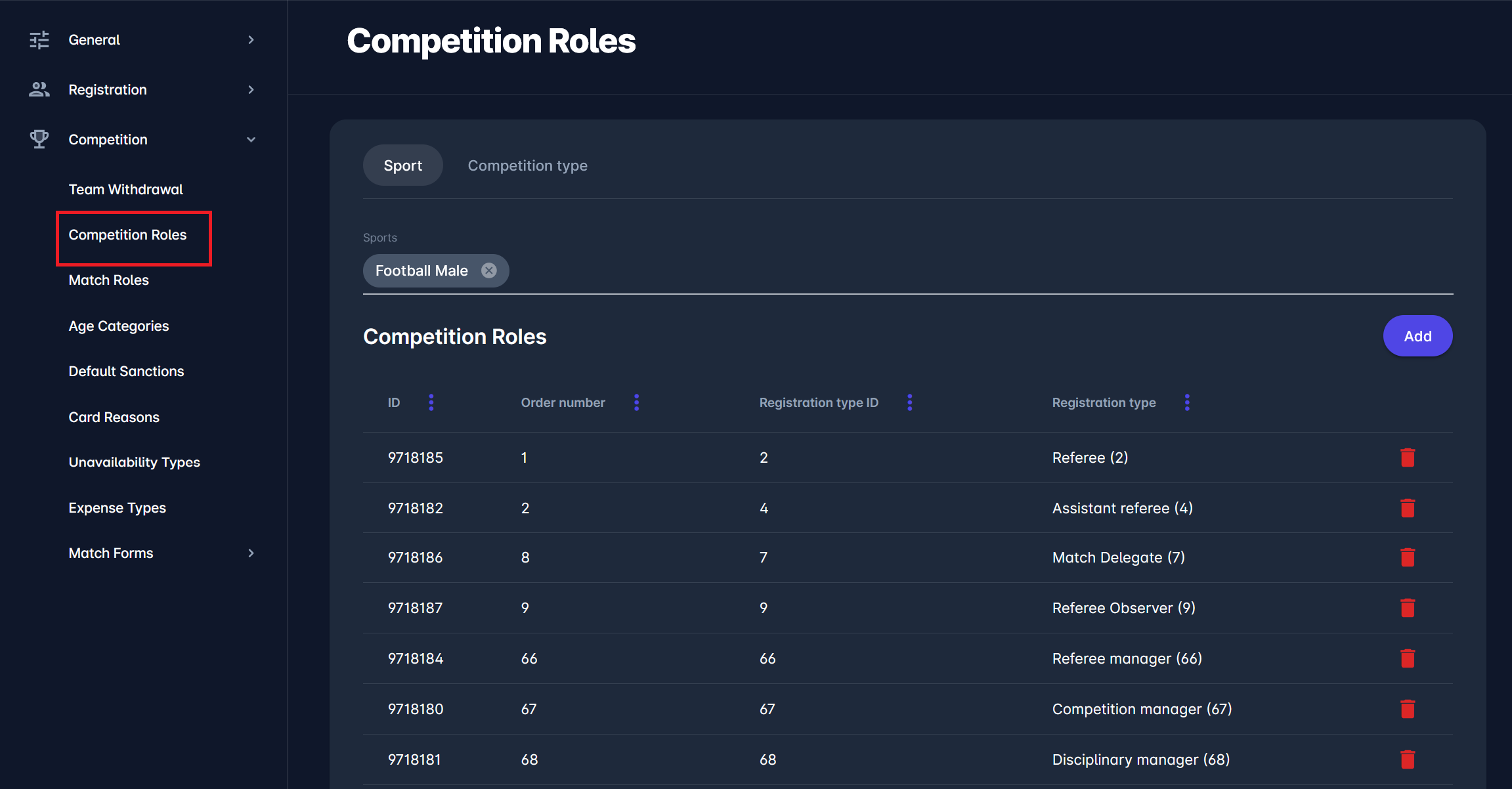
Decide whether the role configuration should be based on Sport or Competition Type:
-
Sport Definition: This means that all competitions within a sport (e.g., Football Male) share the same configuration, while other sports (e.g., Futsal Female or Beach Soccer Male) have their own configurations.
-
Competition Type Definition: Each competition type has its own configuration. If a new competition type is created, competition roles must be configured for that type.
Select the definition that aligns with your organization’s structure. Note that Sport and Competition Type configurations are not mutually exclusive settings you choose once - they can coexist, and Competition Type takes precedence: if at least one competition role is defined for a competition type, only those roles are used for competitions of that type, and the Sport/Generic configuration is ignored completely. If no roles are defined at the competition-type level, competitions of that type fall back to the Sport configuration of the tenant, and then to the generic configuration.
A similar configuration is available for the Match Roles .
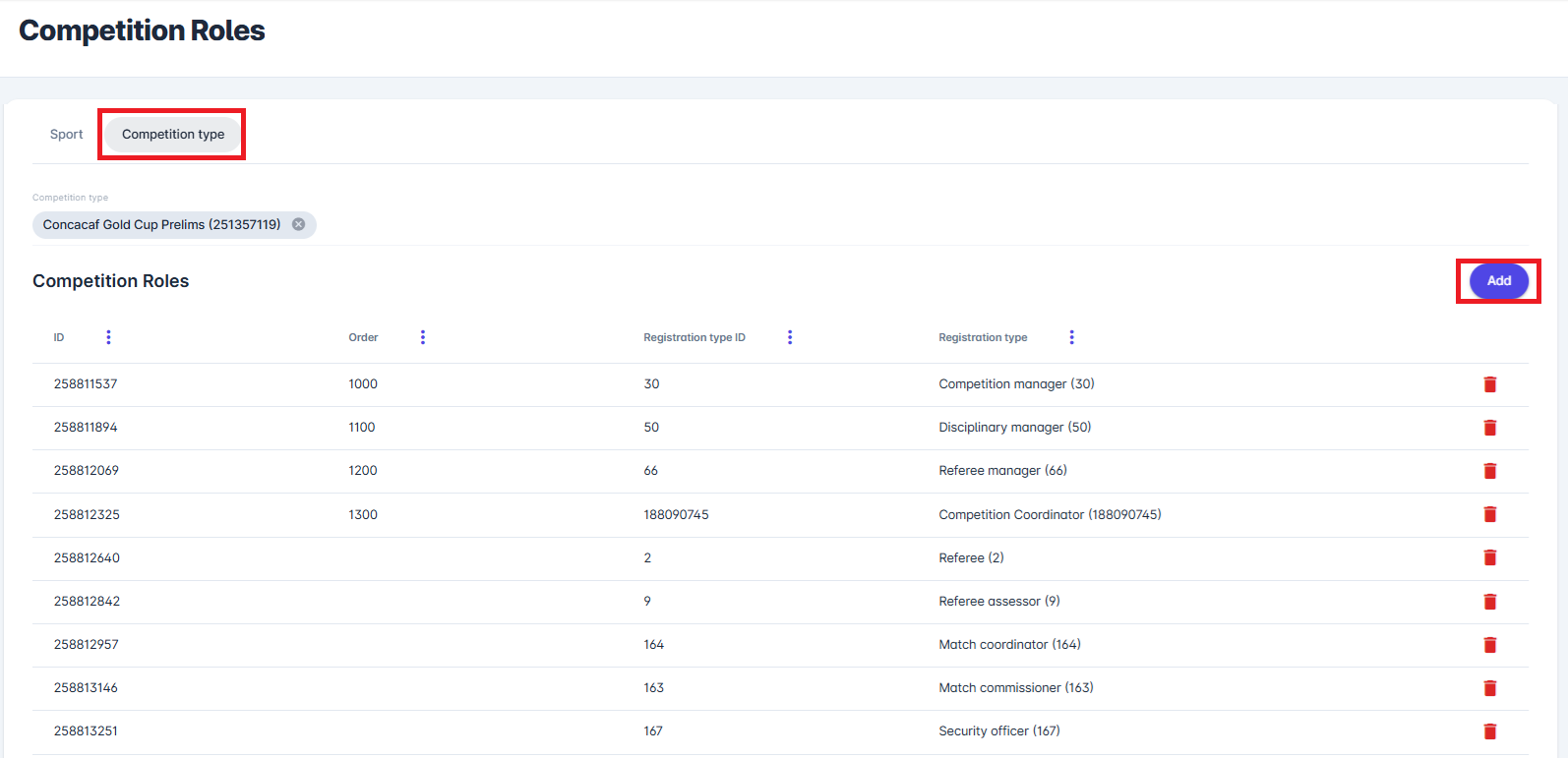
Add a New Competition Role
-
Click the Add button.
-
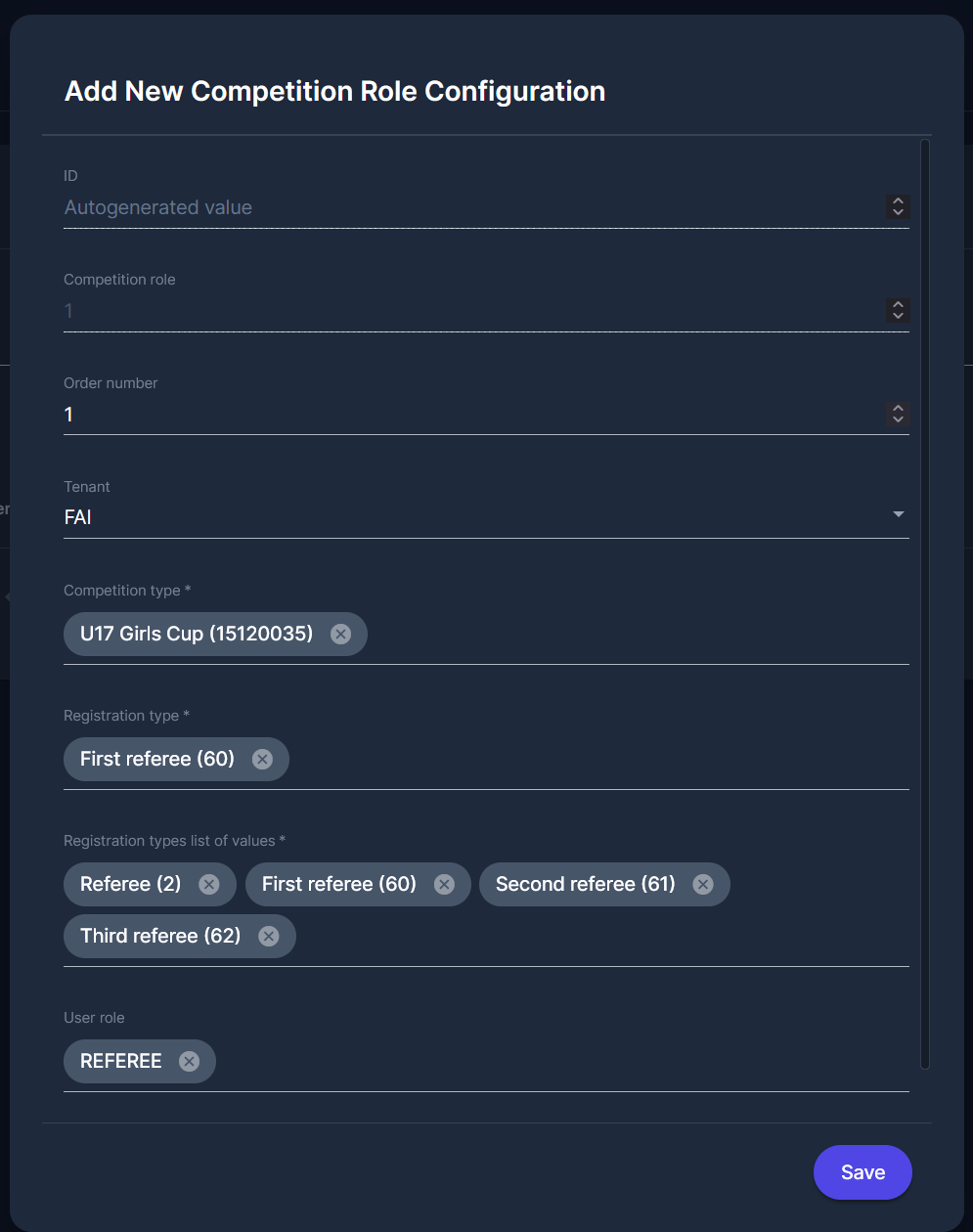
Define the following parameters:
-
ID: autogenerated value
-
Order number: optional field, define the order number of a new role
-
Tenant: important when working in multitenant instances
-
Competition Type: Select one or more competition types for the competition role.
-
Registration Type: Choose the primary role type (e.g., Match Coordinator).
-
Registration Types List of Values: Select all applicable registration types (e.g., allow selection of all persons registered as Match Coordinator and Match Commissioner).
-
User Roles: Assign the appropriate user role (e.g., Match Official).
-
-
Click the Save button to confirm the configuration.
The new competition role will now be available for use in competition management.
Team Official Roles
MyCOMET Features described in this article will be deployed on all Demo instances by 28 October 2026 and migrated to Production on 12 January 2027.
Superusers can define which Team Official roles are entered on the Competition Roster, such as Head Coach, Assistant Coach, Doctor or Team Manager. The configuration follows the same logic as the Team Official roles in the Match Roles configuration used for match lineups.
Competition Roles Screen
The Competition Roles screen in the Admin App has the following tabs, the same as the Match Roles screen:
-
Team officials and Match officials - Team Official roles for the roster are configured on the Team officials tab.
-
One tab per tenant - displayed only if you manage more than one tenant.
-
Sport and Competition type - a role is configured in one of these modes only. In Sport mode, select one or more Sports. In Competition type mode, select a Competition type.
Configure a Team Official Role
Add or edit the role as described in Add a New Competition Role. The following settings define how the role is used on the roster:
-
Registration types list of values (required) - the registration types accepted for the role, e.g., the Head Coach role may accept persons registered as Head Coach, Assistant Coach, or Goalkeeper Coach. Only persons registered under these types can be selected for the role. If no registration types are defined, no person can be selected for the role.
-
Type (required, displayed only on the Team officials tab) - how the role is displayed on the roster:
-
Static - always listed in the roster, with an Add link
-
Dynamic - added via the Add dropdown
-
Both - listed in the roster and also available in the Add dropdown
-
The Mandatory setting (Optional, Mandatory, Conditional) is not available for competition roles. It is set on Match Roles and checked only when the match lineup is confirmed: an empty mandatory team official role blocks confirming the match lineup, not saving or submitting the roster.
The Catalogues list of values is not part of the Competition Role configuration. It is set on the Match Roles configuration and defines which roster roles can fill each match role on matchday. See Team Officials on Matchday below.
When a team official is added to the roster, the roster stores the role from the Competition Role configuration, not the person's registration type. For example, a person registered as an Assistant Coach added to the Head Coach role is listed as Head Coach. If no Team Official roles are configured, no team official roles are displayed on the roster.
Team Official Roles on the Roster
-
Only roles configured as Competition Roles are displayed on the roster. Roles configured only in Match Roles are not displayed.
-
The same team official cannot be added to the roster twice.
-
Changes to the role configuration are reflected on the roster immediately, e.g., a change of the Type. A role removed from the configuration is no longer available for selection on the roster.
-
When a role is deleted, team officials already saved in rosters under that role are not removed without a warning.
Team Officials on Matchday
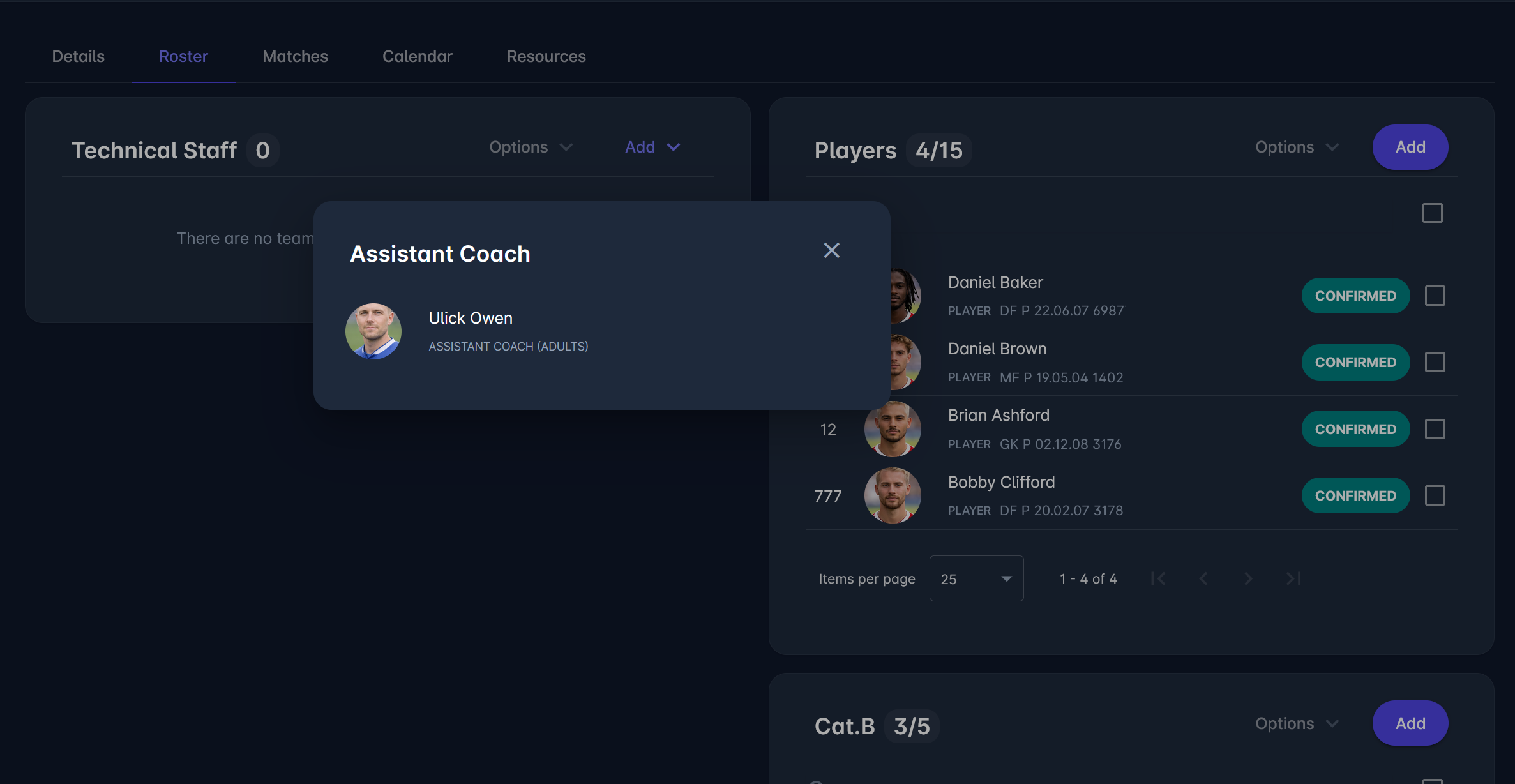
On matchday, the team officials available for each match role depend on the Catalogue Restriction Level for team officials of the match's competition:
-
Ignore - the roster is not used. The club's officials whose registration type is in the match role's Registration types list of values are available.
-
Mandatory - an official is available for a match role only if they have a Confirmed roster entry for the club in a role listed in the match role's Catalogues list of values. The rosters of the competition, its parent competition and the parent's other elements are checked.
-
Optional - the same as Mandatory. If the club has no roster entry linked to the match role, the Ignore rule applies.
If the Catalogues list of values of a match role is empty, no team officials are available for that role with Mandatory, and Optional behaves like Ignore. Check the Catalogues list of values on your Match Roles, e.g., Head Coach linked to the Head Coach roster role.
Default Configuration
One example role is preconfigured on each COMET tenant: Head Coach, accepting persons registered as Head Coach or Coach, set as Static.
All other Team Official roles should be defined by Superusers in the Admin App before the Production date.