
From a player’s perspective, the Trainings module provides a simple and intuitive way to stay informed and engaged with all training activities. Every player can easily view upcoming sessions, confirm attendance, and keep track of their training schedule, all in one place. The two main sections used for this purpose are My Trainings and My Calendar.
My Trainings - Overview of All Sessions
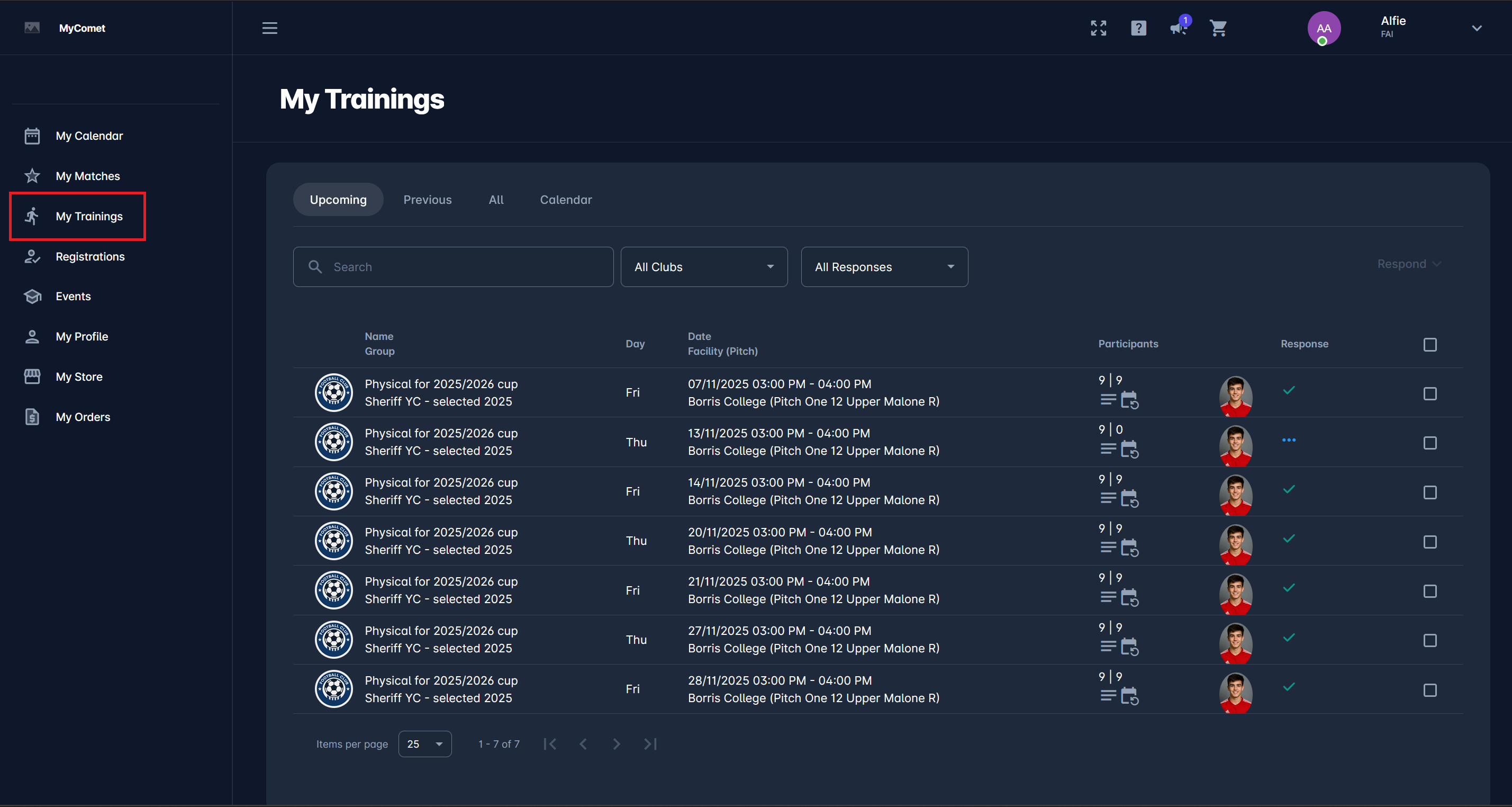
The My Trainings section lists all trainings associated with the player, organized into Upcoming, Previous, and All tabs. Each session includes information such as the name of the training, training group, day, date and time, location (facility or pitch), number of participants, and participation status.
Players can use filters to view training for a specific club or to check their response status. This helps them keep track of when and where they are expected to train.
Responding to Training Invitations
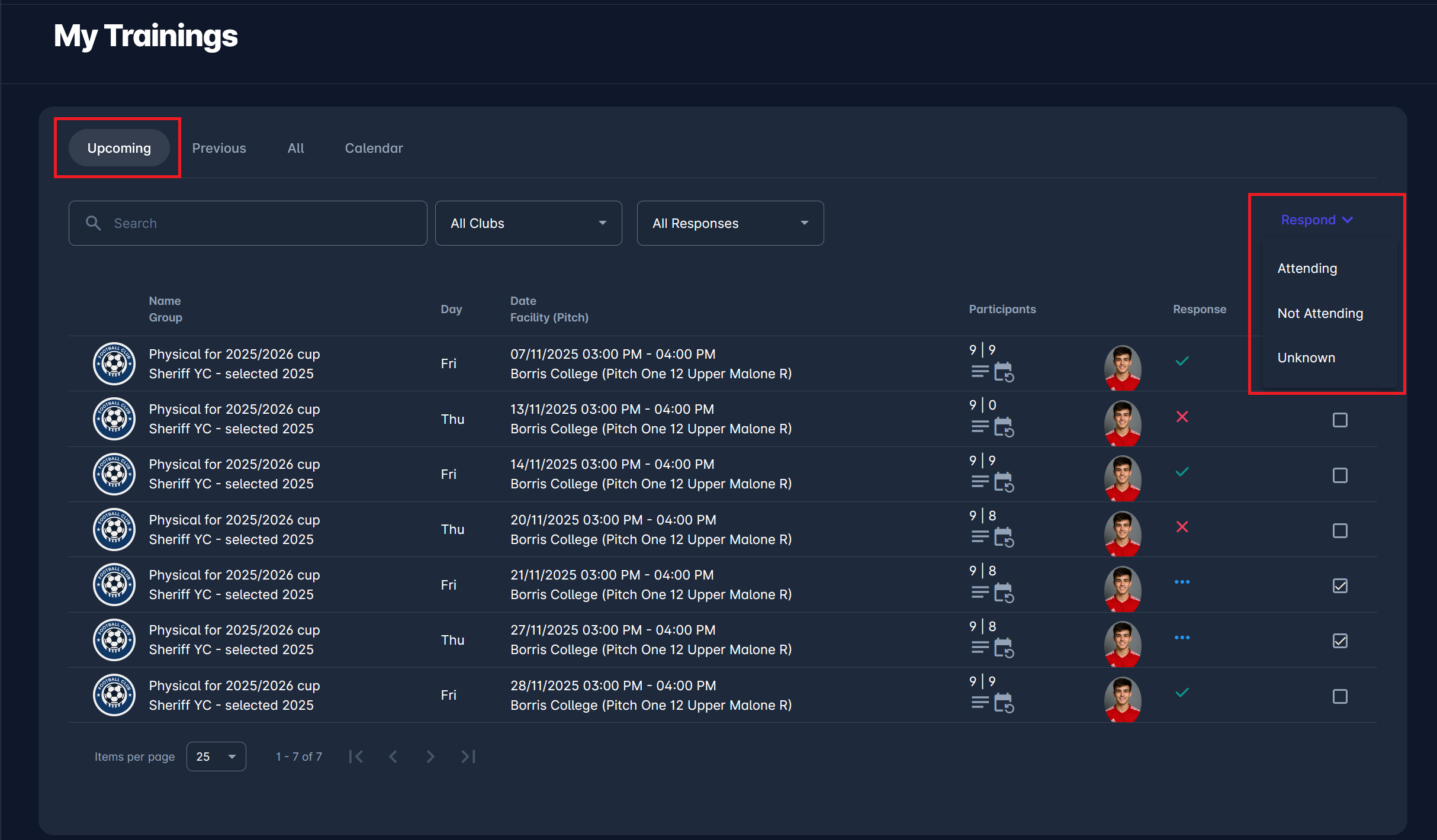
When a training requires confirmation, players can respond directly from the list. Players need to check one or more boxes next to the training details to select the training they want to respond to. By selecting Respond, they can choose between:
-
✅ Attending
-
❌ Not Attending
-
❓ Unknown
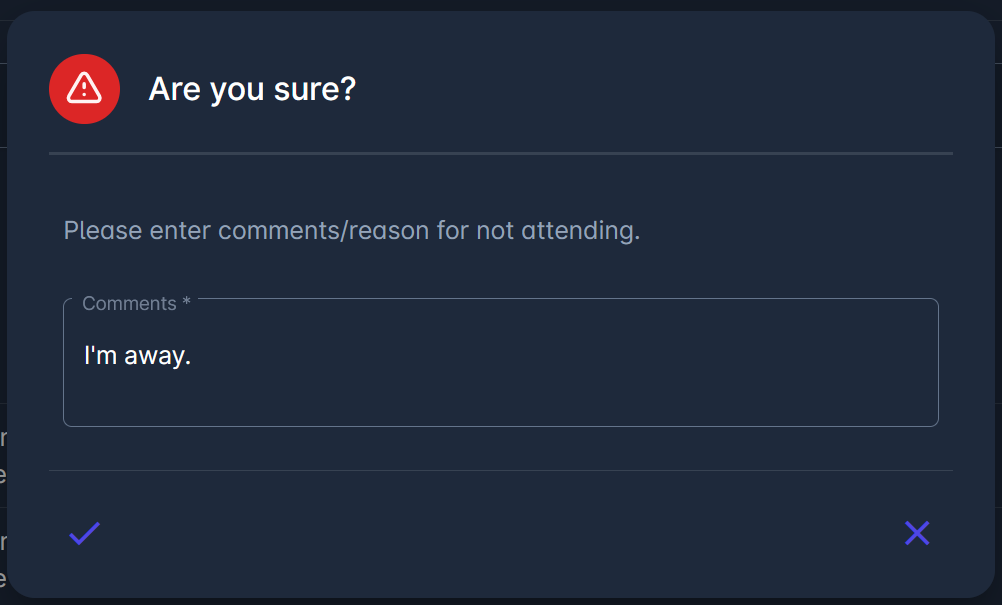
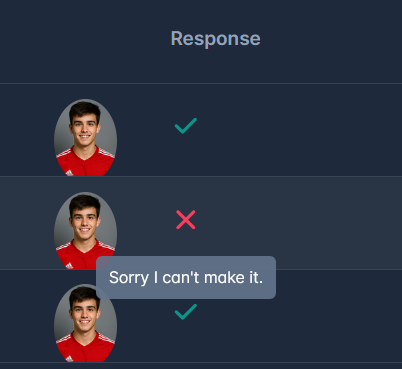
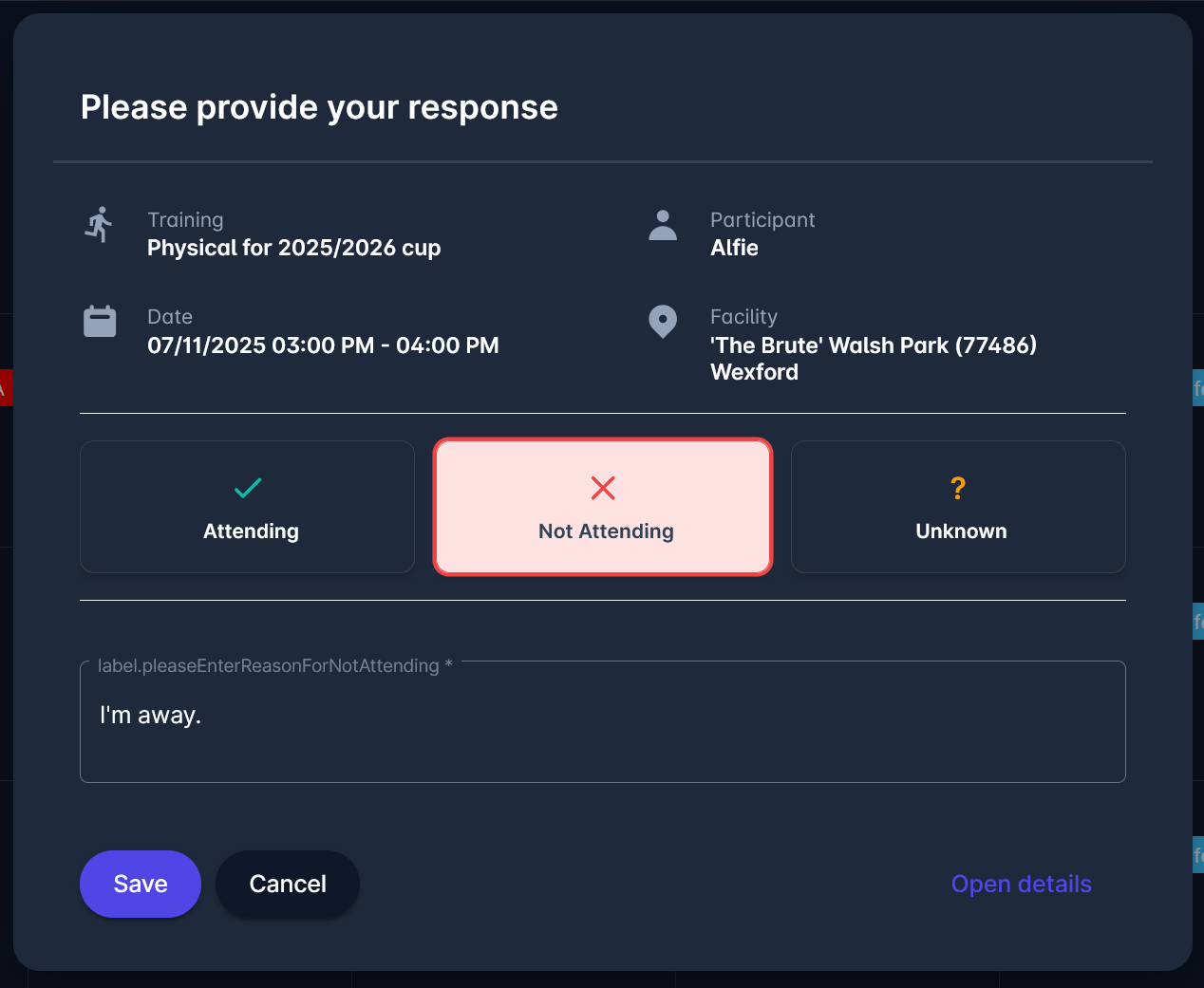
If the player marks Not Attending, they must add a short explanation - for example, “I’m away.” Hovering over the response icon also displays any comments left by the player.
Participants can also respond to an upcoming event from the calendar view in My Trainings or via My Calendar (see below).
Training Details and Other Participants
By clicking on any training from the list, players can open detailed information about the session.
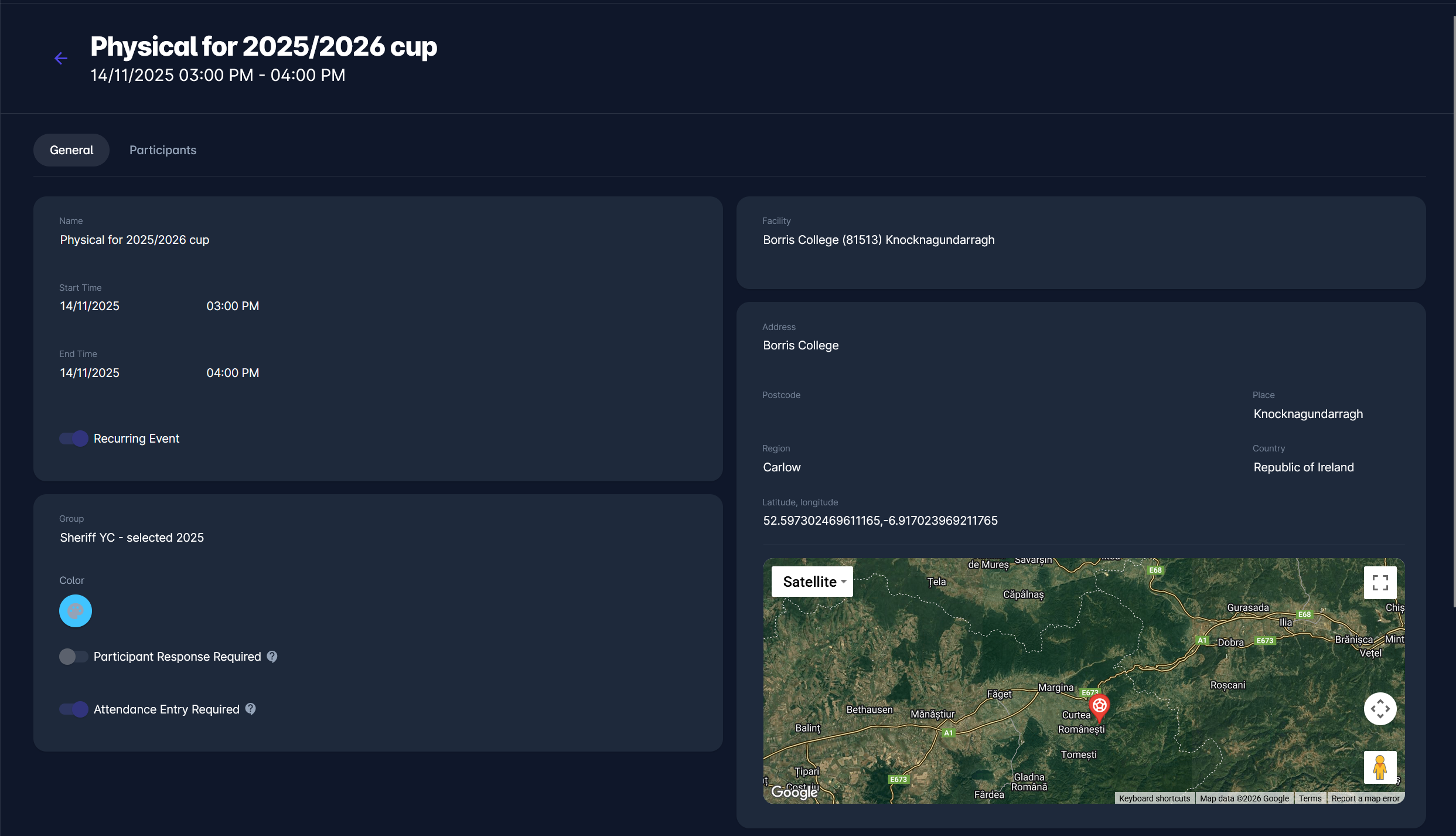
The General tab displays essential details such as:
-
Training name and date
-
Start and end time
-
Facility and address
-
Club and group assigned
-
Whether the training is defined as a recurring series
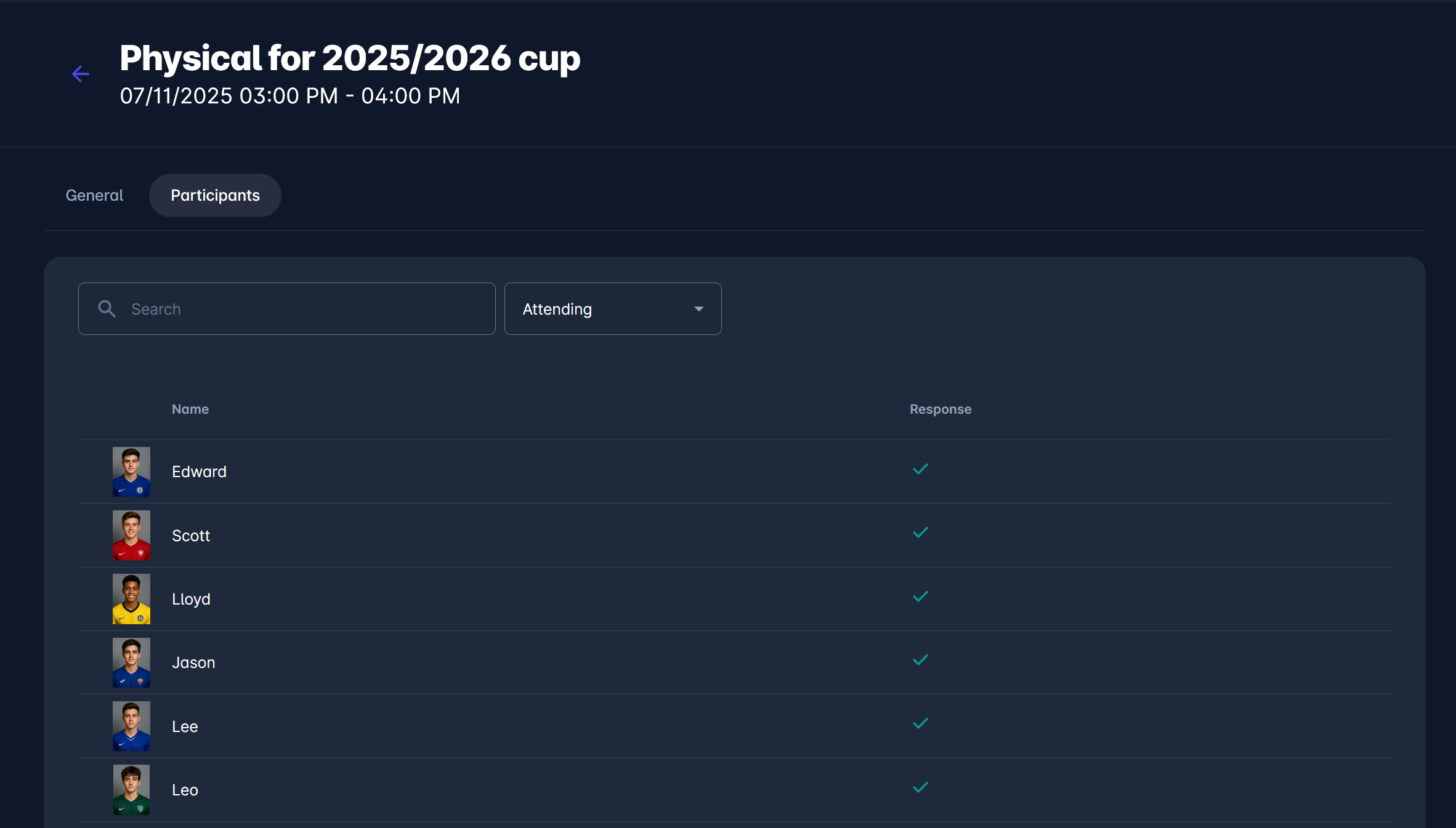
The Participants tab lists all players registered for that training. Each participant’s attendance response is visible, allowing players to see and also filter who else will be attending.
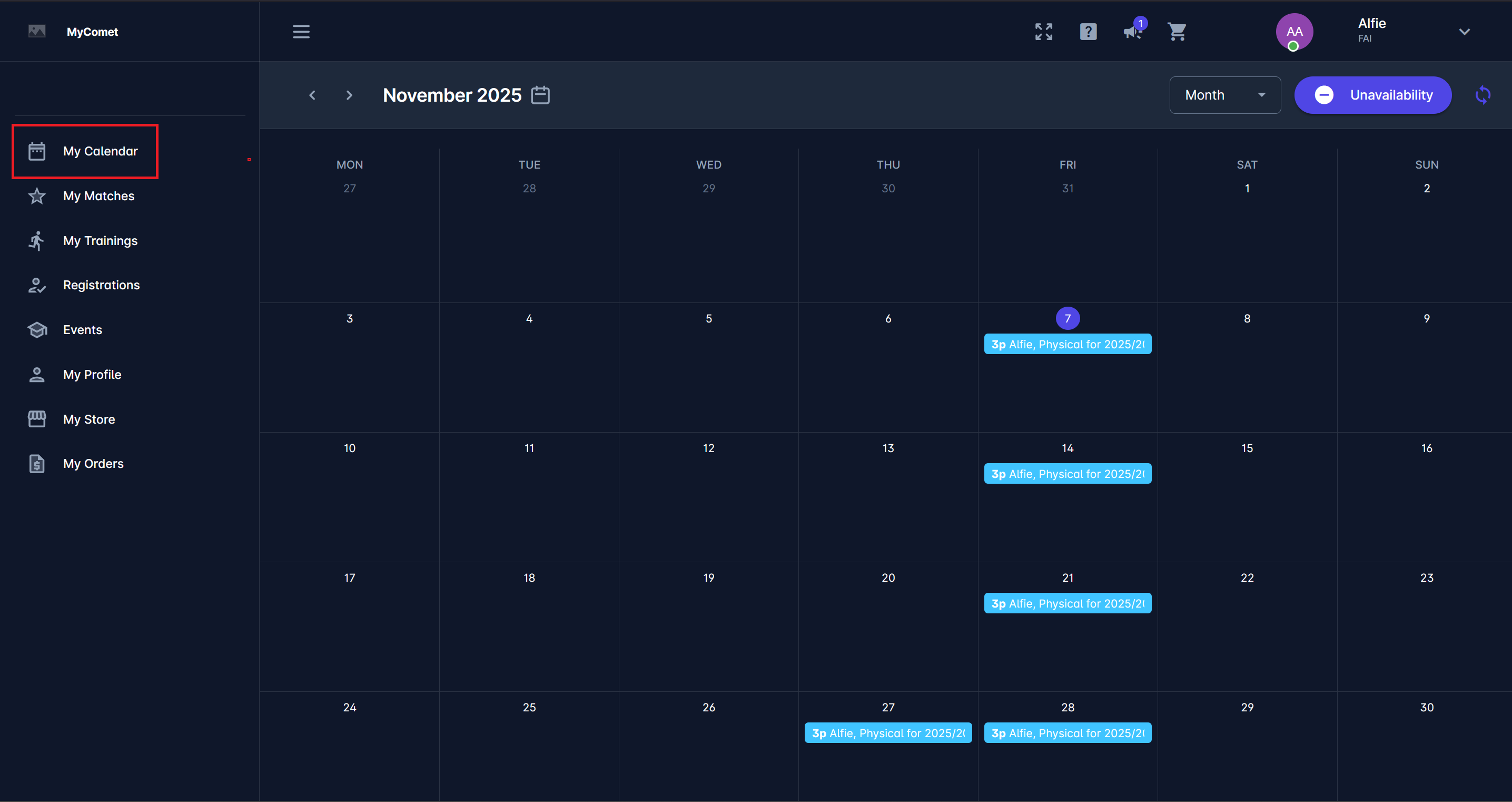
Calendar View for Trainings
Players can also switch to a Calendar view within My Calendar to see their upcoming sessions visually across days, weeks, or months. This view combines training with other football-related events.
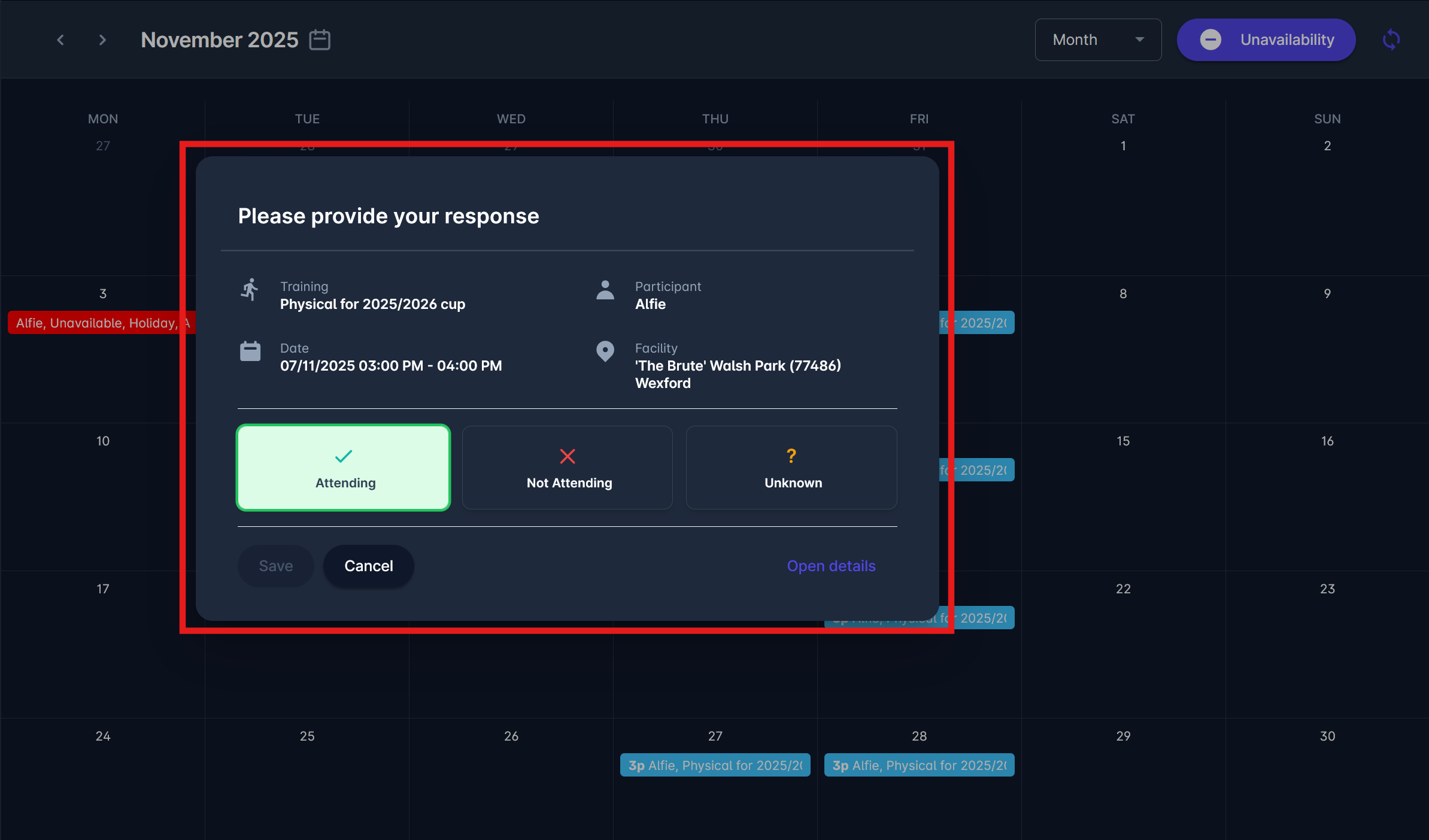
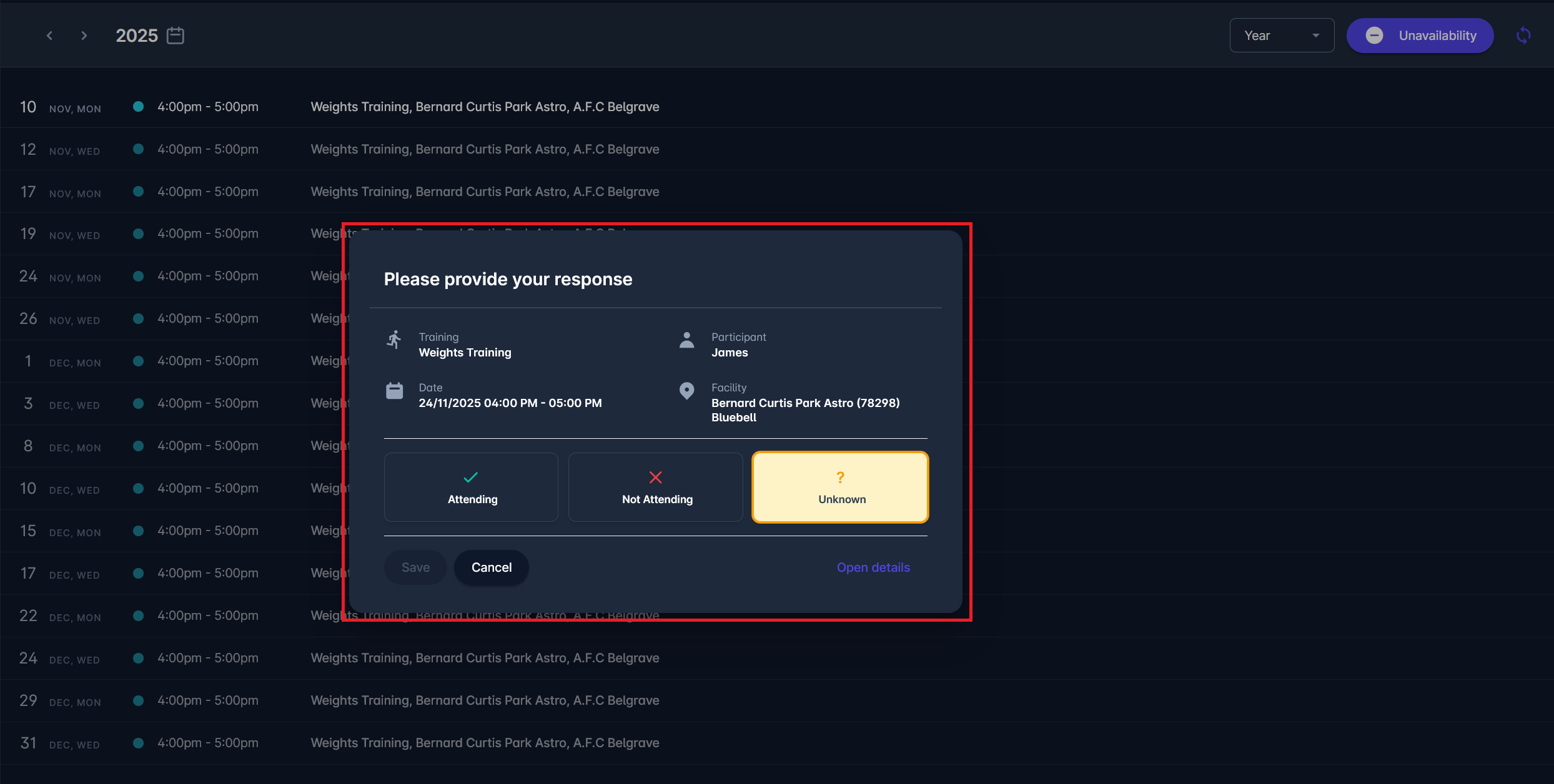
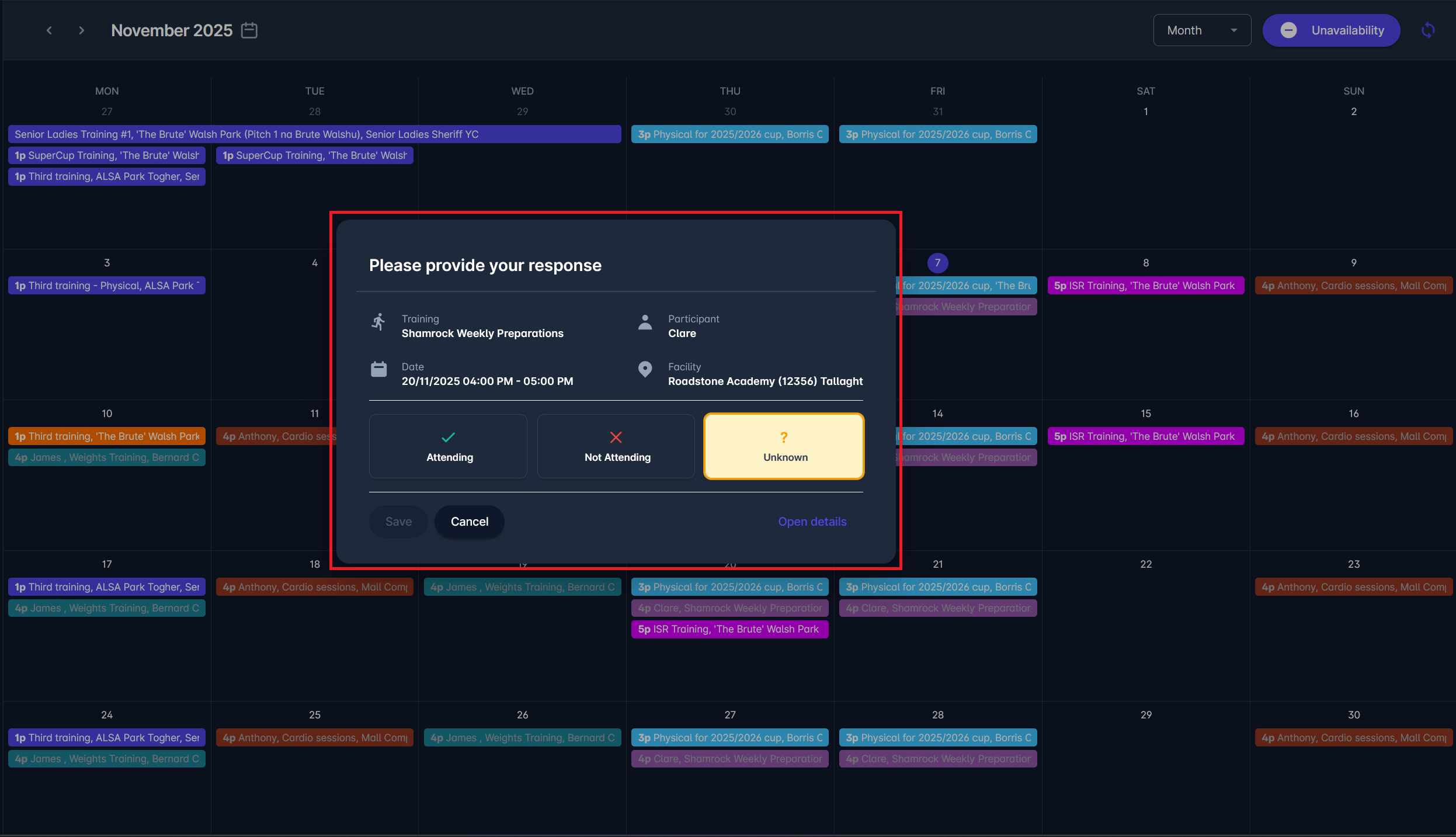
Another convenient option is responding to an event through My Calendar. Clicking on a training opens a response window with the same Attending, Not Attending, or Unknown options. Note that the reason for not attending the event is a mandatory field.
My Trainings menu also enables the calendar view through which a player can manage their attendance. This view displays all training sessions across the month and can be filtered by Club, Team, or Year/Month/Week/Day view.
Same as in My Calendar, clicking on a training opens a response window with the same Attending, Not Attending, or Unknown options.
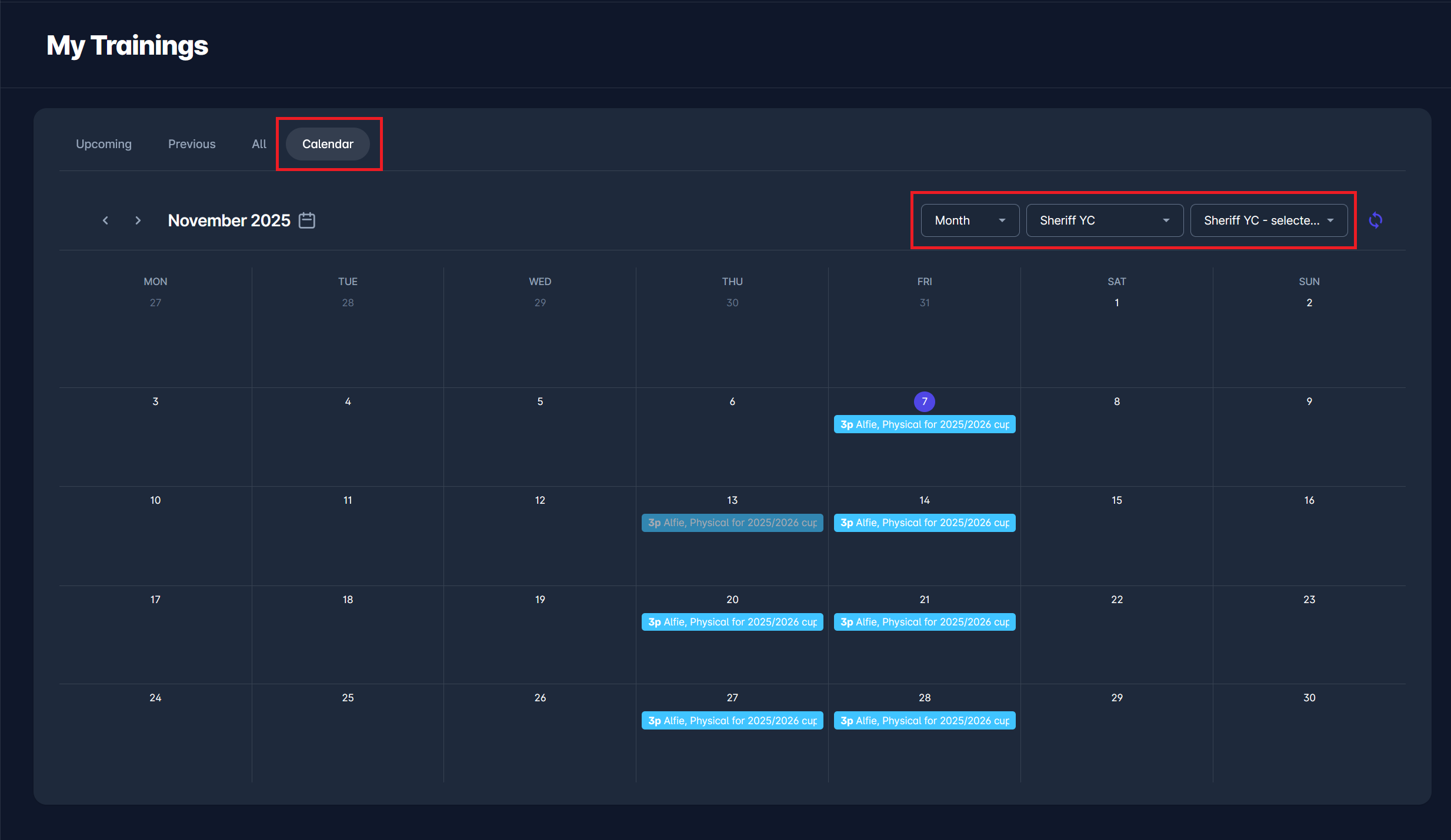
Events with attendance set to UNKNOWN are displayed with lower opacity in the calendar view. Any event that is set to NOT ATTENDING will be removed from the player’s calendar.
Trainings in Family View
The Family View in COMET is designed for parents or guardians who manage multiple player profiles within the same account. It allows a parent to seamlessly view and manage events for all linked child accounts - such as training sessions - directly from one calendar.
Activating Family View
To enable Family View, click the 🫂 Family icon (white circle with multiple silhouettes) located in the top-right corner of the screen.
Once activated, the system combines all events from the parents’ and their children’s accounts into a single, unified calendar.
Note that this mode is only available to users with connected Child Accounts.
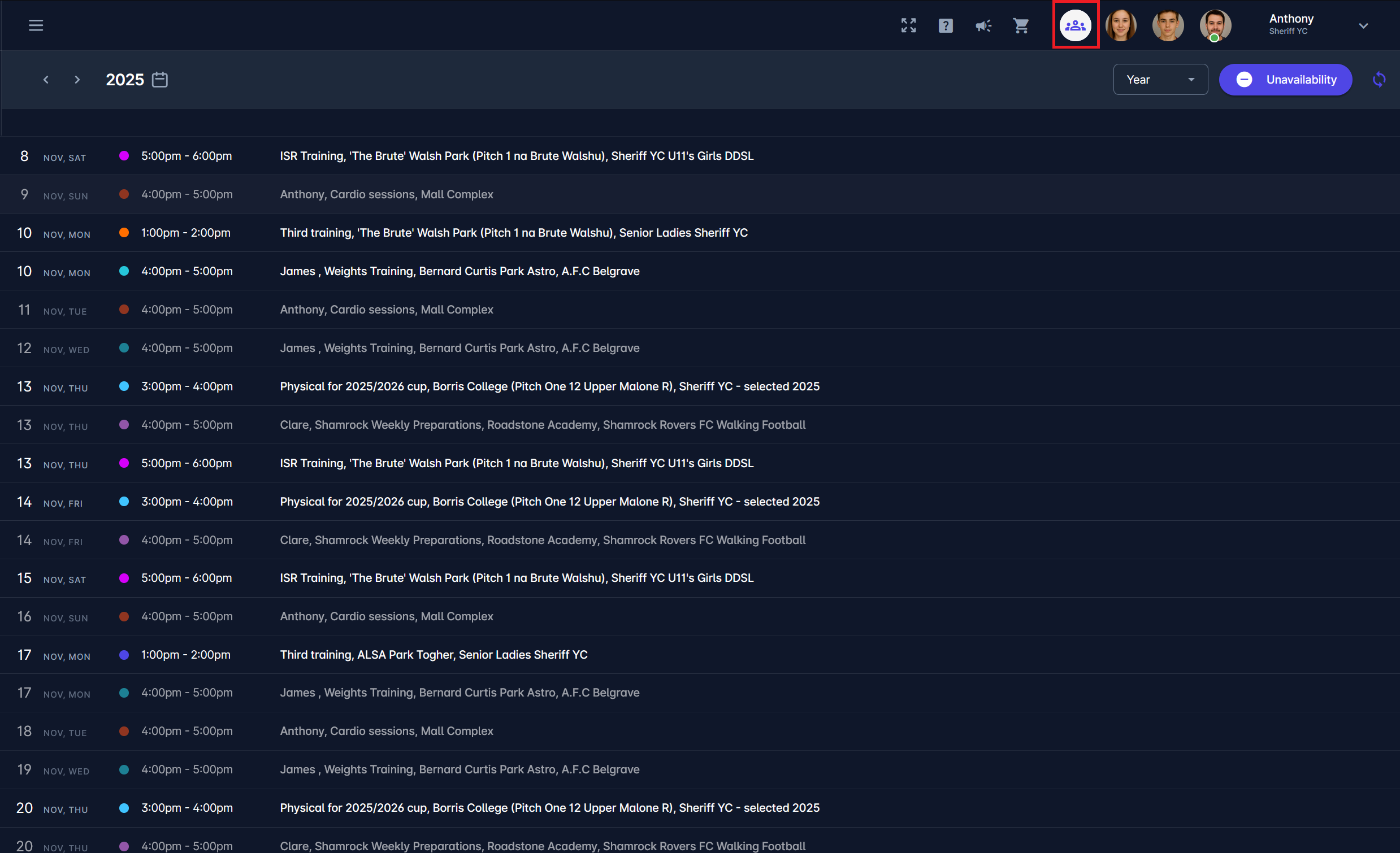
In this example, Anthony (the parent) has access to James's and Clare's calendars, allowing him to track and manage all their football-related activities.
Family View in My Calendar
After turning on Family View, Anthony can open My Calendar to see all upcoming trainings, matches, and events for himself and his children.
Each event is color-coded by profile, making it easy to distinguish who it belongs to.
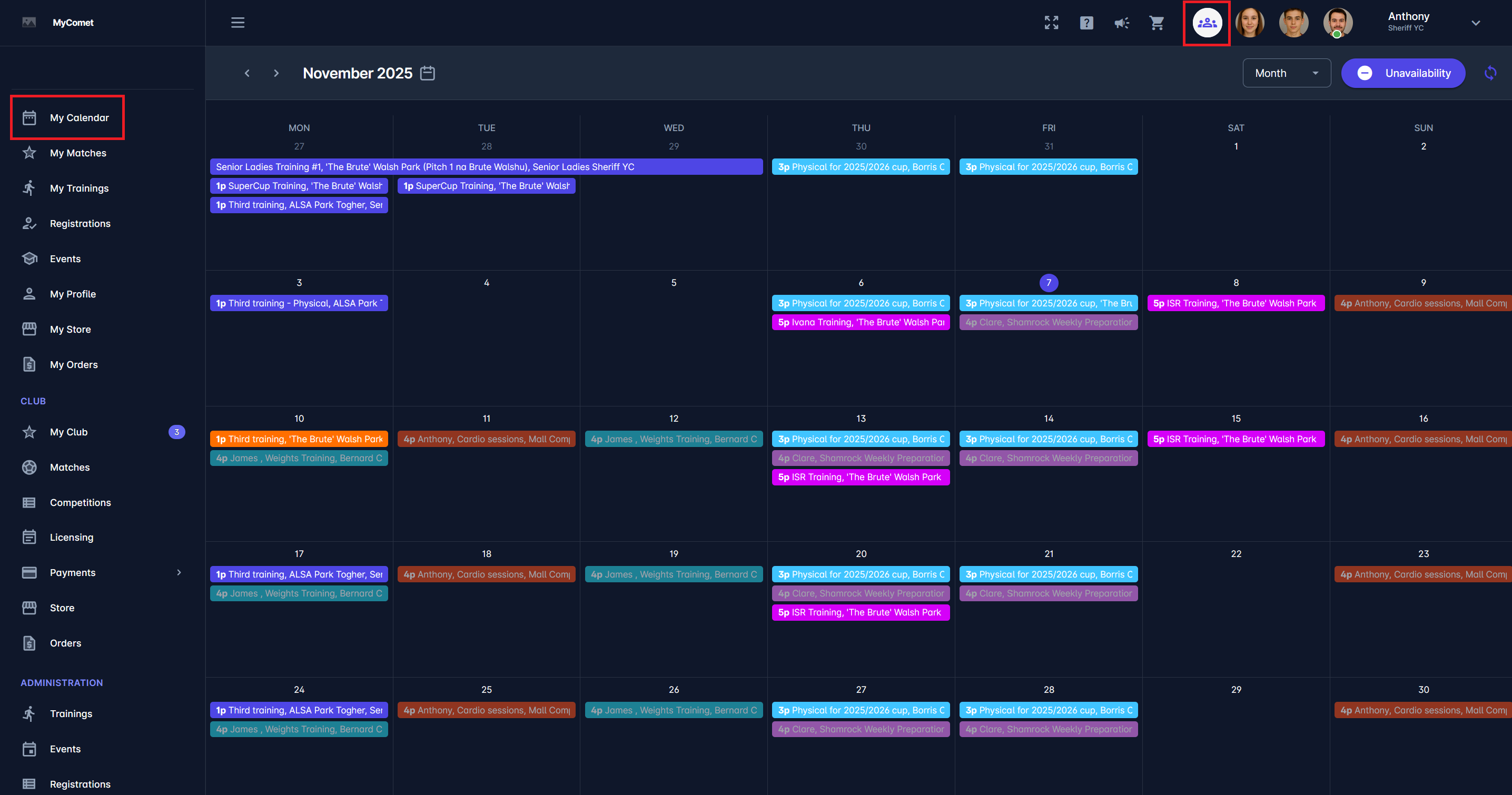
From the calendar, parents can click on any event and submit a response - whether the child will be Attending, Not Attending, or is Unknown.
This is especially useful when managing multiple kids’ schedules, as the parent can confirm attendance for both from the same interface.
For example, Anthony can respond to Clare’s training invitation at Roadstone Academy or James’s weights training session directly from the shared calendar view.
Family View in My Trainings
Besides the calendar, Family View also integrates into the My Trainings section.
Here, the parent can see a complete list of upcoming trainings for each linked profile, review participation history, and manage attendance for each profile individually.
Anthony can switch between his own trainings and those of James and Clare, or view them all together, ensuring no session is missed, and all attendance responses are up to date.
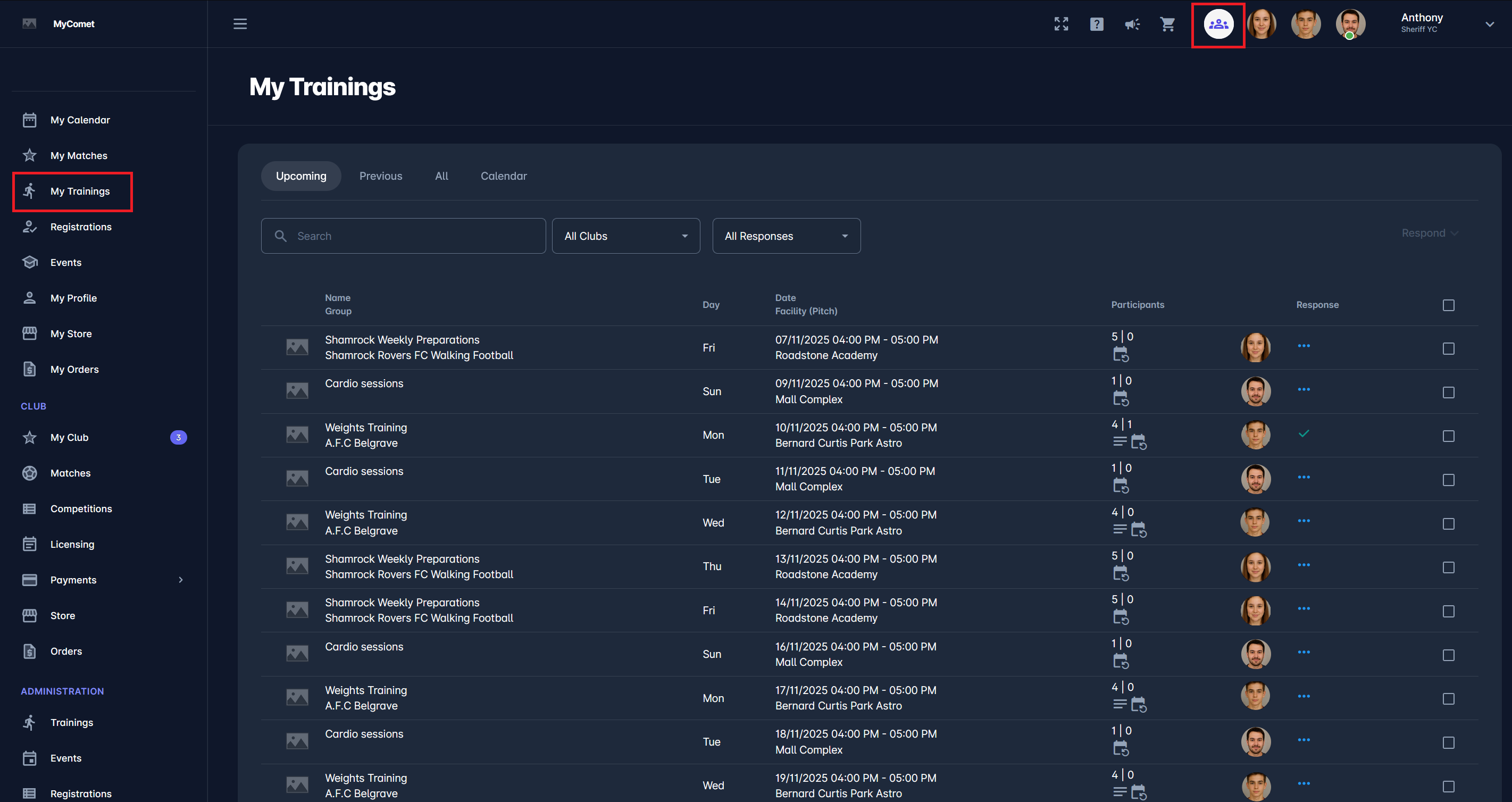
Each row in this table provides a complete overview of one training session:
-
Name / Group - Name of the training and team or club it belongs to
-
Day - Day of the week of the session
-
Date / Facility (Pitch) - Full date, time, and facility where the training takes place
-
Participants - Number of players and pending responses
-
Response - Player attendance status (Attending, Not Attending, or Unknown). The photo next to the response shows which profile the session belongs to.
-
Checkbox - Used to select sessions for quick actions. It allows the user to choose one or multiple sessions for bulk actions, such as responding to several trainings at once.