
Match Officials
Match Officals – Visibility, Workflow, Appintment, Kits
The Officials tab is used to manage all match appointments, including referees and other match-related roles. From this screen, authorized users can assign officials, manage their statuses, communicate with them, and perform batch actions.
Officials
Officials List
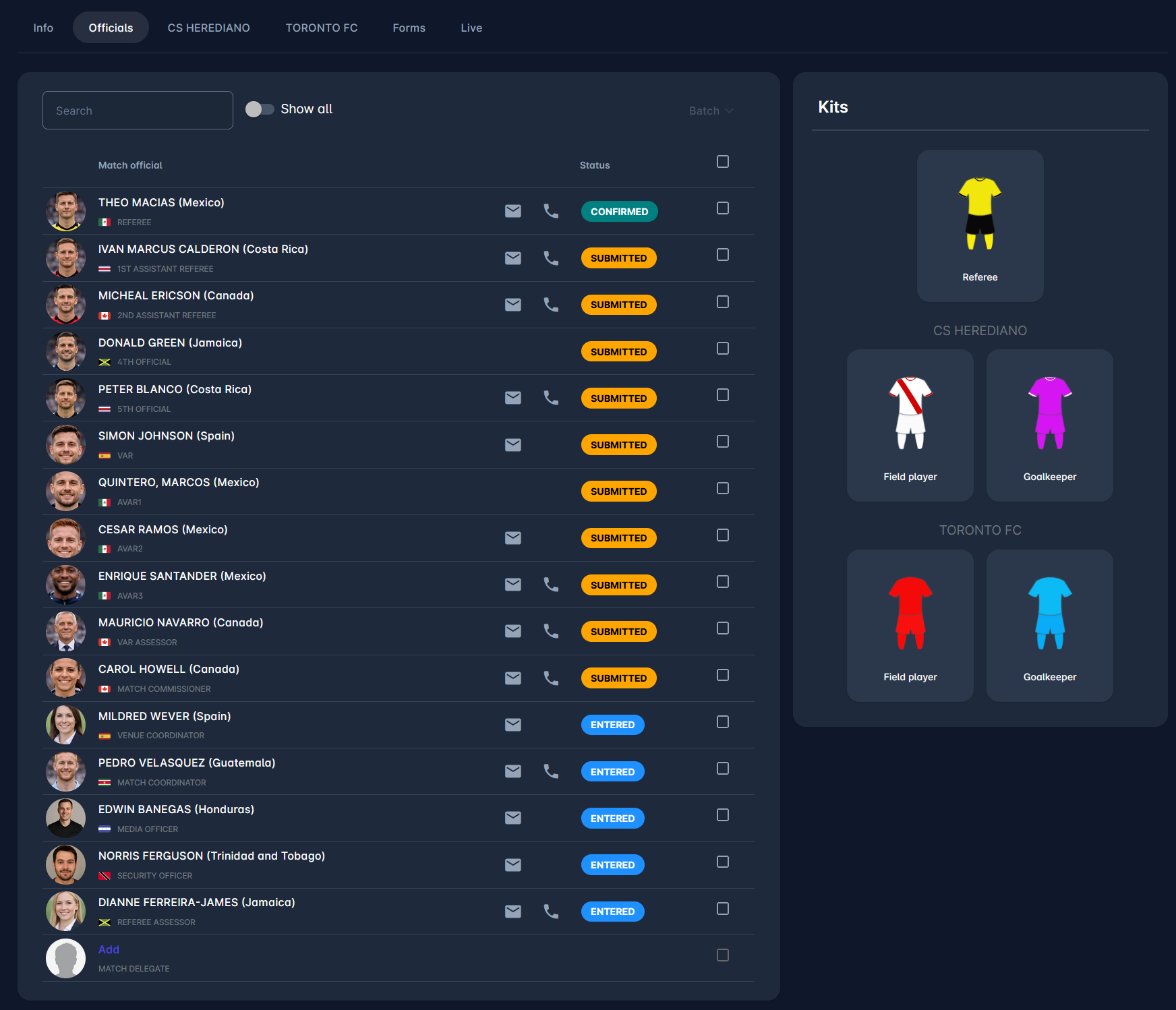
The central table displays all match official roles that can be added to a match. It displays appointed match officials, along with the empty official roles where to official is yet to be added.
Displayed Information
Each row contains:
Official photo
Full name and nationality
Assigned role (e.g., Referee, 1st Assistant Referee, VAR, Match Delegate, etc.)
Contact icons:
📧 Email
📞 Phone
Status badge
Selection checkbox (for batch actions)
Statuses
Officials can have different appointment statuses, which are displayed with colored badges in the Status column:
ENTERED – Initial state after assignment
SUBMITTED – Appointment submitted
CONFIRMED – Appointment confirmed
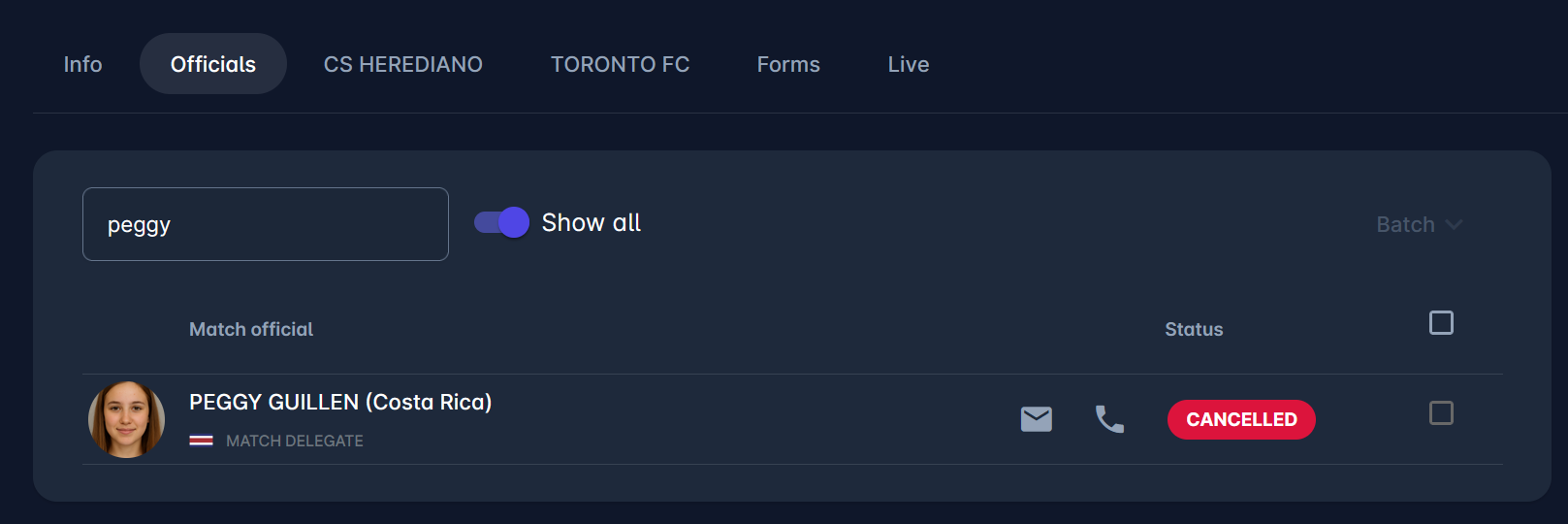
CANCELLED – Appointment cancelled. Note that officials with this status are displayed only when the Show all switch is enabled.
The Search field, located above the officials list, allows filtering officials by their displayed name.
From the officials list:
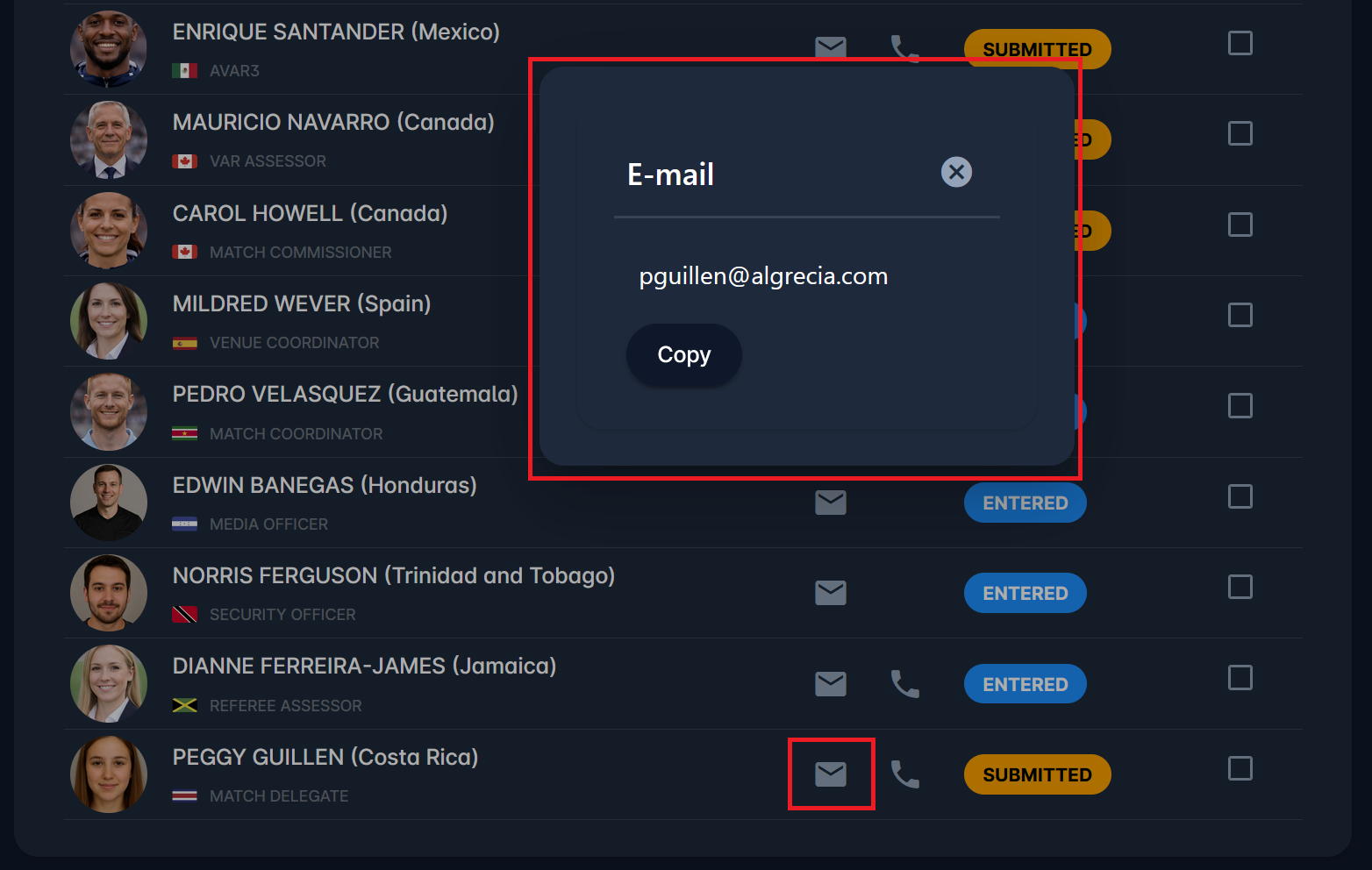
Clicking the 📧 email icon opens a pop-up that displays the official’s email address, with a copy option.
Clicking the 📞 phone icon displays the telephone number.
These actions allow quick contact without leaving the match screen.
Appoint Match Officials
All match official roles that haven’t been appointed are presented at the bottom of the officials list. They are presented with an Add button below the match official role.
To appoint a new official (in the example on the images, it’s a Match Delegate) to the match:
Click Add at the bottom of the officials list.
A selection modal opens.
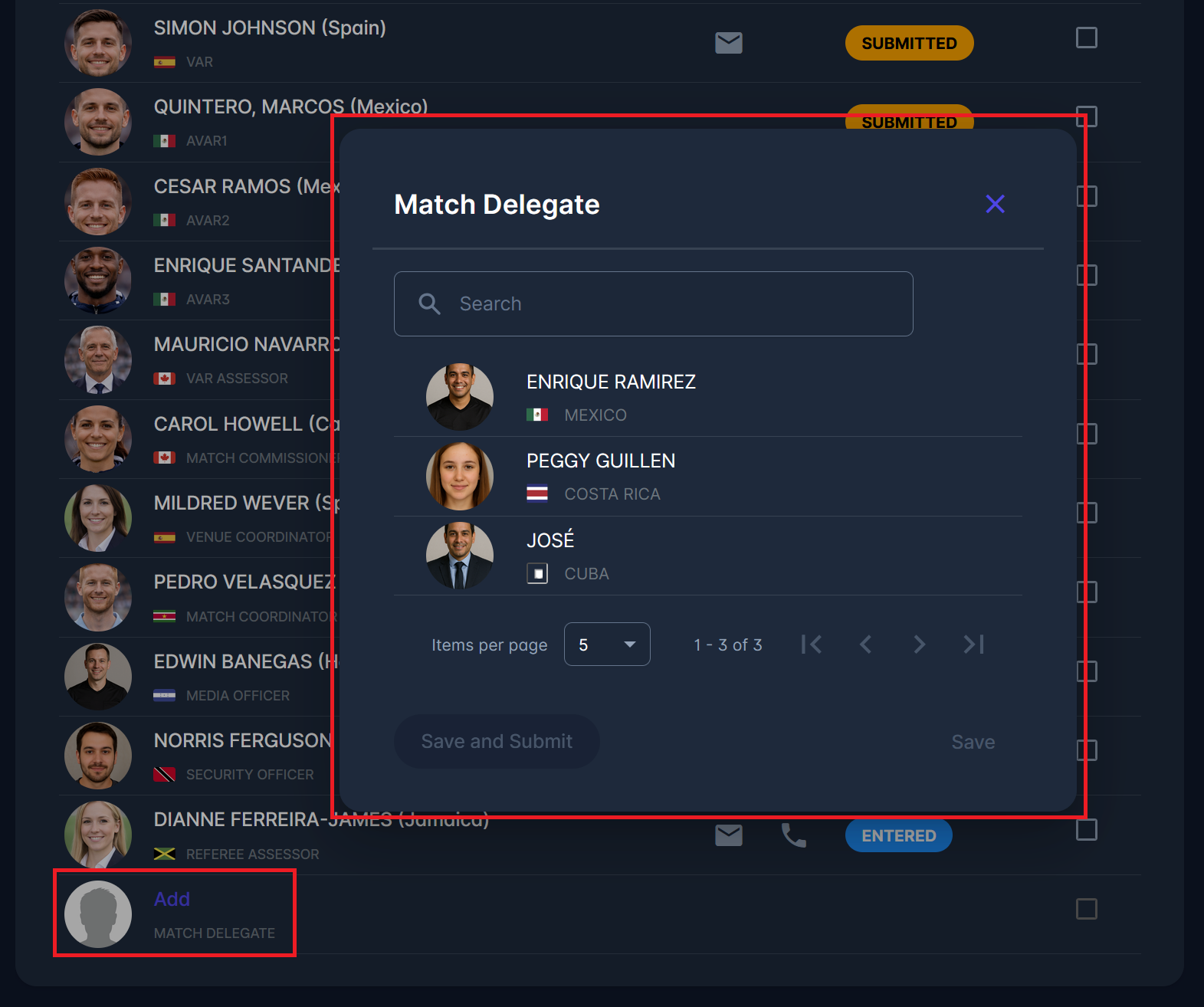
3. Use the Search field inside the modal to find the official.
4. Select the desired person from the list of available match officials with that role.
Click:
Save (to save without submitting), or
Save and Submit/Confirm (to immediately move the appointment to SUBMITTED/CONFIRMED status).
The selected official will then appear in the officials list with status ENTERED or SUBMITTED, depending on the chosen action.
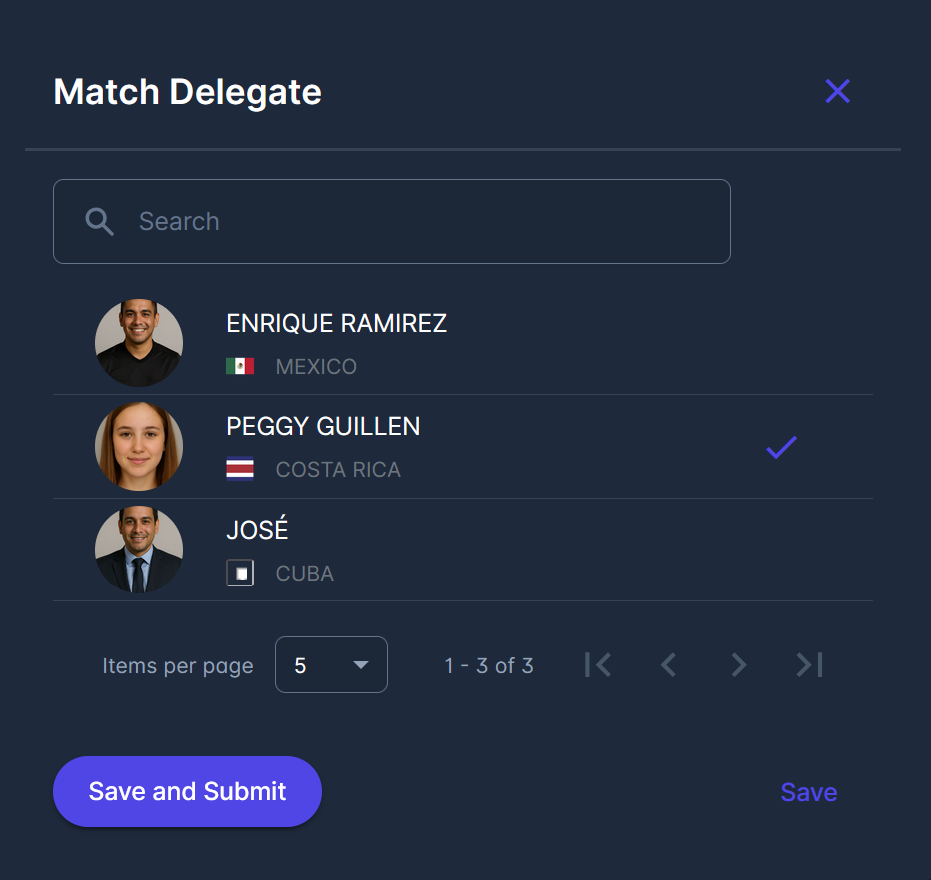
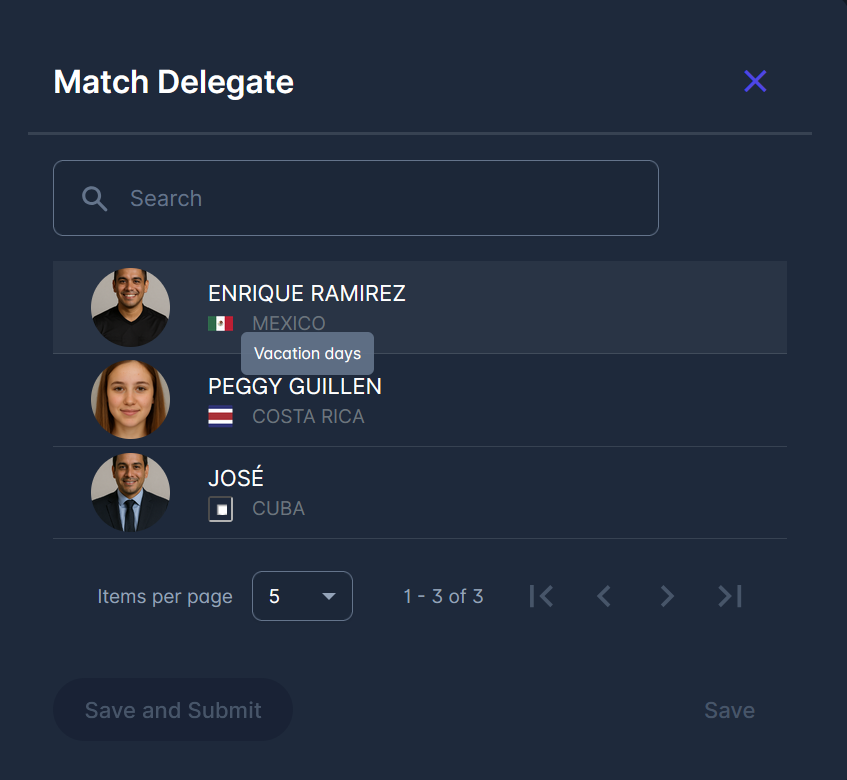
The official will now be listed with all other remaining officials in the match officials list, with its appointment status determined by the button you selected when adding them.

Appointment status depends on the Competition Type parameter, Appointment Approval. If this parameter is enabled, all appointments must be submitted before they are confirmed. Otherwise, all appointments are directly confirmed.
If the desired official has an unavailability set for the day the match is scheduled to be played, their unavailability will be indicated by their name being colored red, with the reason shown on hover over their name. However, this hover is just informative; it is not a blocker for appointing an official.
*ime officiala nije crveno kad ima unavailability, promijeniti skrin/primjer kad se to popravi
Change Status
Depending on the competition settings, confirmation of appointed Match Officials can be done by the authorized user on the match (see related section below) or by the officials themselves.
In addition to responding to their appointment via My Calendar and My next matches tab in My Matches module, match officials can respond from the match site.
As a Match Official, to change the appointment, after navigating to the match site, click the row with your name and your appointed role. Now, from the window appearing on the right side of the screen, you can select your reply. Available next statuses depend on the current status of your appointment. In the example in the image below, the 1st Assistant Referee can set their status from SUBMITTED to CONFIRMED or REJECTED.

When the match is in the SCHEDULED status, the only other appointed officials visible to the Match Official are those whose appointments have been confirmed.
*provjeriti ovo gore, uskladiti s authorizations
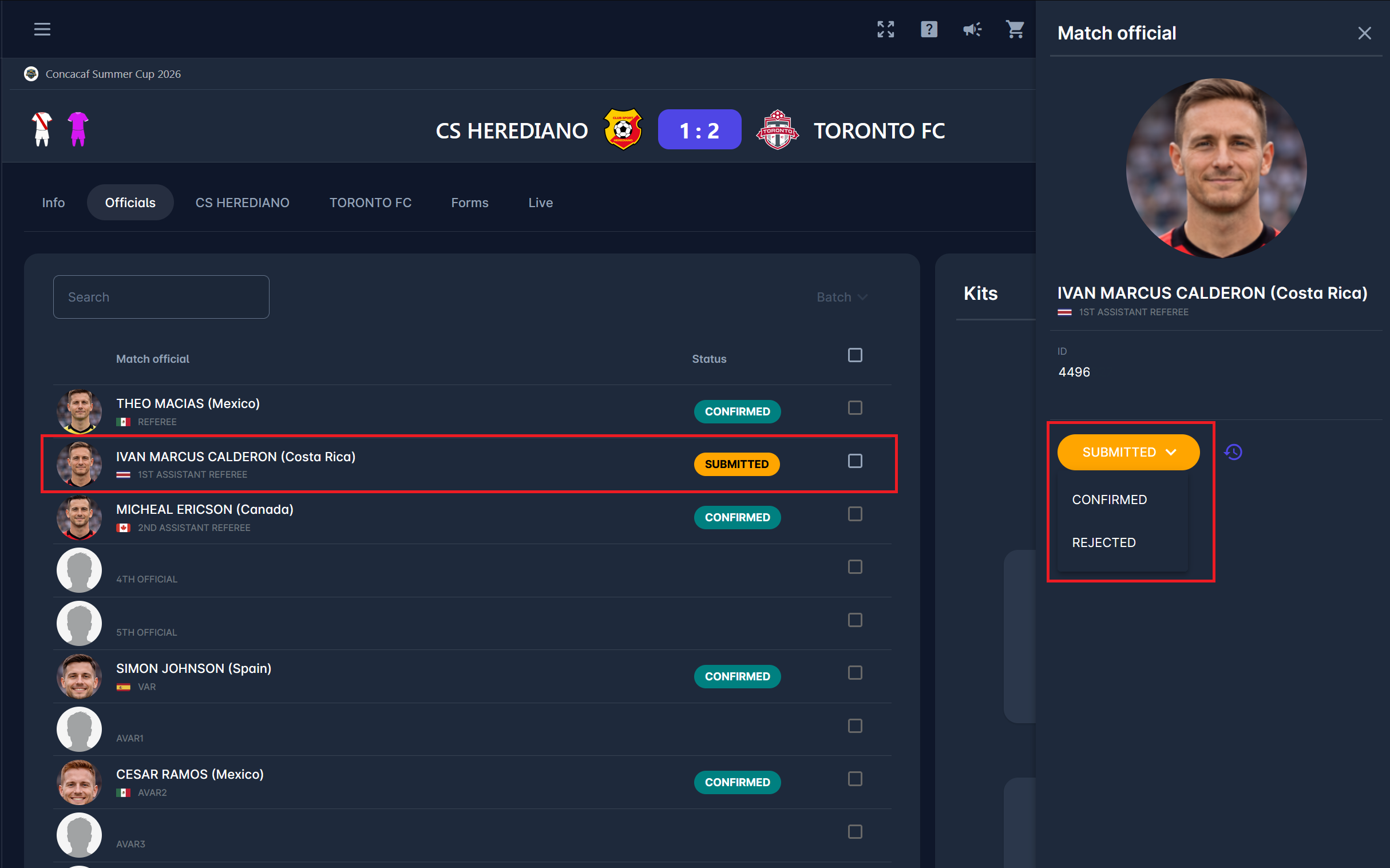
Clicking on ⏱️ button next to the appointment status previews the log of status changes.
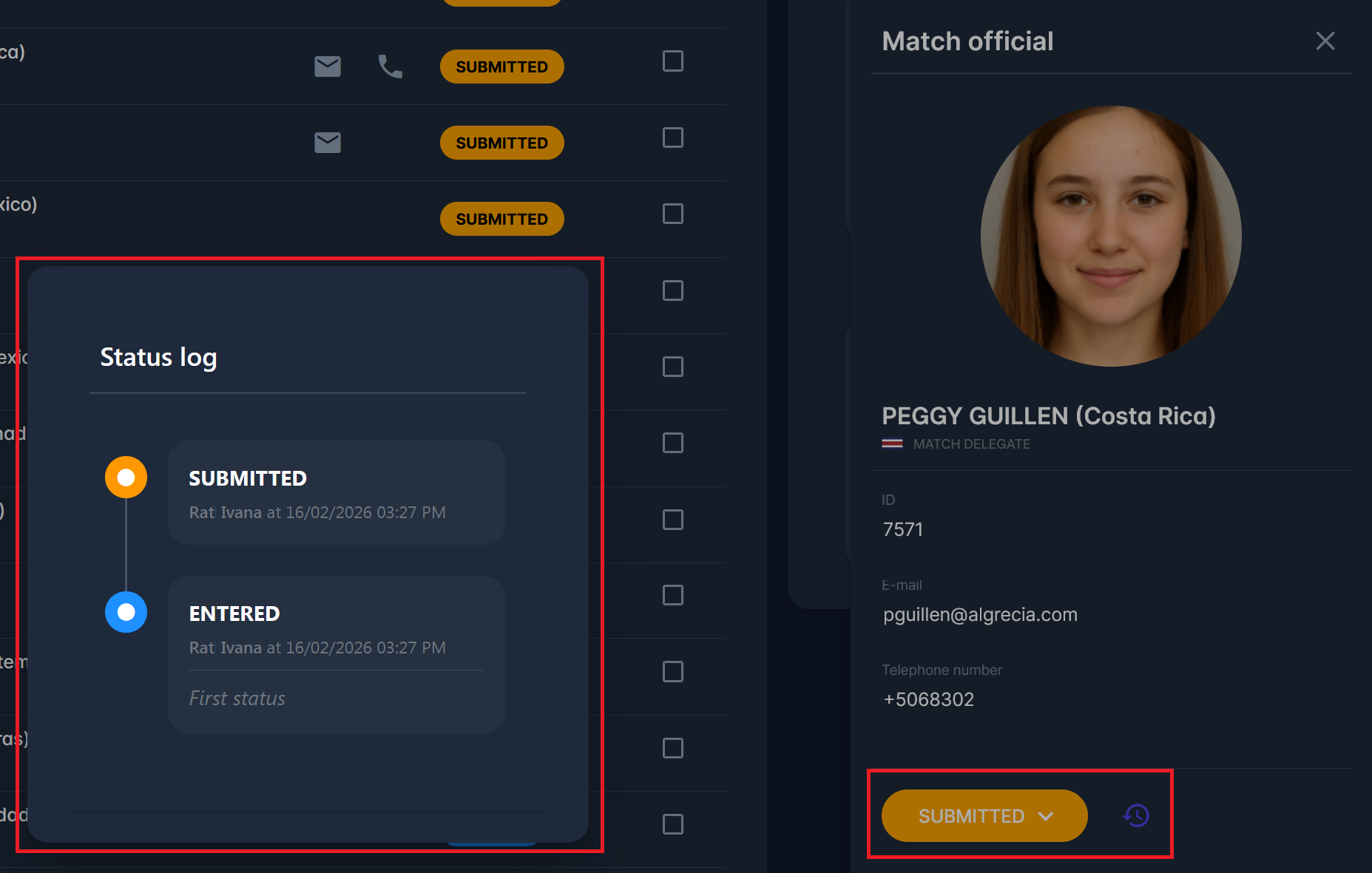
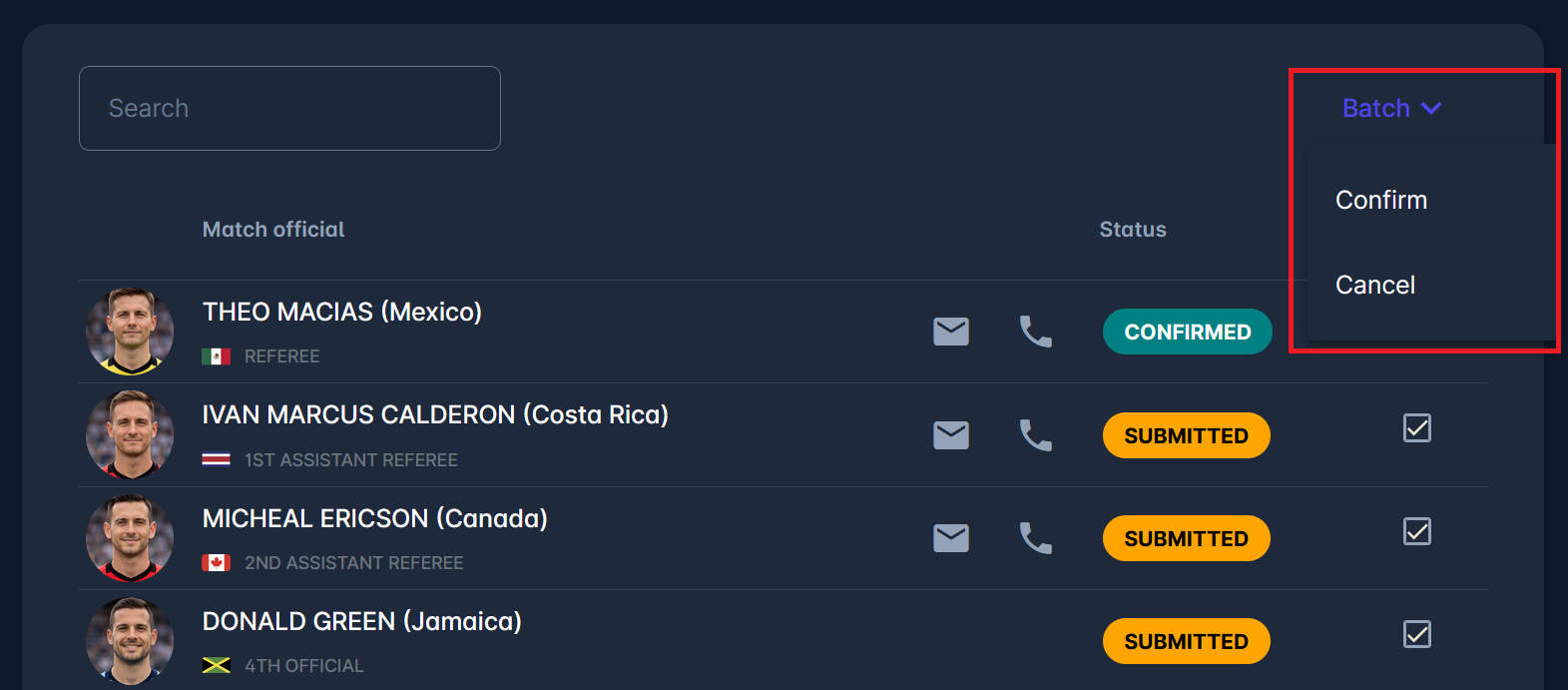
When editing appointment statuses as an authorized user, you can update multiple statuses in a batch; the Batch dropdown (top right of the officials list) allows mass operations on selected officials.
To use batch actions:
Select officials using checkboxes.
Open the Batch menu.
Choose the desired action. Available actions depend on the statuses of the officials you’ve selected and the setting of the Appointment Approval Competition Type parameter. This action can be either:
Submit → for ENTERED and CONFIRMED appointment statuses,
Confirm → for ENTERED appointment statuses, or
Cancel → for ENTERED, SUBMITTED, and CONFIRMED appointment statuses.
Confirm the action in the confirmation dialog.
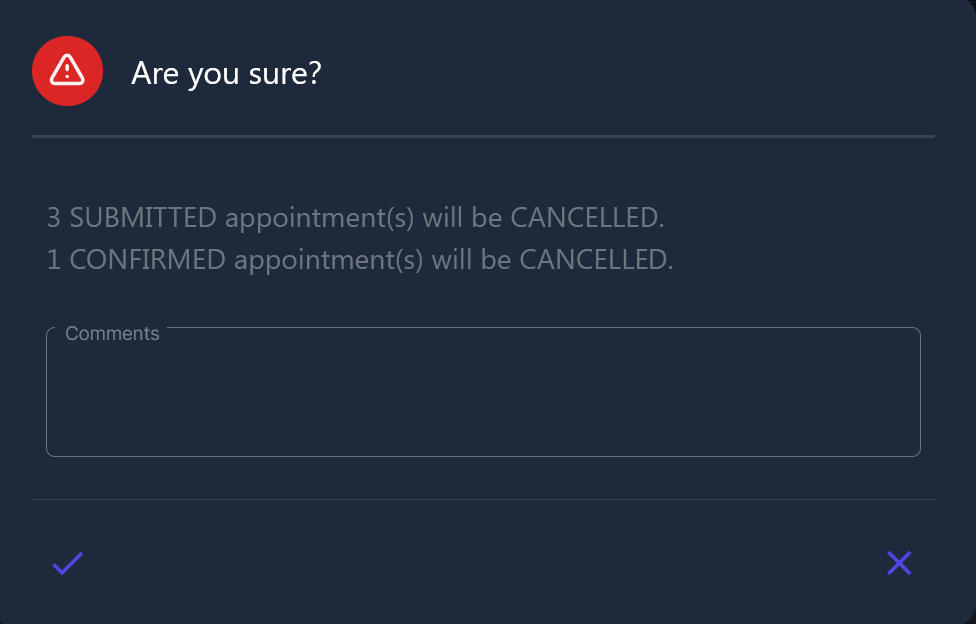
When editing multiple appointments, a confirmation dialog appears. The example below shows how many SUBMITTED and CONFIRMED appointments will be cancelled. In this case, the comments field is available and mandatory. User must confirm the action.
After confirmation, selected officials receive status CANCELLED.
Kits
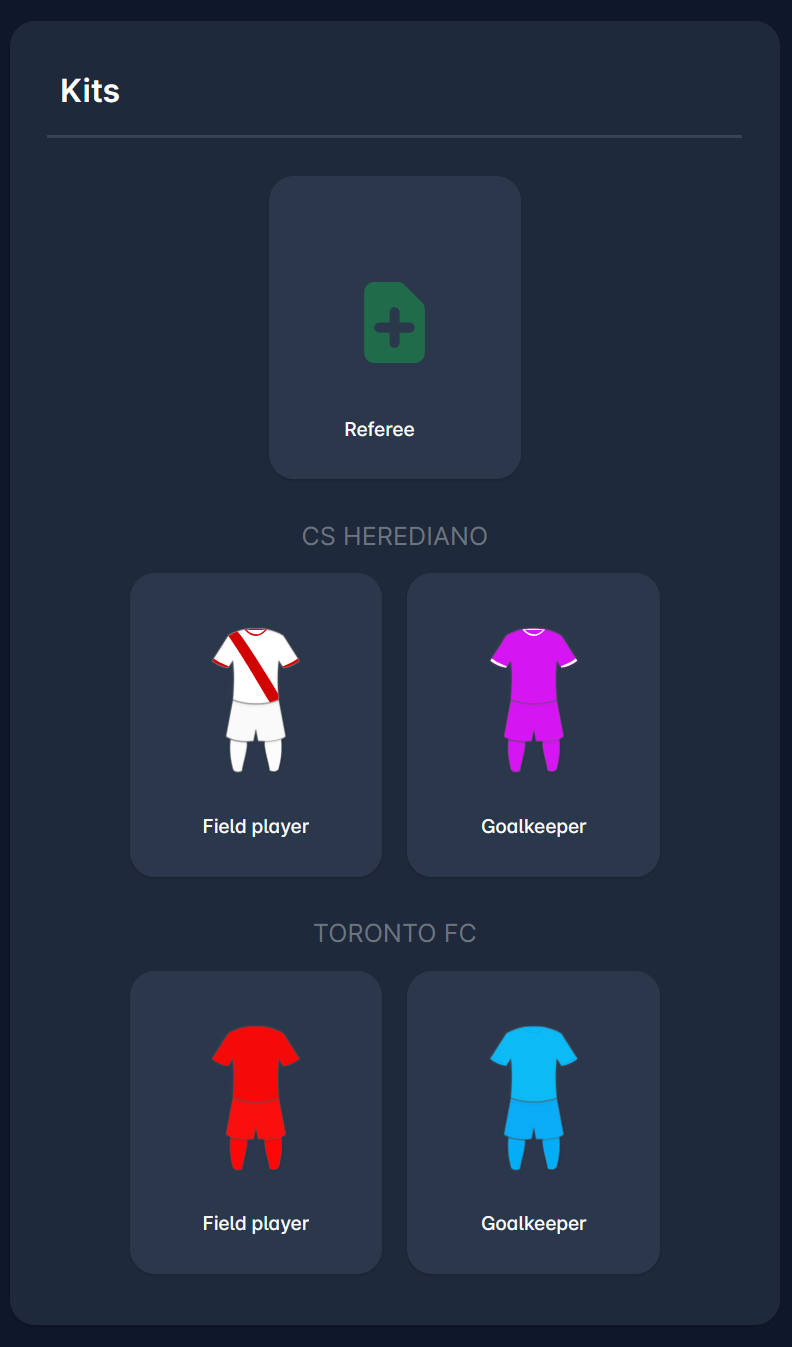
The Kits panel on the right side shows assigned kits for:
Referee
Home team (Field player and Goalkeeper)
Away team (Field player and Goalkeeper)
Even though the kits for both teams are set to be edited on their respective club tabs, they are presented here for comparison with the selected referee kit.
Assign a Referee Kit
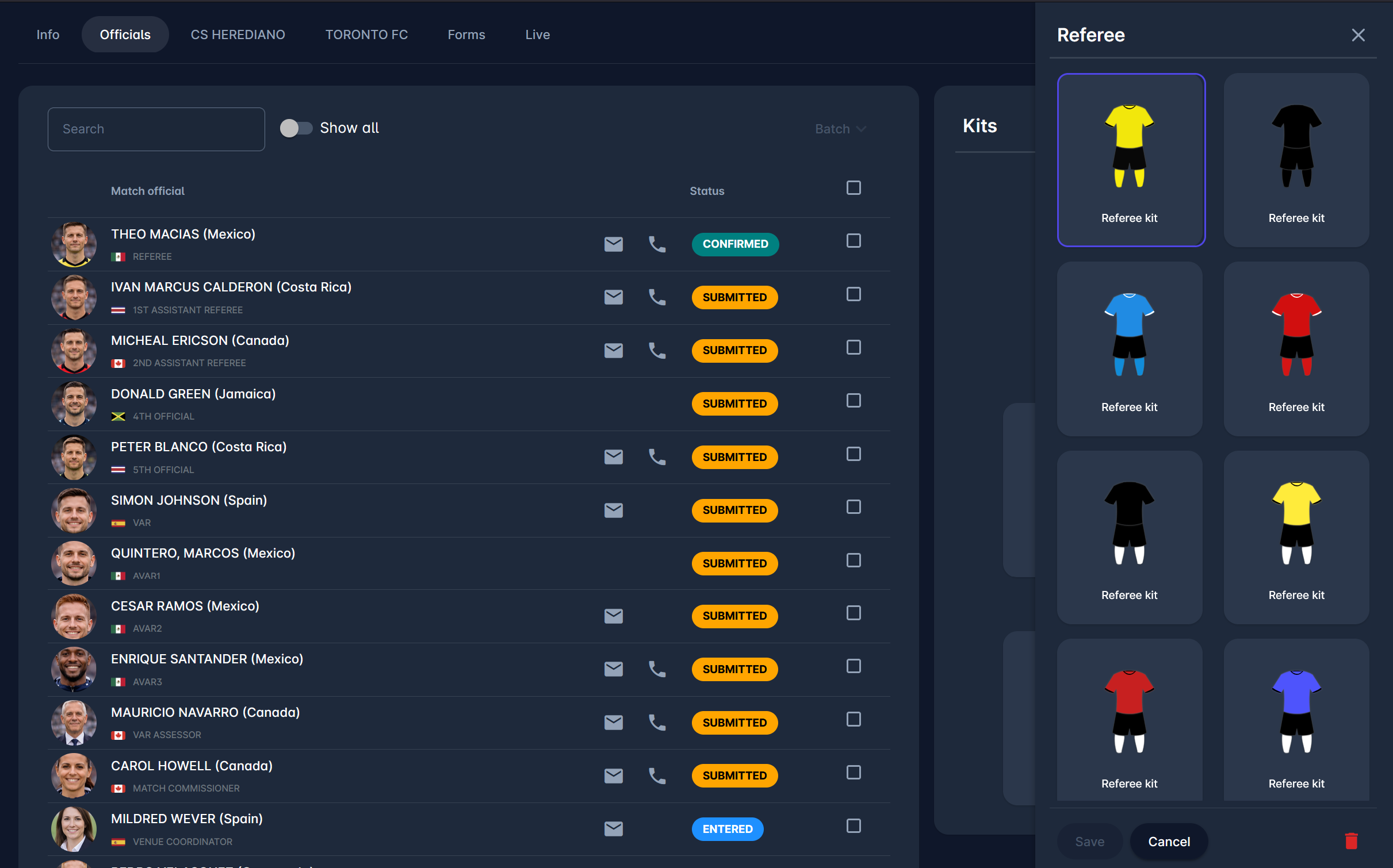
To assign a referee kit:
Click the Referee kit tile.
A kit selection panel opens.
Select the desired kit.
Click Save.
The selected kit will be displayed in the Kits panel.
Edit Authorizations
Regarding the edit authorizations of the kits in the Match Officials tab:
Superuser, Competition Admin/Manager can edit all of them in all statuses, whereas
Referee Admin/Manager and Match Manager can edit all of them in Match Statuses SCHEDULED and RETURNED
Both are applicable for Referee and Home/Away Club kits.
*tko može vidjeti kits i kad, svi koji mogu vidjeti officials tab?
Authorizations
The visibility of the Match Officials tab depends on:
Match status
Competition parameter “Minutes before Officials are Public”
User role
Match Role configuration (Private switch)
Minutes before Officials are Public parameter: if entered, the Match Officials Panel and Expense Report will become visible at this point (minutes before kick-off) on scheduled matches. If this optional parameter is not defined, standard visibility rules apply.
The Match Officials tab is always visible to Restricted Match Stakeholders.
For other users, visibility depends on timing and configuration.
Match Role Statuses | Panel/Tab visible to | CONFIRMED roles visible to | Roles in Other Statuses visible to |
|---|---|---|---|
Not Scheduled, Played, Returned, Postponed, or Abandoned | Restricted Match Stakeholders | Restricted Match Stakeholders | Restricted Match Stakeholders |
Scheduled, Played, Returned, Postponed, or Abandoned Before Minutes before… parameter | All Match Stakeholders | All Match Stakeholders | Restricted Match Stakeholders + Match Officials of that role |
Scheduled, Played, Returned, Postponed, or Abandoned After Minutes before… parameter | All Non-Member Roles | All Non-Member Roles - if the roles are configured as Non-Private All Match Stakeholders - if the roles are configured to be Private | Restricted Match Stakeholders + Match Officials of that role |
Restricted Match Stakeholders include:
Tenant Superusers
Competition/Referee Administrators (within tenant scope)
Competition/Referee Managers appointed to that competition
All Match Stakeholders include:
All Restricted Match Stakeholders, described above
Data Superusers and Disciplinary Admins of the Competition organization and above
Disciplinary Managers appointed to the competition
Confirmed Match Officials
Club Managers/Referents and Lineup Managers of participating clubs or teams