Each club team can be converted into a Training Group by enabling the Training Group option on the Team (Club) Details page.
Once enabled:
-
A Members tab becomes available.
-
Users with Club Roles permissions can add or remove group members.
-
Any actively registered player can be assigned to any training group, regardless of their registration status (e.g., APPROVED, ENTERED, or CONFIRMED).
To enable the training group on the team page:
-
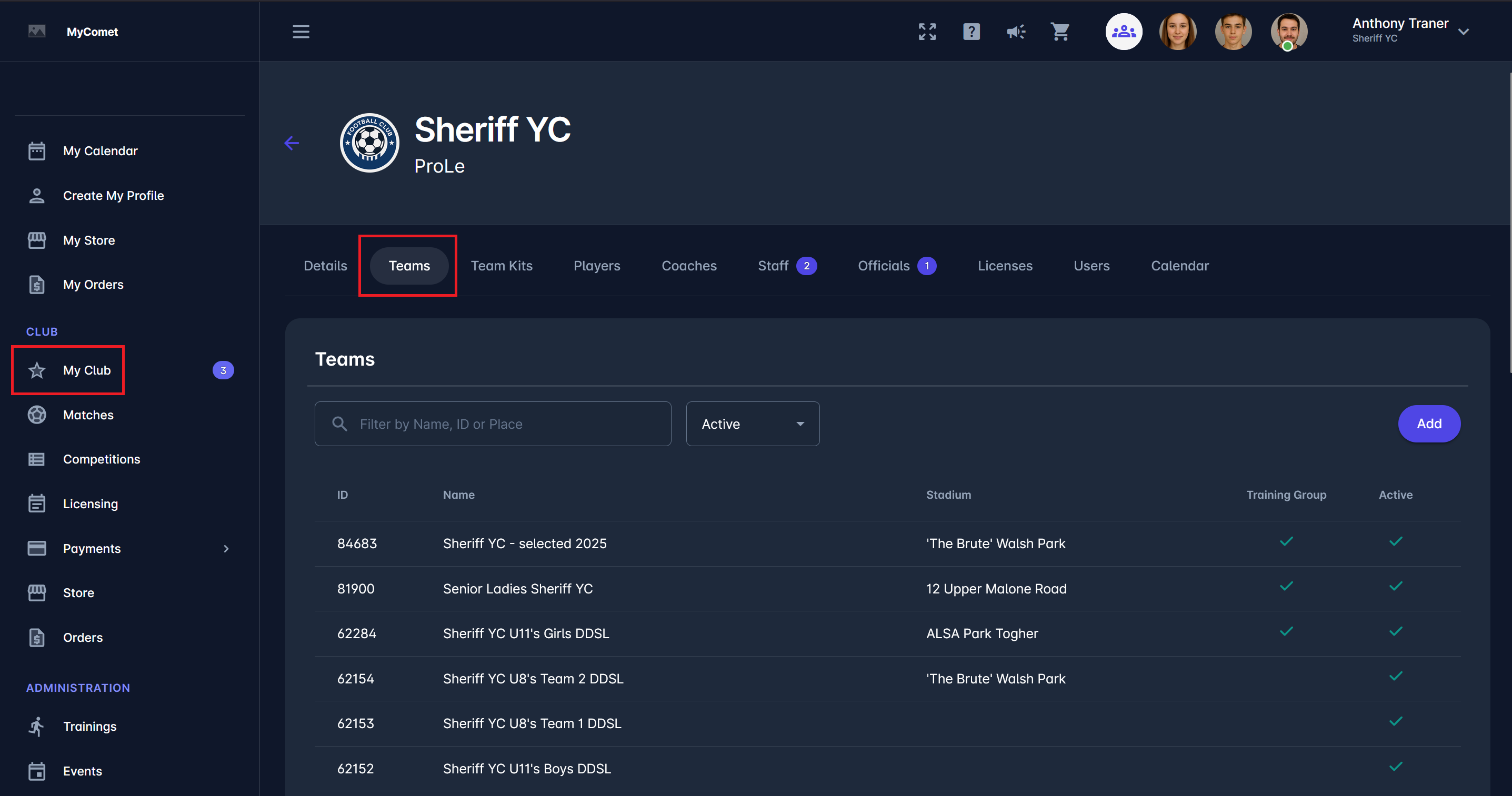
Navigate to the team site from MyCOMET → My Club menu item → Teams tab. From here, you can see which teams are also training groups - check if there is a check mark under the Training Group column. Click on the name of the team you wish to convert to a training group.
-
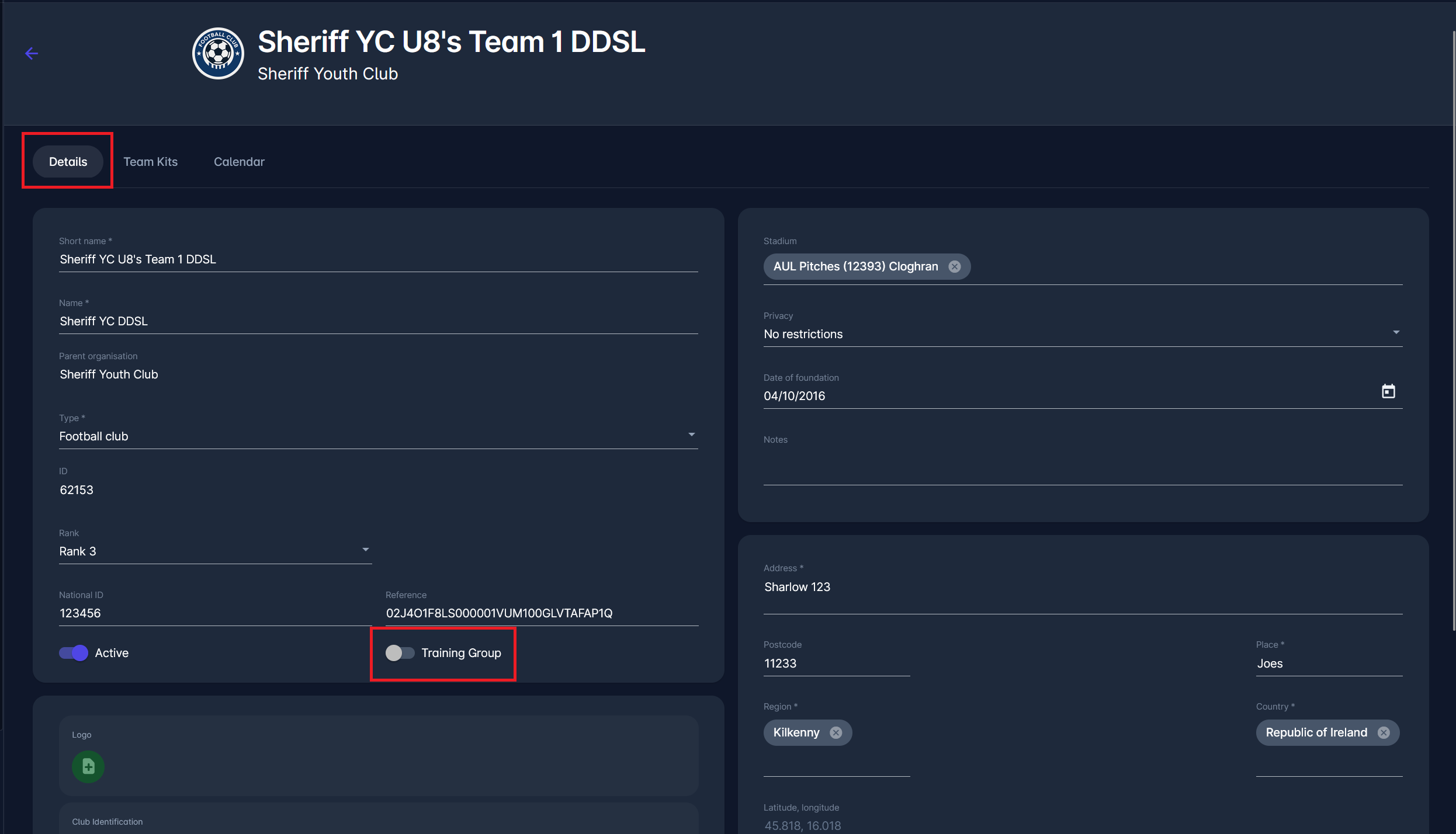
Once you enter Edit mode, enable the Training Group switch, then save the changes. Now, a new Members tab appears, listing the group members you can manage.
-
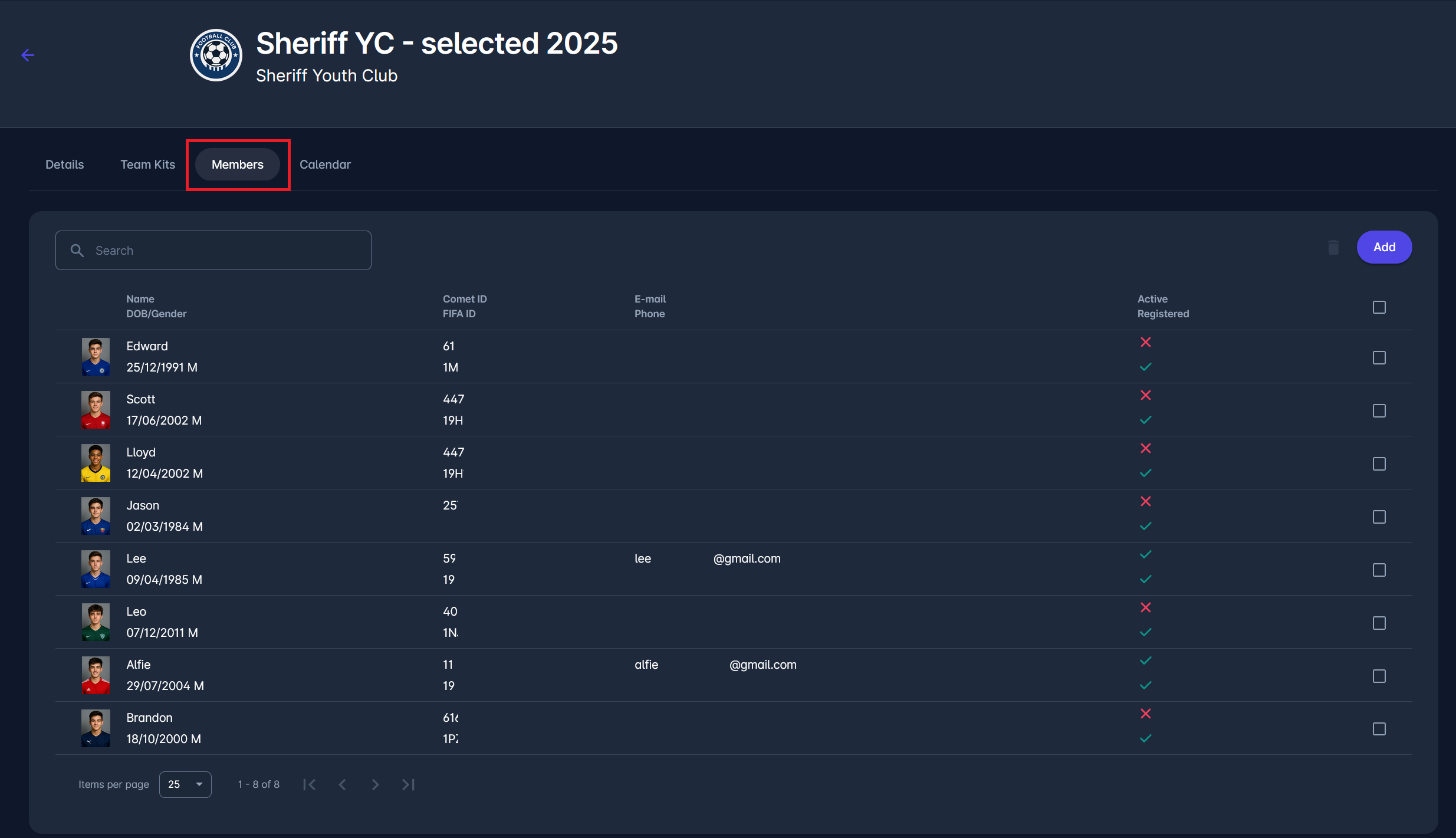
The Members tab displays a complete list of individuals assigned to the selected team for the selected season. From this view, you can quickly review player and staff details, registration status, and basic contact information.
Each row in the list contains:
-
Name, Date of Birth, and Gender – identifies each team member.
-
Comet ID / FIFA ID – unique system and international identifiers.
-
E-mail and Phone – contact details if available.
-
Active / Registered – indicators showing whether the person has an active user profile and if they are registered for the season.
-
Selection checkbox – allows administrators to select one or more members for further actions (e.g., removal or reassignment).
The Add button in the top-right corner allows you to add new players to the team. A search bar at the top helps filter members by name or ID, and the pagination controls at the bottom let you navigate larger rosters.
-
-
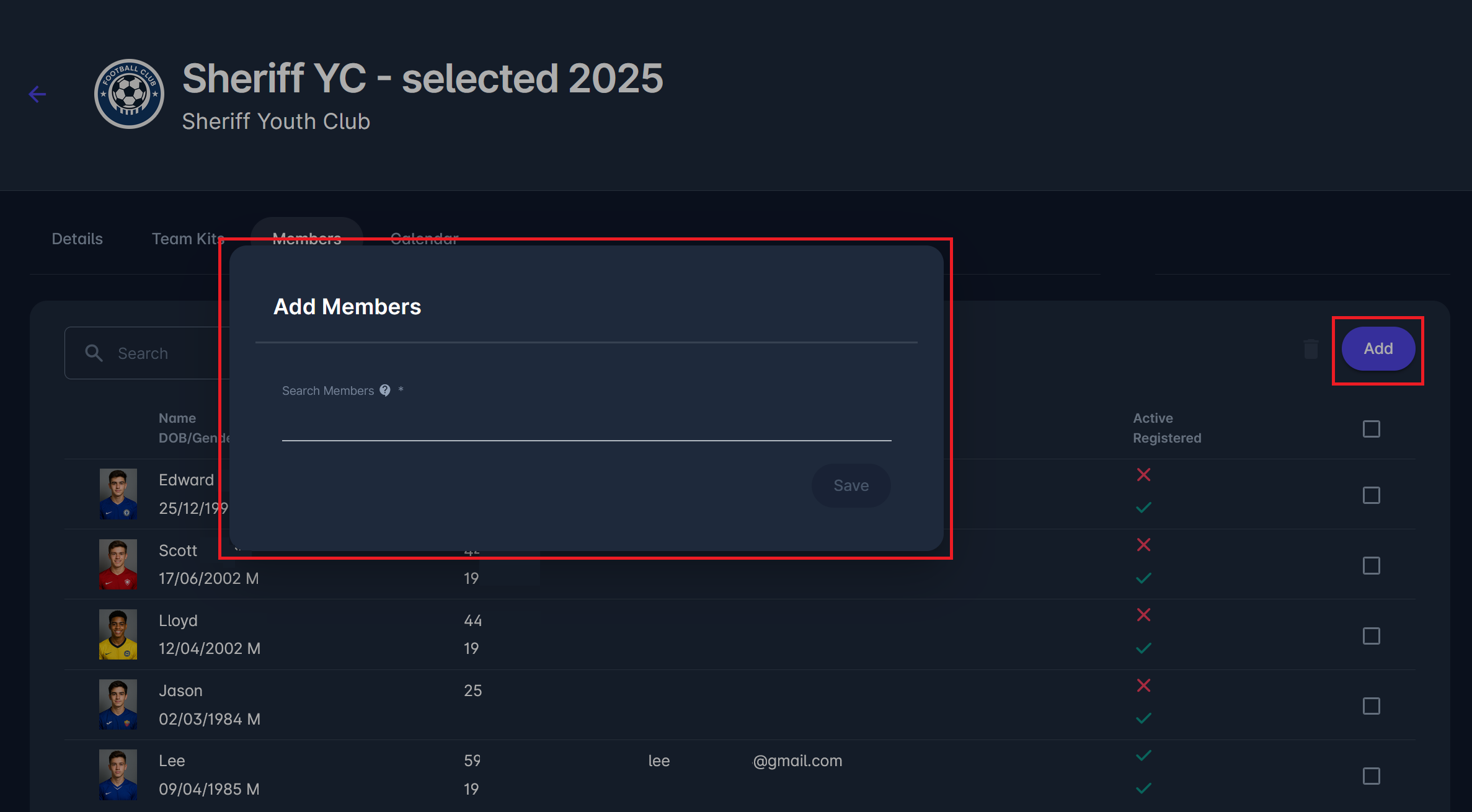
To add a new member to the group, click on the Add button. This action opens an "Add Members" pop-up, enabling you to search for players registered to your club. Find one or more players, then click the Save button to add them to the team.