The initial step of creating a survey is defining the survey questions.
-
Select ❔ Questions under the Surveys menu on the left nav-bar
-
The list of all Questions is displayed with two tabs Active*/ All, the list consists of the following details:
-
Name
-
Data type
-
Description
-
Default value status
-
The search box (use the search box to search the questions that are entered in the system)
-
-
Click on the ➕ Add button in the top right corner to create a new Survey Question
-
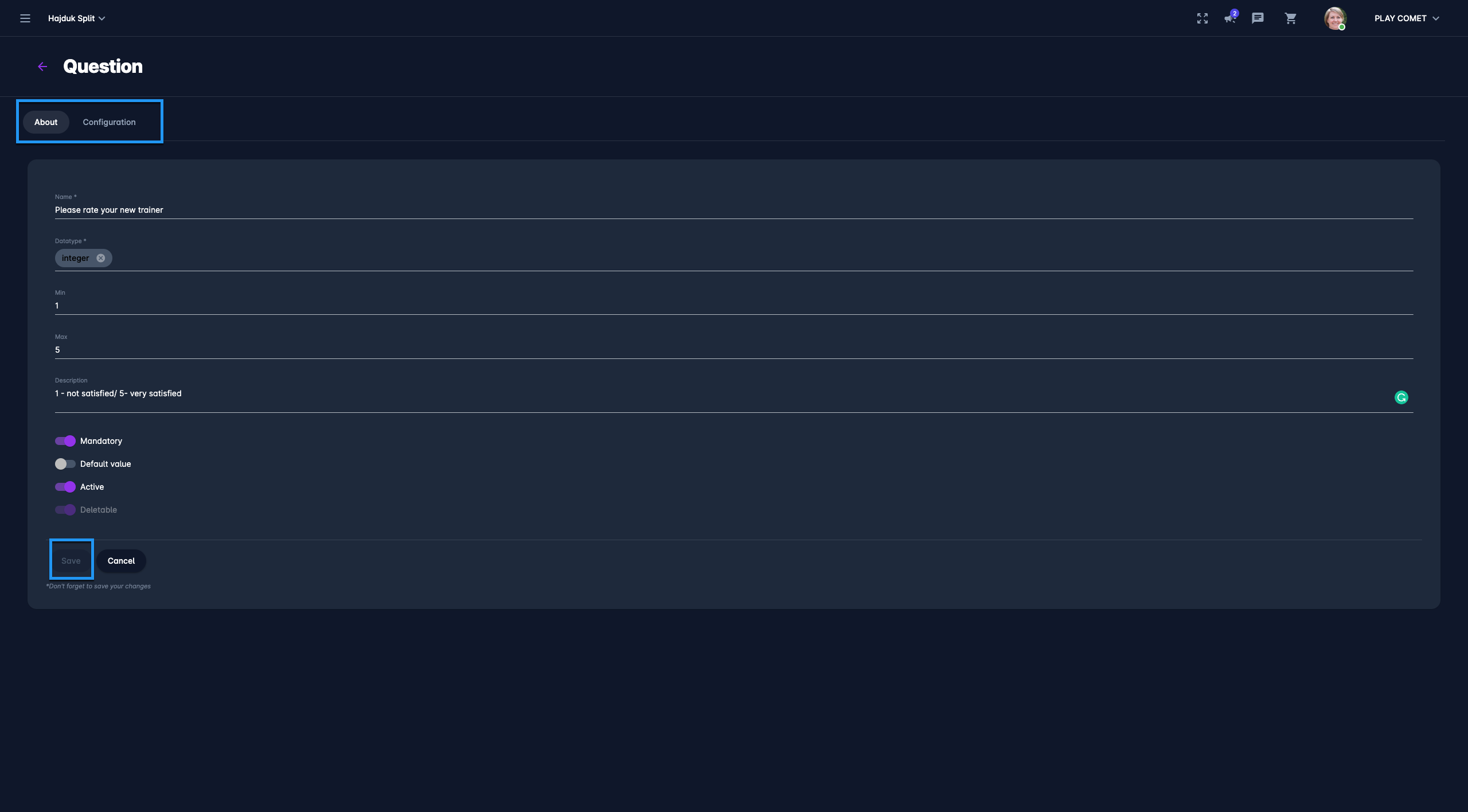
This opens a Survey Question page to fill in the details:
-
1 ABOUT TAB:
-
Name
-
Description
-
Data type - choose between:
-
integer
-
decimal
-
text
-
date
-
datetime
-
true/false
-
list
-
file
-
-
Switch on buttons:
-
Mandatory - if the question is mandatory the survey form cannot be submitted if this question entry is not filled
-
Default value - if this feature is turned on, this value will be prefilled in the question filed on New Survey
-
Active /Inactive - *only questions that are set as active can be used on surveys; inactive questions are just displayed on the All tab
-
Deletable - the questions that are set as non deletable cannot be deleted by users
-
-
Once you have filled in the data hit the Save button
-
-
2 CONFIGURATION TAB:
-
Depending on the datatype you have selected in the previous tab, on the configuration tab, you will be able to configure the data entries for the question. E.g:
-
If “date”/ ”datetime” is selected as the data type, on this tab you will be able to configure the date interval and text decoration (e.g. the color displayed in the calendar)
-
If text/ list is selected as the data type, on this tab you will be able to configure the text decoration and the color
-
-
Please take into account that Survey Questions can be stored in the system without filling the configuration tab
-
-
-
Once you have entered all the data press 💾 the Save button