
The Store feature on the COMET Football Apps allows individual users to purchase and pay for items conveniently from their mobile devices. You can access the COMET Store and purchase items such as a yearly membership, course application fees, training equipment, club merchandise, and donations.
The My Store feature in the COMET Football Apps is enabled only for those Associations that have already integrated their COMET instance with a Payment gateway provider.
Add to Cart
-
Select 🏬 My Store from the bottom command bar.
-
This will open the My Store Menu, presenting you with the names of merchants as separate tabs.
-
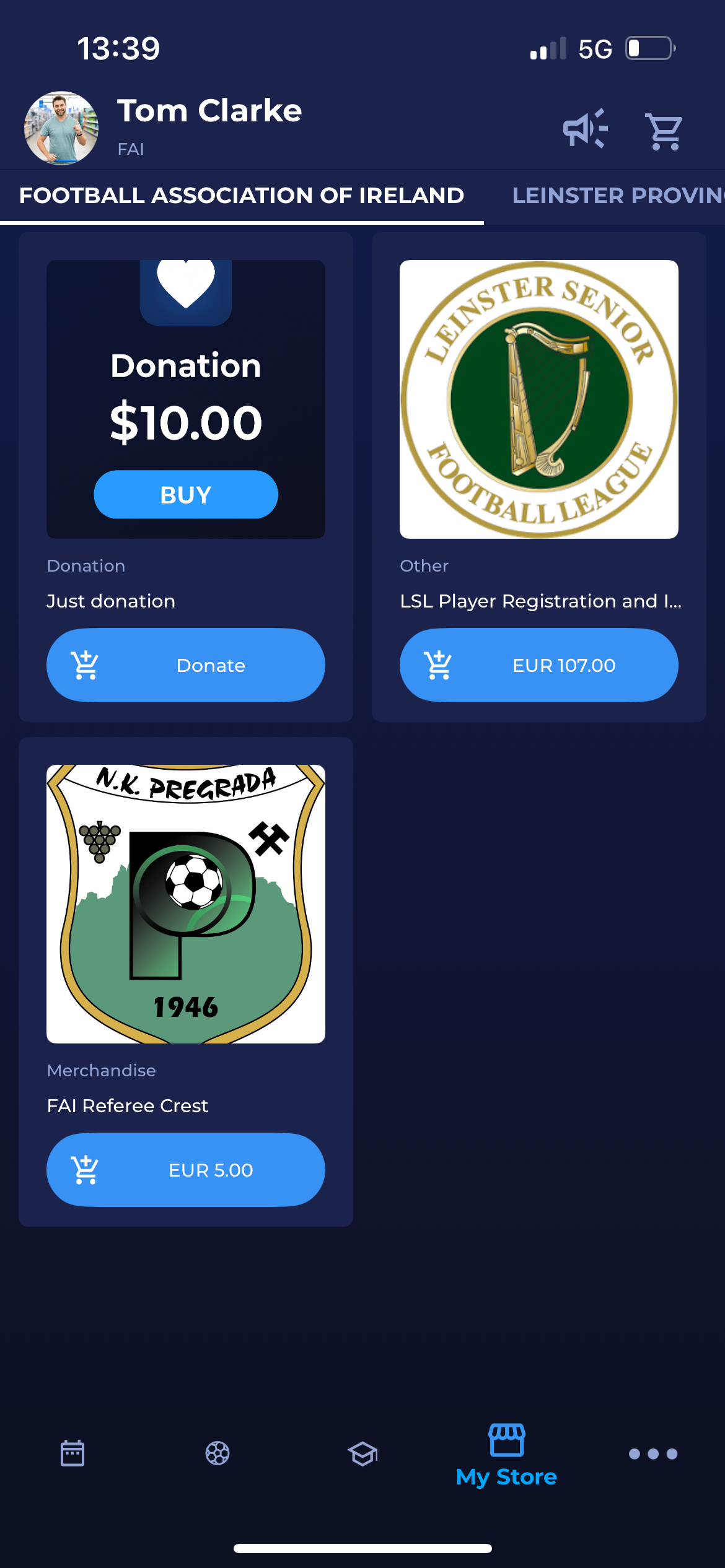
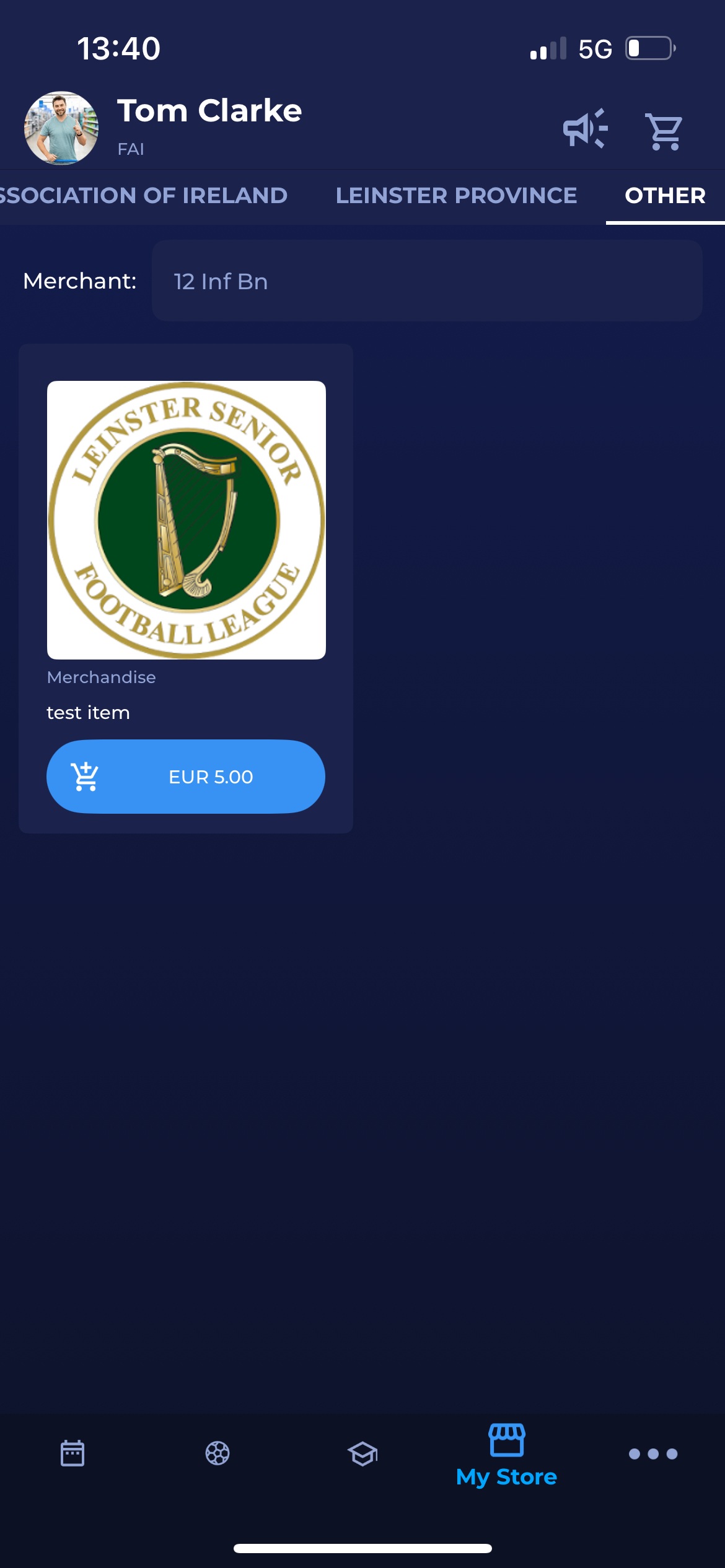
Navigate to the store of the desired merchant (association or club).
-
My Store is designed as a searchable menu, i.e., items can be searched/ filtered by their name.
-
The list of all active items will be displayed, along with the item price indication.
-
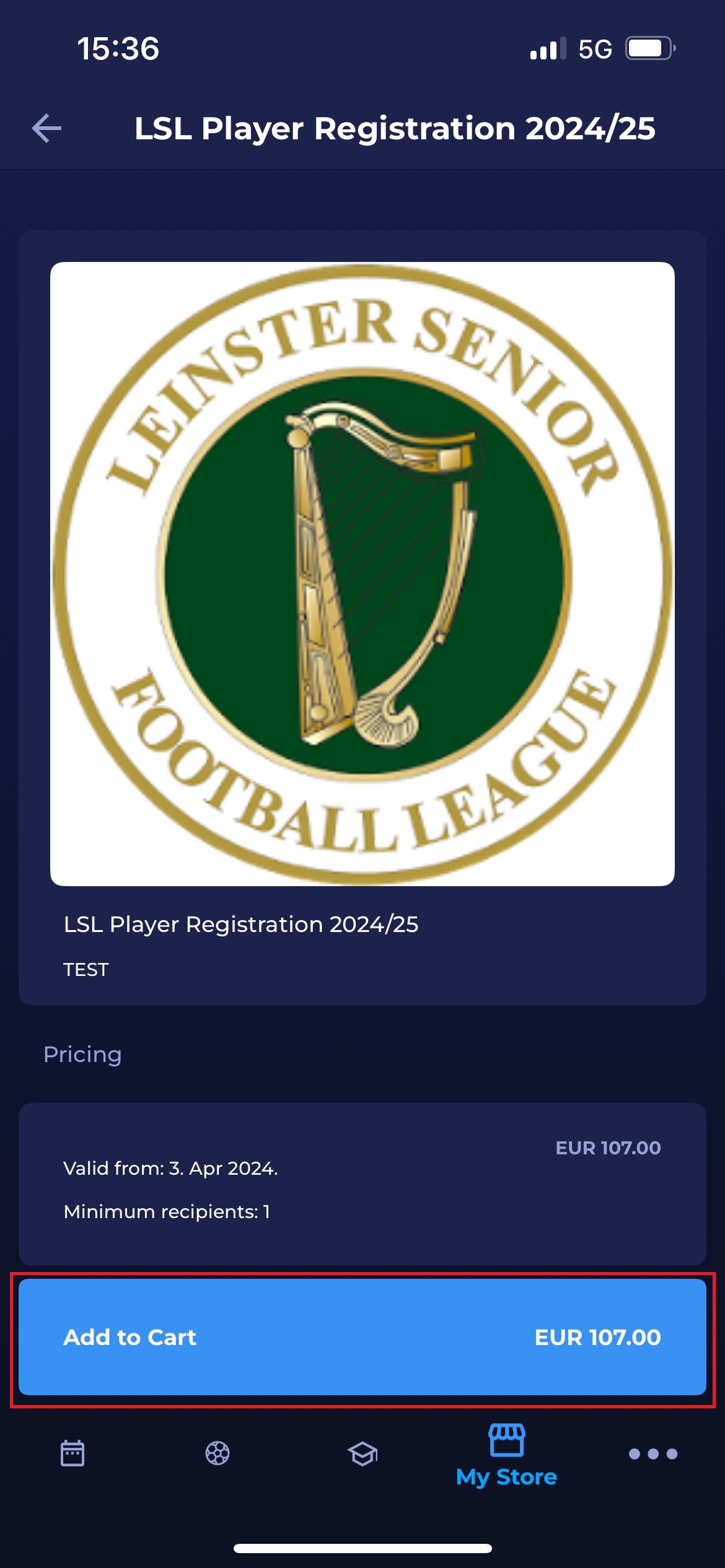
Click on the item from the list to open an item page with more details and pricing specifications
-
Hit the button with the 🛒 Cart icon button at the bottom to add the item to the cart
-
In case you want to reverse this action from this menu (not from the cart), just click on the Crossed cart icon button, and the item will be removed
-
-
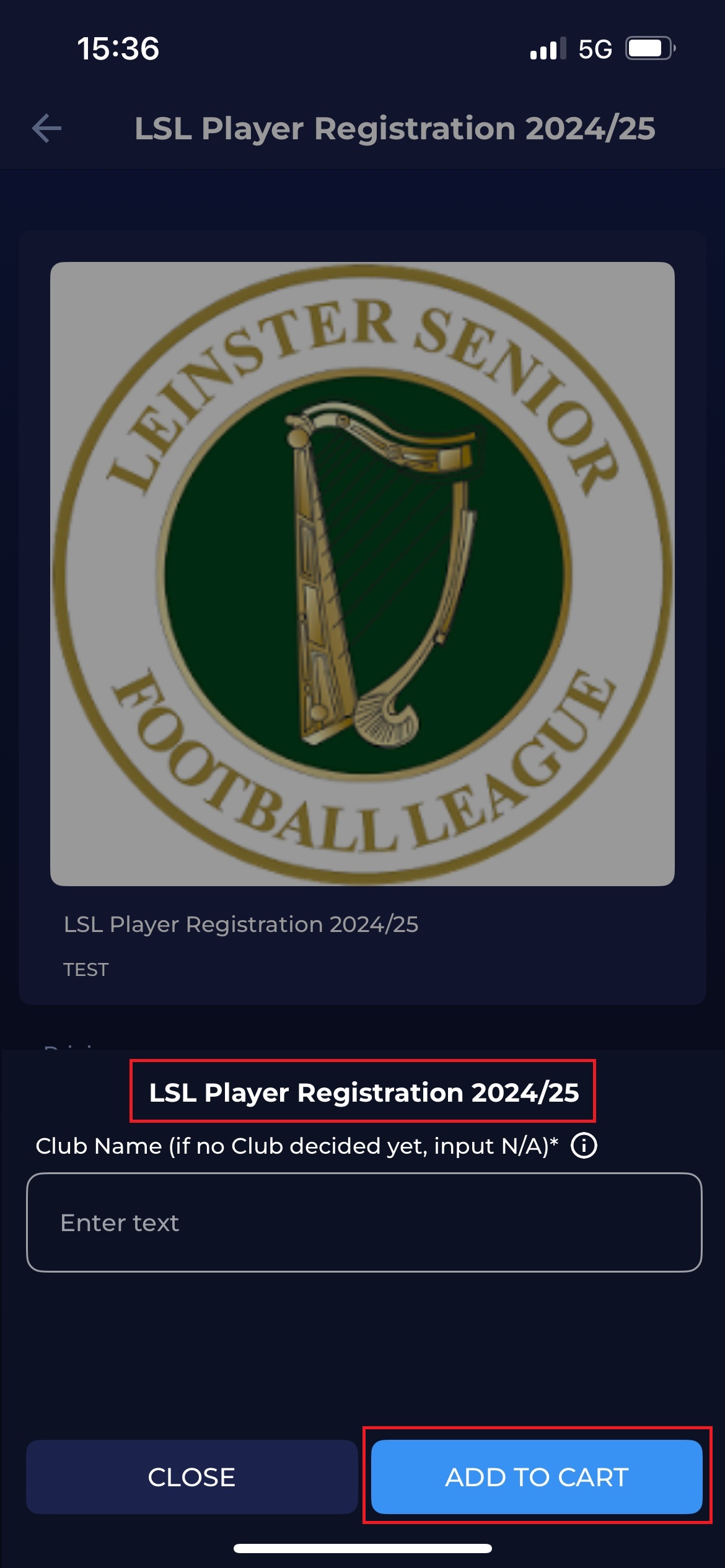
Please take into account that in case there is an item survey linked to the item you need to purchase, you will need to submit the answers to the survey before adding the items to the cart:
-
Submit the answers for the survey and hit ADD TO CART BUTTON
-
Checkout
Once you have added the items from the store to your cart, you can proceed with your purchase.
-
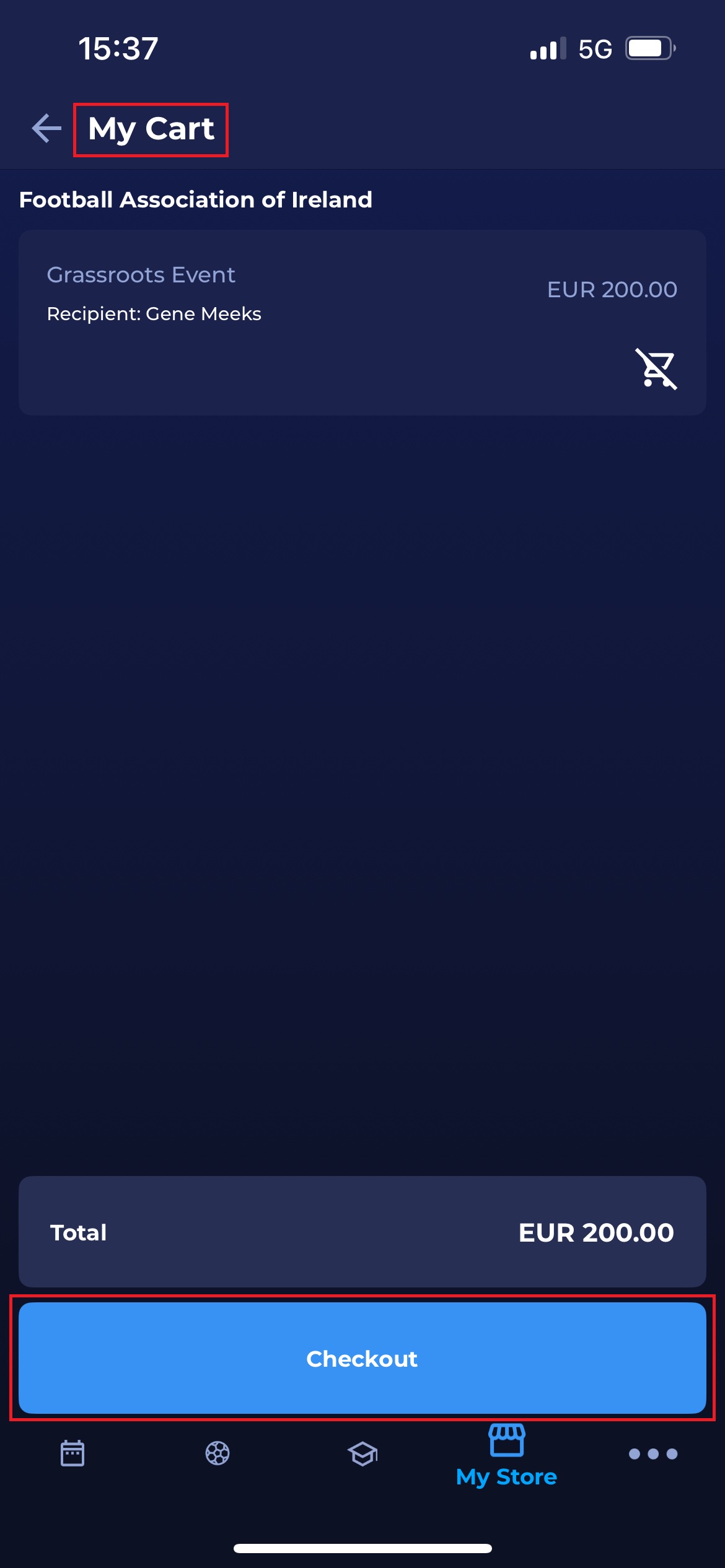
Hit the 🛒 Cart icon button on the top right side of the screen
-
This will open 🛒 the Cart Summary with the cart content
-
Review the cart items (hit the Crossed cart icon to remove the item if necessary)
-
Hit the Checkout button to proceed with the payment
-
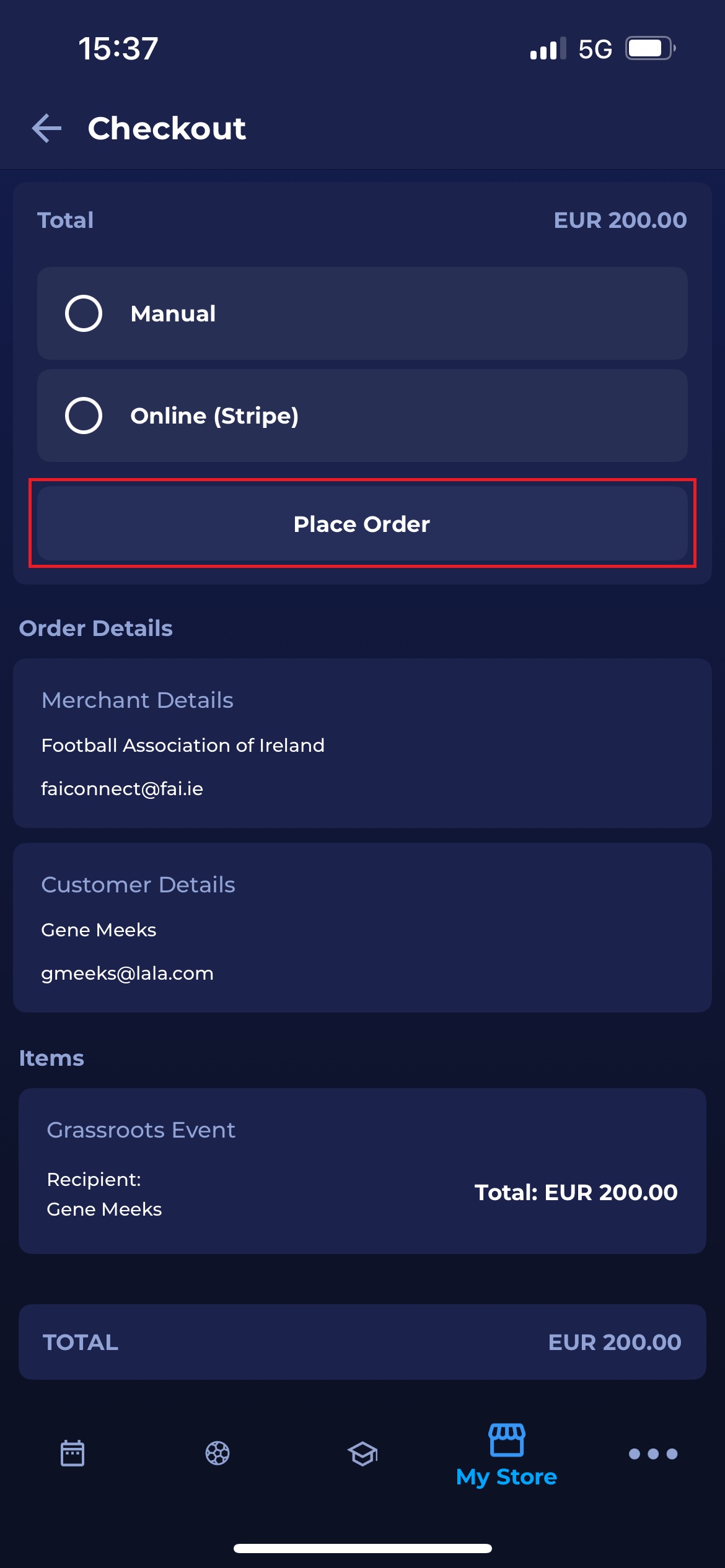
This will open the Checkout menu with the following information:
-
Payment options
-
Order details:
-
Merchant Details
-
Customer Details
-
-
Items
-
Total Sum
-
-
Choose a payment option (e.g., Manual, Stripe)
-
Hit the Place Order button.
Manual Payment
If you have selected 'Manual' as the payment type, you will receive a message stating that the order has been placed. However, the payment must be confirmed manually by the Admin as official confirmation that the organization has received the manual payment.
You can hit the View Orders details button to review the details of the placed order or to proceed with the non-manual payment option (if you have changed your mind).
From the My Orders Menu, you can see the status of your payments.
Online Payment
In case you have selected Stripe (or another online option) as the payment type:
-
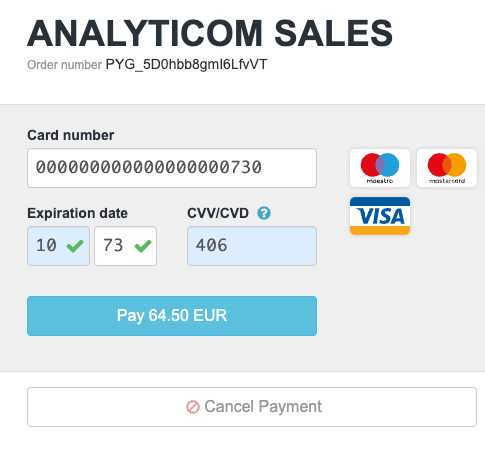
You will be redirected to the Payment Gateway (in the case of Quick Pay)
-
On the Payment Gateway page, you will be able to pay by credit card by entering your credit card details
-
-
The Stripe dialog menu will open, allowing you to enter the card details for the payment.
After the purchase is completed in the external gateway, you will be able to retrieve the Order details, indicating that the item has been paid for.
Please note that all your purchases will be listed in the My Orders section.