Club Merchants
Club Admins can define the Merchant Settings of their club, and configure payment options that will allow them to collect payments electronically.
To access and define Merchant Settings:
Access the MyComet App (by adding /mycomet to your Comet homepage address or from the direct link in COMET App)
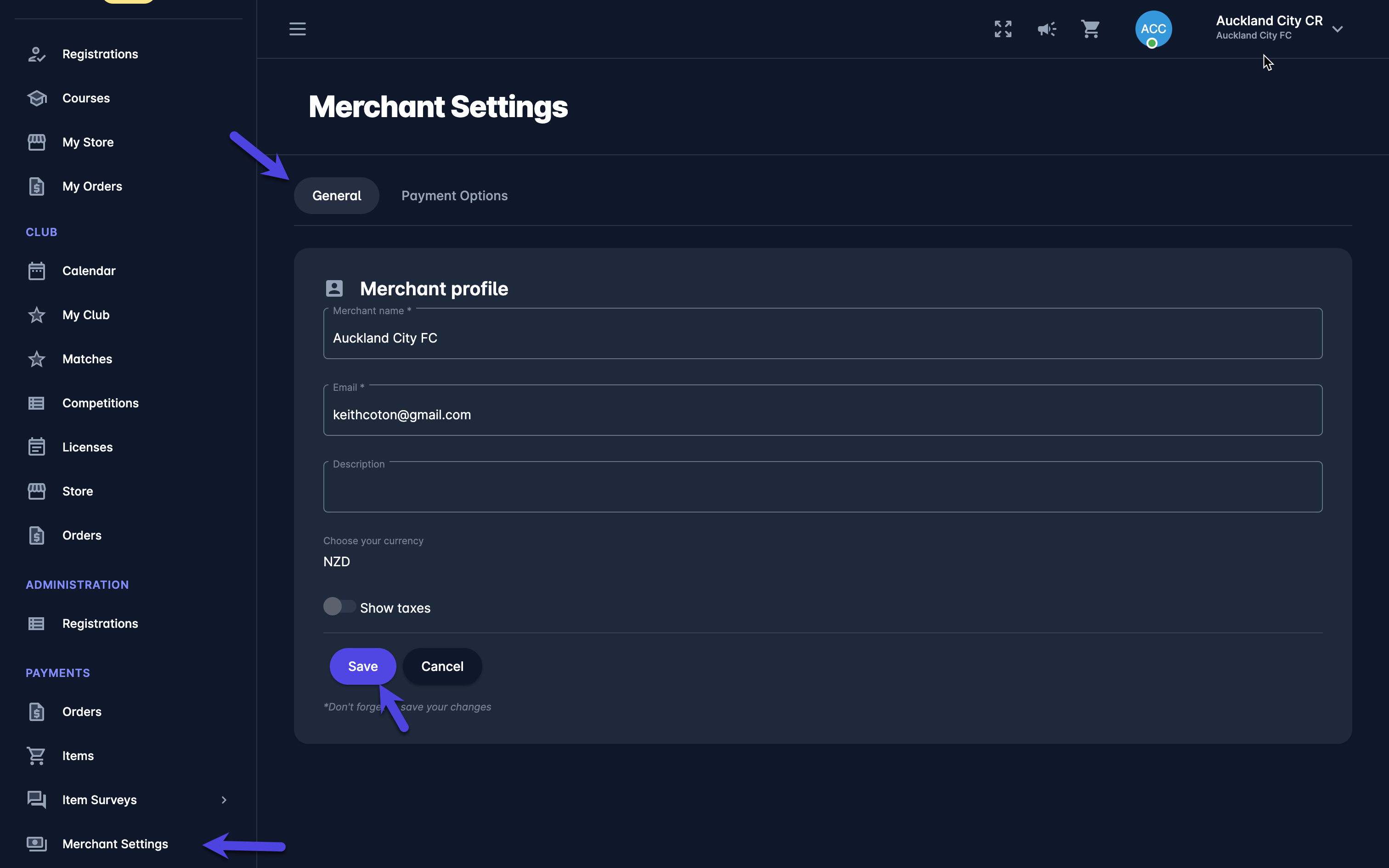
Select 💳 Merchant Settings under the Payments menu on the left nav-bar
This opens the Merchant Settings menu which consists of the following tabs:
General
Payment Options
On the General tab, you can define General Info of Merchant Profile:
Merchant name
E-mail
Description
Currency - predefined
Show Taxes - if true, taxes will be shown
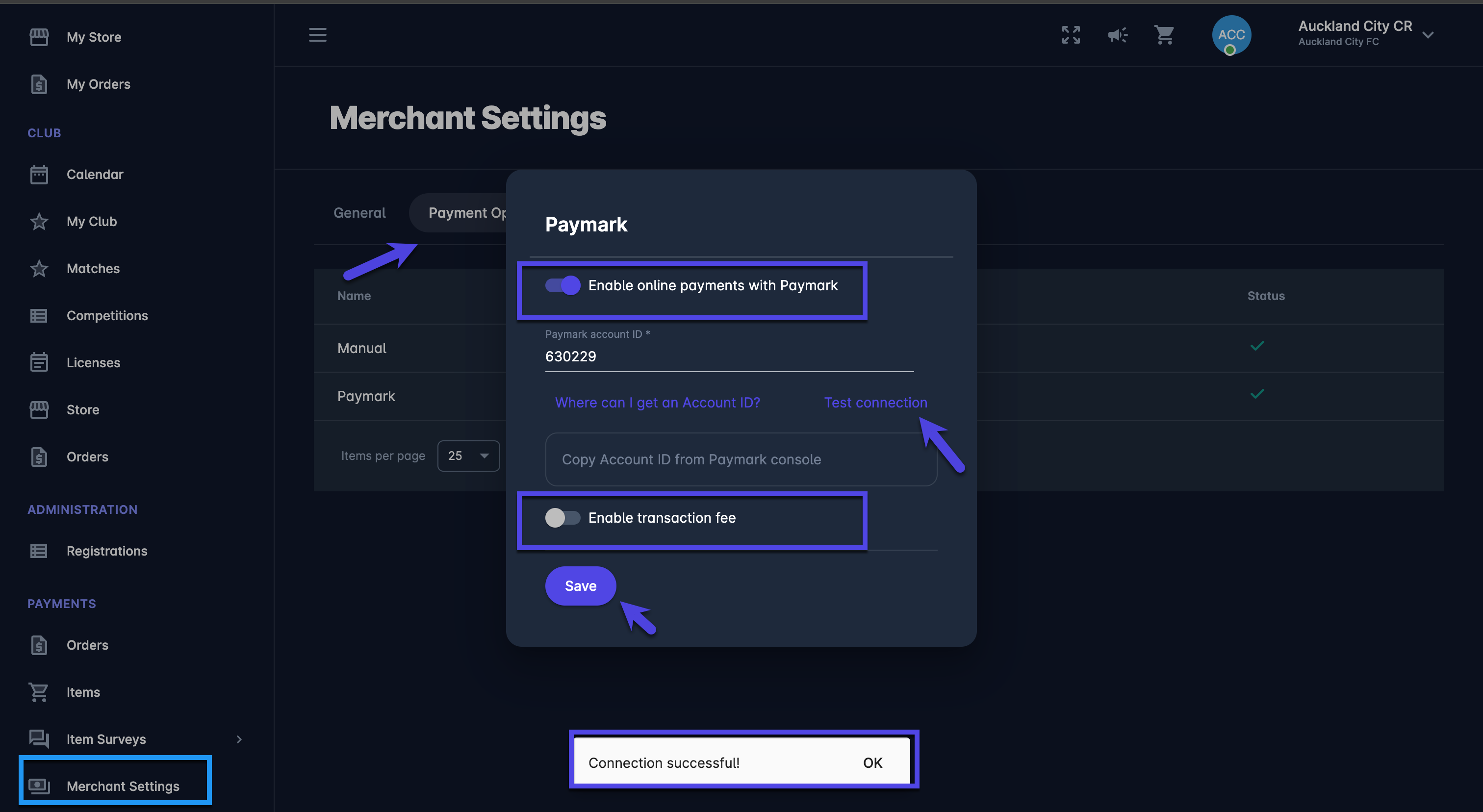
The Payment Options Tab displays the list of payment options that are configured for your tenant, in most scenarios these options are:
Manual Payment - Customers will be able to create orders for your items, without making an online payment. In this scenario, admins will need to enter/ confirm the payment manually.
Payment Gateway (e.g. Paymark, QuickPay or Stripe)- Customers will be redirected to an online payment gateway
ℹ️ A click on the option from the list will open a payment-type pop-up dialog window.
From the dialog window, you can administrate the payment options of each payment type:
Switching on/off the Enable payments switch enables/ disables the payment type to be displayed as the payment option on the cart checkout for all courses
Paymark Account ID → Copy the Account ID from the Paymark console
Use the Test connection button to test the connection with Paymerk
In the API Key field, you can enter the value from the payment gateway console
Switching on the Enable transaction fee switch allows you to enter the transaction fee (expressed in percentage or in the fixed amount) on the Payment Option from the liist
Once you have entered all the changes hit 💾 the Save button