
Event Types define how events are categorized and handled within the system. They control which licenses are associated with events, which reports are generated, and where events can be used.
Typical use cases include coach education courses (such as UEFA Pro, UEFA A, UEFA B), workshops, seminars, and licensing events.
Accessing Event Types
To manage Event Types:
-
Access the COMET Admin App (by adding /appadmin to your COMET homepage address)
-
Select General → Event Types on the left nav-bar
-
You will see a list of all configured Event Types, including their names, linked license configurations, assigned report templates, and active status.
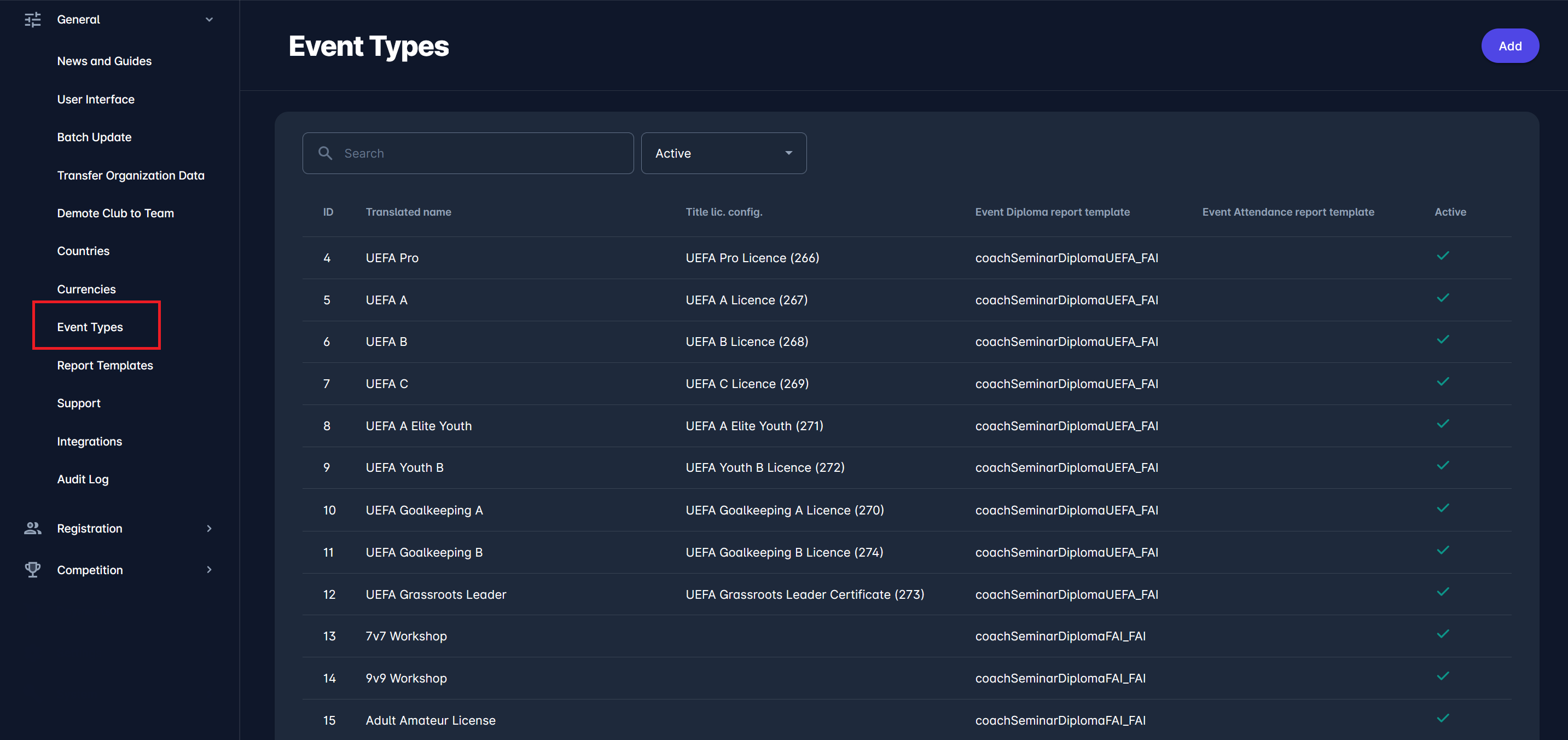
Only Event Types marked as active can be selected when creating new events.
Creating a New Event Type
General tab
To add a new Event Type, click Add in the top-right corner of the Event Types page. This opens the Event Type configuration form.
The following fields are available:
-
Name Key - A unique technical identifier used internally (for example:
label.event.coach.uefa.pro). This value should not be changed after creation. -
Translated Name - The display name shown to users, such as UEFA Pro.
-
Title License Configuration - Defines which license is associated with this Event Type and awarded after successful completion.
-
Report Templates - Used to define which documents are generated for events of this type. This includes the main report template, diploma or certificate template, and attendance report template.
-
Order - Controls the position of the Event Type in selection lists.
-
Limit to Organization Types - Restricts the Event Type to specific organization levels, such as national associations.
-
Active - Determines whether the Event Type can be used when creating new events.
After completing the configuration, click Save.
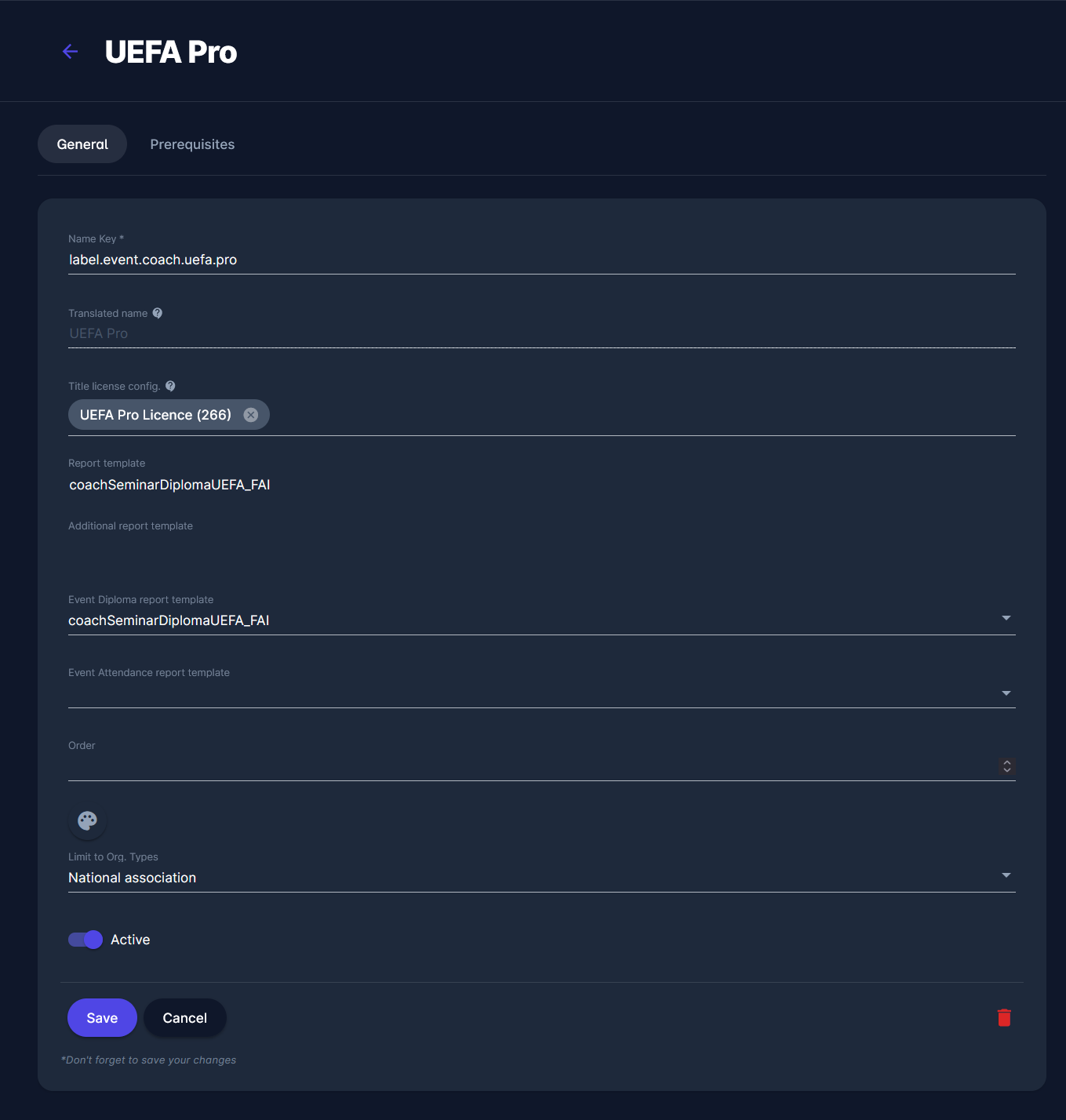
Once created and activated, the Event Type becomes available during event creation. All events with the same Event Type will follow the same licensing rules and document-generation logic.
Prerequisites tab
To add a new prerequisite to a specific Event Type:
-
Access the Admin app. The Admin app is available via a direct link: add /appadmin to your Comet homepage address, e.g., http://comet.concacaf.com/appadmin or http://comet.irishfa.com/appadmin .
-
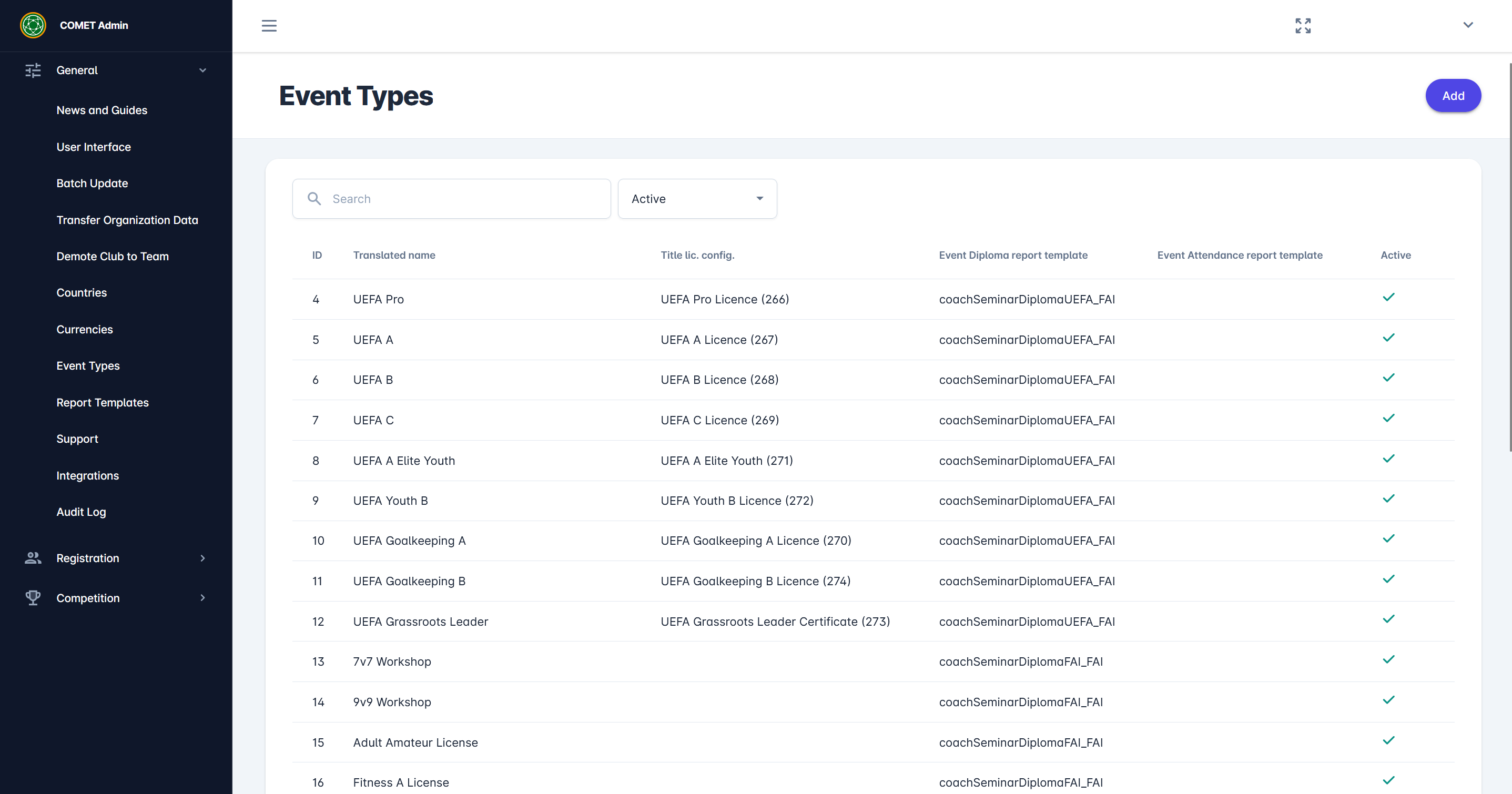
From the General menu on the right, select Event Types. This gives you a list of all defined event types, including information about their IDs, registration types, parents, etc.
-
Select any Event Type from the list. Clicking the Prerequisites tab opens a page listing the prerequisites every participant must fulfill before applying to an event.
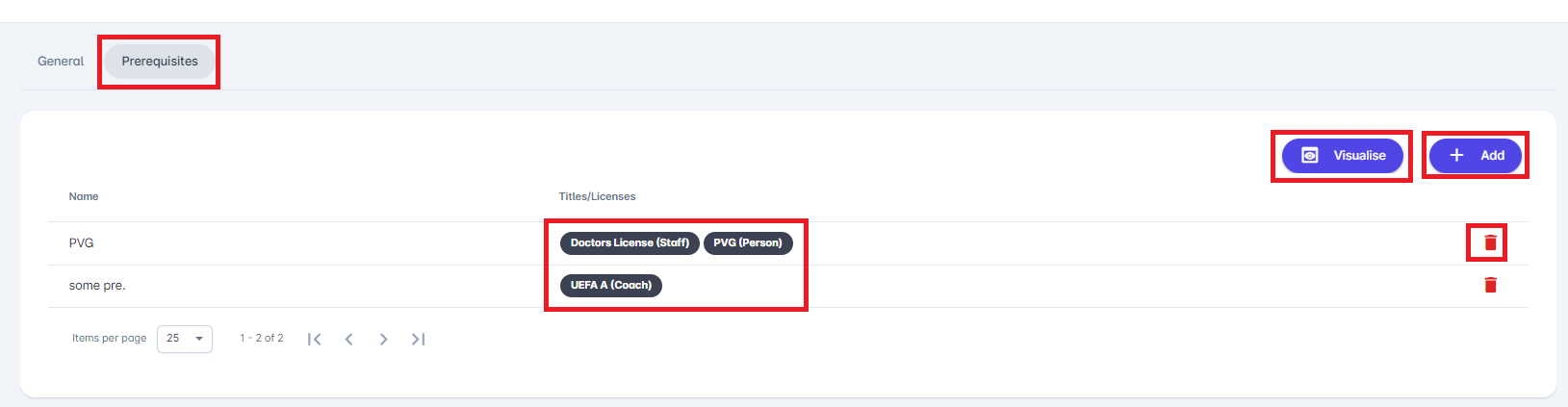
Prerequisites, in the form of lists of Title/License Types, are considered mandatory and cumulative, so in the above example, the Applicant must meet both prerequisites (rows).
If more than one Title/License is listed under the same prerequisite (under the same row), an applicant can fulfill only one of them to be able to meet that prerequisite. E.g., in the above image, the Applicant will need either a Doctor's License or PVG, or both; one is enough.
-
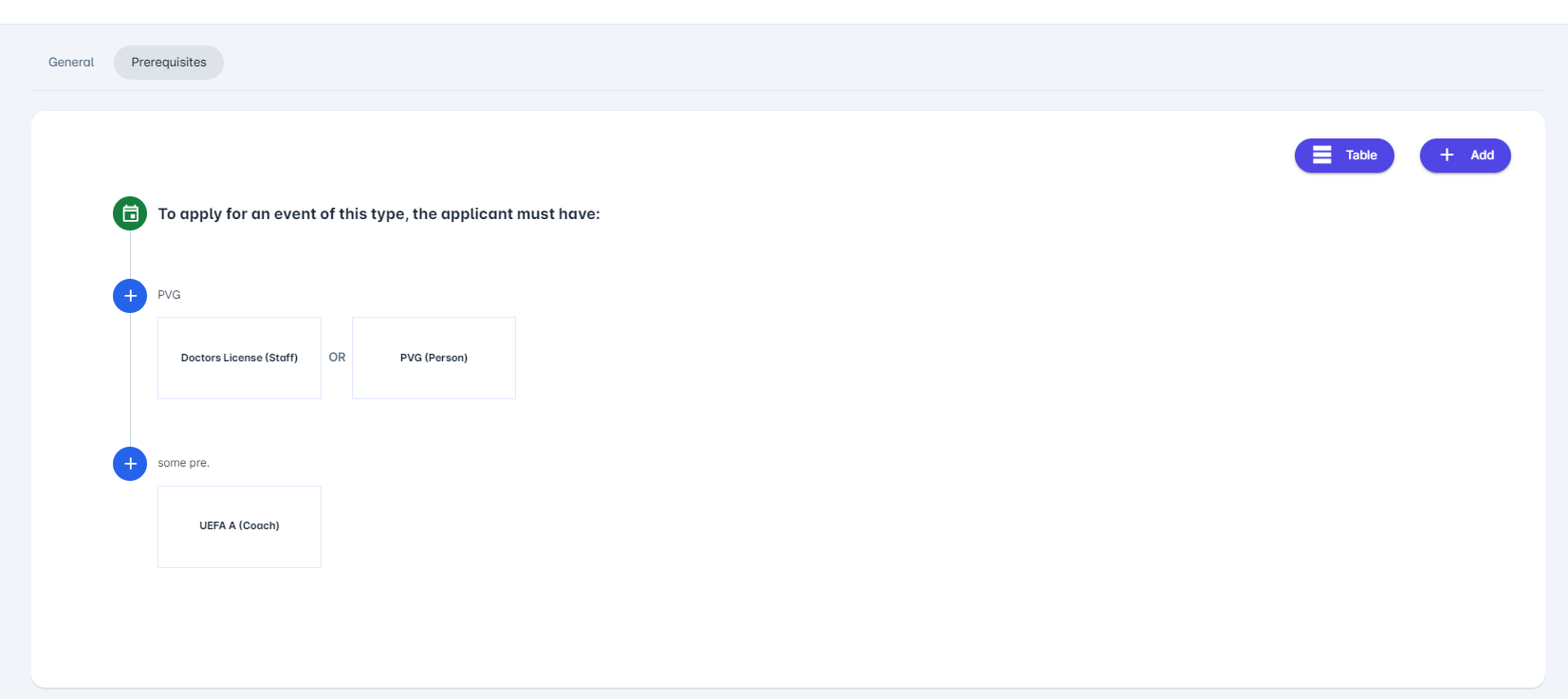
A click on the 👁️ Visualise button on the upper right changes the display of the prerequisites. This view shows a diagram of the prerequisites an applicant must fulfill, alone or combined. According to an example in the following photo, to apply to the UEFA PRO Event, an applicant needs to have Doctors License (Staff) OR PVG (Person) AND UEFA A (Coach) prerequisites fulfilled.
-
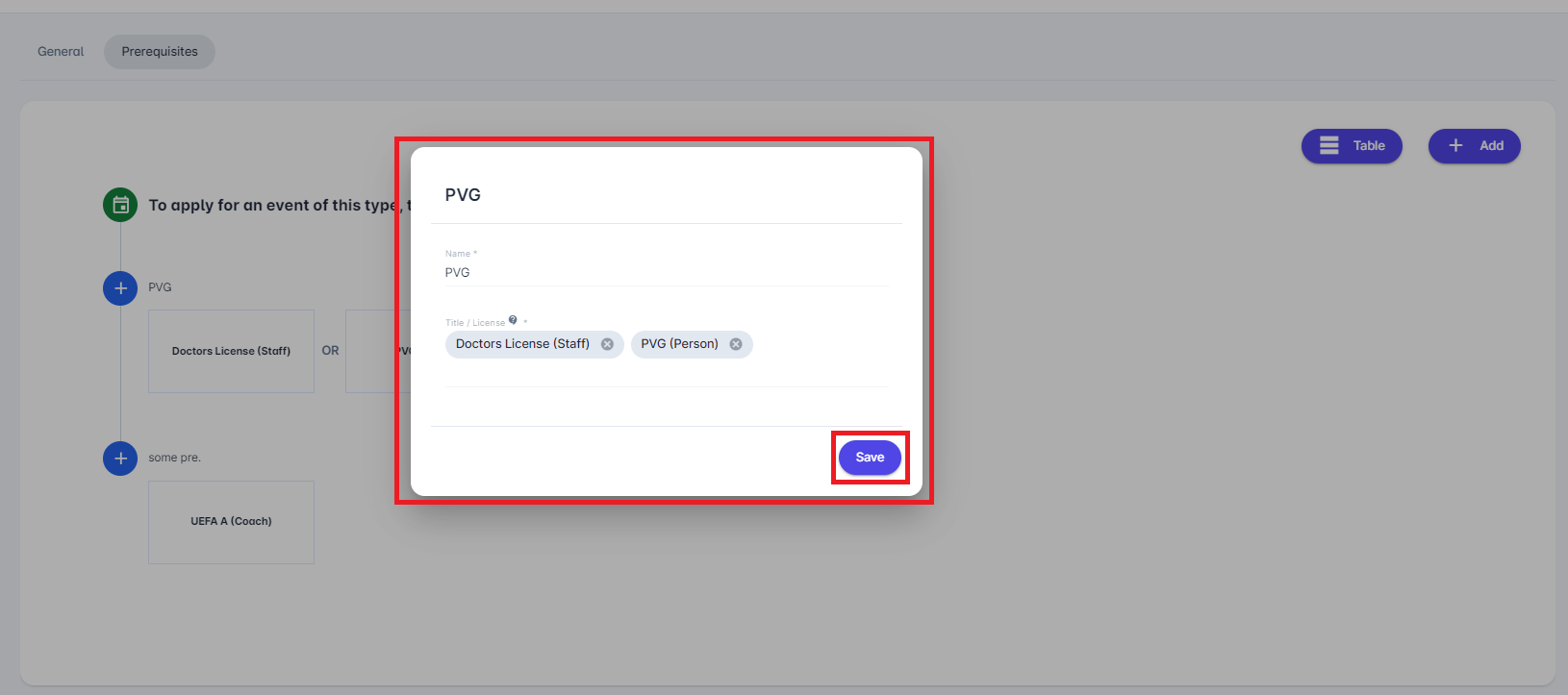
You can edit a prerequisite set simply by selecting it from Visualise or Table View. Choosing a set of prerequisites opens a pop-up window where you can change its name and add or remove related prerequisites.
After you finish editing, don’t forget to press the 💾 Save button.
-
Clicking the Add button in the upper-right corner of the window opens a pop-up that lets you add a new prerequisite. After adding a Name, select one or more Title/License from the dropdown. To save the changes, press the 💾 Save button.
Please note that both Name and Title/License fields are mandatory and cannot be left empty.
-
To delete a set of prerequisites, press the 🪣 Bin icon on the right side of the window. Please note that this option is only available in the Table view. (The 🪣 Bin icon is visible in the second photo on this page.)
Consider that every event of the same Event type will have the exact prerequisites defined in the Admin app. Following this example, all UEFA PRO event type events will require participants to have the Doctors License (Staff) OR PVG (Person) AND UEFA A (Coach) prerequisites fulfilled.
Age Requirement
In addition to Titles/Licenses, the participant's Age can also be set as a prerequisite. More precisely, at the Event Type level, the Admin can set the Minimum Age, the Maximum Age, or both.
The age limits can be set by clicking the Edit button and then entering the desired Min/Max Age.
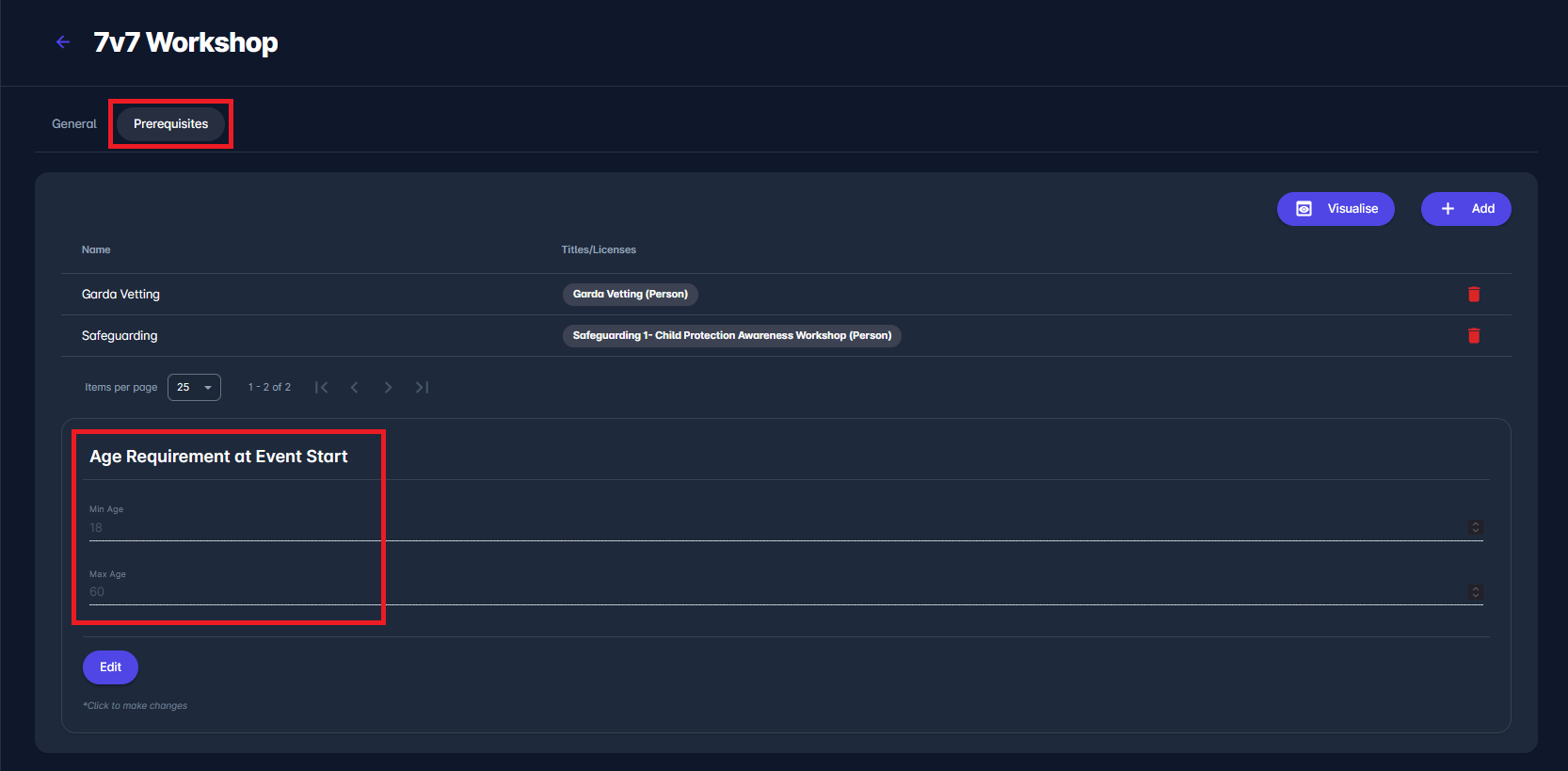
Individuals who do not meet the Age Requirements for a specific Event (too young or too old, calculated as of the Event's Start Date) will be prevented from applying.
Event Types are a core configuration element and should be managed carefully. Changes to license configurations or report templates apply to all future events of that type. Deactivating an Event Type does not affect existing events but prevents it from being used for new ones.