COMET PLAY Workspace admin is able to create, configure and edit the Event Types beyond those that are configured by default. This article will explain how to add a new event type and how to change the settings for an existing one.
Please check the instructions on how to:
To add a new Event type:
-
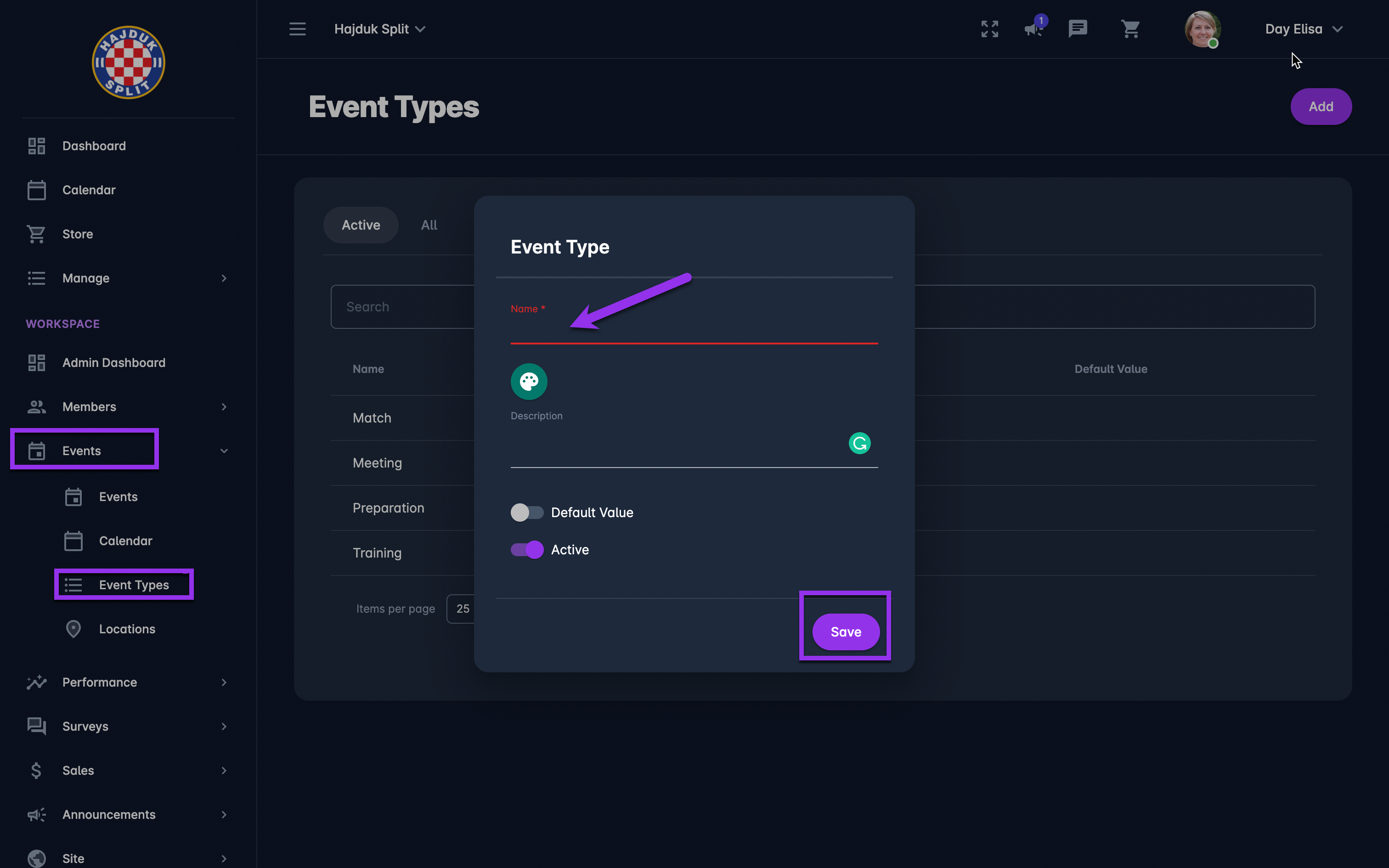
On the left nav-bar select 🗓️ Events → Event Types
-
This list of all the Event Types is displayed. The list contains two tabs:
-
Active
-
All (inactive/ active events)m
-
-
The list consists of the following information:
-
Name
-
Description
-
Color
-
Default value
-
Each tab contains the search box (use the search box to search the list of the courses in the system)
-
-
Click on the ➕ Add button in the top right corner to add a new event type
-
This opens a New Event Type pop-up to fill in the details:
-
Name
-
Description
-
Color
-
Default value switch on button
-
Active/ Inactive switch on button. Please take into account that inactive event types are not displayed when the new event is being created.
-
-
Once you have entered all the data press 💾 the Save button
Please take into account that the chosen colors are used to indicate the type of event on your event calendar.
*If the event type color is not set by the instance admin, the color is chosen randomly.
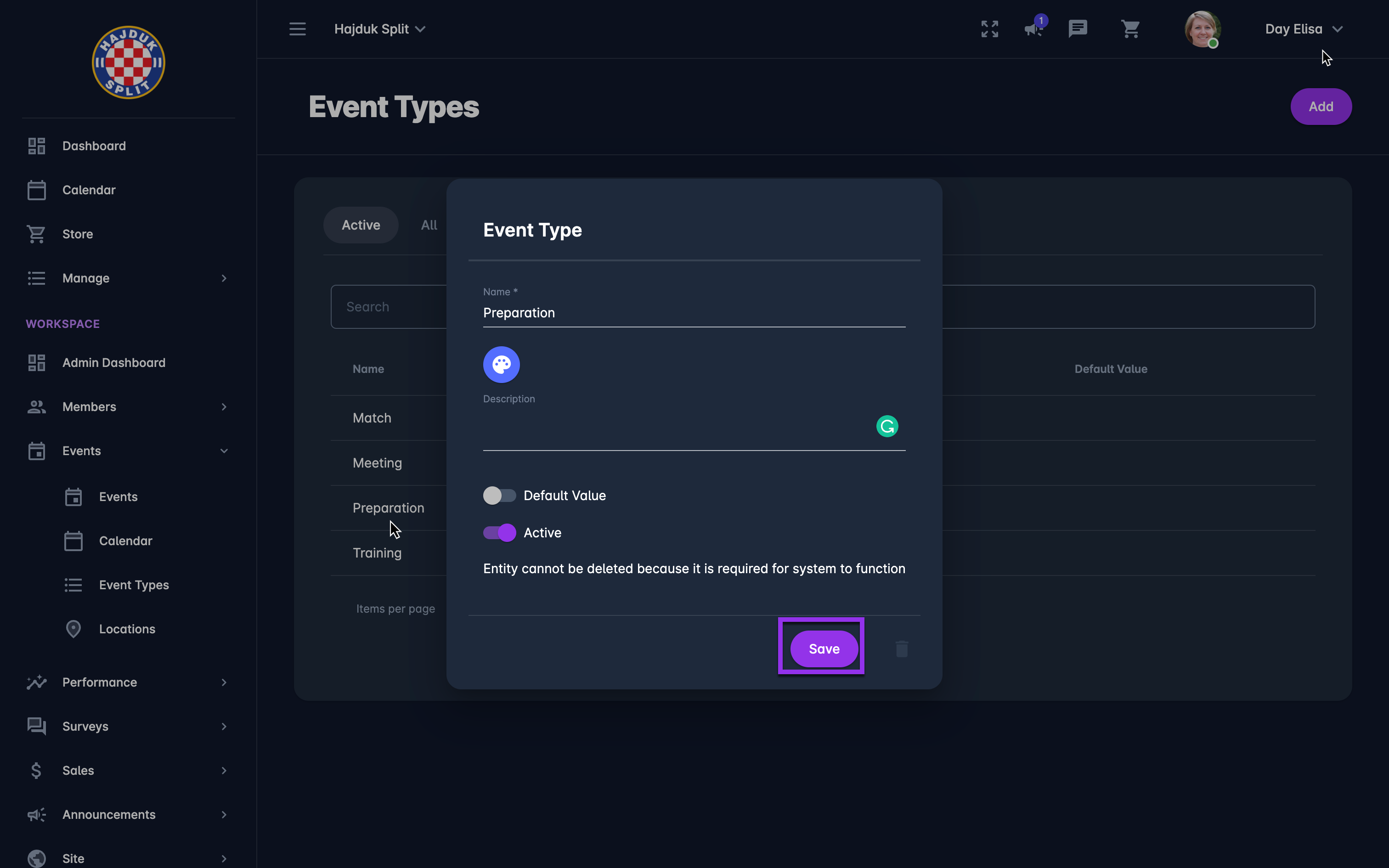
To edit/ delete an existing Event type
-
Access the Event type list
-
A single click on the Event type from the list will open the Event Type
-
Hit the Edit button to make changes to the Event type
-
Once you have entered all the changes press 💾 the Save button
-
Hit the Bin icon button at the top right corner of the Even Type to delete it