To Manage your Account Settings:
-
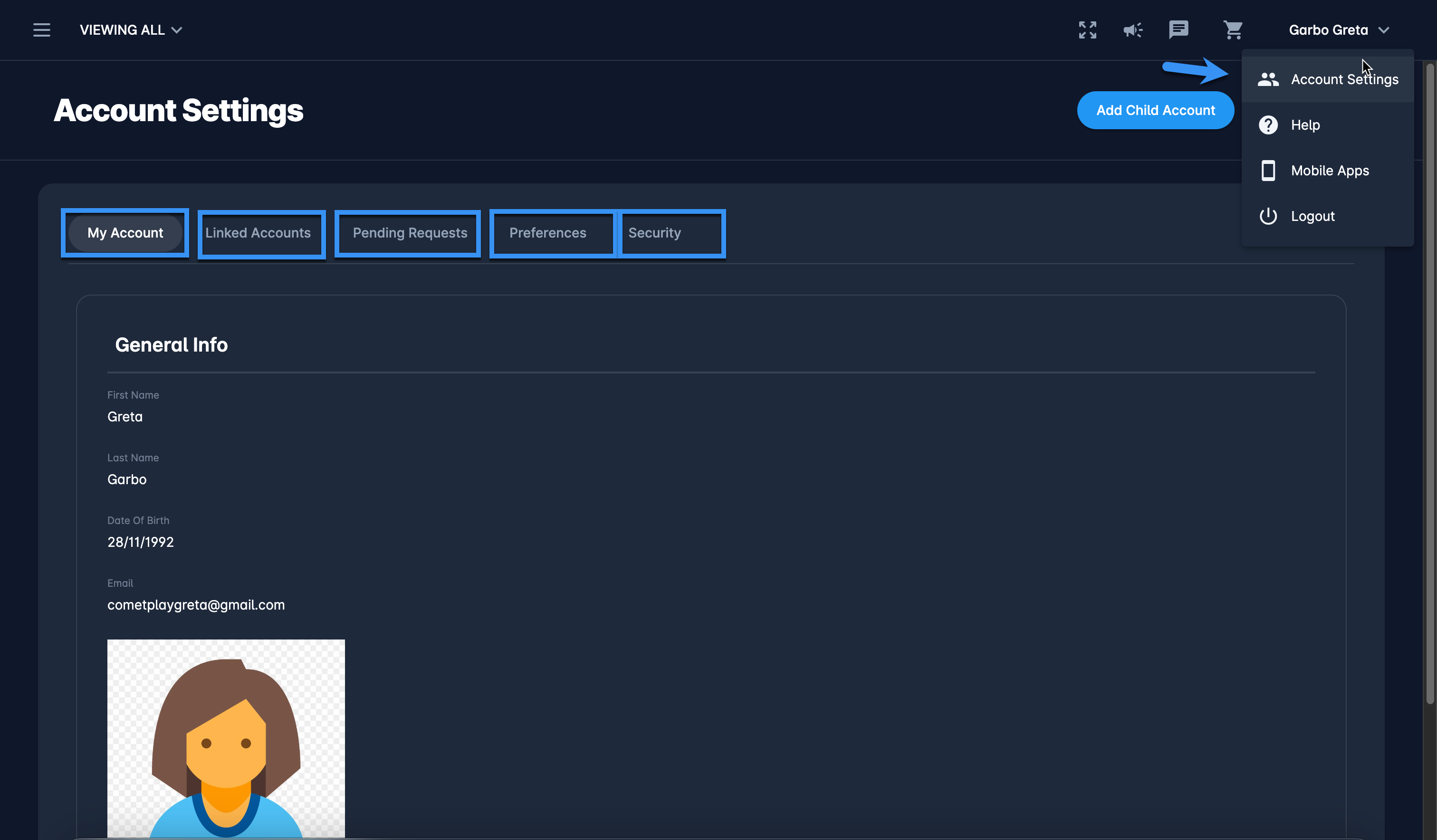
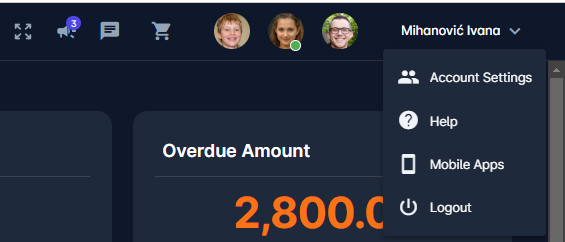
Click your name button in the upper right corner of the COMET PLAY Toolbar, in order to open the User Menu
-
Hit the Account Settings button
-
The Accounts Setting menu is displayed, the menu consists of the following tabs:
-
My Account tab - contains General info, DOB, and User photo. All data in this tab (except the e-mail address) can be edited:
-
Hit the Edit button at bottom of the page
-
Hit the Save button to save your changes
-
-
Linked Accounts tab - lists all accounts that are connected to your Profile. In this tab, you will be able to see all of the profiles that are linked to your profile in parent/guardian and child relations:
-
A click on the linked account from the list will open a linked account pop-up window to edit linked account details and to deactivate the account (if applicable)
-
Hit the three dots button next to the linked account to change the password (if applicable) or to (un)link the account
-
-
Pending requests tab - lists all of the requests that you have submitted for linking accounts.
-
Preferences tab - contains general settings of your preferences: region and timezone, language and theme settings
-
Use this tab to define the theme color of COMET PLAY according to your preferences → Changes are applied automatically
-
Change the system language and hit the Save button
-
Change the Region and timezone and hit the Save button
-
-
Security tab - provides the possibility to control COMET PLAY security features:
-
Integrate calendars - You can set a new token and make the current one invalid, this option is relevant for users that sync their COMET calendar with their personal calendar (e.g. Google Calendars or Outlook)
-
Request password update
-
Request Two-factor authentication
-
-