
The Expense Types section in the COMET Admin App is used to define and manage all match official expenses in the competitions and their matches via the Expense Reports.
To access the list of the expense types, navigate to COMET Admin App → Competition → Expense Types.
On this page, choose from the available tabs:
-
FIFA → expense types for international matches which do not belong to any tenant
-
[TENANT] → expense types for matches belonging to one’s tenant
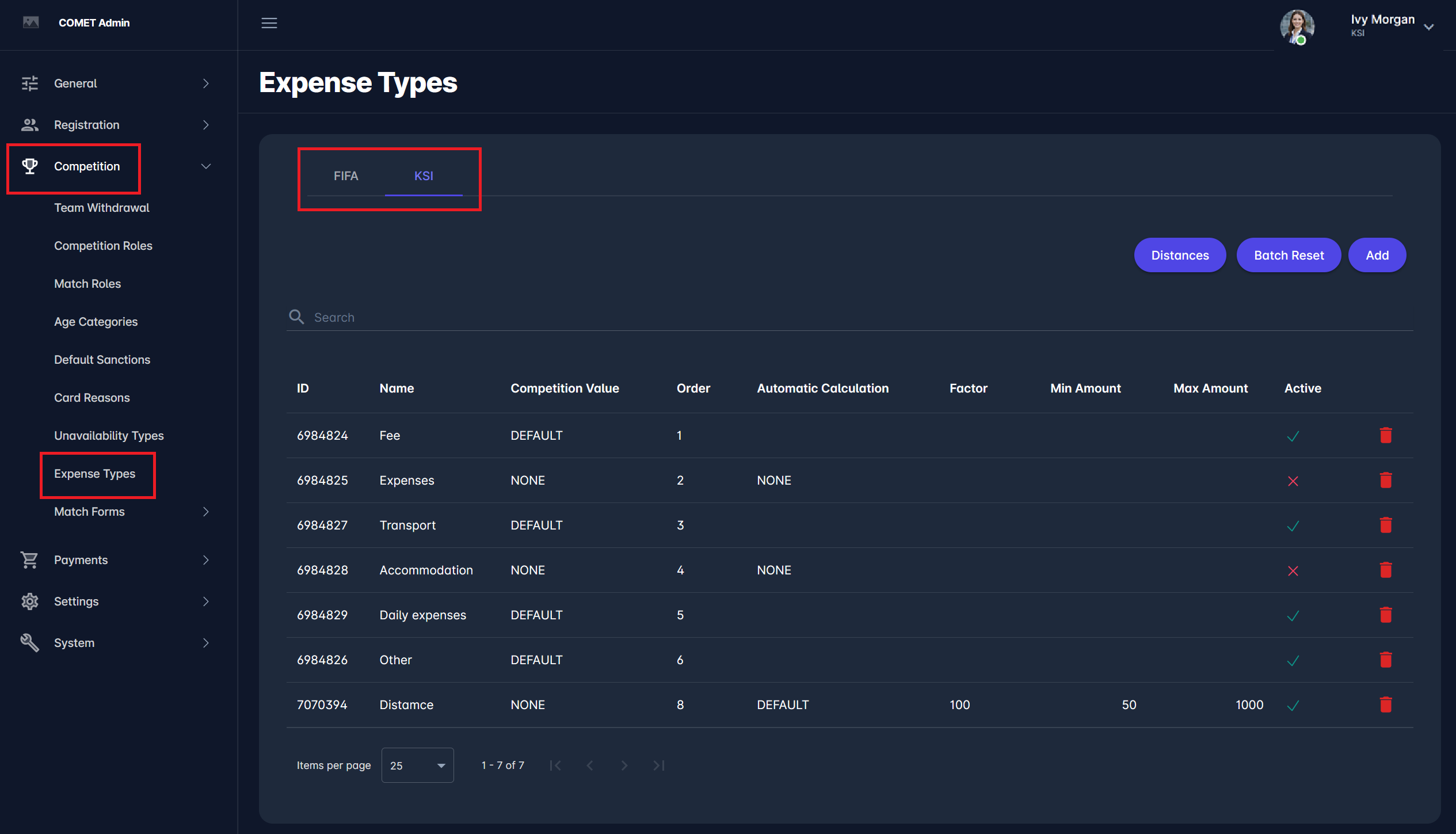
The expense types are listed, with their information presented in the following fields:
-
ID → the ID of the expense type in the database
-
Label → the key of the label of the expense type, which will be translated in the selected language by Analyticom’s internationalization engine
-
Name → the translated name of the expense type in the selected language
-
Competition Value
-
FINAL → value for the expense type is defined on the competition for each match official role, and it is copied in the match for the same match official role and same expense type, WITHOUT the possibility to change the value, i.e., the field value of the expense type is DISABLED in the match
-
DEFAULT → value for the expense type is defined on the competition for each match official role, and it is copied in the match for the same match official role and same expense type, WITH the possibility to change the value, i.e., the field value of the expense type is ENABLED in the match
-
NONE → not visible on the competition and enabled in the match
-
-
Order Number → makes it possible to specify the order of the expense type
-
Automatic Calculation, Factor, Min Amount, Max Amount → relate to Automatic Calculation of Expenses based on distances, for details please refer to the article below.
-
Active → tells if expense type is currently used or not, i.e., if inactive, the expense type won’t show up in the match (if expenses have not been inserted yet)
-
Search bar → enables you to narrow the results by entering any of the values from the list
Manage Expense Types
To add a new expense tab, click on the Add button on the right side of the screen. This action opens a pop-up window that requires you to enter the data shown in the list of previously created expense types.
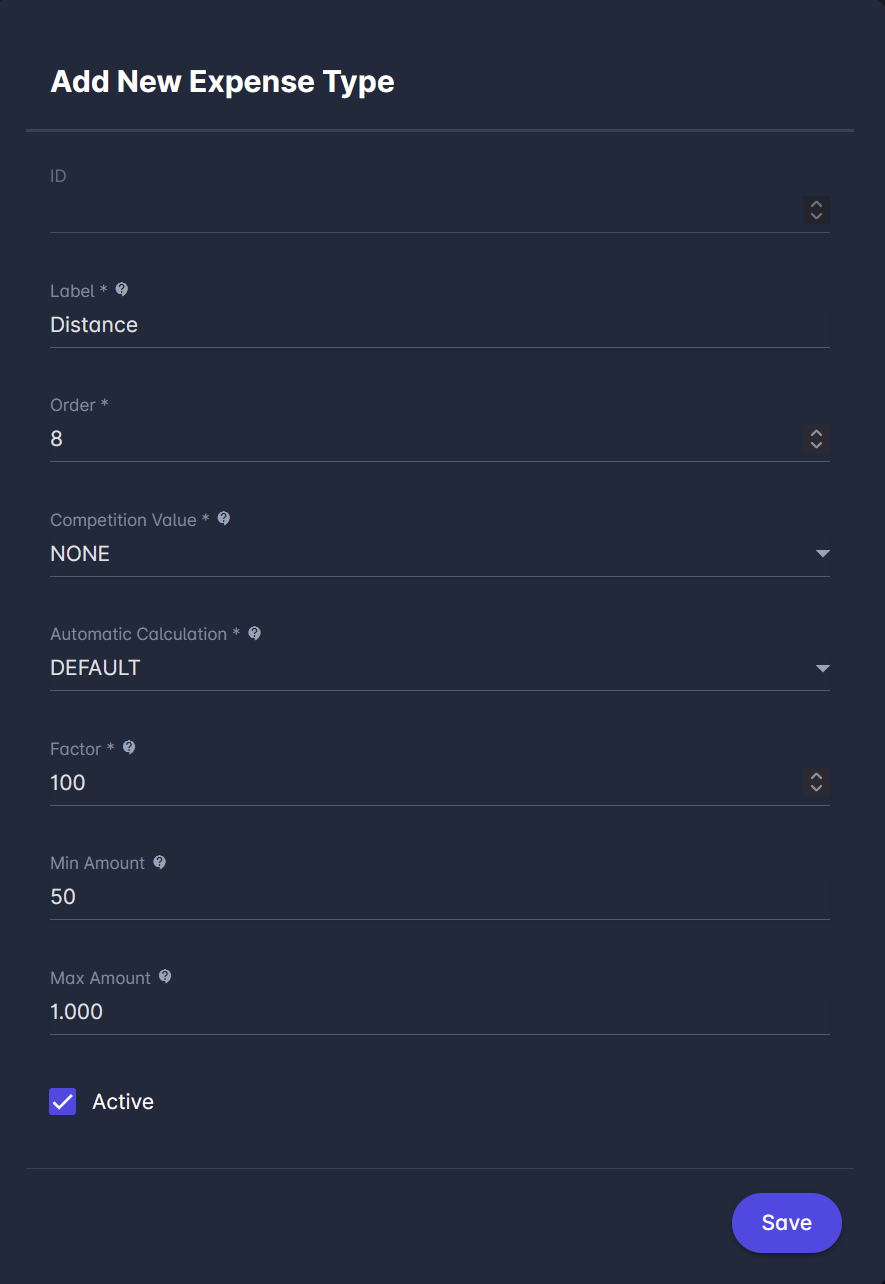
You can delete an expense type by clicking the 🪣 Bin icon button in the row containing the information on the expense type you want to remove.
Distance-based Automated Calculation
This feature allows automated calculation of certain expense types (usually travel fees) based on the distance between the residence of the appointed match official and the facility where the match is played.
To enable this automation feature, a matrix of distances between pairs of postcodes must be configured, along with expense type calculation parameters, such as factor (cost per unit of distance, e.g., EUR/km) and minimum or maximum values per match official.
Distances
The “Distances” button appears only in the non-FIFA tenant’s tab of expense types. These predefined distances are required for the automatic calculation of travel expenses for match officials.
When an expense type is configured with Automatic Calculation = DEFAULT or FINAL, the system calculates the official’s travel reimbursement based on:
-
the official’s registered postcode (source), and
-
the facility postcode of the match (destination), or vice versa.
For example, if the distance between postcode A (official’s residence) and postcode B (stadium) is entered in the system as 100 km, this value will be used as the basis for calculating the travel expense according to the defined factor and rules in the corresponding Expense Type.
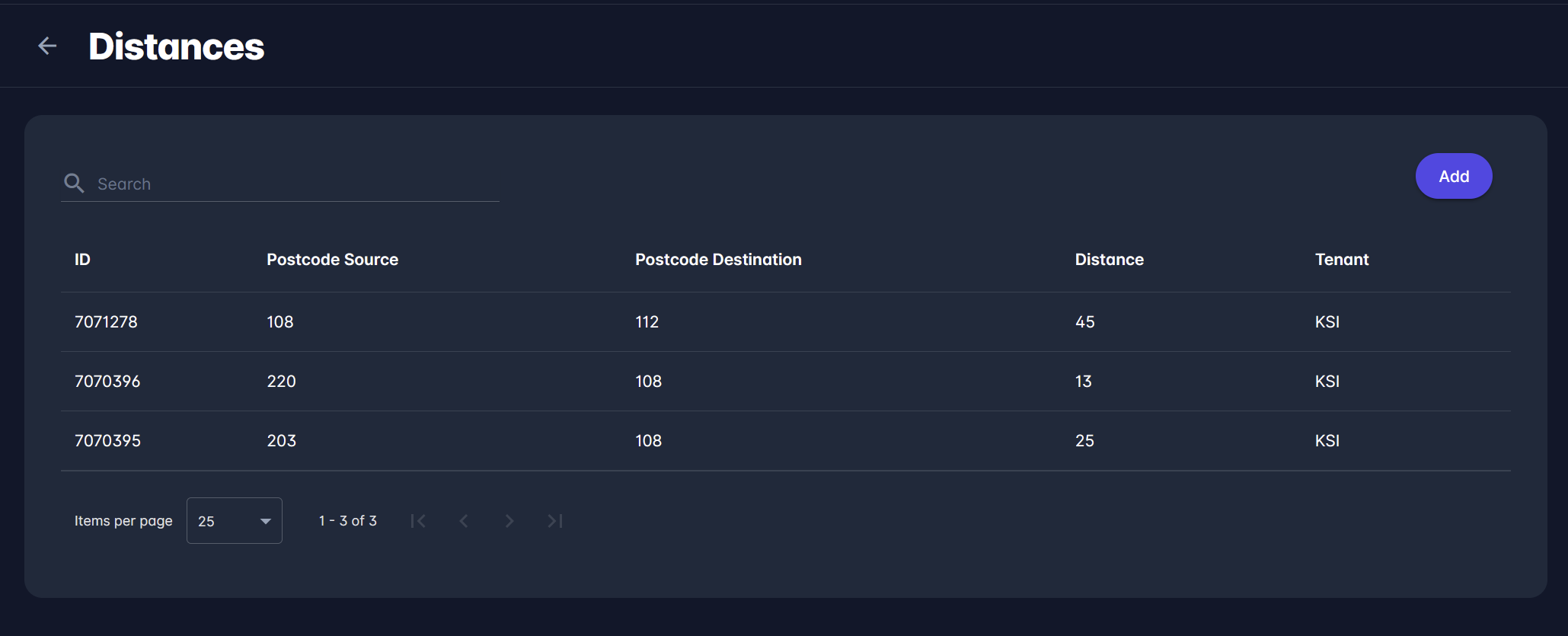
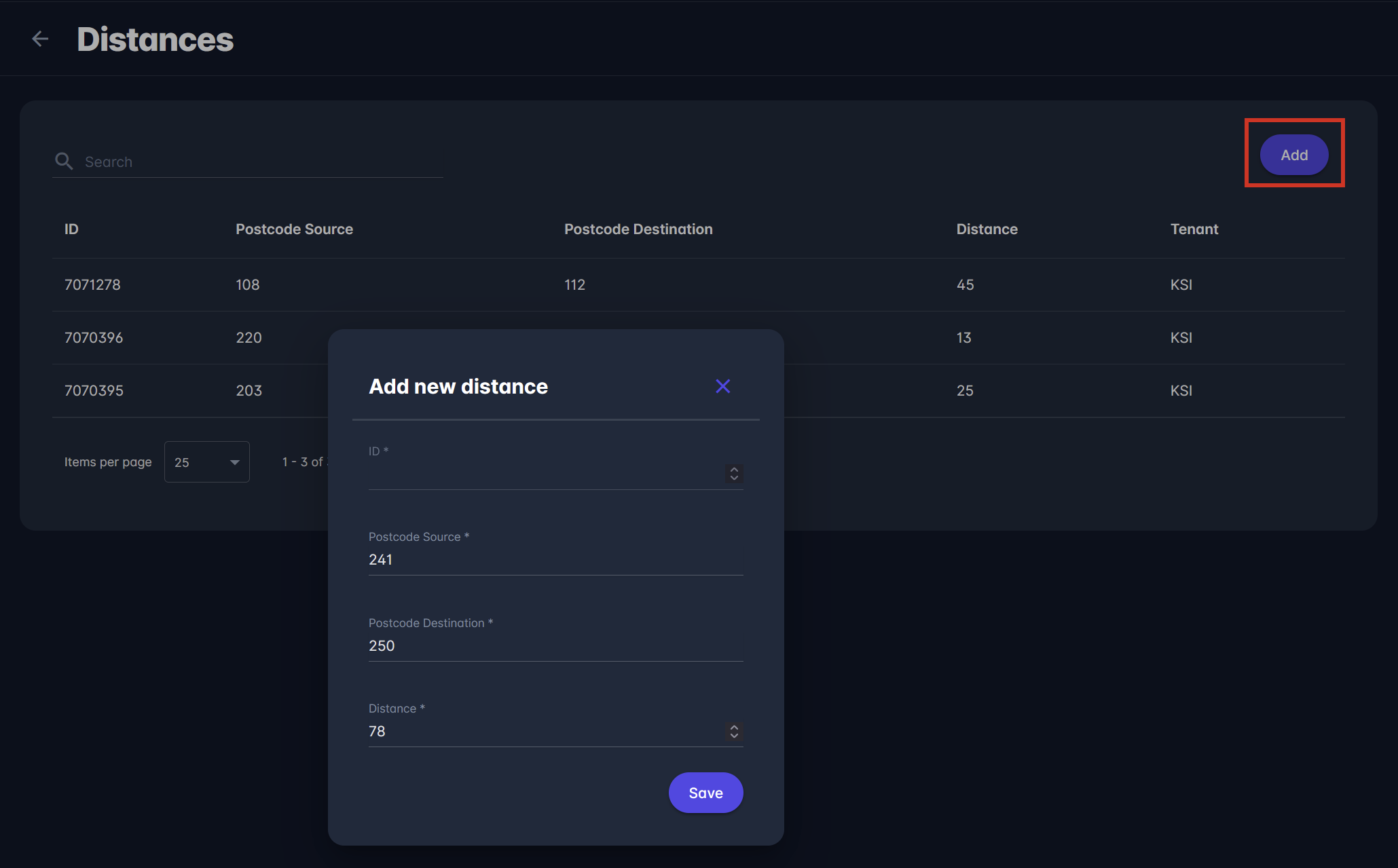
To add a new distance, click on the Add button at the top right corner of the list of previously added distances.
This action opens a new button, requiring you to enter the following:
-
ID → the ID of the distance, defined by the system
-
Postcode Source → the first postcode
-
Postcode Destination → the second postcode
-
Distance → the number as the distance between two postcodes
Click on the Save button to save changes.
You can also use the 🔍 Search bar to find the Distance between two postcodes. Search for the configured distance value by entering both postcodes in the 🔍 Search bar.
The distance between two postcodes can be entered only once. For example, if the user entered a distance between postcodes 21000 and 10000, it’s not possible to insert a new distance with the same postcodes, regardless of whether 10000 or 21000 is the postcode source and the other is the postcode destination.
If a large number of distances needs to be added, they can be provided to Analyticom in a table with the columns: Postcode Source - Postcode Destination - Distance.
Expense Type Parameters
The following pararameters will be enabled on Expense Type configuration, if Competition Value=NONE
-
Automatic Calculation → if enabled, the amount will be automatically calculated based on the distance between the postcodes of the match official and the match facility
-
FINAL: disabled on match, calculated value cannot be edited
-
DEFAULT: enabled on match, calculated value can be edited
-
NONE: not enabled
-
If FINAL or DEFAULT has been selected, then the followoing parameters appear
-
Factor → mandatory decimal number enabled only if Automatic Calculation is used, which is used together with Distance to calculate the expense value; distance will be multiplied by this factor to calculate the expense amount
-
Min Amount → optional field enabled only if Automatic Calculation is used, which will set the expense to this amount if the calculated value is less than this amount; Irrespective of calculation, this is the minimum expense amount granted to a match official.
-
Max Amount → optional field enabled only if Automatic Calculation is used, which will set the expense to this amount if the calculated value is greater than this amount; Irrespective of calculation, this is the maximum expense amount granted to a match official.
Calculation Formula
The amounts are automatically calculated, when the match official’s appointment to the match is CONFIRMED, and an expense item is created, or in the event of individual expense item Reset or Batch Reset.
Below is the formula:
-
The distance’s value is multiplied by the expense type’s factor (the result is rounded to two decimal places)
-
If the minimum amount is used and the above calculated value is less than the minimum amount, then the calculated value becomes the minimum amount
-
Otherwise, if the max amount is used and the above calculated value is greater than the max amount, then the calculated value becomes the max amount

In the example above, if the distance between postcodes of match official and facility is:
-
5 → then the calculated amount will be 500 -> 5x100=500
-
20 → then the calculated amount will be 900 -> 20x100=2.000, but Max Amount 900 applies
Batch Reset
The Batch Reset option allows administrators to reset entered expense items in bulk directly from the Expense Types section of the Admin App. This ensures that any changes to Expense Type configuration or Competition Fees are consistently applied to all future match official expenses.
This would commonly occur if you are making changes mid-season, e.g., adding a new "Allowances" expense type, increasing the distance factor, or updating the fee for Assistant Referee. Match Officials have already been appointed for upcoming matches, and with Batch Reset, you will update their entered expenses in accordance with the new configuration.
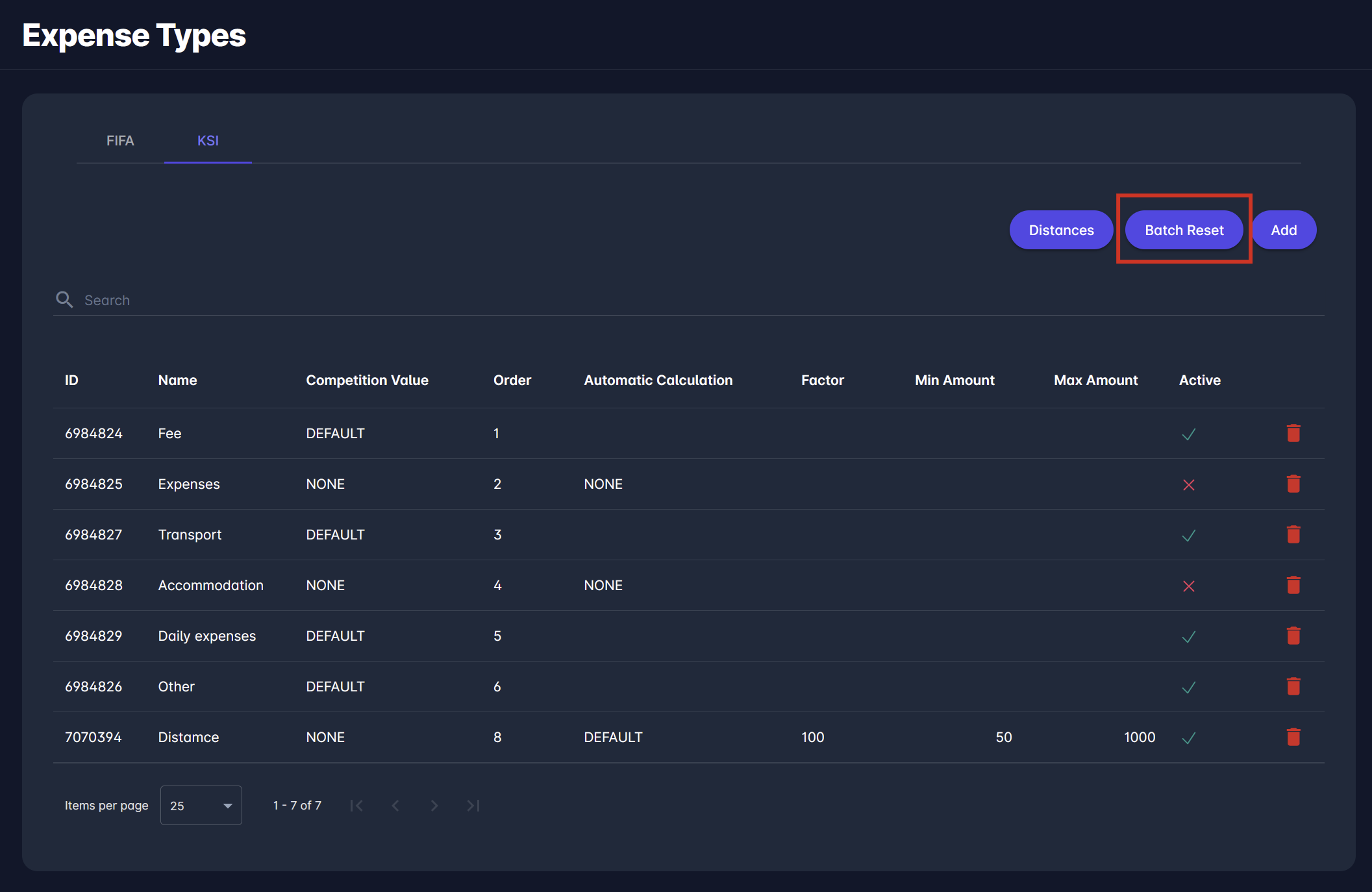
When selected, a confirmation dialog is displayed, informing the user how many expense entries and how many future matches will be affected.
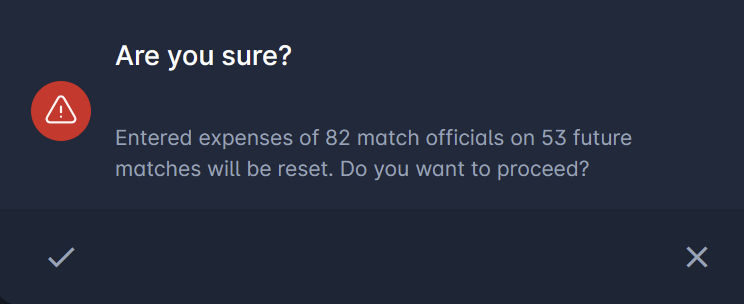
After confirmation, the system resets all entered expense items for matches with a start date later than the current system date. This operation is functionally equivalent to manually opening each expense item and performing Edit → Reset → Save, but is executed in a single batch action.
Expense entries for matches with a start date in the past are not affected, nor are affected expenses in the future that are already Confirmed.
Once the batch operation is completed successfully, the user receives a notification confirming that the batch reset has finished.
This action is available only to Superusers of the Tenant, and applies strictly within the scope of their assigned tenants.