
A tripartite process workflow allows two clubs to submit a request to the Association to organize their friendly match at a specified location and date. Relevant Competition Administrators or Managers then review the request.
If the request is approved, a new match will be created in the system, and then the process continues as for any other match in COMET: Administrators or Managers will appoint match officials, and on the match day, clubs will enter their lineups, match officials will complete their own match reports, etc.
The request can also be made for international friendly matches, i.e., matches where only one club is domestic, and the other is foreign. In this case, the request is submitted only by the domestic club, and does not require action from a foreign club, before being reviewed by the Association.
Competition Requirements
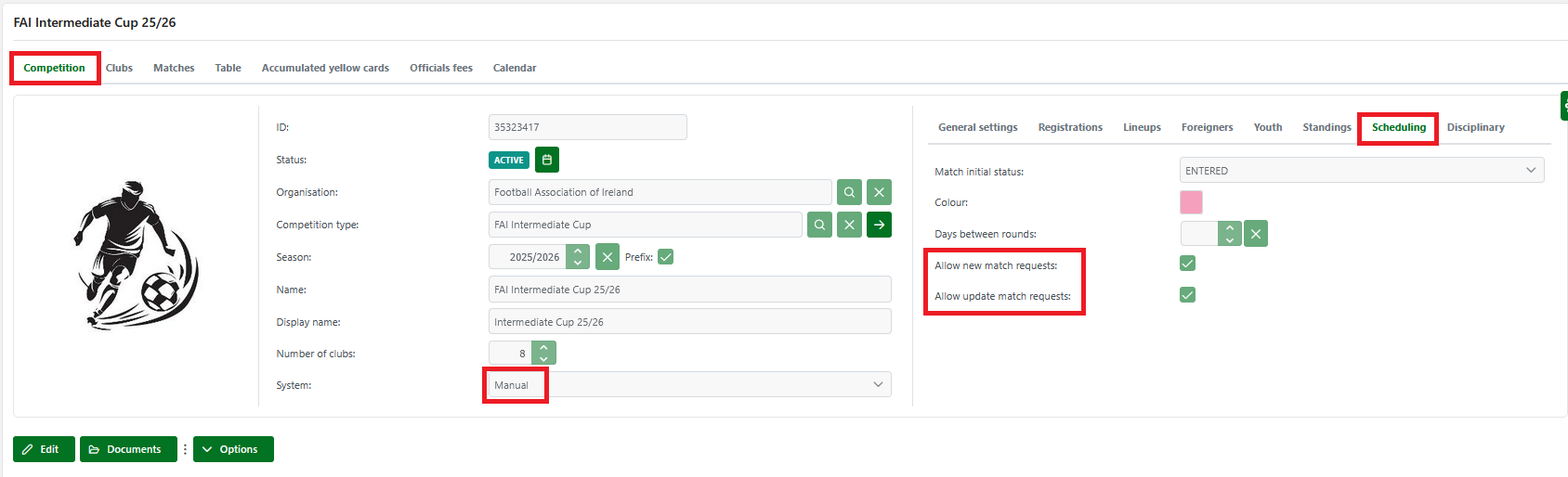
Not every competition can allow clubs to create new match requests. To allow clubs/teams to create new match requests, enable it using the following steps:
-
Navigate to your competition from the COMET UI
-
On the competition tab, set the System of the competition to Manual
-
Navigate to the Scheduling tab
-
From here, you can enable:
-
Allow new match requests – to let clubs submit new match requests.
-
Allow match request updates – to let clubs submit match update requests.
-
✅ Check the appropriate boxes depending on what you want to allow.
Sending a New Match Request
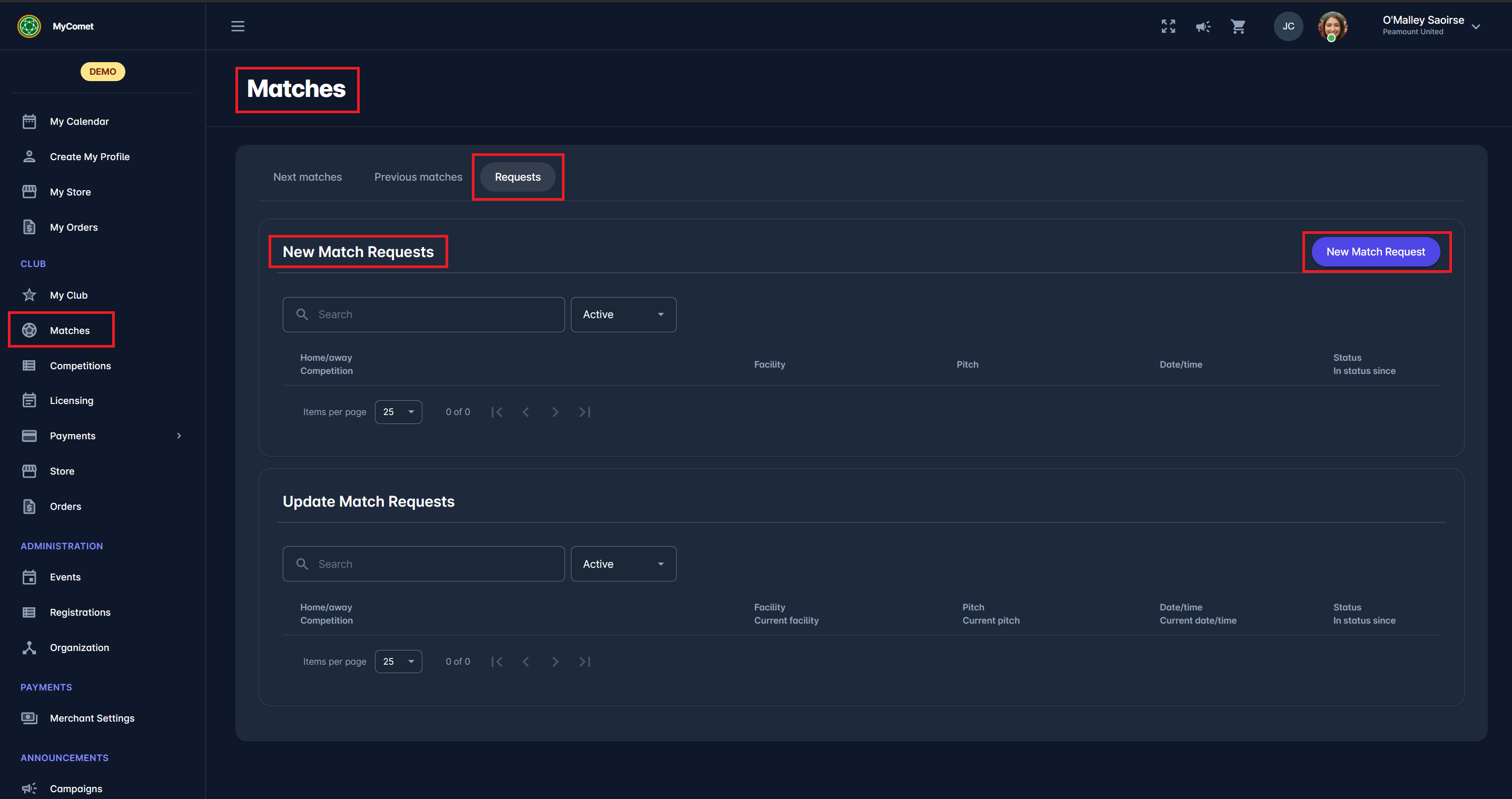
To initiate a new match request as a Club User, navigate to MyCOMET by adding /mycomet to the COMET homepage link, e.g., comet.concacaf.com/mycomet.
-
Click on the Matches menu item on the left side of your screen.
-
Navigate to the Requests tab.
-
From here, you can see the status of all of your New or Updated Match Requests.
-
Click on the New Match Request button to open the request form.
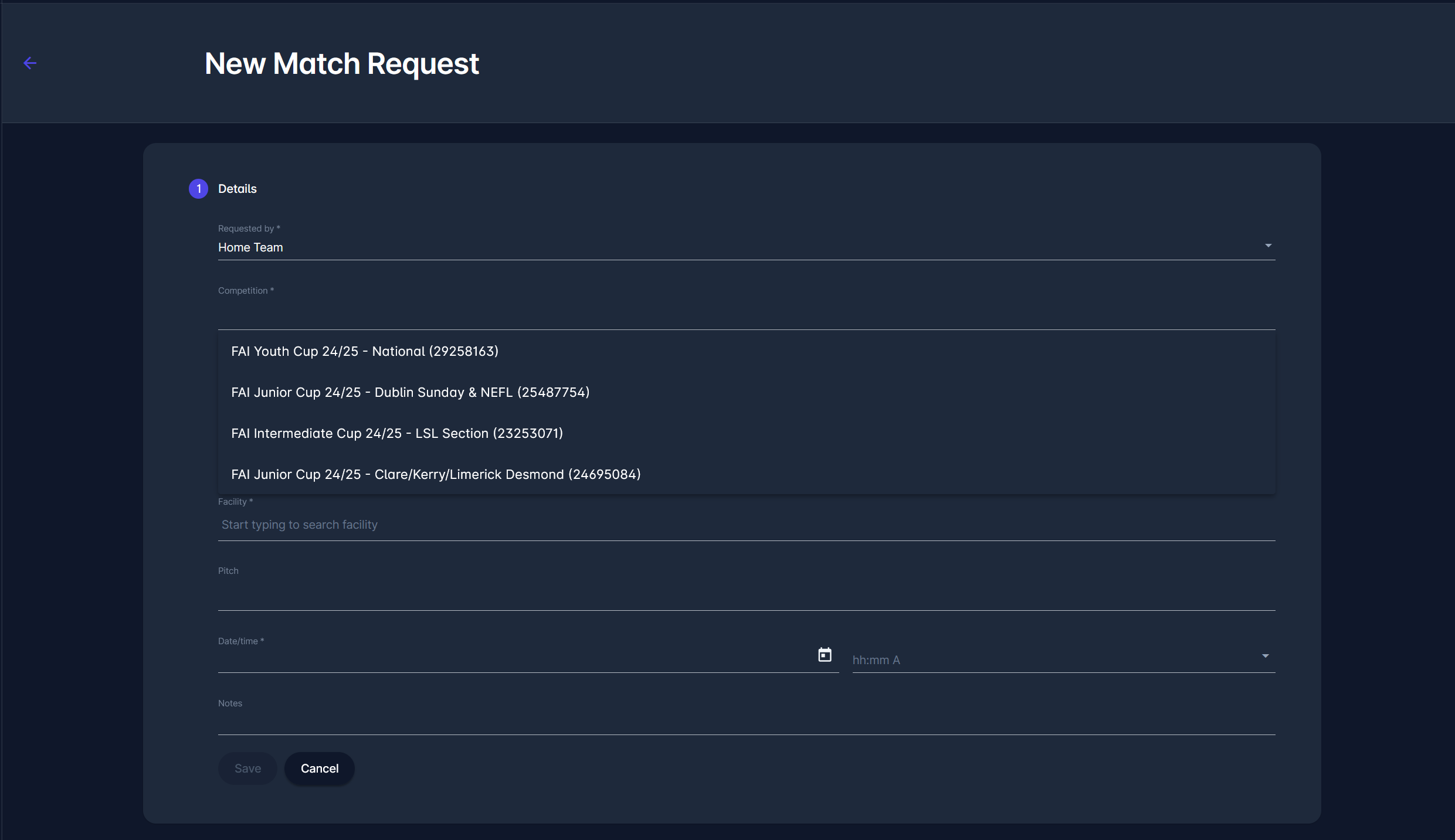
A form will appear requiring you to enter the following match details:
Mandatory Fields:
-
Requested by: Choose whether you/requester are the Home Team or Away Team.
-
Competition: Select the competition under which you're requesting the match.
⚠️ Only competitions with the “New Match Request” option enabled will be shown. -
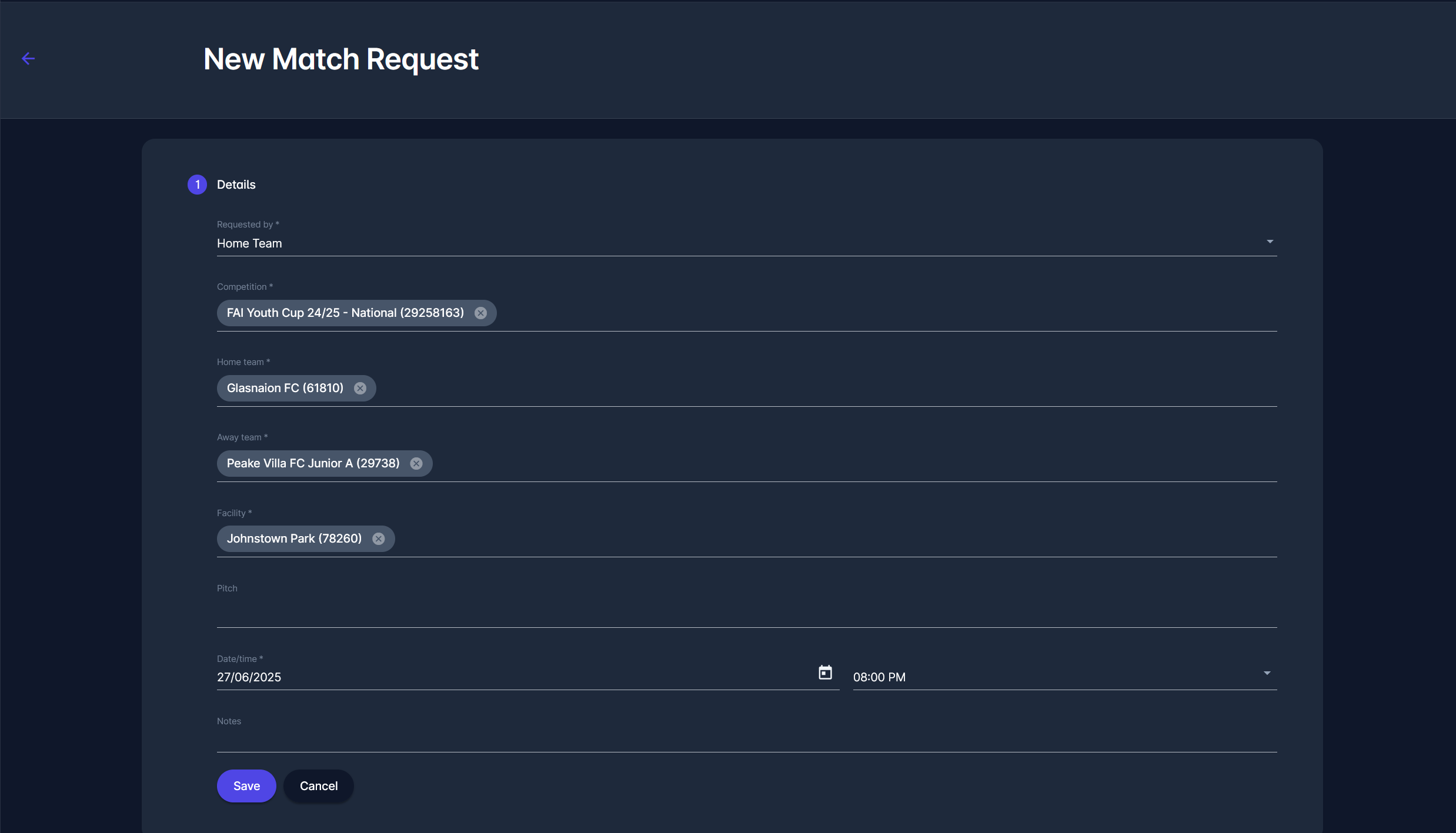
Home Team / Away Team: Select both teams from the dropdown menus. For example, if you have selected 'Home Team' above, you will only be able to add your own teams as Home Team and any other team as Away Team.
-
Facility: Choose the venue from the dropdown list.
-
Date/Time: Enter the proposed date and time for the match.
Optional Fields:
-
Pitch: Select a specific pitch if applicable (not mandatory).
-
Notes: Add any relevant comments for the opposing team or the reviewer.
Once all required fields are completed, click the 💾 Save button to submit your New Match Request.
Your request will now be visible in the Requests tab with its current status.
If your competition has the New Match Request Survey configured, you will be required to fulfill it in Step 2: Survey. To find out more, click on the: Match Request Surveys
New Match Request Approval
Once you successfully save a new match request, it is set to PENDING status. It becomes visible in the Requests tab under the Matches section.
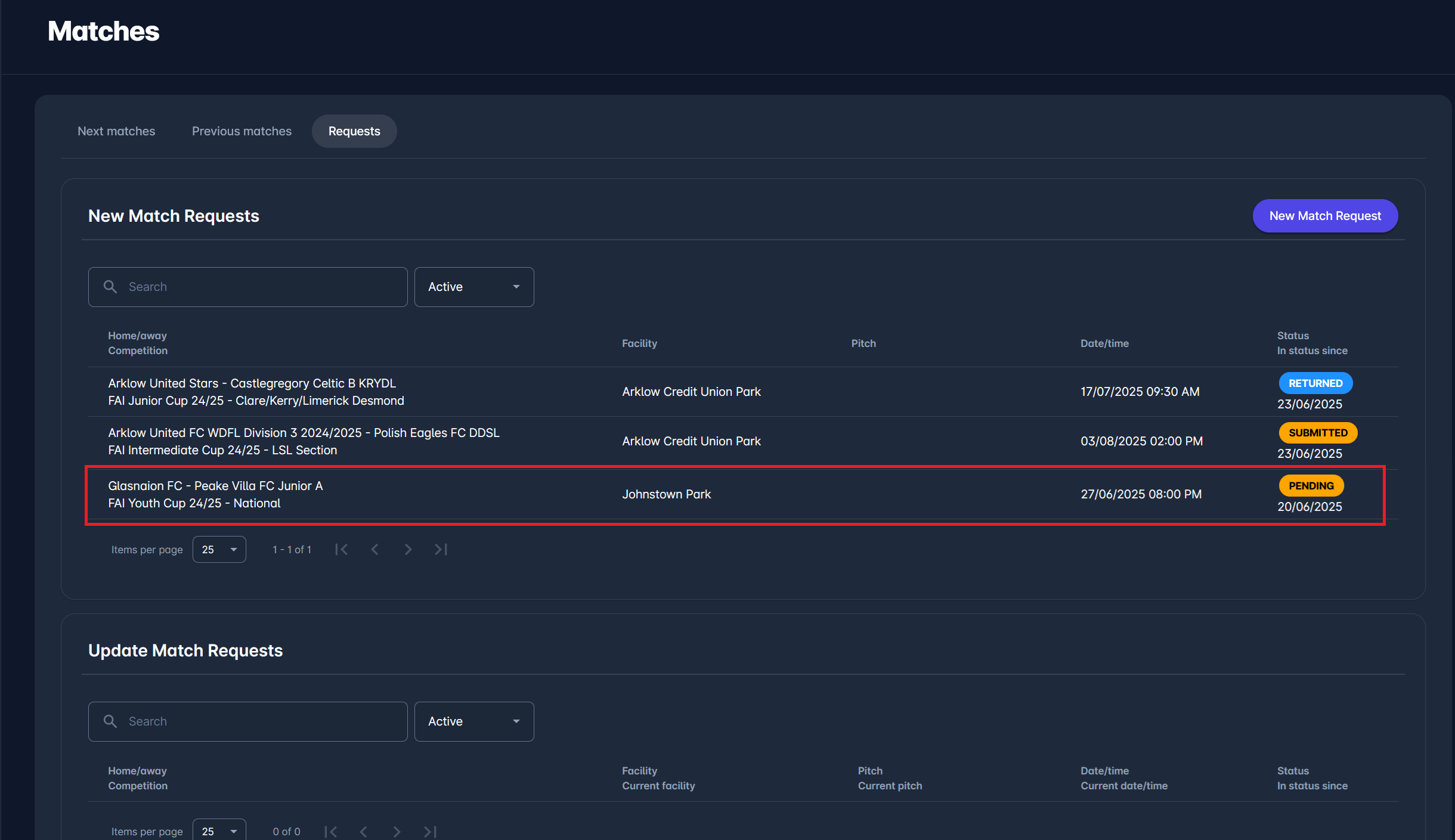
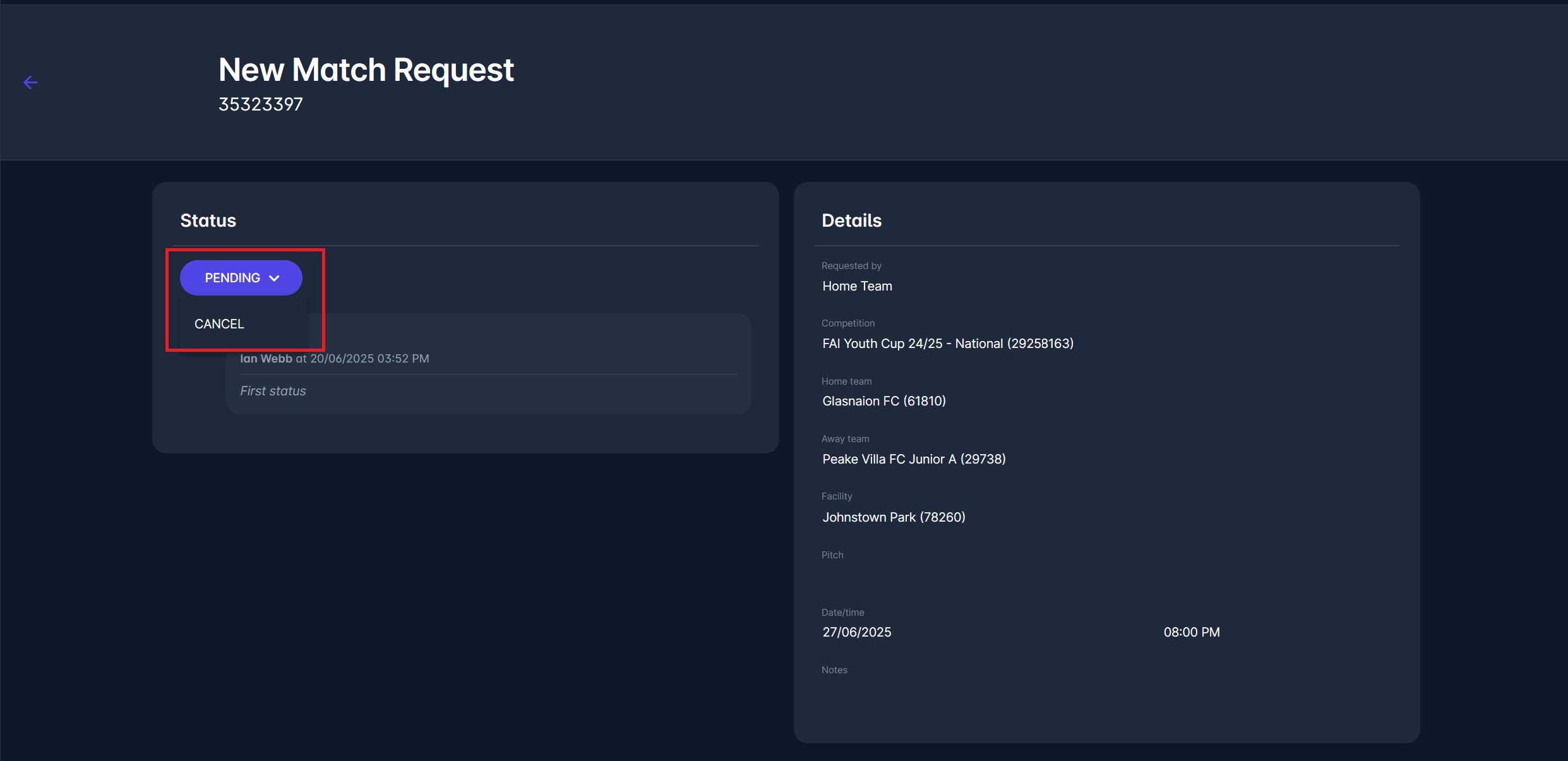
You can click on the row containing your request to view full request details or cancel the request (if still pending).
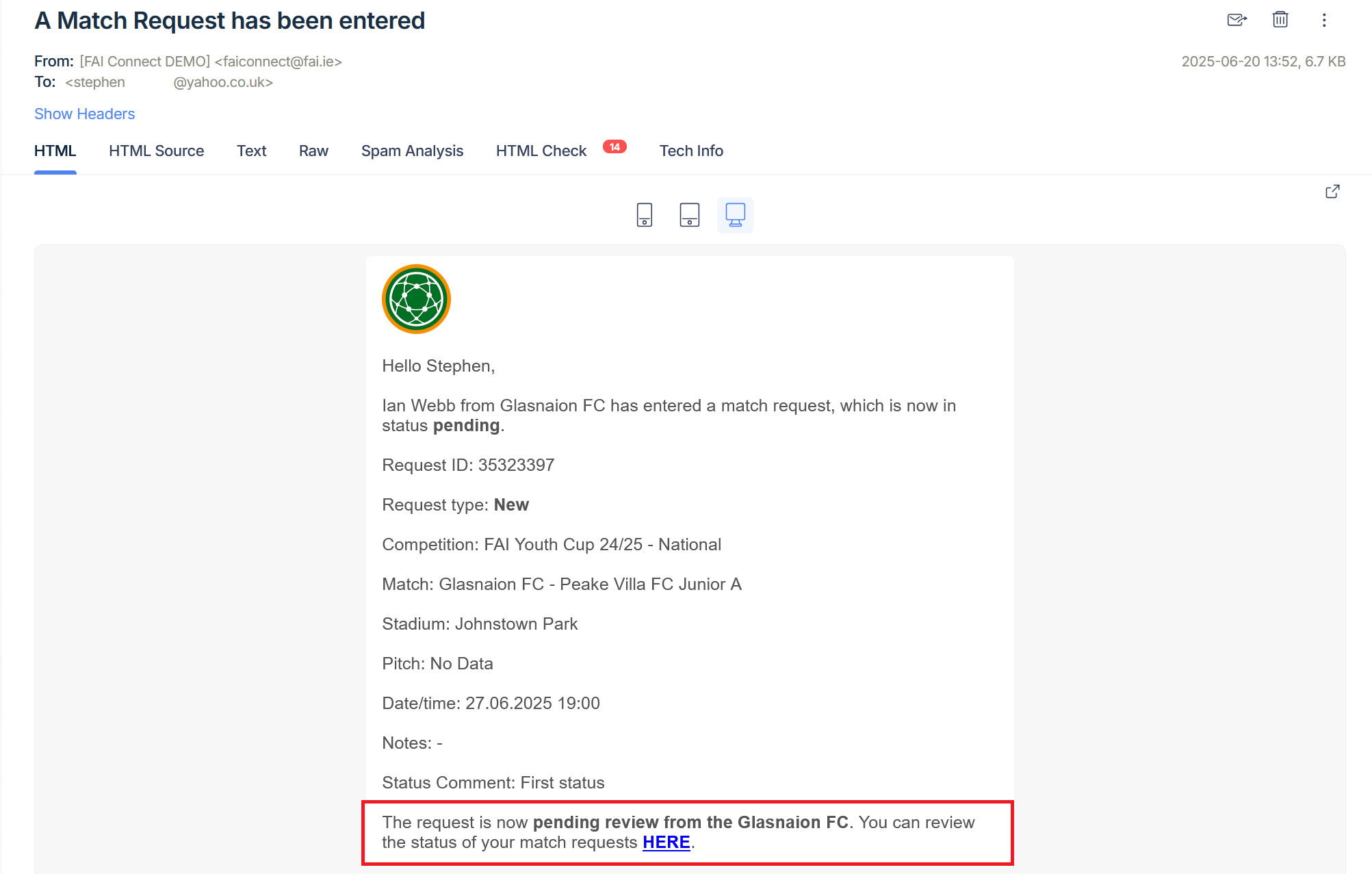
Saving the match request triggers a notification email to the opposing club, informing them of the new request and prompting them to take action.
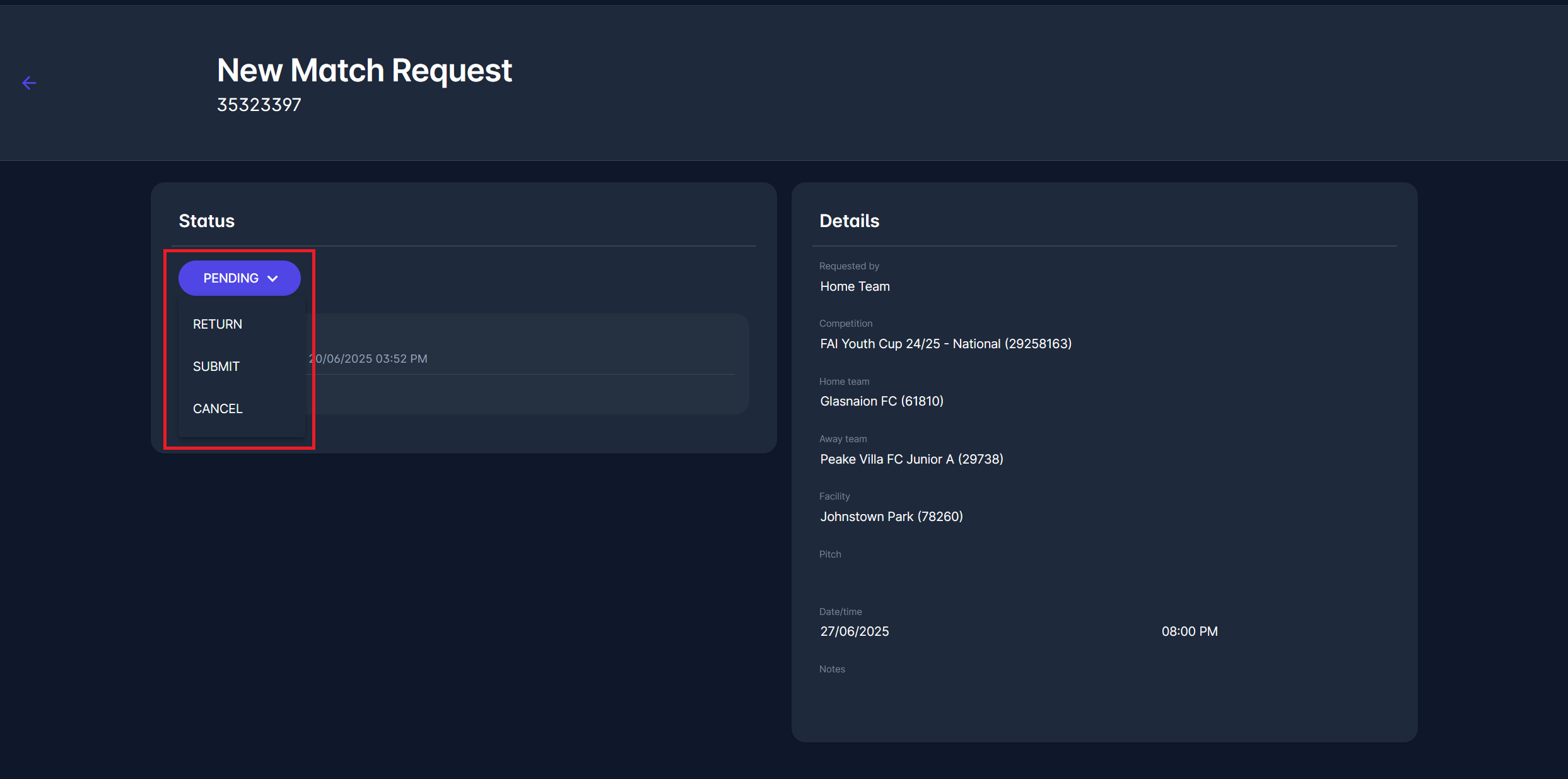
The opposing club representative can choose one of the following actions:
-
🔄 RETURN – return the request to the initiator for correction or adjustment
-
📤 SUBMIT – approve and forward the request to Competition Administrators or Managers
-
❌ CANCEL – cancel the match request entirely
When the request is submitted, a notification email is sent to the responsible Competition Administrators or Managers.
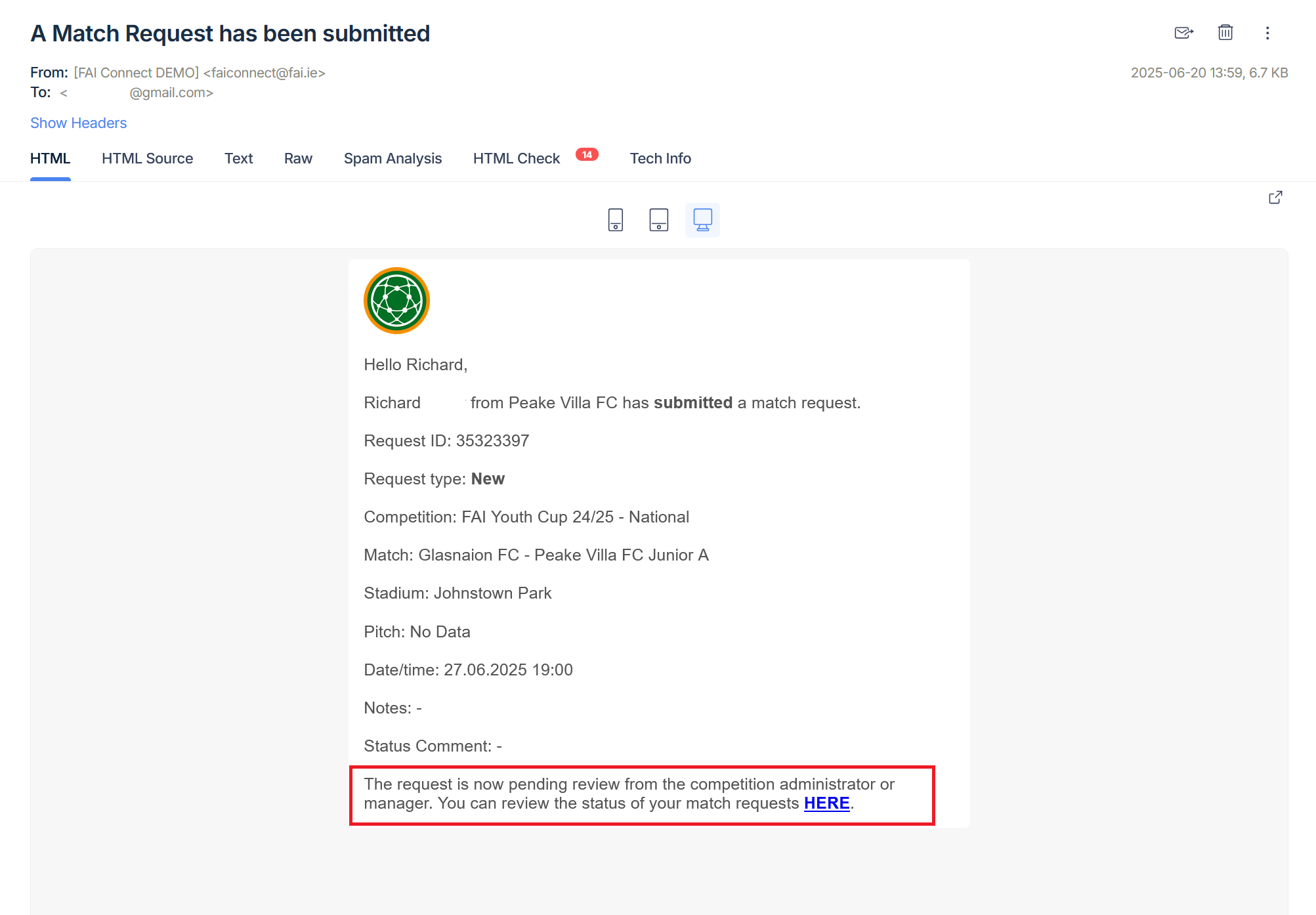
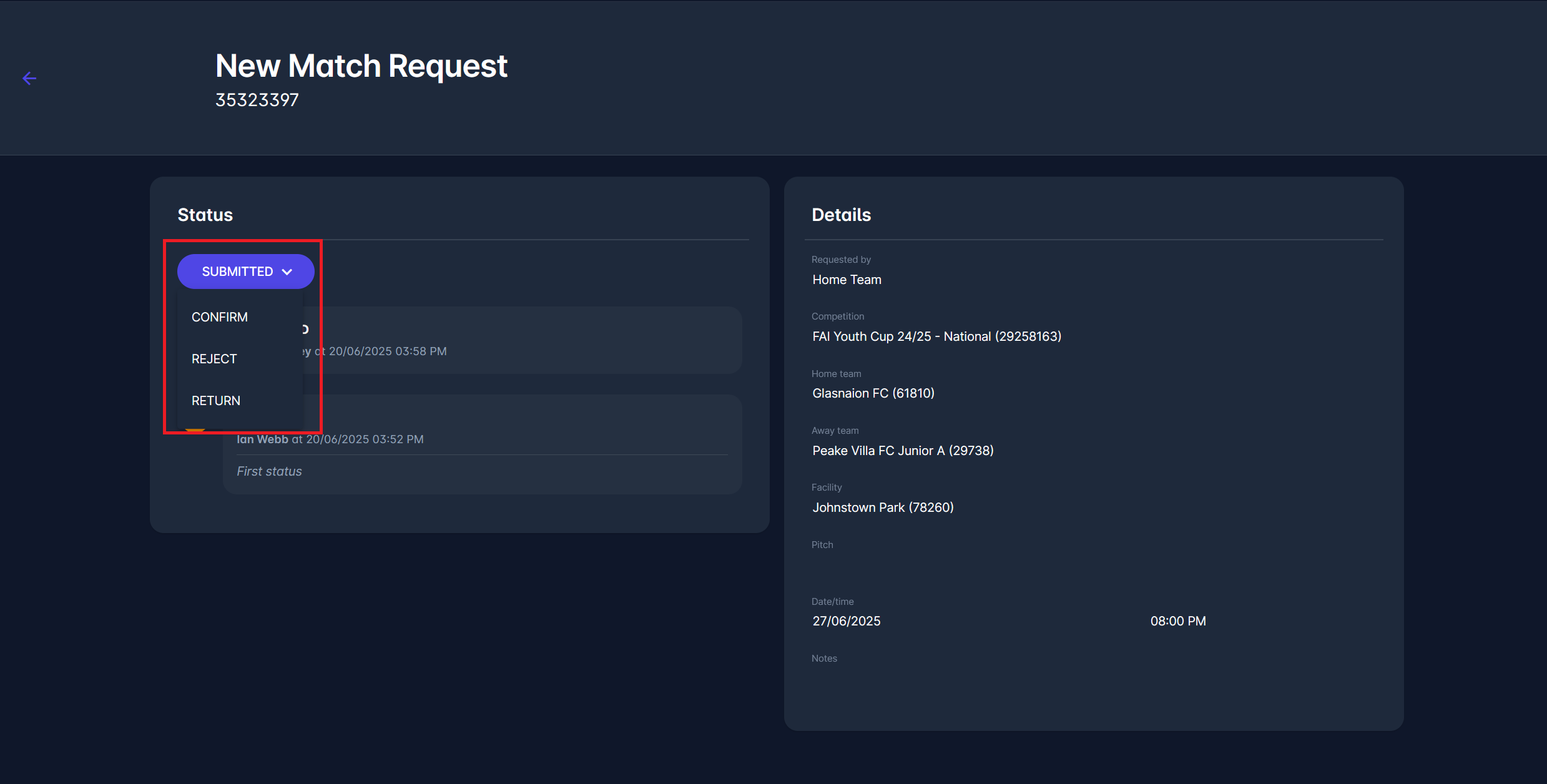
Competition Administrators or Managers can select from the following responses:
-
✅ CONFIRM - confirm the request,
-
❌ REJECT- reject the request, or
-
🔄 RETURN - return a request to the initiator for revision.
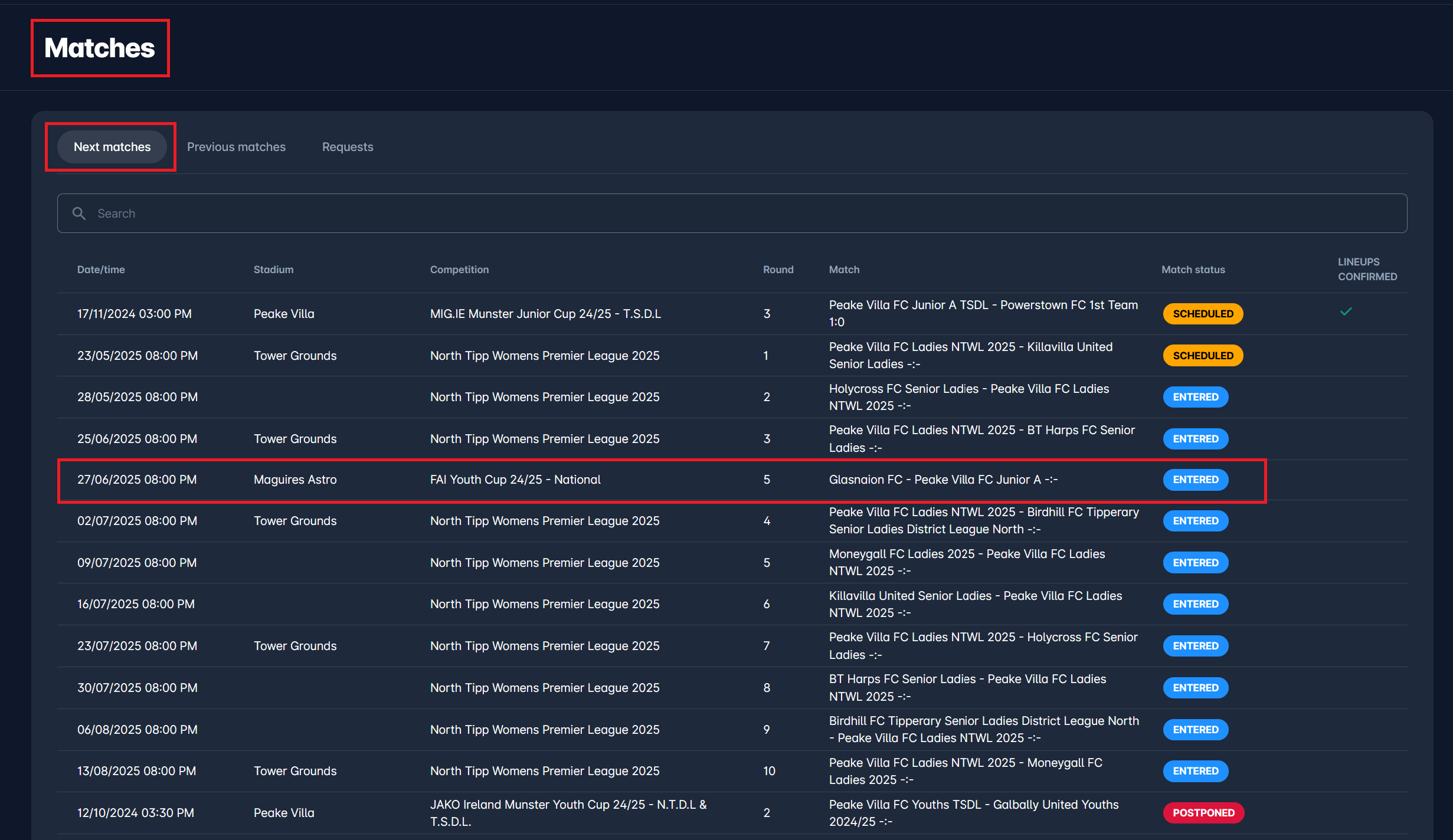
Once the request is confirmed, a confirmation email is sent to the Club Users of both clubs involved. The match is created, and its status is set to either ENTERED or SCHEDULED, depending on your Competition Match Initial Status setting. It now appears on the competition page and in the Next Matches list of the relevant clubs.
The process now continues as for any other match in COMET: Administrators or Managers will appoint match officials, and on match day, clubs will enter their lineups. Match officials will then complete their own match reports, and so on.