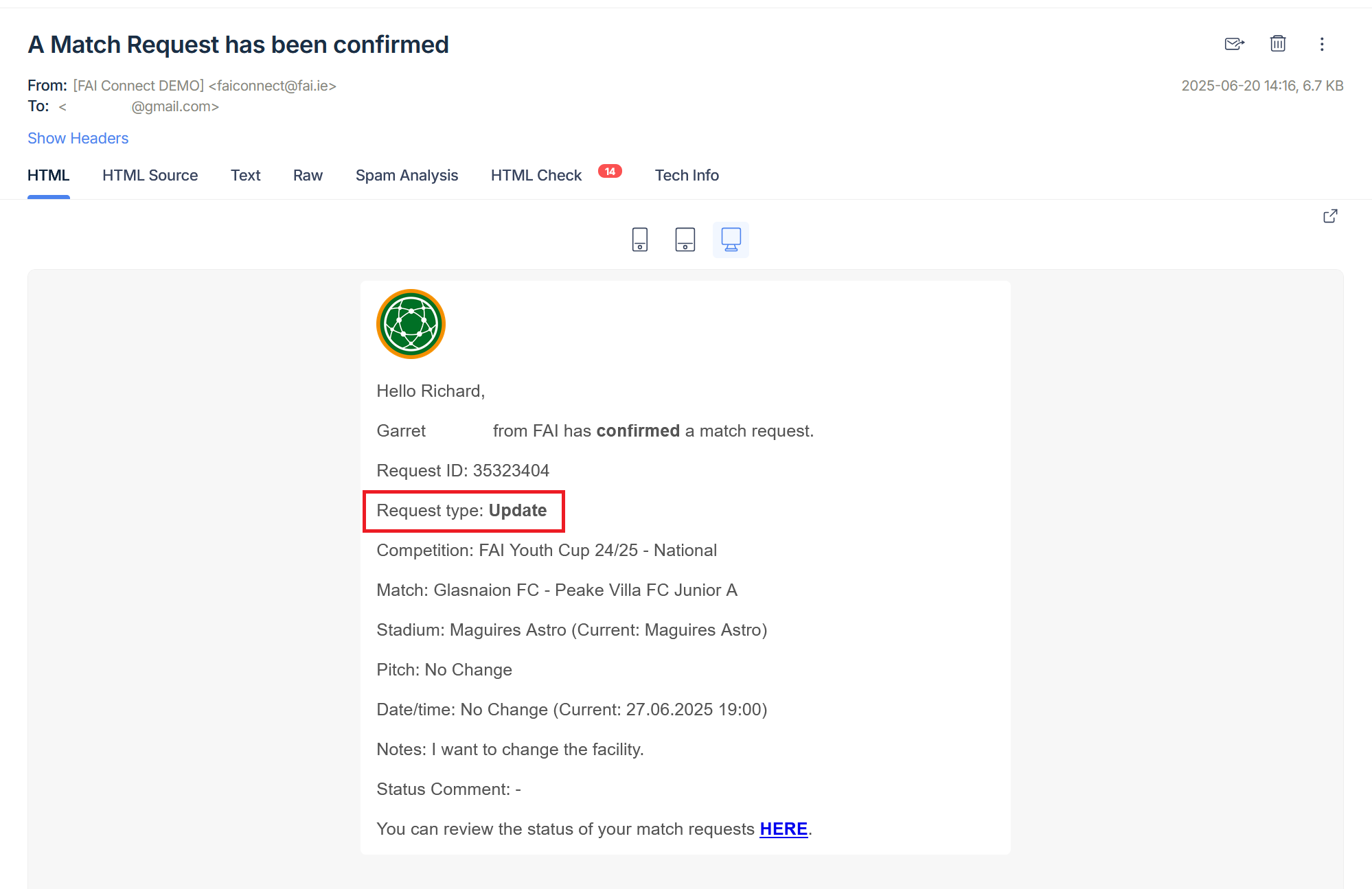
Similar to creating a new match request, clubs can request an amendment of the place (facility and pitch) and/or start date and time of any future match in the system.
After both clubs submit the request sequentially, it is reviewed by the relevant Competition Administrators or Managers. If the request is approved, then the match will be automatically updated as stated in the request.
This workflow saves a significant amount of time for clubs and competition officials across all levels of football, as match updates are pretty frequent.
Competition Requirements
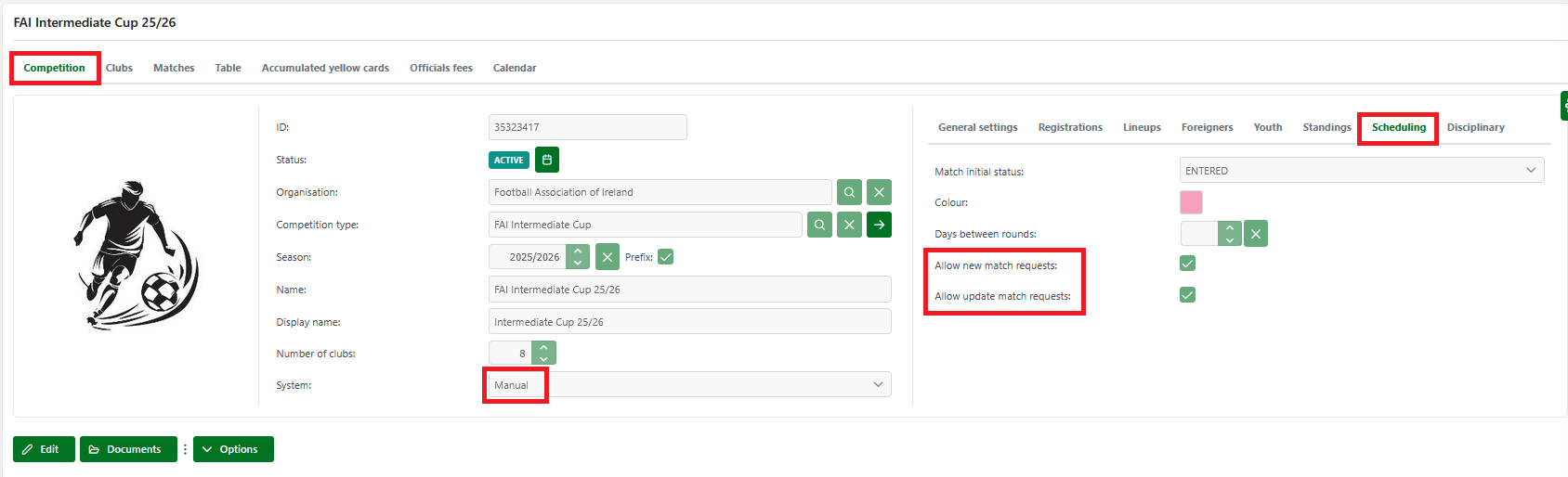
Not every competition can allow clubs to create requests to update a match. To allow clubs to create new match requests, enable it using the following steps:
-
Navigate to your competition from the COMET UI
-
On the competition tab, set the System of the competition to Manual
-
Navigate to the Scheduling tab
-
From here, you can enable:
-
Allow new match requests – to let clubs submit new match requests
-
Allow match request updates – to let clubs submit match update requests.
-
✅ Check the appropriate boxes depending on what you want to allow.
Initiating an Update Match Request
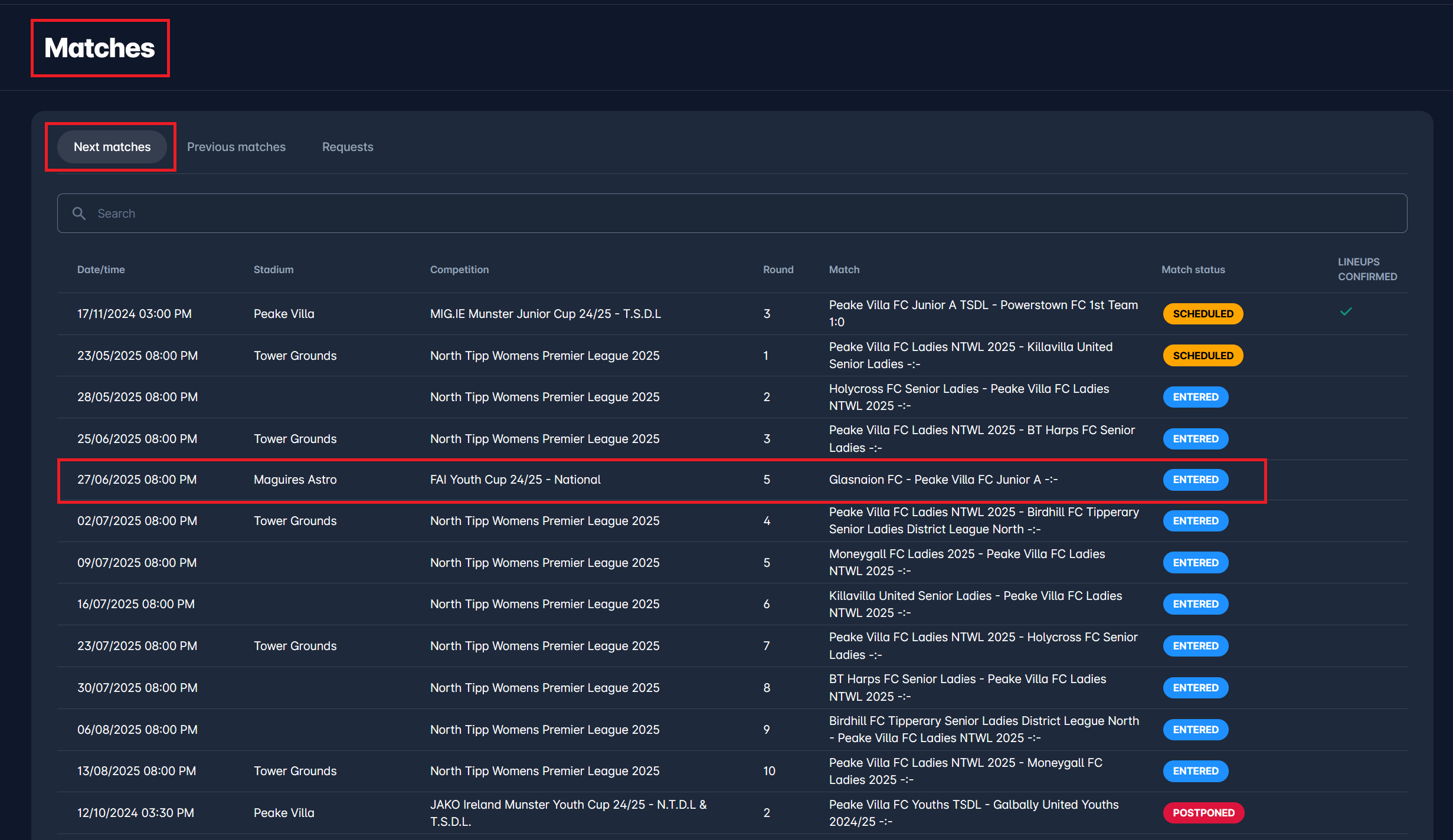
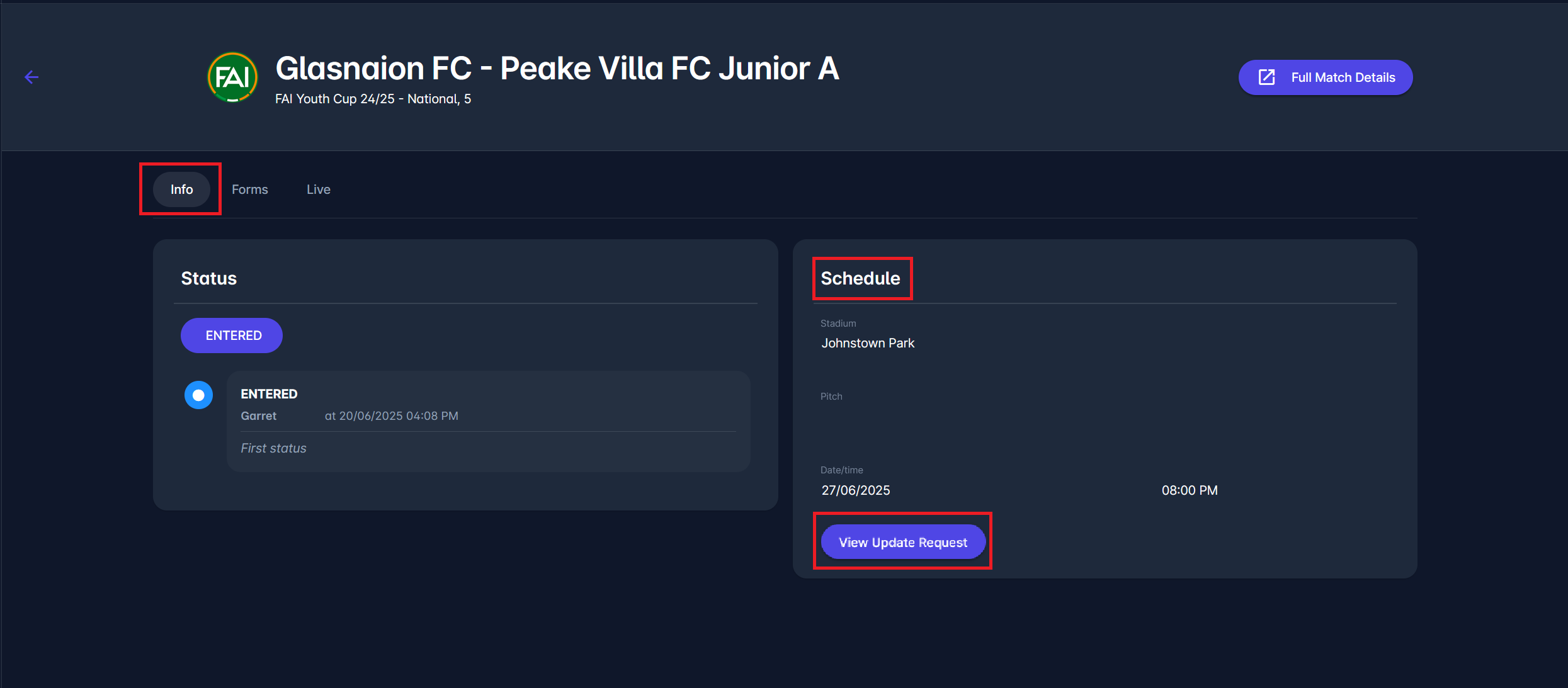
If the “Update match request” is available for a Competition, as an authorized Club user, navigate to the page of the match in MyCOMET you wish to send a request for. You can access the match page by selecting the match from the Matches → Next Matches:
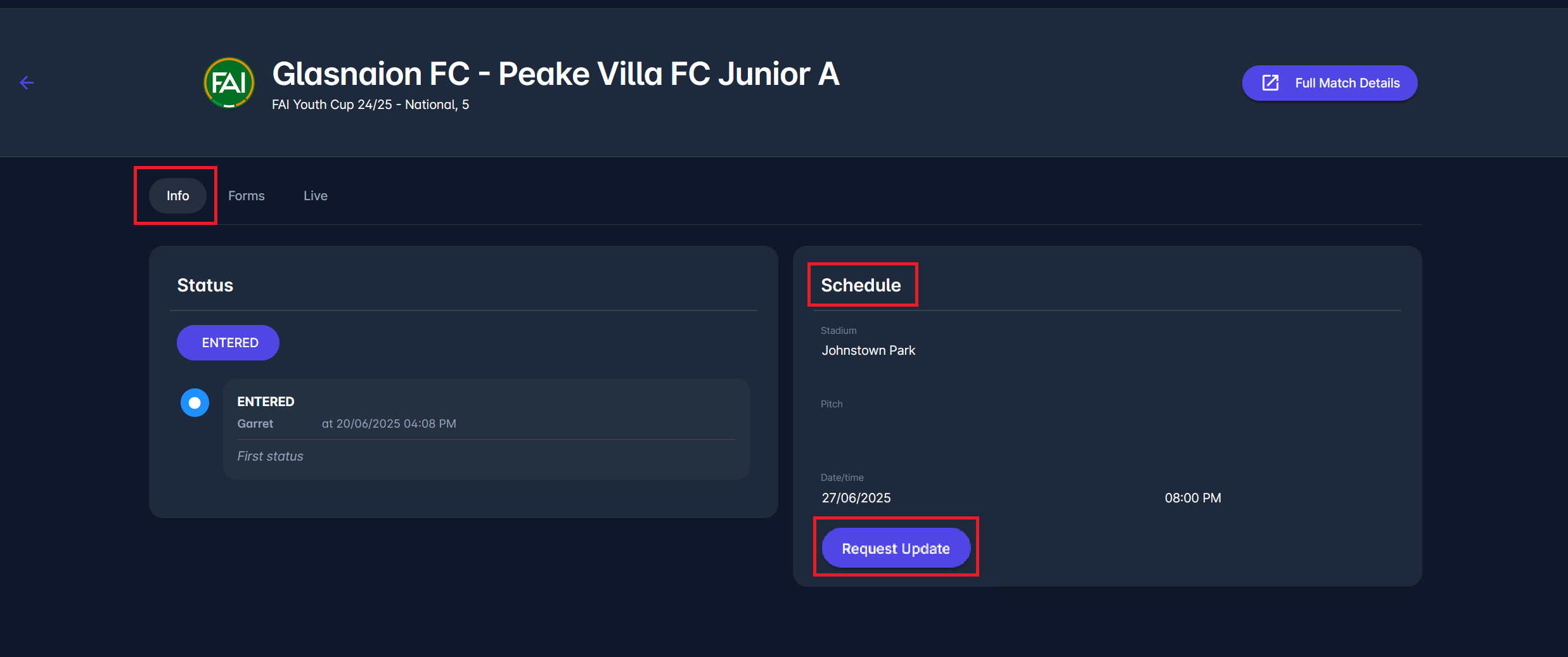
Click on the Request Update button at the bottom of the right section, labeled Schedule, under the match Info tab.
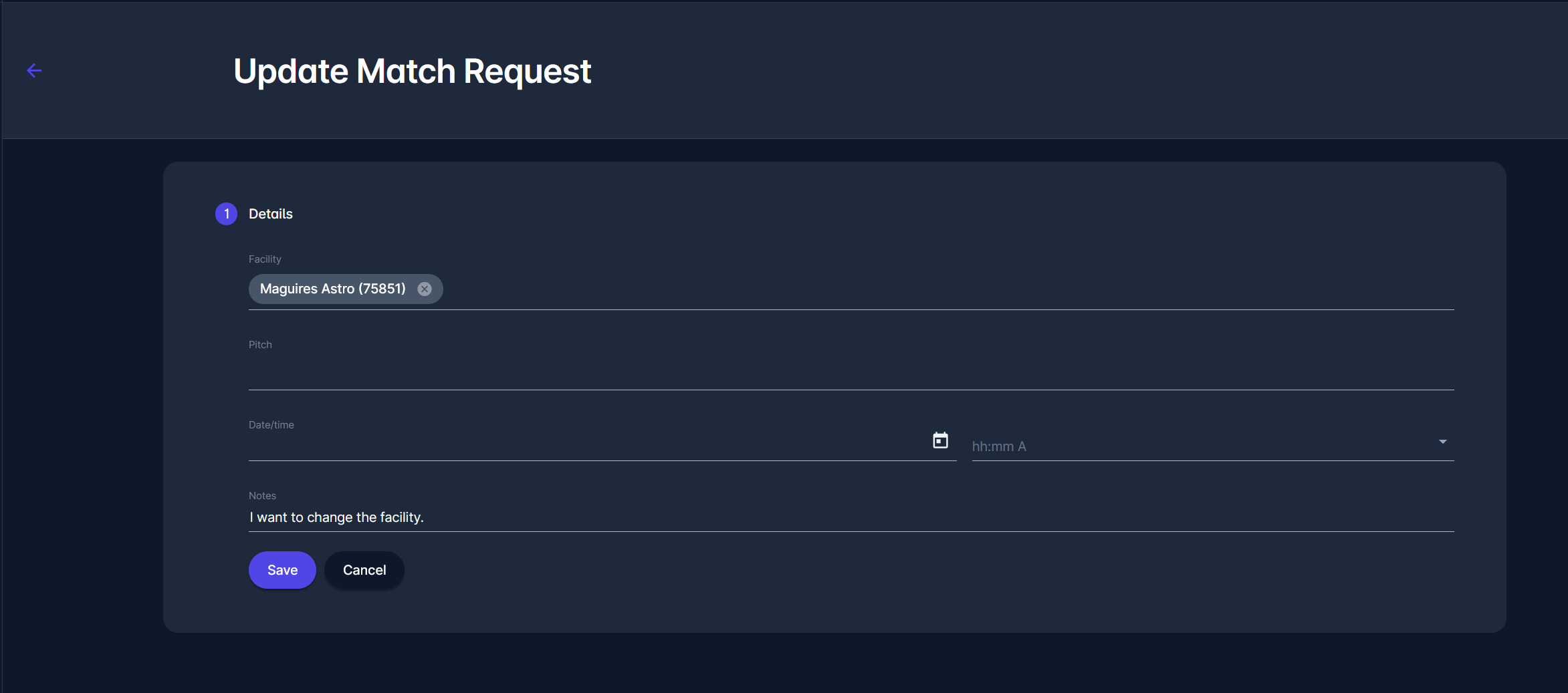
This action opens a new form requiring you to enter the desired updates. You can modify the following:
-
Facility – choose a different venue
-
Pitch – optional field
-
Date/Time – specify new kickoff date and time
-
Notes - add notes for the opposing team or administrators.
Click on the Save button to submit the update request. This will notify the opposing club via email.
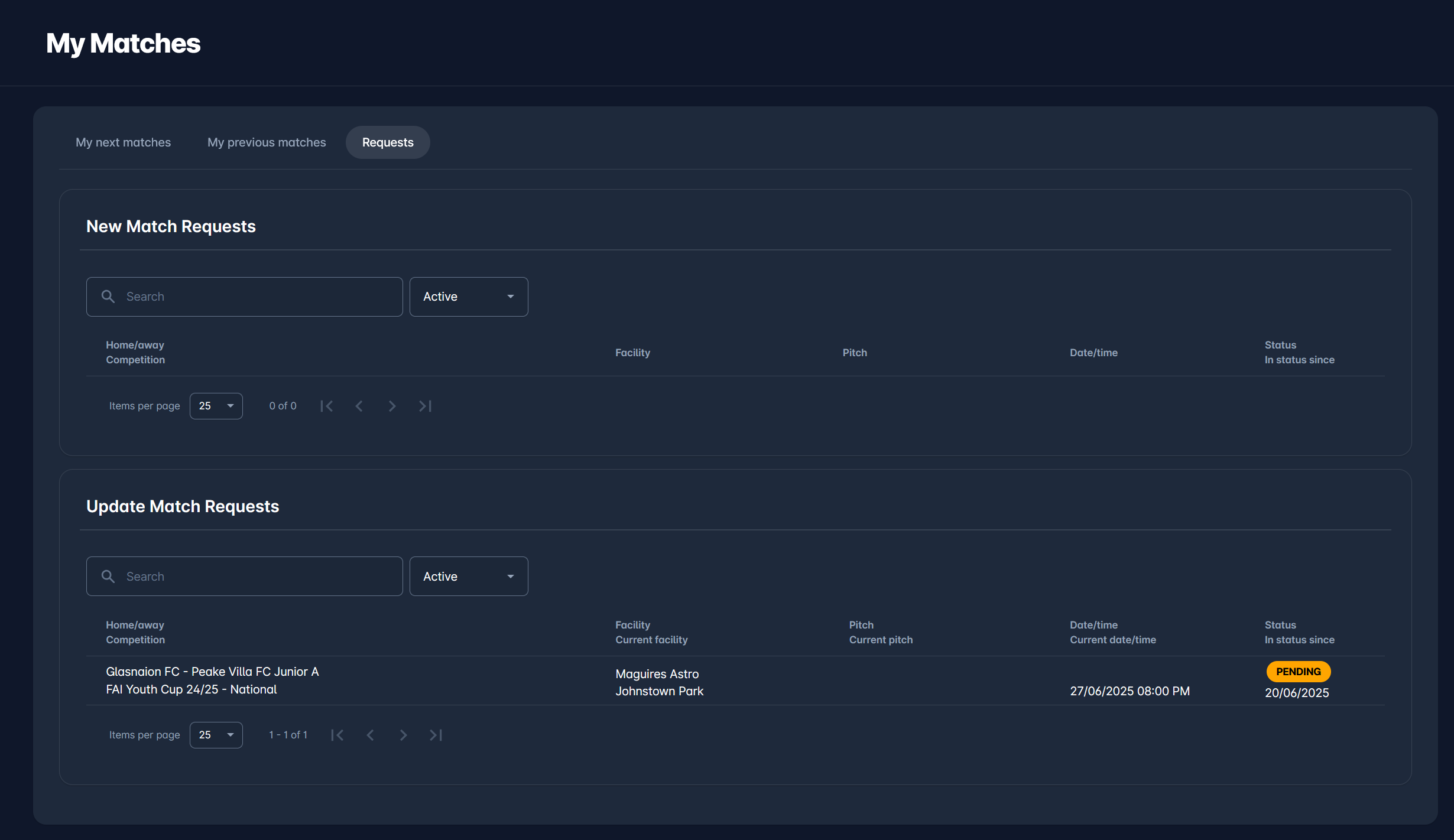
You can review your request by navigating to the match page and clicking the ‘View Update Request' button, or from 'My Matches’. On My Matches, you can view the requested changes listed. Note that the request presents information on Facility and Current Facility, as well as Date/Time and Current Date/Time.
Responding to an Update Match Request
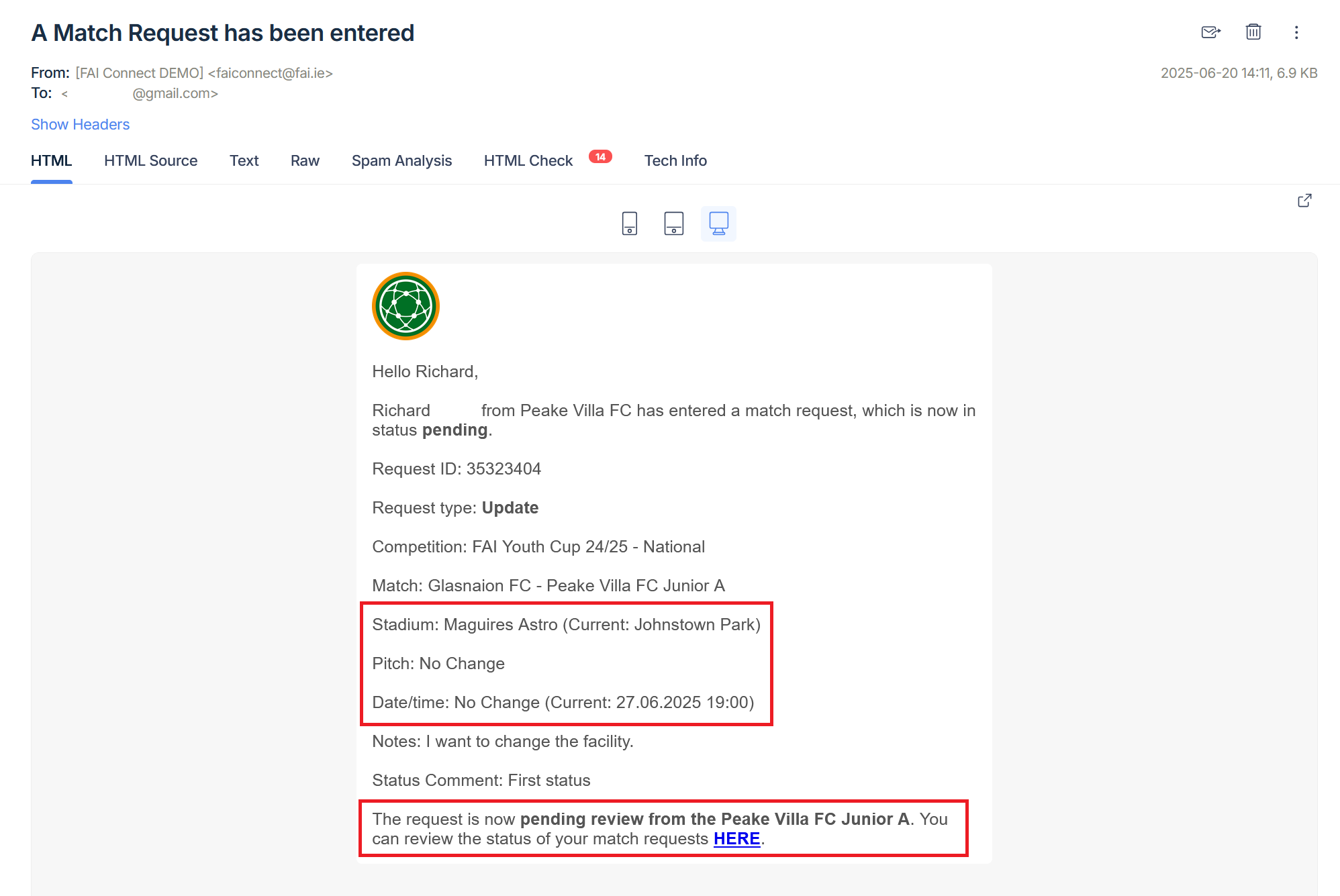
Following the previous section of this article, saving the update requests triggers sending an email notification to the opposing club. All the desired changes are visible in an email received, which notes the newly requested information and the current stadium, pitch, and match date and time.
A club user from the opposing team can reply to an Update Match Request by selecting one of the following:
-
🔄 RETURN – send the request back to the initiator for changes
-
📤 SUBMIT – accept changes and forward the request to Competition Administrators or Managers
-
❌ CANCEL – cancel the update request
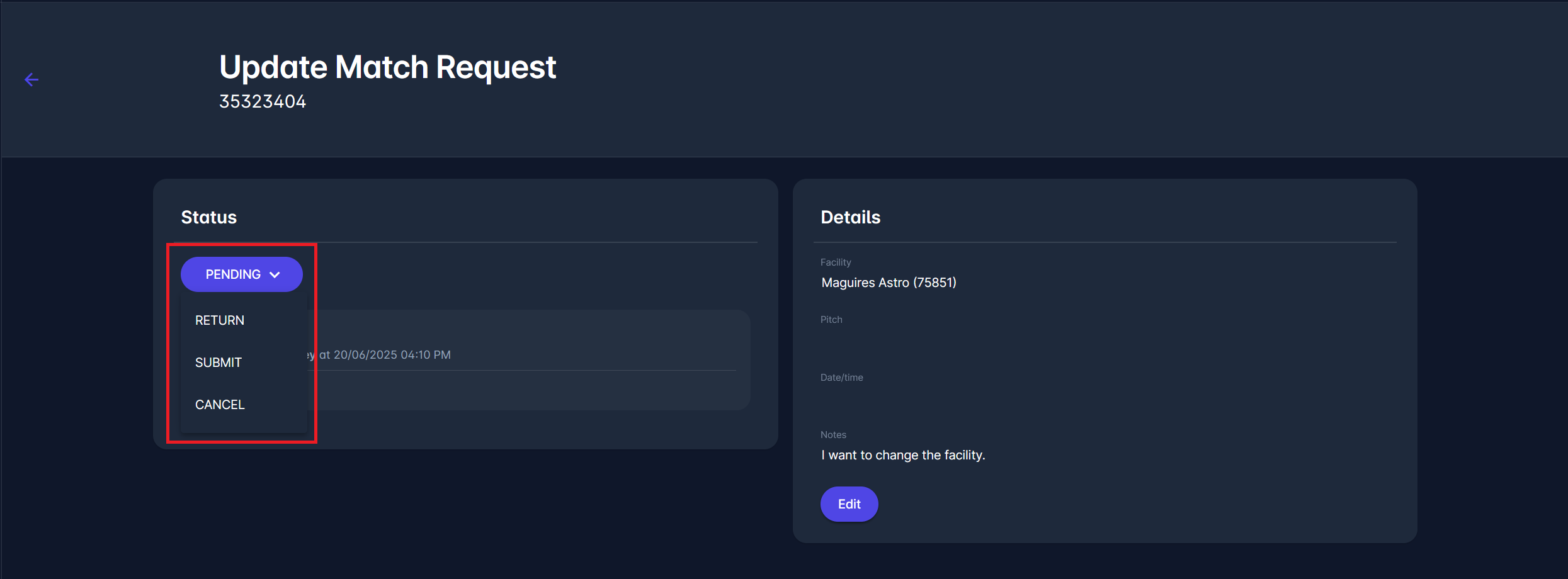
Submitting the request sends a notification email to Competition Administrators or Managers informing them about the new request and requiring their action.
Now, the Competition Administrator or Manager can select from the following responses:
-
✅ CONFIRM – approve the update (match is automatically updated)
-
❌ REJECT – reject the proposed changes
-
🔄 RETURN – return to the initiator for further edits
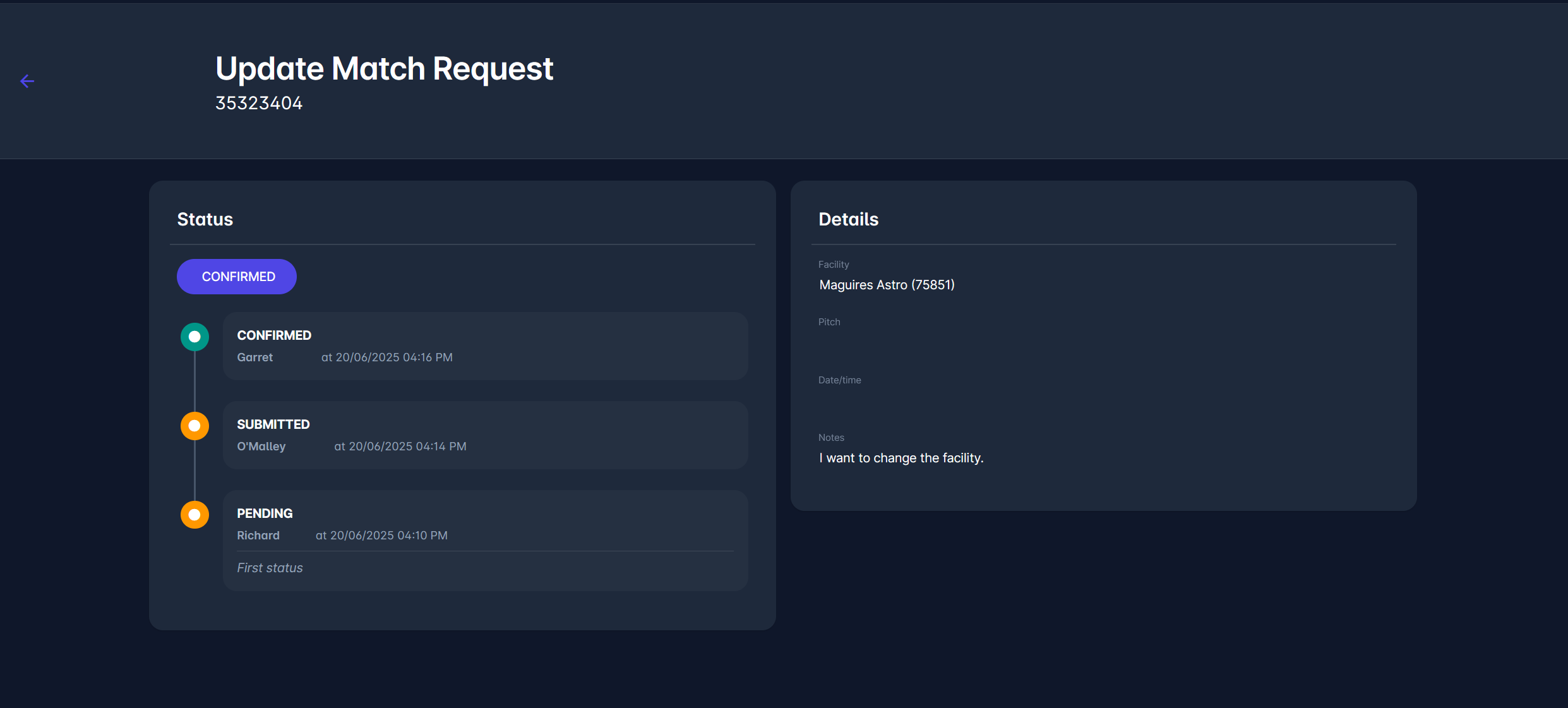
Confirming the request sends a notification email to the Club Users informing them about the confirmation of their request, and the match is automatically updated as stated in the request.