
Both Club Managers and Club Lineup Managers have permissions to create and delete training sessions, with one crucial distinction:
|
Role |
Permissions |
|---|---|
|
Club Manager |
Can create or delete trainings for the club or any training group within the club. |
|
Club Lineup Manager |
Can create or delete trainings only for their own training group. |
Creating a Training
When creating a new training session, users can define:
-
Name
-
Start and End Time
-
Training Group
-
Other relevant details
Additionally, users can create recurring trainings by enabling the Recurring Event option, which automatically generates a series of training sessions based on selected recurrence options. More on this in the Recurrence option.
To create and manage team training sessions in COMET, navigate to the Trainings module located under the Administration section in the main menu.
The Trainings page lists all sessions organized by category:
-
Upcoming – displays all future trainings.
-
Previous – shows completed past sessions.
-
All – includes every session for selected teams or groups.
-
Calendar – provides a visual calendar view of scheduled trainings.
You can also use the Search bar or the Group filter to narrow down sessions by team or competition group.
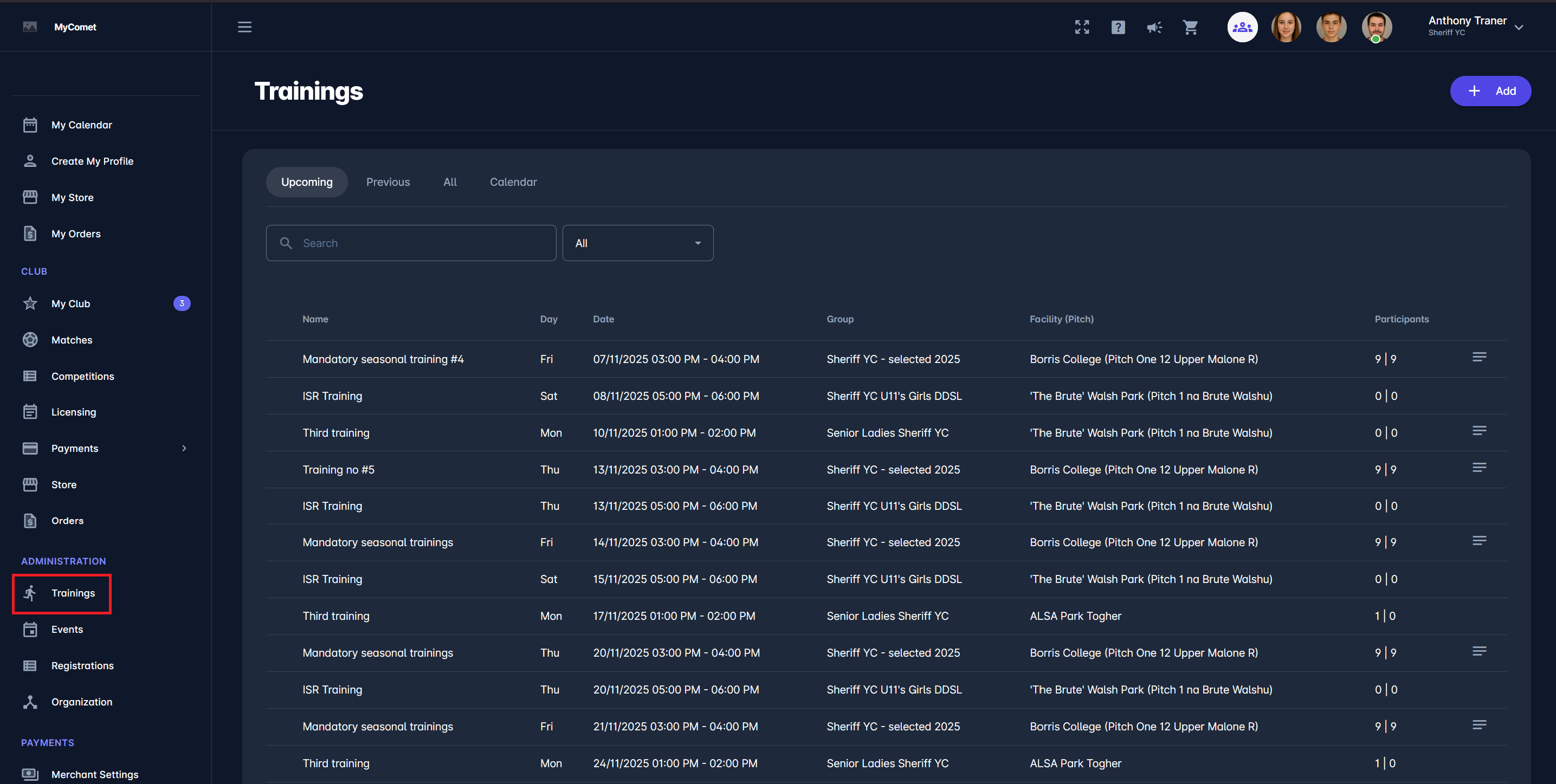
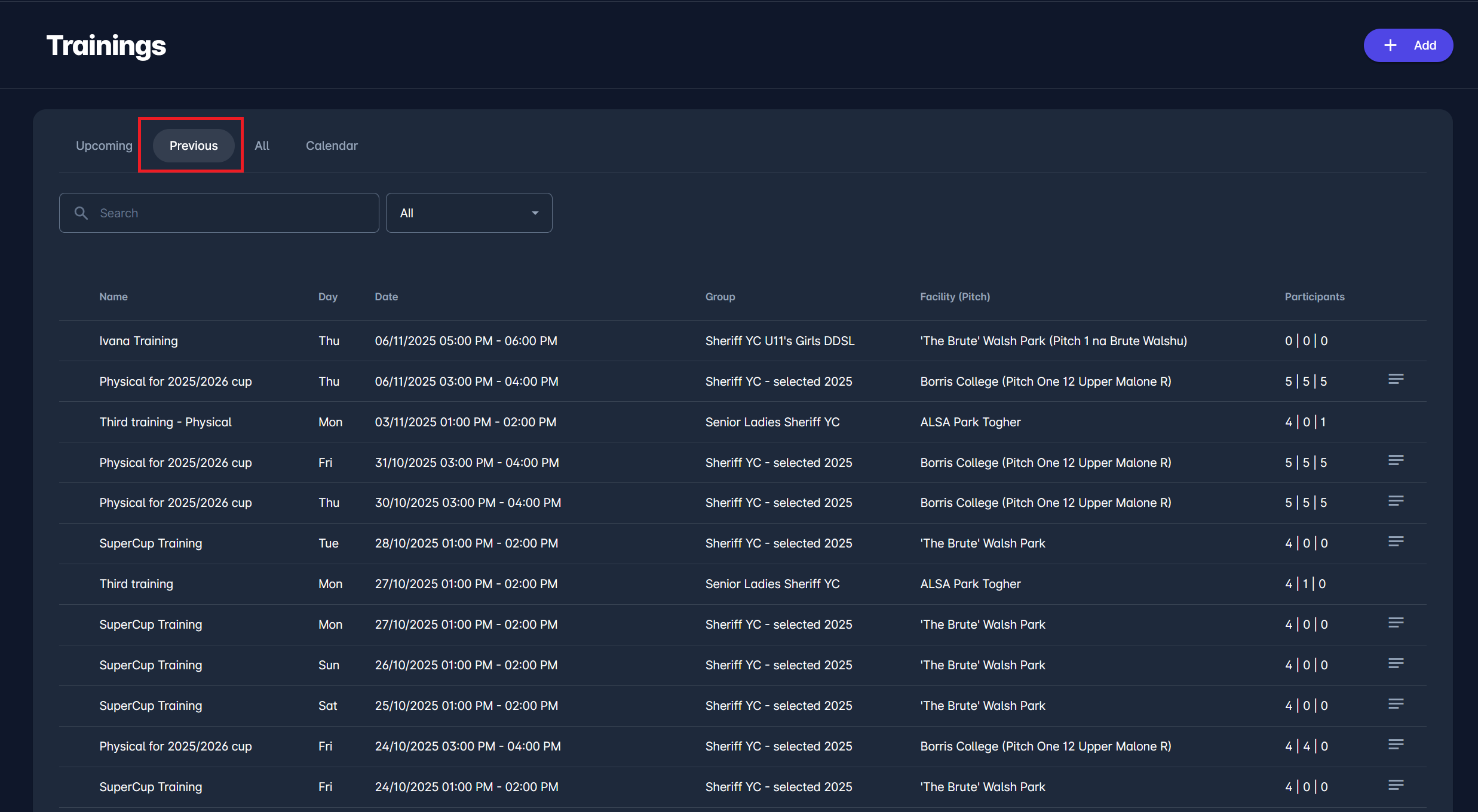
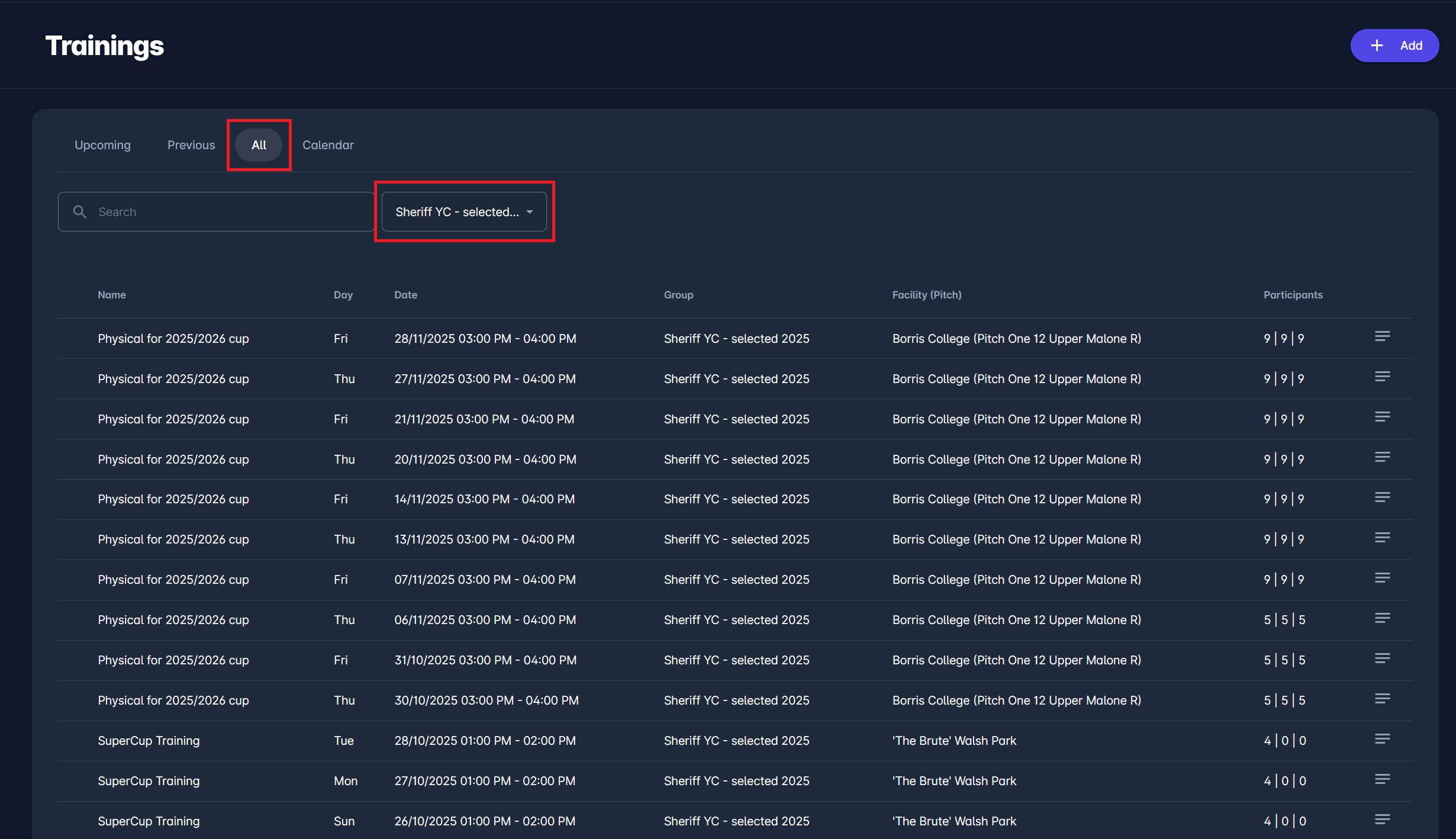
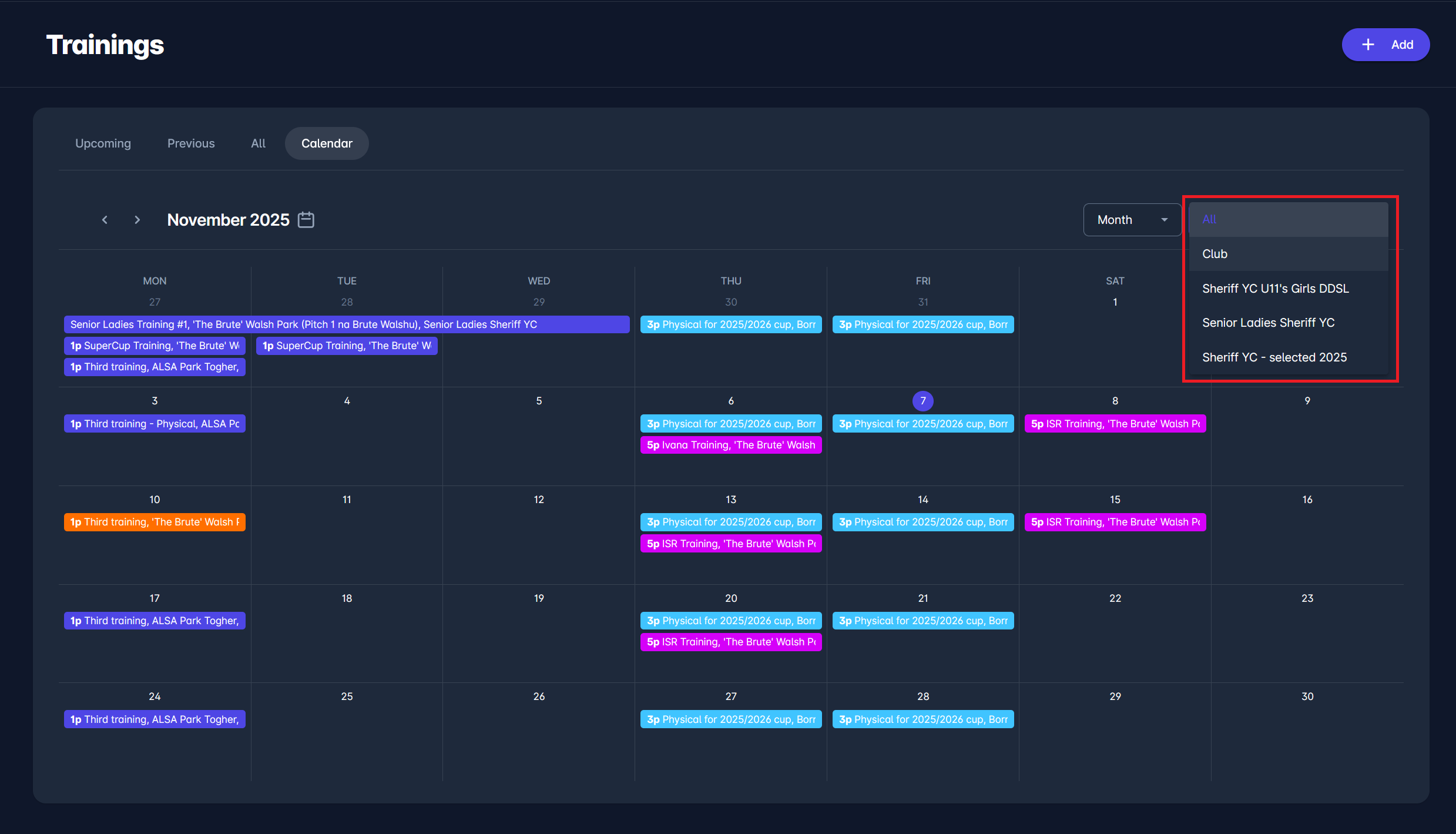
To add a new training, click the Add button in the upper-right corner of the screen.
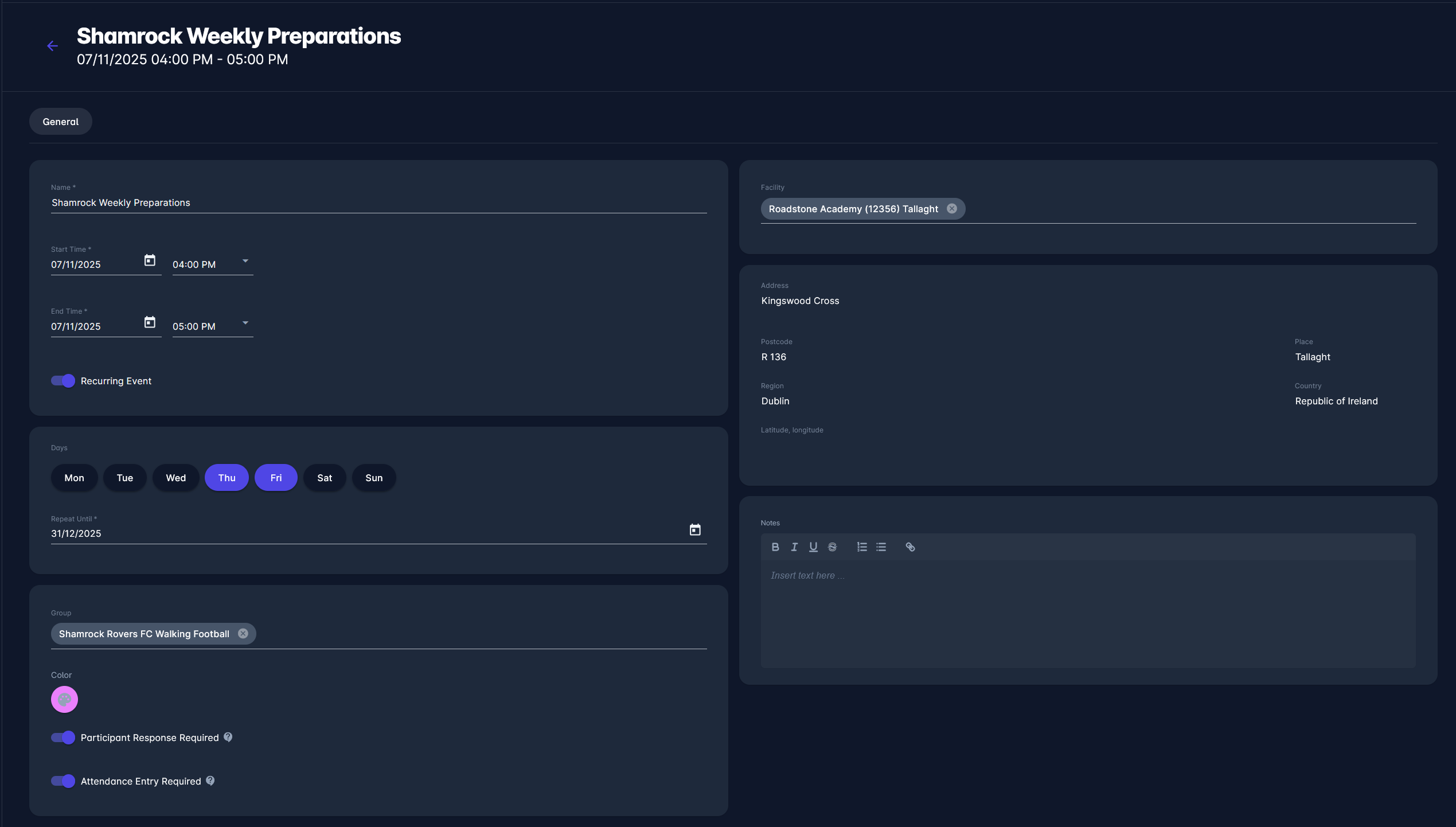
The training form includes several key sections:
-
Name – enter the title of the training (e.g., “Weekly Conditioning” or “Tactical Preparation”).
-
Date and Time – define the start and end times.
-
Recurring Event – toggle ON if the session repeats regularly; select the days of the week and the end date of recurrence.
-
Facility – choose the training location (stadium and, optionally, pitch).
-
Group – select the team or group attending the session. This field is optional; if you don’t choose a group, you will need to add participants manually. If you add a team from your club as a group (necessarily categorized as a training group), Team members will be automatically added to this training.
-
Participant Response Required – If enabled, participants will be required to respond whether they will attend. If disabled, they are assumed to attend and must only act if they will not be attending.
-
Attendance Entry Required – If enabled, club users must enter which participants actually attended the training. If disabled, they must act only if the participant’s response is unknown or if it differs from actual attendance (e.g., a player confirms attendance but does not show up).
-
Notes – optional field for any remarks or details.
-
Color - select a color by which the events will appear in the participant’s and Club Manager’s calendars.
Once all information is entered, click Save to finalize the session.
The new training will then appear in the relevant lists and calendar views. Additionally, tabs named Participants and Recurrence appear, allowing you to edit them.
Editing a Training
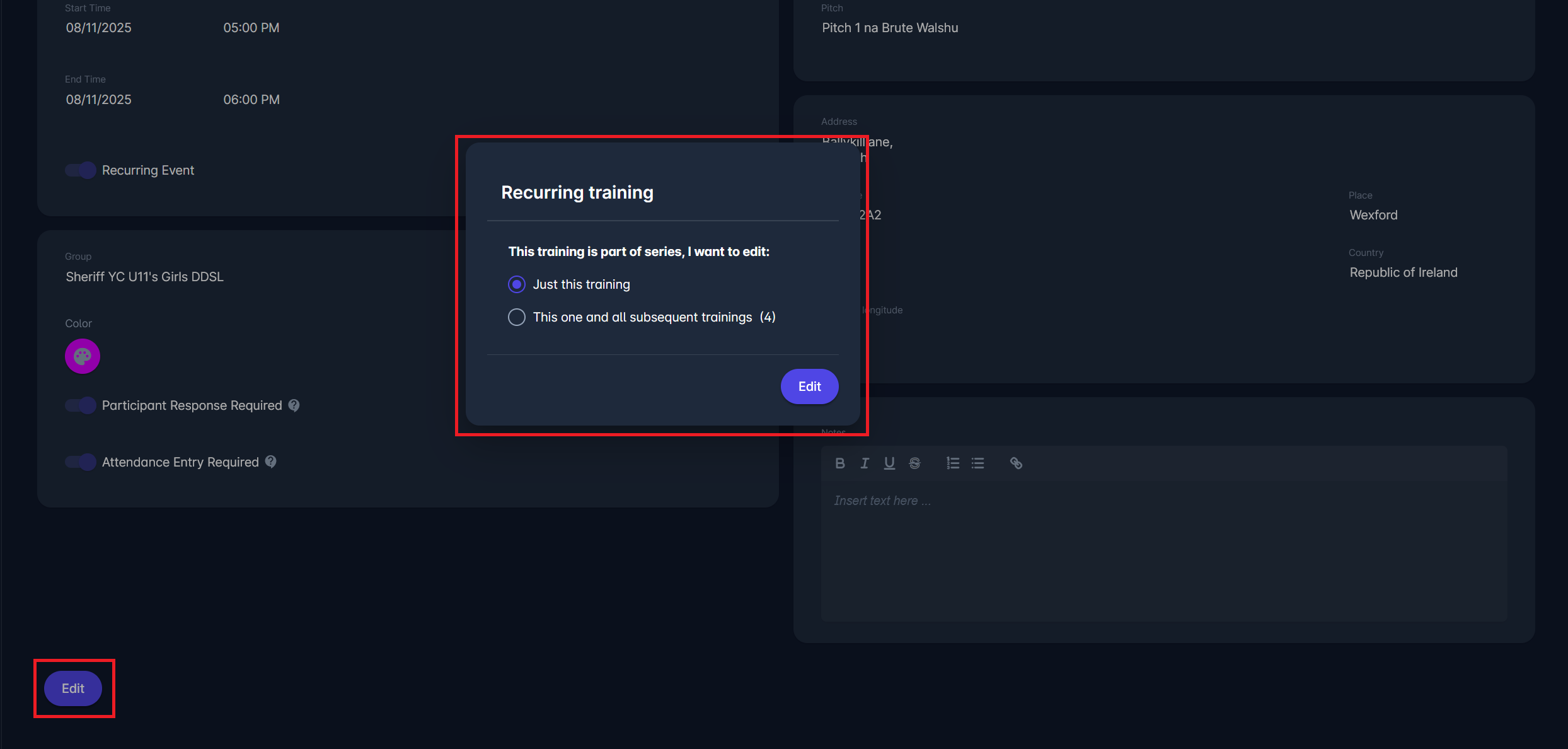
When attempting to edit a training that belongs to a series, the system intercepts the action and displays a dialog prompting the user to choose whether to:
-
Edit only this training, or
-
Edit this and all subsequent trainings (including the count of trainings in series)
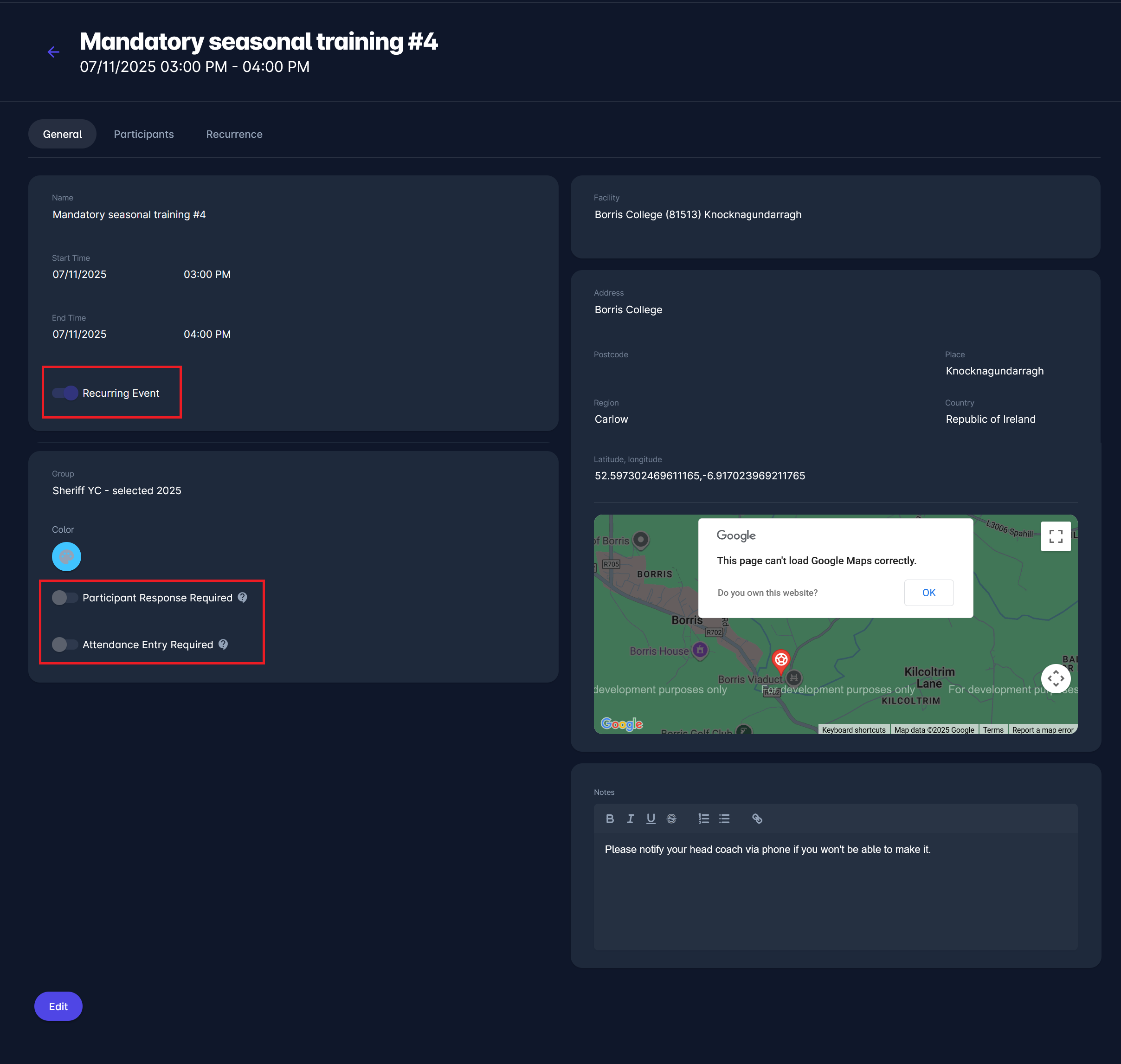
If the user chooses to edit the entire series, all related training entities are updated to reflect the changes. Individual edits (single-instance updates) affect only the selected training without modifying other occurrences in the series. Depending on which option the user selected, some fields will be disabled.
Participants
Any person who is actively registered in the club can be added as a participant in a training event.
The purpose of the Training Participant entity is to enable club roles to track which members attended each training event.
Training participants are not the same as members of a Training Group. As explained earlier, when a training session is created, its participants are automatically generated based on the selected training group.
Adding a player to a training group automatically adds them to all upcoming trainings for that group.
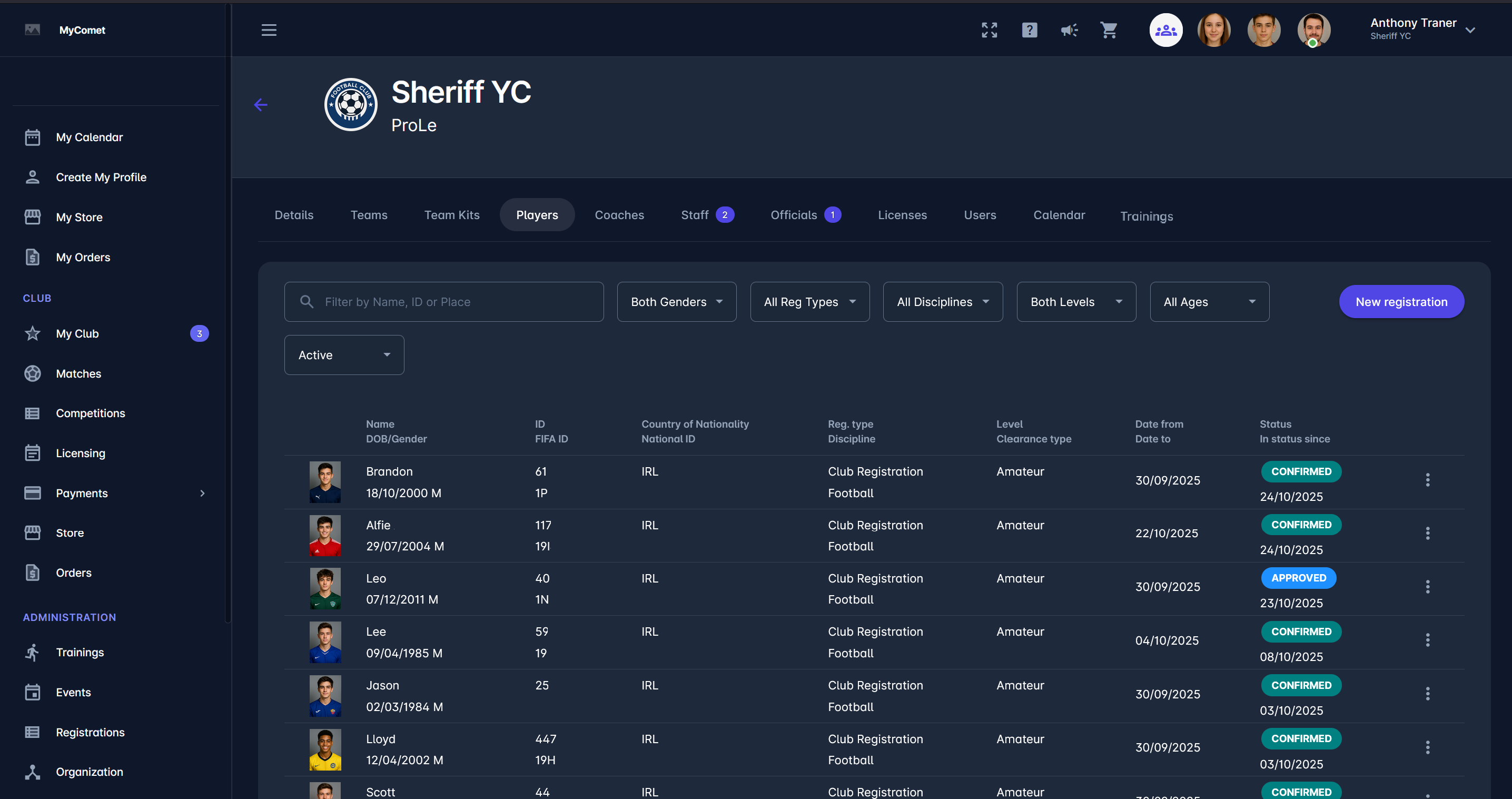
All players currently or previously registered to the club are available at the Club → Players tab.
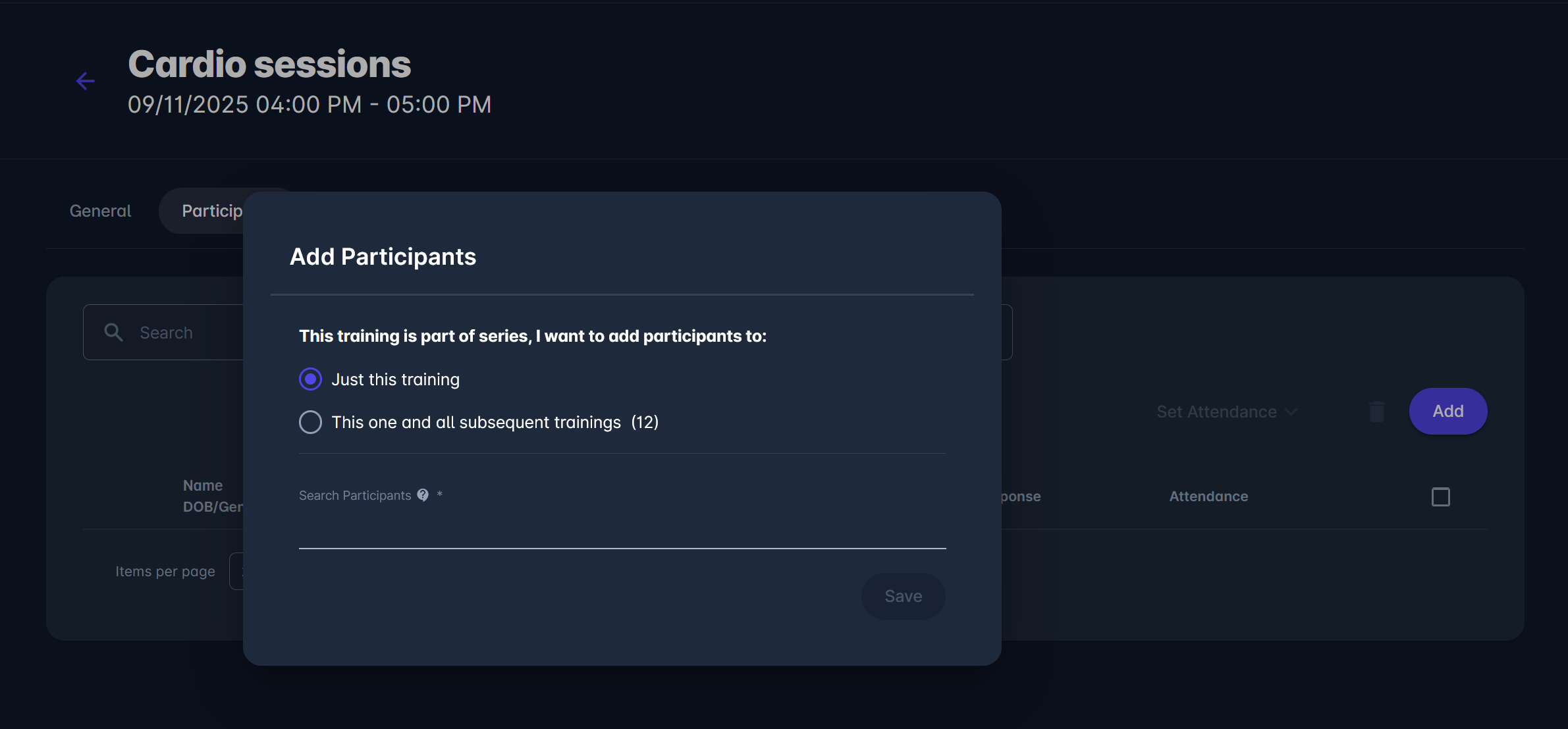
To add a new participant, click Add in the top-right corner of the Training site → Participants tab. If the training is part of a recurring series, the system will ask whether you want to add the participant:
-
Just this training – adds the person only to the selected session.
-
This one and all subsequent trainings – adds the person to the whole recurring series.
Once added, participants will appear in the list, and their attendance can be tracked in future sessions.
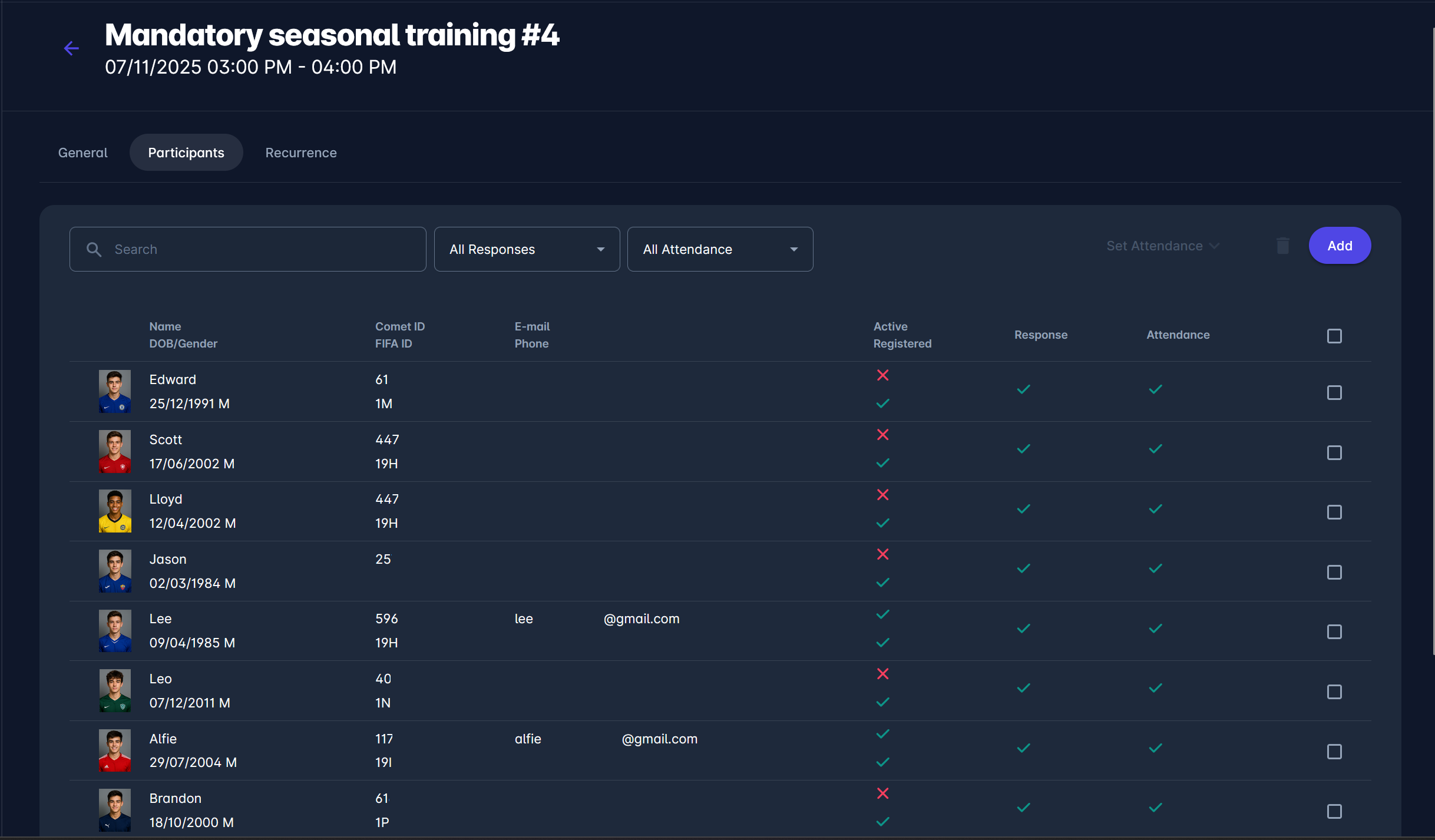
The Participants tab lists all players linked to the selected training. Each entry shows:
-
Name, Date of Birth, and Gender
-
COMET ID / FIFA ID
-
Contact Information (email, phone)
-
Active / Registered status - active is defined as ✅ true if a participant has an active user profile, whereas registered is ✅ true if a player is actively registered for a selected club (including statuses such as APPROVED, ENTERED, and CONFIRMED)
-
Response - if a reply to a participation request was given, defined by Participant
-
Attendance status - managed by the responsible Club roles
You can filter participants using the Search, Response, or Attendance dropdown menus.
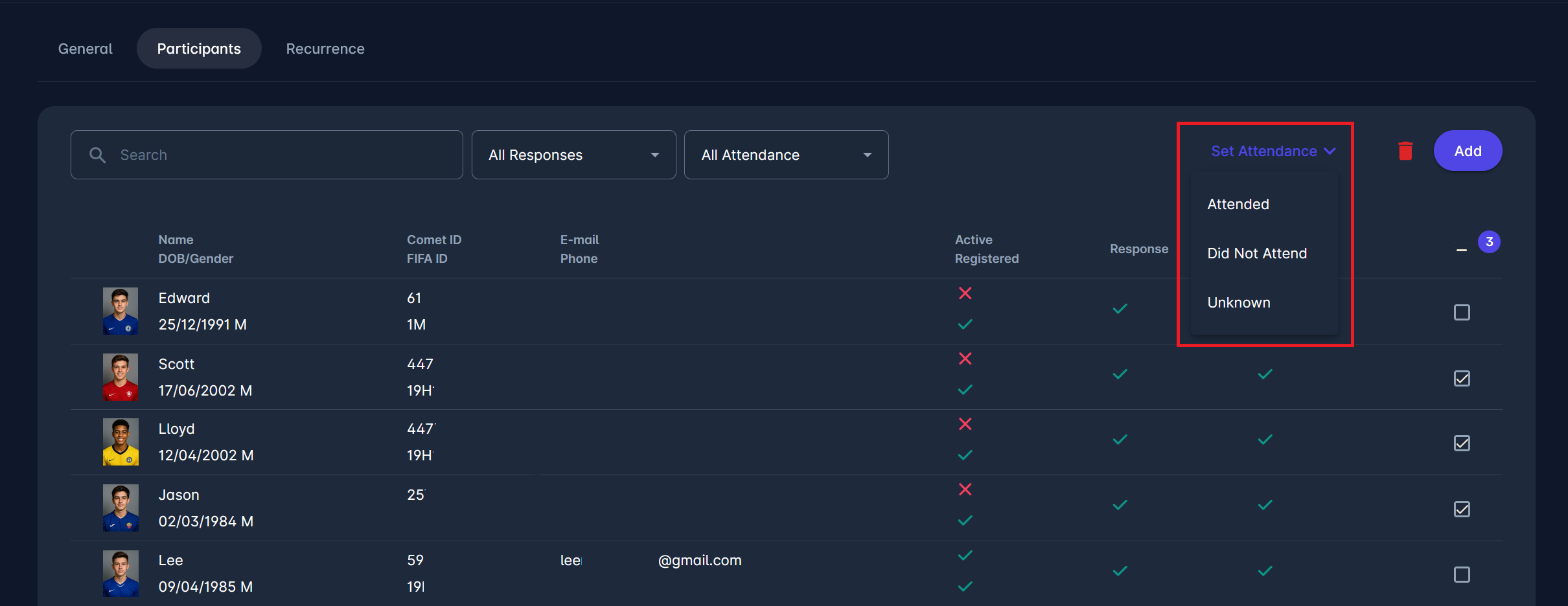
To record attendance, select one or more participants by checking the box next to their name, use the Set Attendance menu, and choose one of the following options:
-
Attended
-
Did Not Attend
-
Unknown
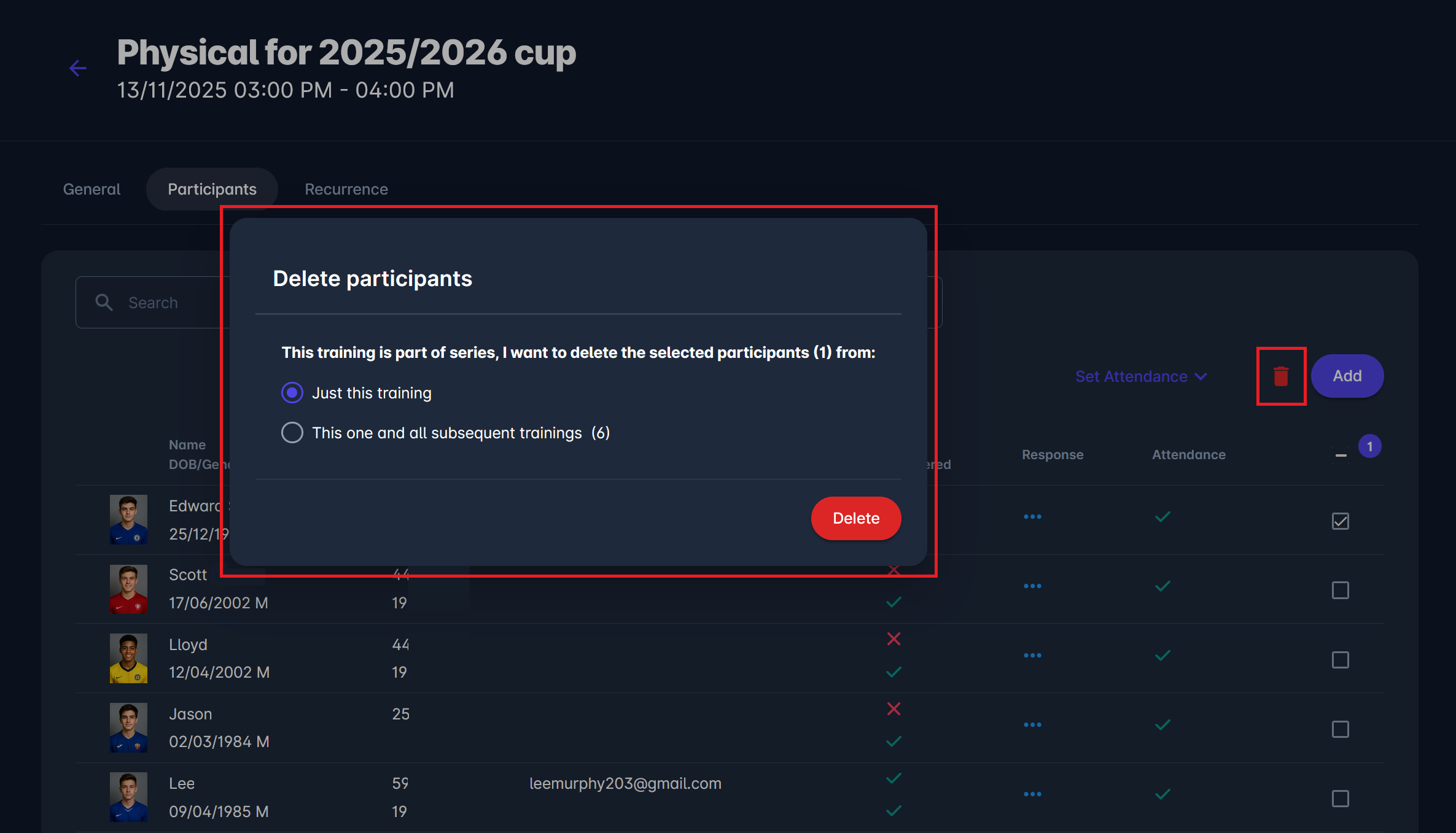
To remove one or more participants from current or all subsequent trainings, select the checkbox next to their name and click the 🪣 delete button. Select the events you want to remove, then click the Delete button to confirm your choice.
Related COMET Data reports include the following: Trainings (110), Training Participants (111), Training Group Members (112).
Trainings on Club Profile
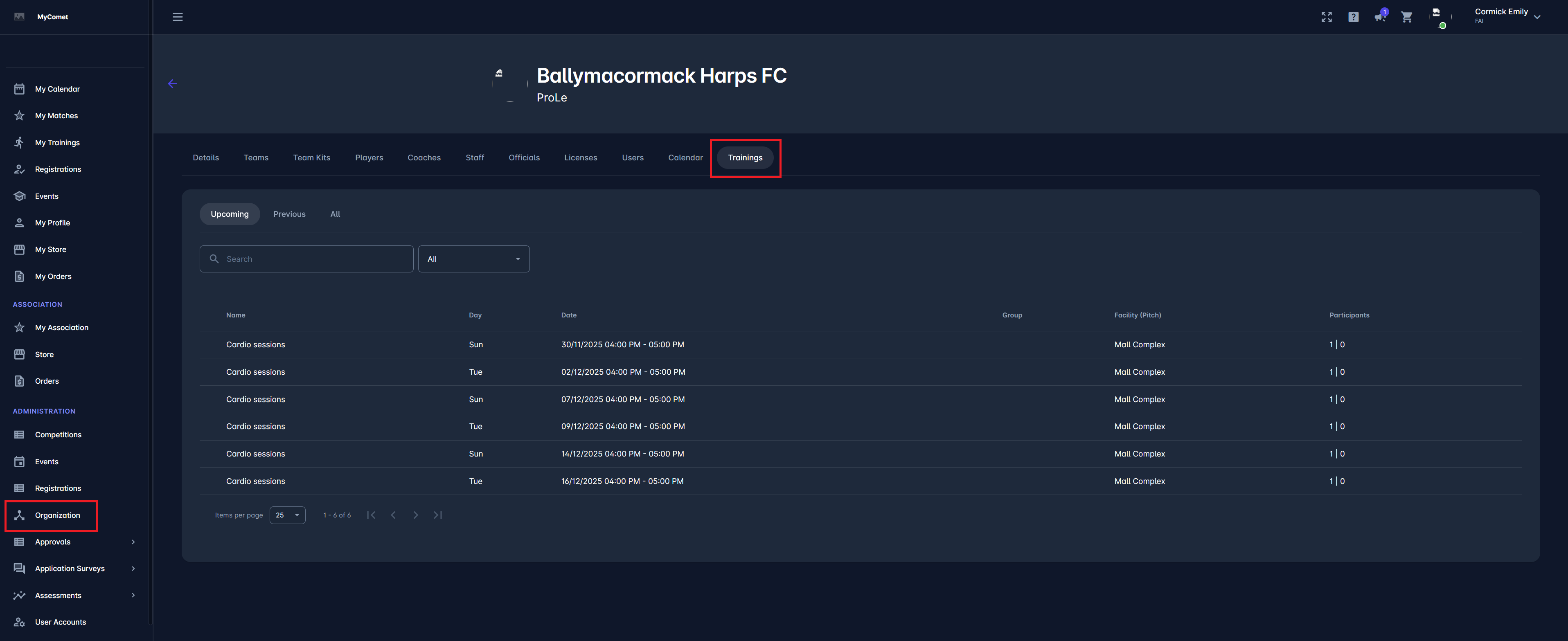
All club trainings are visible to authorized users with Club roles (Club Manager/Referent, Club Line-up Manager), as well as to Superusers of the Association/Organization and Administrators of Clubs.
As an authorized Club user, to view all trainings of your club, navigate to My Club → Trainings tab.
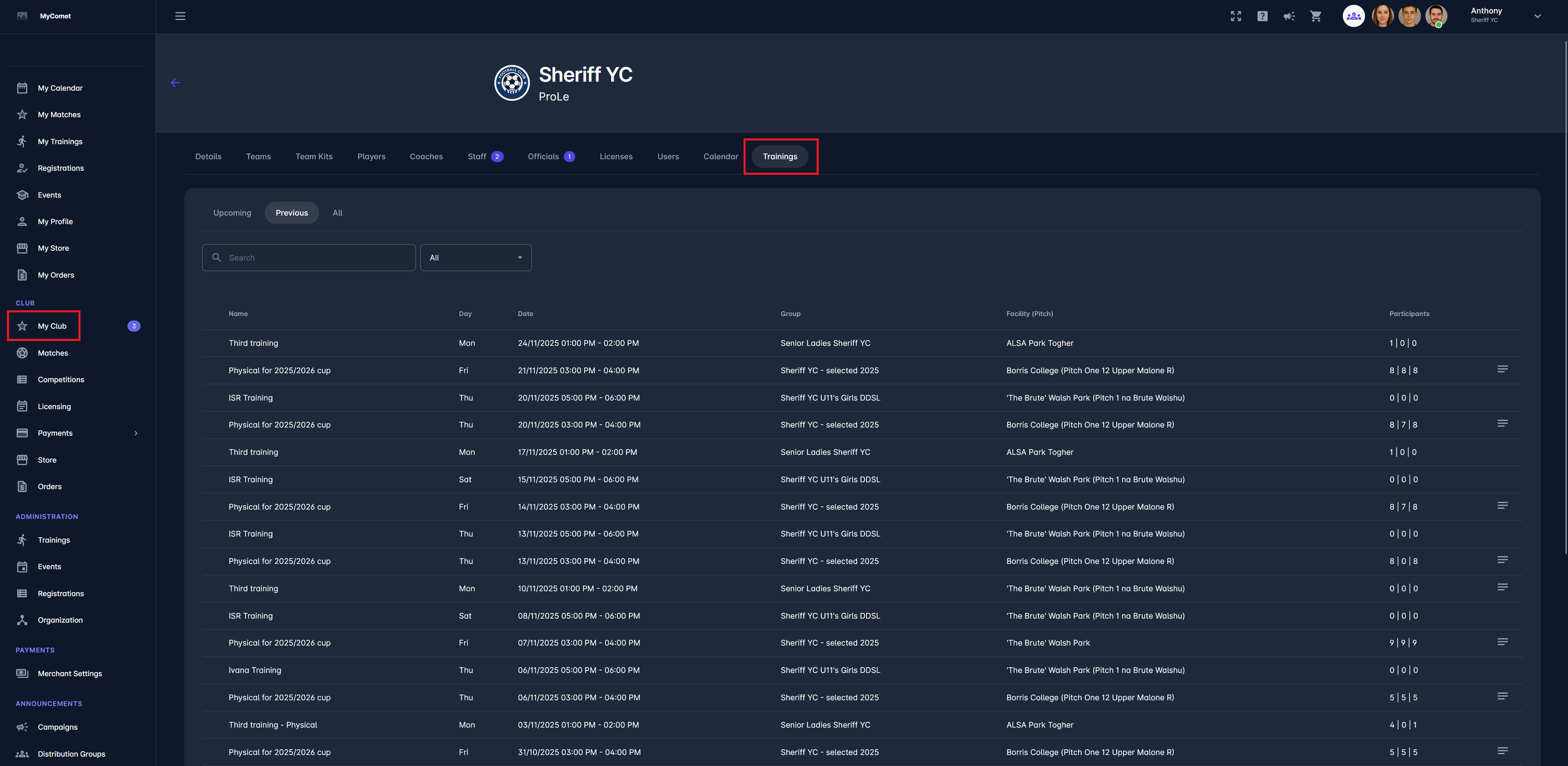
To view trainings of a club as other authorized club roles, navigate to the club site via Organization → Clubs → select a club → Trainings tab.
Recurrence
The Recurrence tab allows authorized users (Club managers and Club Line-up Managers) to manage repeated training sessions within a series. It provides an overview of all sessions created as part of a recurring schedule, displaying key details for each instance, including name, day, date, group, facility, and participants.
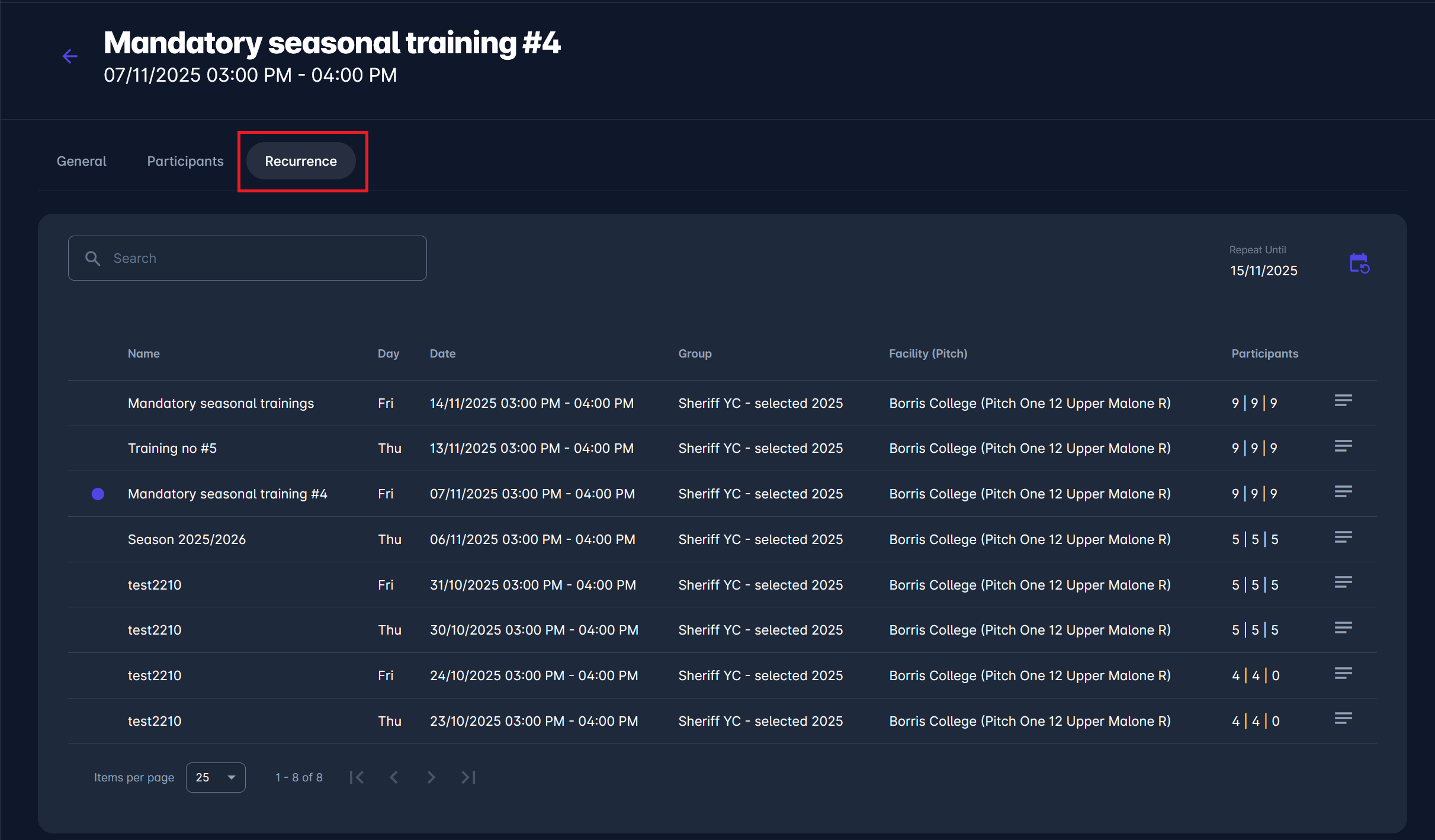
Each session within the series is listed in order, and the currently selected one is highlighted. You can view or edit individual sessions while maintaining their connection to the recurring set. The Repeat Until field, located in the top-right corner, displays the end date of the current recurrence.
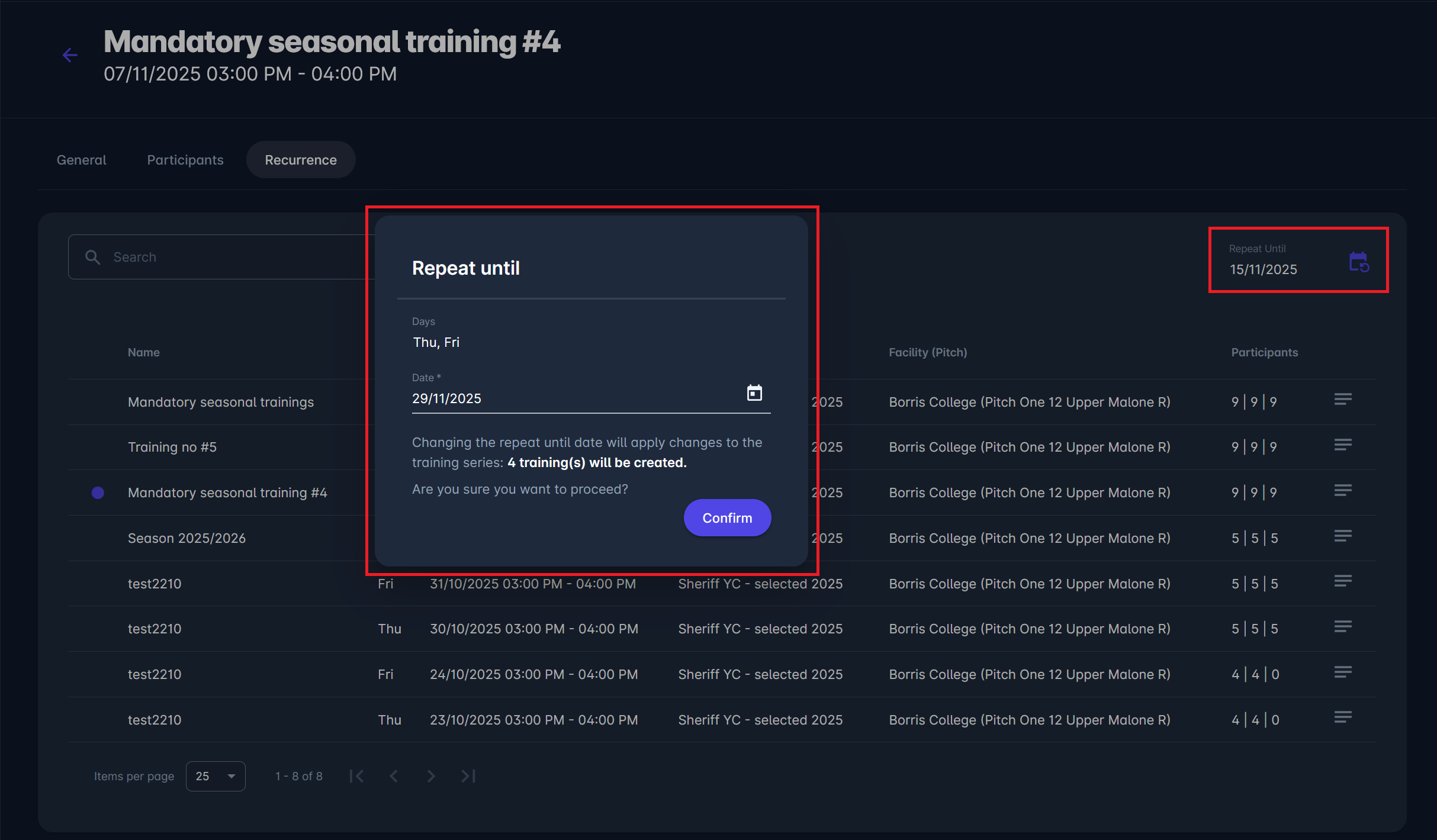
To extend or shorten the recurrence period, click the Repeat Until icon.
A pop-up window will appear, allowing you to adjust the end date and automatically generate additional sessions for the selected days. The system confirms the number of new training sessions to be created before proceeding. Once confirmed, the system creates new sessions and automatically assigns the same participants and group as in the original setup.


Hovering over icons in the list provides additional details:
-
The note icon displays any notes linked to a specific training.
-
The attendance counter (e.g., 9 | 9 | 9) displays the total number of participants, responses received, and attended sessions.

