
The Participants tab in a training session allows club roles to track which members attended each training event. Attendance tracking is available for all participants added to the selected training.
As described in the Create a Training section of the Organize Trainings article, if the Attendance Entry Required switch is enabled, club users will be required to enter which participants actually attended the training. If disabled, they must act only if the participant’s response is unknown or differs from actual attendance (e.g., a player confirms attendance but fails to appear).
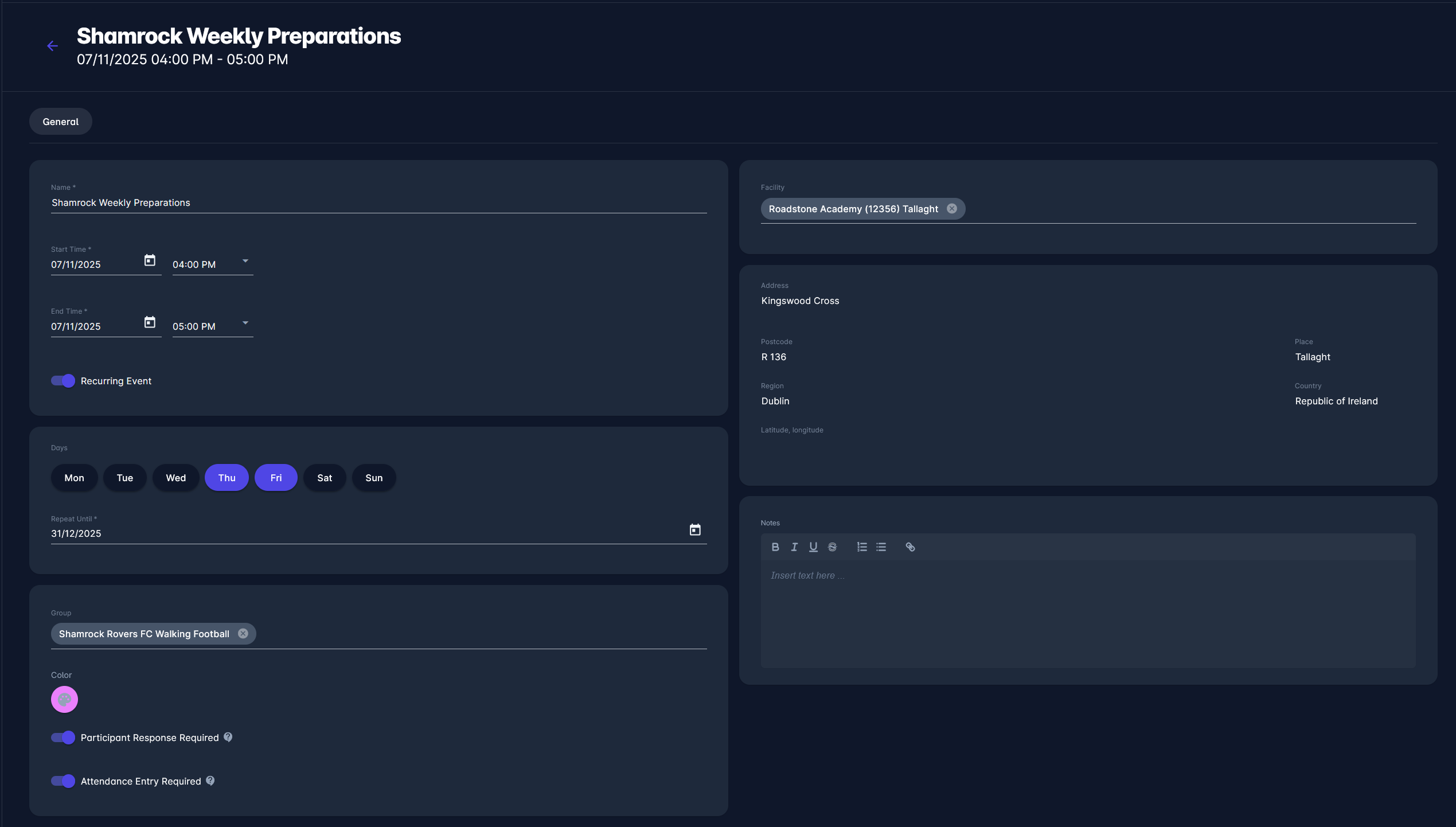
Tracking the number of participants
The number of participants added to the sessions, the number of those who have provided their responses, and the number of those who have attended the event are visible at:
-
My Club → Trainings tab (for logged-in users with a Club Referent or Club Line-up Manager roles) or Organization → Club → Trainings tab (visible to users with roles of Superuser or Administrator of Clubs)
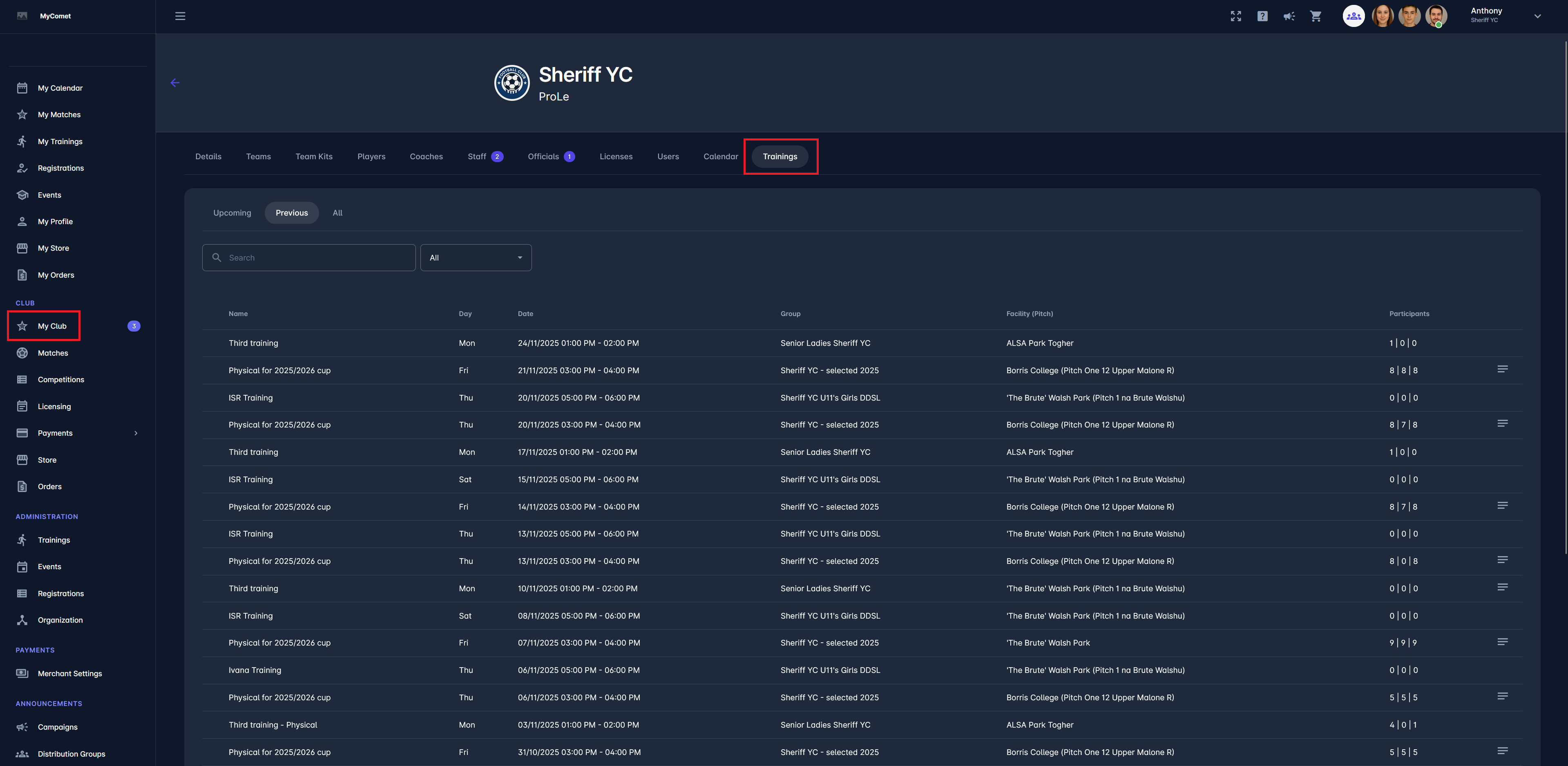
-
On the Upcoming, Previous, and All tabs under the My Club → Players → player profile → Trainings tab
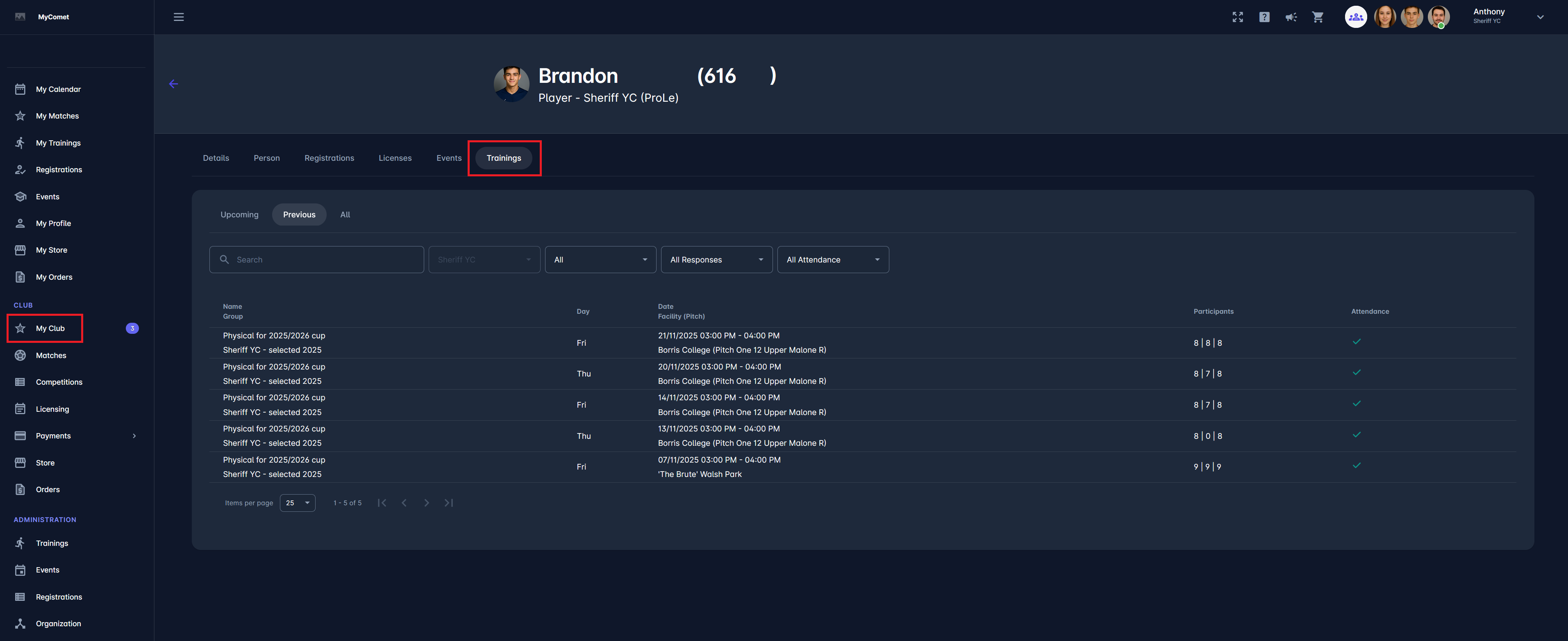
-
On the Recurrence tab of each/individual training
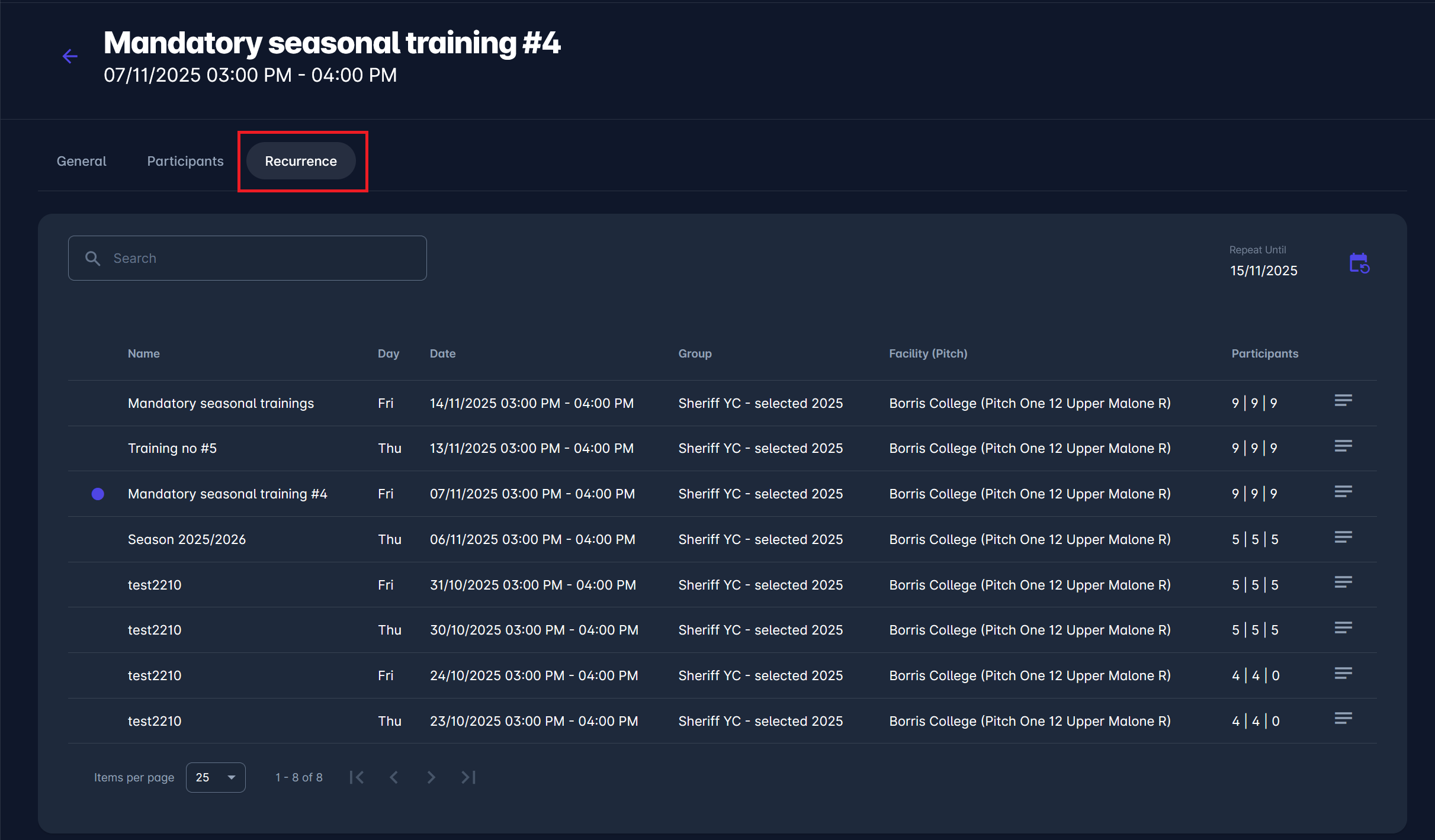
-
On the Upcoming, Previous, and All tabs under the Trainings menu item.
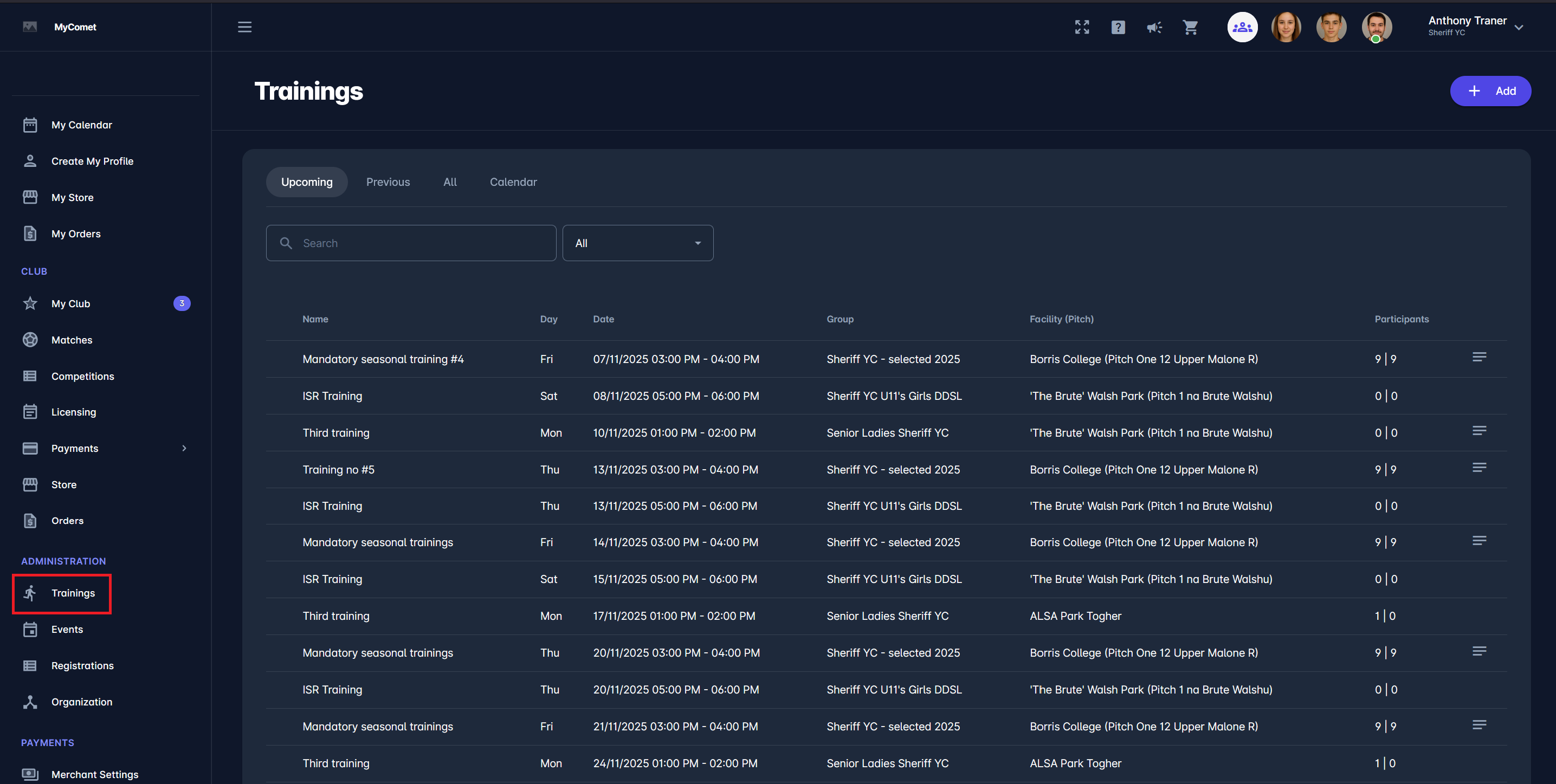
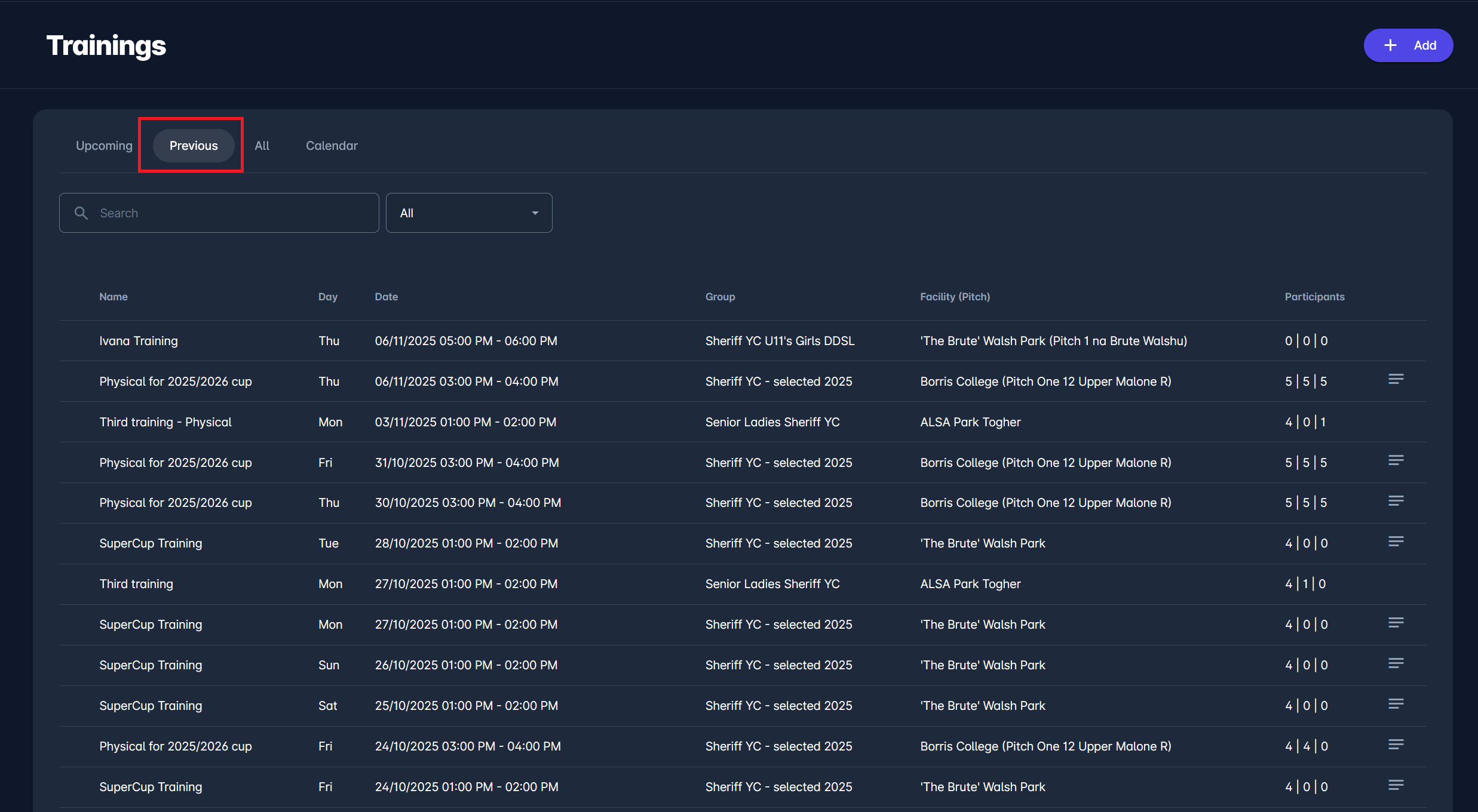
As shown in the images above, the Participants column displays the Attendance counter (e.g., 9 | 9 | 9). Each item shows, respectively:
-
total number of participants added to the session (training),
-
number of responses received, and
-
number of participants that attended the session.
The total number of participants is the sum of those added to the Training. For more information on adding participants to the training, please refer to Organize Trainings | Participants.
The number of responses received indicates the number of participants who have provided their responses. More on participant responses can be found in the following article: Participant Responses.
The final number, the number of participants that attended the session, is defined by setting the attendance for each participant.
Record Attendance
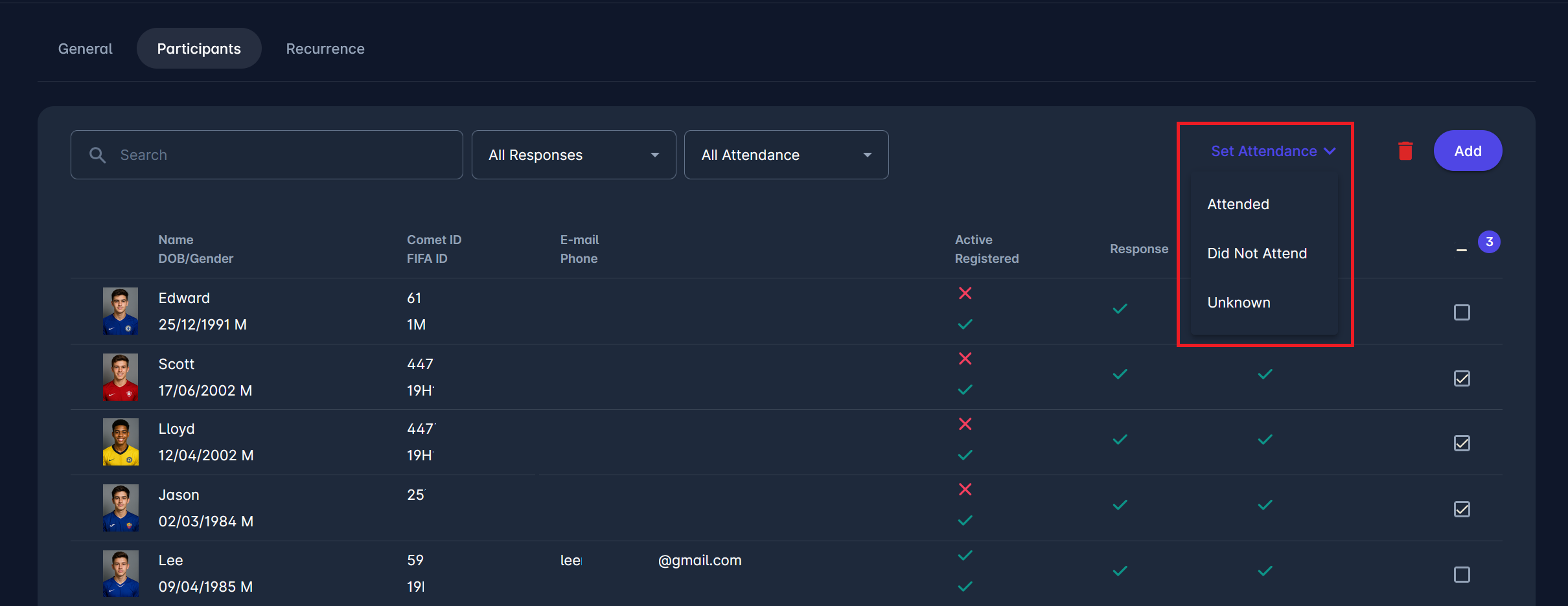
To record attendance, navigate to the training site and select one or more participants by checking the box next to their name, use the Set Attendance menu, and choose one of the following options:
-
Attended
-
Did Not Attend
-
Unknown
Participant attendance can also be tracked via COMET Data reports. Related COMET Data reports include the following: Trainings (110), Training Participants (111), Training Group Members (112).