
From the Match screen, you can view and add match officials to a particular match. Please note that this functionality is only available if these actions are permitted within the set of permissions for your user role.
View Match Officials
-
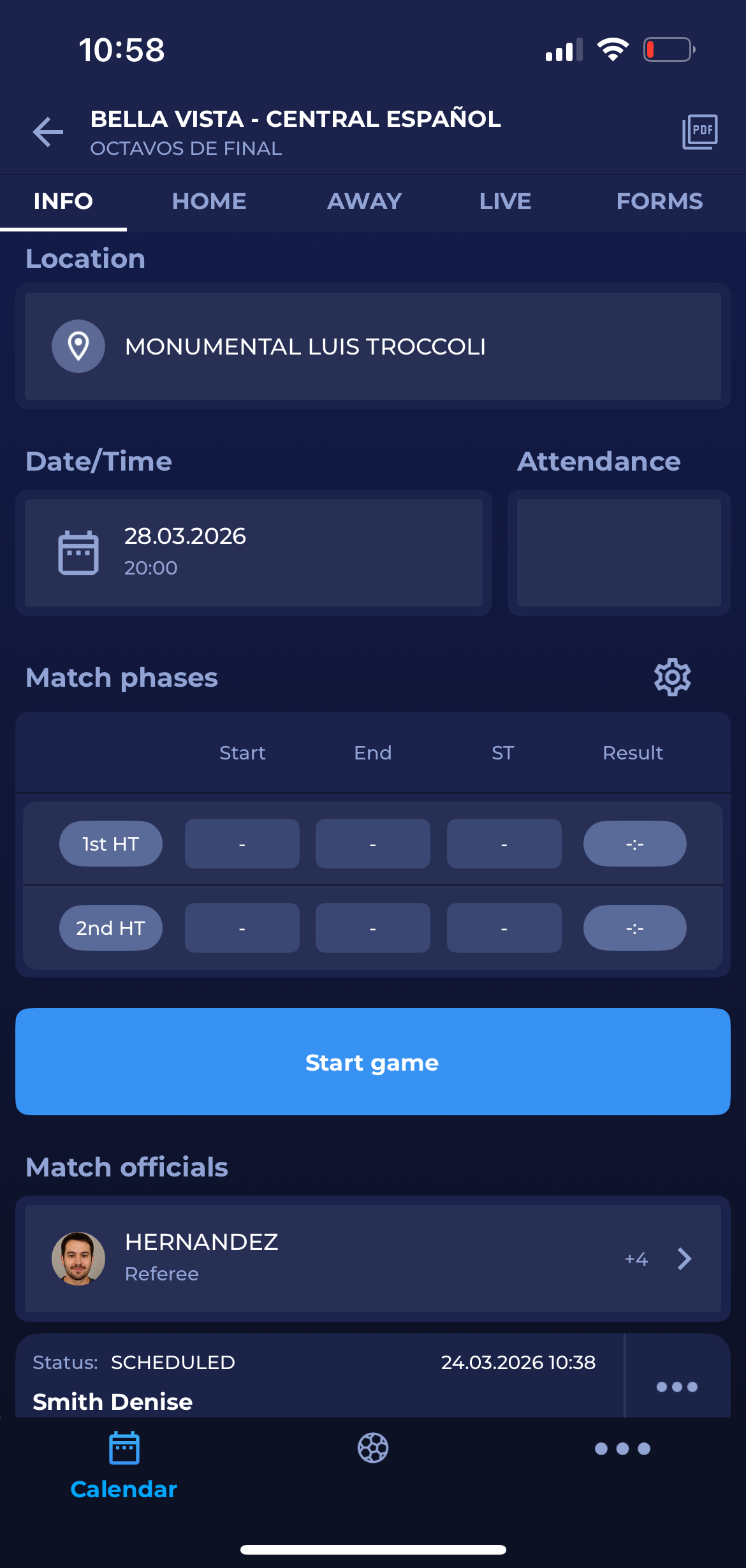
Access the Match Info screen by tapping the match name on the My Matches screen (or choose the match from the Competitions menu)
-
Scroll to the Match officials section and tap on the panel.
-
This will redirect you to the Match officials screen
Appoint Match Officials
-
Access the Match Info screen by tapping the match name on the My Matches screen (or choose the match from the Competitions menu)
-
Scroll to the Match officials panel and tap on the panel
-
This will redirect you to the Match Officials screen
-
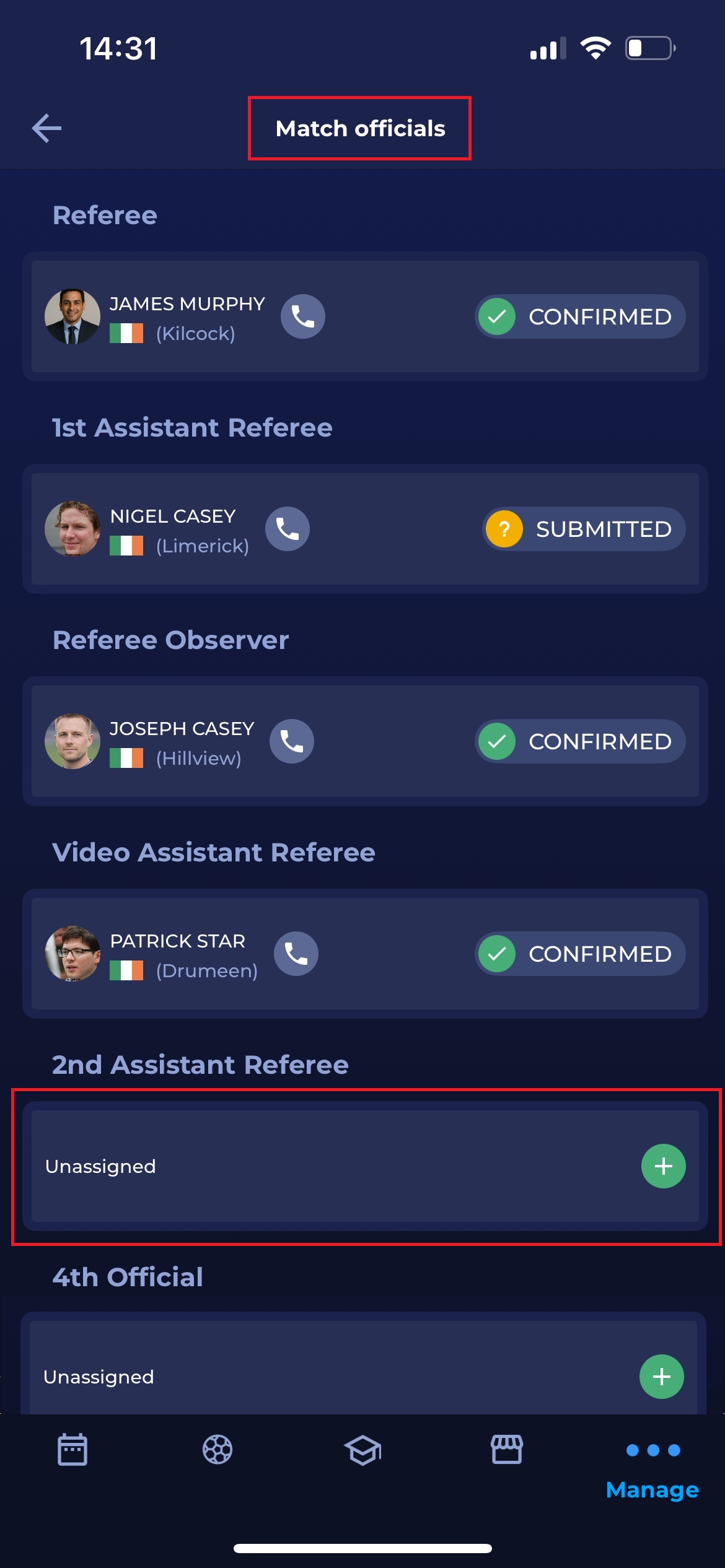
To add a new official, tap on the
plus icon
-
This will redirect you to the Select Match Officials screen
-
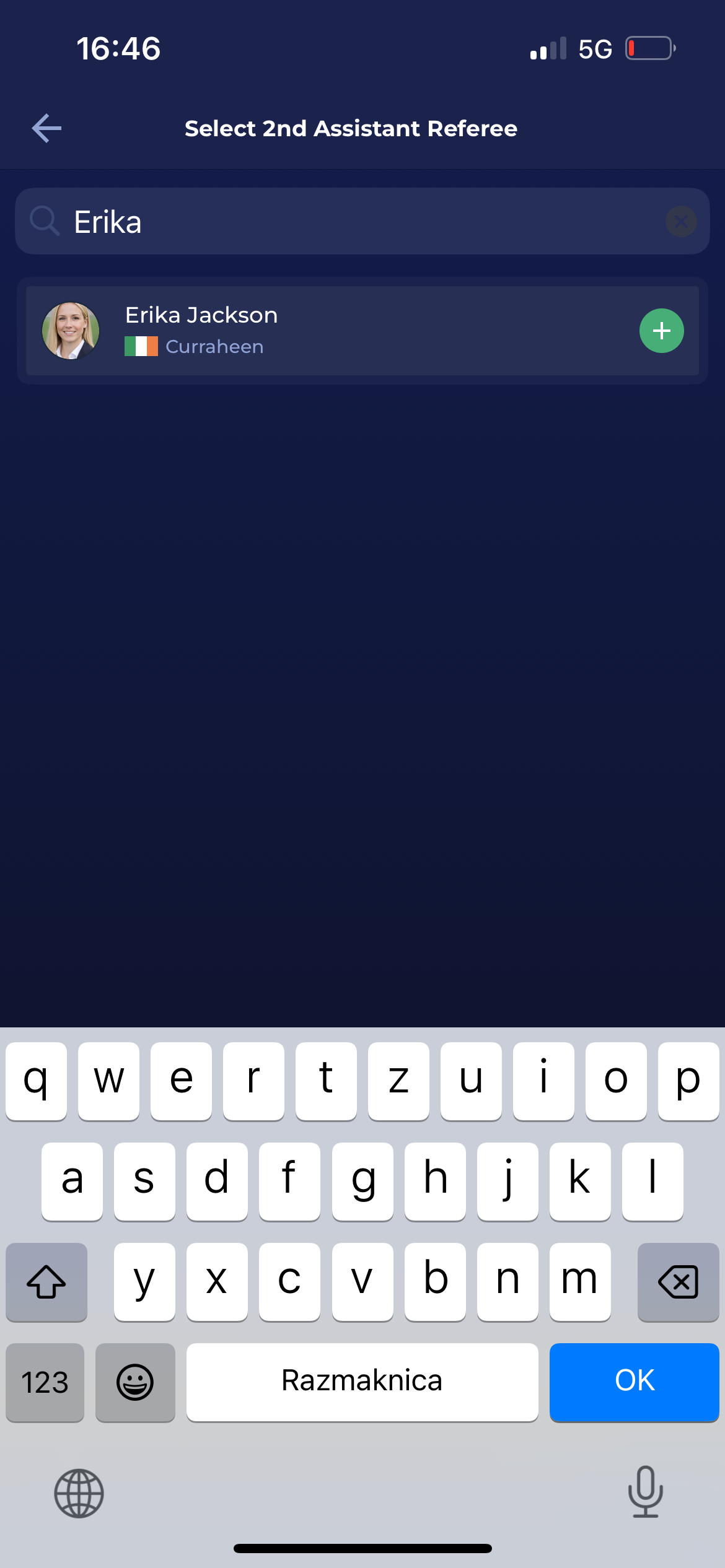
Choose the available official from the list (please take into account that you can use the search console to find the official)
-
Tap the official’s name to appoint them to the Match
-
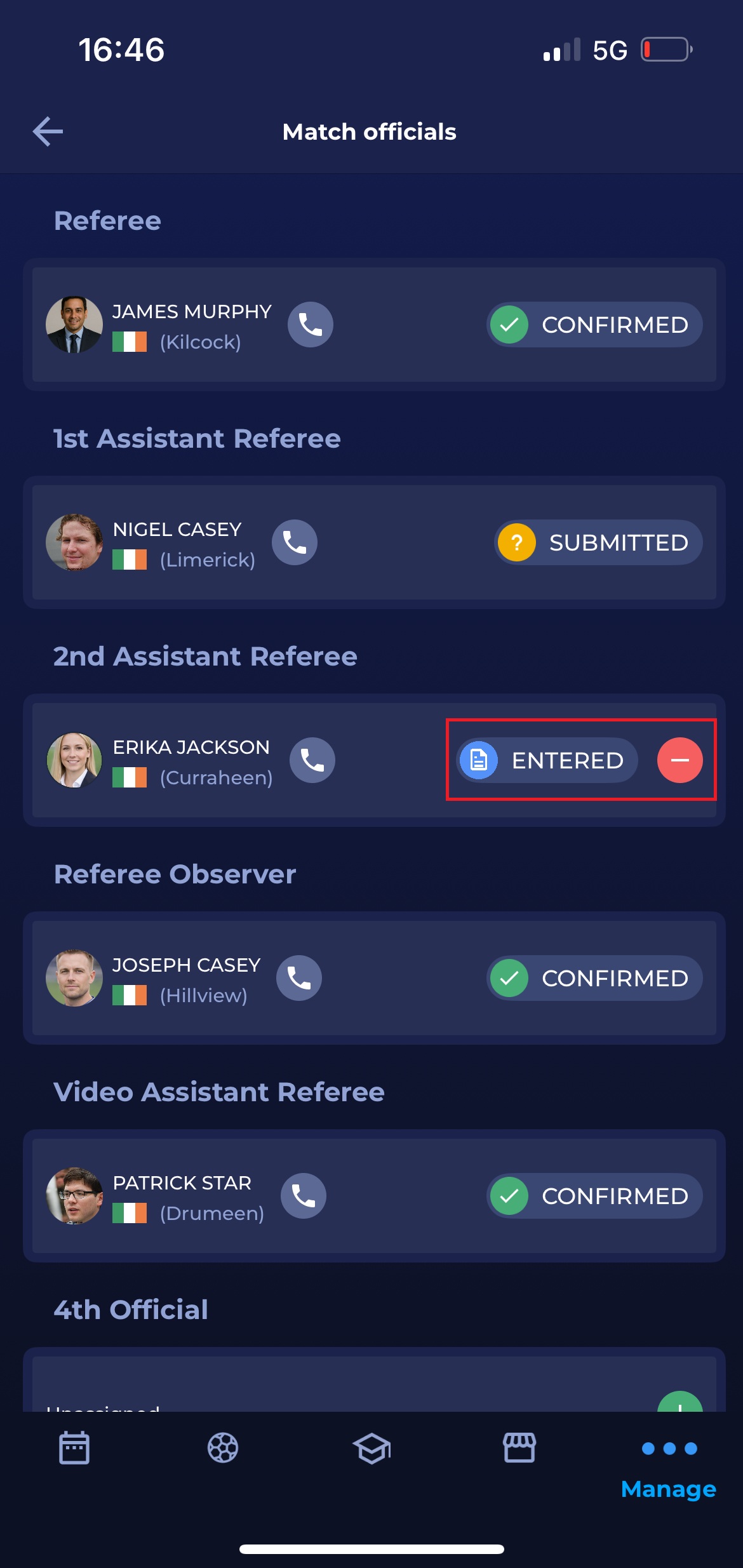
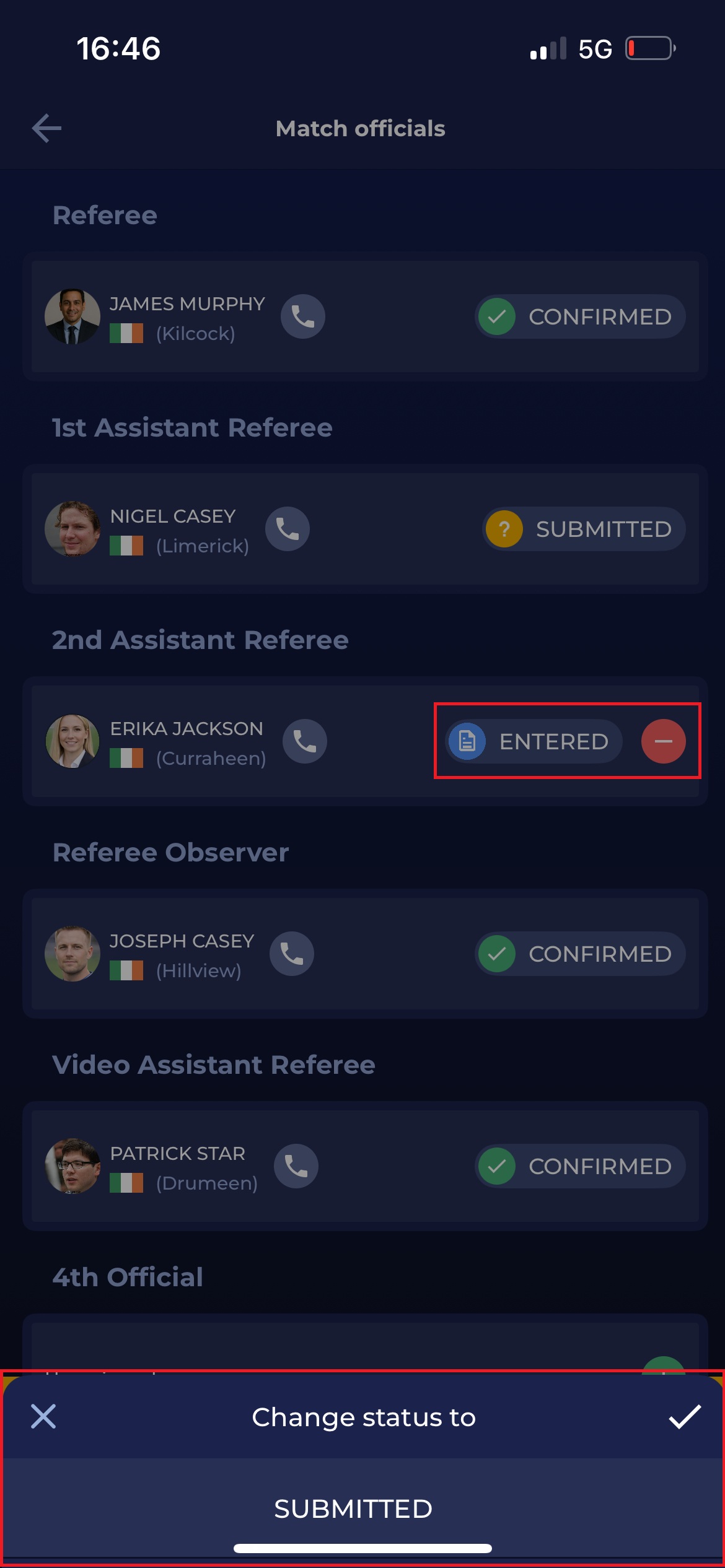
Subject to your configuration → this may set the status of the Match official to SUBMITTED, meaning that the appointment still needs to be confirmed by the Match Official
The Appointment Approval Competition Type parameter determines whether a response from the match official is required. If a response is required, the next status after ENTERED is SUBMITTED (pending response/approval form match official), and otherwise it goes to CONFIRMED.
Update Match Official Appointments
-
As in adding the Match officials, access the Match Info screen by tapping the match name on the My Matches screen, or by selecting the match from the Competitions menu.
-
Scroll down to the Match officials panel and tap on it
-
This will redirect you to the Match Officials screen
-
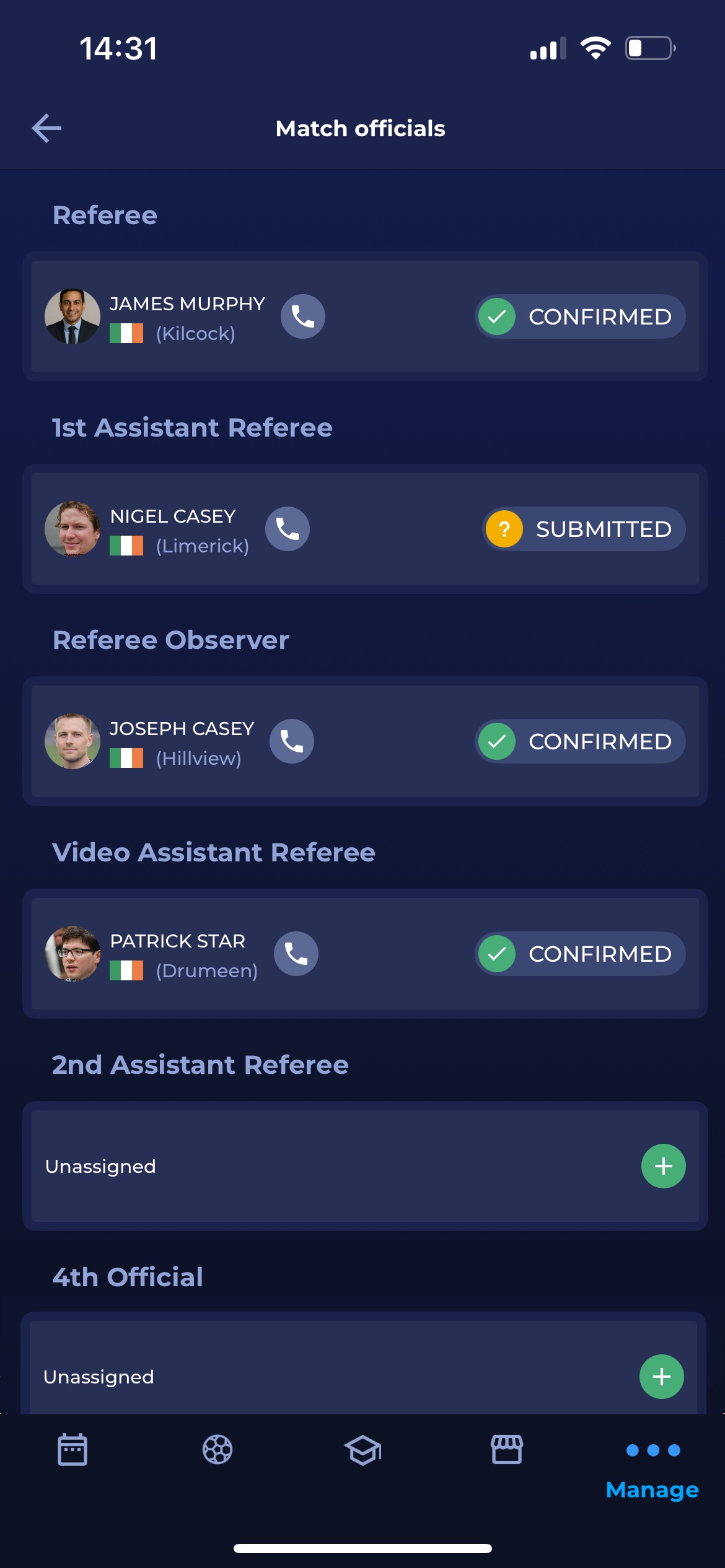
From here, select the official whose status you want to edit by tapping the Status type next to their name
-
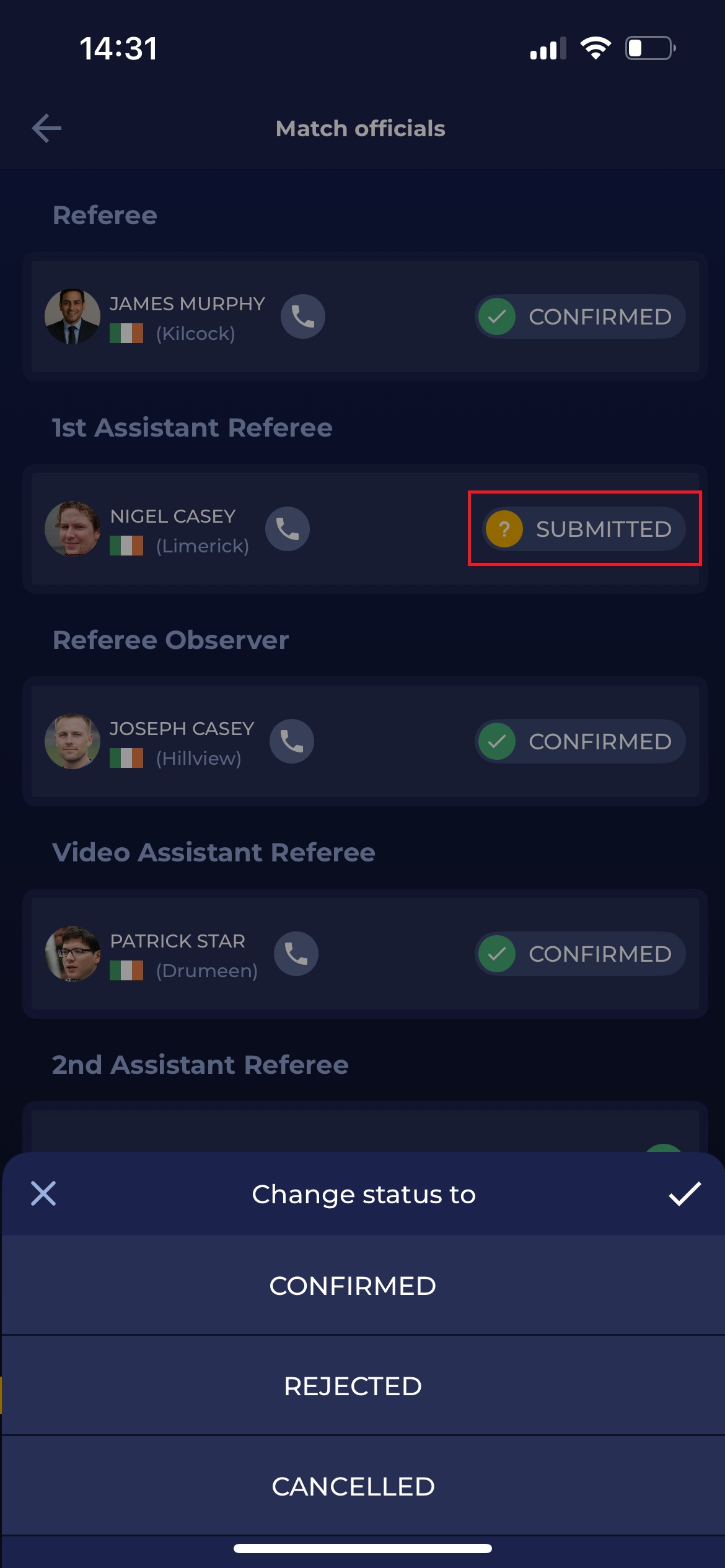
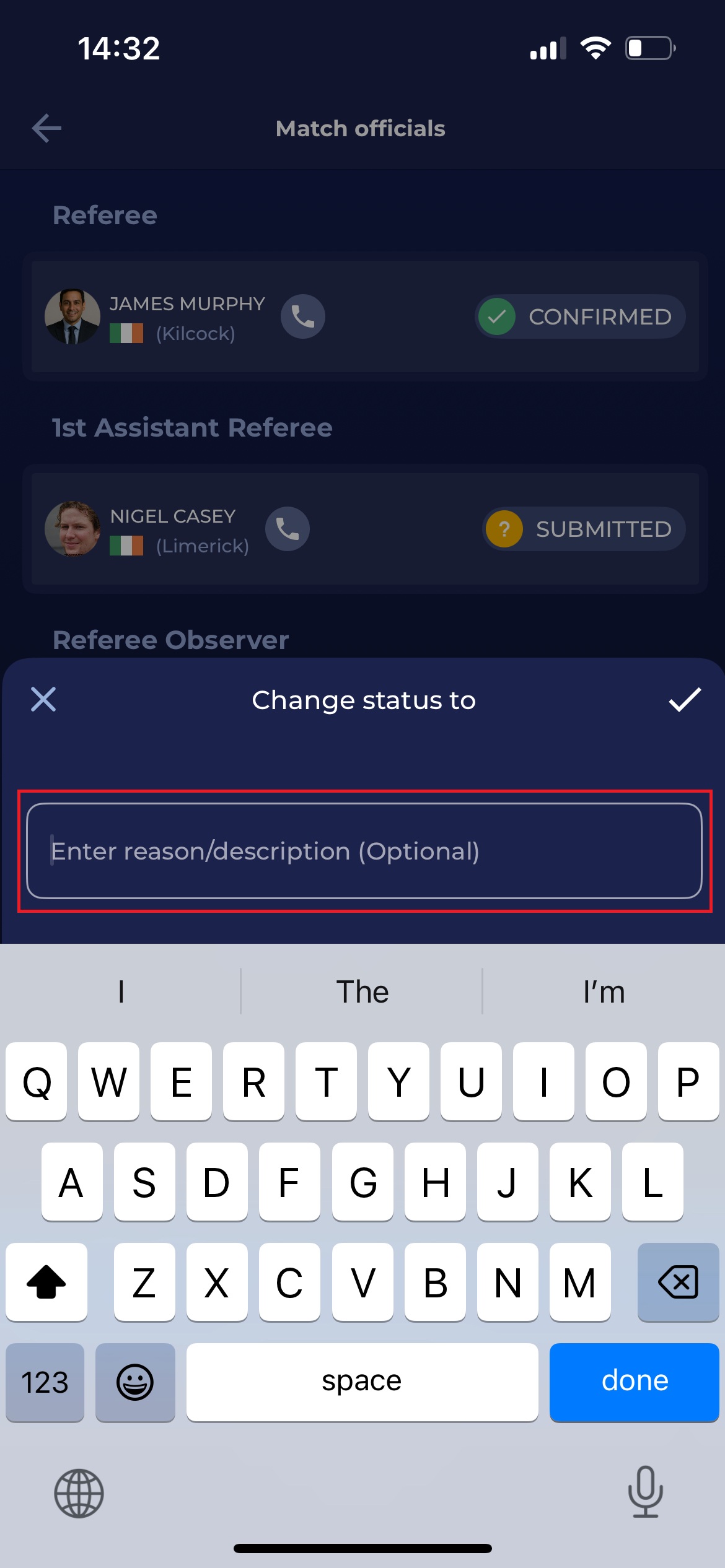
This action opens a menu that lets you select a new status for the selected official.
-
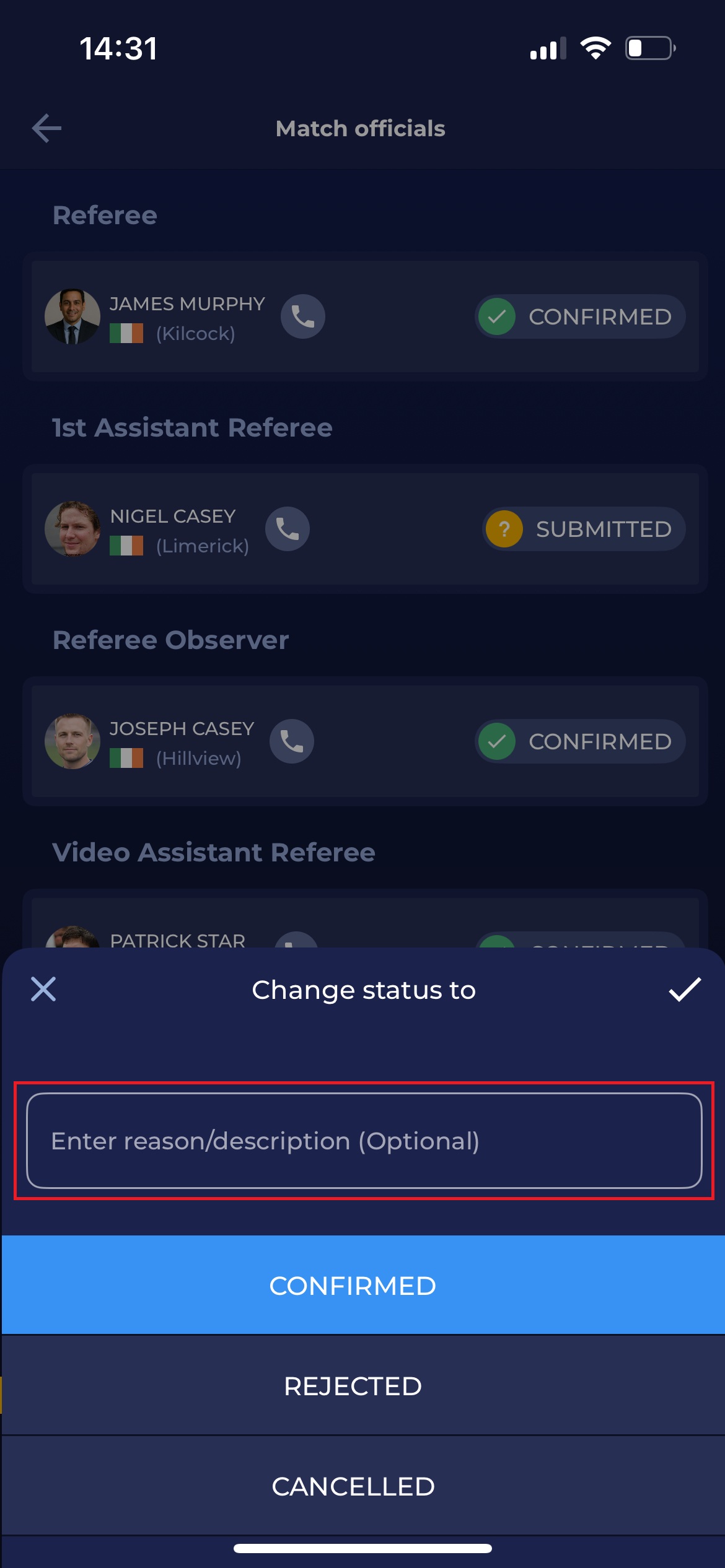
If you choose to change their status to CONFIRMED, you can enter a reason or description for the change, though this step is optional.
-
However, if you wish to change the official's status to CANCELLED or REJECTED, you must provide a reason or description.
-
All match officials whose status has been set to REJECTED or CANCELLED will be removed from the list of appointed Match officials
Tapping the Minus icon will not remove the match official from their appointed role if the match has already progressed beyond the ENTERED status.
Contact Match Official
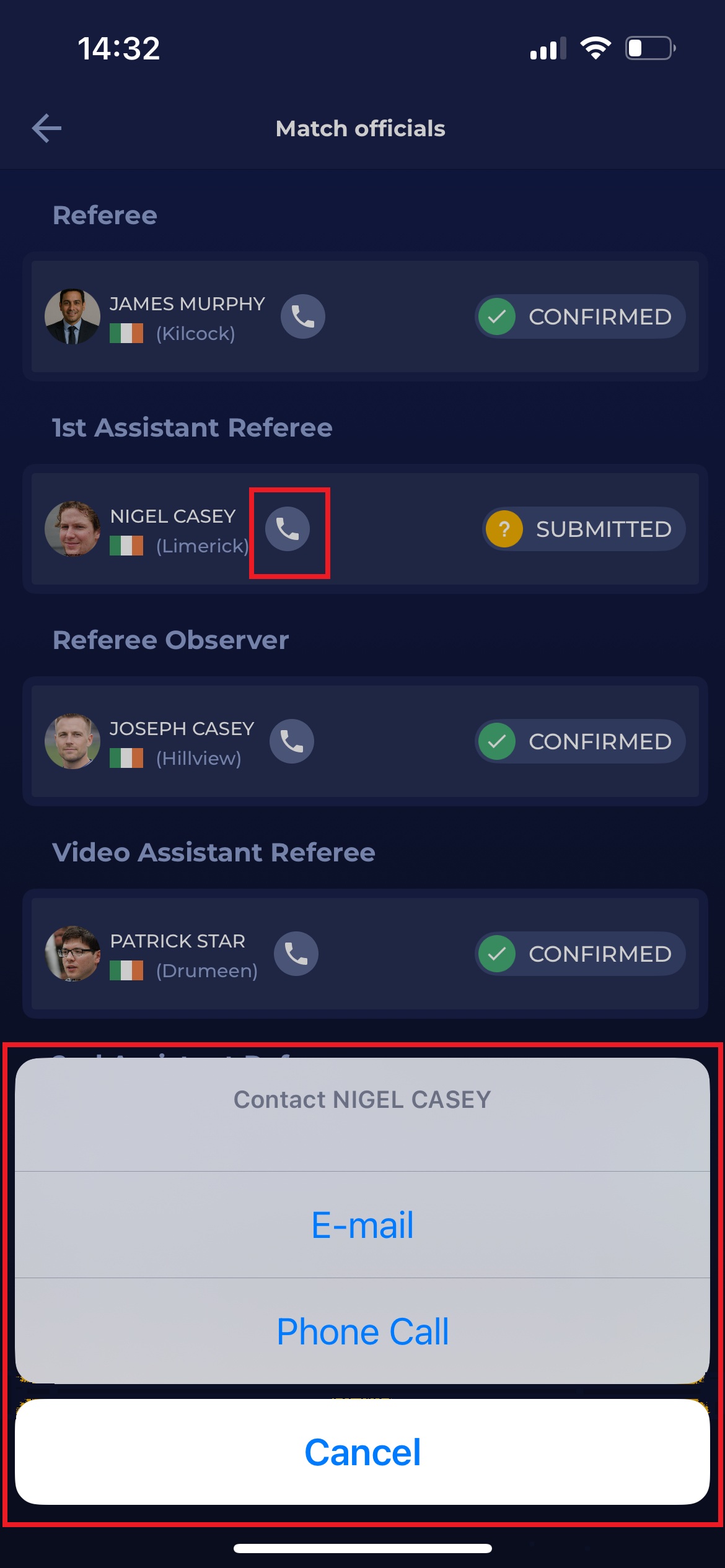
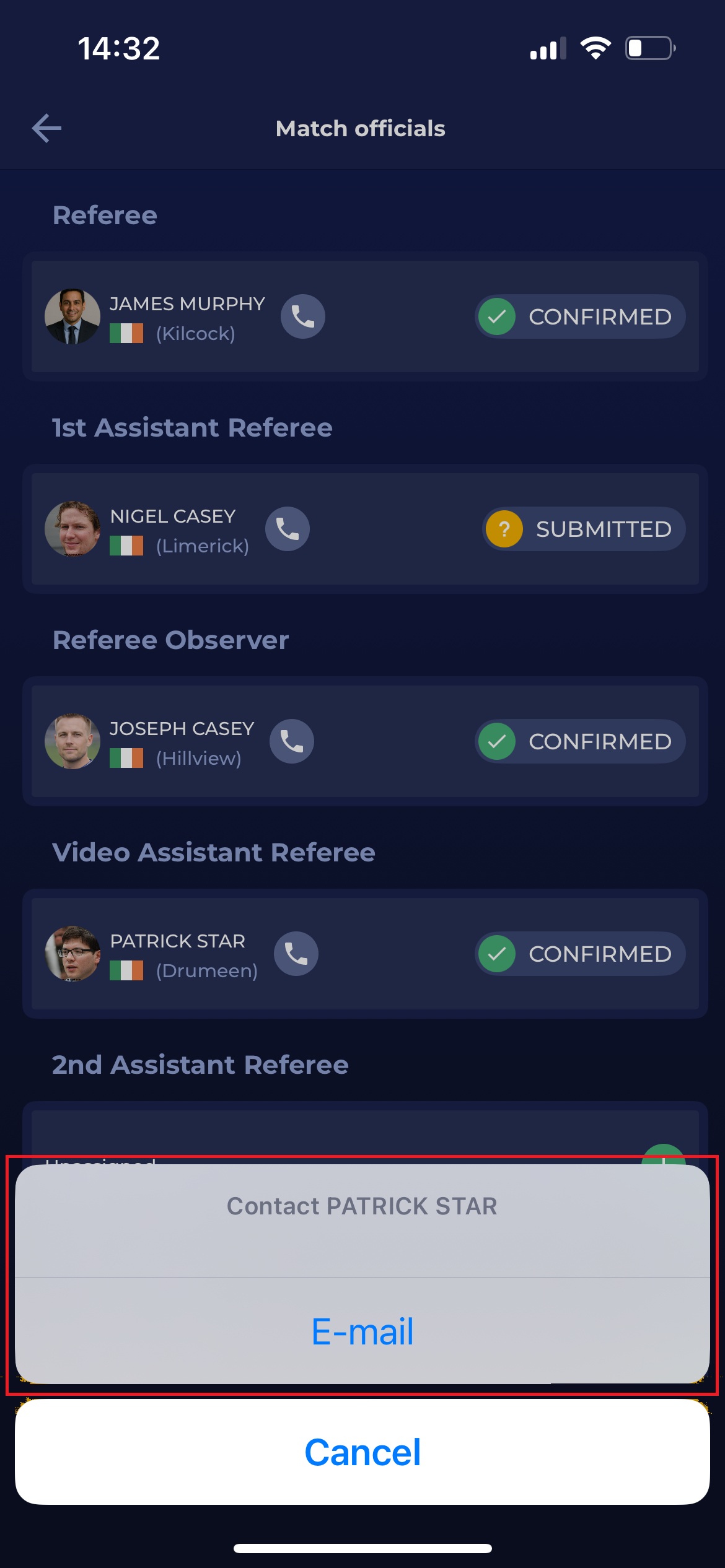
If authorized, you access contacts and reach out to all match officials via phone or email from the Match Officials screen. To contact an official, tap the 📞 Telephone icon button located to the right of the official’s name.
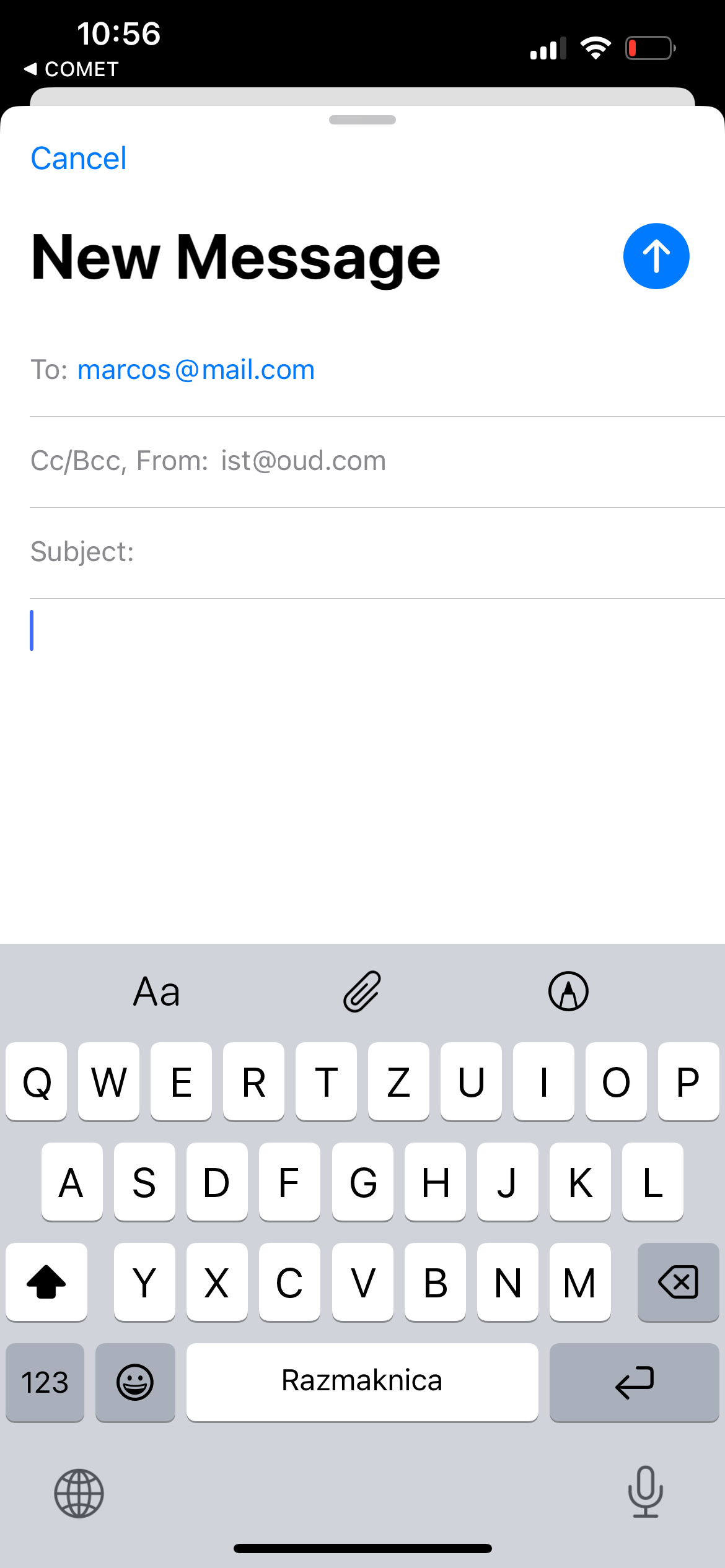
This will open a bottom sheet displaying the official’s email and phone contact information, if available. Select your preferred method of contact. Selecting a phone number or email address opens the corresponding app on your device.
-20260424-141806.PNG?cb=9185c5120bd0174f9295a1870ff1e54a)
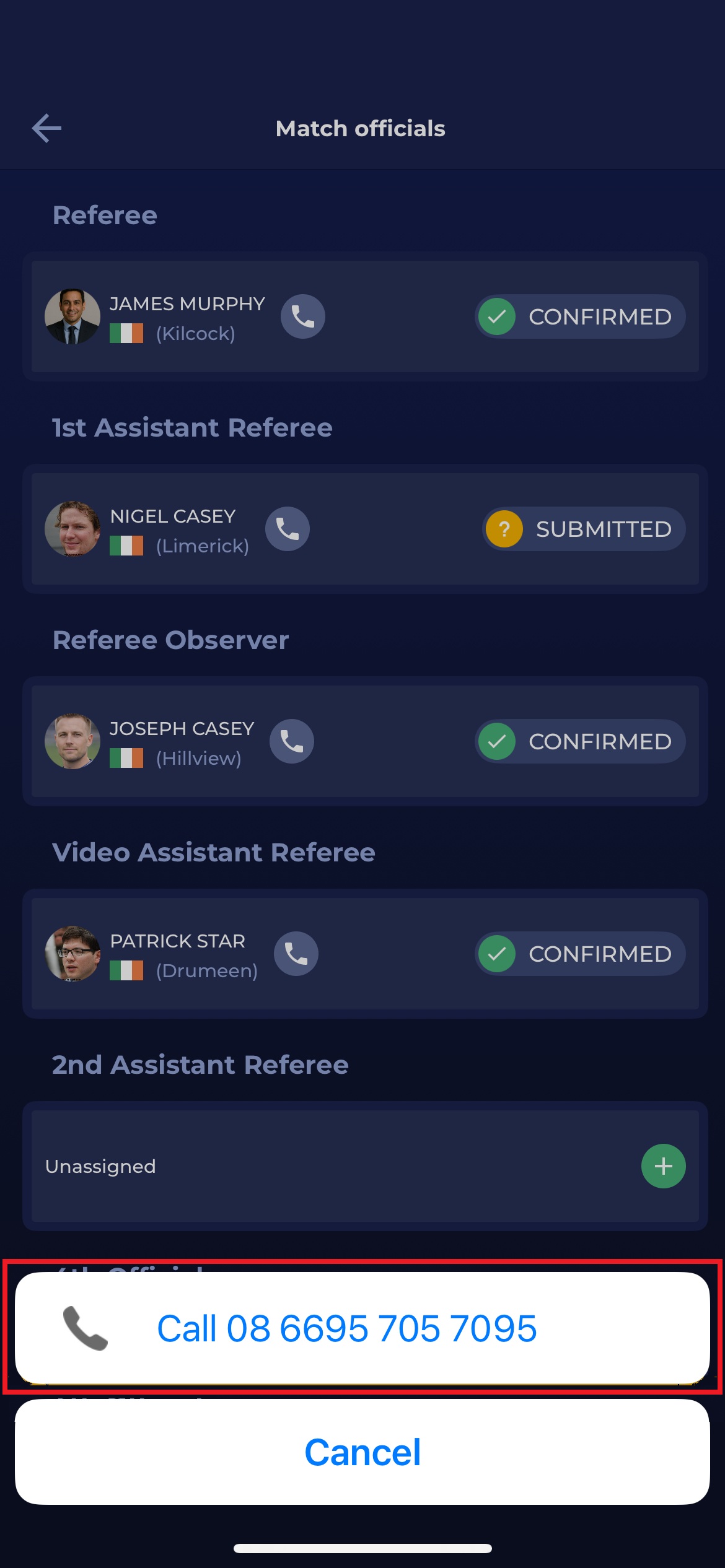
If the user hasn’t provided their phone number, that field won’t appear in the bottom sheet, as shown in the example below.
Authorizations
Personal contacts are considered confidential, and therefore, the visibility of these contacts is secured and limited only to the following user roles:
-
Superusers: can access contacts of all match roles on all matches of all competitions that are underneath their organization
-
Competition Administrators: can access the contacts of all match roles having Admin Authorization=Competition, on all matches of all competitions that are underneath their organization
-
Referee Administrators: can access contacts of all match roles having Admin Authorization=Refereeing, on all matches of all competitions that are underneath their organization
-
Competition Managers: can access contacts of all match roles having Admin Authorization=Competition, on all matches of all competitions where they have been appointed as Competition Managers
-
Referee Managers: can access contacts of all match roles having Admin Authorization=Competition, on all matches of all competitions where they have been appointed as Competition Managers
-
Match Roles: can access contacts of all other confirmed match roles, on their own matches (where they are confirmed as well), but only on those matches being in status SCHEDULED or LINEUPS CONFIRMED
-
Club Managers/Referents and Lineup Managers: can access contacts of those confirmed match roles for which Share Contacts on Match parameter is enabled, on their own matches (where their Club or Team is participating), but only on those matches being in status SCHEDULED or LINEUPS CONFIRMED
Share Contacts on Match
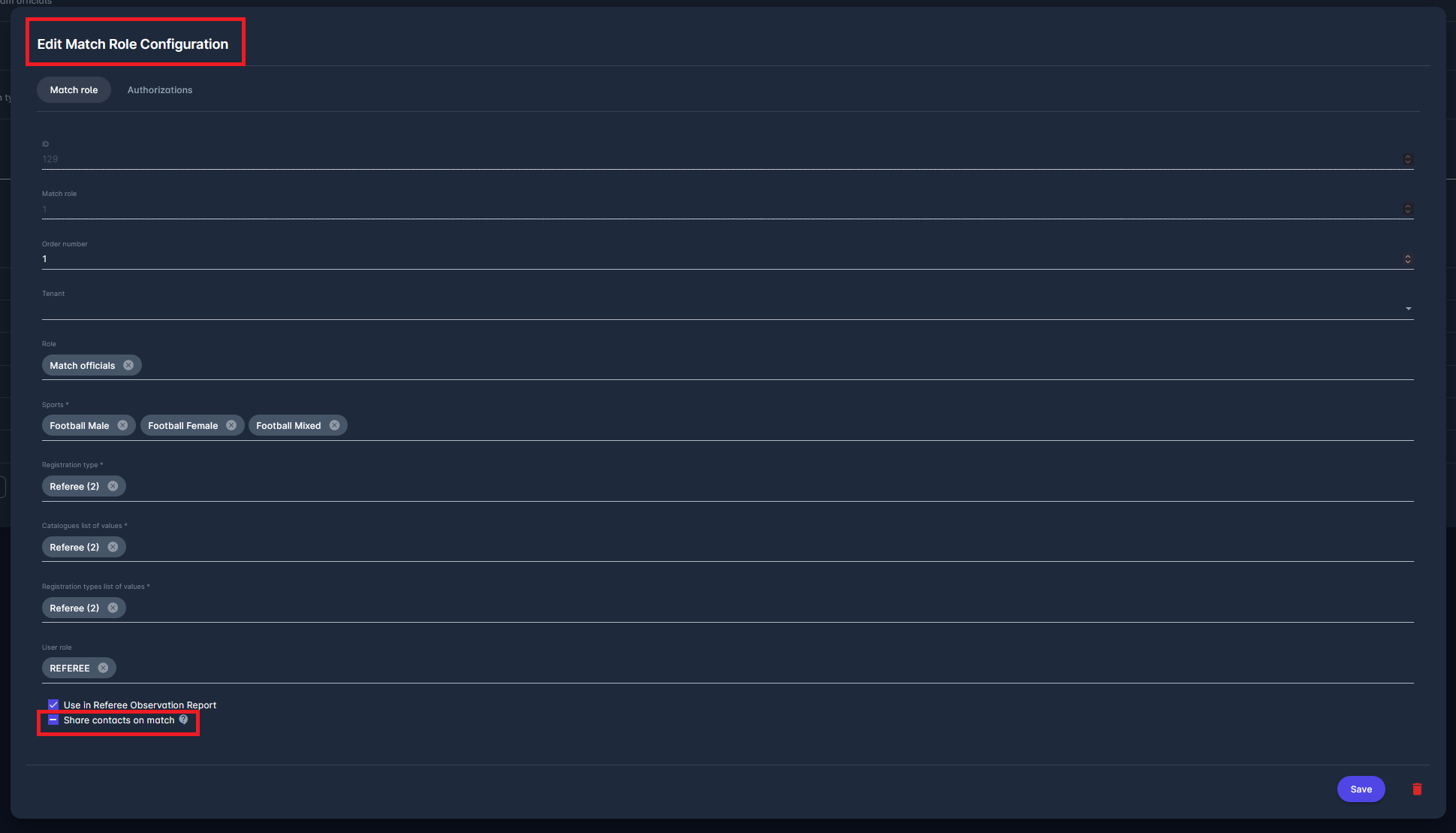
For the relevant clubs to be able to access the contact information of appointed match officials, this parameter has to be enabled in the Admin App for each Match Role:
-
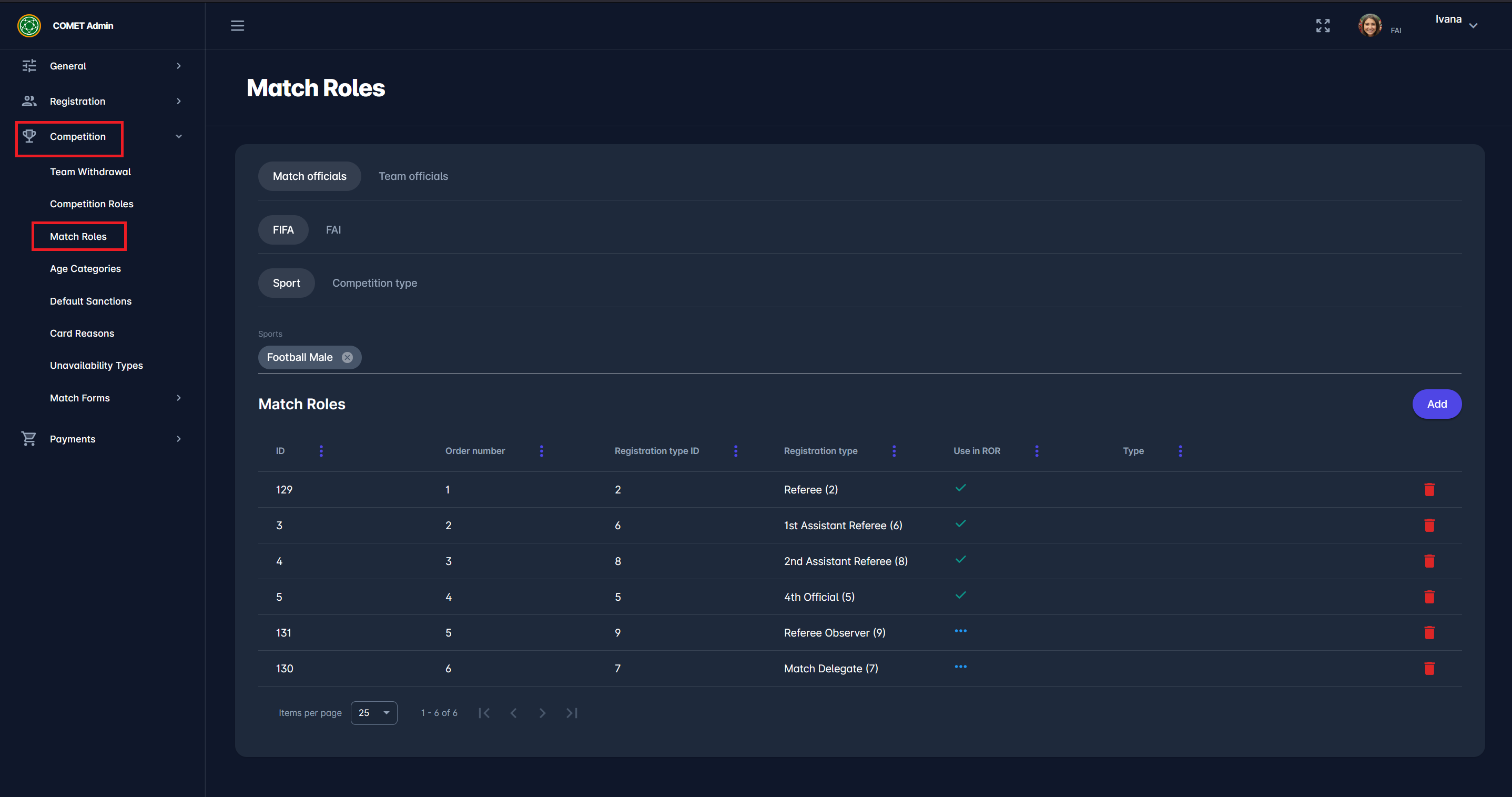
Navigate to Admin App
-
From the menu on the right, select Competition → Match Roles
-
Select a role that you want to reconfigure.
-
Scroll down to Share contact on match parameter: if this option is enabled, the contact information for this match role will be visible to club users on the match.
Edit your Contact Data
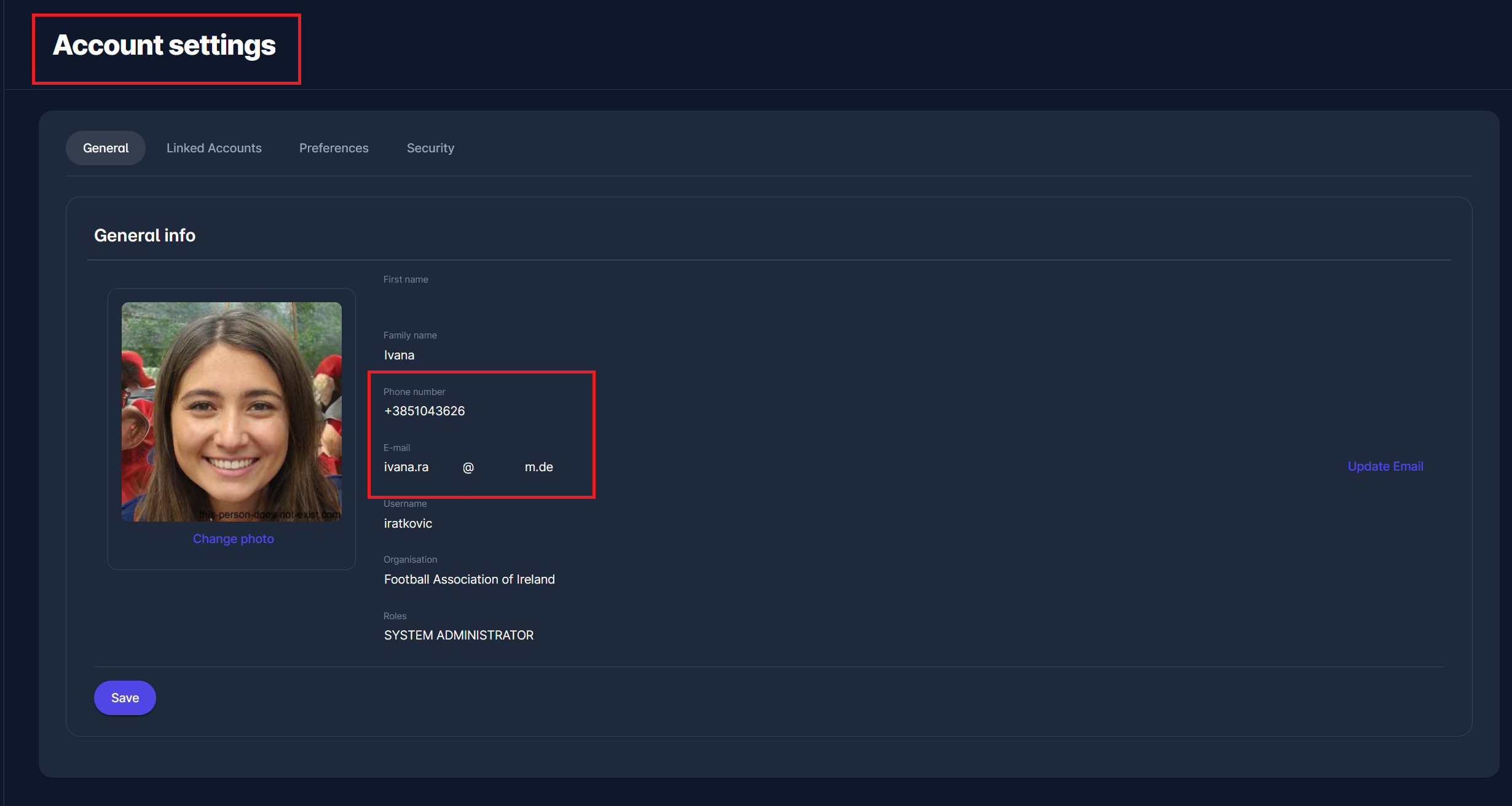
To add or edit your contact information as a match official, navigate to Account Settings in MyCOMET. From here, you can update the phone number and email address associated with your User Account, which will be displayed on the Match Officials panel for authorized users.
Your User Account contact details don’t have to be the same as those in your personal profile. The contact data from the person profile will NOT be shown on the Match Officials panel.
Push Notifications
The system sends push notifications during time-sensitive transitions in the match official workflow whenever the admin takes action, and the match official needs to be notified.
Match officials receive notifications once the respective Admin sets their Appointment into one of the three key match statuses: PENDING, CONFIRMED, and CANCELLED.
When a match official's status is set to PENDING, further action is required - either to confirm or decline the appointment. In this case, a notification is sent, prompting the official to respond.
Conversely, if the match official’s status is set to CONFIRMED or CANCELLED, a notification is sent to inform them of their current status. Tapping on this notification opens the Match details page.