
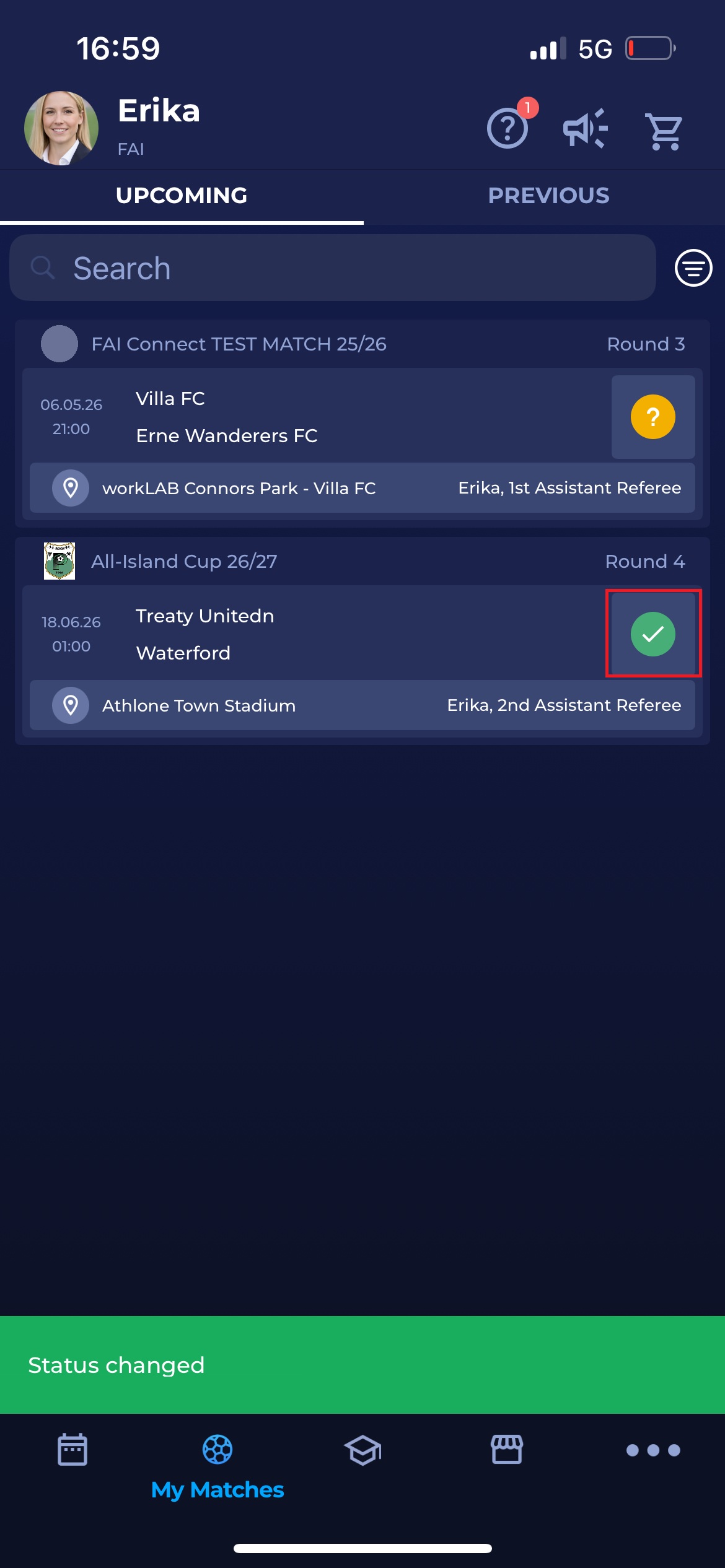
If you are appointed to an official role at a match, your appointment status will be visible in the row containing the match name and details of the UPCOMING tab.
Responding to an Appointment
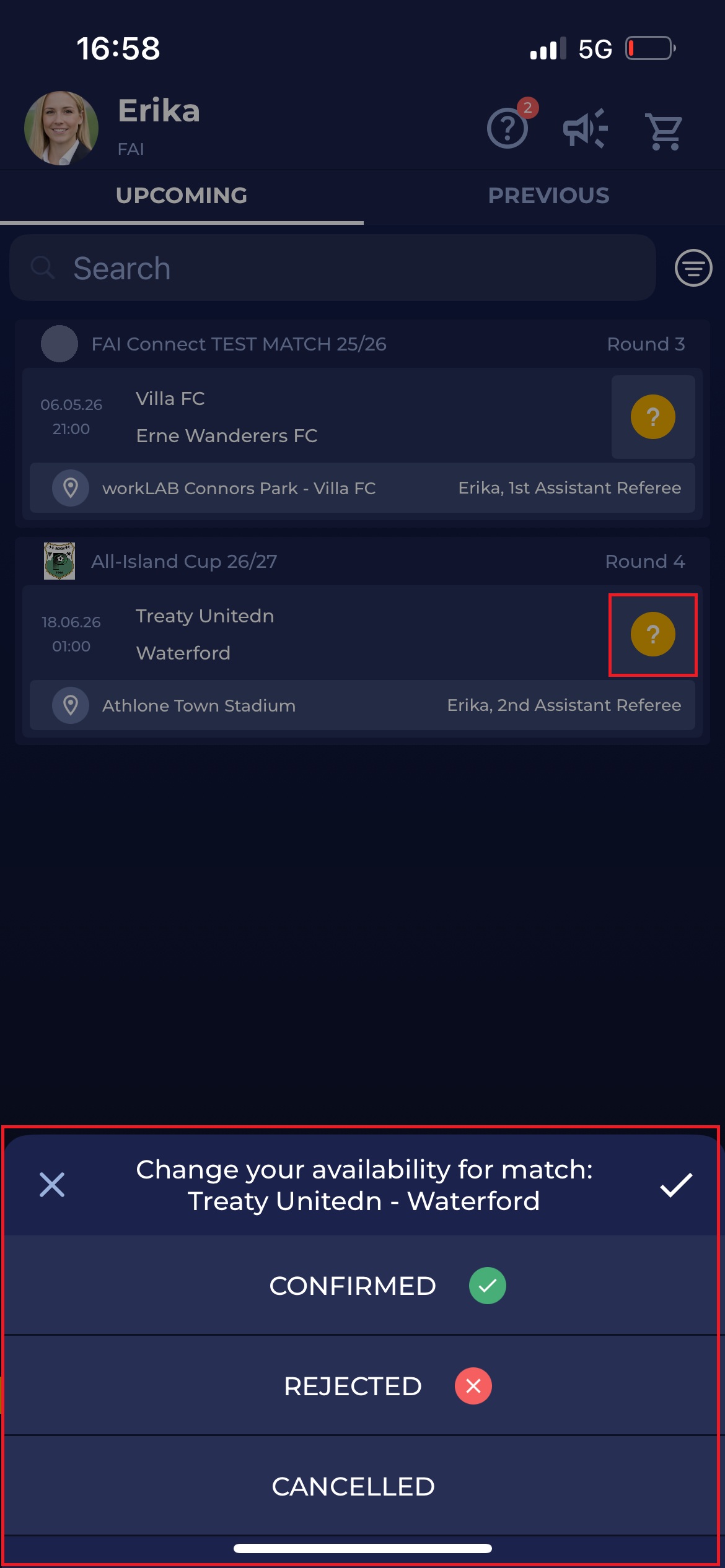
From here, you can manage your appointment for all upcoming matches. To do so, tap on the symbol next to the name and details of the match.
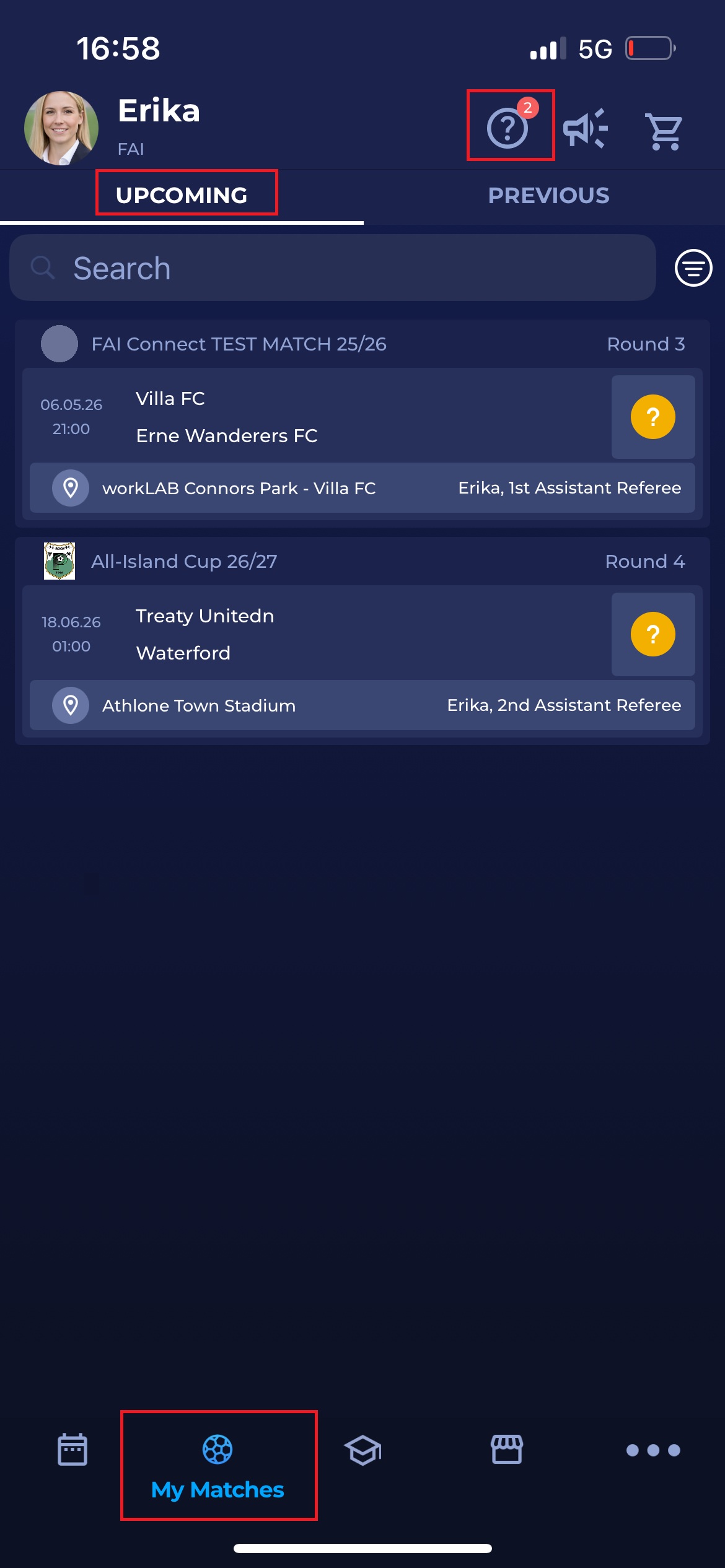
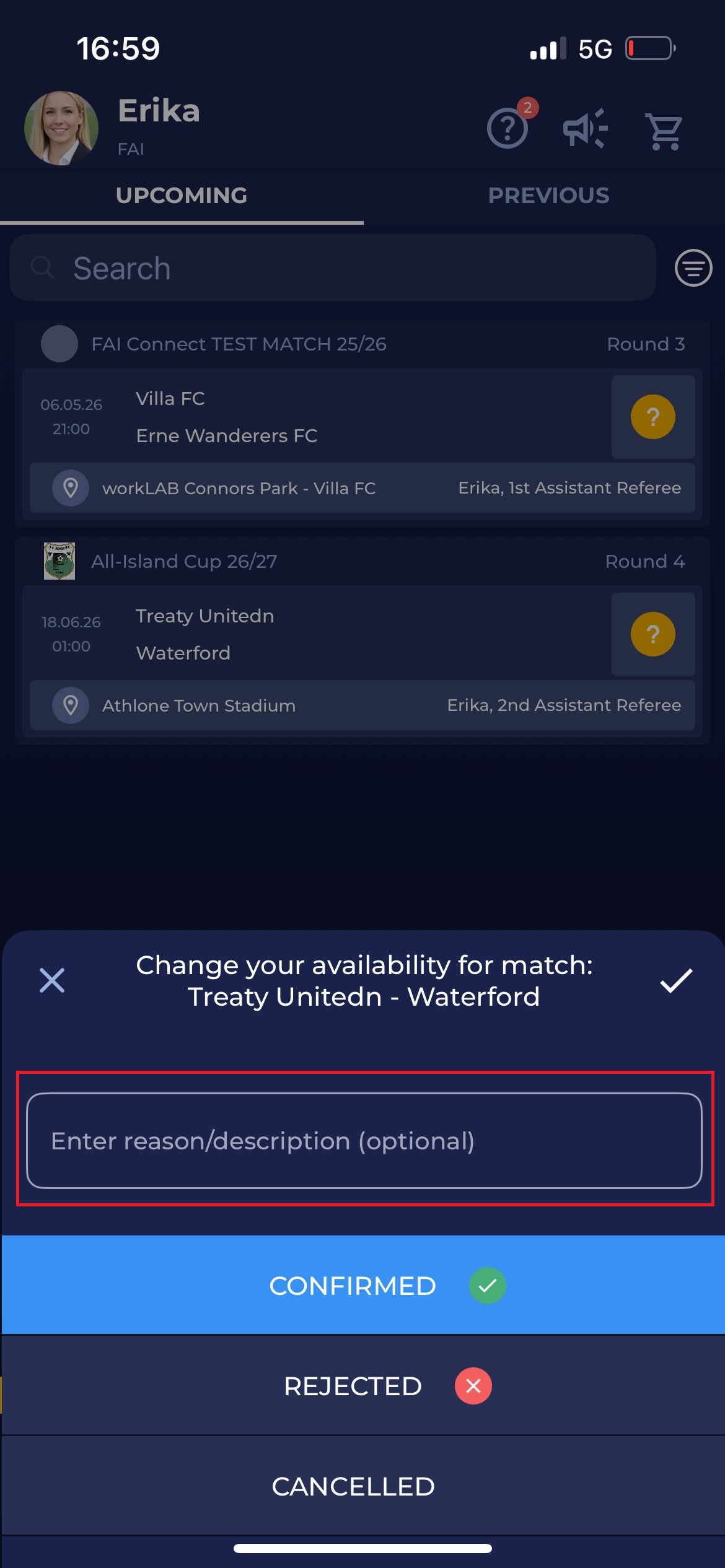
If your current status is SUBMITTED (as in the example in the image above, where you’ve just been appointed to the game), you can either set it to ✅ CONFIRMED, ❌ REJECTED, or CANCELLED. Setting the appointment to REJECTED will require you to add a description (reason) for declining the appointment and remove it from the list of the upcoming matches.
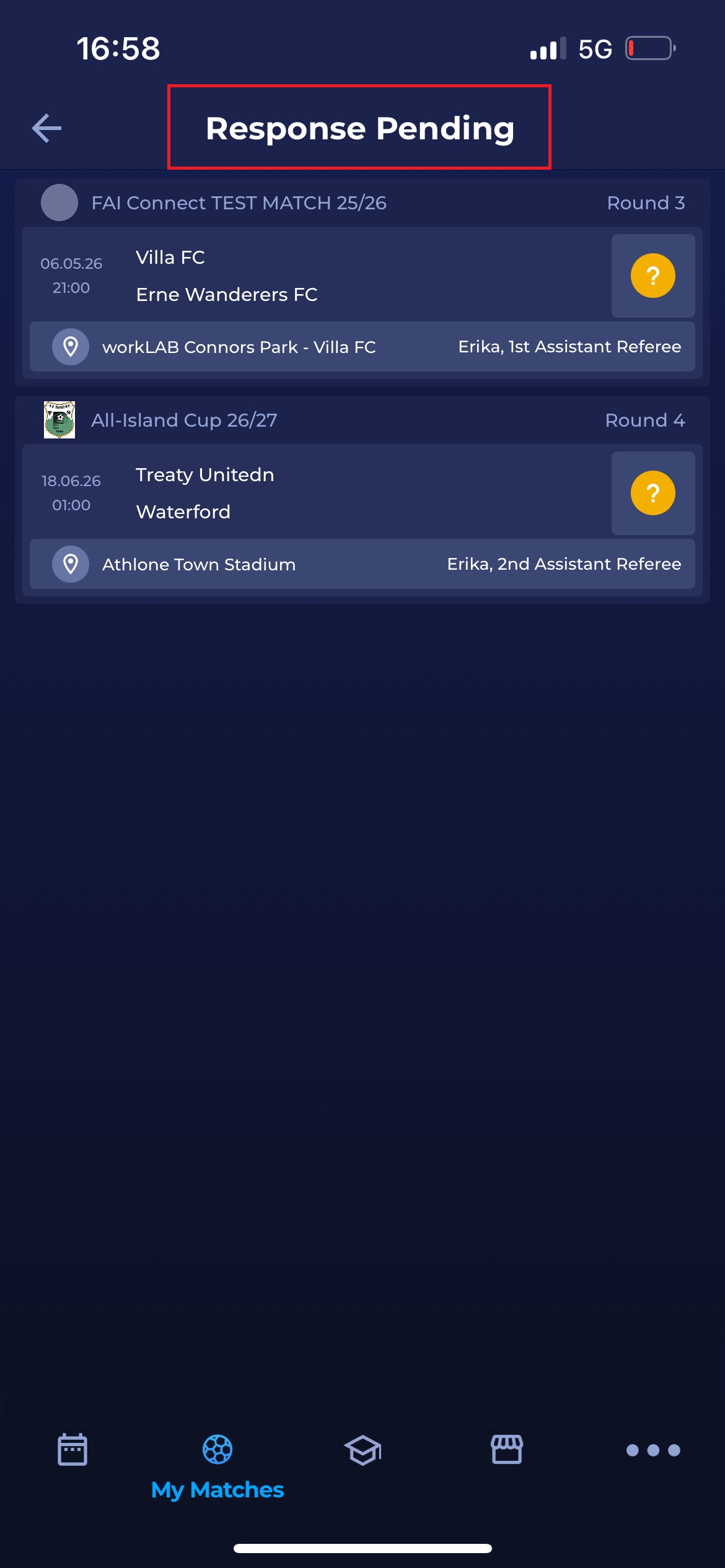
You can also access your reponse pending appointment requests by tapping the question mark icon to the right of your Person’s name, which indicates the number of pending requests (unresponded match appointments for the current user).
This menu only presents appointments in the SUBMITTED status. You can manage your reply the same as in the My Matches menu.
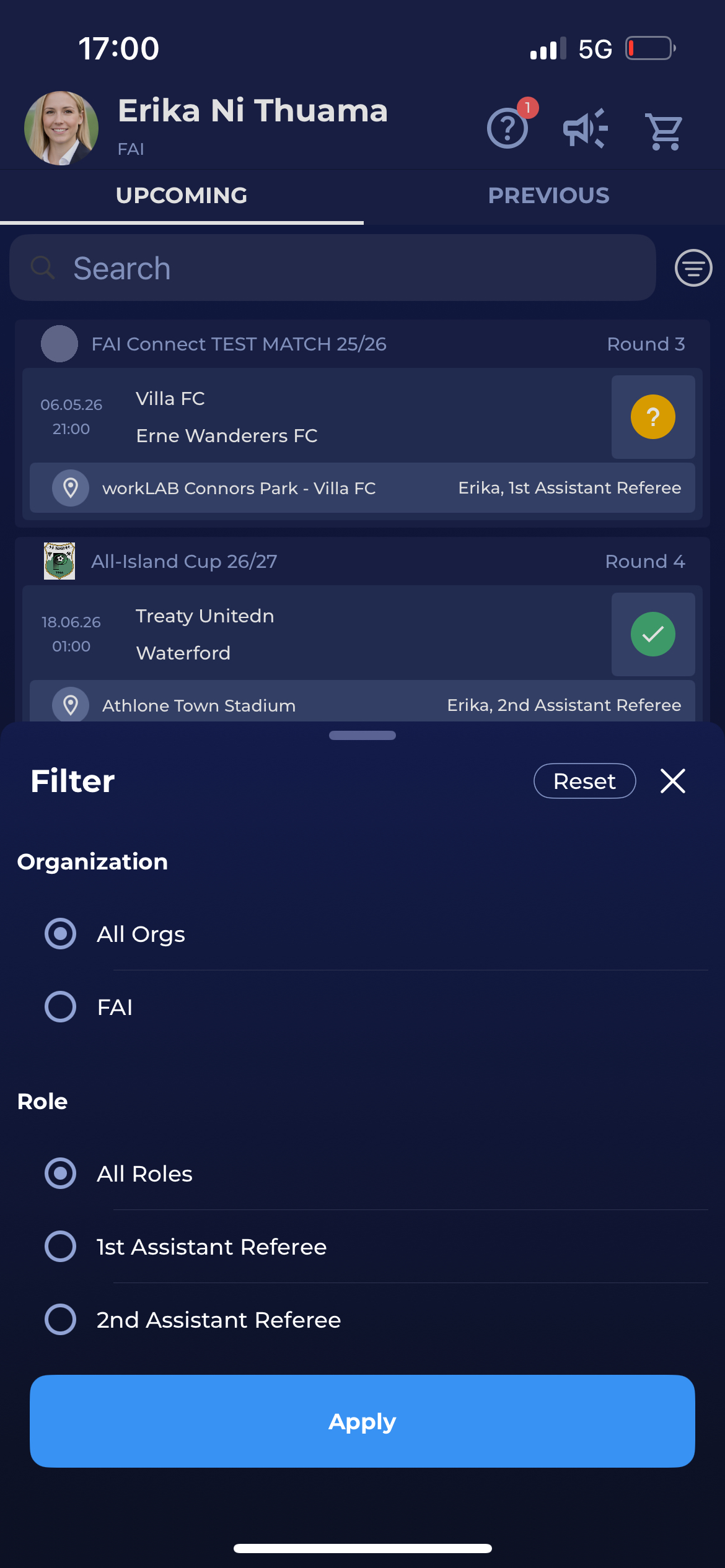
Tap the :filter: Filter icon to the right of the Search bar to open a Filter dialog, letting you filter Upcoming or Previous events by organization or by your role on the match, if applicable.
Note that your association can set the latest time up to which you can decline an already confirmed appointment.
Push Notifications
A match official can be notified about the appointment by a push notification sent to the official’s mobile device. The system sends push notifications during time-sensitive transitions in the new match official workflow whenever the admin takes an action that requires informing the match official.
This notification contains the title that informs the official of the required action (here, to review the appointment for the 1st Assistant Referee). The notification details include key information such as the date, time, location, match, and competition. The name of the appointed official will appear after a dash ("-").
-20260424-151723.jpg?cb=a07bc37a1f296a8a290bce99ad169f30)
In the case of the previous image, when the Match Official is asked to review an appointment, their status for that match remains SUBMITTED until they confirm the appointment.
Tapping the notification takes you directly to the Response Pending list of your Appointments, where you are prompted to confirm your availability for the match.
Please note that the notification’s title will indicate if any action is required from you. If the title begins with CONFIRMED or CANCELLED, tapping the notification will open the Match details page.
Push notifications can be muted or disabled through your mobile phone settings, not within the COMET Football app.