
To see detailed info on active/inactive tickets in the My Tickets console, click a single row/ticket item to open the ticket form and display the selected ticket details.
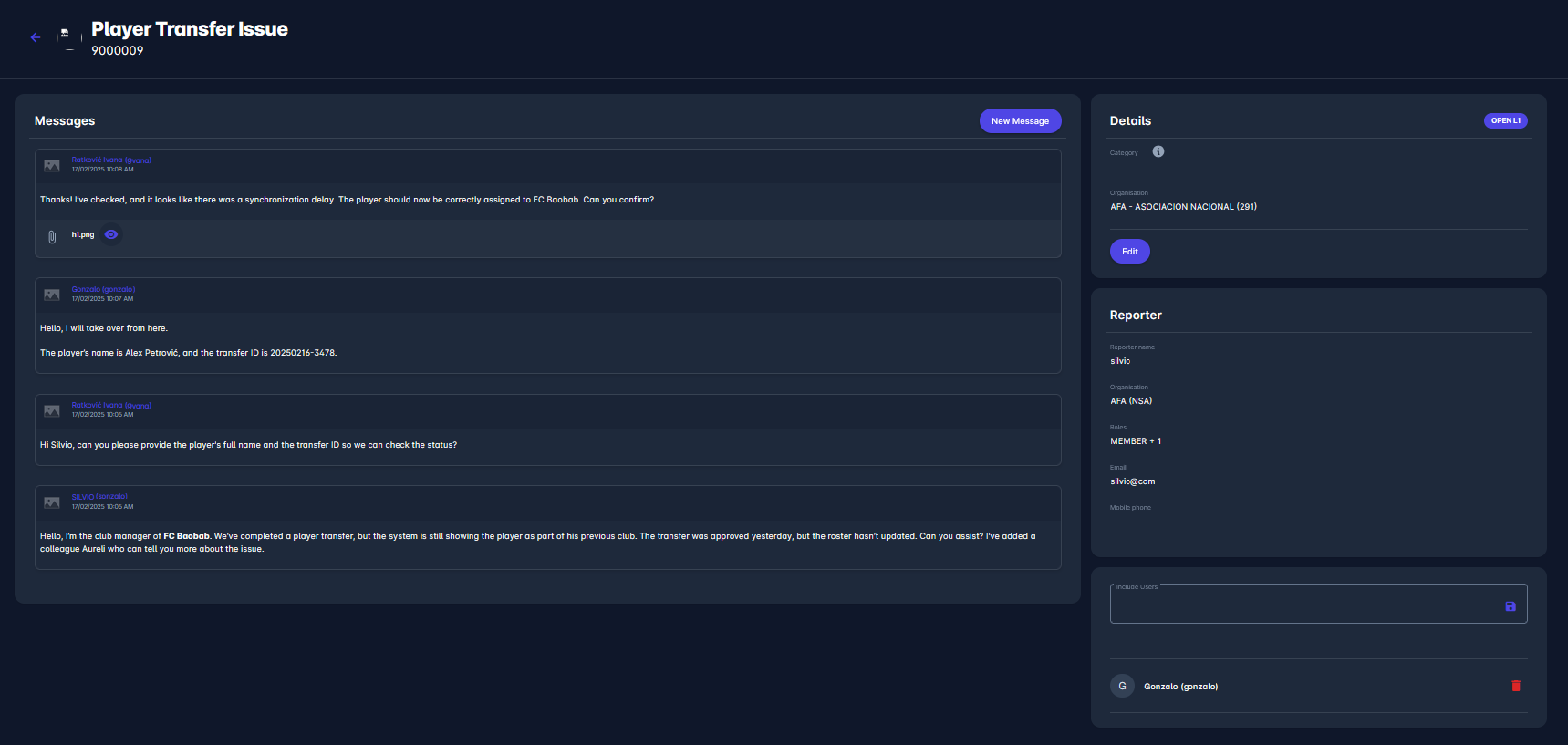
Messages
On the left side of the screen, you can see all correspondence related to this ticket. Note that messages are ordered with the newest ones at the top.
You can send a new message to the thread by clicking the New Message button at the top of the Messages screen. A new message can be sent at any time, regardless of the ticket's status, by anyone involved in the correspondence.
After typing a message and optionally adding an attachment, the user or administrator must select a ticket status from the dropdown options before clicking the Save button. To find out more, please refer to Ticket Status Changes.
Details
Under the details category, you can see the current Status of the ticket, its Type, Category, and the Organisation under which it was reported.
A click on the info bubble over the title Category will open a detailed specification of each category type, ranging from 0 to 6, with examples.
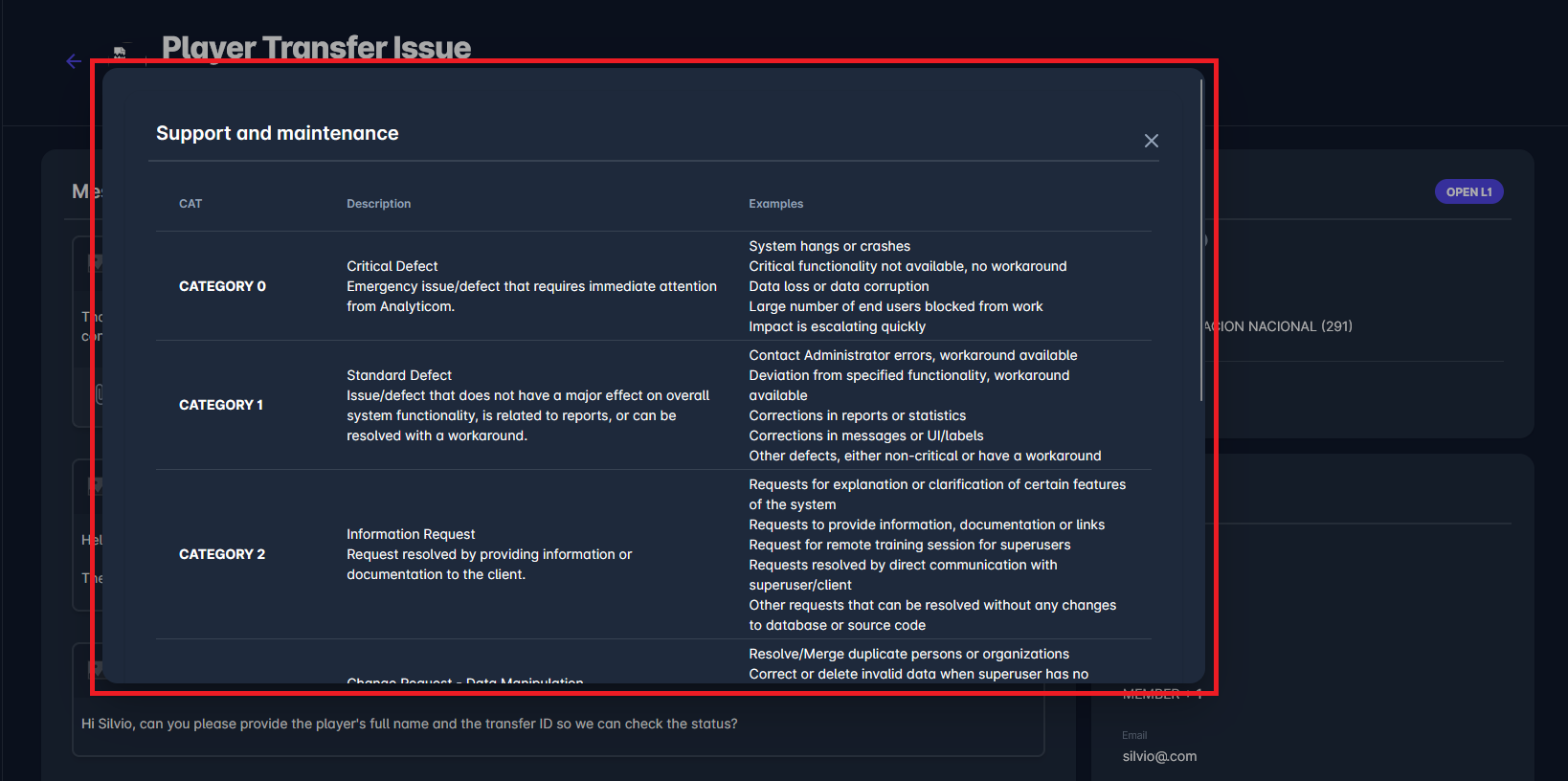
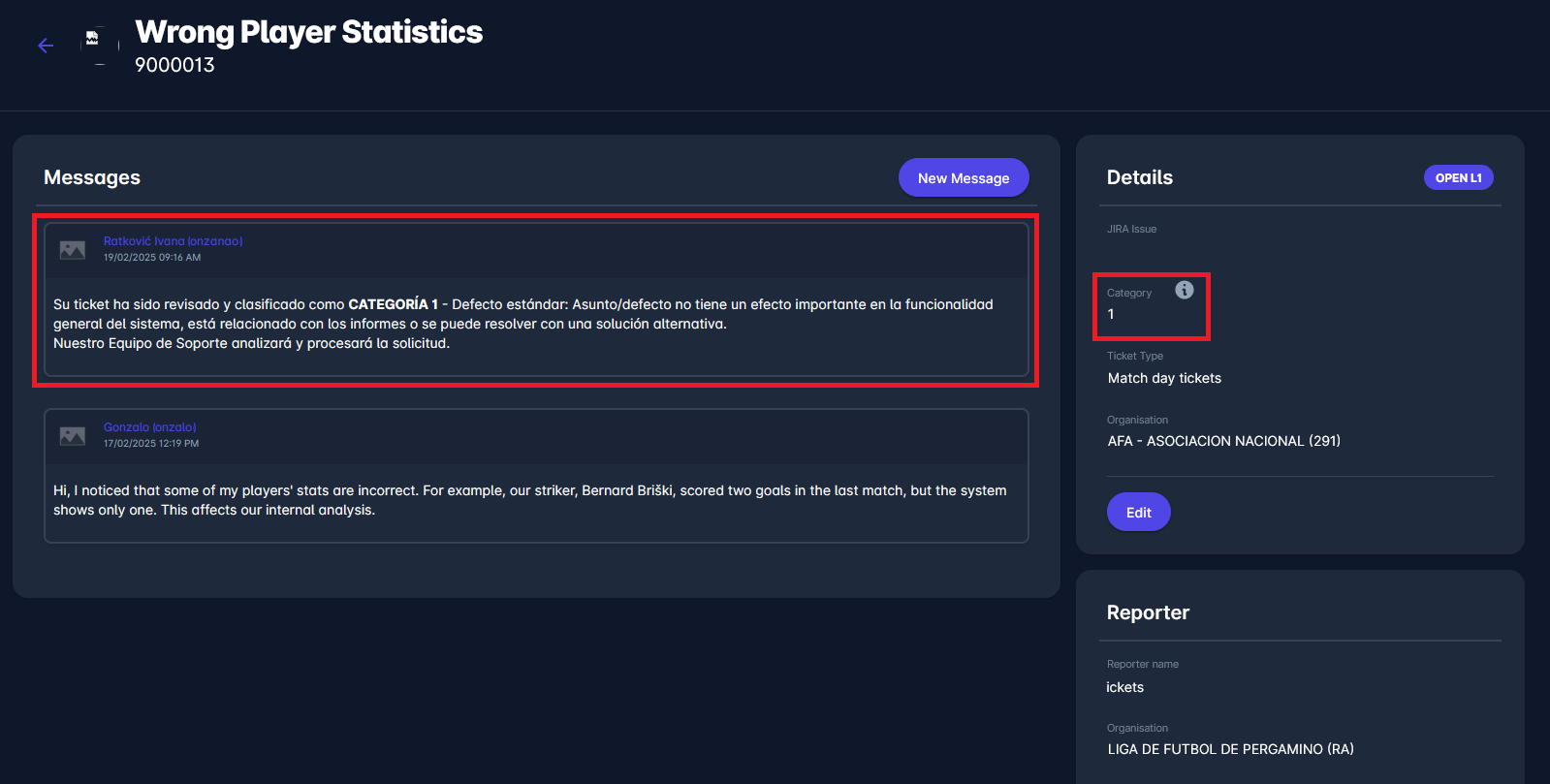
The ticket category can only be set by Analyticom and is visible to Superusers.
Defining the ticket category automatically sends a message to the reporter with the category details.
Ticket types are defined in the Admin app and are set as a mandatory field for all tickets once created. To find out more, check the following article: Support.
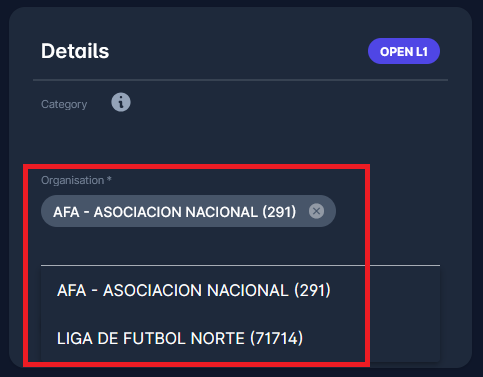
Additionally, you can assign the ticket to a different support organization: for example, if a regional association is selected, then the Superuser of that regional association will be responsible for addressing the issue.
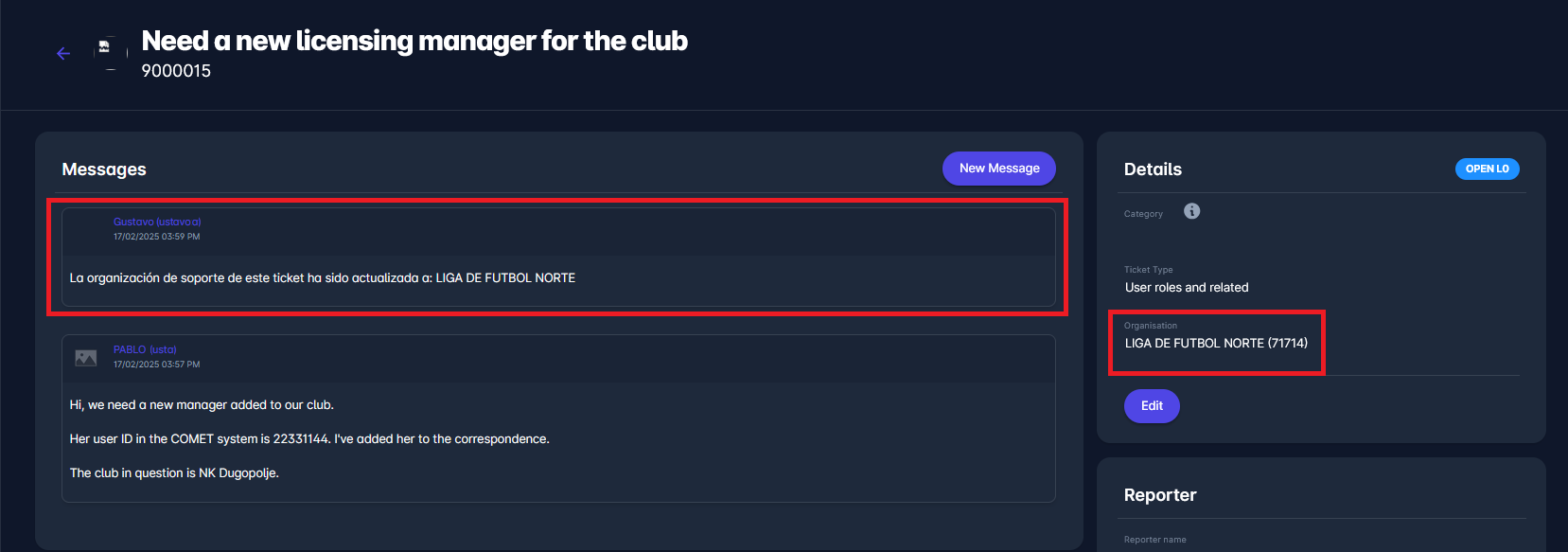
To modify the organization, click the Edit button and select a different organization from the dropdown menu. Don’t forget to save your changes.
This action will trigger a message to the ticket reporter, informing them that the ticket should now be addressed by the newly selected organization, as shown in the following image.
Note that if the new support organization is a National Association or Confederation, then the ticket status is automatically set to OPEN L1; otherwise, it is set to OPEN L0.
To enable the creation of support organizations below the tenant level in your National Association/Organisation, please submit a support ticket.
Reporter
The reporter category provides details about the user who opened the ticket.
The details include:
-
Reporter name - username of the reporter
-
Organisation, including the suborganisation, if a person is a member of some
-
Roles - roles awarded to the user profile of the reporter
-
Email - contact email of the user
-
Mobile phone
All of these details are retrieved from the user profile in the COMET system and are not entered manually when opening a ticket.
None of these fields can be edited within the Help Module. Additionally, some fields may not be visible if the user has not provided all the necessary details in their profile
Users
In this section of the ticket details, you can view and manage the users associated with the ticket, including the reporter.
Users can be added either when creating a ticket or at any point during the resolution process. The same logic applies to removing users.
To find out more about including other users in the ticket, please refer to: Include Users to Ticket.