Authorizations
The visibility of the Match Officials tab depends on:
-
Match status
-
Competition parameter “Minutes before Officials are Public”
-
User role
-
Match Role configuration (Private switch)
Minutes before Officials are Public parameter: if entered, the Match Officials Panel and Expense Report will become visible at this point (minutes before kick-off) on scheduled matches. If this optional parameter is not defined, standard visibility rules apply.
The Match Officials tab is always visible to Restricted Match Stakeholders.
For other users, visibility depends on timing and configuration.
|
Match Role Statuses |
Panel/Tab visible to |
CONFIRMED roles visible to |
Roles in Other Statuses visible to |
|---|---|---|---|
|
Not Scheduled, Played, Returned, Postponed, or Abandoned |
Restricted Match Stakeholders |
Restricted Match Stakeholders |
Restricted Match Stakeholders |
|
Scheduled, Played, Returned, Postponed, or Abandoned Before Minutes before… parameter |
All Match Stakeholders |
All Match Stakeholders |
Restricted Match Stakeholders + Match Officials of that role |
|
Scheduled, Played, Returned, Postponed, or Abandoned After Minutes before… parameter |
All Non-Member Roles |
All Non-Member Roles - if the roles are configured as Non-Private All Match Stakeholders - if the roles are configured to be Private |
Restricted Match Stakeholders + Match Officials of that role |
Restricted Match Stakeholders include:
-
Tenant Superusers
-
Competition/Referee Administrators (within tenant scope)
-
Competition/Referee Managers appointed to that competition
All Match Stakeholders include:
-
All Restricted Match Stakeholders, described above
-
Data Superusers and Disciplinary Admins of the Competition organization and above
-
Disciplinary Managers appointed to the competition
-
Confirmed Match Officials
-
Club Managers/Referents and Lineup Managers of participating clubs or teams
Team Officials
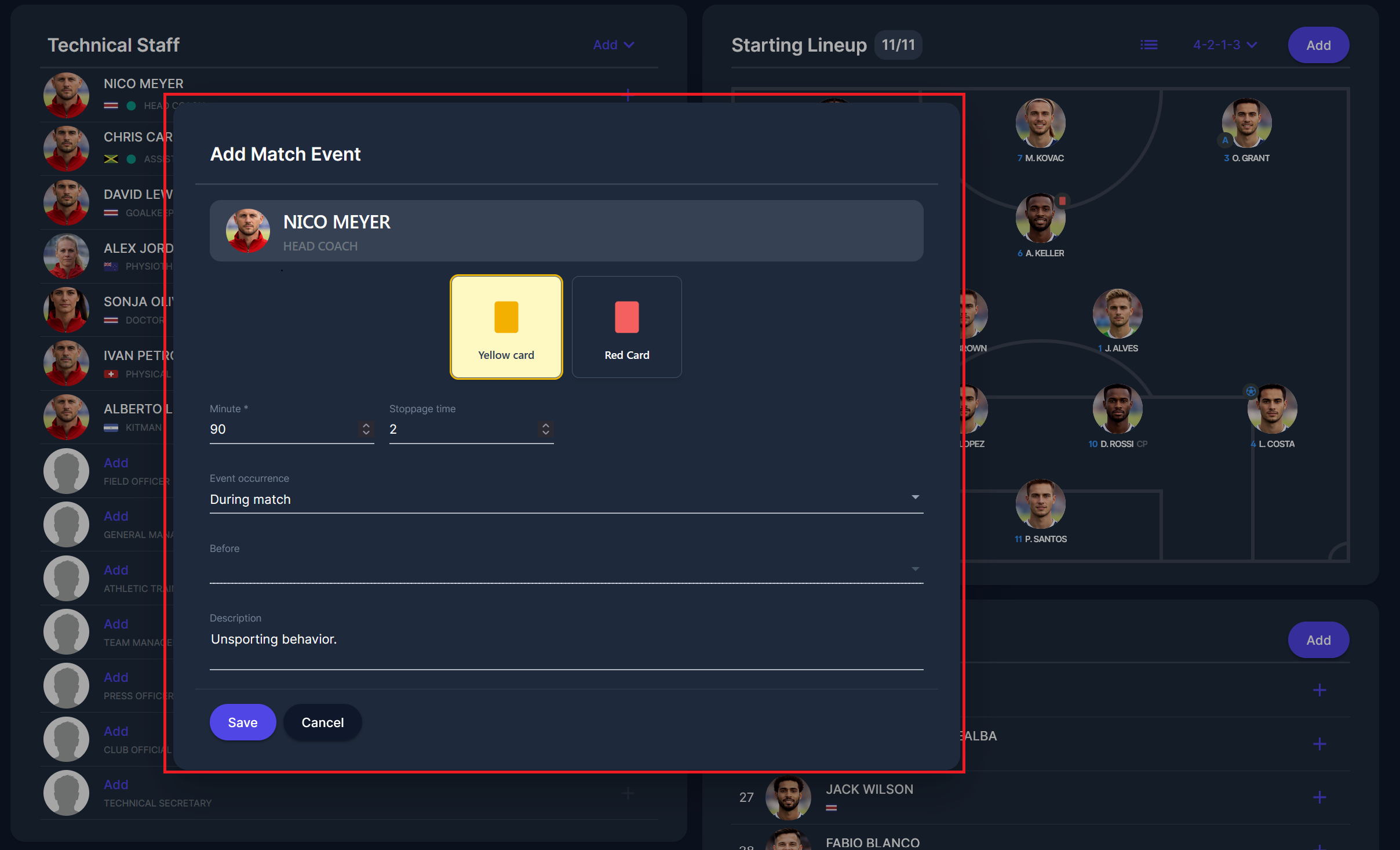
Yellow and red cards can be recorded for technical staff. You need to enter:
-
Minute (mandatory) and stoppage time (if applicable)
-
Event occurrence (select from the dropdown: Before match, During break, During match, After match)
-
Description (optional)
-
Select the event type:
-
Yellow card, or
-
Red card
-
-
Click Save.
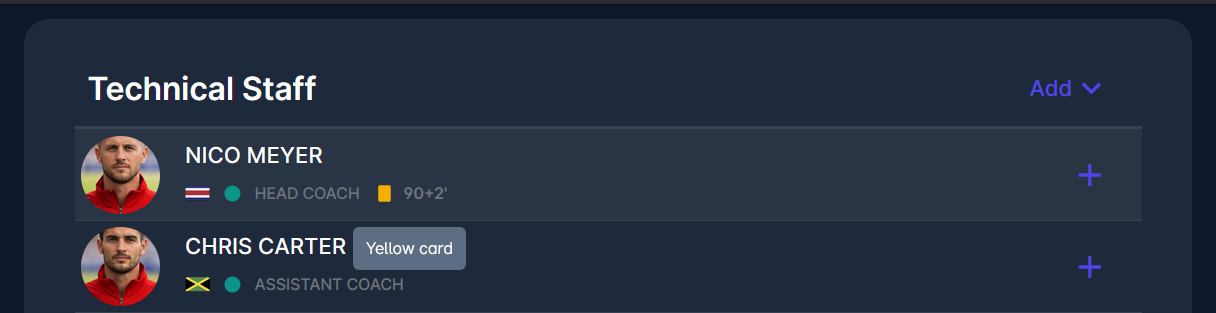
After saving:
-
The event is displayed next to the staff member’s name.
-
The minute (e.g., 90+2) appears in the list.
-
A tooltip shows event details when hovering over the icon.
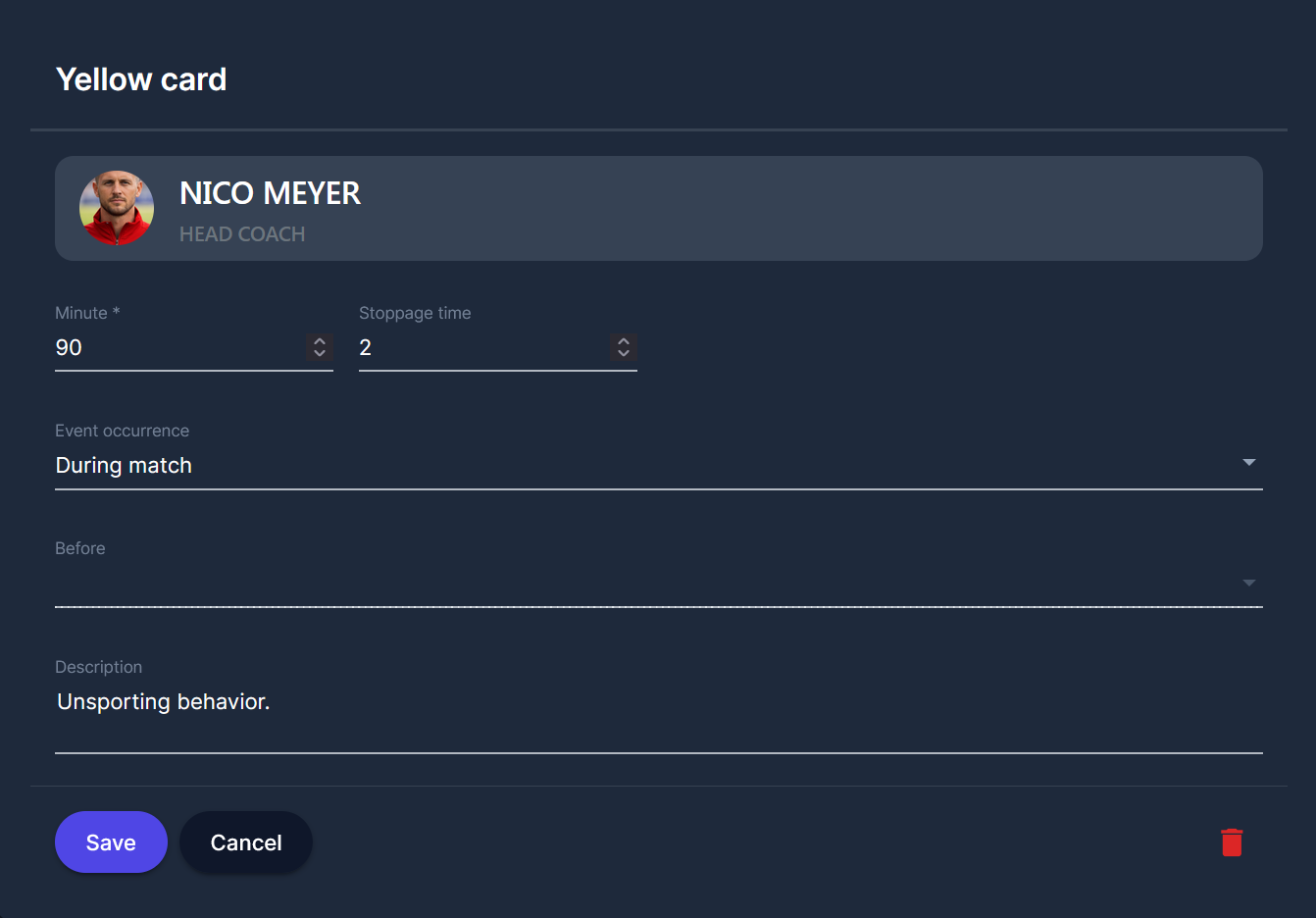
To delete (or just edit) the event, open it and use the delete (trash) icon.
Authorizations
The Competition type’s Lineup Submissions section contains two settings:
-
Home Club Permissions
-
Away Club Permissions
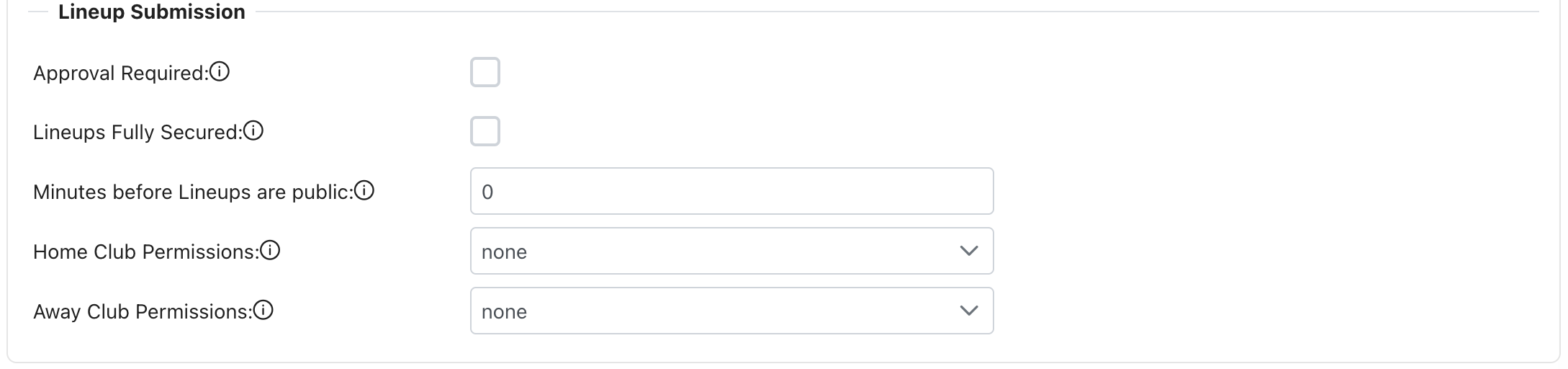
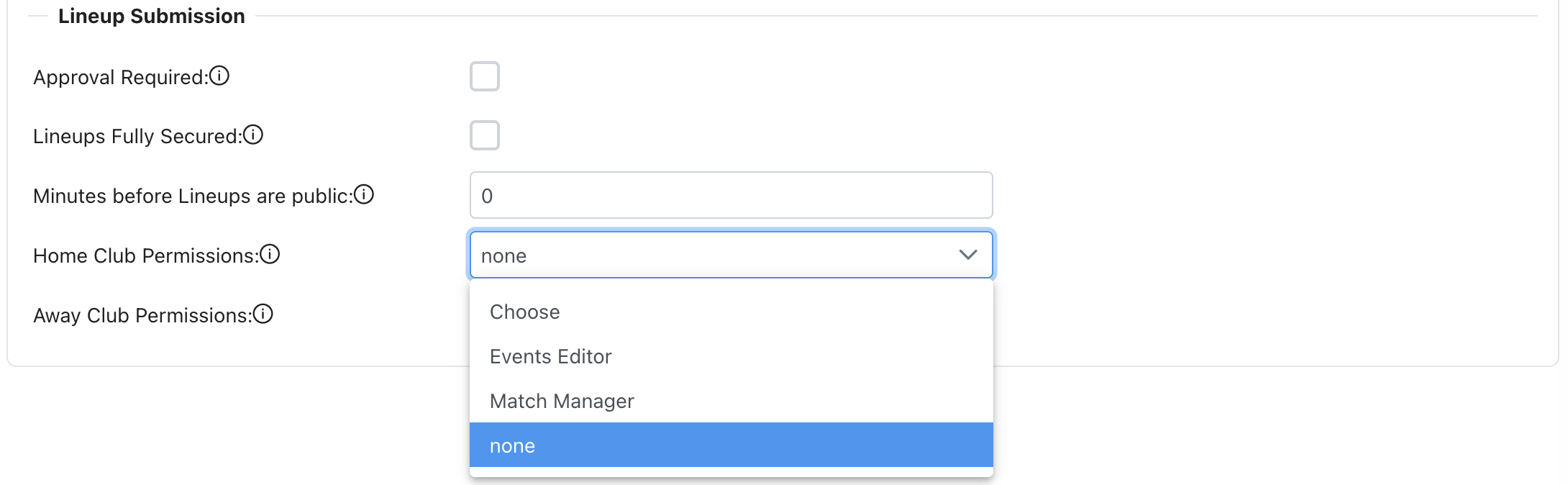
Home Club Permissions relate to users of the home team in the match, and Away Club Permissions relate to users of the away team in the match.
Both settings have the same options:
-
None → club user is not permitted to take any action after submitting/confirming the lineup
-
Events Editor → club user is permitted to manage events (when allowed to view lineup)
-
Match Manager → club user is permitted to change lineups, to manage events, and to change match status
Add Events
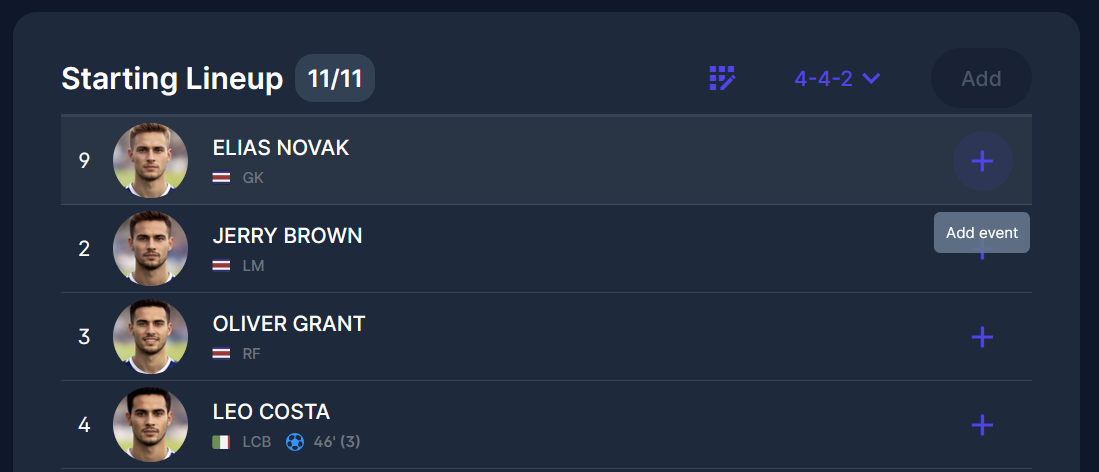
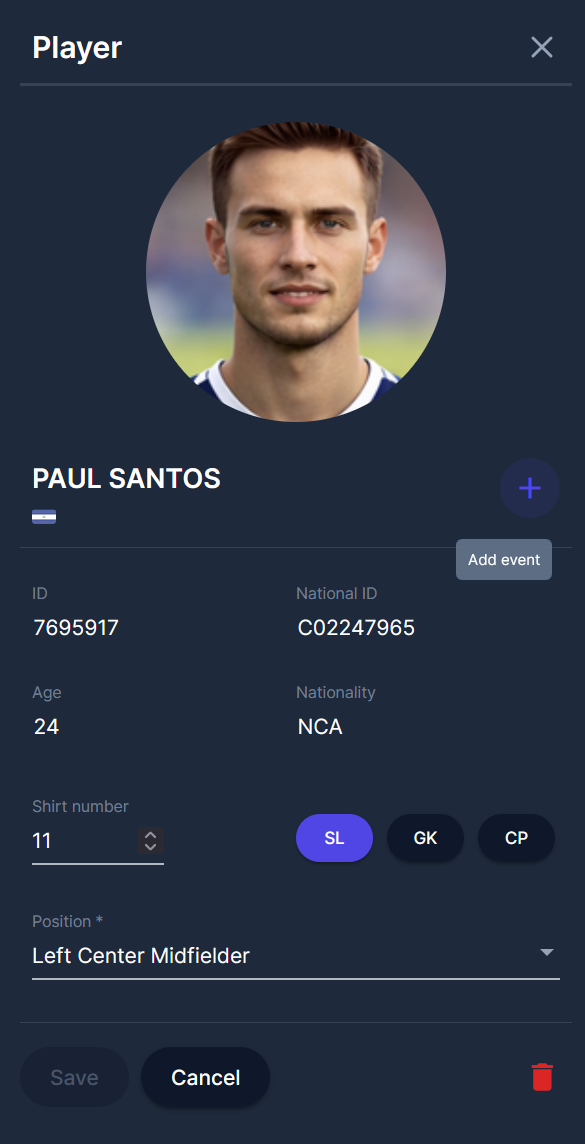
Any player in the Lineup can be selected for an event. To assign the match event to a player, please click on the specific player in the Lineup list. If you decide to do that, the window will appear on the right part of the screen with all the events related to that player, which differ depending on whether the player is in the Starting Lineup or not.
To assign the match event to the player, please click the ➕ Add button next to the player's name in the Lineup list or in the opened right-side window.
-
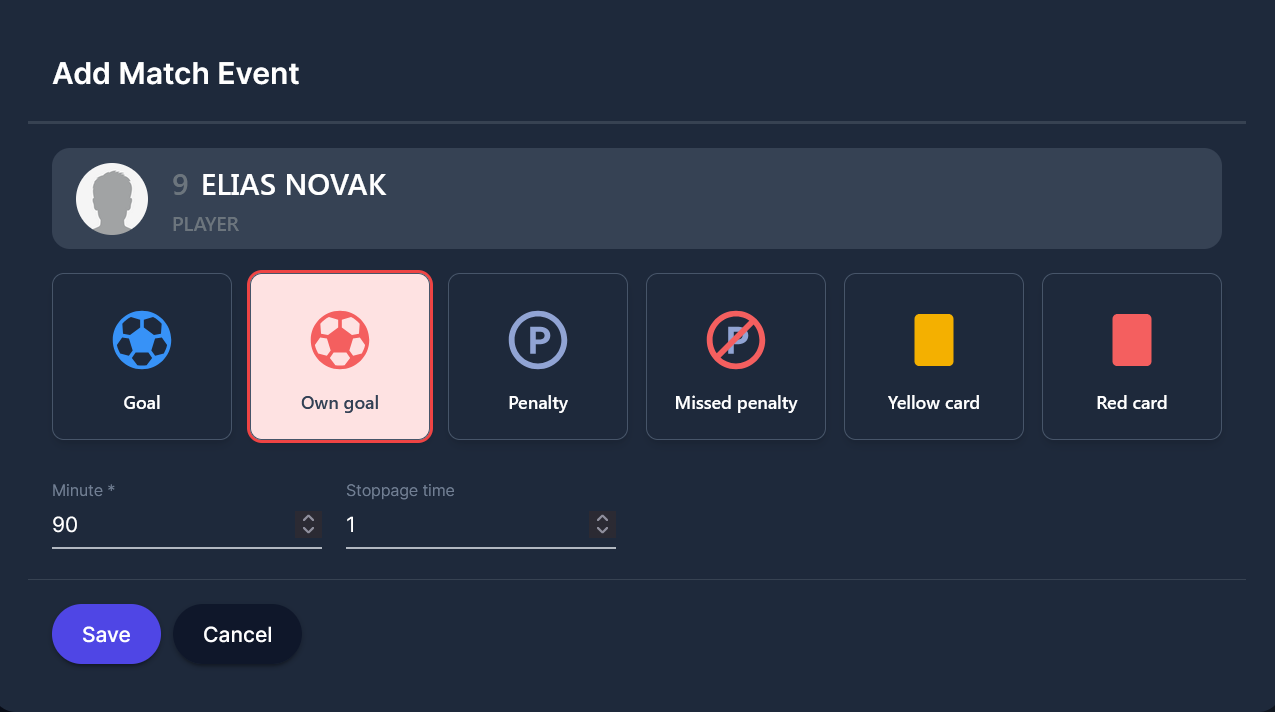
After clicking on the ➕ Add button, the pop-up window will appear with all the available events related to that player.
-
The event type can be: a goal, an own goal, a penalty (including a missed penalty), and a yellow and red card.
-
When you insert data, click the Save button.
-
You can add more events for one player by clicking the same ➕ Add button
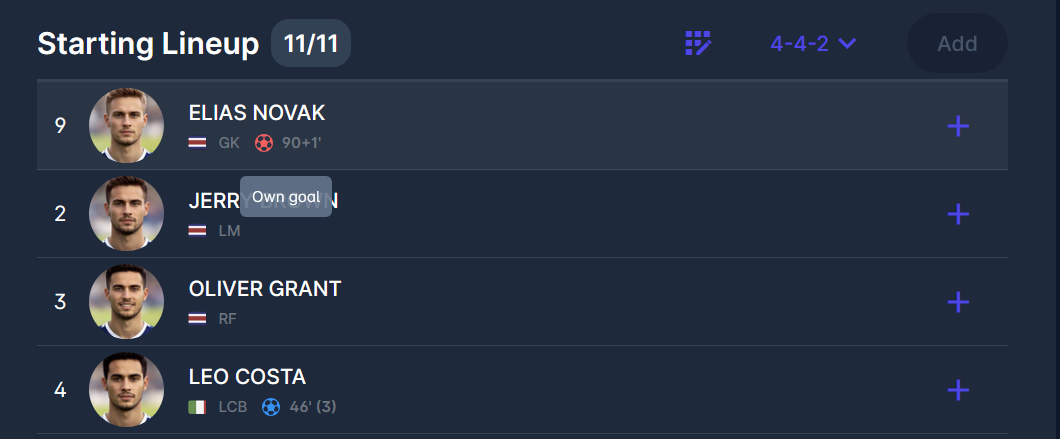
To find out more about Match Events, please refer to the article: Match Events
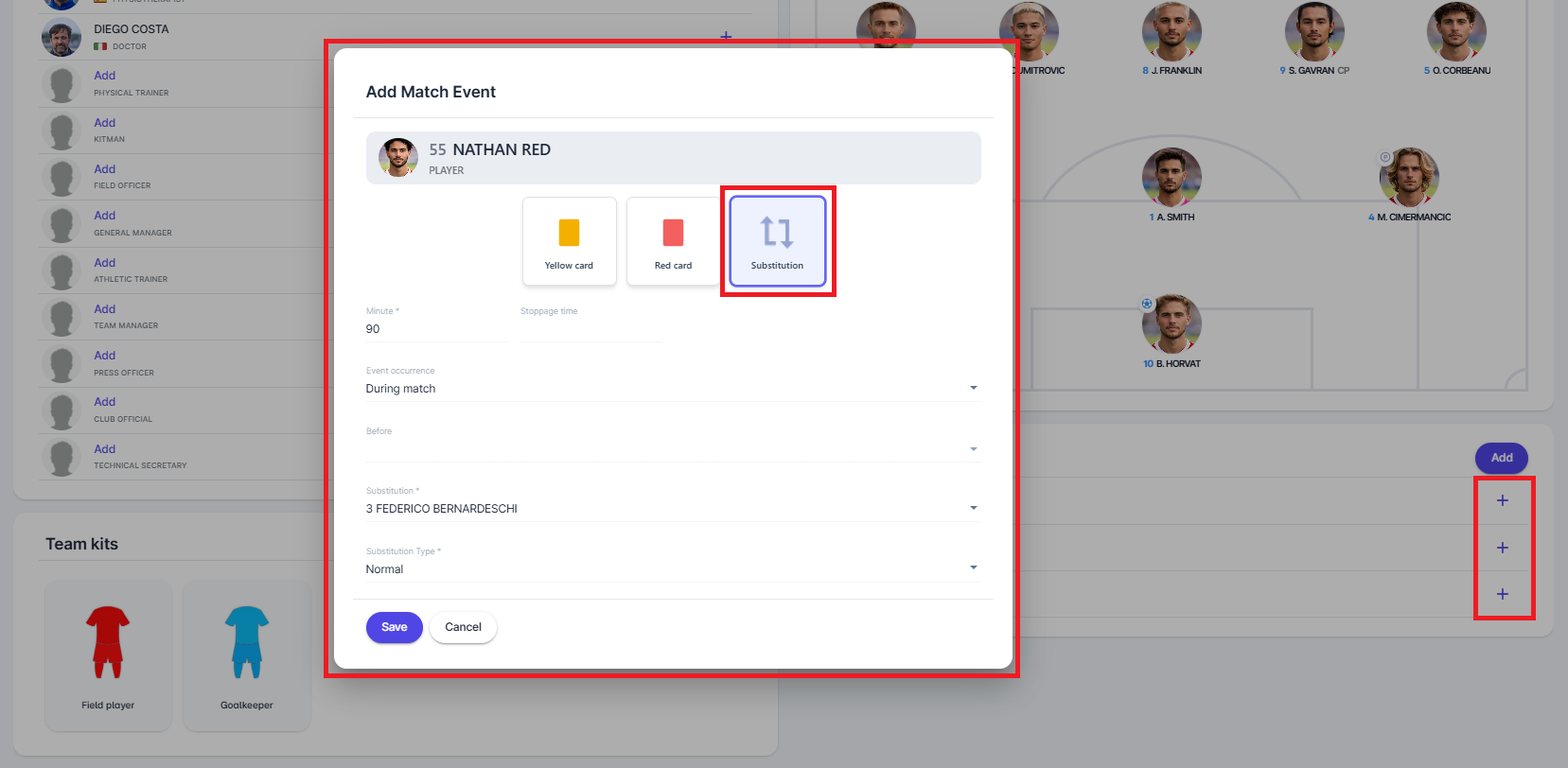
Substitution Event
If the player enters the game:
-
Click on the specific player from the Substitution panel (list - the one entering the field
-
In the pop-up, mark the event as "Substitution" by selecting the respective button
-
Insert the:
-
minute of the entry
-
event occurrence - select when the substitution took place; depending on your selection, the “Before” field may become available and mandatory
-
select a player leaving the field from the drop-down
-
select substitution type: Normal or Concussion Substitution
-
-
Click the Save button to save changes