
The COMET LIVE iOS apps include a companion Apple Watch app that lets users follow their favorite matches from the wrist - scores, live status, match information, and the event timeline.
The Watch app works together with the iPhone LIVE app. Favorites, app settings, and language are synced from the iPhone.
Requirements
-
The COMET LIVE app is installed on the iPhone and has been opened at least once.
-
An Apple Watch is paired with that iPhone.
-
The Watch app is installed. It is usually installed automatically together with the iPhone app.
First-Time Sync
-
Open the iPhone app to sync settings to the Watch.
-
Open the Watch app.
-
Favorite matches appear after a few moments.
If the list remains empty or shows a sync message, reopen the iPhone app, wait a few seconds, then refresh the list on the Watch.
Favorites List
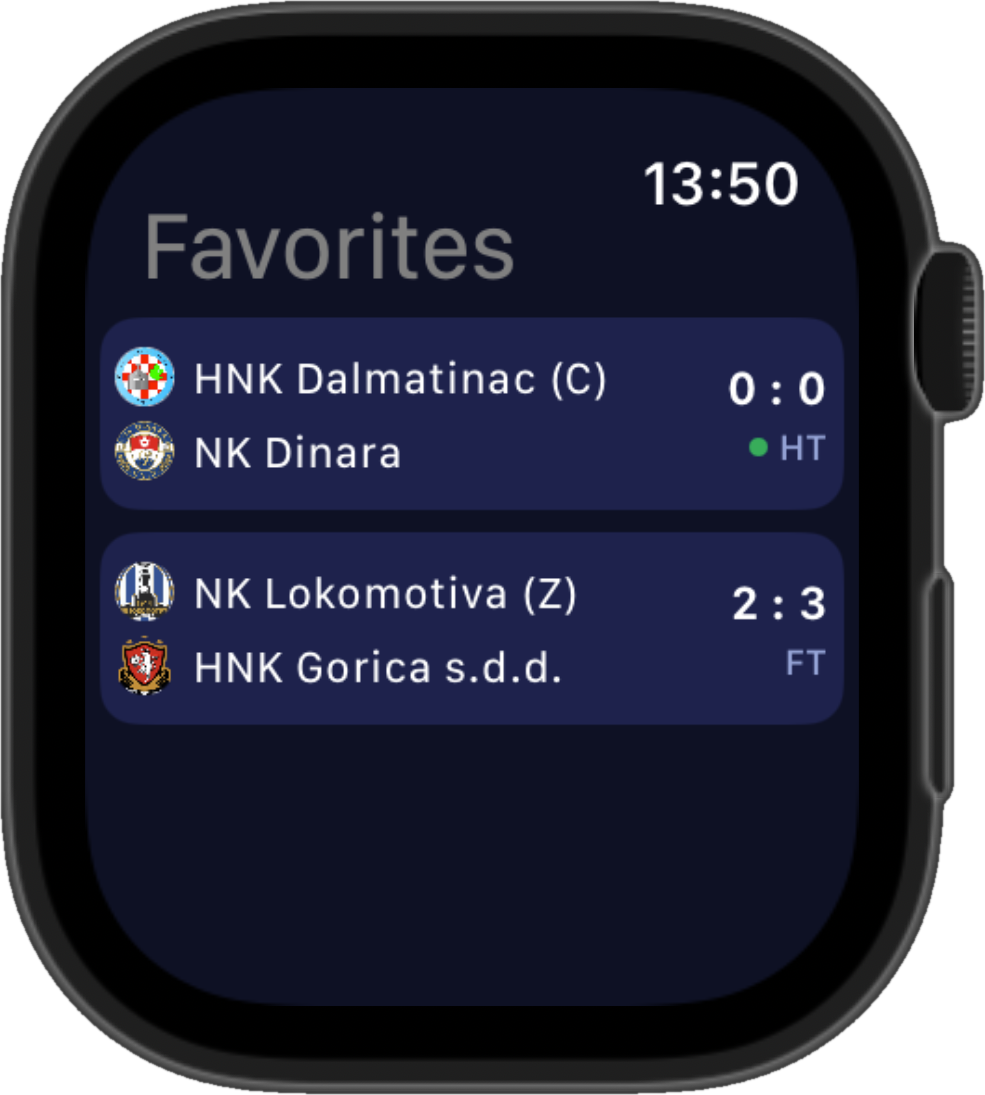
The Watch app opens to the Favorites screen, which lists matches marked as favorites on the iPhone or the Watch. Live matches are shown first, followed by other matches sorted by kick-off time.
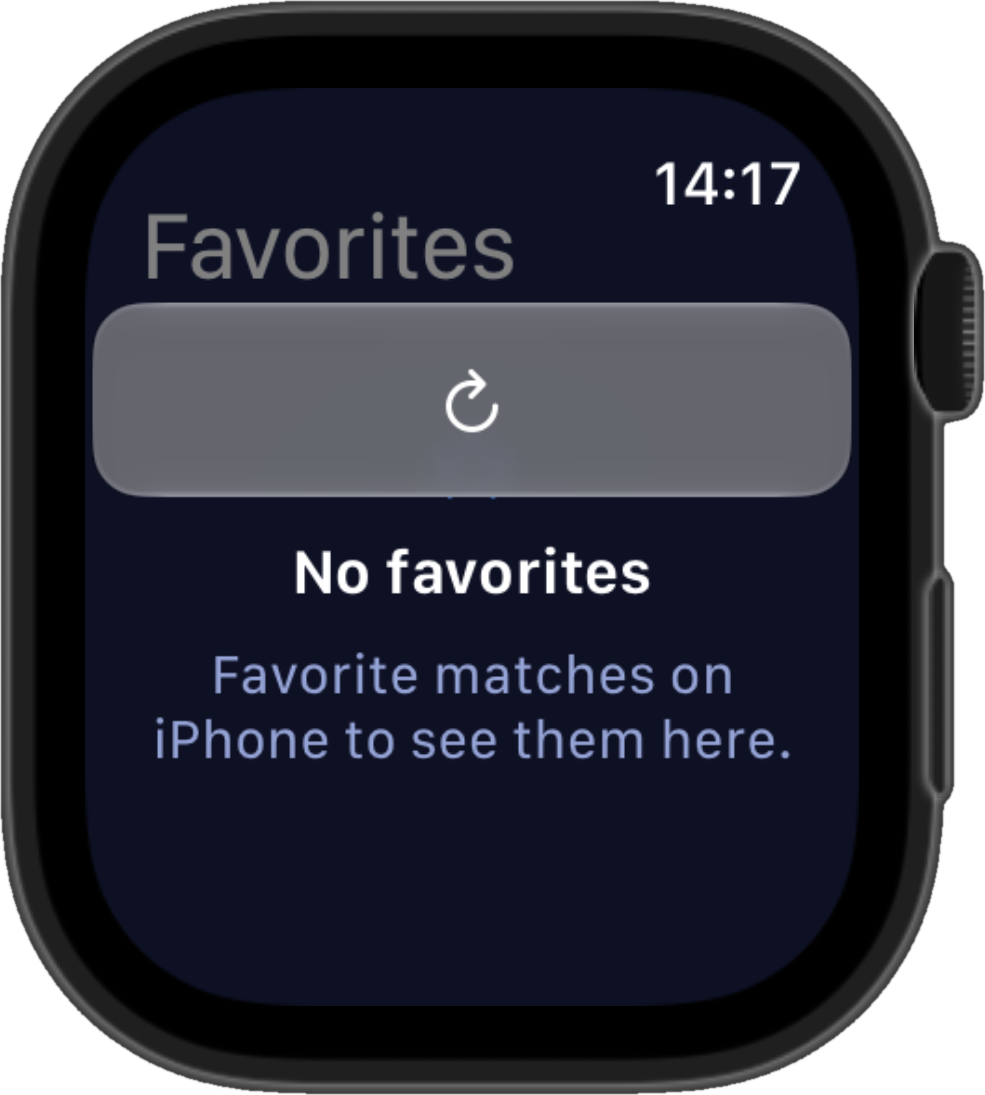
If there are no favorite matches, the Watch displays a message explaining that favorites need to be added in the iPhone app.
To reload the list manually, tap the refresh icon (circular arrow) in the top toolbar. While a match is live, the list also refreshes automatically about every 45 seconds.
Match Details
Tap a match in the Favorites list to open its details. Swipe back to return to the list.
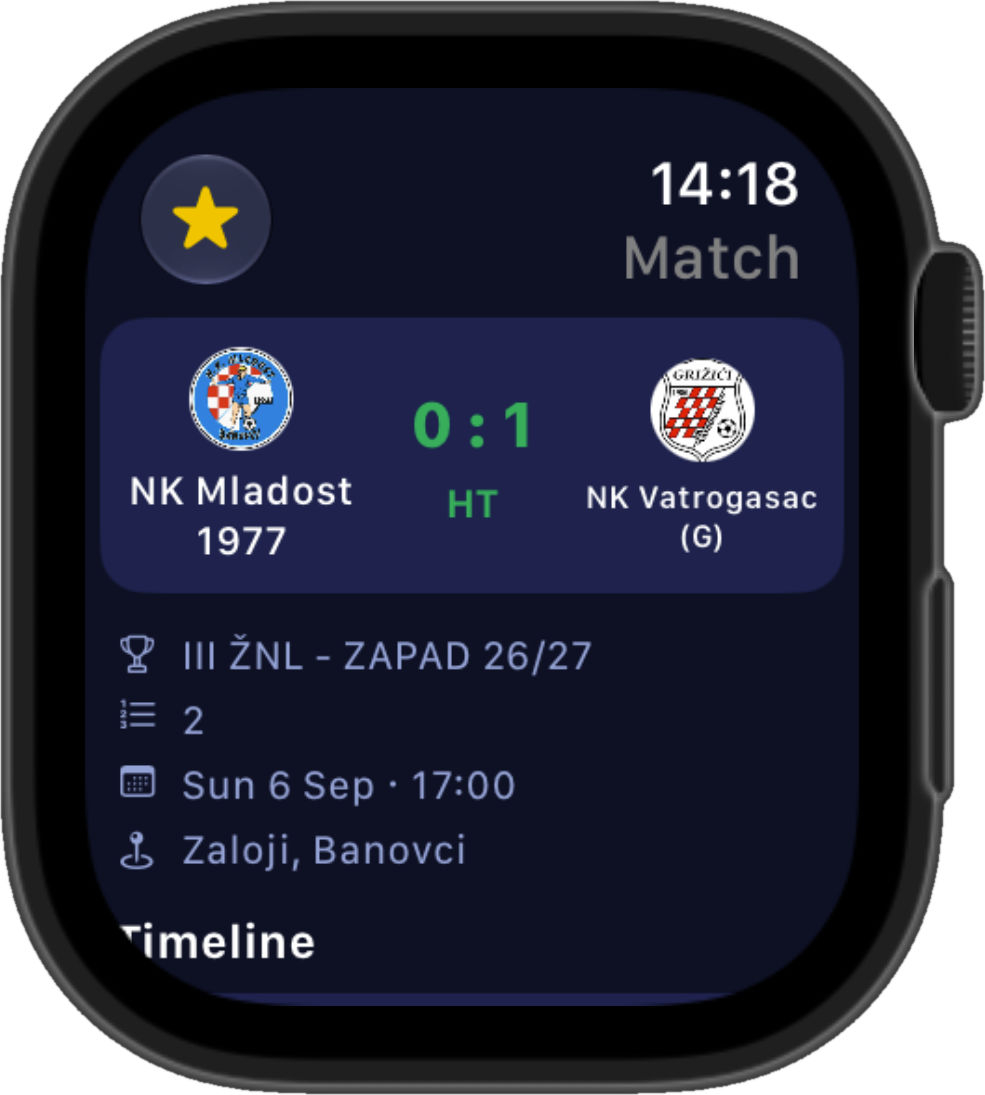
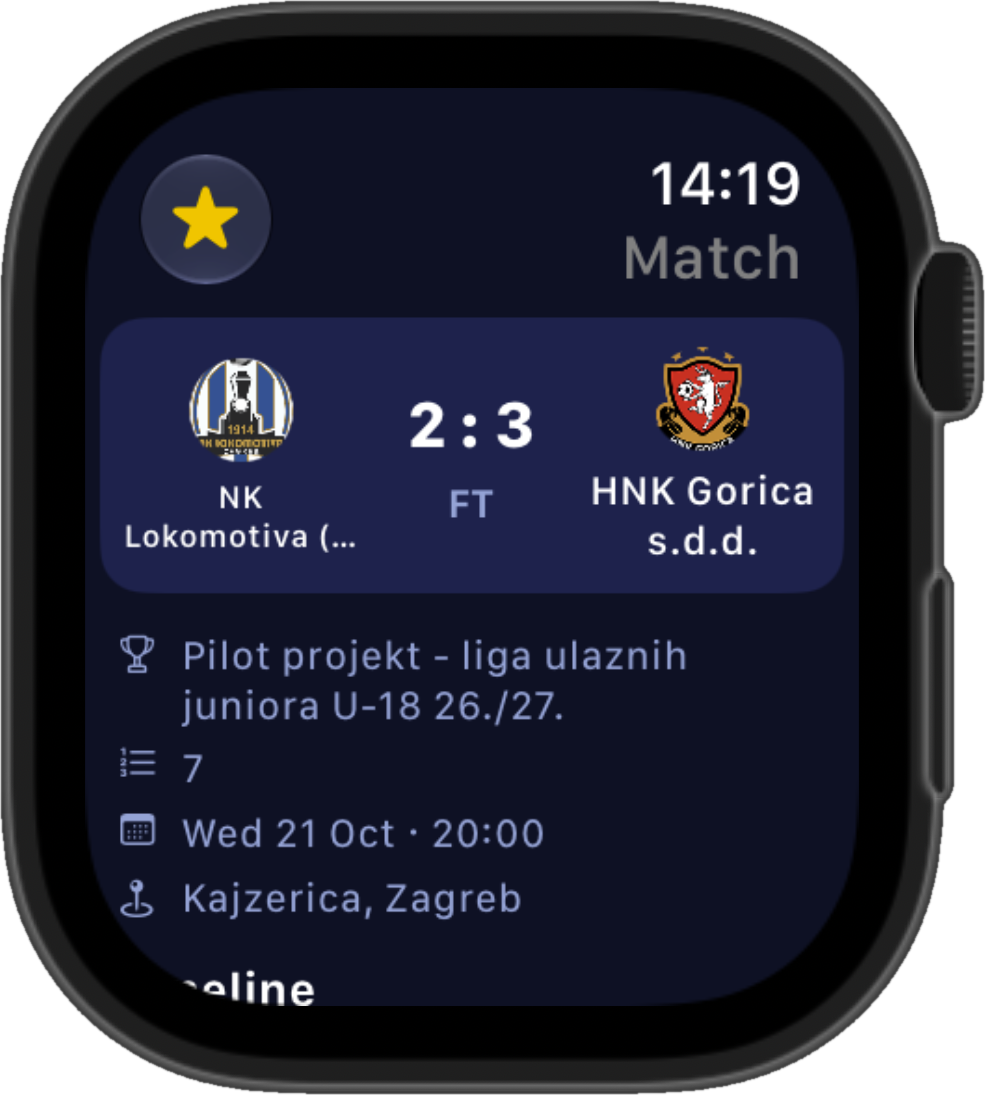
The top of the screen shows the club crests and names, the score, and the match status below it (live minute, FT, canceled, postponed, etc.). Additional result information is shown when relevant, for example after a penalty shoot-out.
Below the score, the following match information is shown when available:
-
Competition
-
Round
-
Date and kick-off time
-
Venue
To reload the score and timeline, tap refresh in the toolbar. For live matches, match details and the timeline also refresh automatically about every 45 seconds.
Timeline
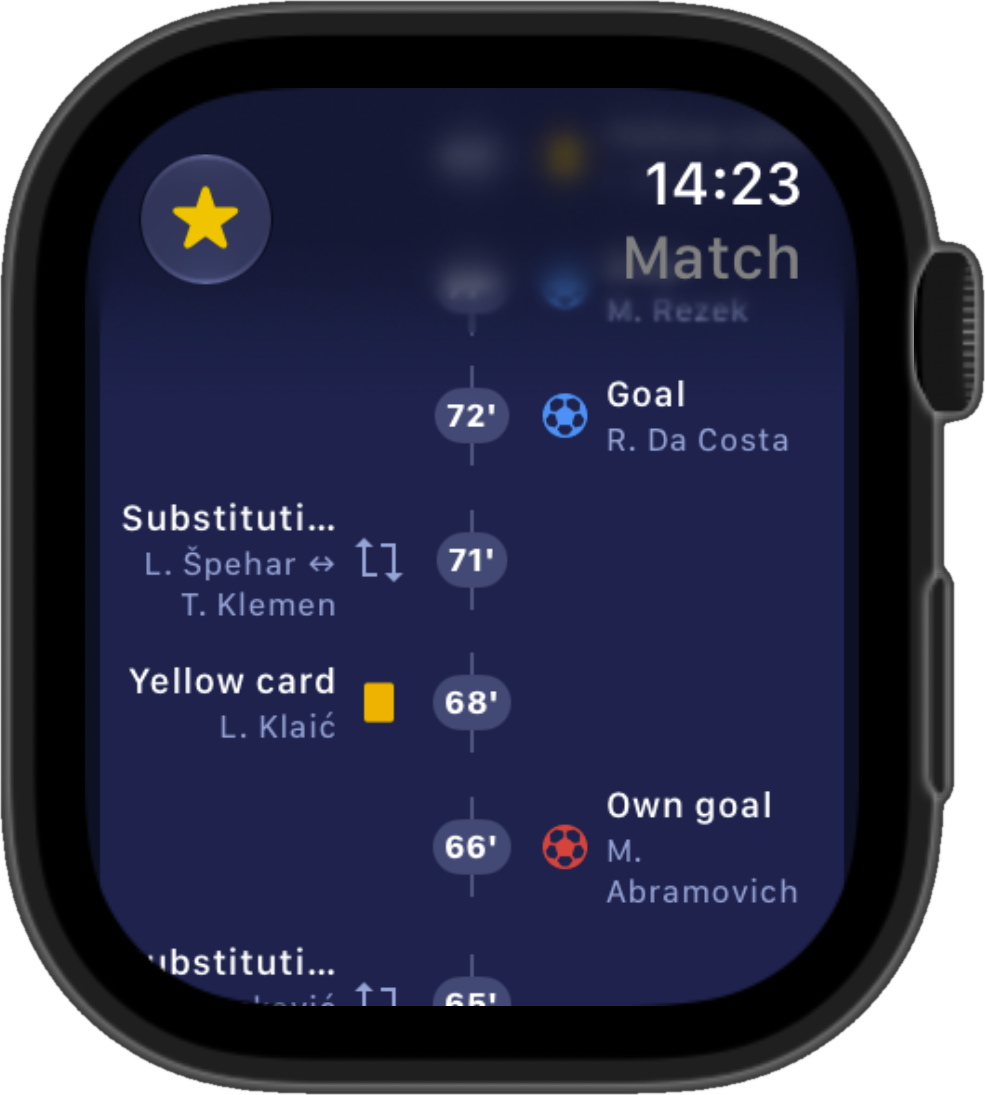
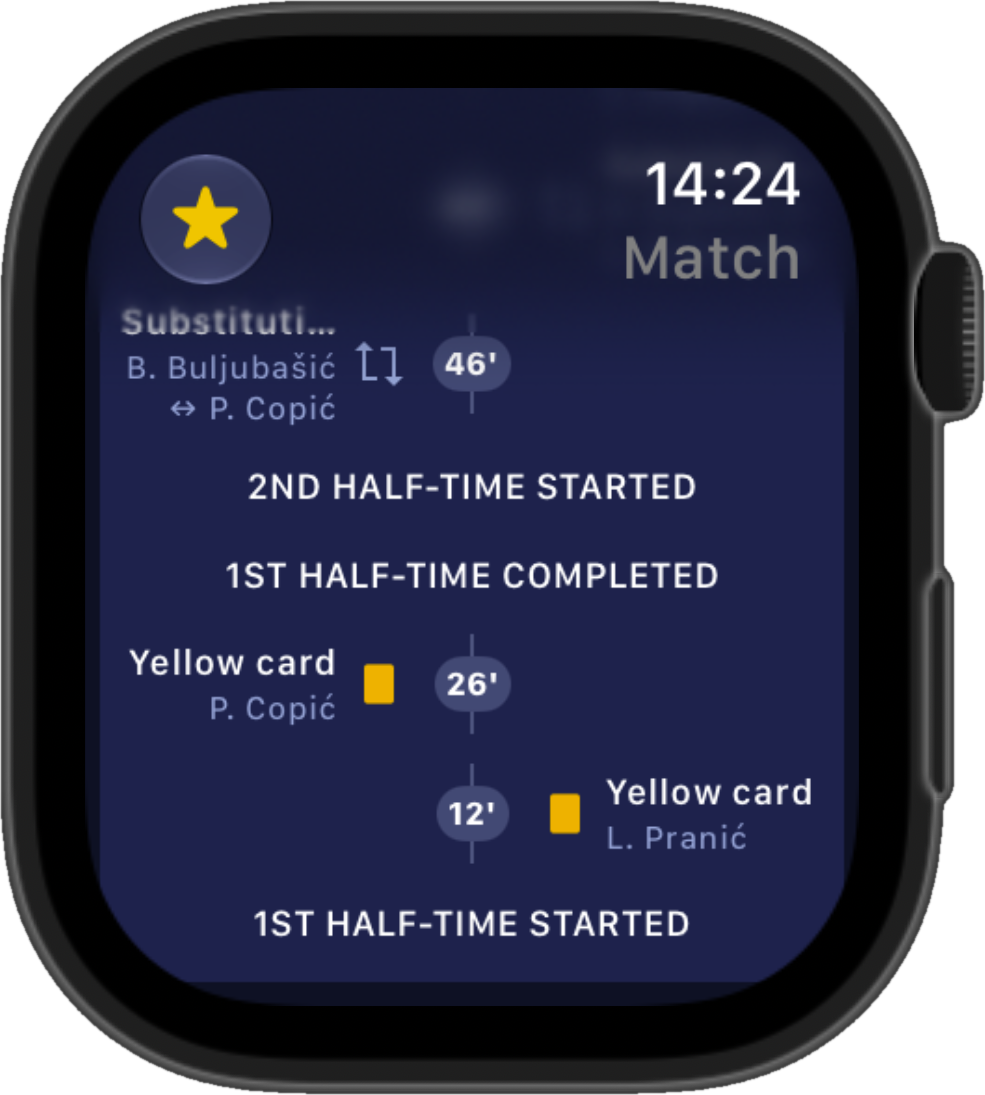
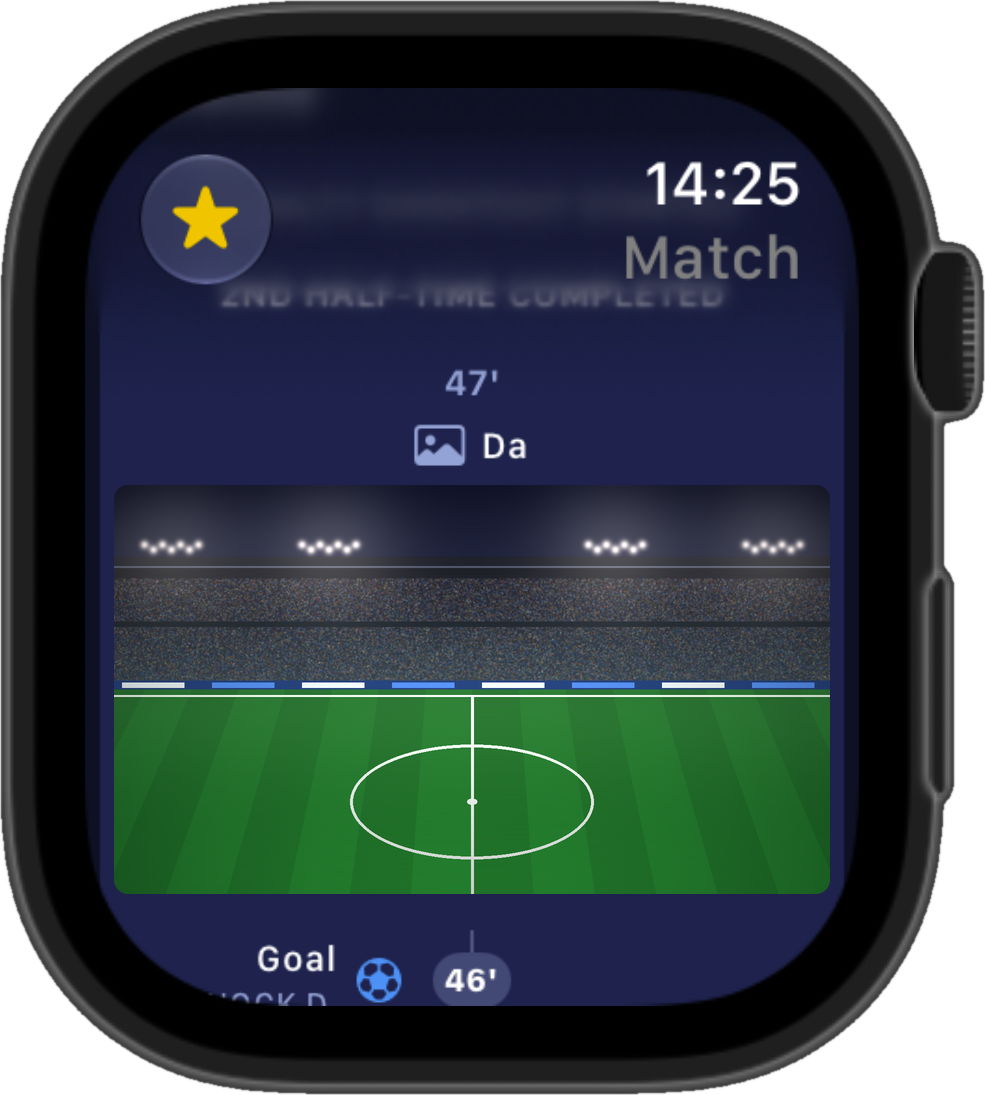
Below the match information, the Timeline lists the match events, with the most recent event at the top. It shows the same events as the iPhone app - match phases, goals, cards, substitutions, and commentaries, including commentary images (see Match Lineups and Events and Live Match Commentaries).
Adding and Removing Favorites
On the match details screen, the star icon in the toolbar shows whether the match is a favorite:
-
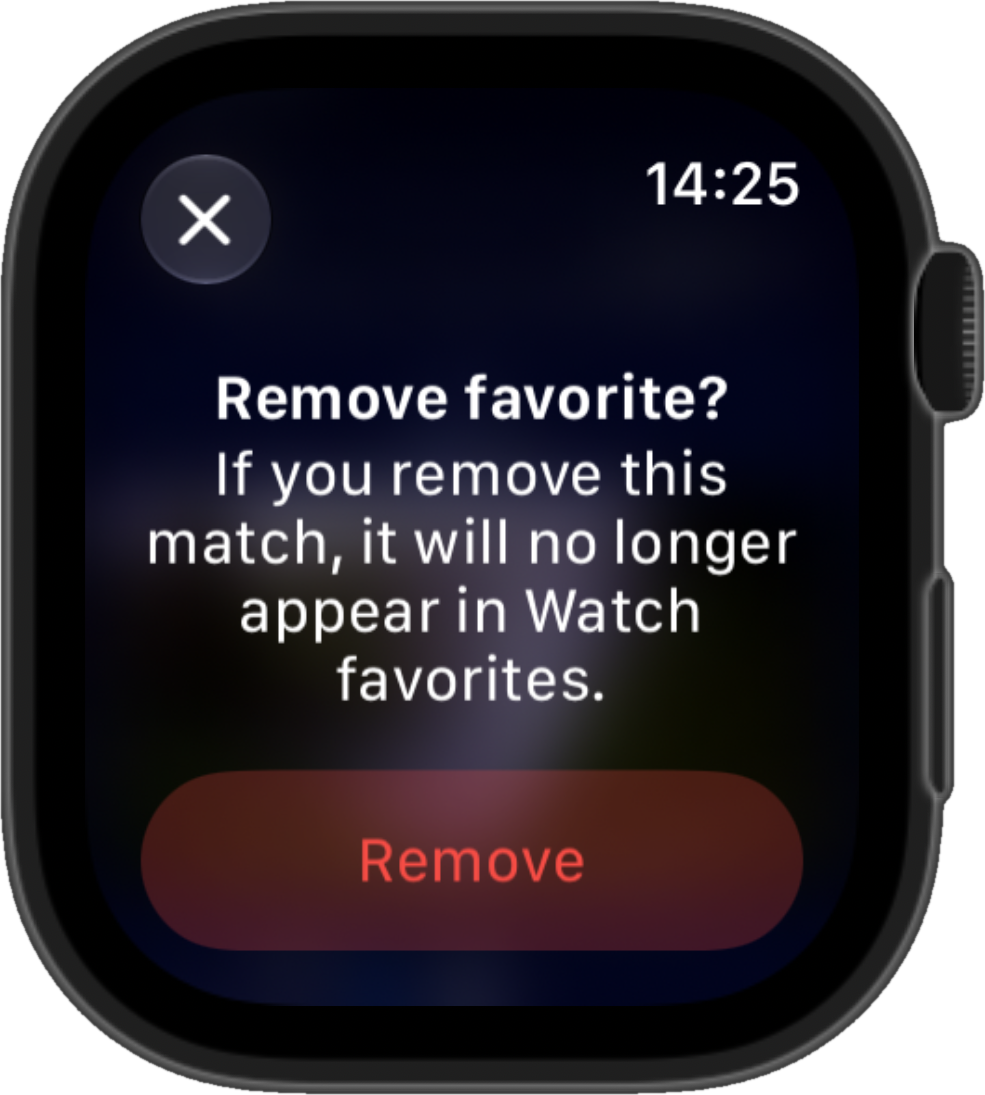
Filled (yellow) star - the match is a favorite. Tap the star to confirm removal from favorites.
-
Outlined star - the match is not a favorite. Tap the star to add it to favorites.
Removing a favorite requires confirmation to prevent accidental removal. The removed match disappears from the Favorites list on the next refresh.
Notifications
Match notifications are delivered to the Watch based on the same favorites and alert settings as on the iPhone. Tapping a match notification opens that match in the Watch app.
A notification can also relate to a favorite team or player in a match that is not on the Favorites list. In that case, the match details open directly from the notification, and the match can be added to favorites to keep following it on the Watch.
News notifications do not open a match.
Language
The Watch app uses the language selected in the iPhone app, including the labels of match phases in the timeline.
After changing the language on the iPhone:
-
Keep the iPhone app open for a few moments so the language can sync to the Watch.
-
Refresh or reopen the match on the Watch to load the texts in the selected language.
Limitations
The Watch app is designed for quick match tracking and offers a subset of the iPhone app features:
-
Competitions and clubs cannot be browsed.
-
Lineups, standings, and news are not available.
-
There is no login on the Watch - the app uses the session and settings synced from the iPhone.
-
Matches are accessed from the Favorites list or by opening a notification.