
Match Timer
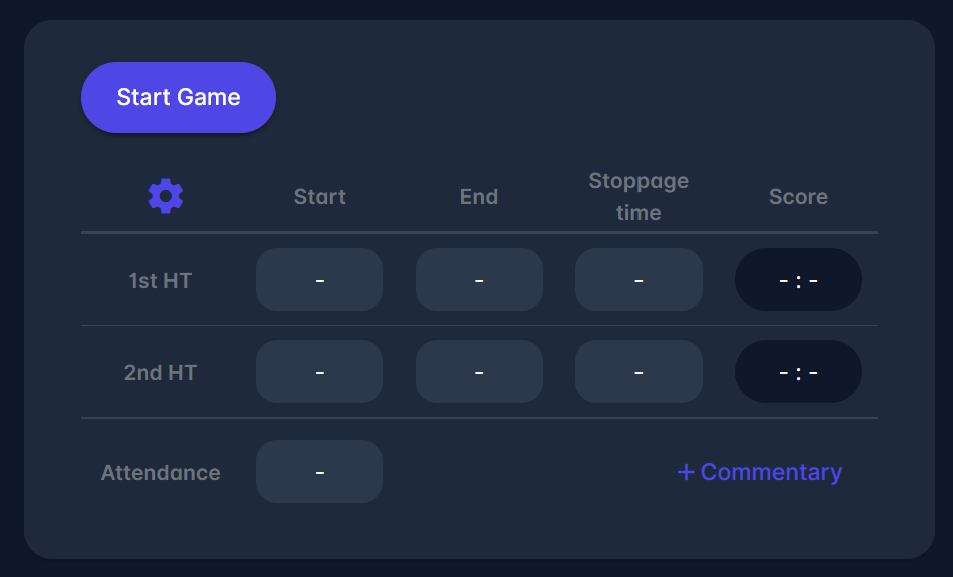
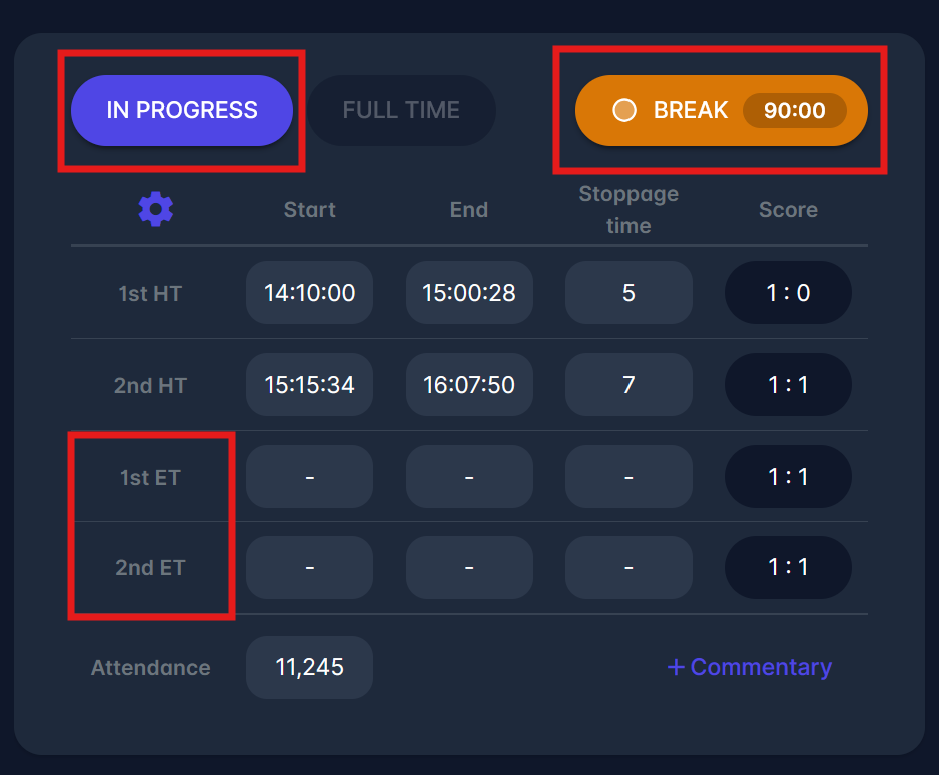
The Match Timer panel is used to start the match, track start/end time per phase, enter stoppage time, and record the score for each phase (e.g., 1st half, 2nd half, extra time). It also provides live status indicators such as IN PROGRESS, BREAK, and FULL TIME.
By using the Match Timer, you can track the match events in real-time, e.g., for COMET LIVE apps and live match updates:
-
On the Live tab, you can find the 'Match phases' section.
-
By clicking on each section consecutively, you can add:
-
The exact Start time enables time counting in the application's background and picks a precise time of the match event.
-
End time of match phases. If you accidentally select the wrong time or start after some time when the referee has actually started the match, you can edit or remove the entry by clicking ‘Clear” button.
-
When the match is in progress, and you can add an actual match event (please refer to Match Events), the event minute will be filled automatically with the value of the Match Timer. If preset the match event minute is incorrect, you can always click on the minute and adjust it yourself.
The Match Timer is also available in the Comet Football mobile app.
Start the Match
To start the match by starting a Match Timer:
-
navigate to the Match Timer panel,
-
click the Start Game button,
-
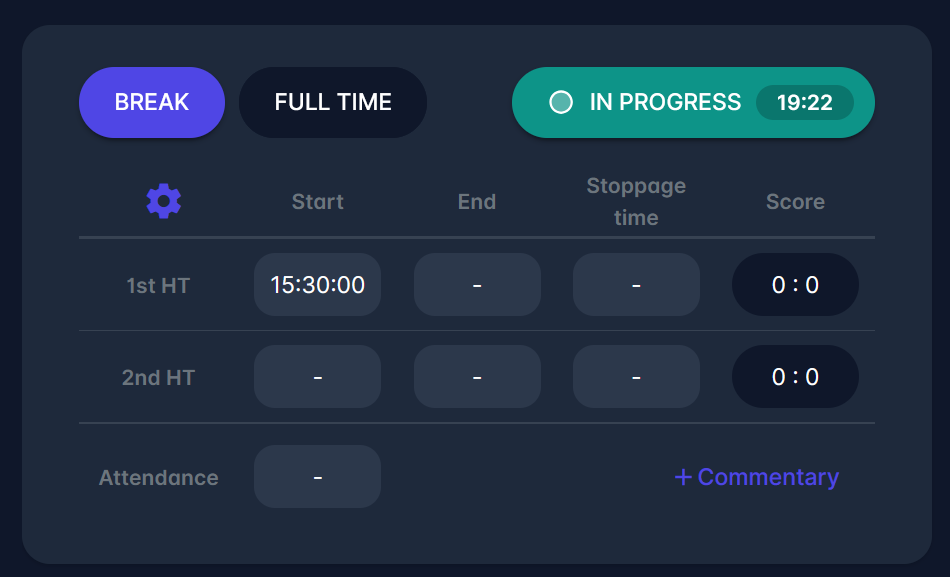
the match status changes to IN PROGRESS, and the panel becomes editable for phase data.
The match can only be started when both team lineups are confirmed, or when the current time is after the scheduled match start time. Until one of these conditions is met, the match cannot be started.
If the match is already running, you will see IN PROGRESS with a running match clock (e.g., 19:22).
Set phase data (Start time, Score, Stoppage time)
Each phase has editable fields. Clicking a field opens a small dialog.
Enter start time
-
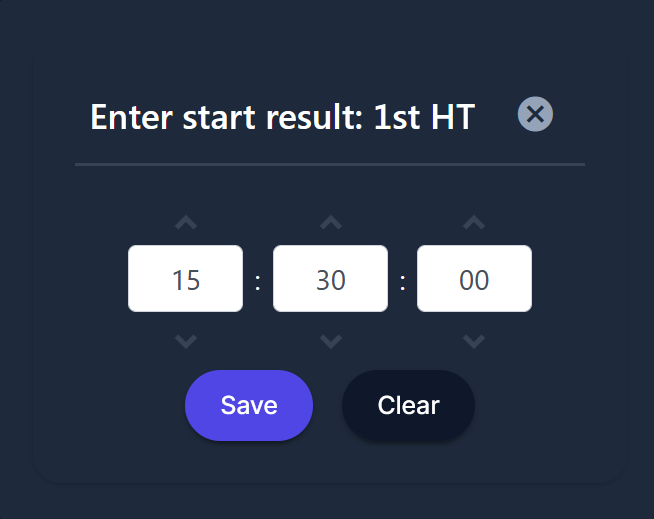
Click the Start Game field for the phase (1st HT).
-
In the dialog Enter start result: 1st HT, set HH : MM : SS.
-
Click Save.
-
Use Clear to remove the value.
Enter score
-
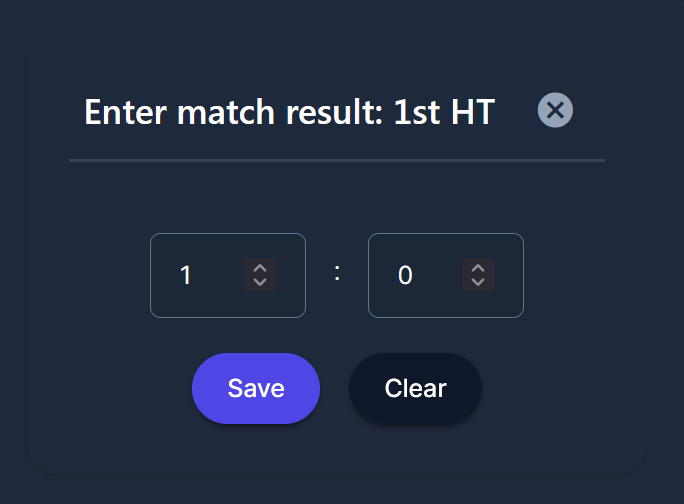
Click the Score field for the phase.
-
In the dialog, Enter match result: 1st HT, enter home and away goals.
-
Click Save (or Clear).
Enter stoppage time
-
Click the Stoppage time field for the phase.
-
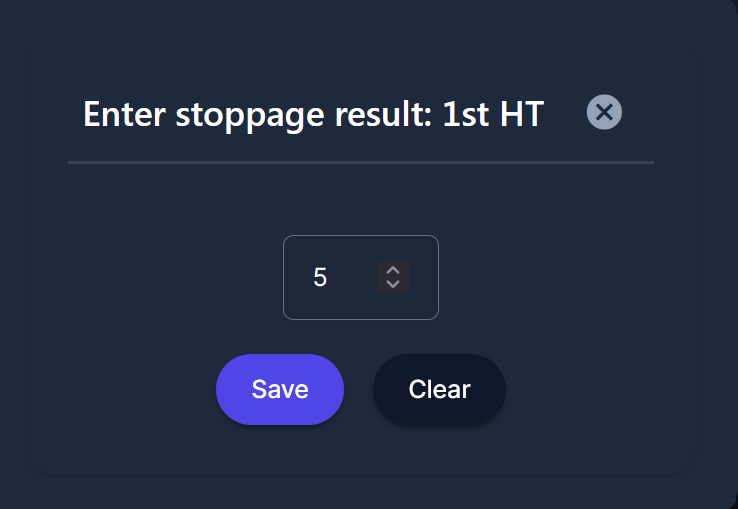
In the dialog, Enter stoppage result: 1st HT, enter stoppage time in minutes.
-
Click Save (or Clear).
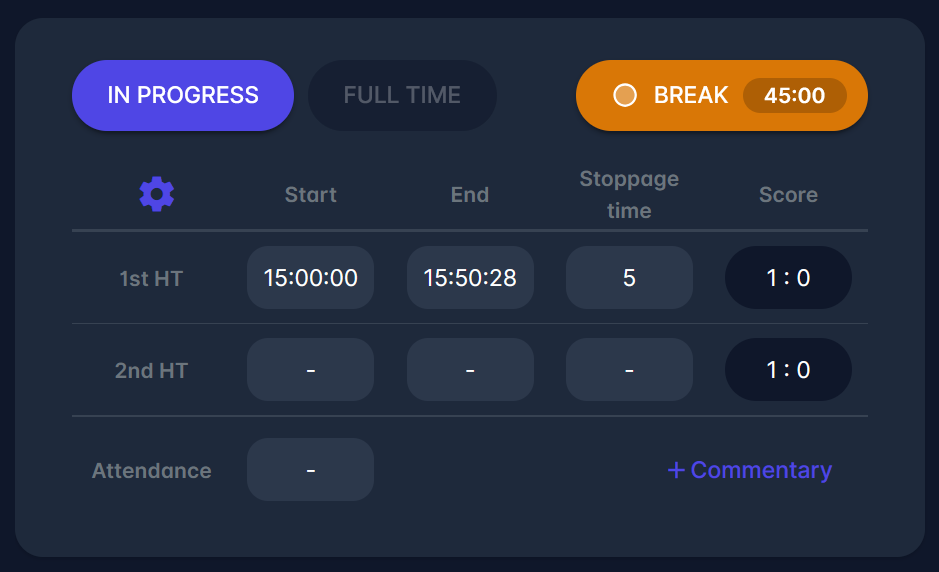
Match status buttons: IN PROGRESS, BREAK, FULL TIME
At the top of the panel, you can see status controls/indicators:
-
IN PROGRESS:
-
If indicated on the left, clicking this button resumes the match.
-
If it is positioned on the right, a match is currently running, you will see IN PROGRESS with a running match clock.
-
-
BREAK – break status (commonly appears at half-time; the orange badge can show the minute, e.g.,
45:00or90:00). -
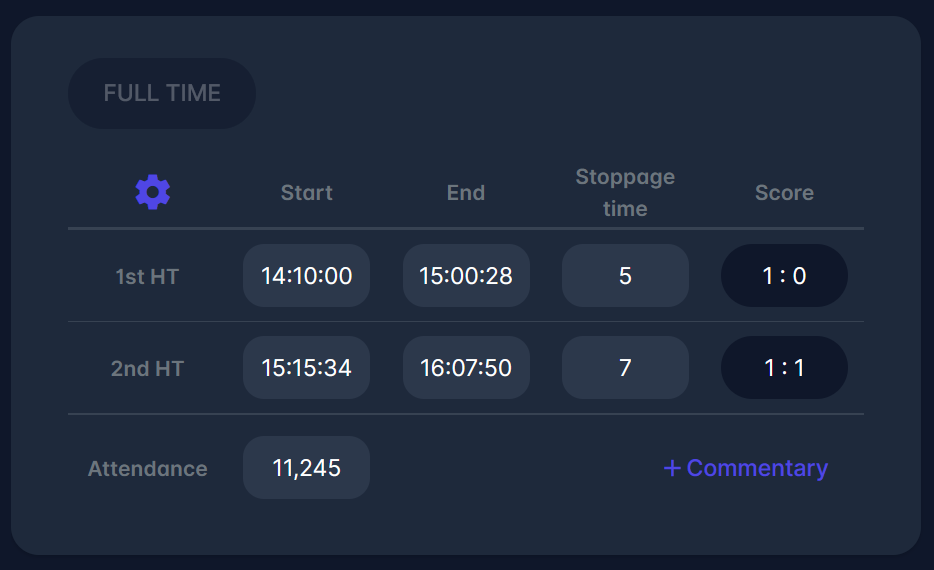
FULL TIME:
-
If the button is in the middle of the screen, a click ends the match;
-
If it is shown as a single button on the left side of the panel, it indicates that the match has been set to completed.
-
The FULL TIME button is only available after match phases have been completed.
These indicators help confirm what state the timer is currently in while you enter phase values.
The current minute, seconds, stoppage time, and match phase are pre-filled when adding a match event on the player lineup view.
Attendance
-
Use the Attendance row to enter the number of spectators (e.g.,
11,245). -
Attendance is stored as a single value (not per phase).
Edit match phases (Extra time, penalties)
-
Click the ⚙️ Settings button at the top left of the Match Timer panel
-
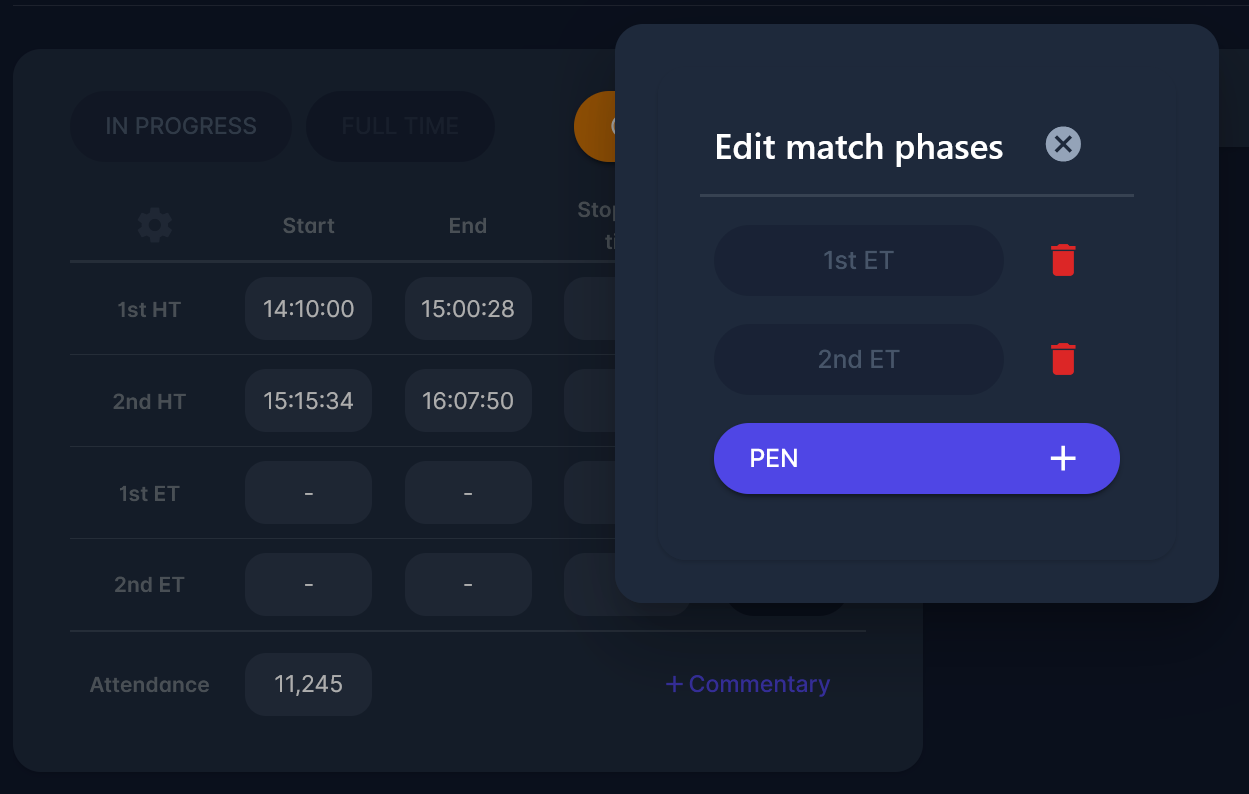
The dialog Edit match phases opens.
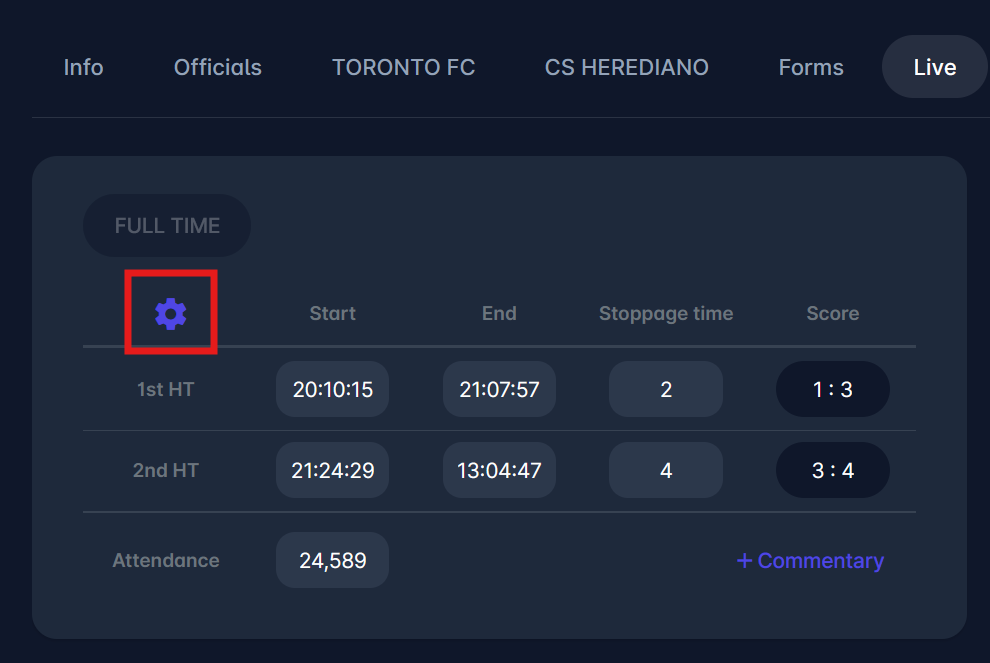
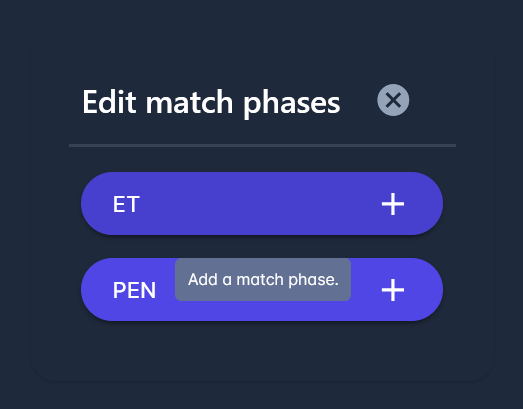
From here, you can, as shown in the images below:
-
Remove Extra Time phases using the trash icon next to 1st ET / 2nd ET.
-
Add penalties by clicking PEN ➕ (adds a penalties phase to the match flow, if supported by your competition rules).
Extra Time rows (1st ET, 2nd ET, PEN) will appear in the table when enabled, and can then be filled in the same way as half-time phases (Start / End / Stoppage / Score).
Match Timer is also available in the Comet Football mobile app.