As a Club Administrator, you can enable the Self-Registration of Players and Coaches by creating and configuring the Registration Profiles.
Registration profiles are “templates” defined by the club that determine how a new self-registration will be conducted. This article will help you understand how to enable and set a Self Registration Profile Functionality for the person who needs to be registered for your club.
Create Registration Profile
-
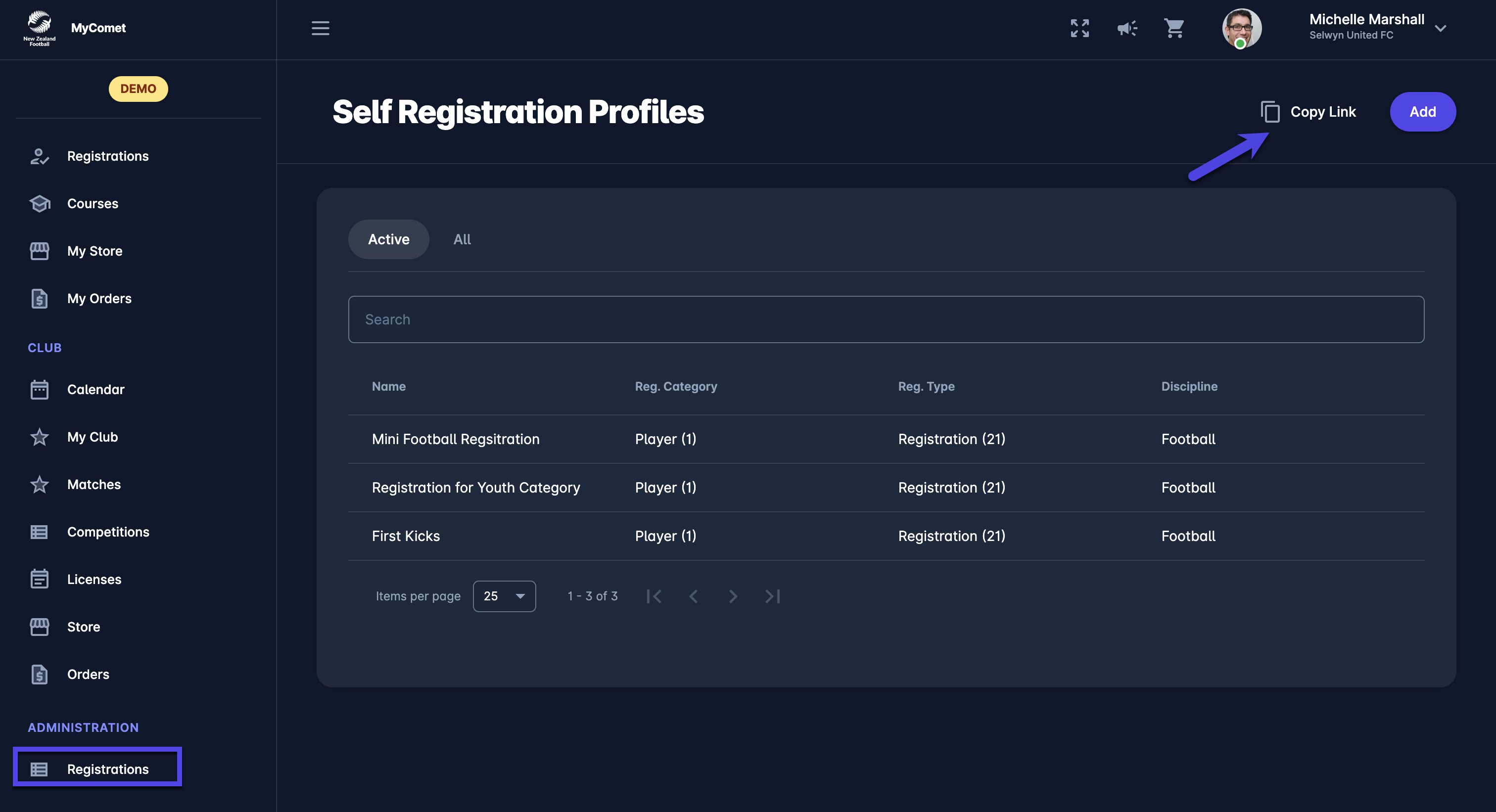
On the left nav bar, select Administration → Registrations
-
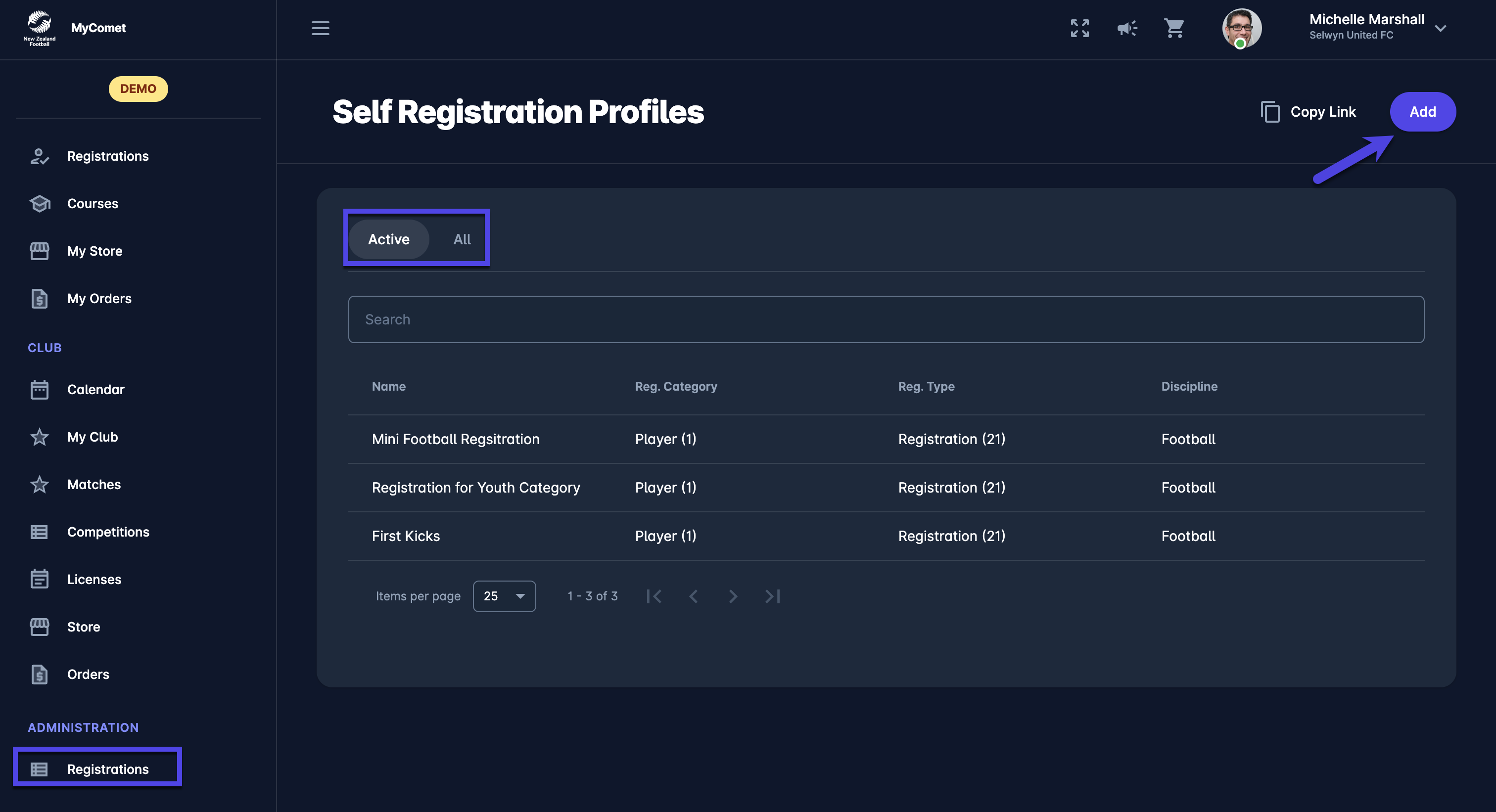
This opens the Self Registration Profiles menu, which contains the list of created Self Registration Profiles. The menu consists of the following tabs:
-
Active
-
All
-
-
Hit the Add button at the top right corner of the page.
-
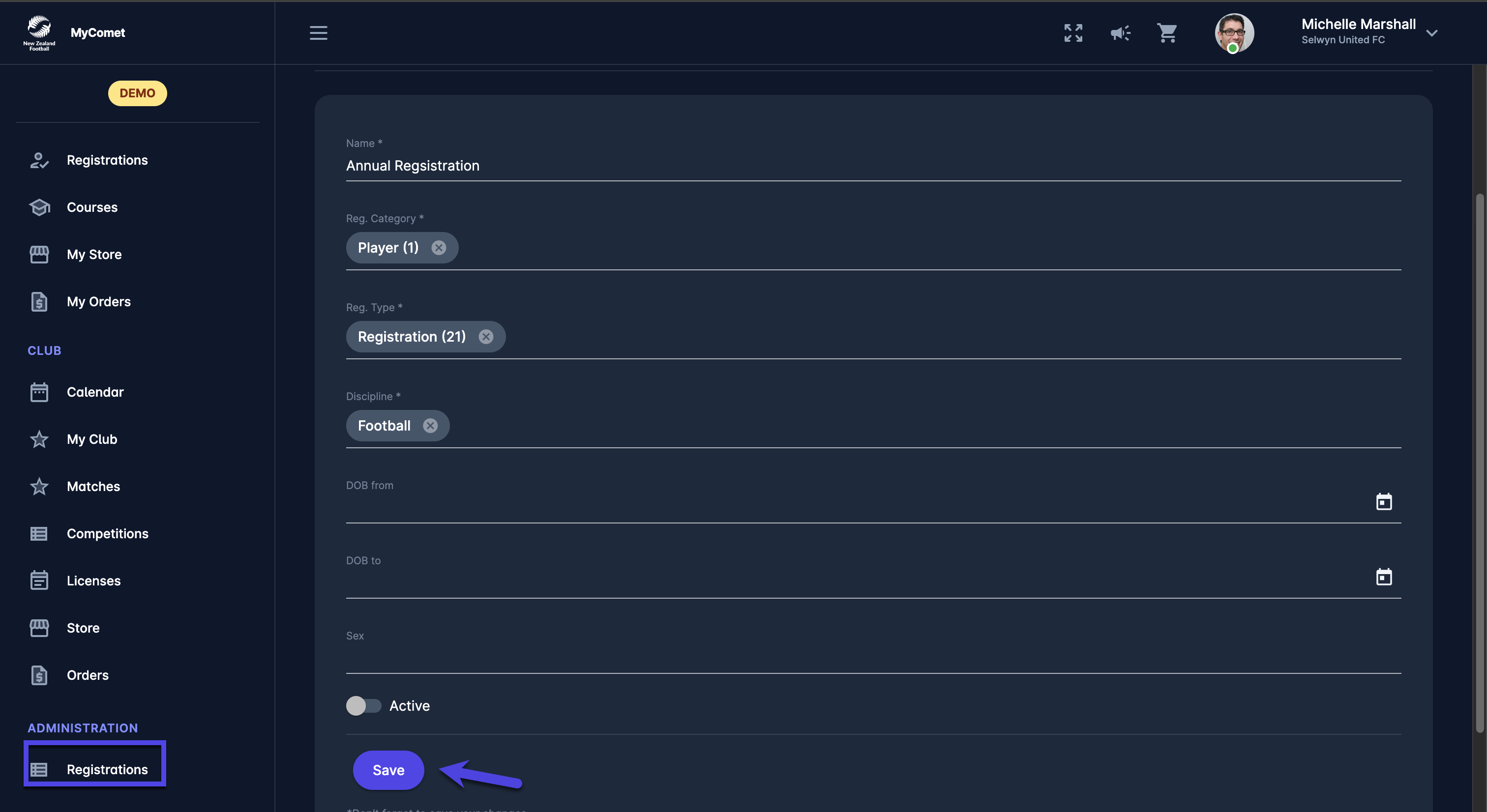
This opens the New Registration Page to fill in the details:
-
Choose the Self Registration Profile Name
-
Select the Registration Category (player, coach, staff, official)
-
Select the Registration Type (depending on the category selected)
-
Discipline
-
DOB from/ to (optional)
-
Sex (optional)
-
Use the switch buttons to set a Registration as active - only registrations that are set as active can be used for self-registration!
-
-
Once you have filled in all the data, hit the 💾 Save button
Items Tab
Once the Registration Profile is created, the Item tab is generated.
Registration Items are used for Registrations that need to be purchased/paid for. For example, players may need to pay membership fees or club fees.
To create a registration Item:
-
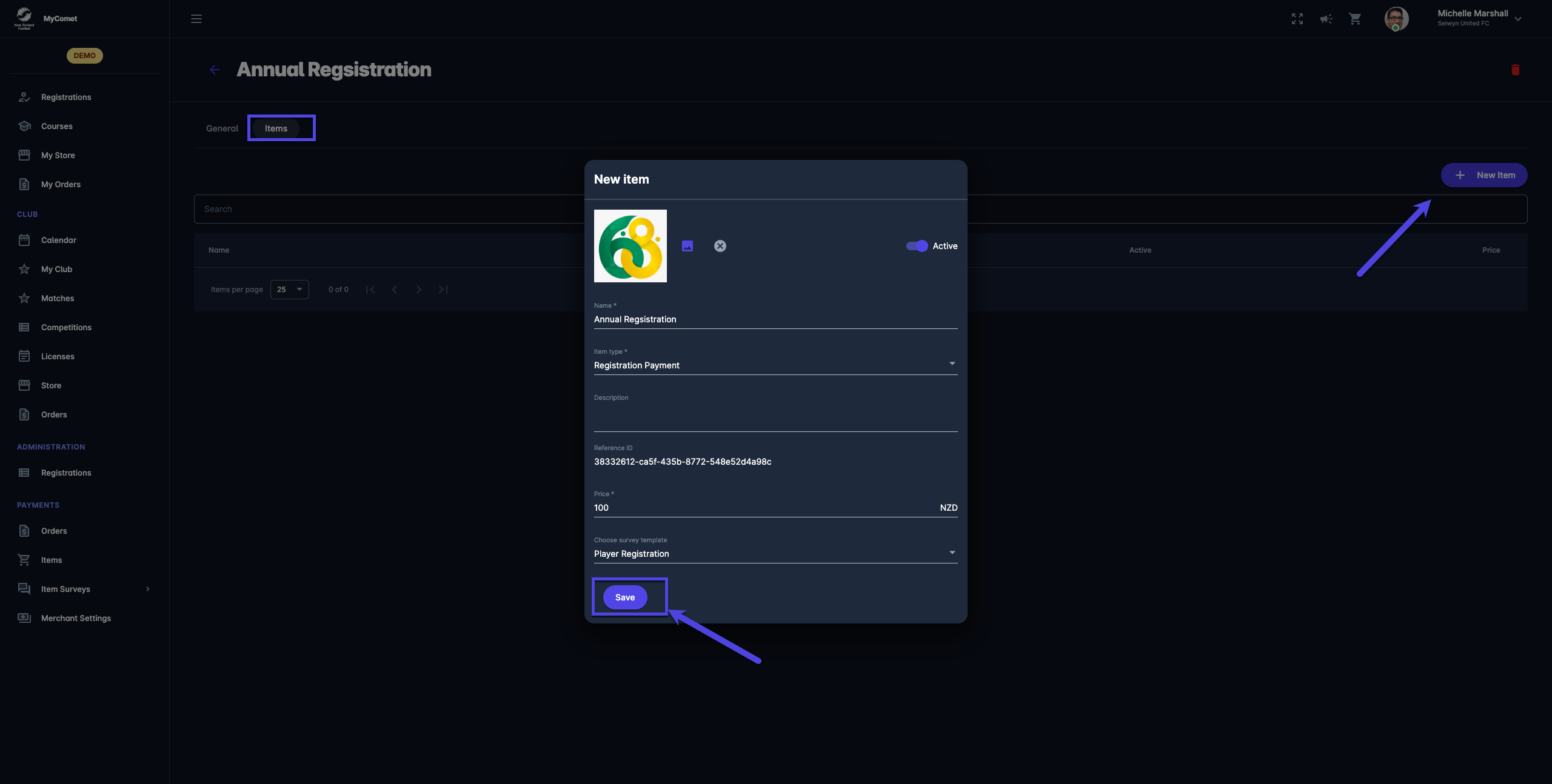
Open the Course Registration and access the Items tab
-
Click on the ➕ New item button in the top right corner
-
This opens a New item pop-up window to fill in the item details
-
Fill in the pop-up window to create a new item:
-
Item Icon - upload a photo of your product
-
Name
-
Description
-
Reference ID
-
Price - value in the currency of your tenant country
-
Survey Template from the system
-
The Survey Template is the form/set of questions that course applicants must submit before purchasing an item. The role of the responsible person is to review the item survey and confirm the participant’s payment.
Copy Link
-
Use the Copy Link button to invite users for all eligible Registration Profiles.
-
The link will redirect the user to their Register Tab that displays all eligible Registration Profiles for that User.