
The My Registrations module in the COMET Football apps allows players, coaches, referees, and staff members to review their existing registrations, check their statuses, and complete new self-registrations directly from their mobile devices.
You can also complete payments for registrations that require a fee.
Accessing the Registrations Module
To open the Registrations module, tap Manage in the bottom-right corner of the app’s main navigation bar.
In the Manage menu, select Registrations.
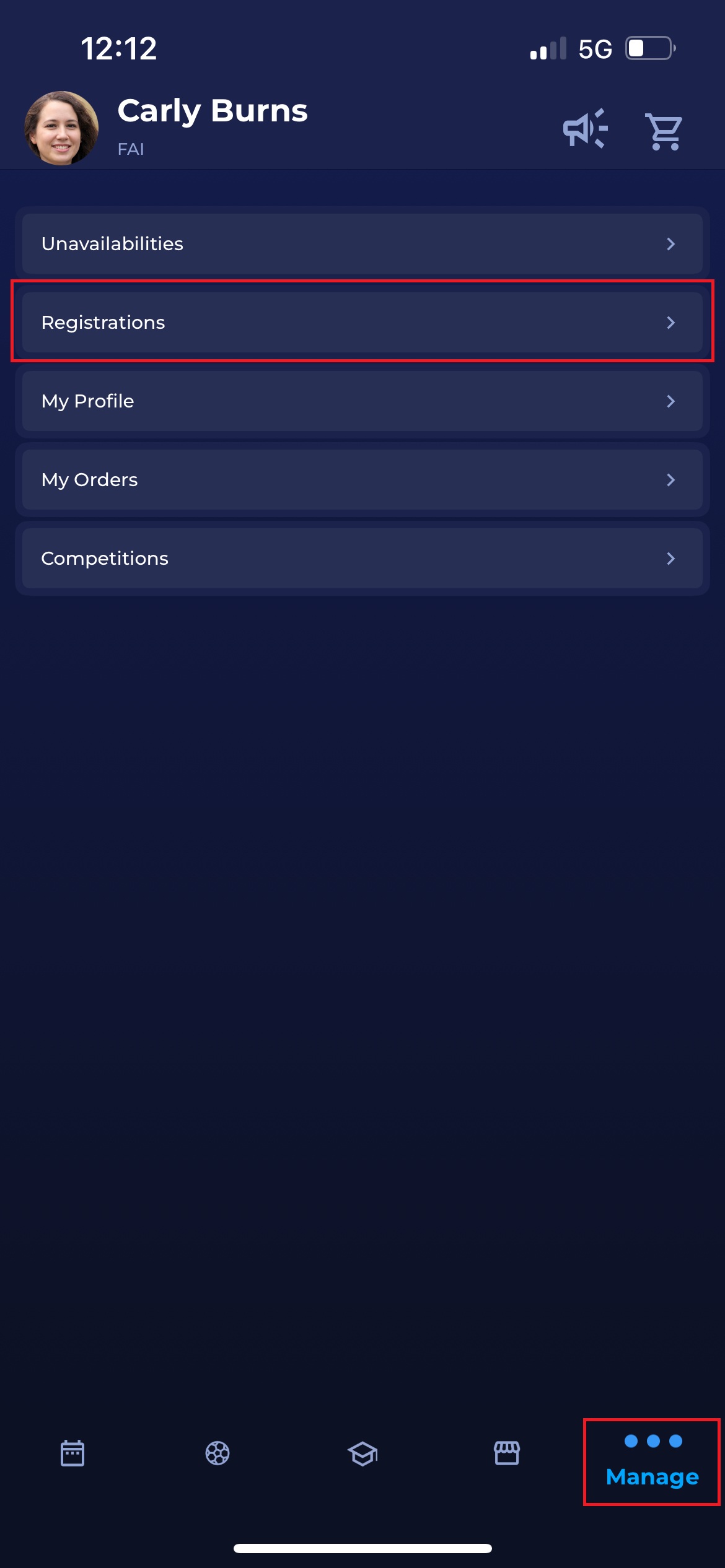
This opens your full list of registrations.
Viewing Your Registrations
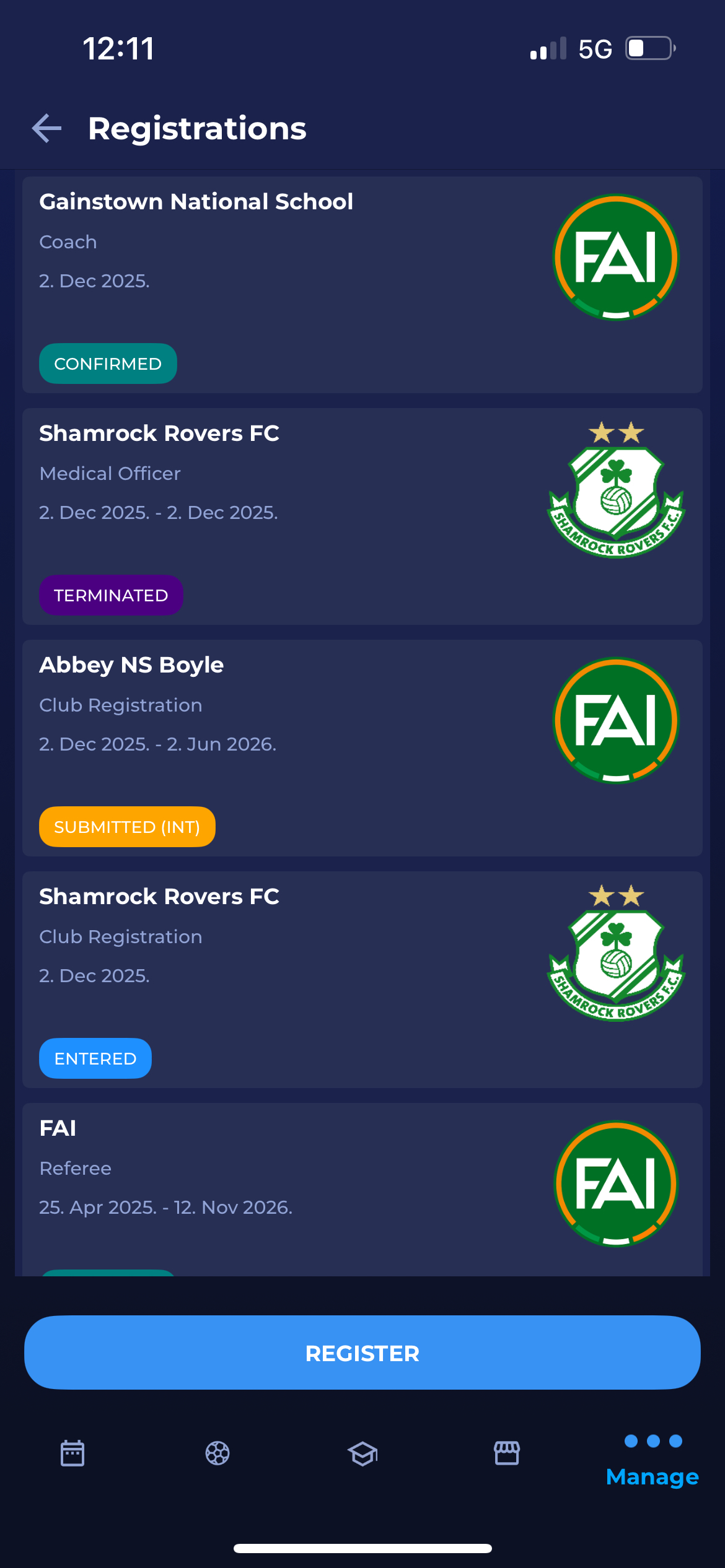
The Registrations screen displays all your active, submitted, and historical registrations across different clubs and roles.
Each registration tile includes:
-
Organization name (e.g., Shamrock Rovers FC)
-
Role / Registration category (Player, Coach, Staff, Referee, etc.)
-
Registration dates
-
Registration status (e.g., Confirmed, Entered, Submitted, Terminated)
-
Organization logo
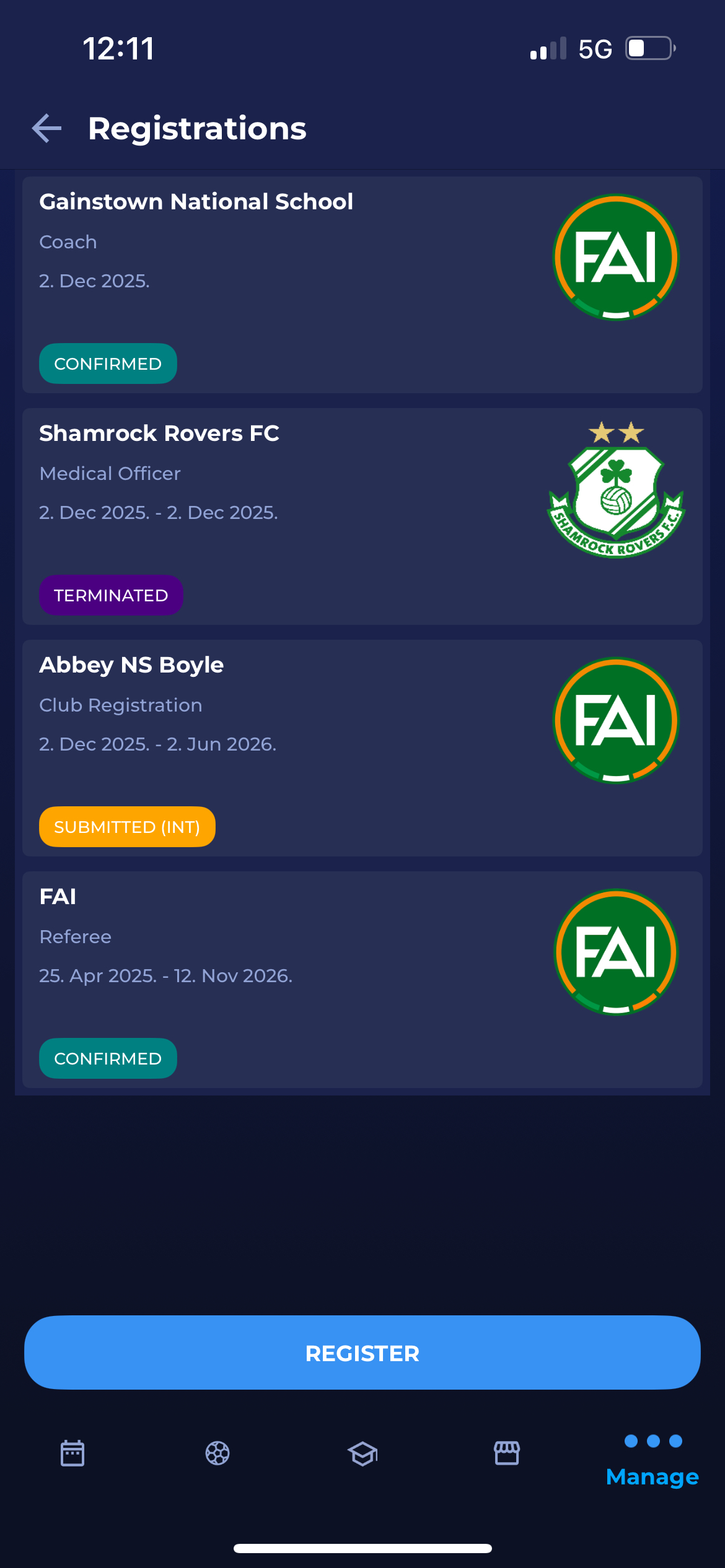
Registration status can be one of the following:
-
CONFIRMED – The registration is fully approved.
-
ENTERED – Registration submitted but not yet processed.
-
SUBMITTED (INT) – Submitted and awaiting international approval.
-
TERMINATED – The registration has ended.
-
CANCELLED – The registration was never completed or was withdrawn.
Starting a New Self-Registration
Note that this option is available only if the parameter that enables the Management of Registration Profiles and Self-Entry of Registrations and individuals has been turned on by your association.
At the bottom of the Registrations module, tap REGISTER to begin a new self-registration.
Selecting the Registration Profile
The registration process begins on the Register screen.
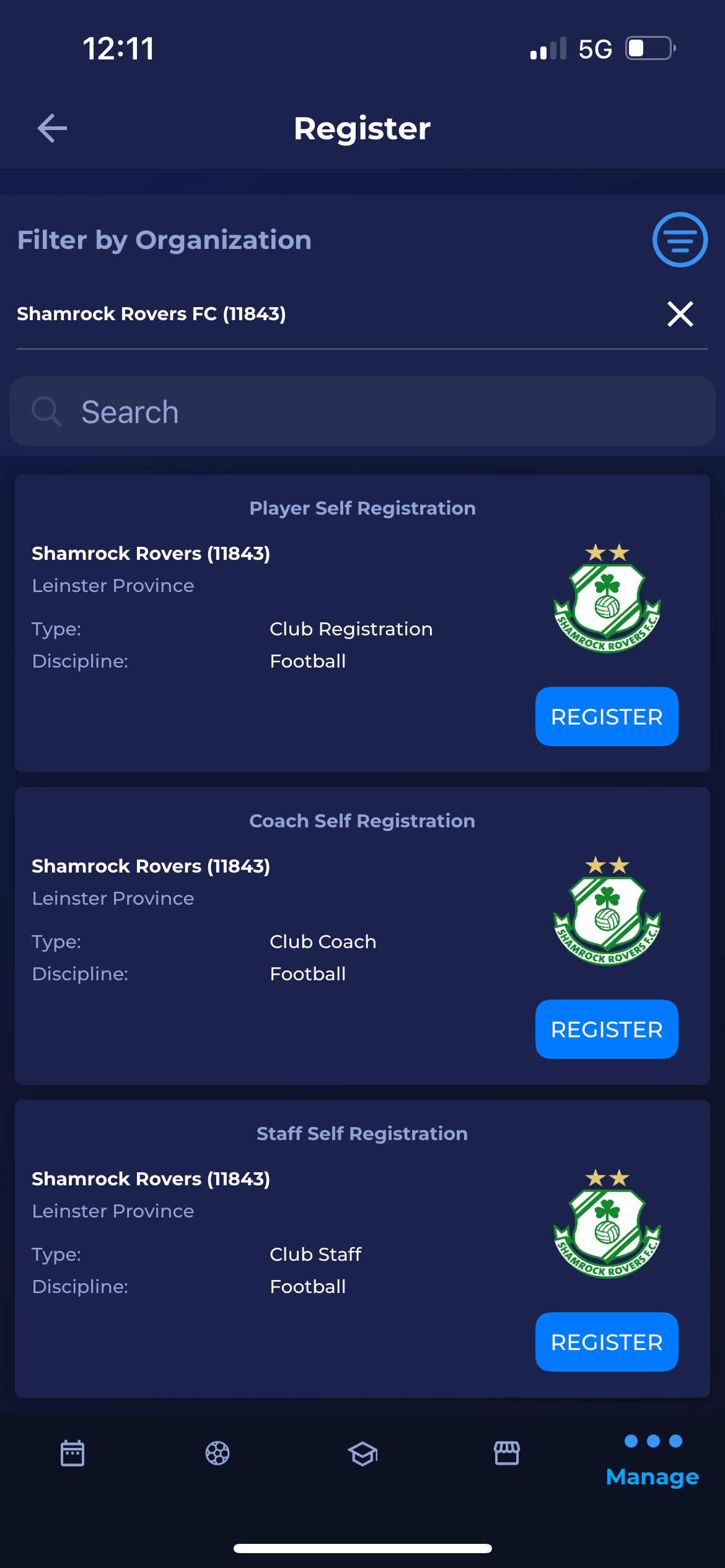
You can view available self-registration options based on your organization and roles, i.e.:
-
Player Self Registration
-
Coach Self Registration
-
Staff Self Registration
Each card displays:
-
Organization
-
Region / Parent association
-
Registration Type (Club Registration, Club Coach, etc.)
-
Discipline
-
Organization logo
-
REGISTER button
Tap REGISTER on your desired option.
Reviewing Registration Summary
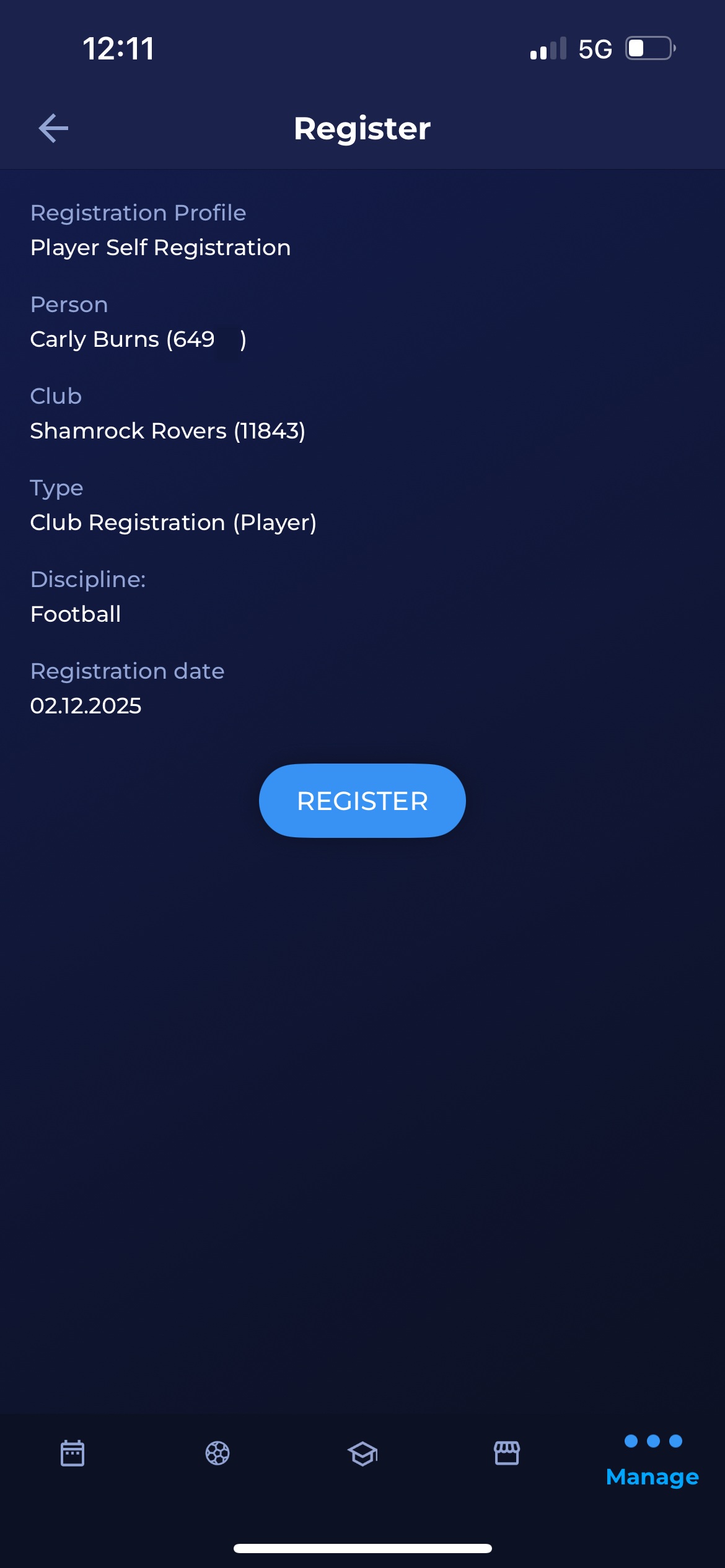
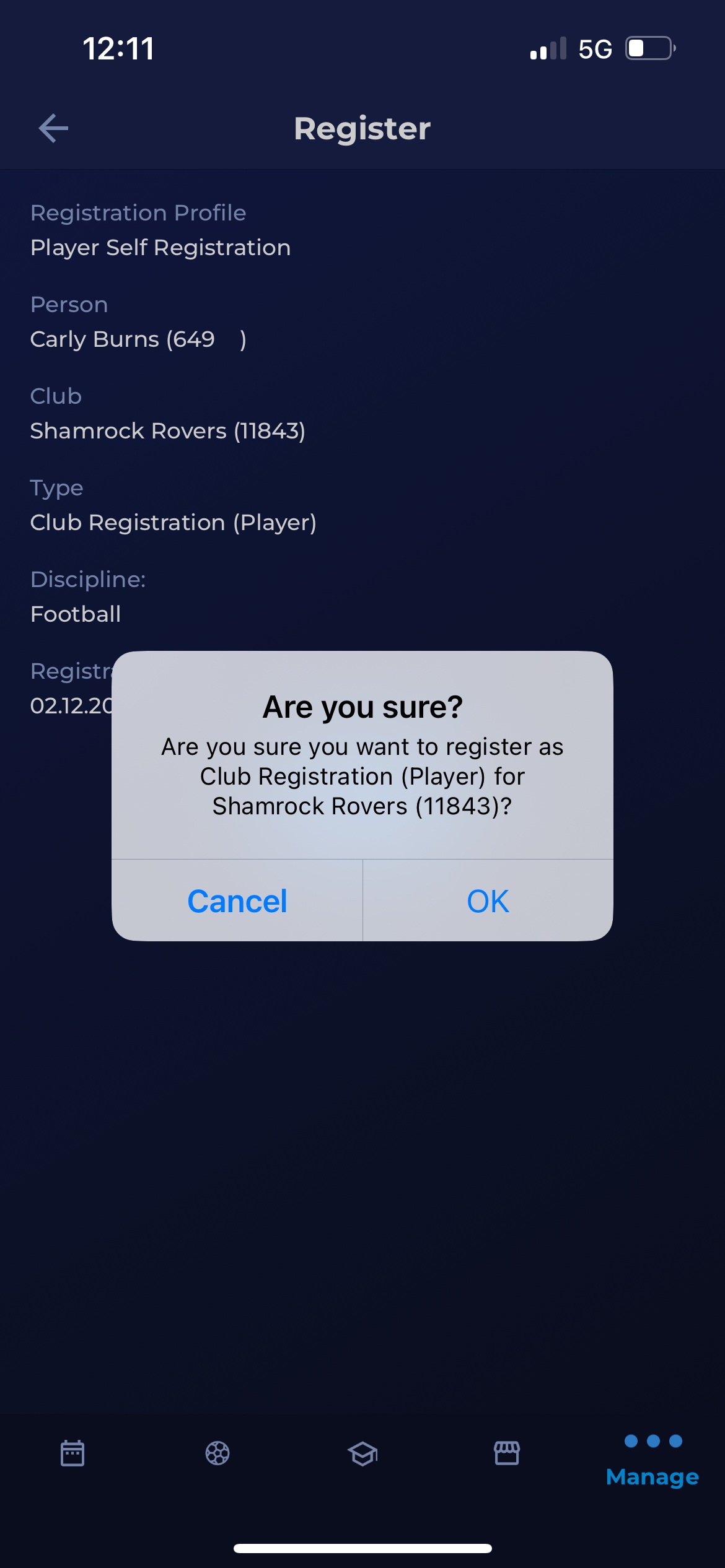
Before final submission, you will see a summary page with:
-
Registration Profile
-
Person
-
Club
-
Type
-
Discipline
-
Registration Date
When ready, tap REGISTER.
Confirmation Prompt
A confirmation dialog appears asking:
“Are you sure you want to register as Club Registration (Player) for Shamrock Rovers (11843)?”
You may tap:
-
Cancel to stop
-
OK to proceed
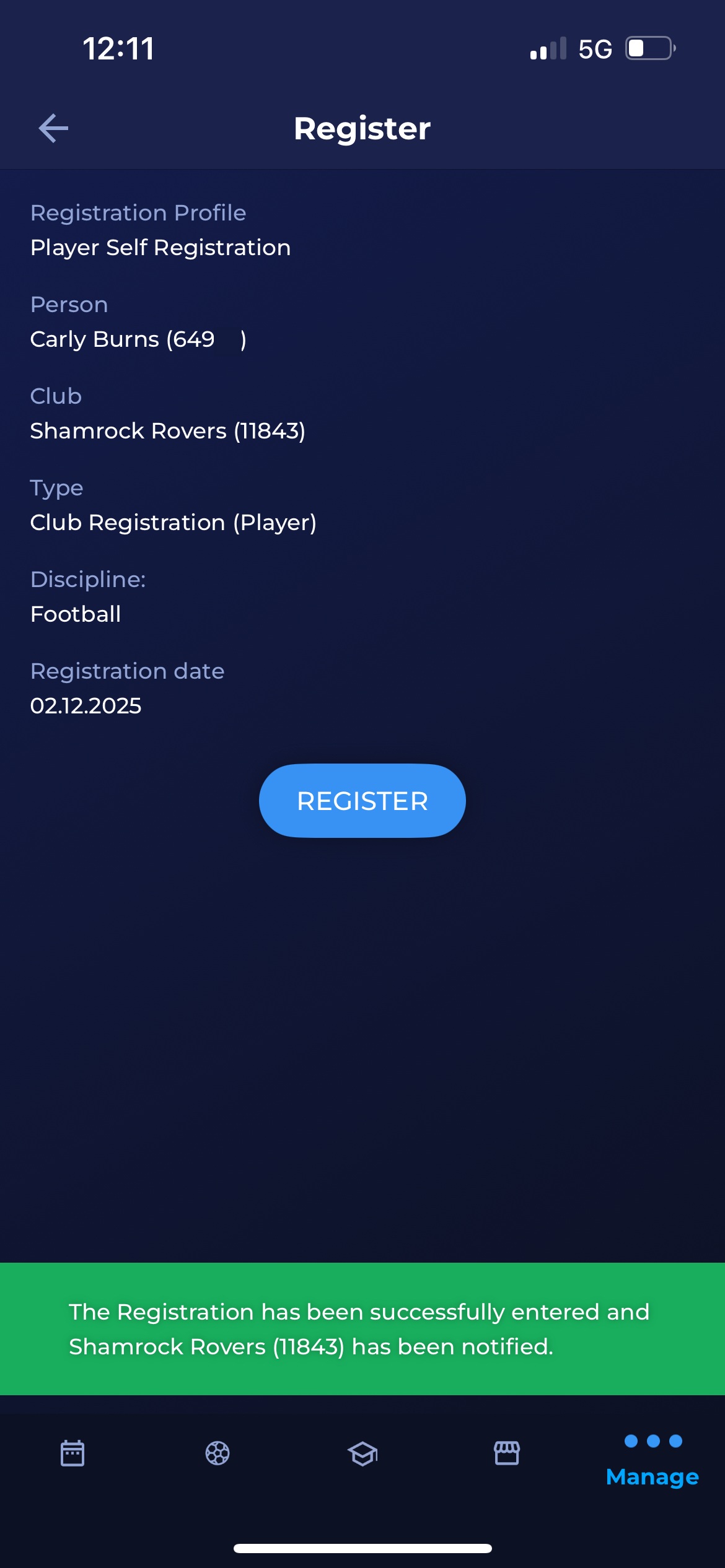
After confirming, the app displays a green success banner:
“The Registration has been successfully entered and [the club] has been notified.”
The new registration will now appear in your Registrations list with the status ENTERED until your club or association processes it.
Viewing Registration Details
To view full details of a registration, tap any registration tile.
A detailed info card opens, showing:
-
Organization name
-
Organization ID and FIFA ID
-
Parent organization
-
Registration category and type
-
Discipline
-
Level (e.g., Amateur)
-
Date From
-
Status and status date
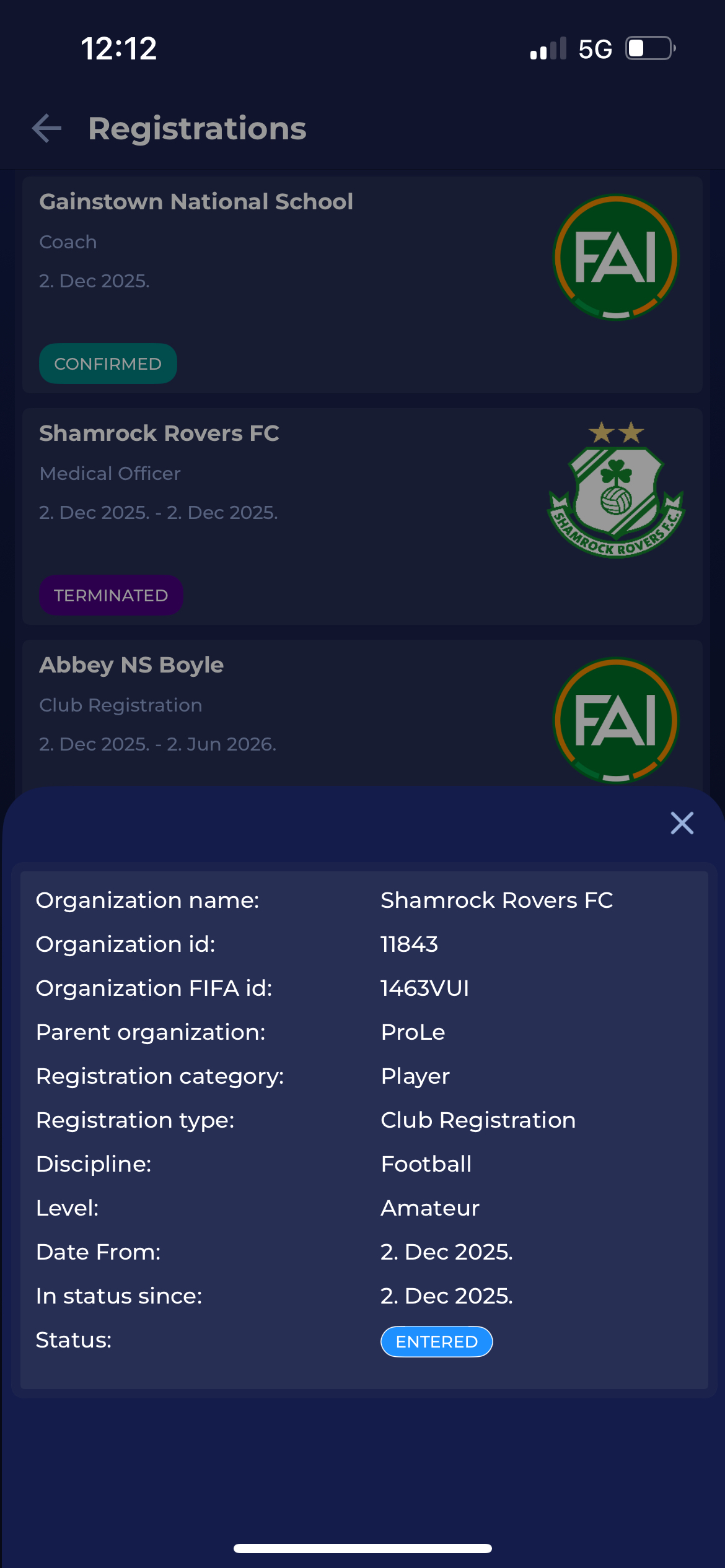
Close the pop-up by tapping X in the upper-right corner.
Completing a Paid Registration (If Required)
Some registrations require payment.
When this is the case, the registration appears with a yellow Complete Order button.
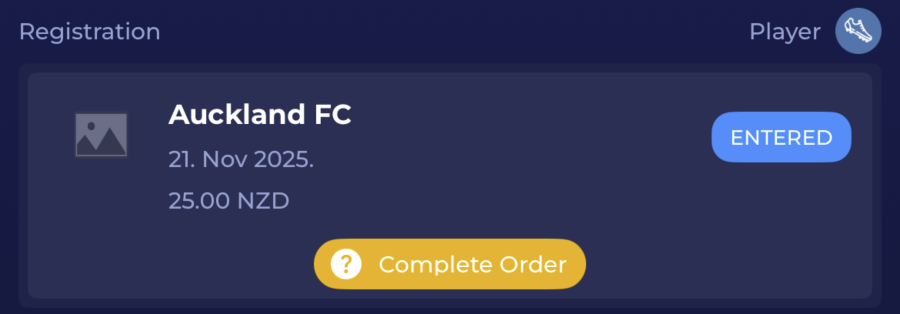
Tap Complete Order to proceed to payment.
You will be redirected to the My Orders module, where you can finalize the payment using the available payment methods.
Once payment is completed, the registration will move forward in the approval workflow.