
Trainings are a COMET PLAY feature, meaning that all following mentions of trainings are relevant only for COMET Tenants where the COMET PLAY module is enabled.
From a player’s perspective, the Trainings module provides a simple and intuitive way to stay informed and engaged with all training activities. Every player can easily view upcoming sessions, confirm attendance, and keep track of their training schedule, all in one place. The two main sections used for this purpose are My Trainings and My Calendar.
Overview of All Sessions
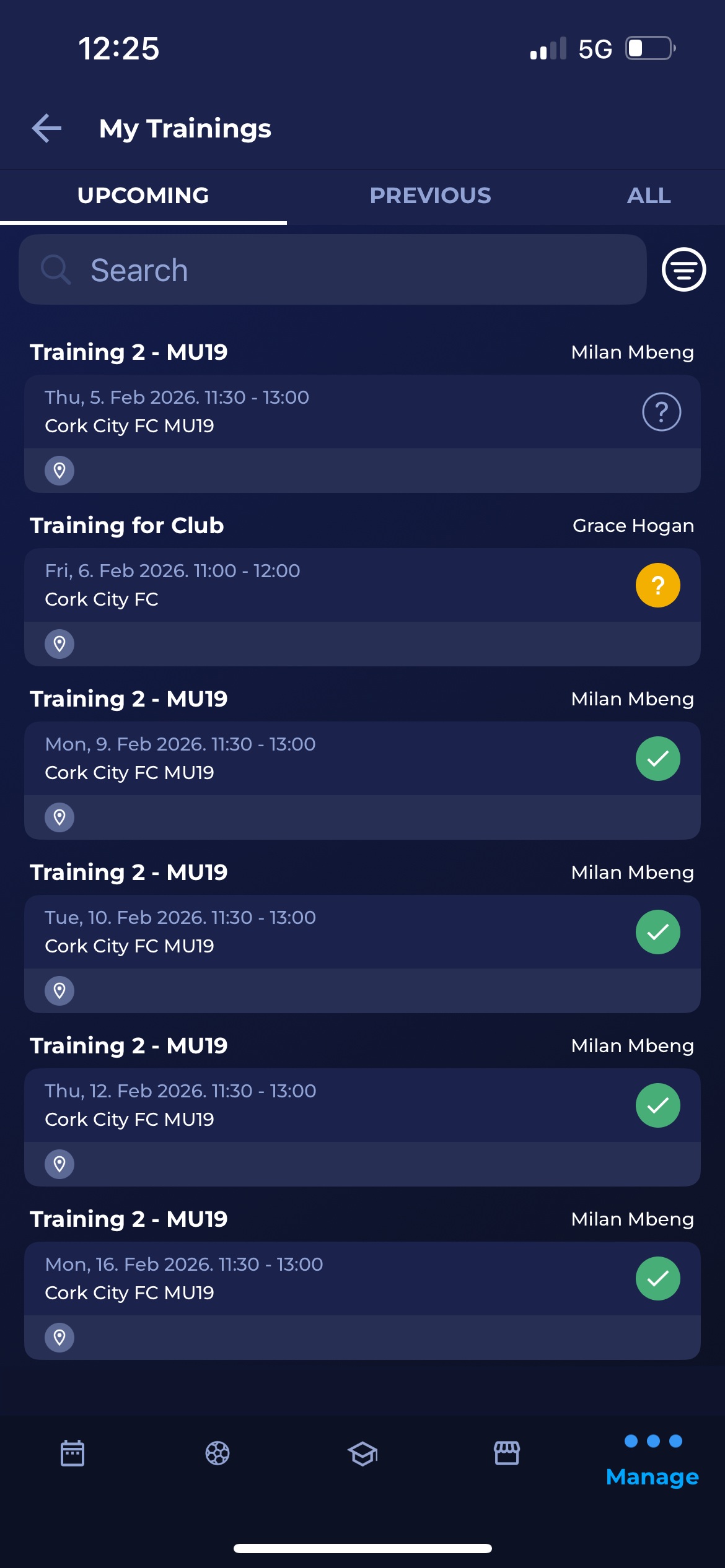
The My Trainings section lists all trainings associated with the player, organized into Upcoming, Previous, and All tabs. Each session includes information such as the name of the training, training group, day, date and time, location (facility or pitch), number of participants, and participation status.
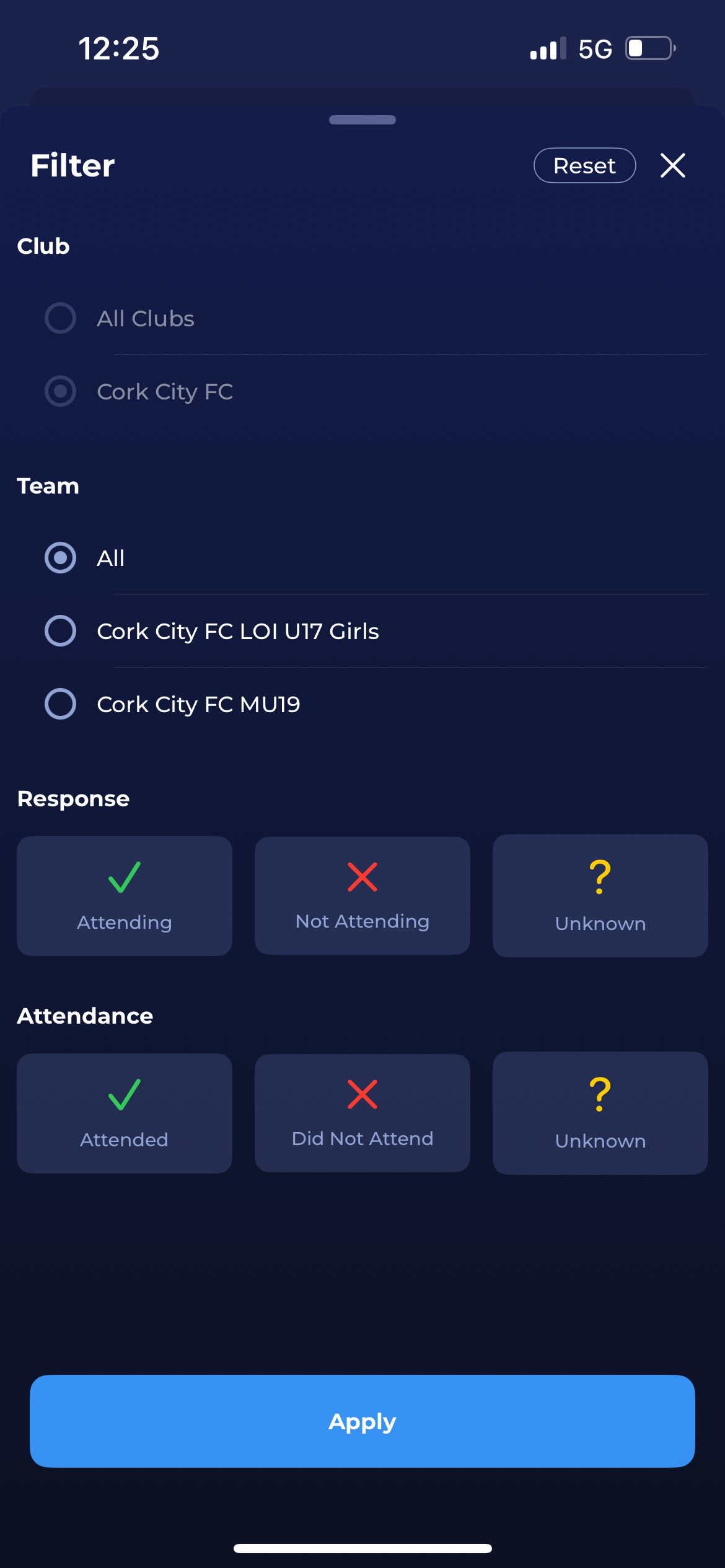
Players can use filters to view training for a specific club or to check their response status. This helps them keep track of when and where they are expected to train.
To reach My trainings section, navigate to Manage → My Trainings.
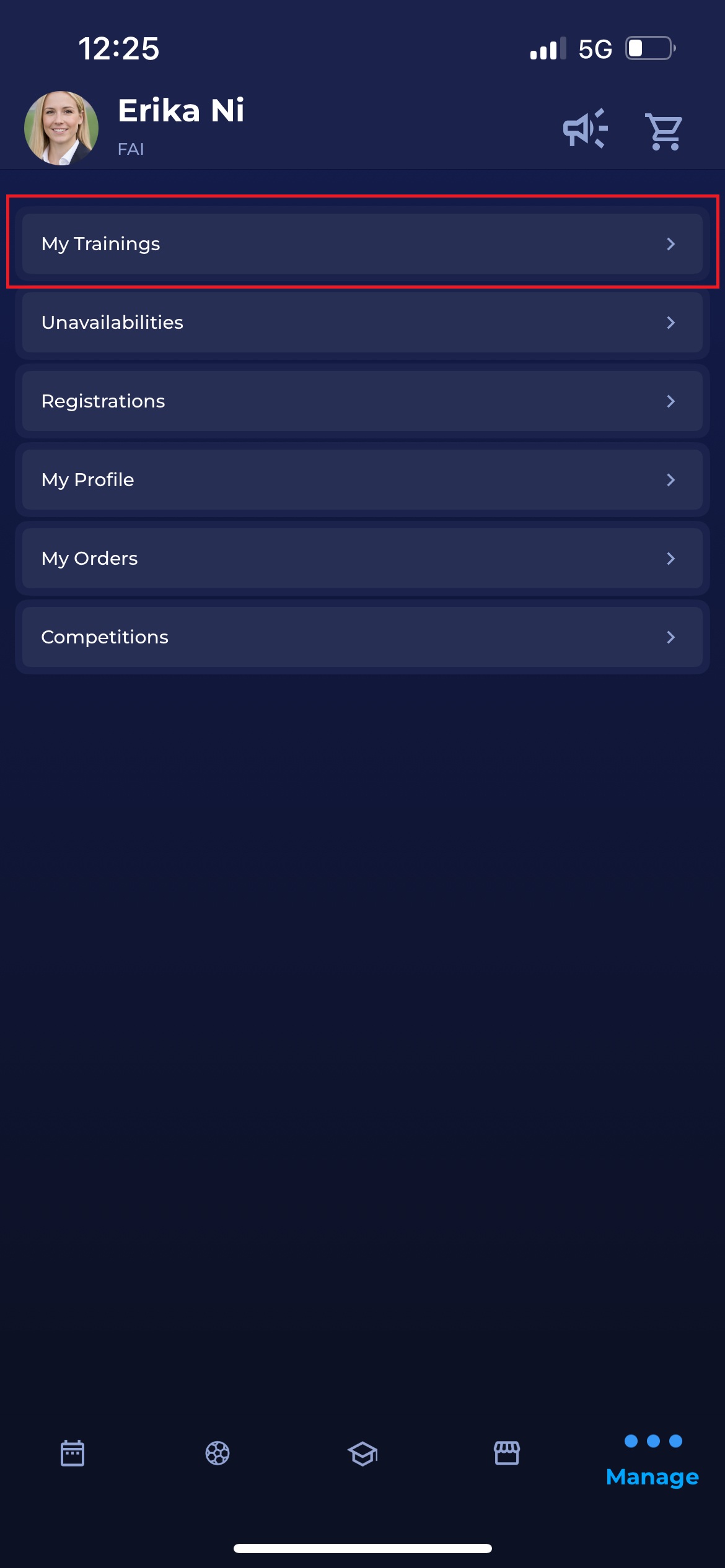
-20260206-080834.jpg?cb=77103a33248281bea7e03f254f9f5ed5)
My Trainings section contains three tabs - Upcoming, Previous, and All, where you can see all of your trainings based on their status, respectively.
If your user account has child accounts linked to it, you’ll be able to see all the trainings of your profile and your child account profiles. The name of the profile whose training is presented is displayed above the response status.
You can filter trainings for clubs and teams by tapping the filter icon next to the 🔍 Search bar. You can filter the trainings by the club, team, or selected response. While on a Previous tab, you can also filter trainings by the Attendance set.
Responding to Training Invitations
When a training requires confirmation, players can respond directly from the list. Players need to tap on the symbol to present their response on the right side of the training details. By tapping Respond, they can choose between:
-
✅ Attending
-
❌ Not Attending
-
❓ Unknown
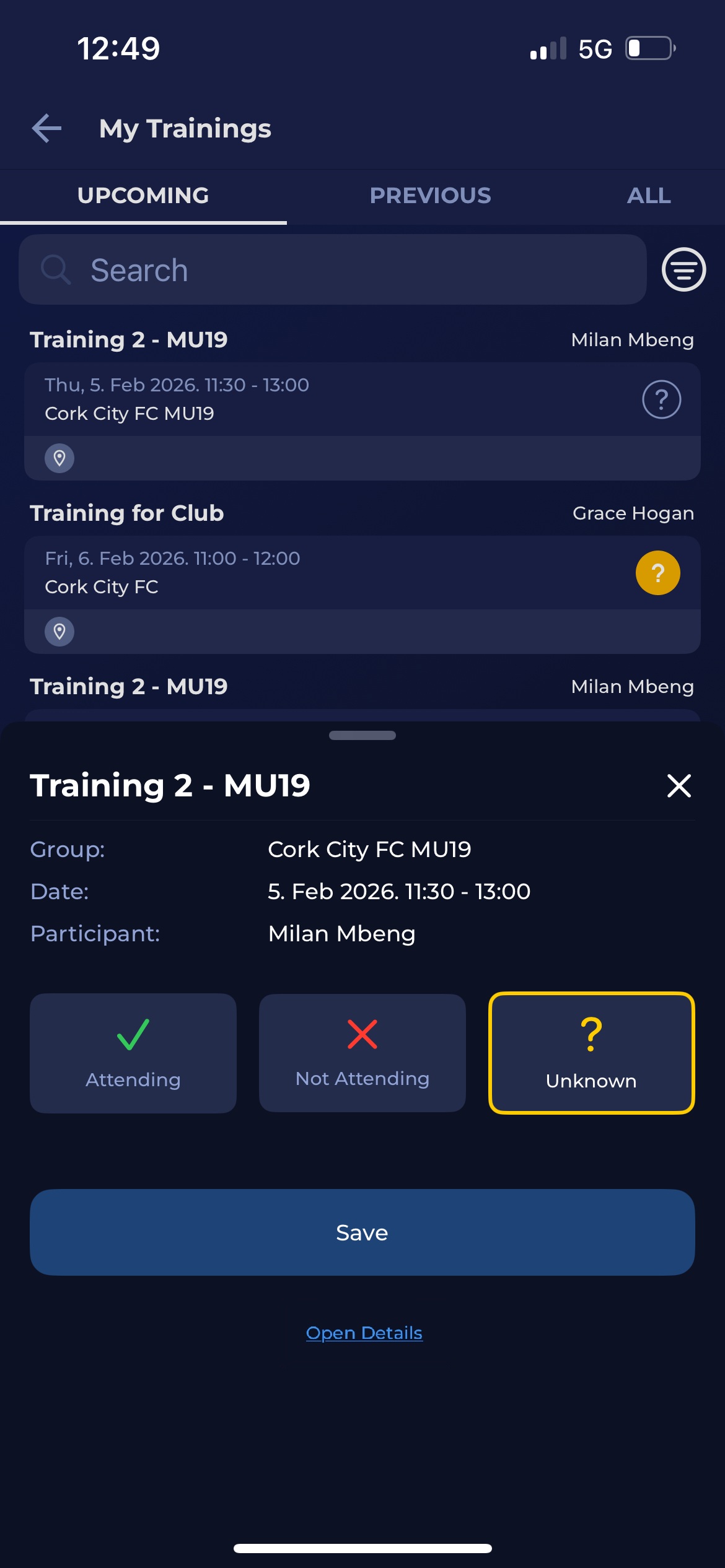
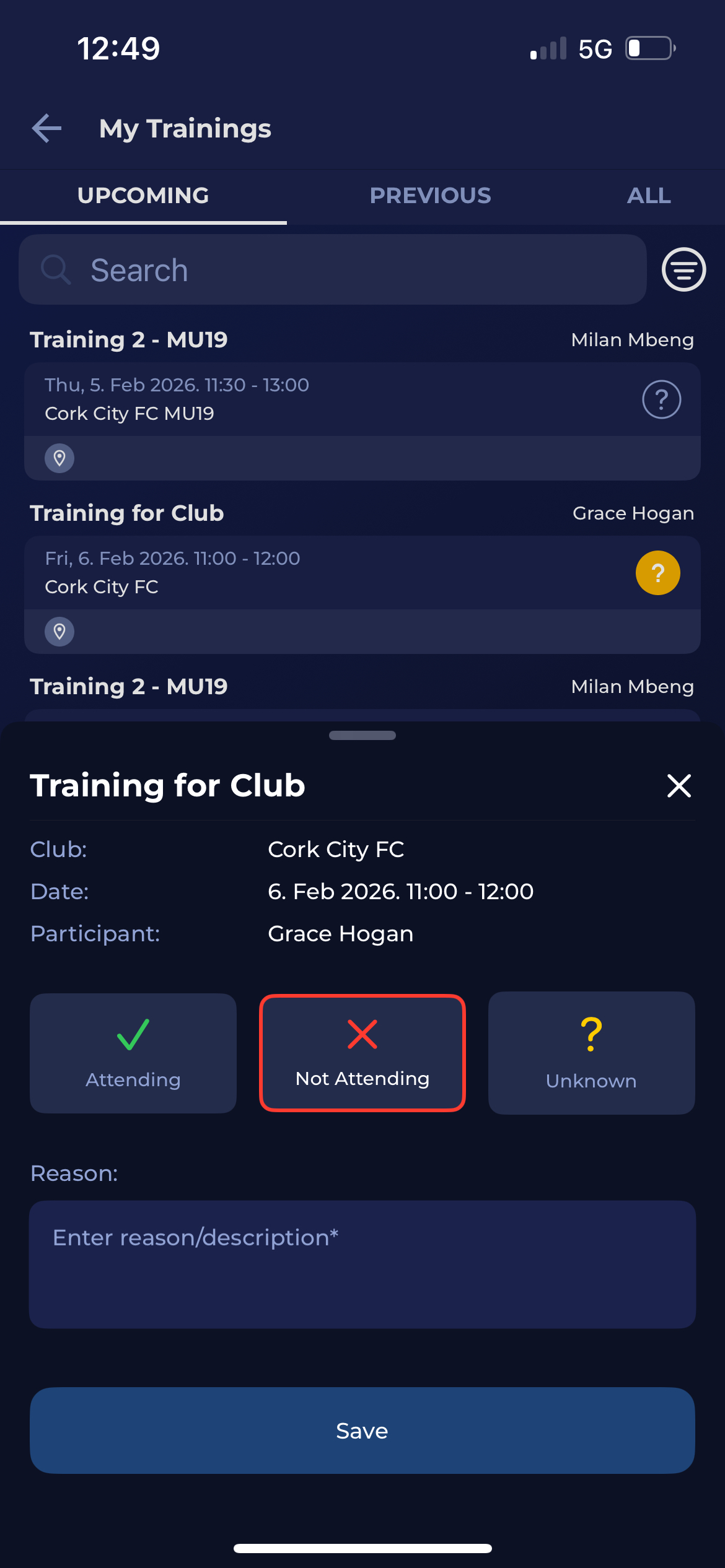
If the player marks Not Attending, they must add a short explanation in the Reason box - for example, “I’m away.”
Calendar View for Trainings
Players can also switch to a Calendar view within My Calendar to see their upcoming sessions visually across days, weeks, or months. This view combines training with other football-related events.
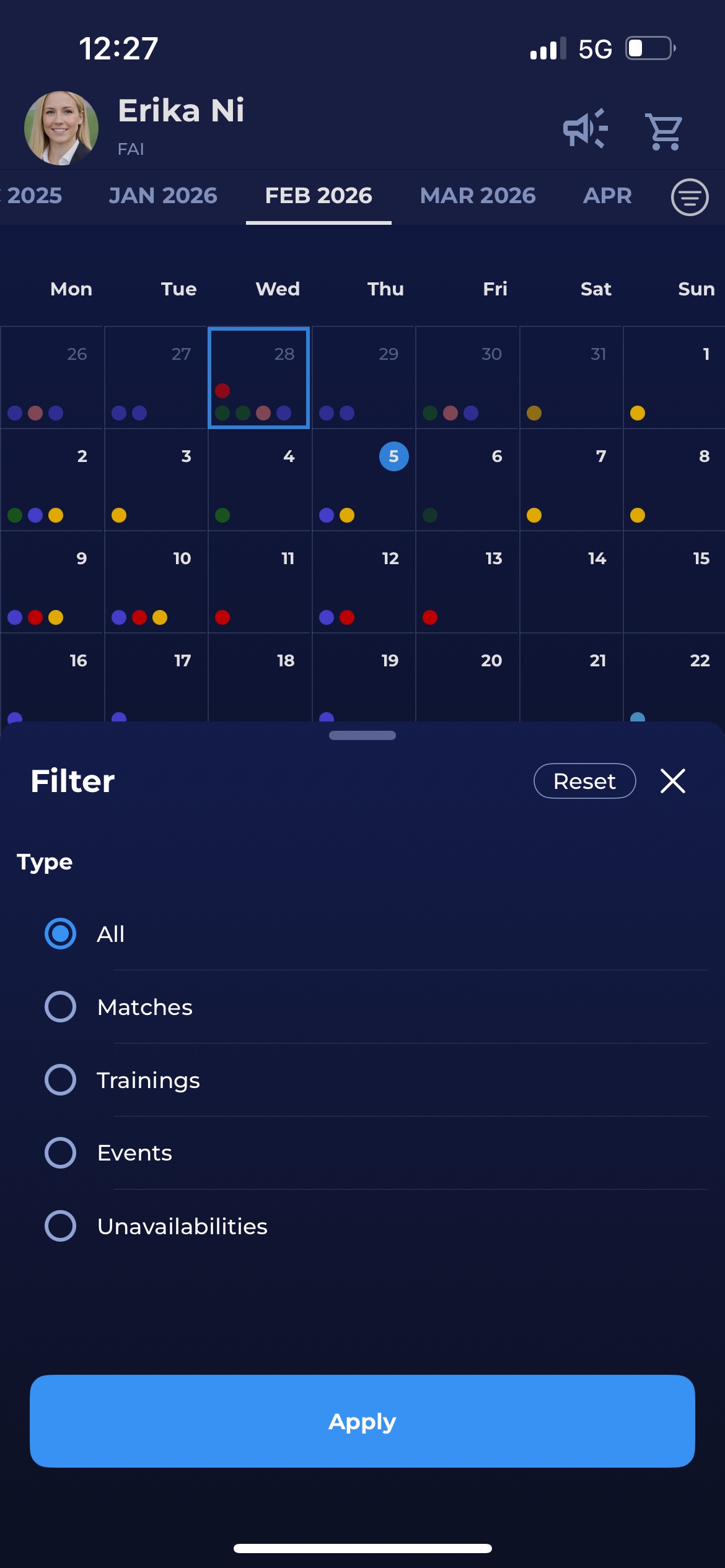
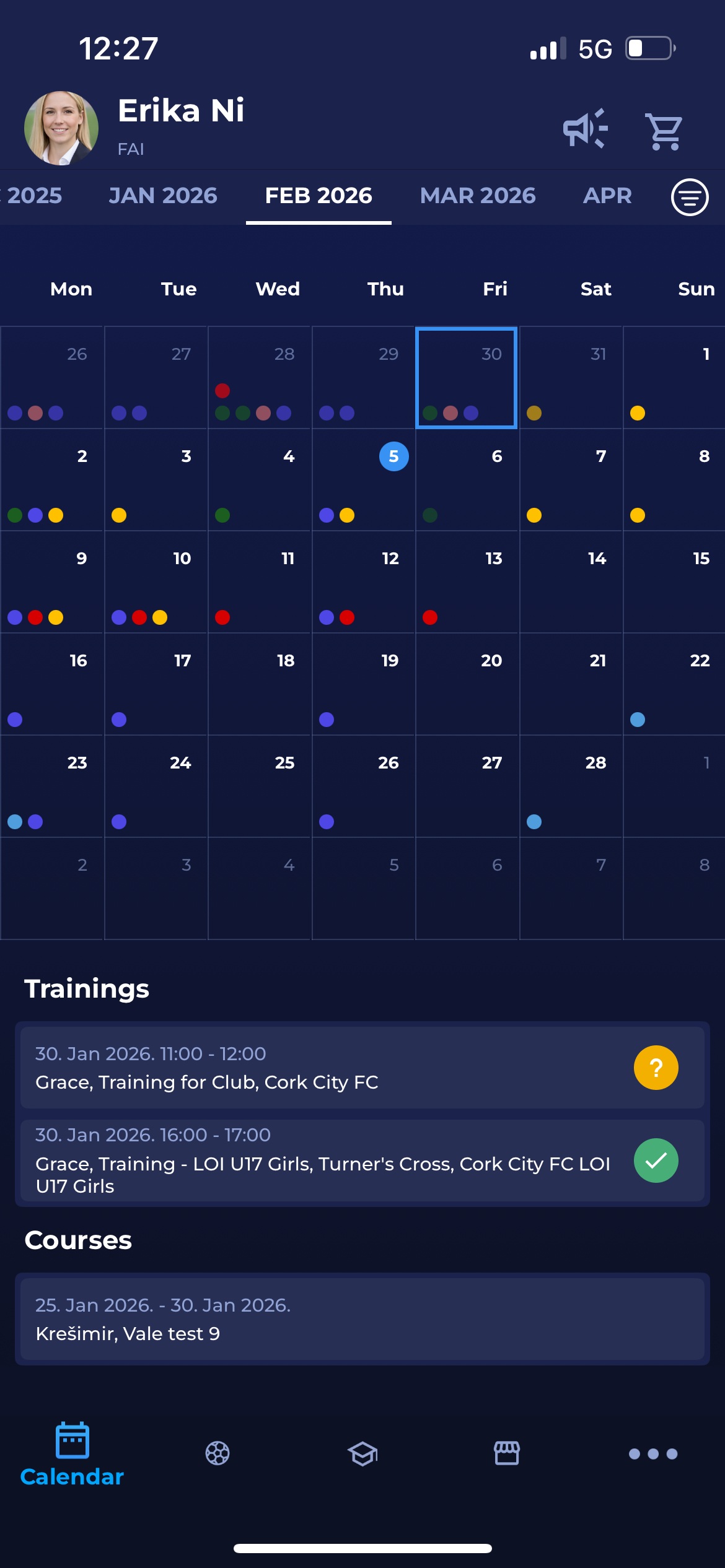
Similarly to the Trainings sections, you can filter the event types presented on your calendar by their type: matches, trainings, events, unavailabilities, or you can choose to present all types in your calendar.
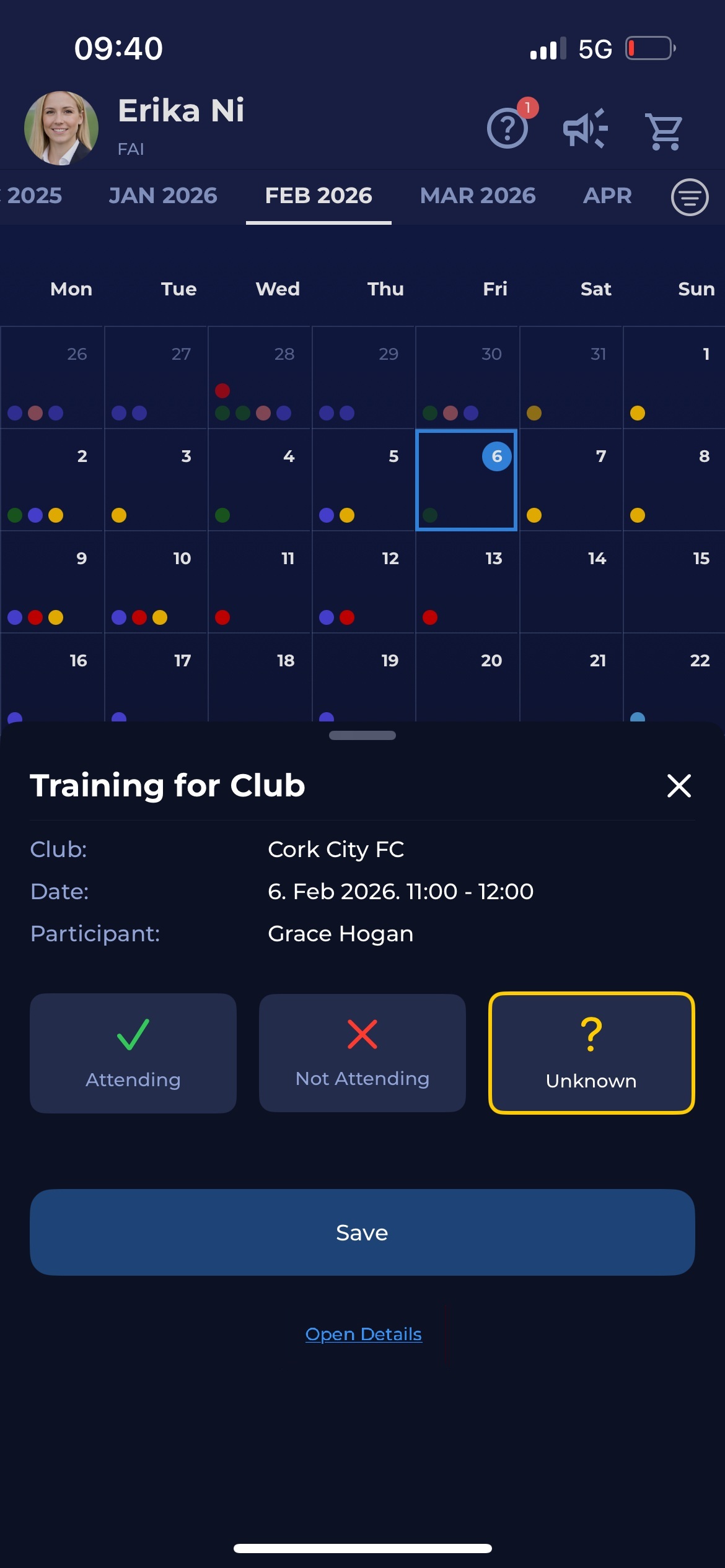
A tap on a specific day in a calendar displays all events for that day. You can reply to the Training invite directly from My calendar by tapping the event name and selecting your response.
Any event that is set to NOT ATTENDING will be removed from the player’s calendar.
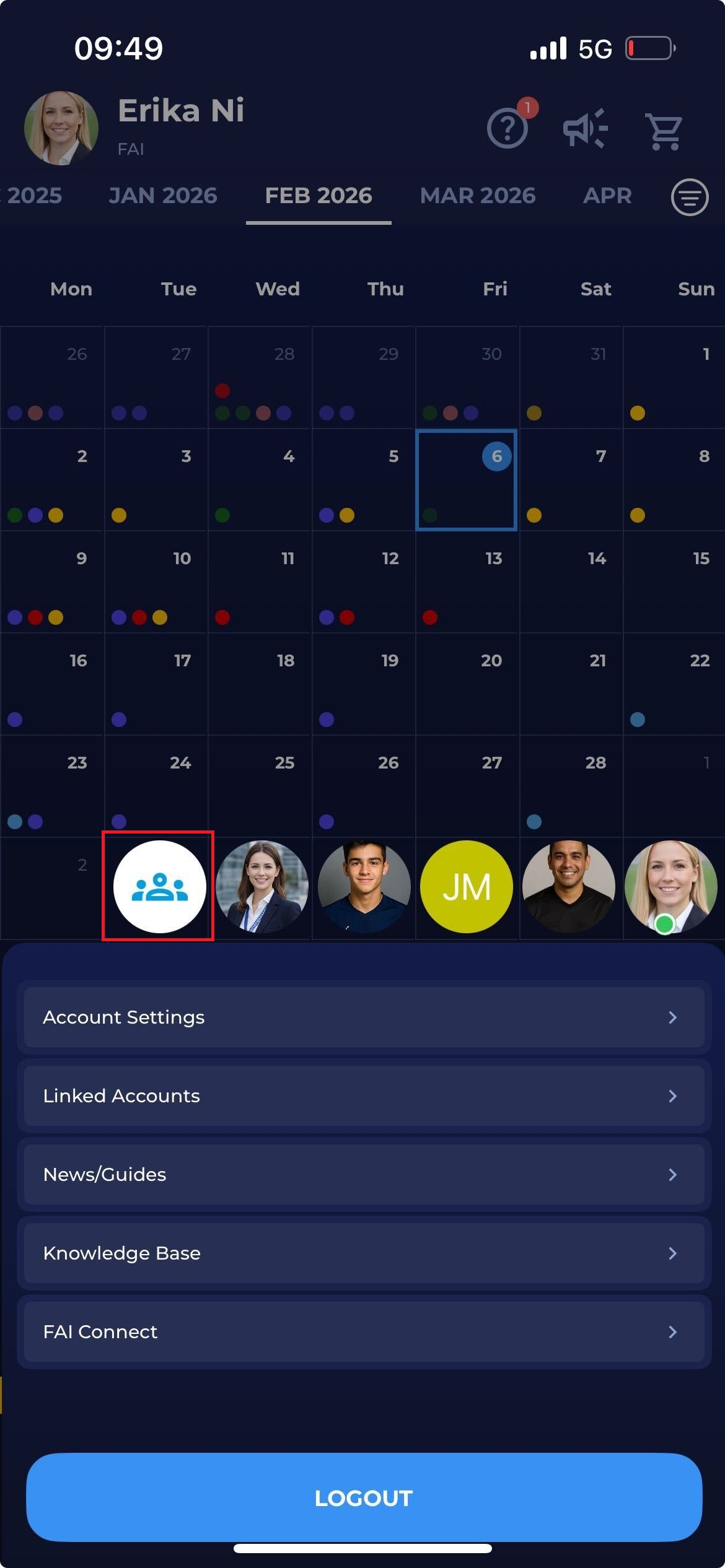
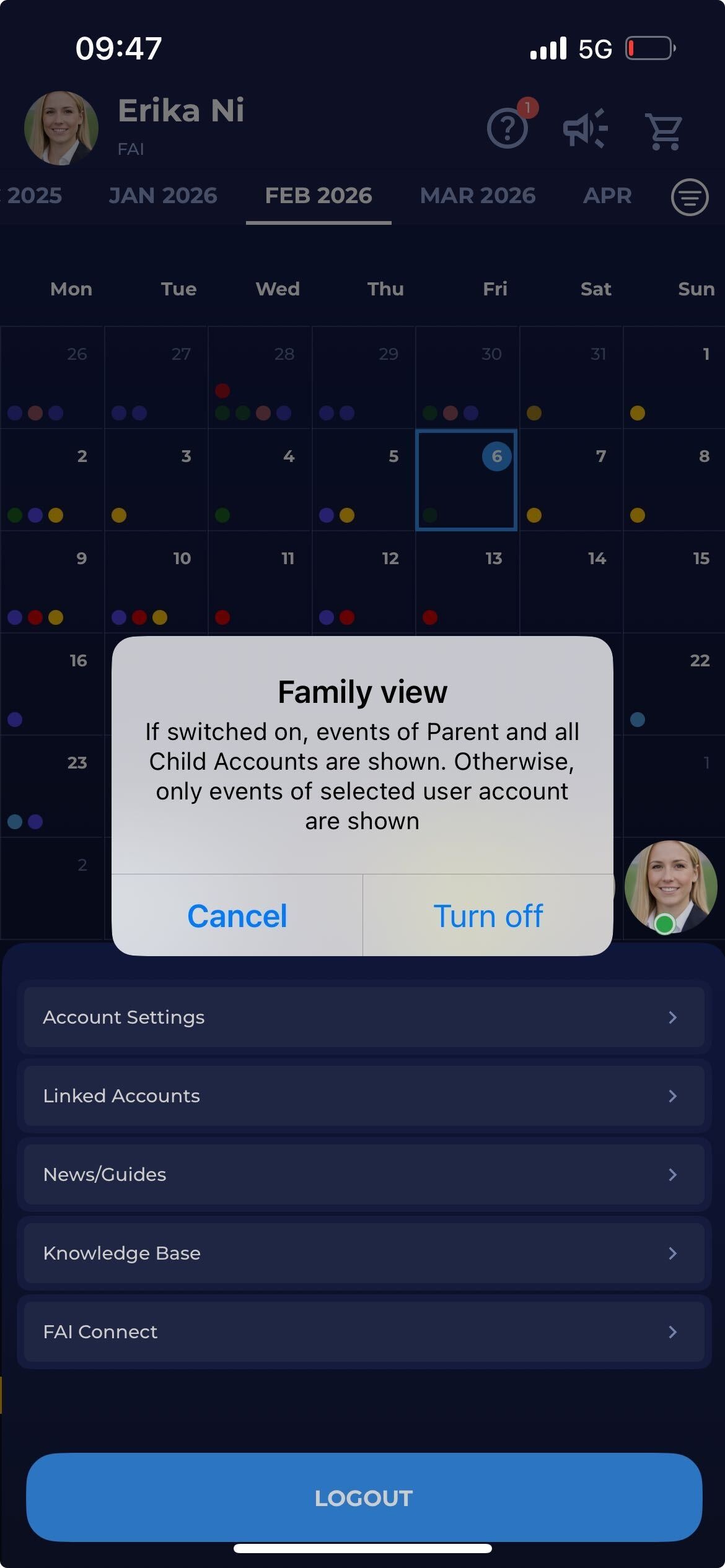
All images in this article present the Trainings from the perspective of a user with linked child accounts and enabled Family View. If you want to disable Family View, tap your profile image, then tap the Family View icon next to the profile images of your linked child profiles. Confirm the action appearing on the pop-up.
Training Details
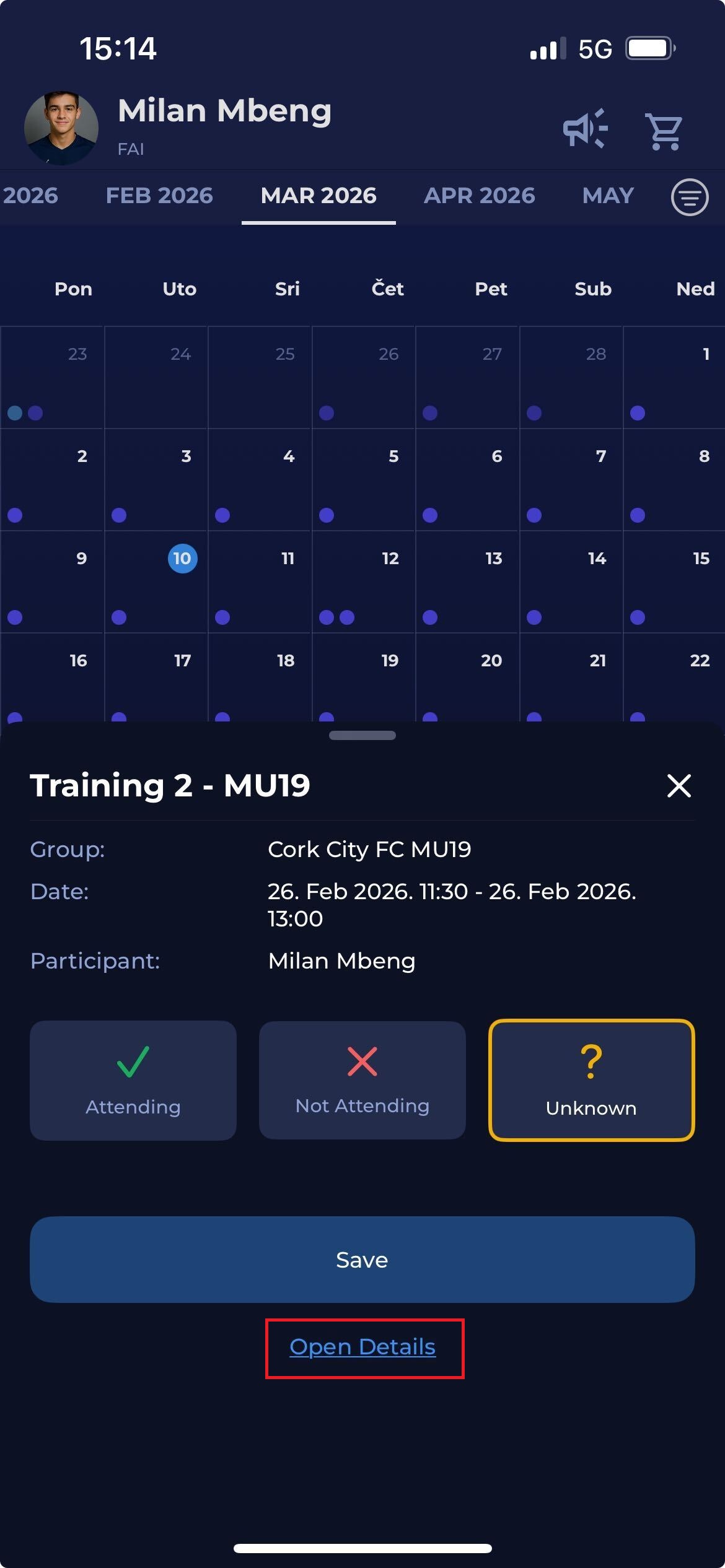
To view details of a training session, open the Calendar and tap on the desired training event.
When you select a training, a preview panel will appear showing basic information such as:
-
Training name
-
Group
-
Date and time
-
Participant
You can also respond to the training invitation by selecting one of the following options:
-
Attending
-
Not Attending
-
Unknown
After selecting your response, tap Save to confirm your attendance status.
To view the full training information, tap Open Details.
Training Details
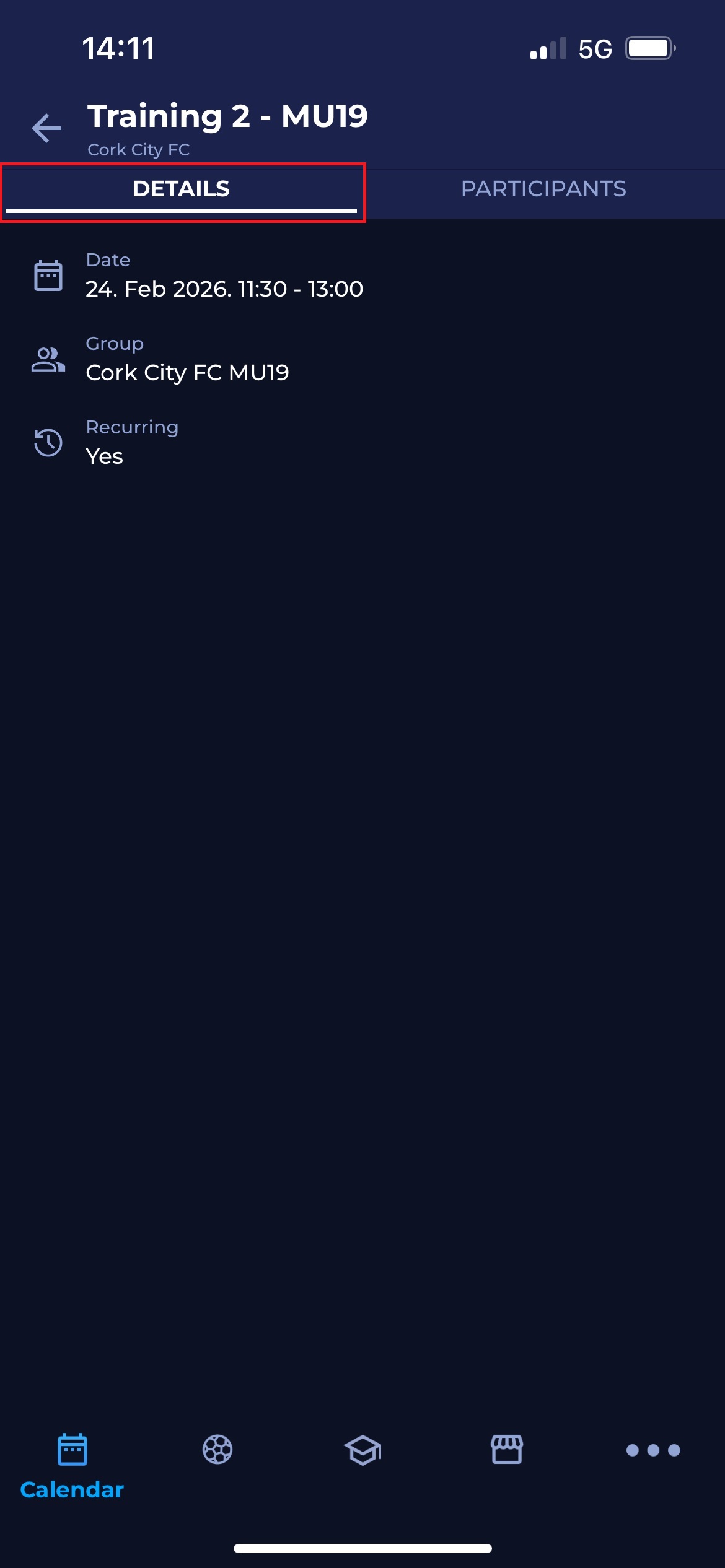
After selecting Open Details, the training event page will open.
The Details tab displays general information about the training session, including:
-
Date and time of the training
-
Group the training belongs to
-
Whether the training is Recurring
Participants
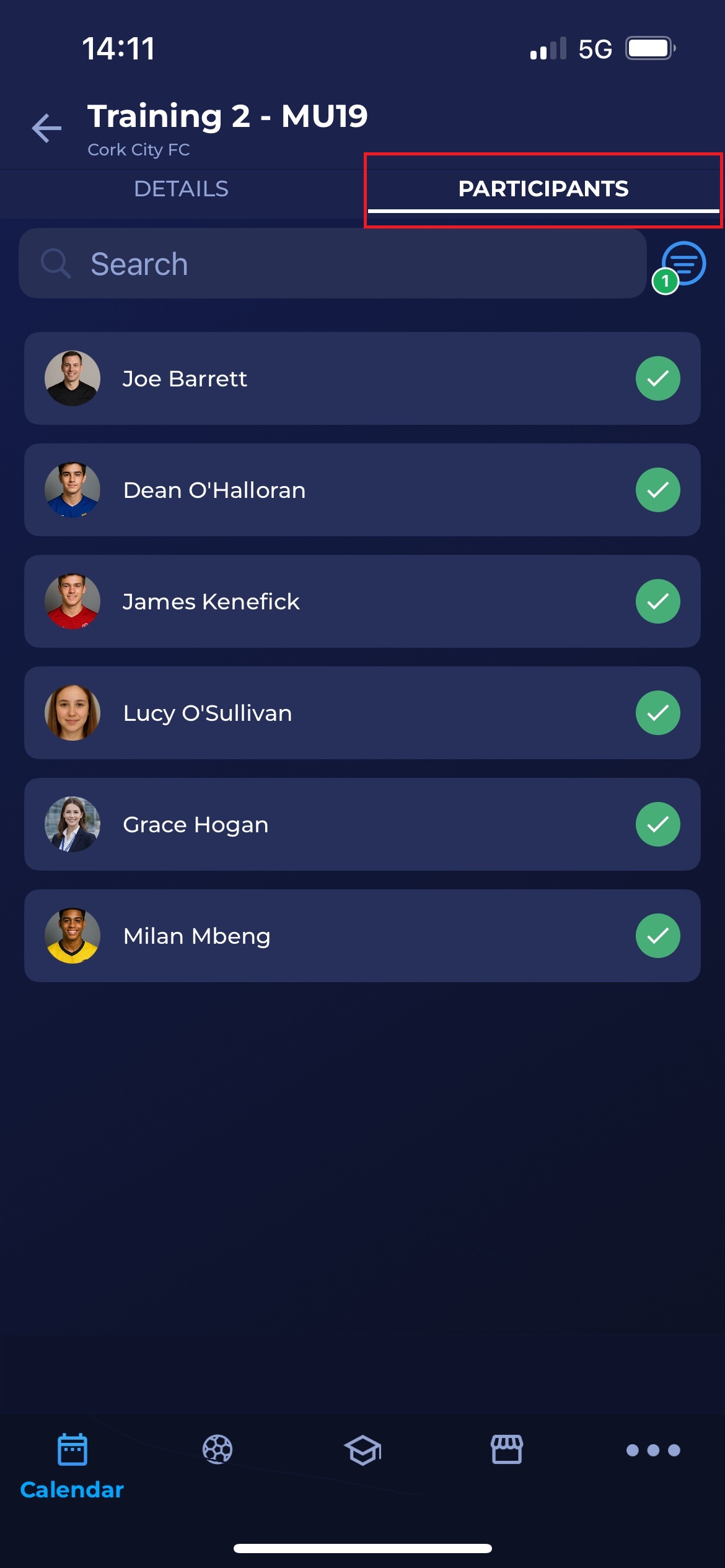
To view who is attending the training, open the Participants tab.
This tab shows the list of players and staff included in the training session. Each participant's attendance status is displayed next to their name.
You can use the Search field to quickly find a specific participant.
Filtering Participants
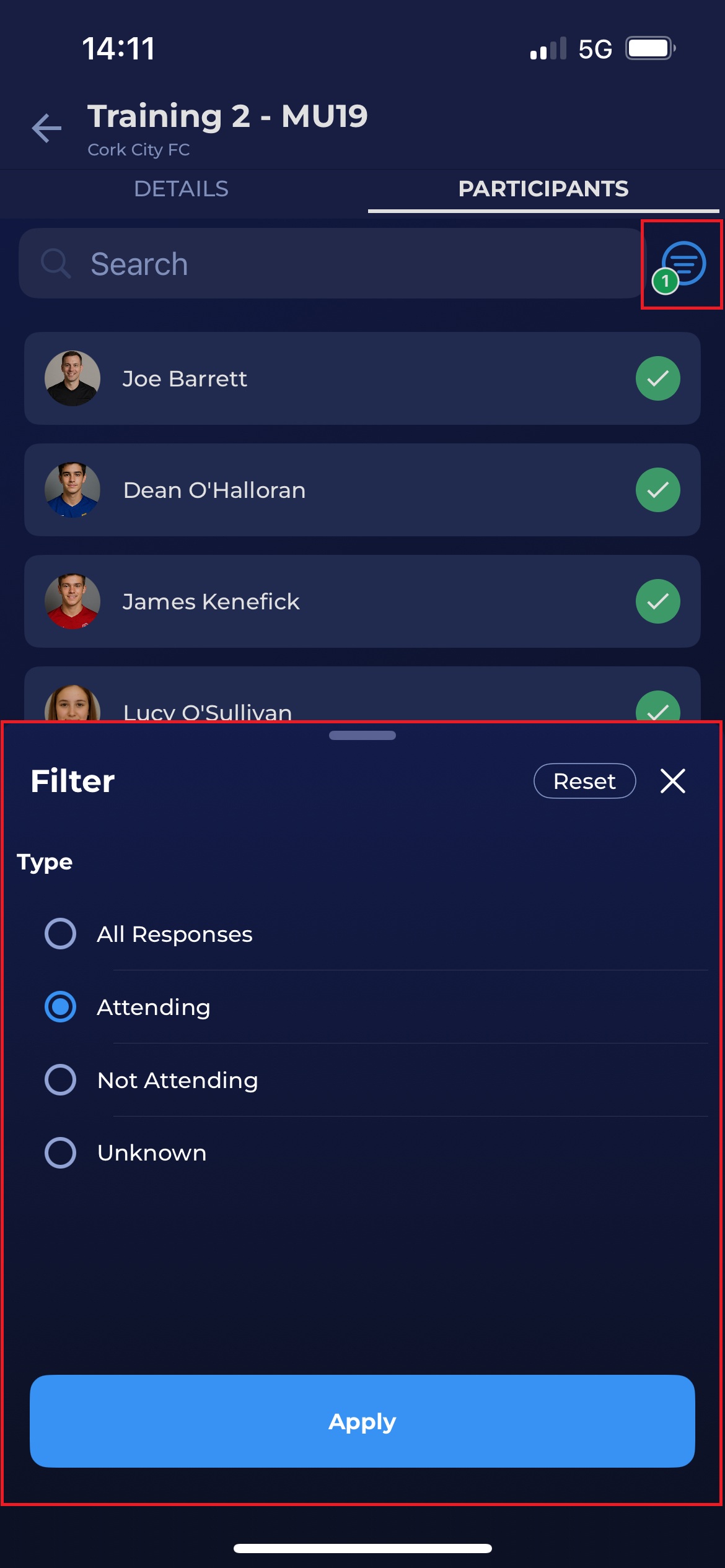
If needed, the participant list can be filtered by their response.
Tap the Filter icon in the Participants tab to open filtering options.
You can filter the list by:
-
All Responses
-
Attending
-
Not Attending
-
Unknown
After selecting the desired filter, tap Apply to update the list.