
As a COMET User, you can have and manage one or more Child Accounts (User Switcher Functionality). In most cases, this feature is used by parents or guardians to supervise and manage their children's activities from their own (parent) account.
Please note that the child can log in with their credentials and access only their own account. You (guardian) will have access to all your children's accounts using your own credentials.
User Switcher
Once you have a linked child account:
-
You will be able to view and access Child Accounts profile(s) and act in COMET on behalf of your Child from your own COMET Account, i.e., you will be able to execute the COMET-related actions on behalf of your child, such as:
-
purchase items in the store, such as registration fees, membership fees, and equipment
-
access calendar
-
review data
-
access their scheduled trainings
-
apply them to courses
-
manage account details
-
conduct registration/ application
-
-
You will be receiving a copy of all e-mail notifications that are sent from the system to your Child’s Account's e-mail.
-
You will have full control over the Child Account, including the ability to update the password of the Child Account.
To switch between User Profiles:
Please note that switch icons are enabled if the user has one or more child accounts linked to their profile.
-
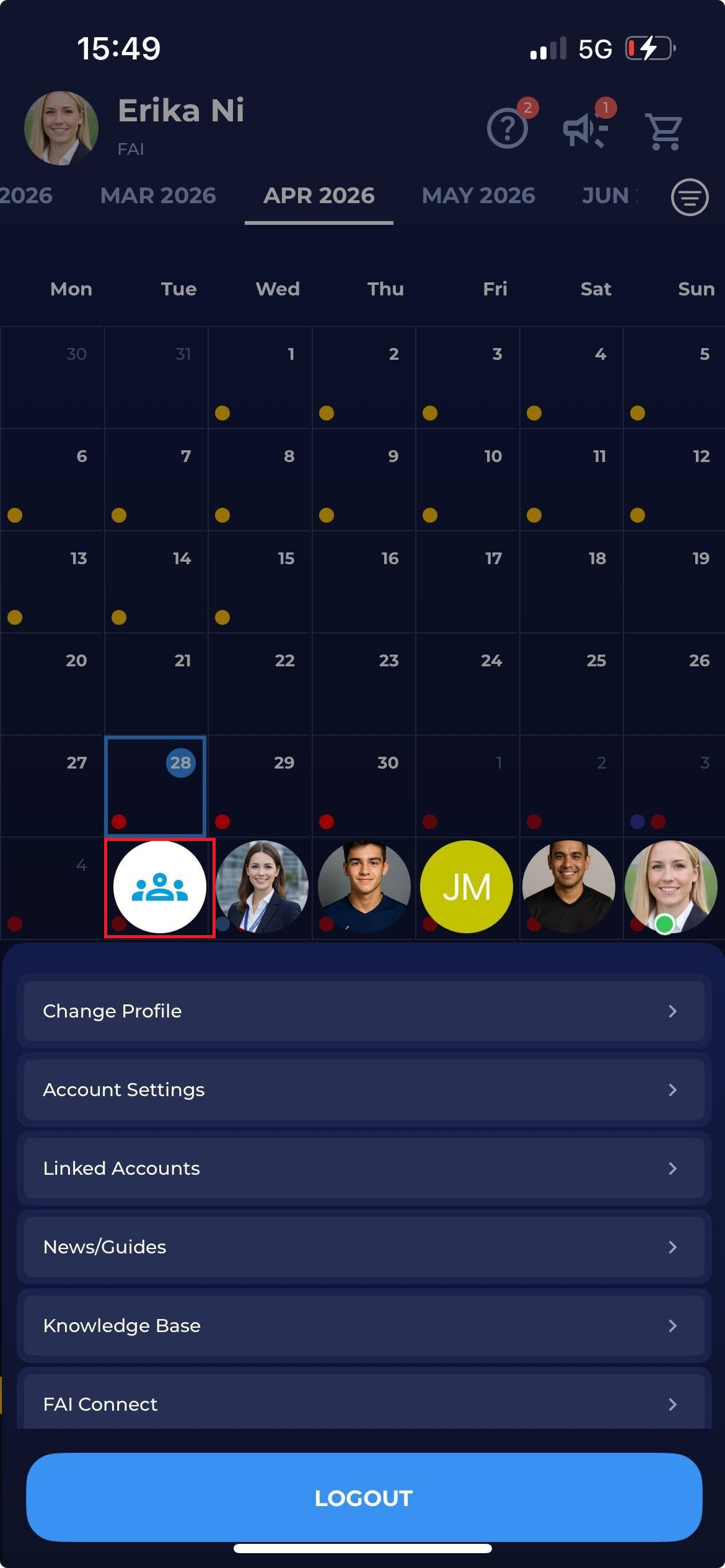
Access the Member Switch Icons by tapping on the image of currently logged in person at the top left corner
-
If the user has more than one active profile (e.g., related children profiles), a list of related member profiles is displayed above the menu appearing. The profiles are displayed as follows:
-
Photos or Initials of Logged-in User
-
Photos or Initials of Children Accounts of Logged-in User
-
Green Dot indicates the currently active logged-in User
-
-
Tap on the avatar icon to switch to the member profile → when changing the active member, the navigation and the current view are refreshed for the newly selected member.
-
Once the User is selected, you can execute COMET-related actions on behalf of that user.
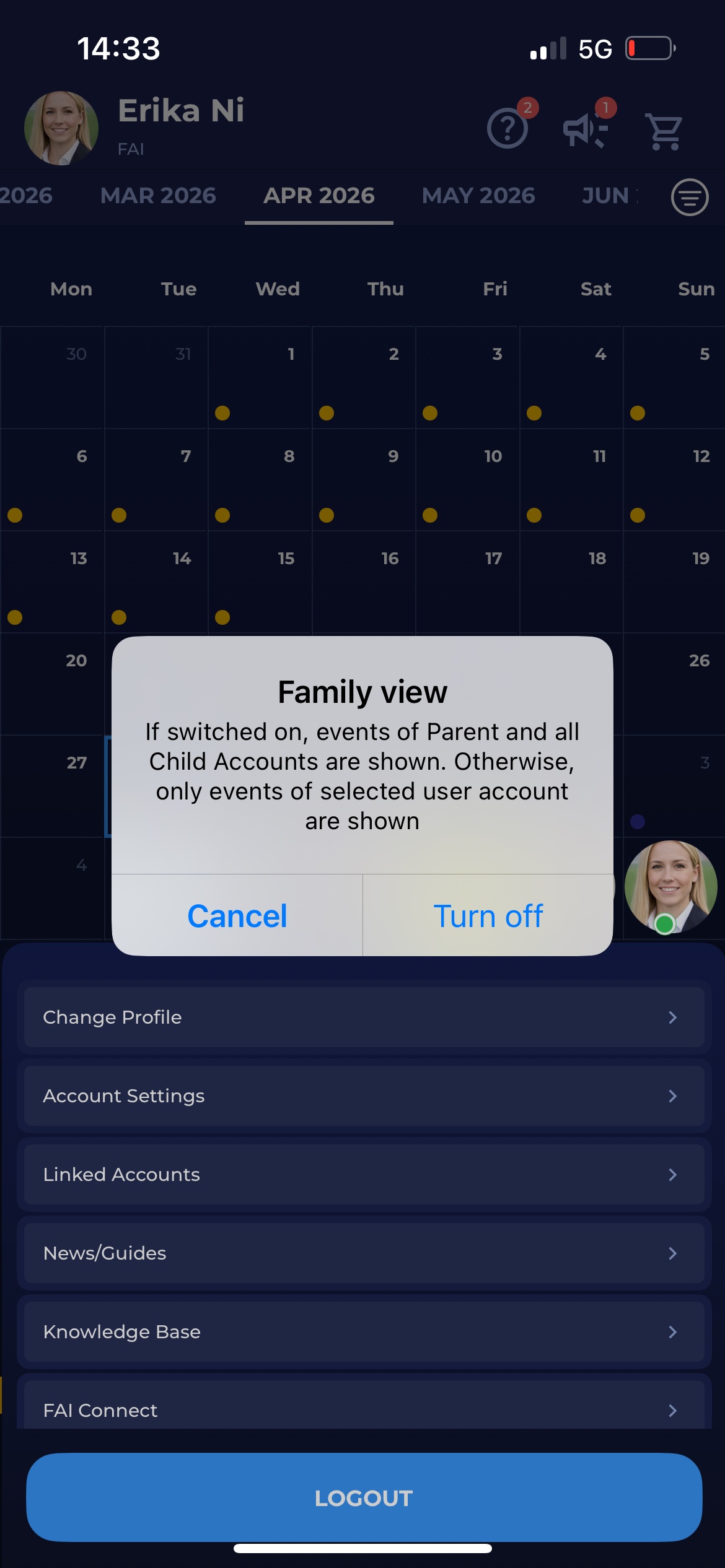
When a specific member profile is selected, only the information associated with that member will be displayed.
The leftmost icon next to the profile photos of your children accounts presents the family view. To learn more about Family View in COMET, see the section below.
Family View
The Family View in COMET is designed for parents or guardians who manage multiple player profiles within the same account. It allows parents to seamlessly view and manage events for all linked child accounts, including training sessions, directly from a single calendar.
Activating Family View
To enable Family View, tap the 🫂 Family icon (white circle with multiple silhouettes) located above the aforementioned menu, left to the profile photos of your children accounts.
Once activated, the system combines all events from the parents’ and their children’s accounts into a single, unified calendar.
Note that this mode is only available to users with connected Child Accounts.
In this example, Erika (the parent) has access to Grace' and Milan's calendars, allowing her to track and manage all their football-related activities.
Family View in My Calendar
After turning on Family View, Erika can open My Calendar to see all upcoming trainings, matches, and events for herself and her children accounts.
A tap on a specific day displays all the events for that day, noting which child profile each event is related to. If no name is specified, the event belongs to the parent user.
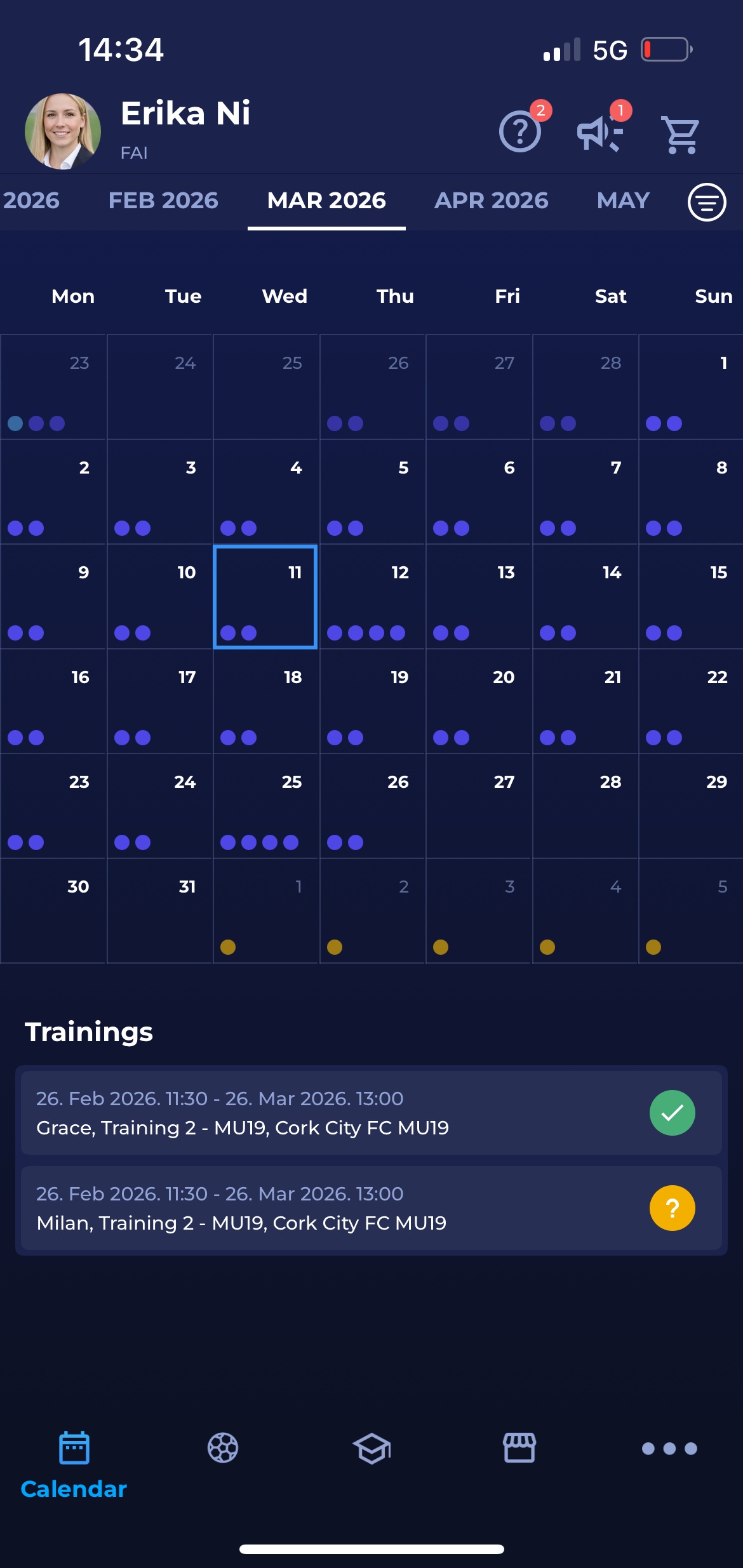
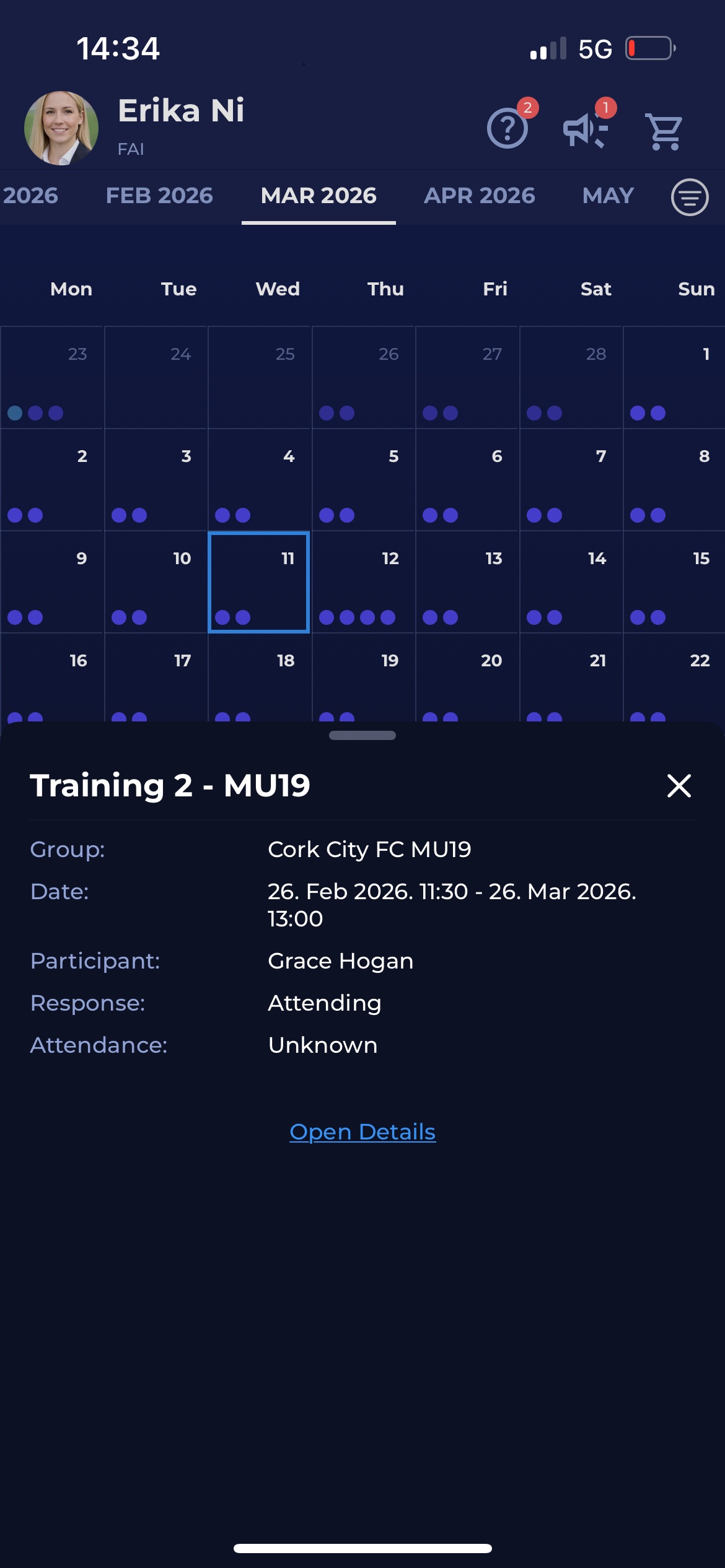
From the calendar, parents can click on any event and submit a response - whether the child will be Attending, Not Attending, or is Unknown (if the date of the event is in the future).
This is especially useful when managing multiple kids’ schedules, as the parent can confirm attendance for both from the same interface.
Family View in My Matches
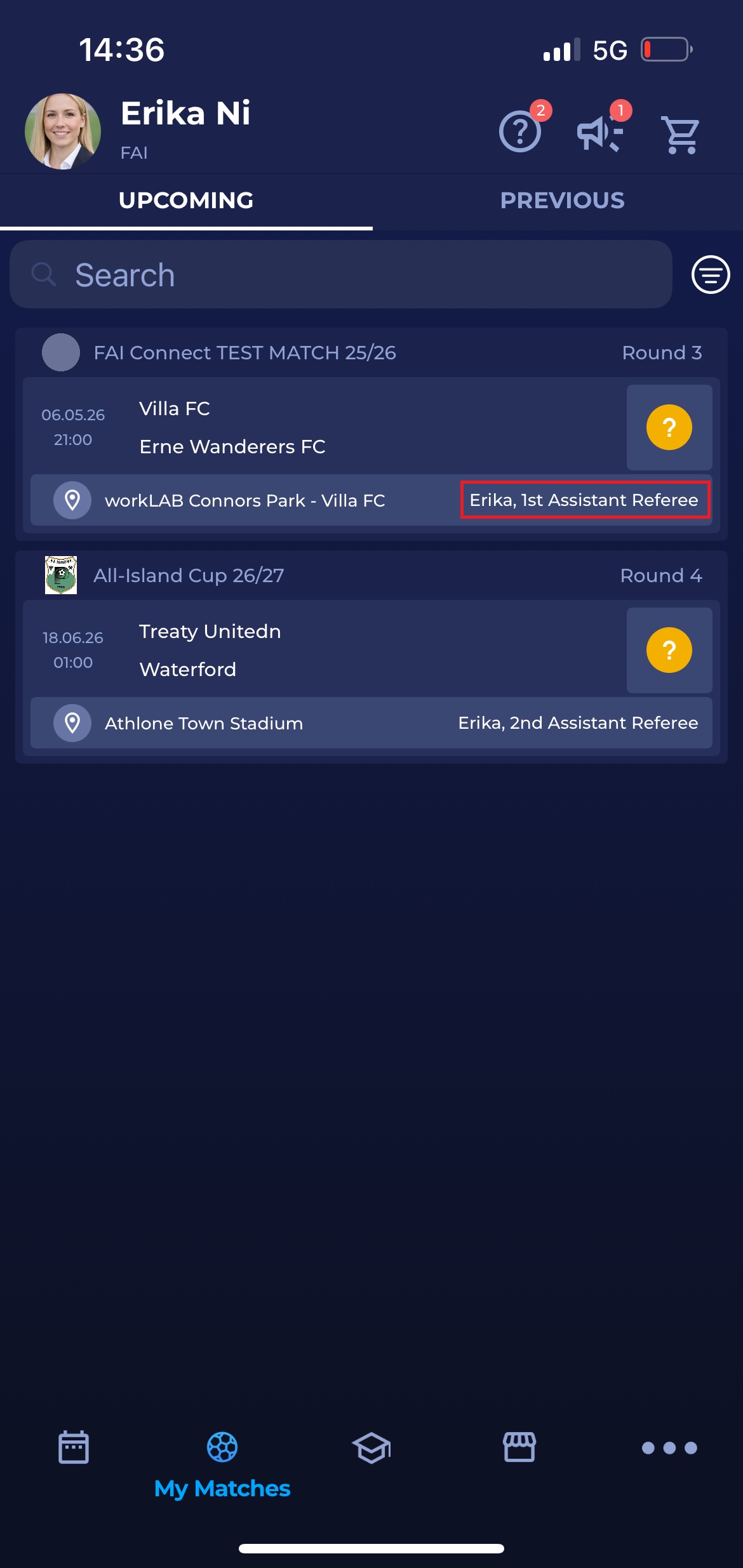
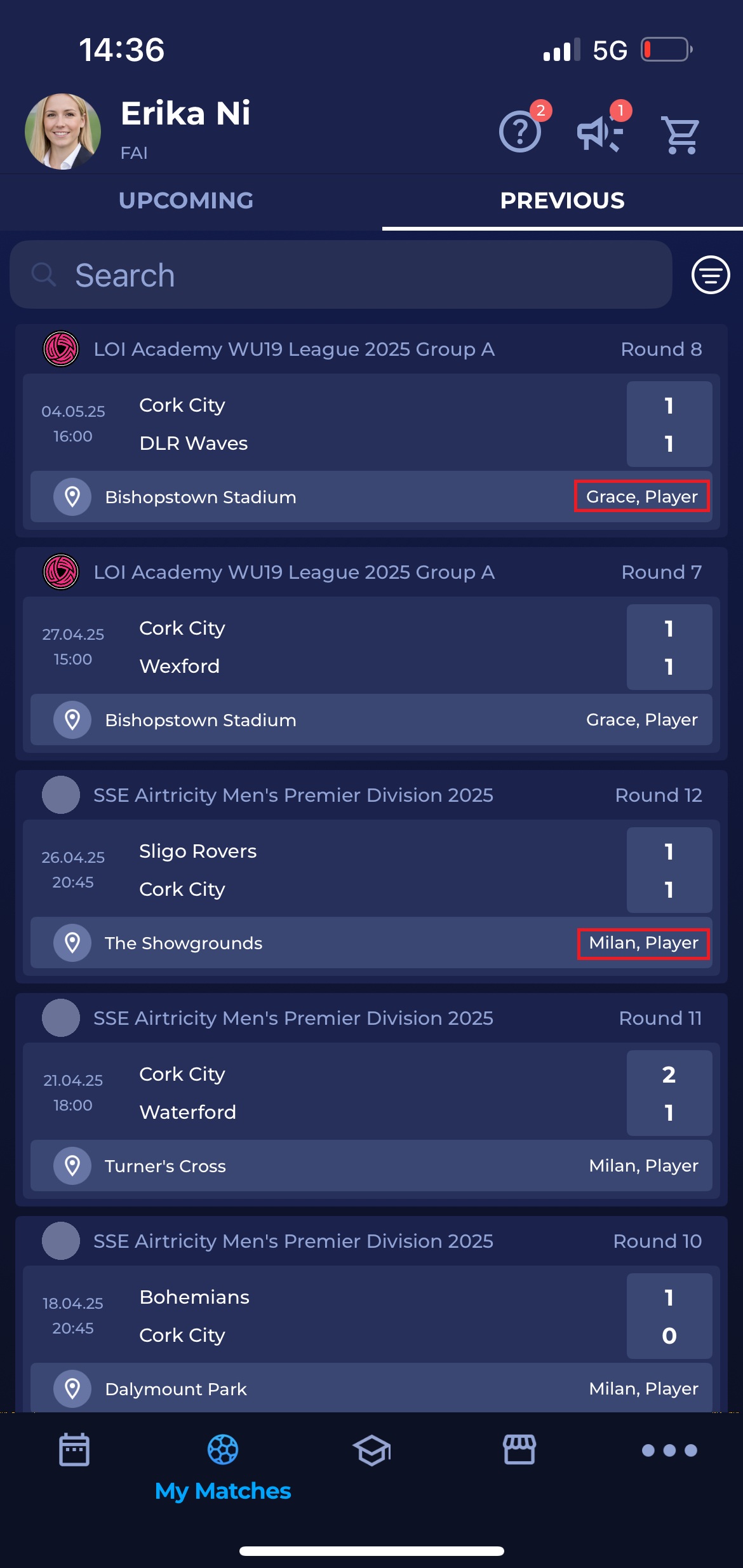
The parent can view a complete list of upcoming matches for each linked profile, review appointment history (if applicable), and manage appointments individually.
Using the filters located right to the Search bar, parent users can switch between their own matches and those of their children profiles (Grace and Milan), or view them all together, ensuring no session is missed, and all appointment responses are up to date.
Family View in My Trainings
Besides the calendar, Family View also integrates into the My Trainings section.
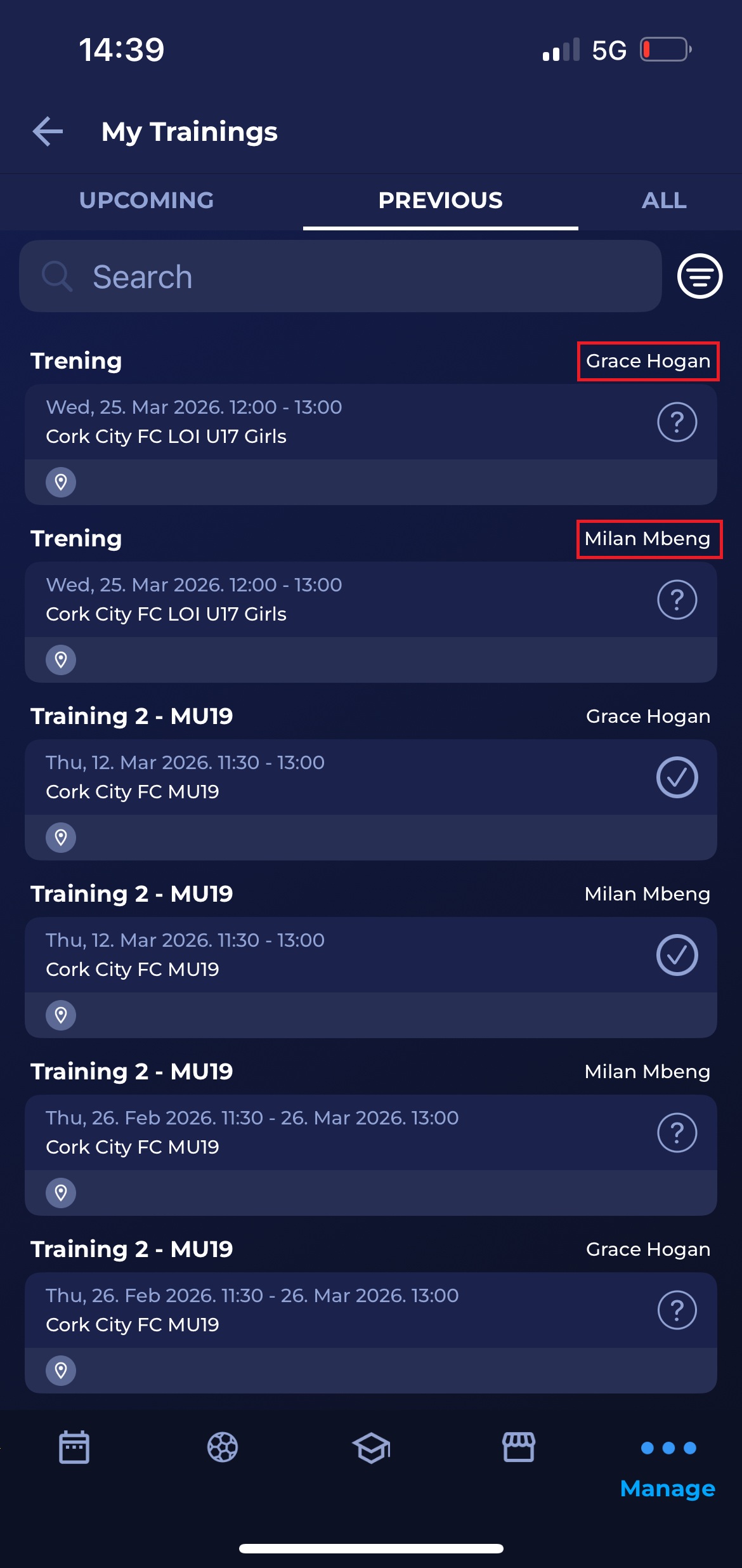
Here, the parent can see a complete list of upcoming trainings for each linked profile, review participation history, and manage attendance for each profile individually.
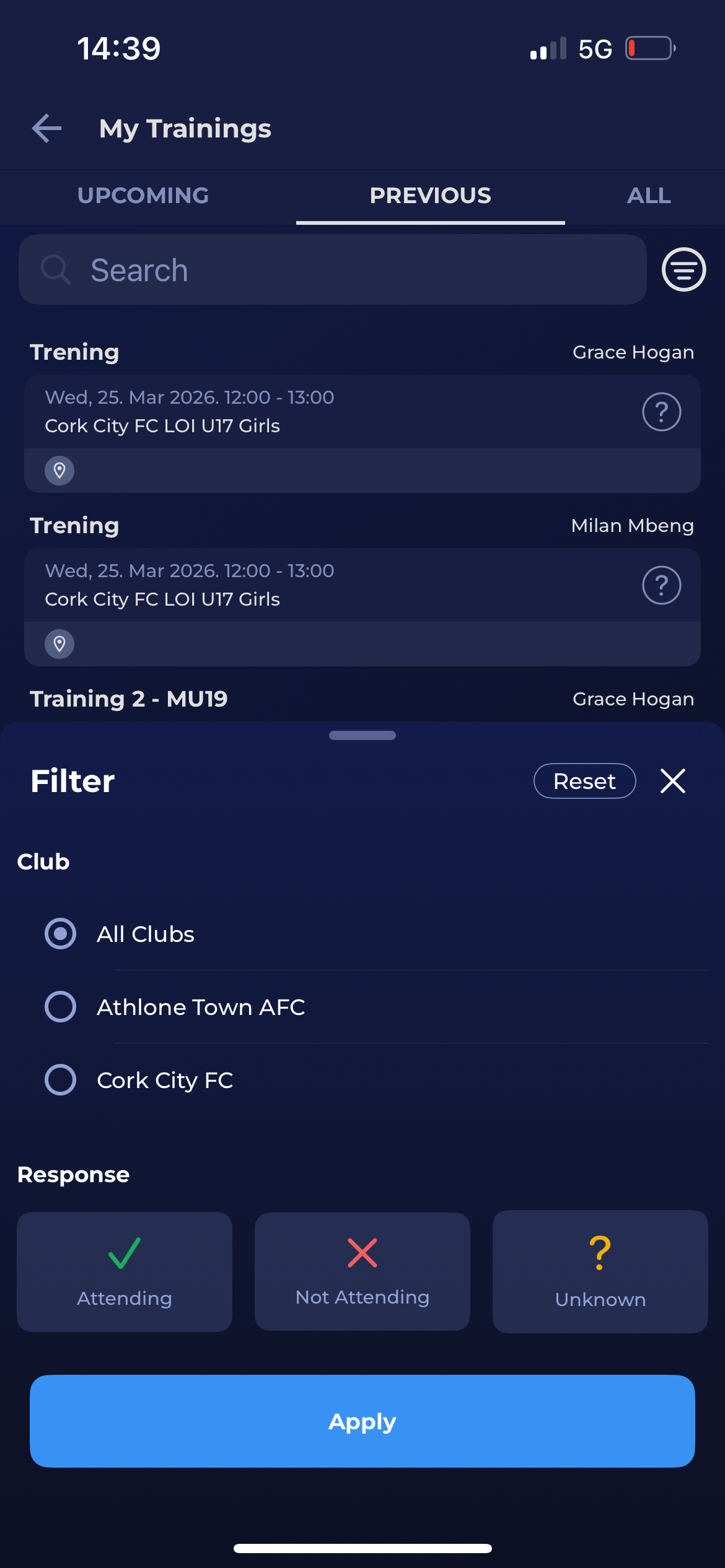
Erika can switch between her own trainings and those of Grace and Milan, or view them all together, ensuring no session is missed and that all attendance responses are up to date.
Trainings can be filtered by using the filters located to the right of the Search bar.
Family View in Unavailabilities
The Unavailability feature enables match officials and all system users with Person profiles to enter periods of unavailability in advance when they are absent and cannot be allocated to matches. Within these periods, unavailability can be entered as all-day or partial, on specific days of the week, or in general.
Unavailabilities are displayed in My Calendar, where users with Parent accounts can also view and modify their Child accounts' unavailabilities when Family View mode is enabled.
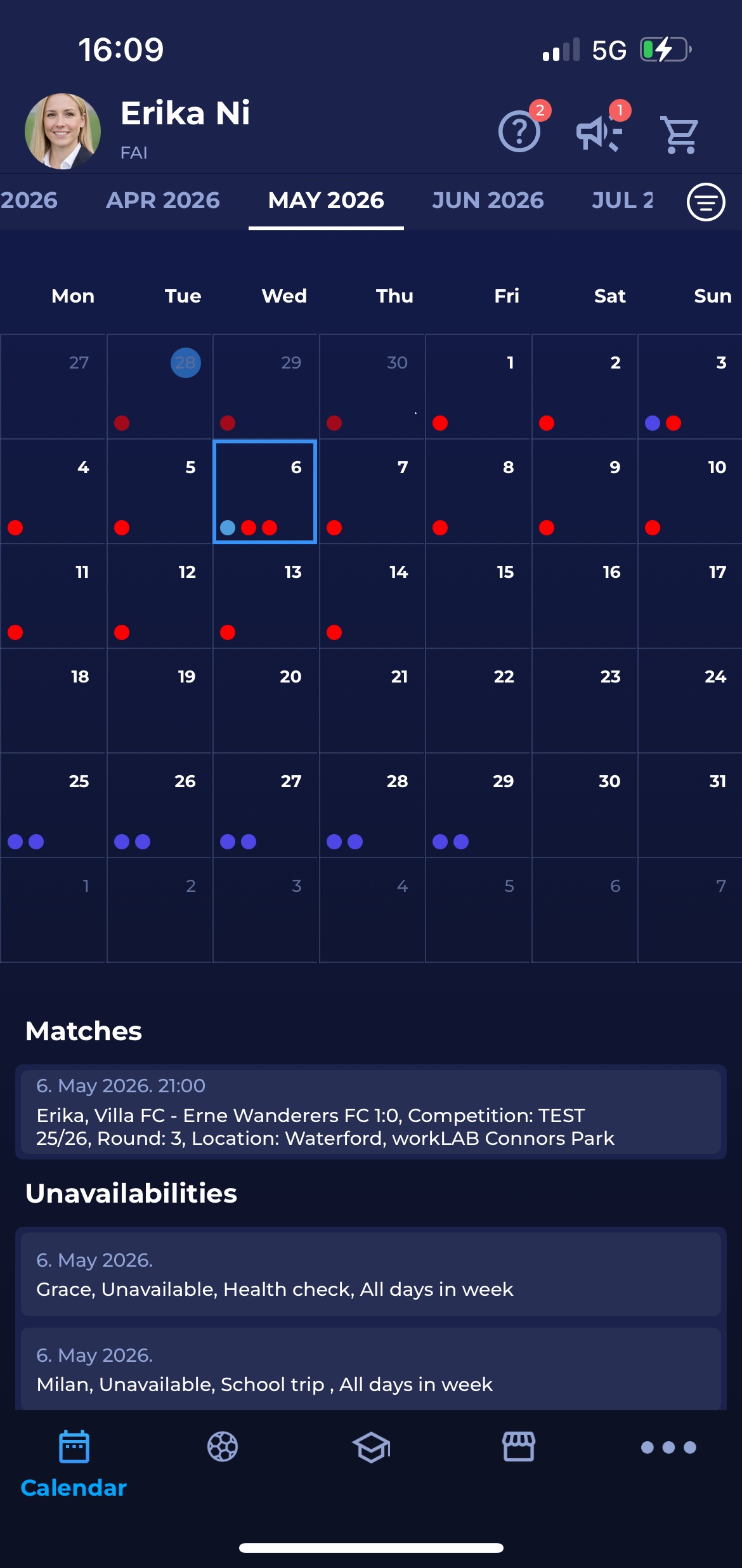
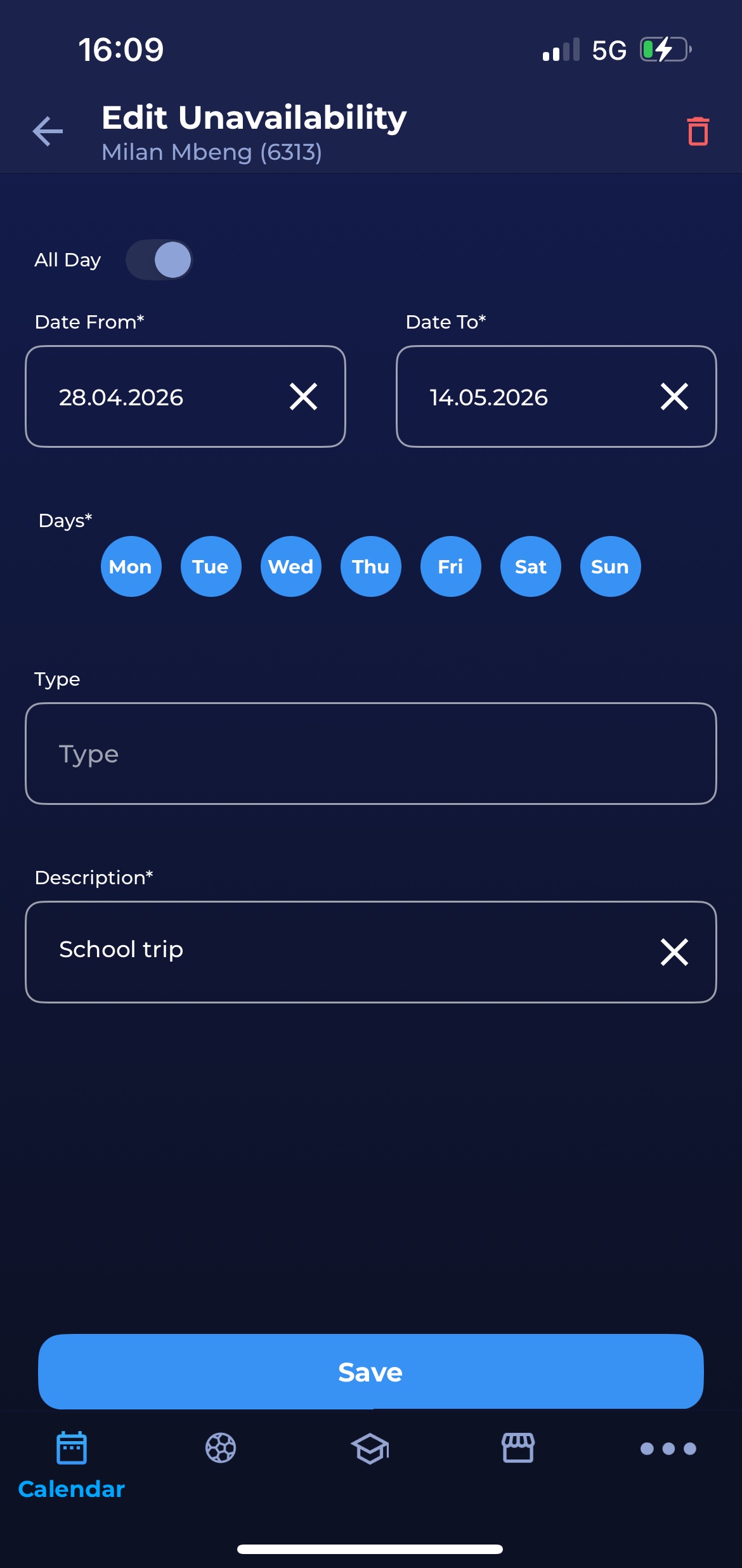
Even though Child-related unavailabilities can be edited from the Parent account, it is necessary to switch to the Child profile to enter the new unavailability.
User Switcher and Family View are also available in the MyCOMET interface.