
To access your Account Settings, tap on your image in the top left corner.
-20251202-131630.jpg?cb=a2f726555ebd4f9ffaa03b10c8322ede)
From here, select the Account Settings menu item. This will open an Account Settings Menu from which you can:
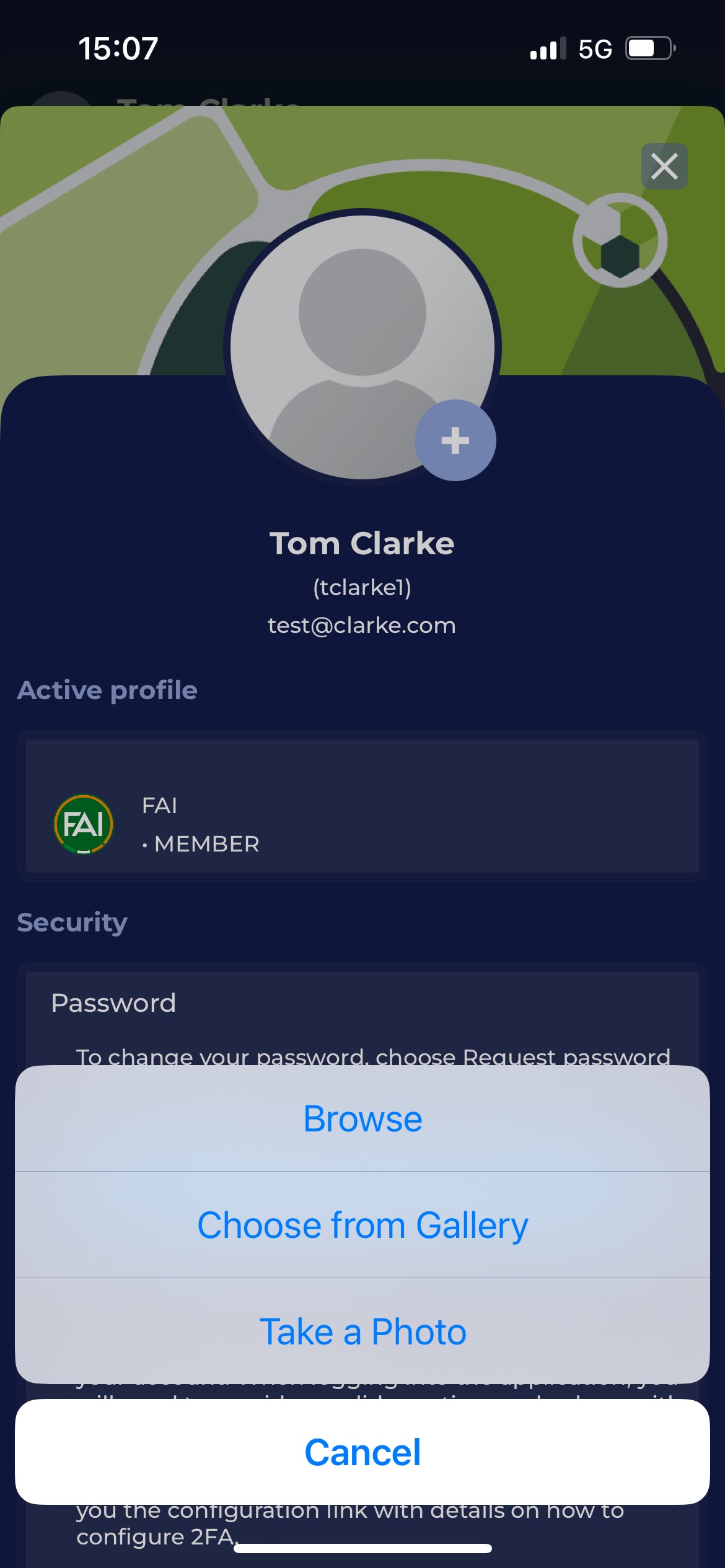
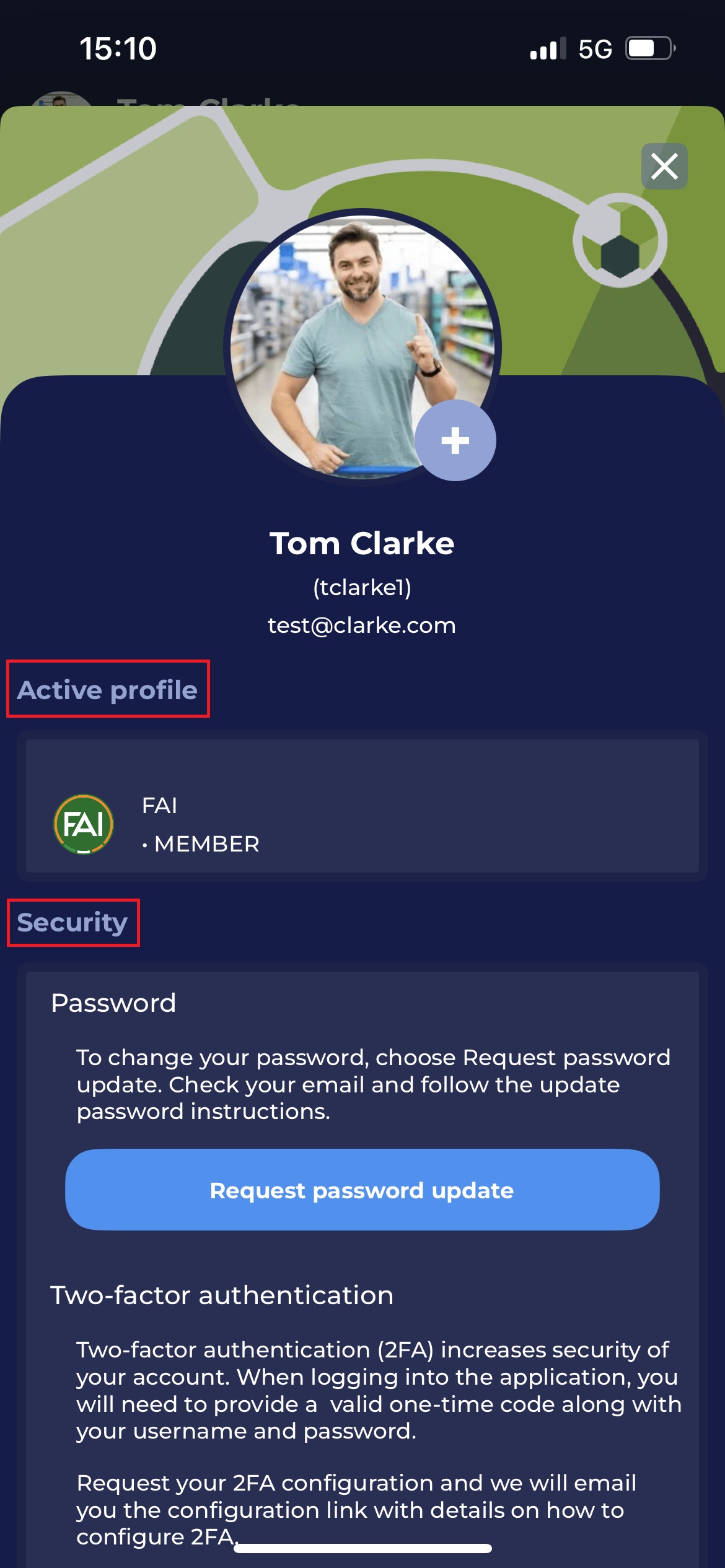
Set/ Update Profile Photo
-
Hit the ➕ Icon Button to set/ update the photo
-
Select the source of your photo
-
Browse → opens the files to search for
-
Choose From Gallery → opens Photo Gallery
-
Take a photo → redirects to your camera
-
-
Choose/Take or Select the photo.
Inspect Profile and Login Information
-
On the Active Profile Section of the Account Settings Screen, you can see the name of your organization and the assigned roles to your profile
-
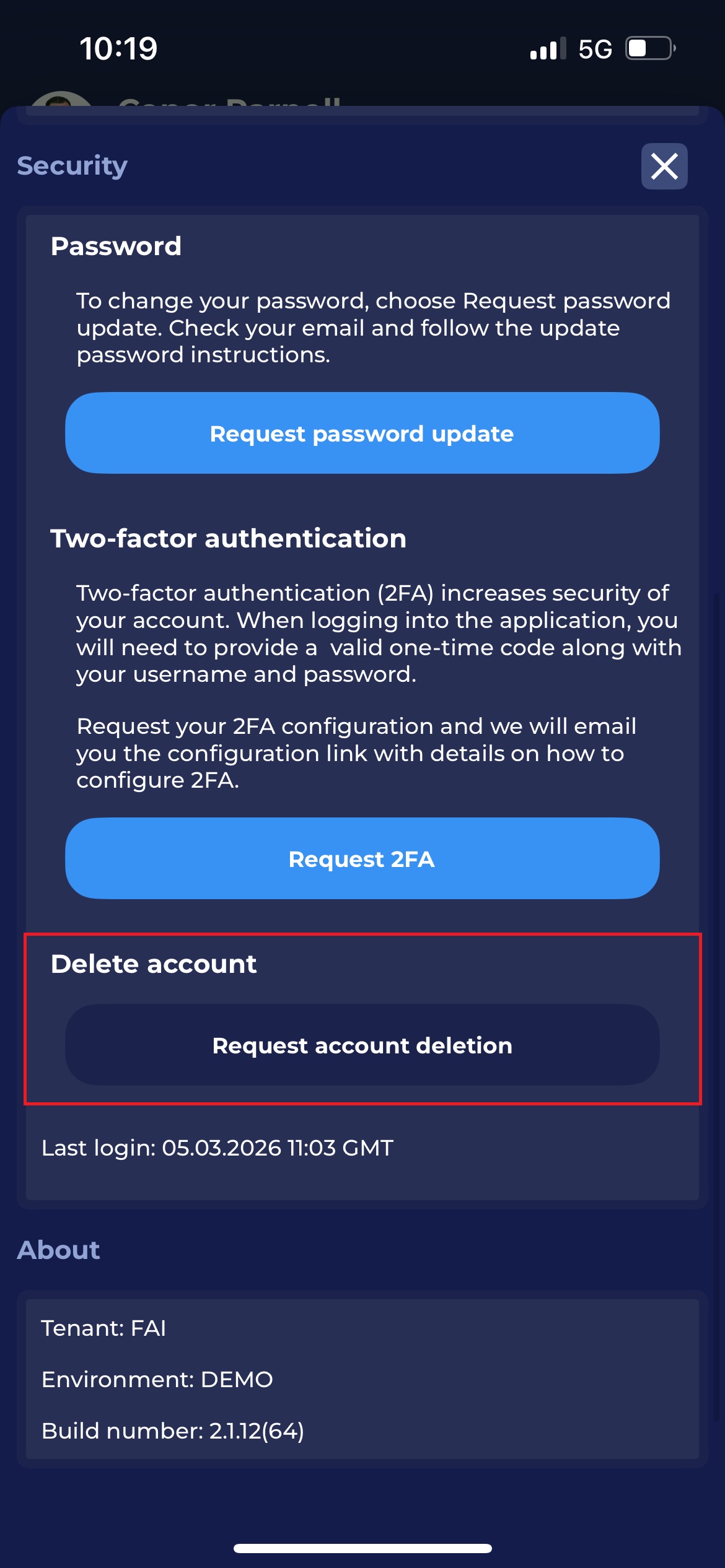
On the About Section of the Account Settings Screen, you can see the following information:
-
Last Login
-
Tenant
-
Environment
-
Bulind number
-
Manage Security
In the Security section, you can:
-
Request a password update → Please click on the button in the section and a password reset email will be sent to your email address
-
Resend 2FA → Please click on the button in the section to activate/deactivate 2FA (two-factor authentication) for your user account
If enabled by a User, two-factor authentication (2FA) will also be required when logging in to the desktop version of the COMET system. These security features are also available in the Account Settings area of the MyCOMET platform.
-
Request Account Deletion → You can request deletion of your COMET account.
Request Account Deletion
You can request deletion of your COMET account from the Security section of your account settings.
To request deletion of your account:
-
Open your Account settings.
-
Scroll to the Security section.
-
Click Request Account Deletion.
After clicking the button, a confirmation dialog will appear. Enter a mandatory comment (for example: Please remove my account) and confirm the request by tap on the ✔️ checkmark.
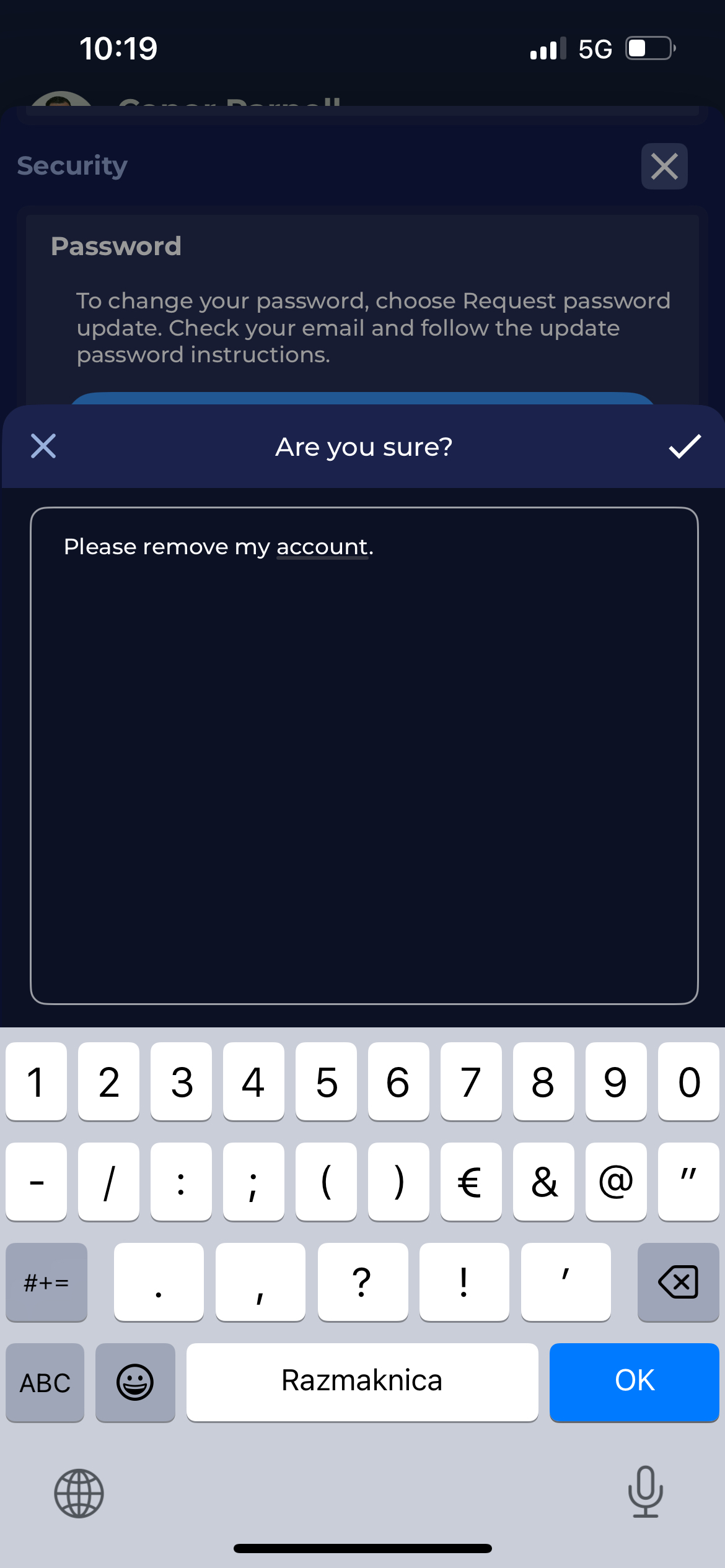
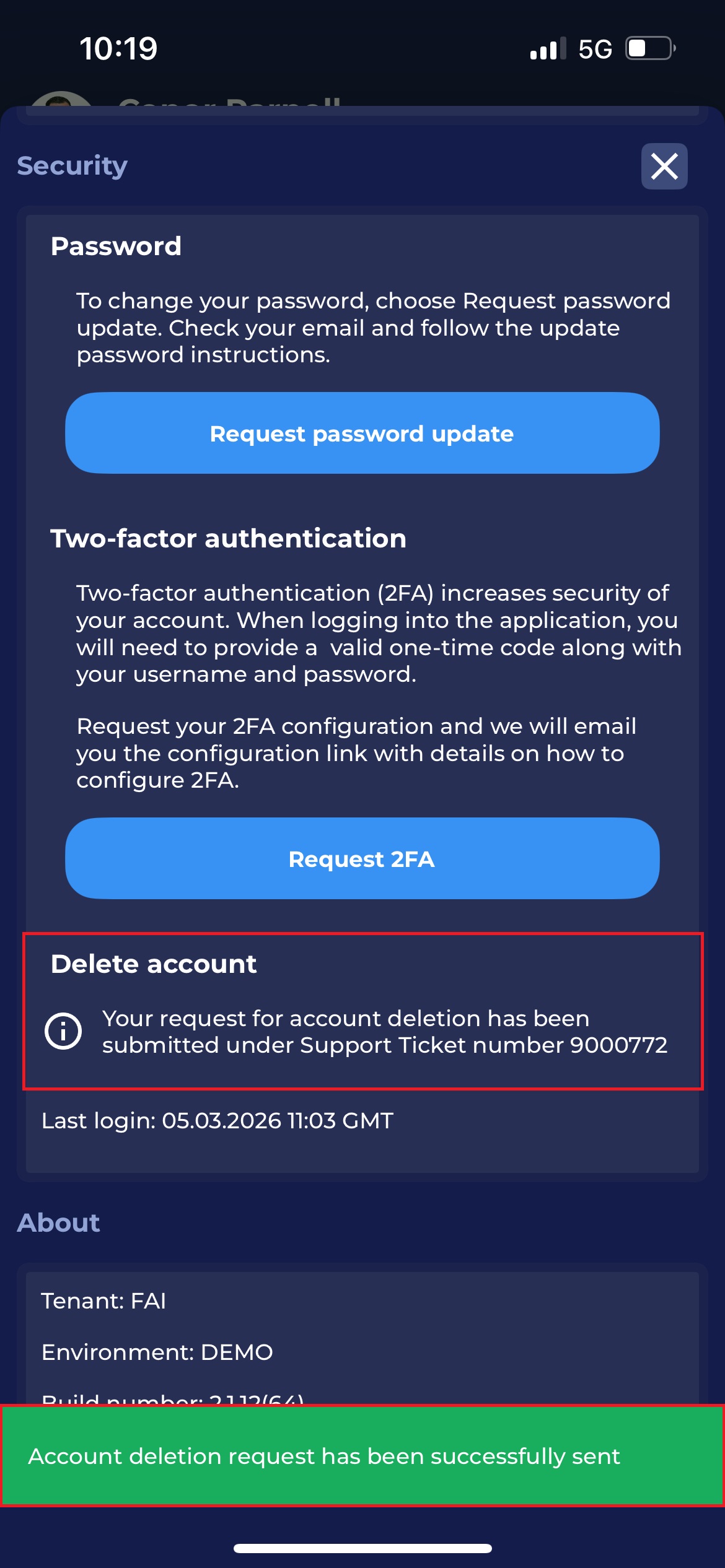
Once the request is confirmed, a notification appears with details about it. Moreover, a support ticket is automatically created and sent to the Association's support team.
The Association's support will review the request and process the account deletion. Either as a user reporter or a user responsible for resolving the tickets, you can track the request through the created support ticket.