
My Matches menu
⚽ My Matches screen shows the matches linked to the user profiles.
Depending on the dates and statuses of listed matches, My Matches Screen is divided into two tabs:
-
upcoming
-
previous
To open the match:
-
Choose the match from the list
-
Tap the match name
-
This will redirect you to the match screen ✅
Take into account that matches are displayed according to the roles a particular user may have and the organization to which he or she belongs. For example:
👉 a club referent will see the list of his club's matches
👉 a match official will see the list of matches to which he or she is appointed to.
Please note that the list of Upcoming matches and Previous matches for any user corresponds to the list of Matches displayed in the COMET web version.
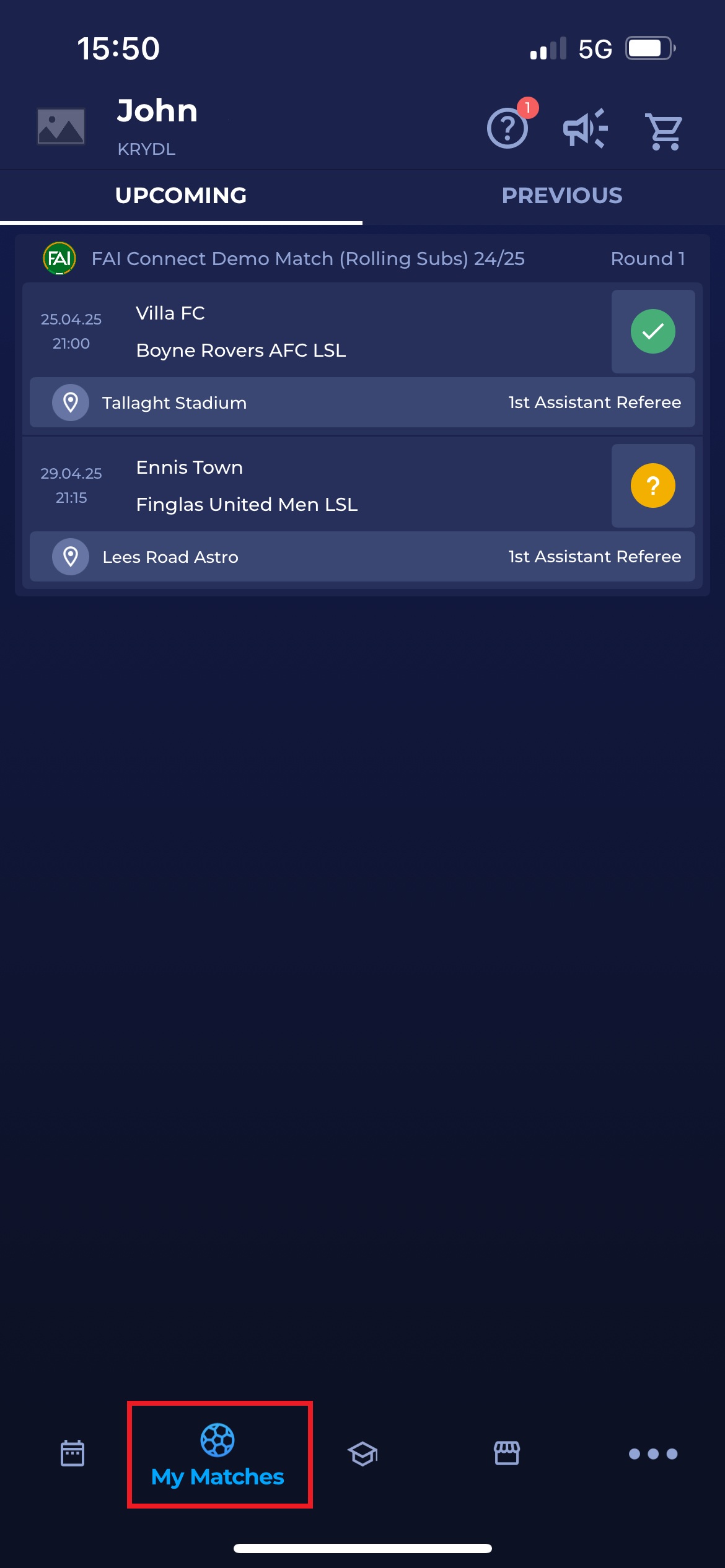
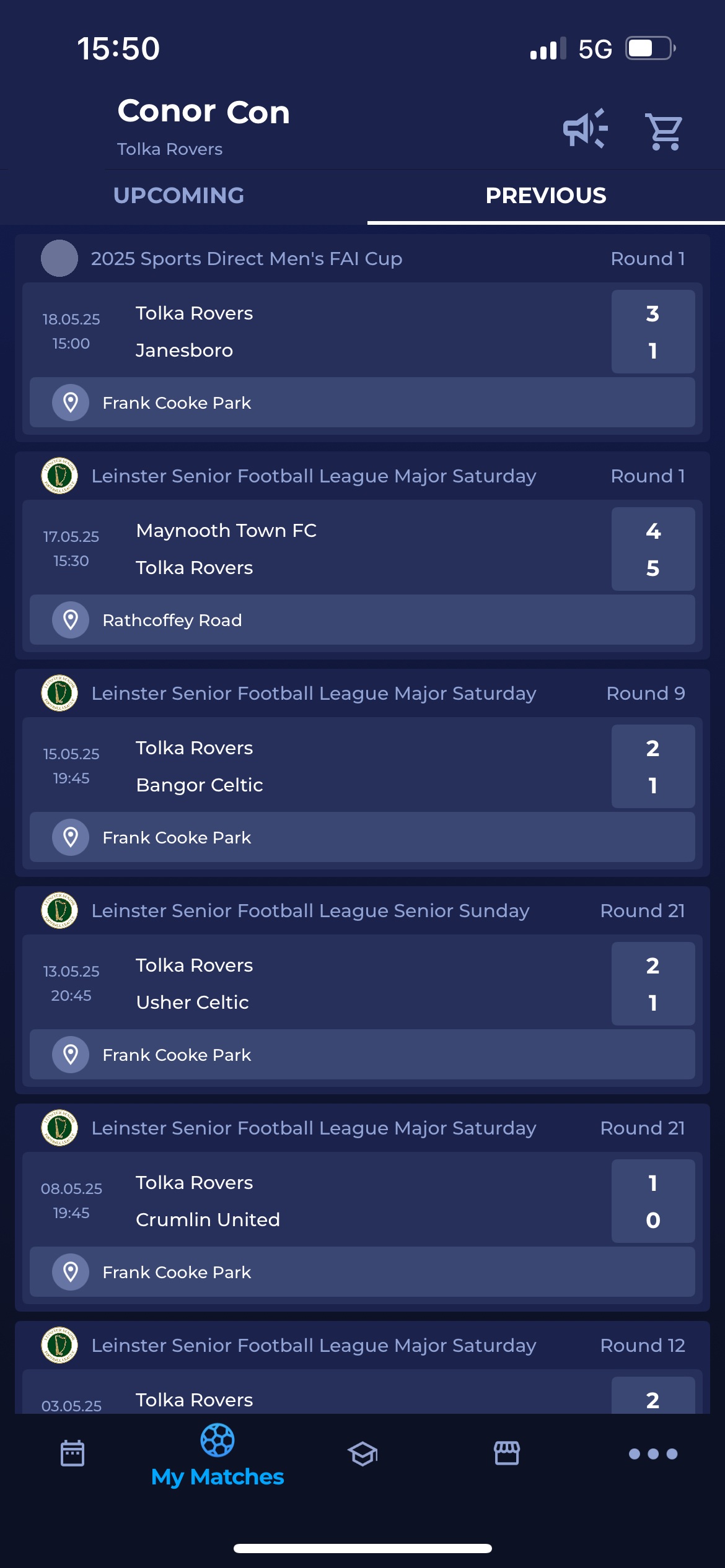
Take into account that you can access the match from:
a) My Matches Screen
My Matches screen is the Home screen of the COMET Football app. Please note that this screen displays the list of all matches available within the permissions of your user role. This screen consists of separate tabs for upcoming and previous matches.
b) Competitions Screen
If you want to select a match from a specific competition, you can use the Competitions screen.
-
Choose Manage on the bottom right of your screen
-
Hit the Competition button
-
You will be redirected to the Competitions menu → navigate through months by using the button in the top menu of the screen.
-
Choose the competition from the list (please take into account that you can use the search console to find the competition)
-
Tap the competition name to open the competition
-
This will redirect you to the Competition screen
-
Choose the match from the list and tap the match name
-
This will redirect you to the match screen ✅
If you are appointed to an official role at a match, your appointment status will be visible in the row containing the match name and details of the UPCOMING tab. To learn more about replying to match appointments, please refer to: Respond to Match Appointments