
At the top of the match screen, tap either the “Home” or “Away” tab, depending on which team you are entering lineups for.
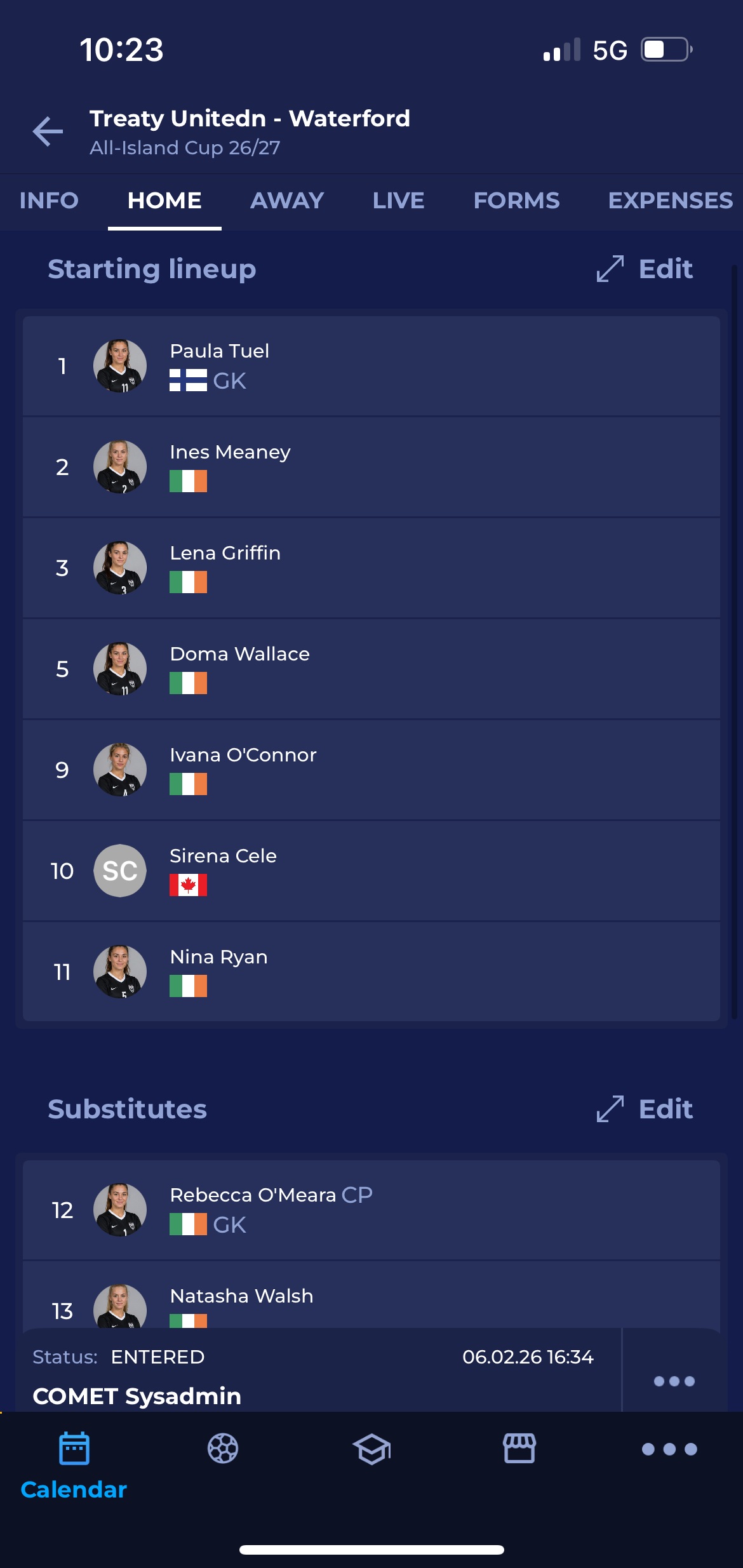
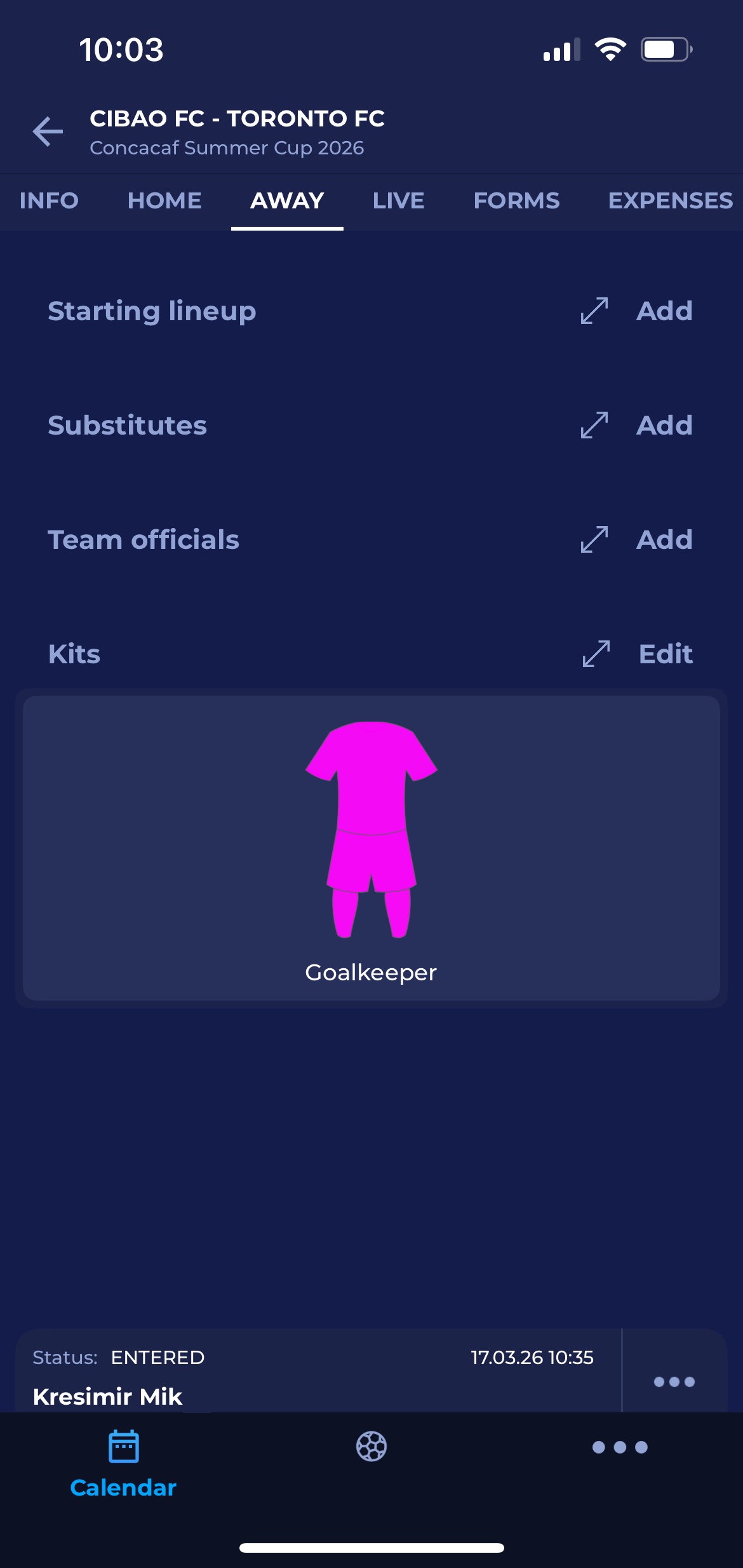
To create or edit the team lineup, tap Add next to Starting lineup, Substitutes, or Team Officials.
Starting Lineup
You will then see a list of your Available players. You can filter out the list of available players by using the Search bar.
After selecting one or more players for the lineup, tap the plus button to add a player to the Starting lineup.
-20260428-083939.jpg?cb=24694ad4e45cb29491aff0bae6ac9f95)
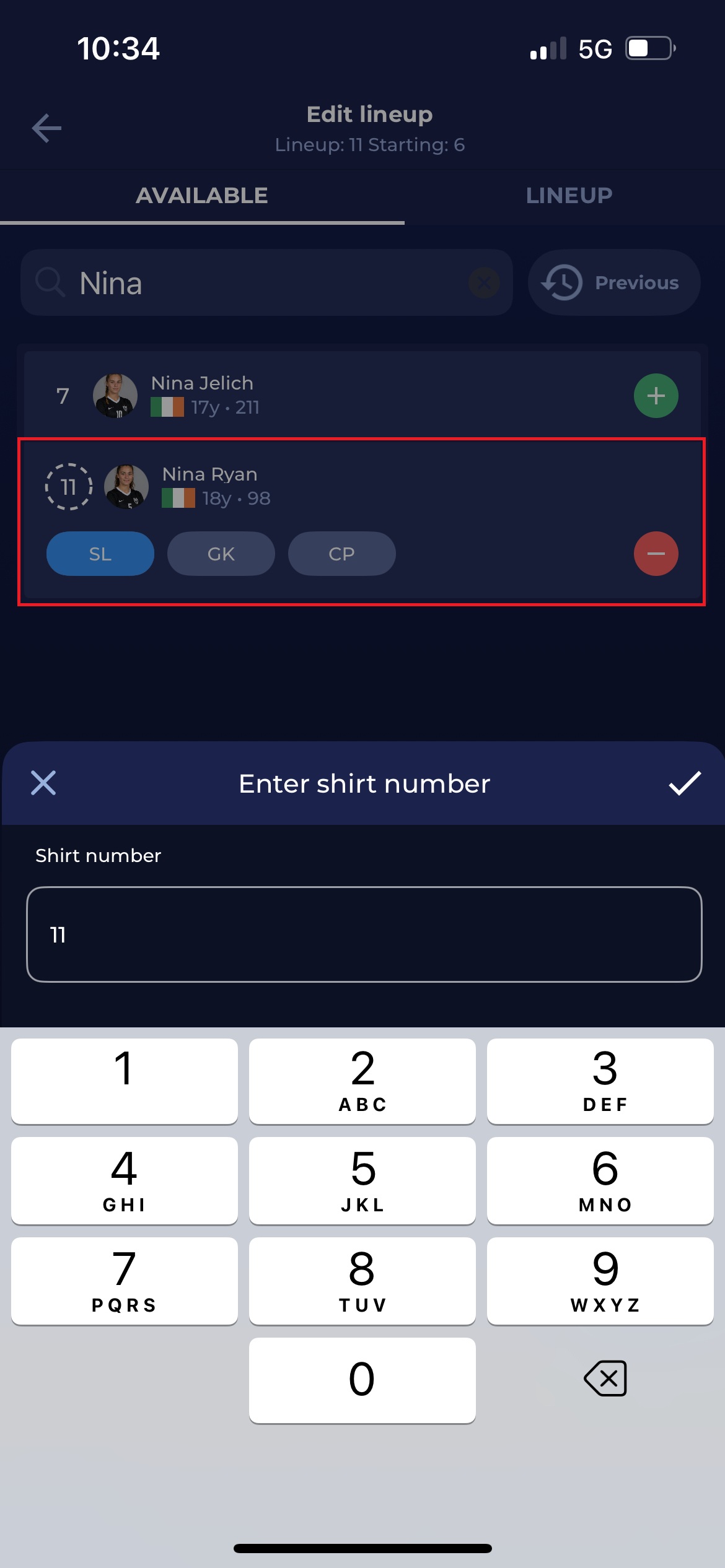
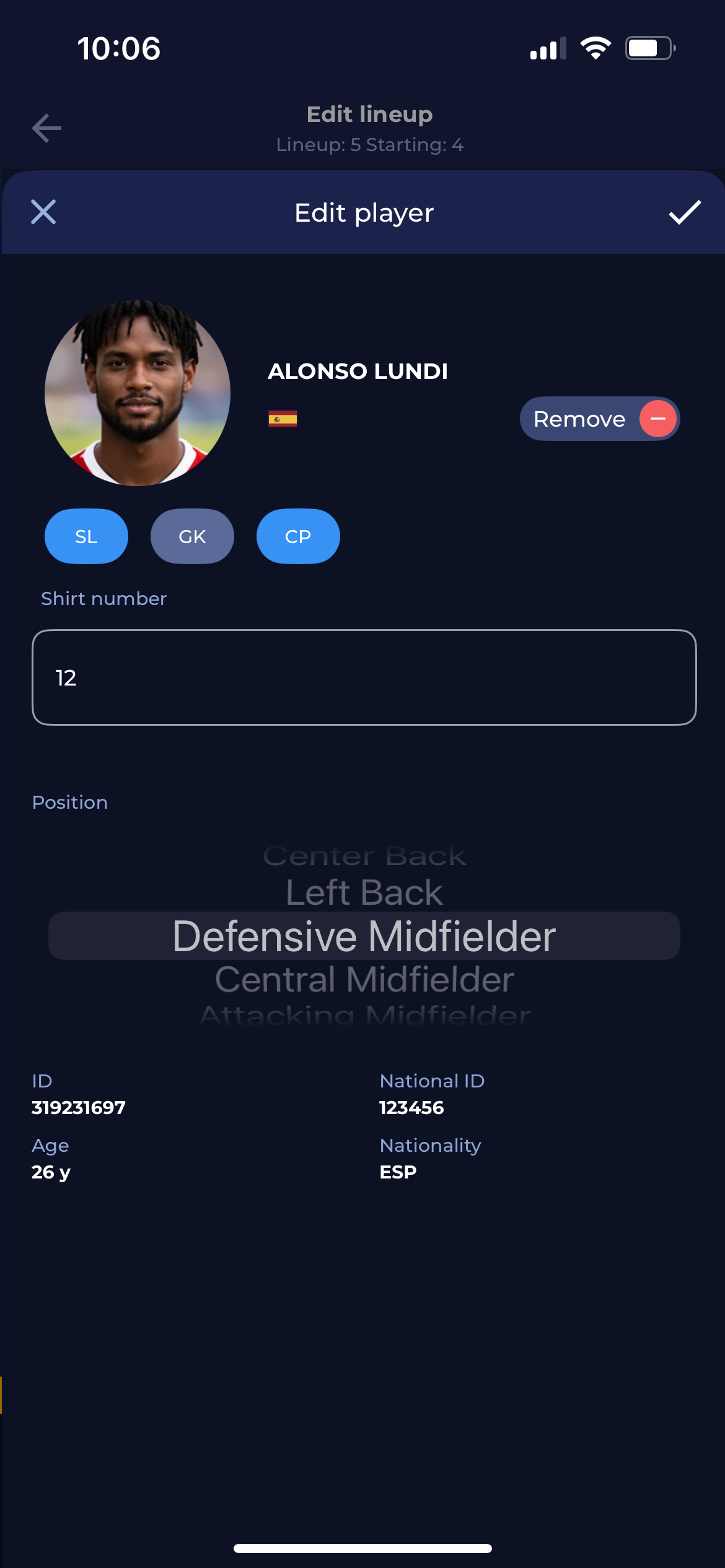
When adding a player to the lineup, you'll have the option to mark a player as a Goalkeeper (GK), Captain (CP), or to indicate that the player is added to the Starting Lineup (SL) or that the player entered the game (PL) if flying substitutions are allowed for this competition.
Here, you can also assign a shirt number to your player. Tap the number to the left of the player's picture to enter the new shirt number.
All applicable options for the player should be highlighted in blue. Once you have selected all the players for the starting lineup, tap the blue checkmark to save the lineup.
Previous button
You can copy the lineup from the previous match of that team in that competition by clicking the Previous button (top right) on the list of Available players.
A click on that button automatically selects players from the previous match and appoints them the same roles (captain, goalkeeper) and starting positions (starting lineup or substitution).
Copy from Previous Round feature works with Static/Predefined team official roles. Those roles added dynamically for a specific match are not copied over.
If any player from the previous match is marked red due to disciplinary sanctions, they will be unable to be added to the lineup for this match and will not be selected when the Previous button is clicked.
Active sanctions
Players with active disciplinary sanctions are marked in red and blocked from being added to the line-up. A tap on a player’s name displays the sanction in question.
Substitutes
Return to the team tab, and tap Add next to Substitutions. Repeat the same process for adding the substitutes.
Editing Lineups
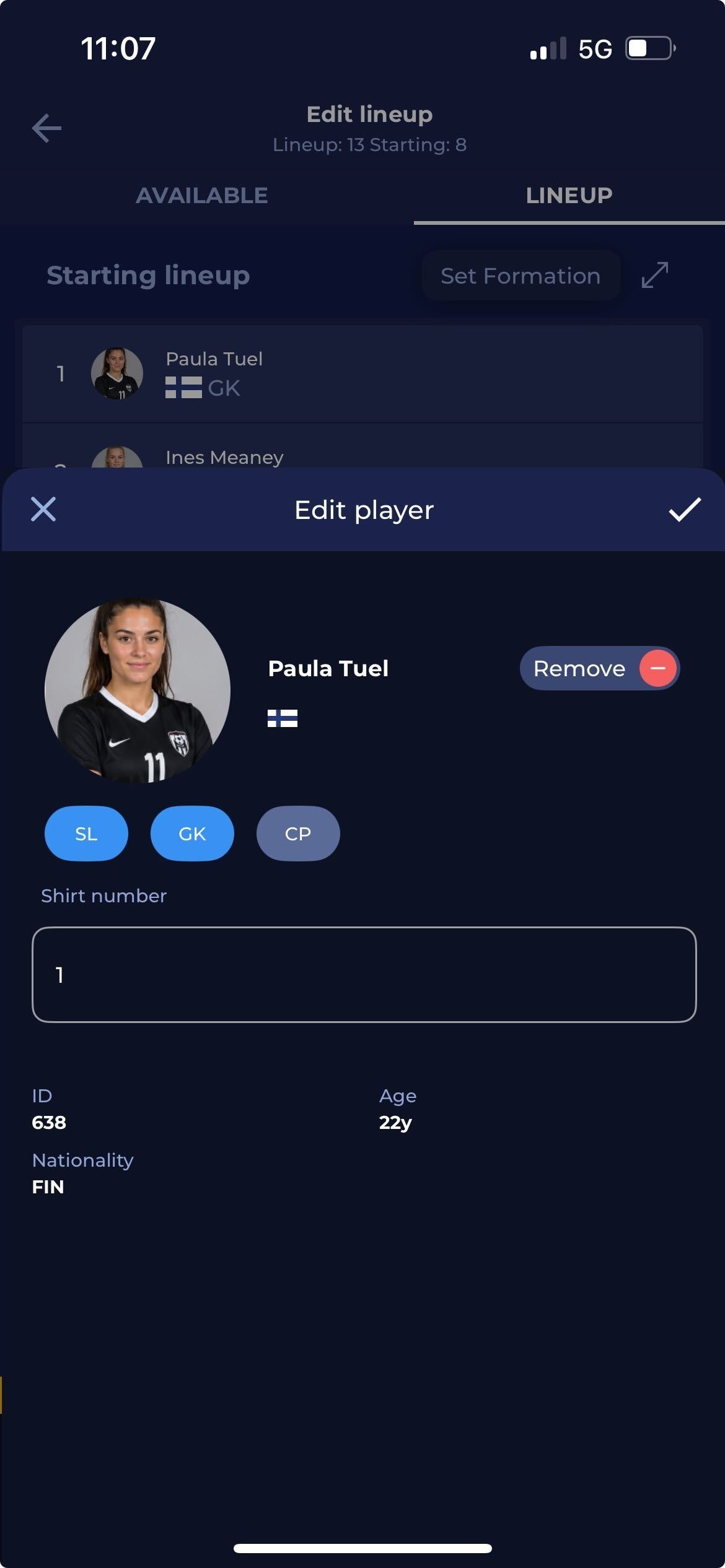
If you need to edit the lineup by removing the players from the list or simply updating their shirt number, tap the Edit button at the top right corner of the screen, swipe left to Lineup, and tap on the player’s name. You’ll now have the option to edit their status on the match.
If the Tactical Formation has been defined for the team in the match, the Edit player dialog will contain more details available for editing.
The same Lineup tab lets you select and define Tactical Formations, which are explained in detail in the respective article.
Player lineup management is also available in the MyCOMET interface.