
Add Players to Lineup
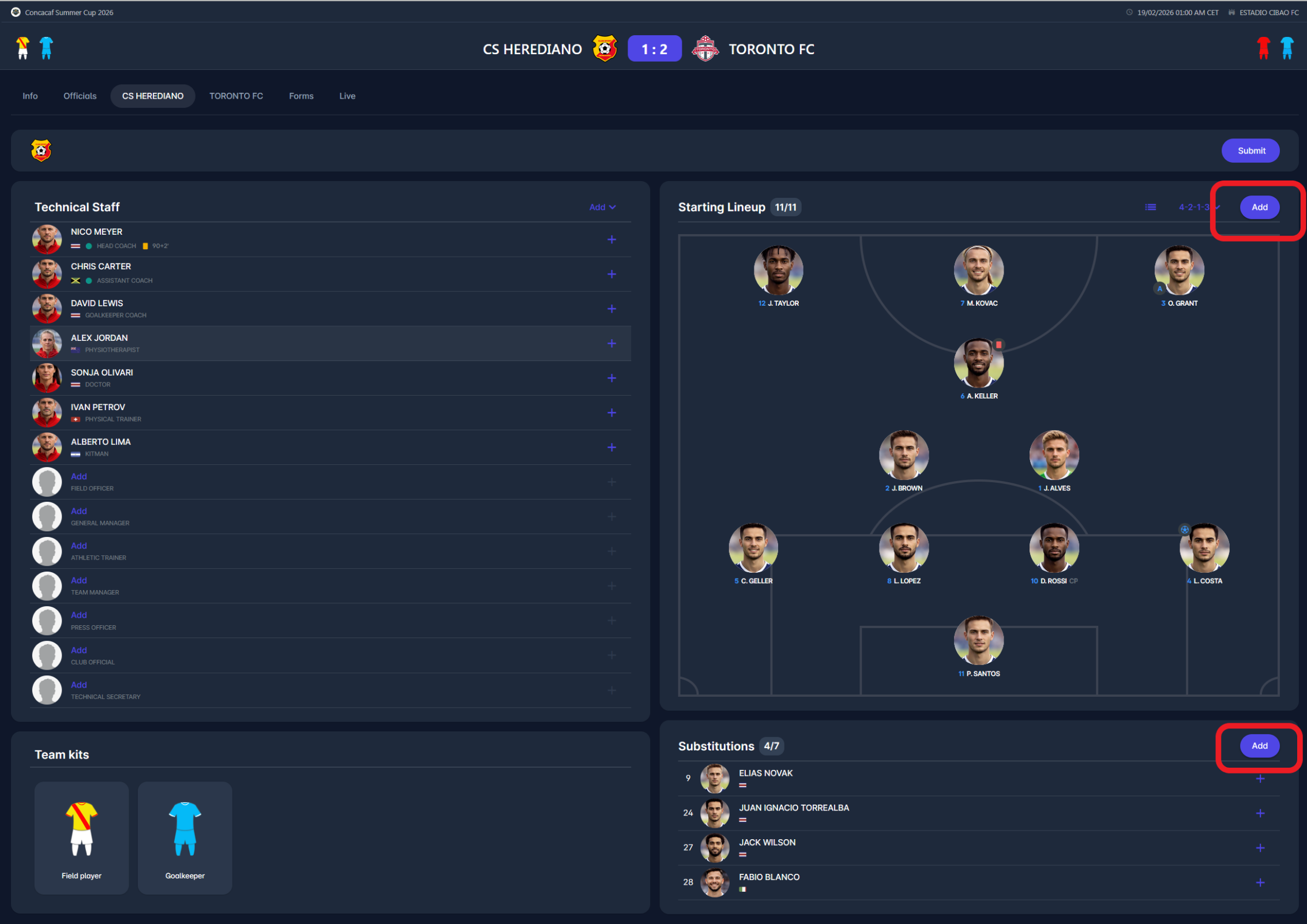
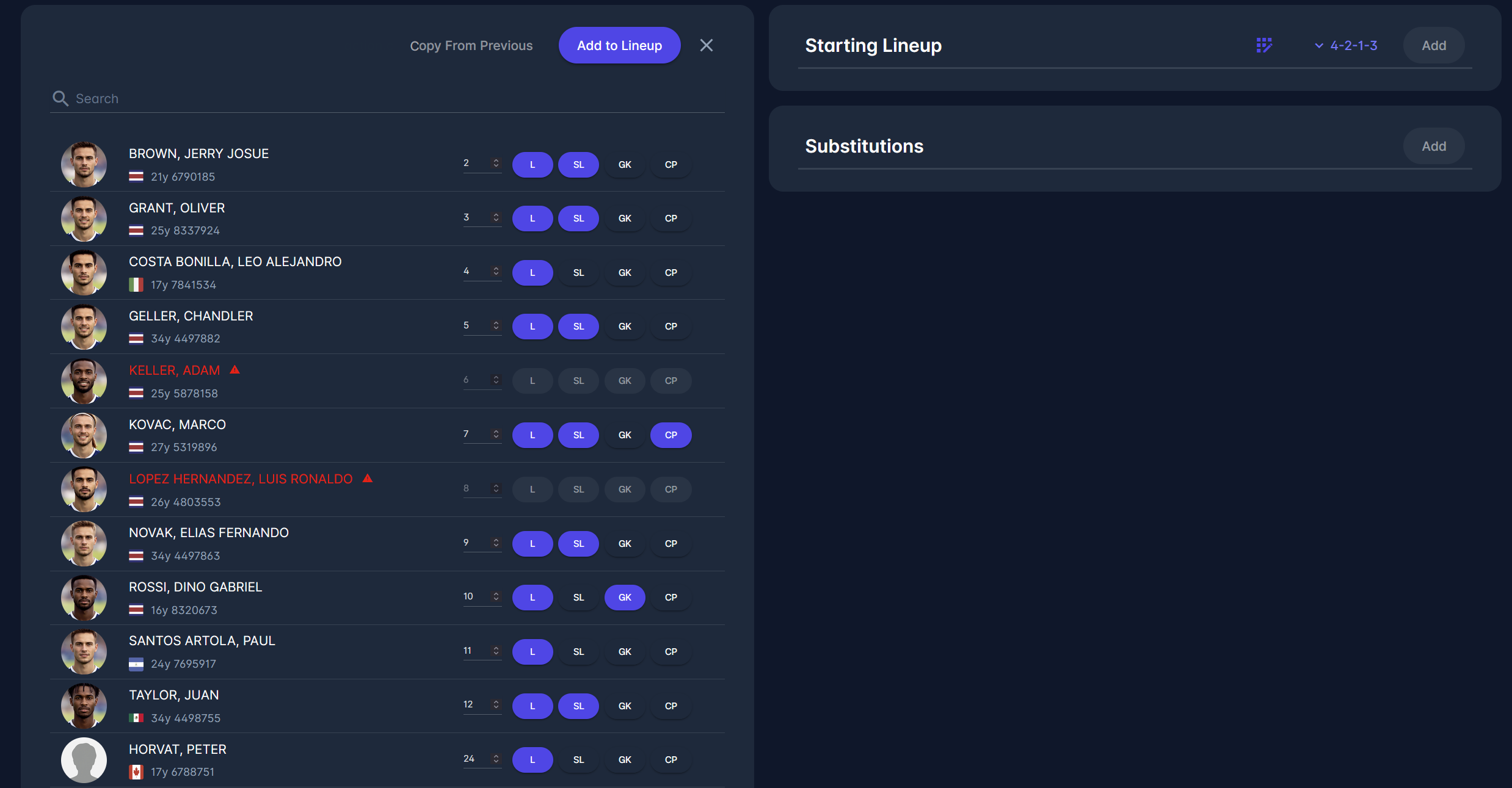
After accessing the Team tab of the Match form, in order to add the players to the team lineup, click the Add button either above the Starting Lineup panel or the Substitutions panel (marked red in the screenshot below, on the right side).
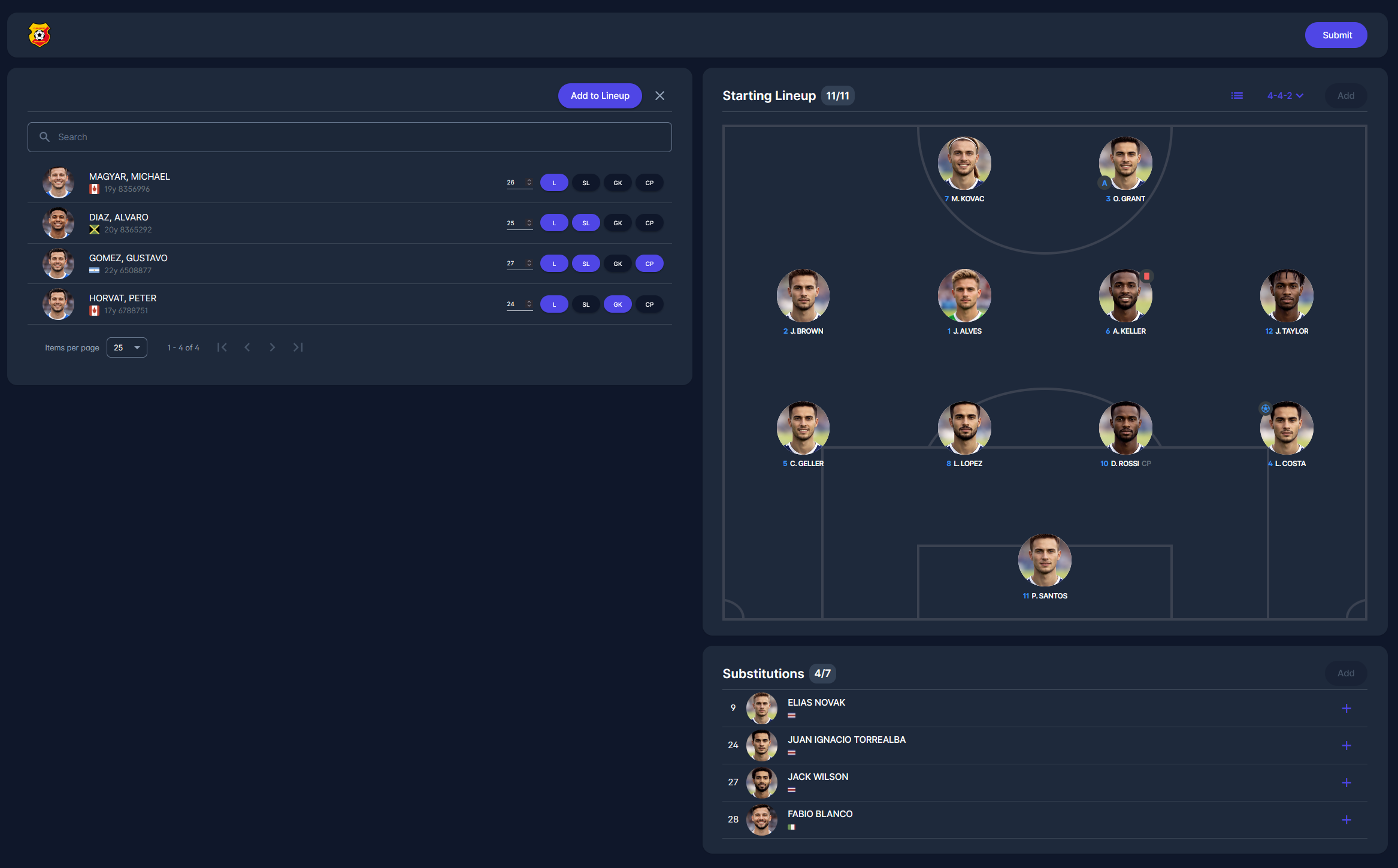
Now the list of available players will show on the left side. Select the players for the match from that list, marking the corresponding fields on the right side of the player's name. It is possible to select the following fields (use the arrow button)
-
L (if the player is in the line-up),
-
SL (if the player plays in the starting line-up),
-
GK (if the player is a goalkeeper),
-
CP (if the player is a captain).
The list of available players depends on the competition's Catalogue Restriction Level. If it is set to Mandatory, or to Optional and at least one player is in the roster, only players from the team's Competition Roster are available.
A Captain must be part of the Starting Lineup. The only exception is competitions with Flying Substitutions enabled (typically used in Futsal and Beach Soccer), where the Captain can also be entered as a substitute.
-
Before you move the players to the lineup, you need to enter their shirt numbers (without them, it won't be possible to transfer them). It is mandatory to have at least one player in Starting Lineup designated as a goalkeeper.
-
Players with active disciplinary sanctions are marked in red, and blocked from being added to the line-up.
-
Players with set unavailabilities for the match date/time are also marked red, but they are not blocked from being added to the line-up.
-
After you have marked all necessary players, click the Add to Lineup button (located at the top-right of the list of available players, next to the "Refresh" button).
-
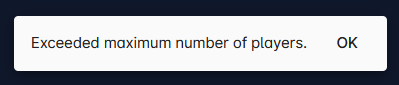
If the selection is valid and complies with competition settings, the checked players will be added to the lineup. Otherwise a validation message will be displayed.

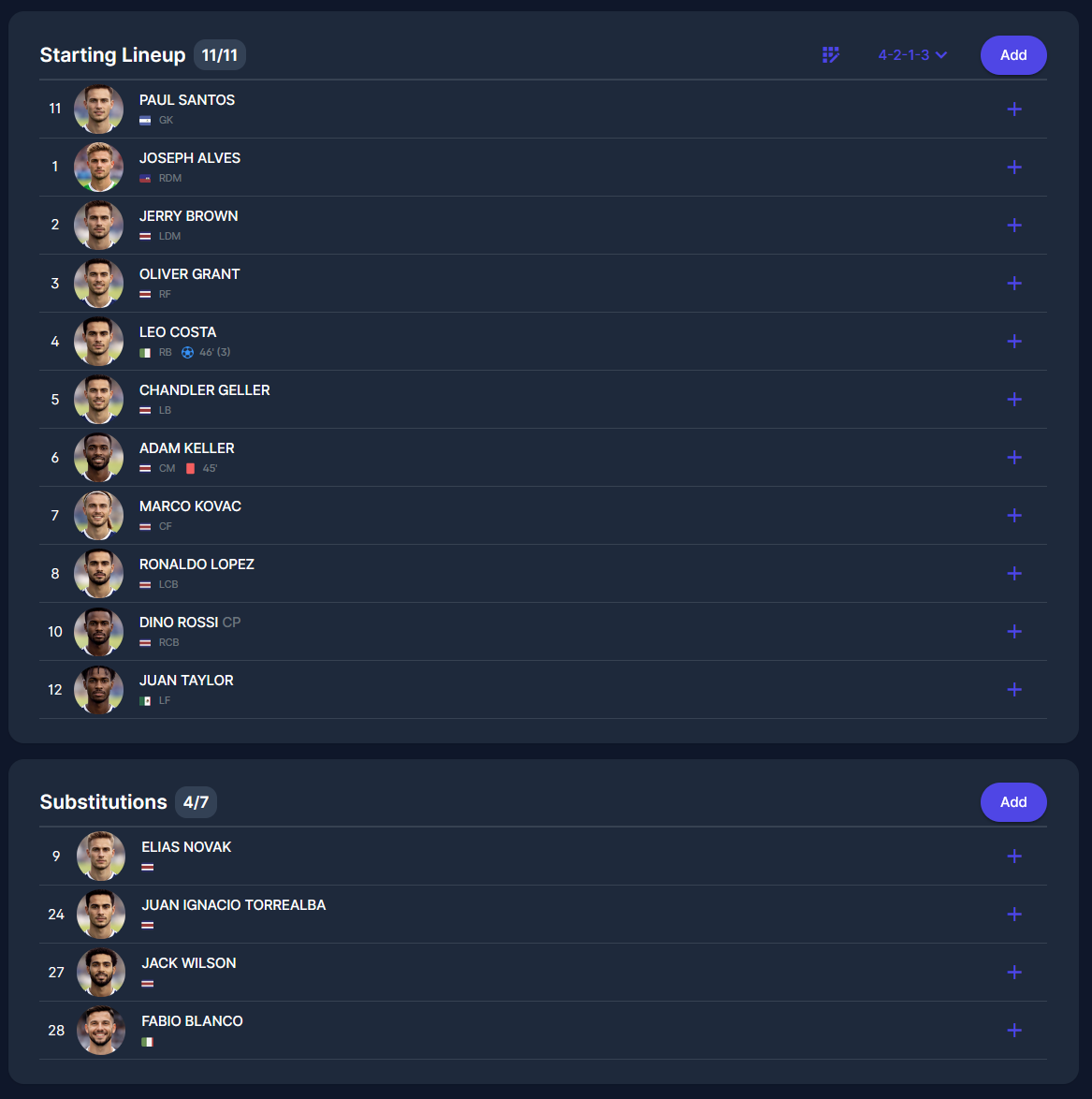
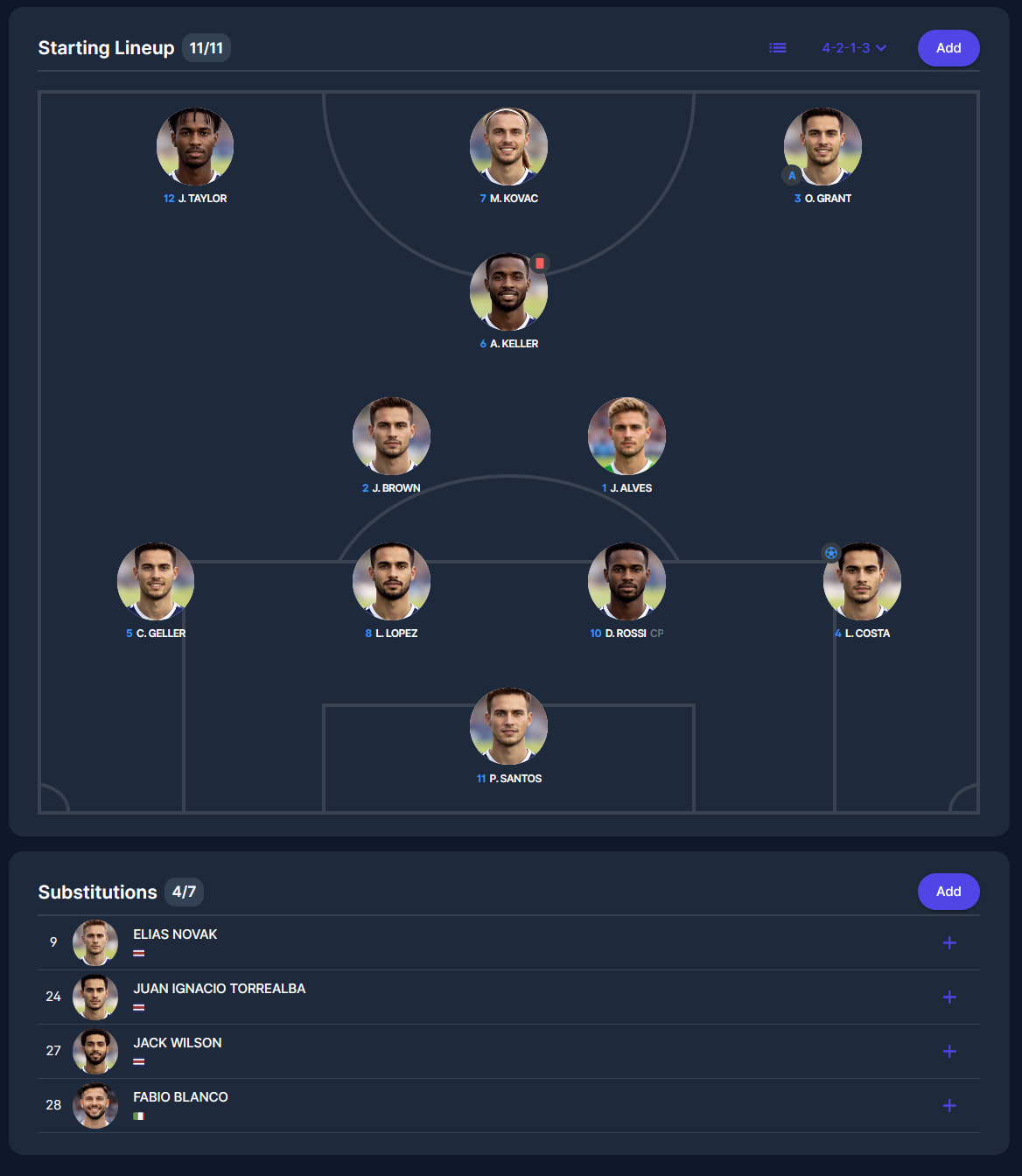
If the player is in the Starting Line-up, the following previously determined features will be visible:
-
shirt number
-
nationality of the player
-
name of a player,
-
if the player has a specific role, like captain or goalkeeper, it will be visible right to their name
-
player's position in formation (if defined)
-
the events occurred during the match.
After you define a tactical formation, you can preview the starting lineup in list view or in formation view. You can change the view by clicking on the icon found at the top of the Starting Lineup panel.
List view is the default view when formation is not selected, whereas Formation view is the default view when formation is selected.
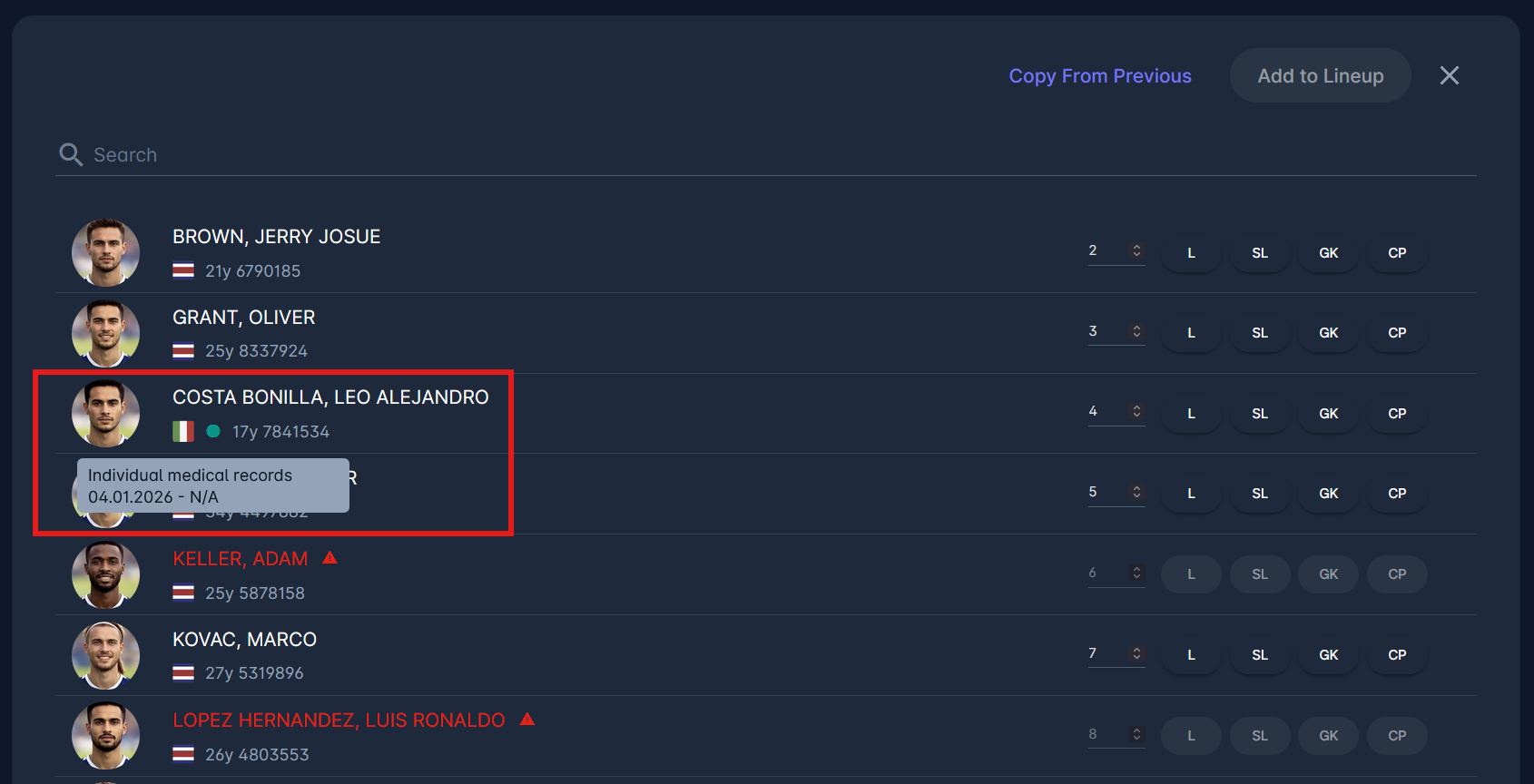
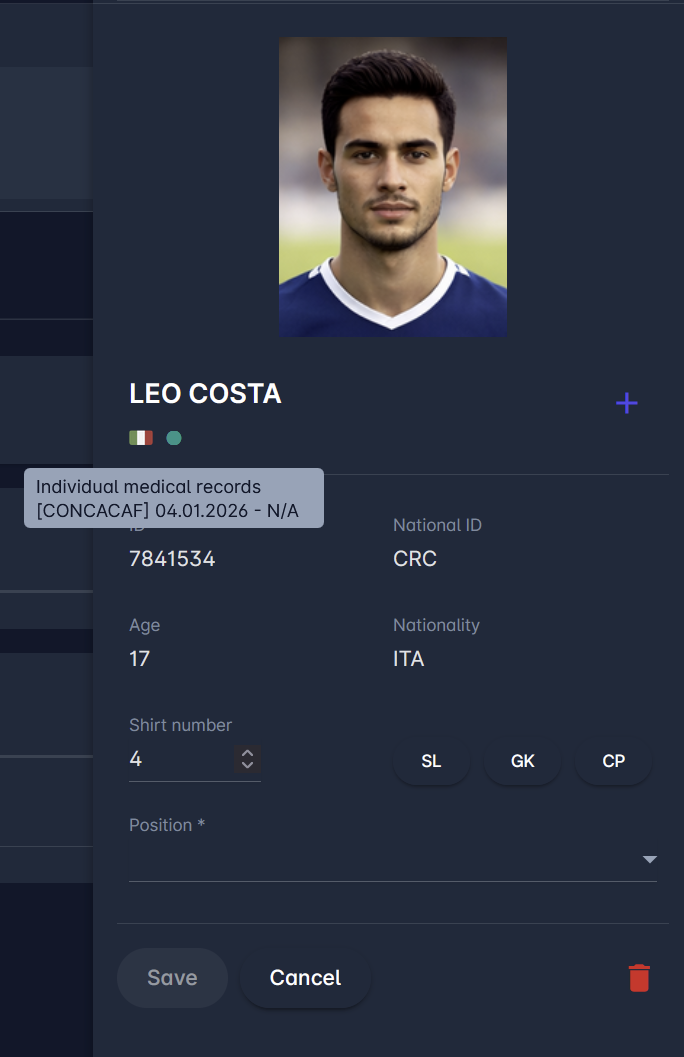
When adding a player from the Available Players panel or when on a player detail panel, if a person holds a license set to be highlighted in the Admin app, the license will be visible under their name, with the details displayed on hover over the highlighted dot.
To learn how to add players to the lineup from the COMET Football Mobile Apps, please see the following article: Team Lineups
Copy From Previous
You can copy the lineup from the previous match of that team in that competition by clicking the Copy From Previous button (top right) on the list of Available players.
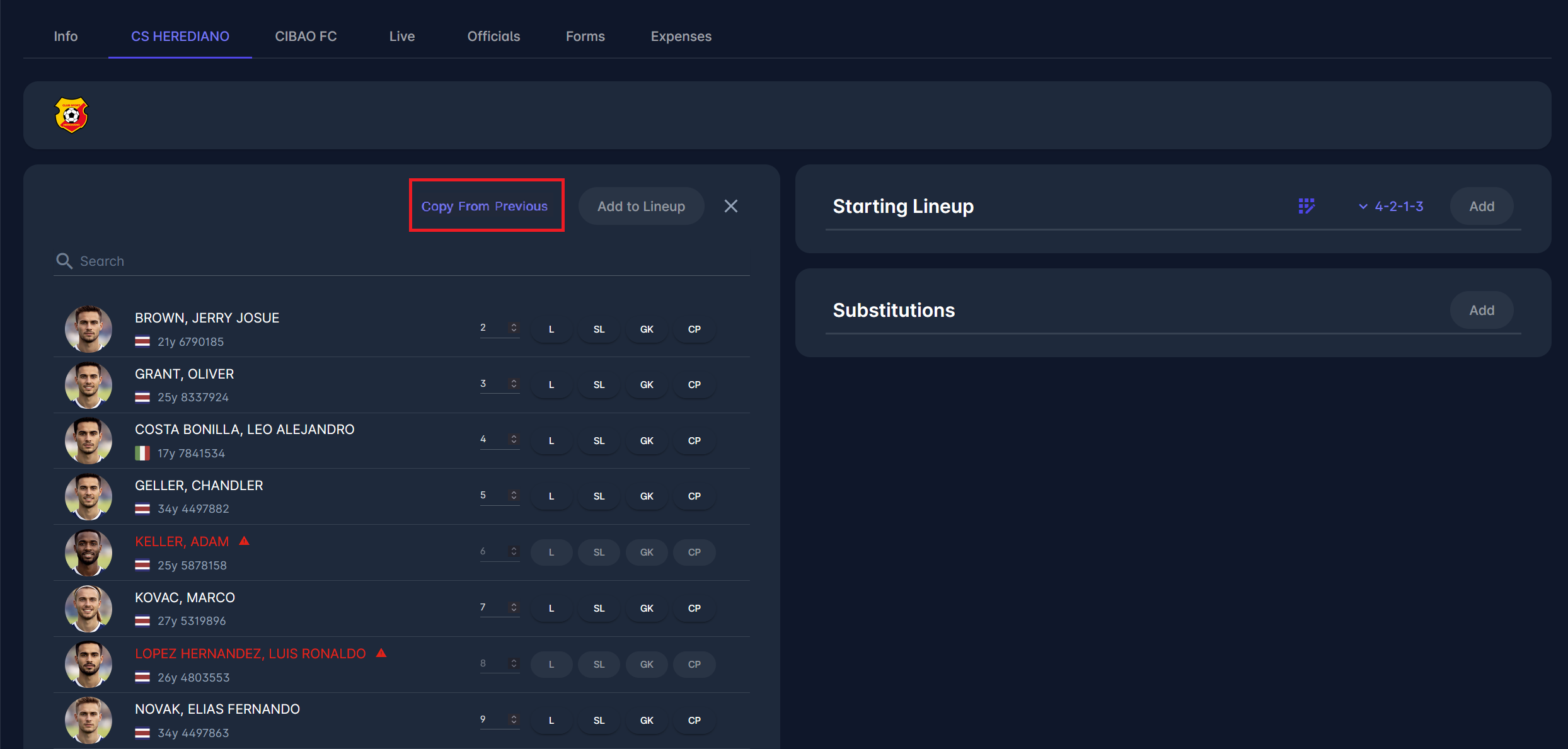
A click on that button automatically selects players from the previous match and appoints them the same roles (captain, goalkeeper) and starting positions (starting lineup or substitution).
If any player from the previous match is marked red due to disciplinary sanctions, they will be unable to be added to the lineup for this match and will not be selected when the Copy From Previous button is clicked.
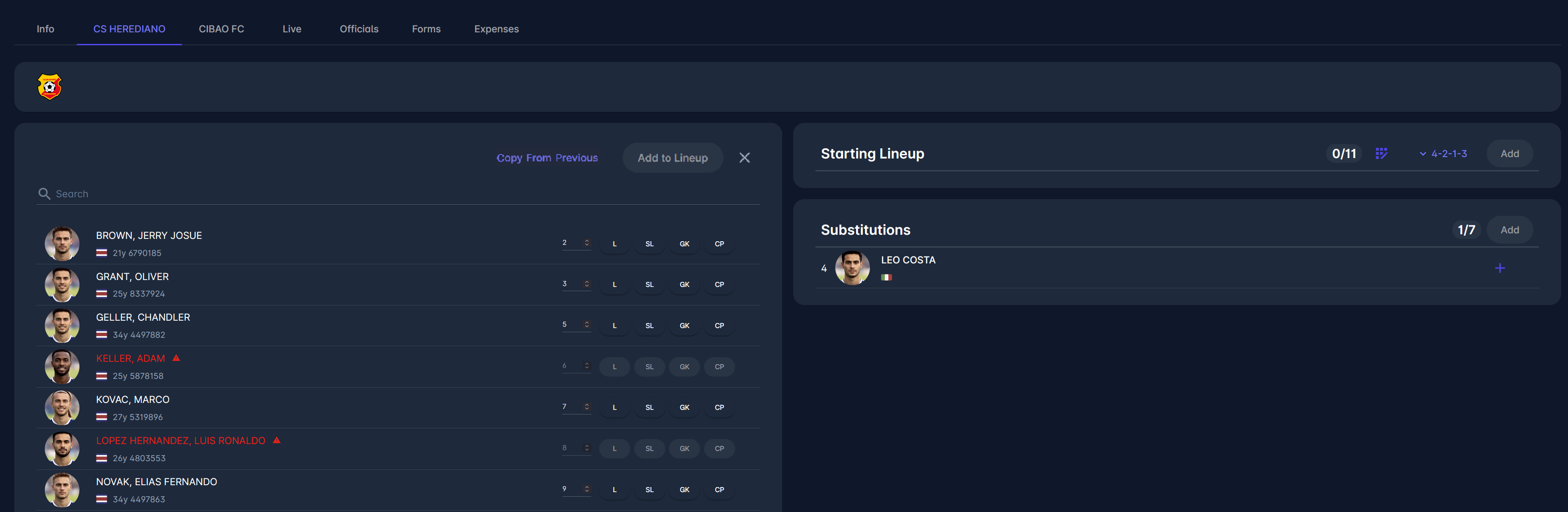
Copy From Previous button is also available when adding Team Officials, as well as in the COMET Football mobile applications.
Details
To view details of a player, click on the player's name.
A player side panel opens, showing:
-
Profile photo
-
Full name
-
COMET ID
-
National ID
-
Age
-
Nationality
-
Shirt number
-
Role in the lineup (starting lineup, lineup, goalkeeper, captain)
-
Position in the tactical formation
From this panel, you can:
-
Add Match Events to a player, using the ➕ icon,
-
Edit their shirt number, role in the lineup, and position in the formation, or
-
Remove the player (by clicking on the trash icon and later confirming your action)
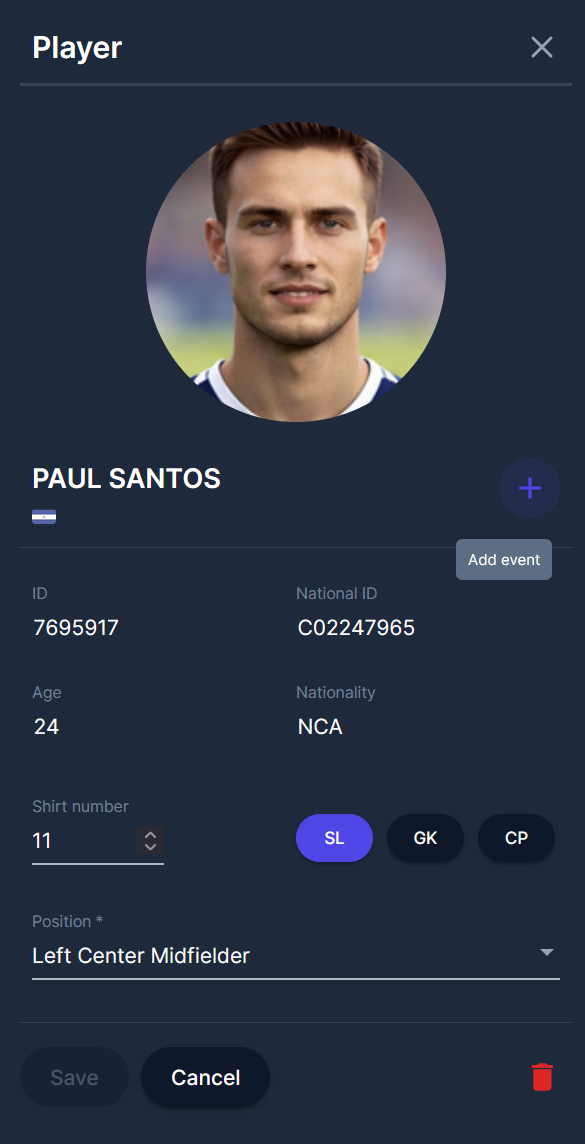
There is a tenant-level system parameter Show Nationality defining whether the nationality flag under the person's name is shown a) for all persons, or b) for foreigners only, or c) not at all. To change the value of this system parameter, please submit a support ticket.
Managing player lineups can also be performed through the COMET Football mobile apps.