
Tactical formations can be optionally defined during the lineup entry process, and each player in the starting lineup is then assigned to a position in the formation. The formation can be rendered both with player photos and with shirt numbers, depending on preference of the user. This article describes steps to select the formation and assign players to positions.
Select Formation
After you have defined all the required players for the starting lineup, you can proceed to selecting a formation.
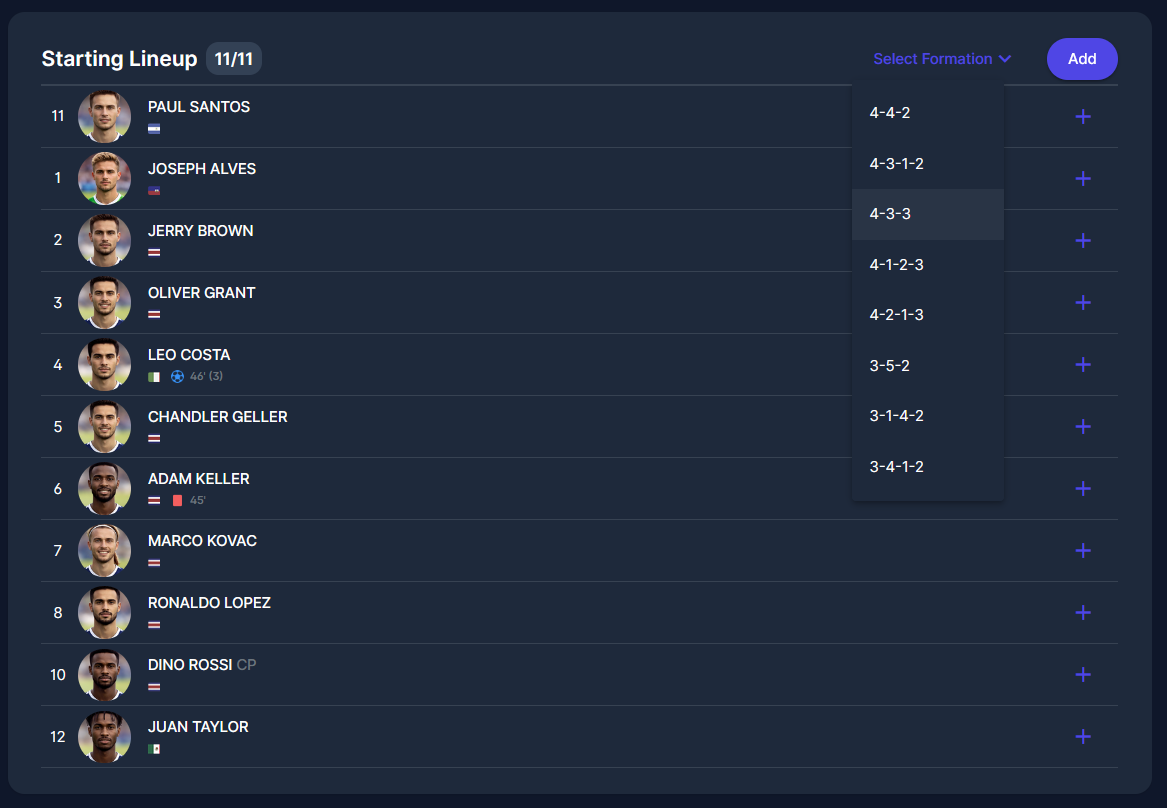
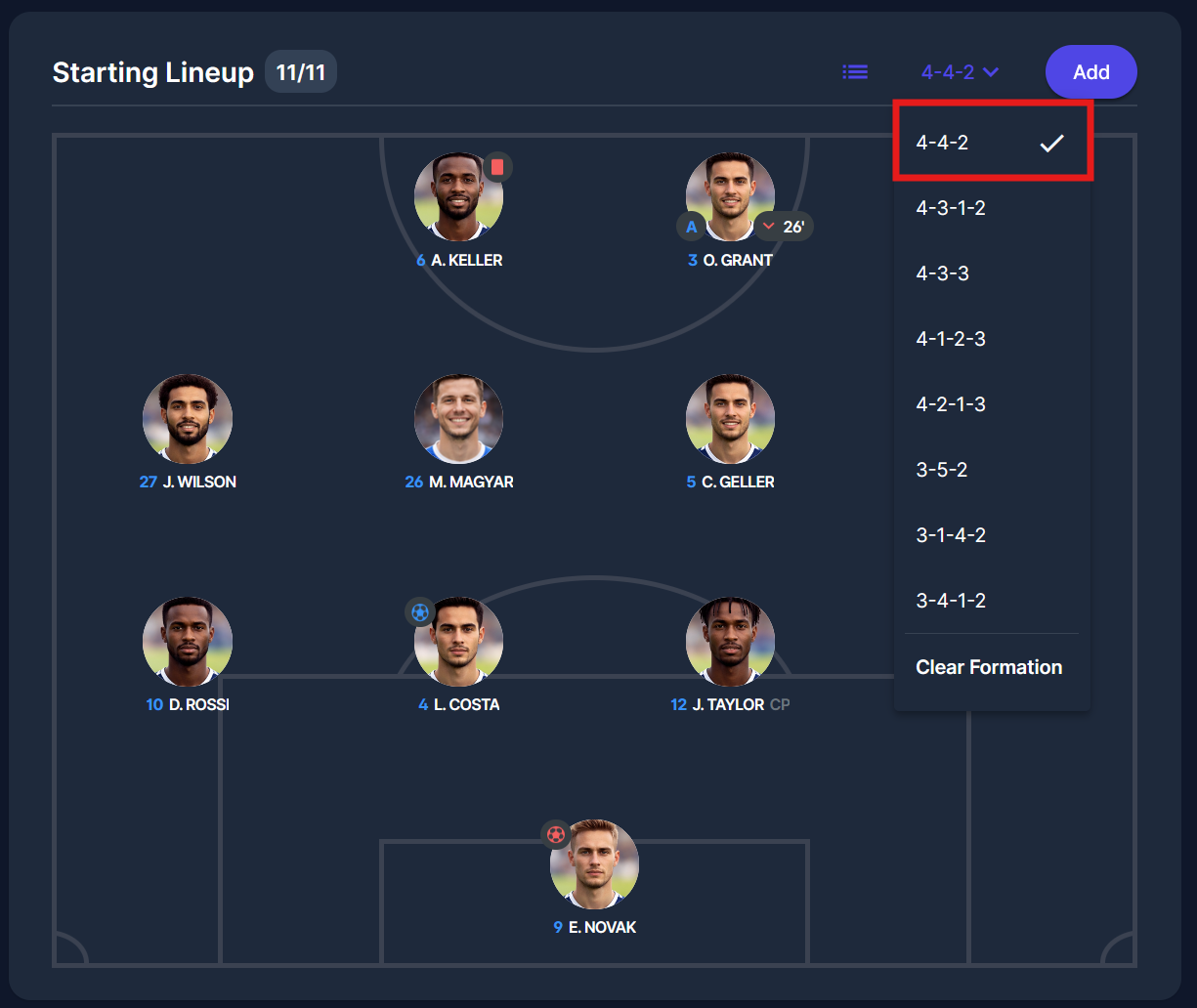
To select a formation, click on the Select Formation button at the top of the Starting Lineup panel.
Clicking this button opens a drop-down that displays a list of available formations for the number of players on the field defined in the competition.
The formation used in the last match will be at the top. After you select the formation, it will be saved immediately.
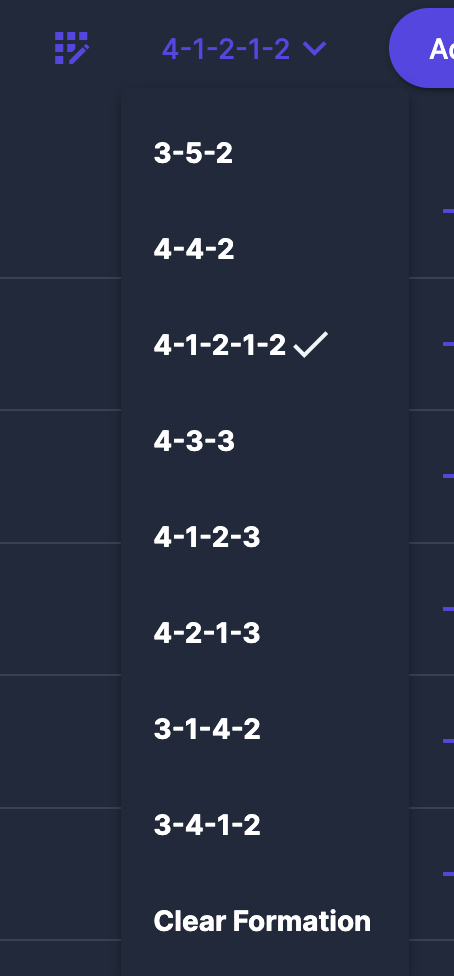
When a formation is selected, the selected formation is shown on the button, and to the left is a switch between Formation and List view. Selected formations have a check next to them in the expanded list, and at the bottom is a Clear Formation option.
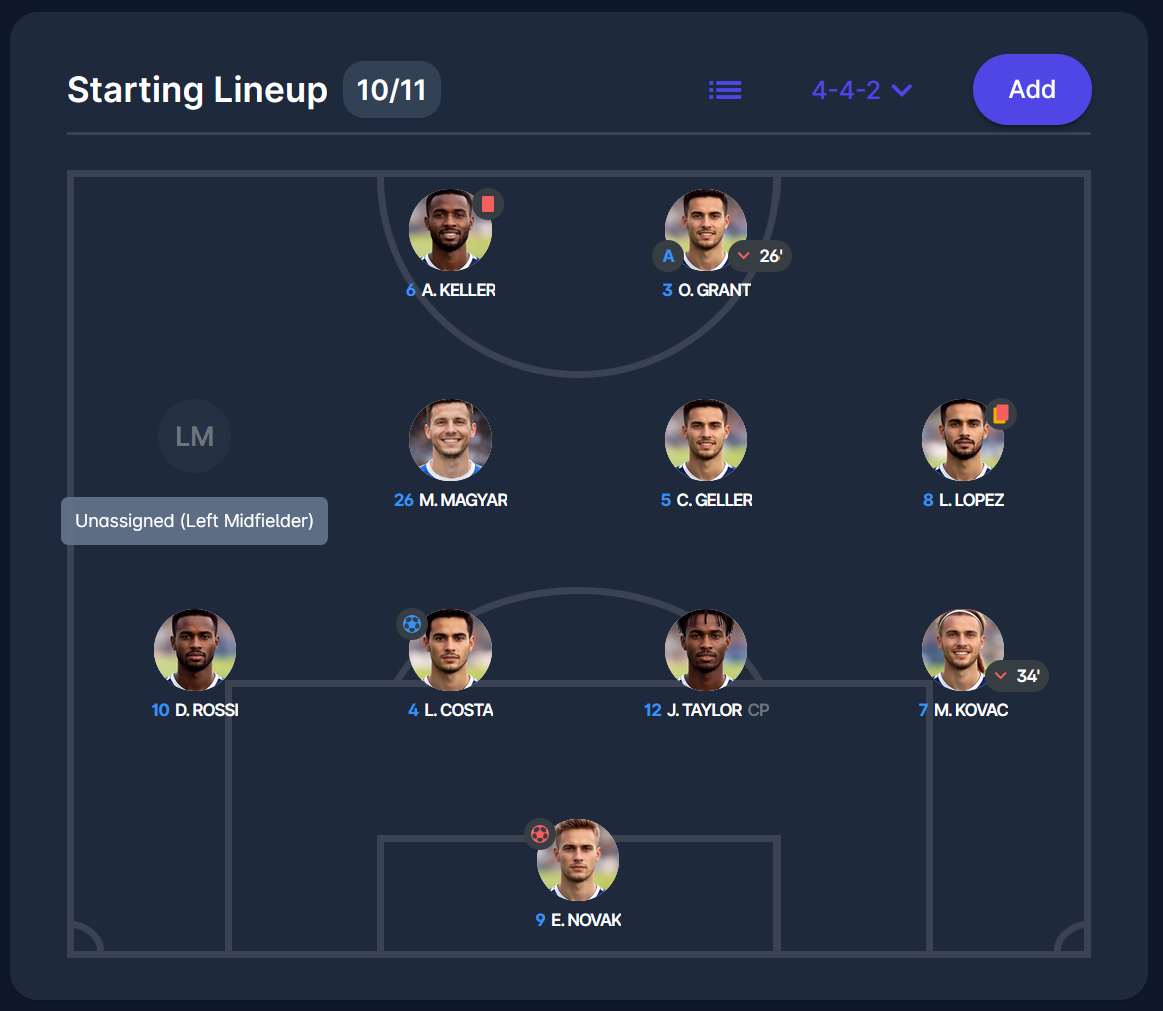
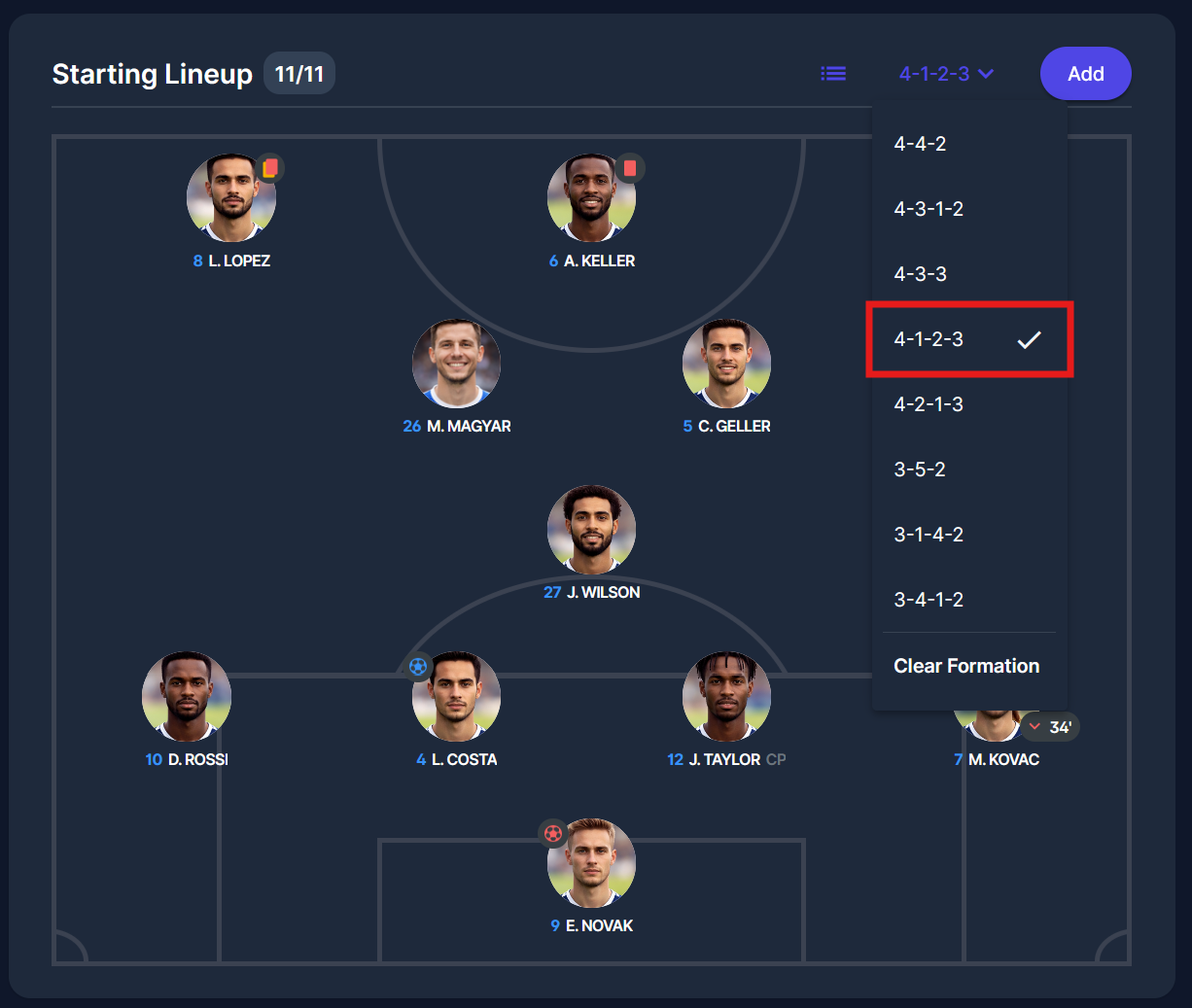
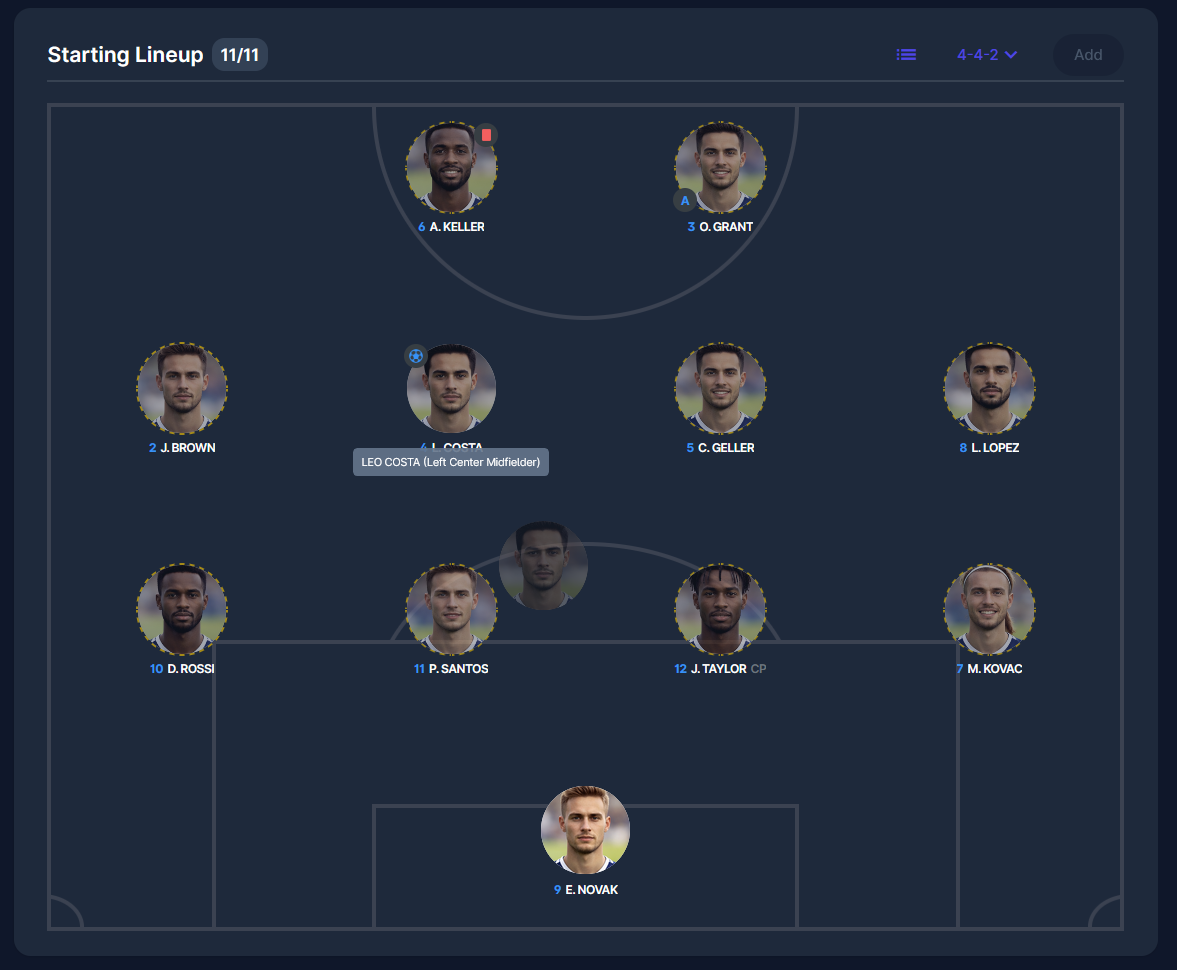
When formation view is selected, the starting lineup panel displays the pitch with each player in its selected position on the field.
When a player has a picture, it will be displayed; if he does not have one (or an error occurs while displaying it), the default player pawn picture will be displayed.
When hovering over the picture, the player’s full name and position will be shown in a tooltip.
If a position is not filled (the starting lineup contains fewer than 11 players for football or fewer than 5 players for futsal), the position circle will display the position's short name, and hovering will show a tooltip with “Unassigned” and the position’s name.
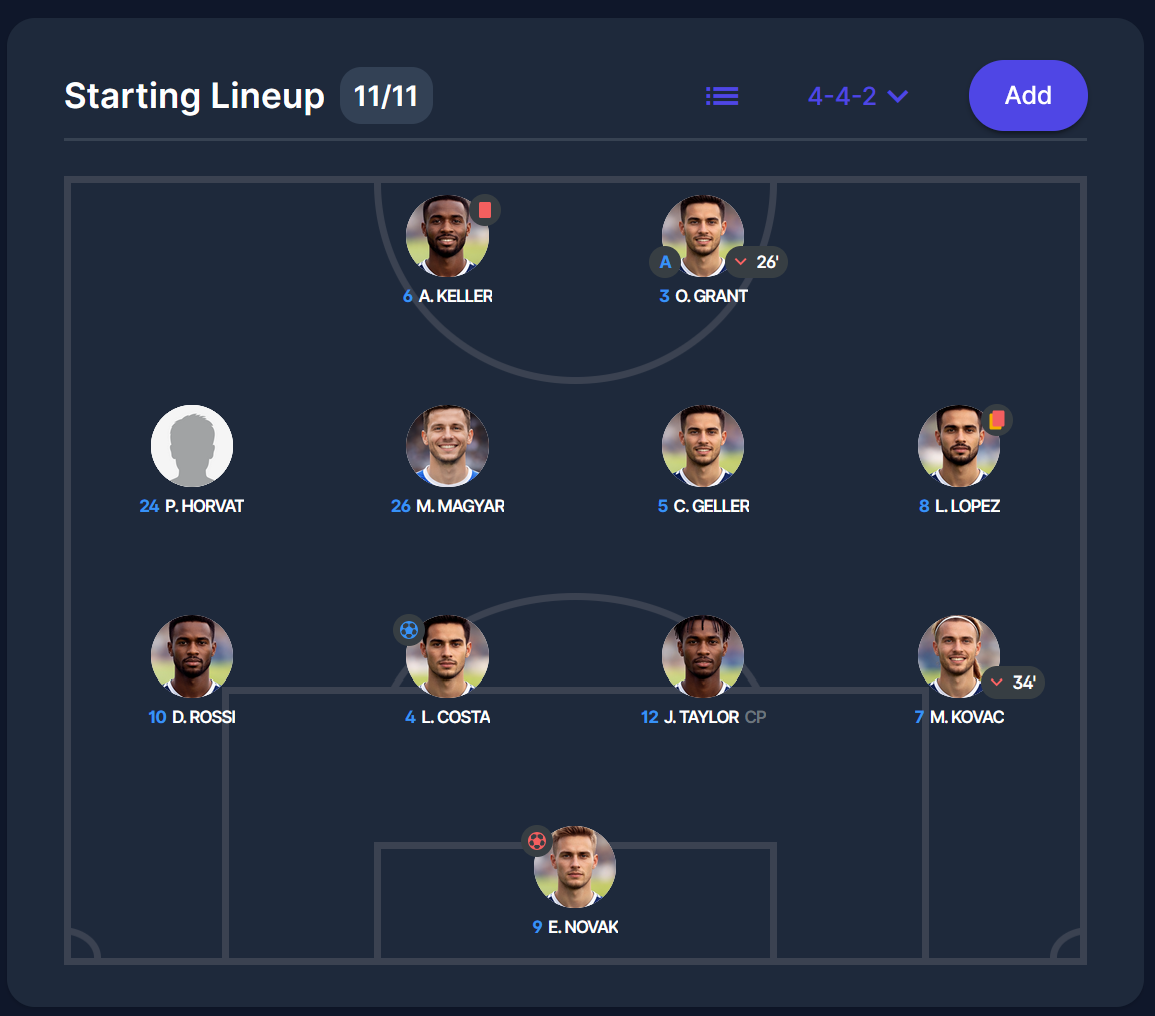
If a player does not have a profile or registration photo in the system, a default placeholder silhouette is displayed instead (as shown for P. Horvat in the example above).
If you change the formation after the lineup has already been set, the players will automatically be rearranged on the pitch to match the structure of the newly selected formation. The same players remain in the lineup, but their positions adjust to fit the selected tactical layout.
Update Player Position
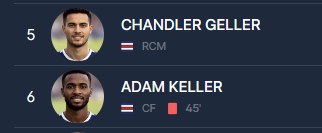
The player’s position in the formation is displayed with the position abbreviation below his name in the lineup list view, and with a full position name in the player's edit dialog. As mentioned in the sections above, this dialog is opened by clicking on a row containing a player’s name and details.
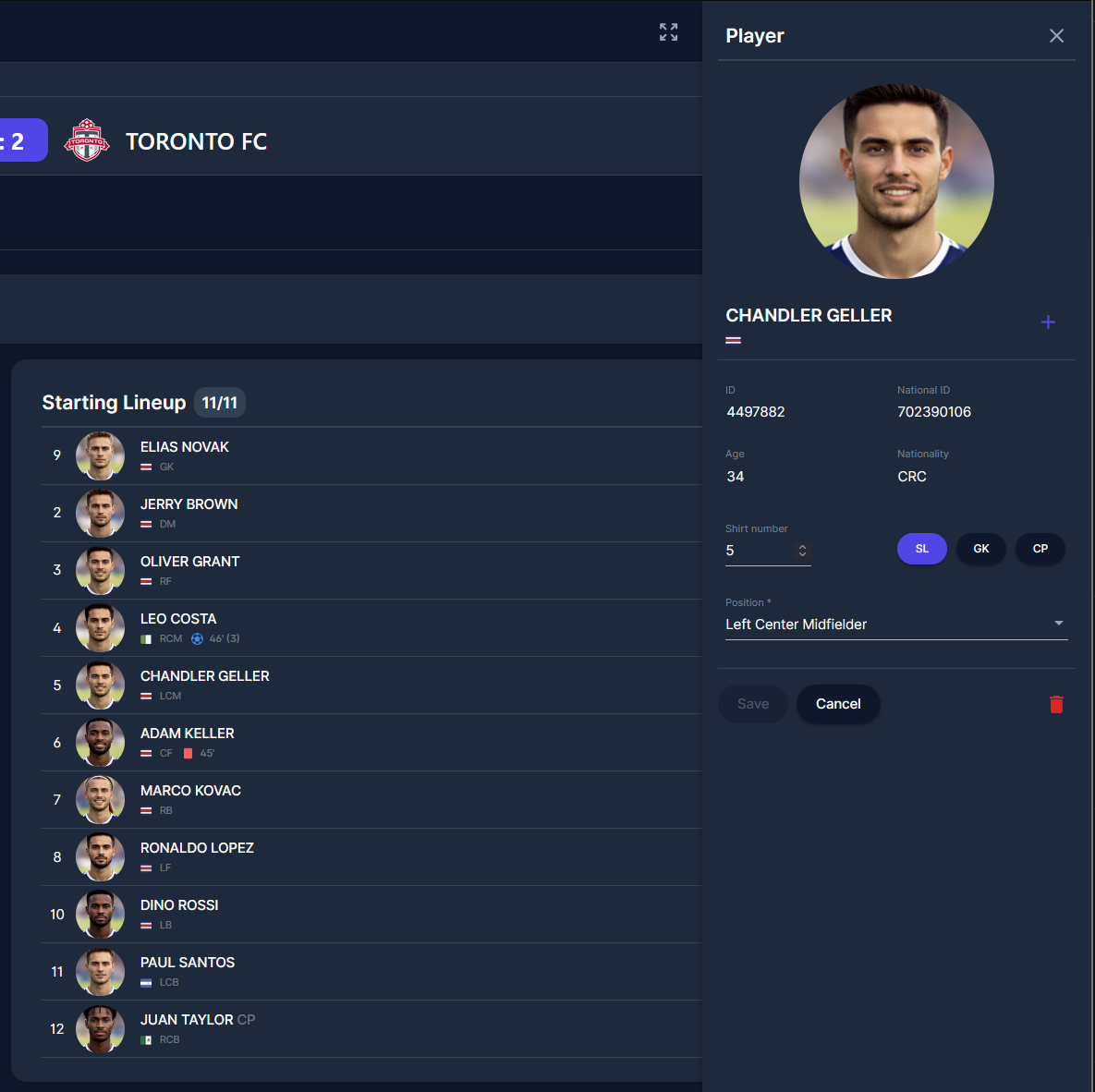
To change a player’s position in the formation, click on the Edit button and then on the Position dropdown. This dropdown lists all positions in the formation.
Position options in the dropdown vary depending on whether a position is free (no player is selected for it) or already taken by another player in the starting lineup.
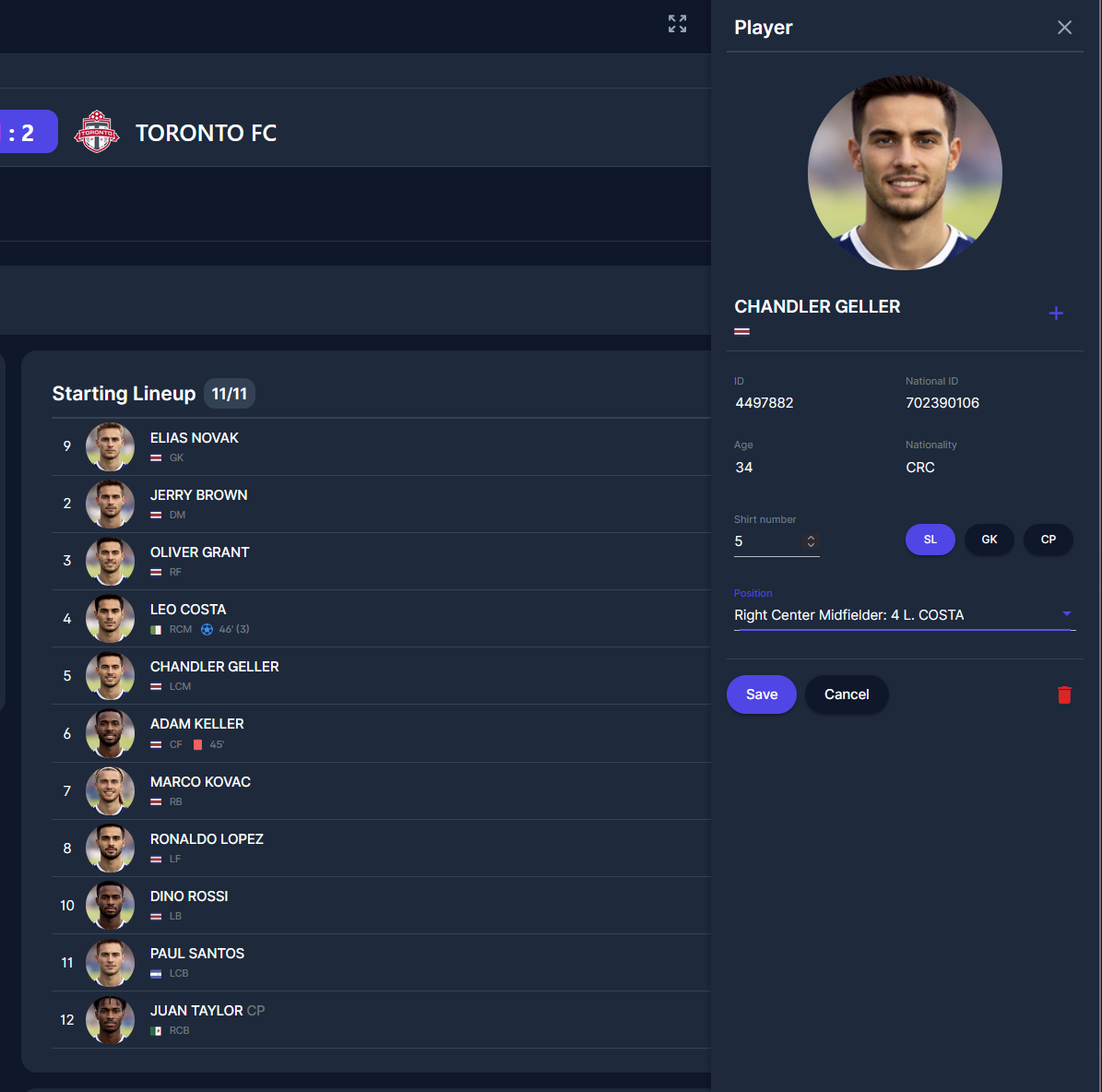
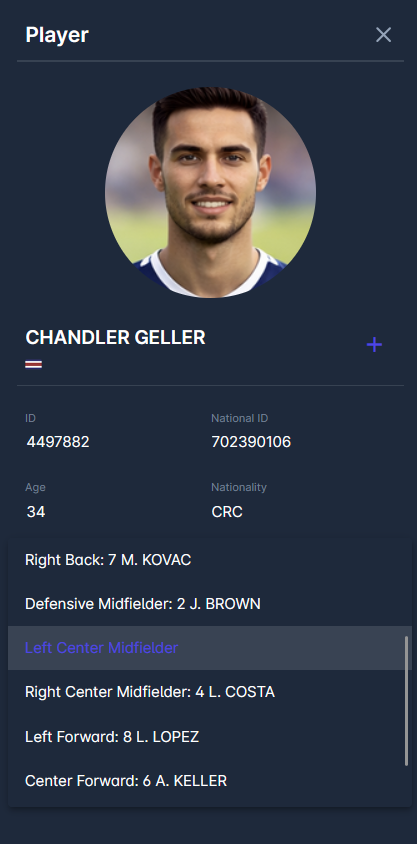
If it is free, it is simply shown as an option, e.g., "Left Defensive Midfielder".
If a position is taken by another player, its option is also shown, but in a different format, e.g., "Right Center Back: 9 O. SANTIS", meaning that player Santis with number 9 is already selected as RCB.
Both options can be selected:
-
if a free one is chosen, the player's position is simply updated to it
-
if a taken one is chosen, a switch of positions is made for both players (the one currently occupying the position, and the player whose position we are updating).
After changing a player's position, but before clicking the Save button in the edit dialog, the changes are already visible in the starting lineups table.
Drag & Drop
Players can be dragged to other positions to change their field positions. A player can be dragged to an empty position or to an already occupied position; in that case, the players will switch positions.
A goalkeeper cannot be replaced by dragging another player to his position; he can only be replaced by a GK switch in the player dialog.
Match Events in Formation View
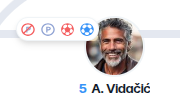
On four sides of the player’s picture, the match events are shown:
-
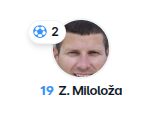
On the left upper side, icons for goals, own goals, penalties, and missed penalties are shown.
-
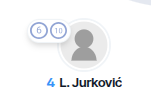
For futsal, the 6m and 10m penalty icons are shown.
-
When the player has more than 1 one of these events. Only one icon is displayed, with the total number of times that event has occurred.
-
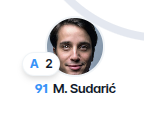
In the left lower side, an icon is displayed for how many times the player assisted a goal.
-
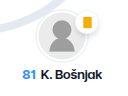
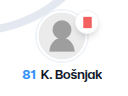
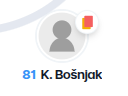
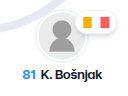
In the top-right corner, icons for the yellow card, the second yellow card, and the red card are displayed.
-
When a player receives a second yellow card, only the double yellow card icon is displayed.
-
When a player who received the first yellow card receives a red card, both icons are displayed.
-
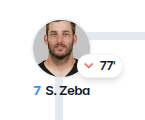
Finally, on the lower right, an icon for the player who was substituted out is shown, along with the minute the substitution occurred.
Formations with player positions can be fetched via COMET LIVE API, and visualized on the COMET LIVE Apps, and on the PDF version of the Start List.
Management of Tactical Formations is also available in the COMET Football interface.