
You can access the New Match Report in any of the following ways:
a) by clicking on any specific match in the My Matches console in MyCOMET
b) by clicking on any specific match in the My Calendar view in MyCOMET
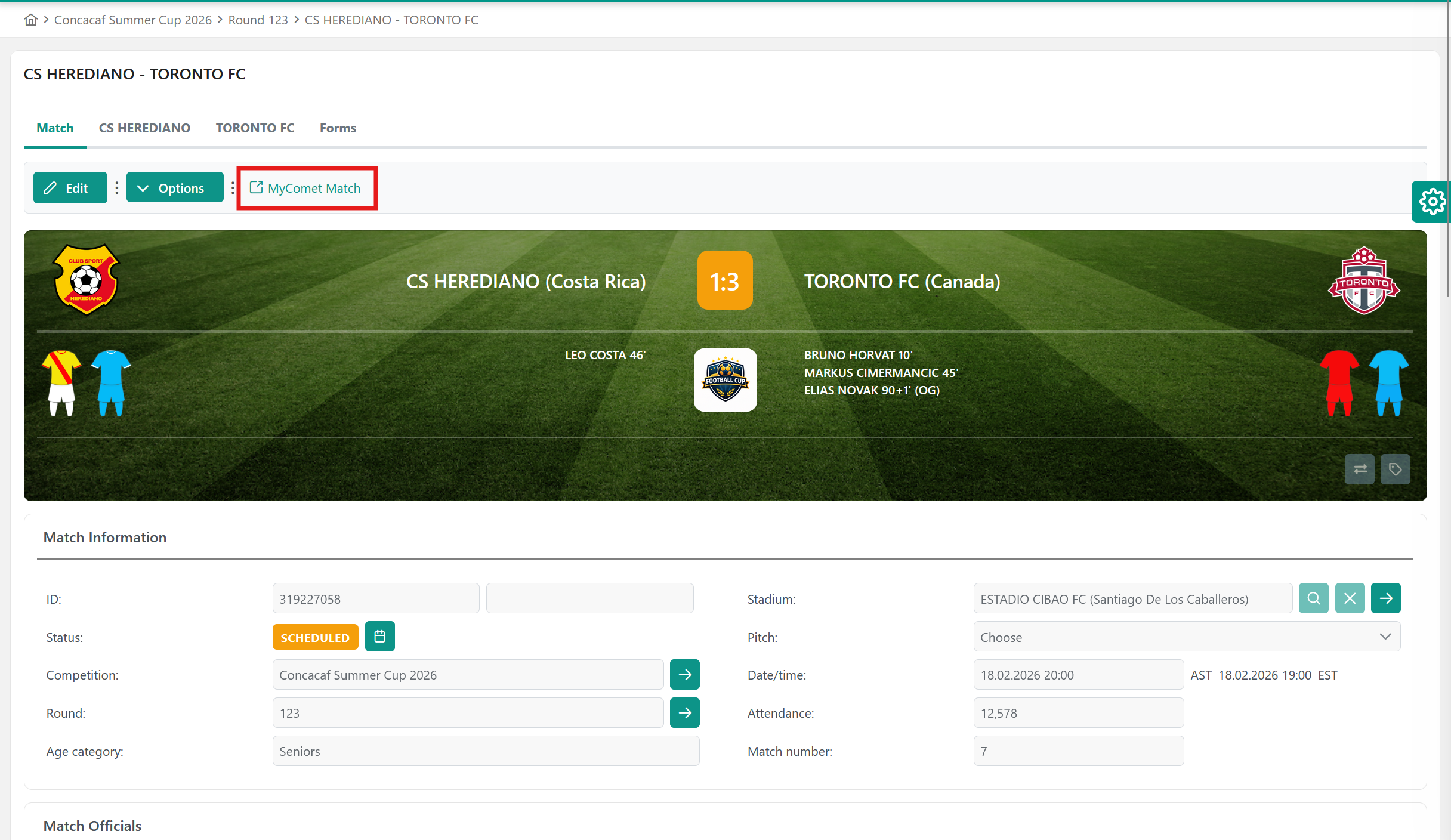
c) by accessing the Match in Legacy COMET UI and clicking on the MyCOMET Match link
After opening the Match form in MyCOMET, you are automatically positioned on the Info tab. The Info panel provides general information about the match status, competition details, location and scheduling.
Header
General information shown in the header:
-
Competition logo and name → shown in the top left corner of the screen
-
Match date and time → shown in the top right corner of the screen
-
Location logo and name → shown to the right of the match date and time
-
Participating clubs → written in the banner above match tabs. This banner features the names and logos of both clubs, along with the chosen kits for players and goalkeepers.
-
Match result → shown at the center of the banner containing information on participating clubs
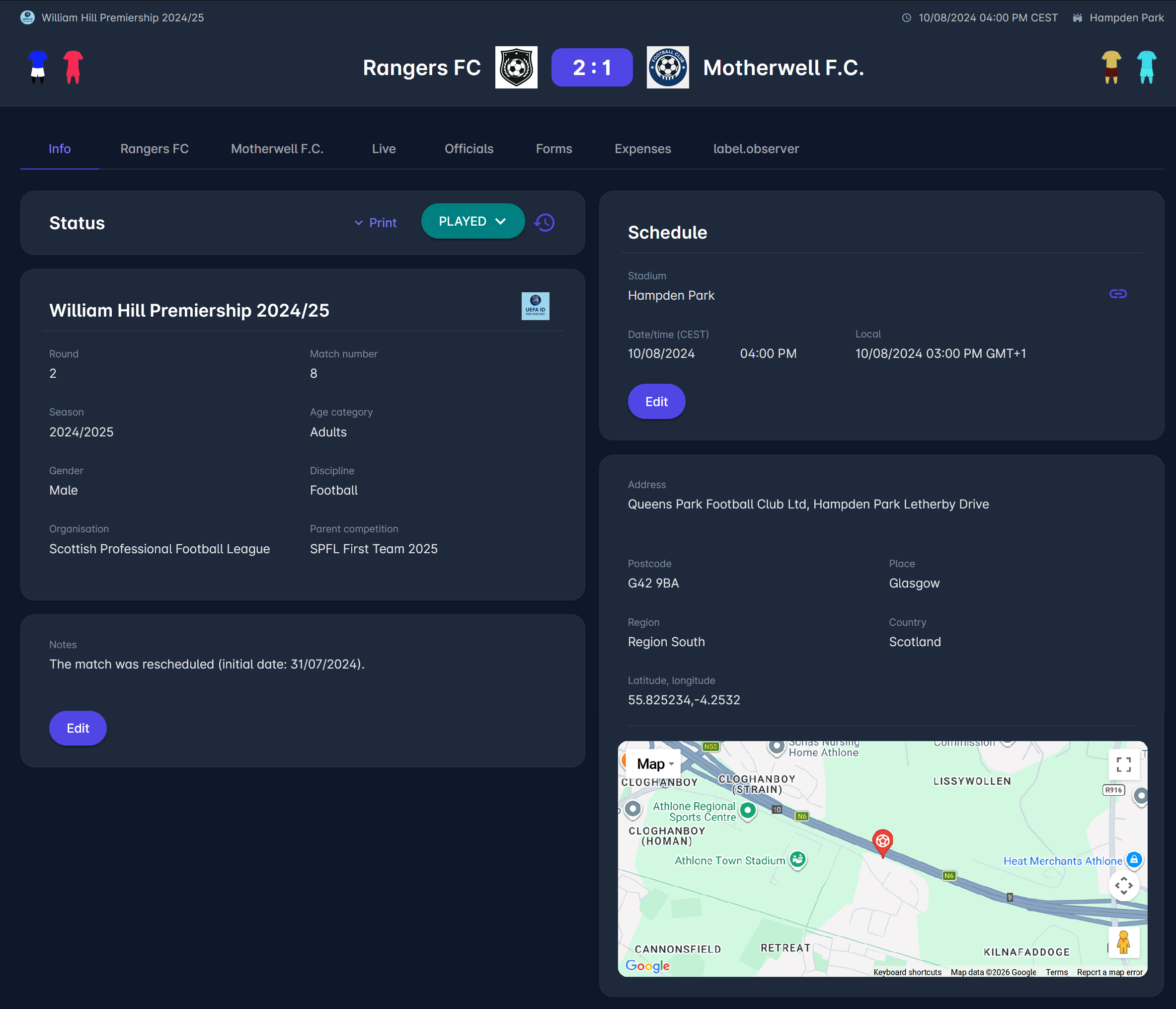
The Header remains on the screen as you switch between tabs of the Match Form.
The Info tab is divided into clearly defined panels: Status, Competition, Schedule, Address, and Notes.
Match Status
The Status panel displays the current match status and provides access to status-related actions and history tracking.
The current match status is displayed as a highlighted button at the top of the panel (e.g., PLAYED, SCHEDULED). Users with appropriate permissions can change the match status directly from this button by selecting one of the available statuses displayed when clicking the match status button.
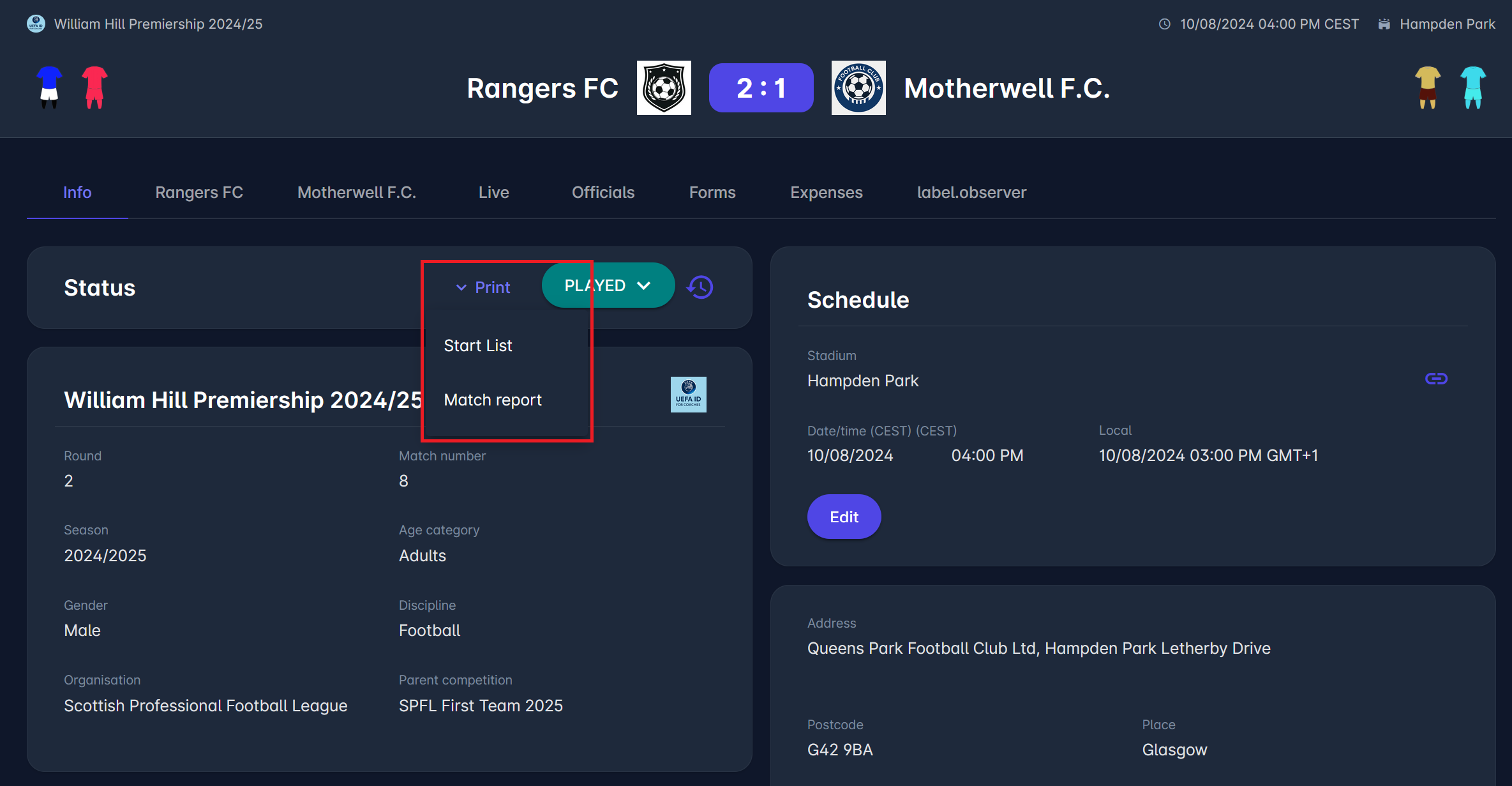
In addition to status management, the panel also provides quick access to match-related documents through the Print menu. Depending on the user role (granted permissions) and the match state, users can generate and download PDF documents, such as the Start List and the Match Report (as further described in the paragraph below).
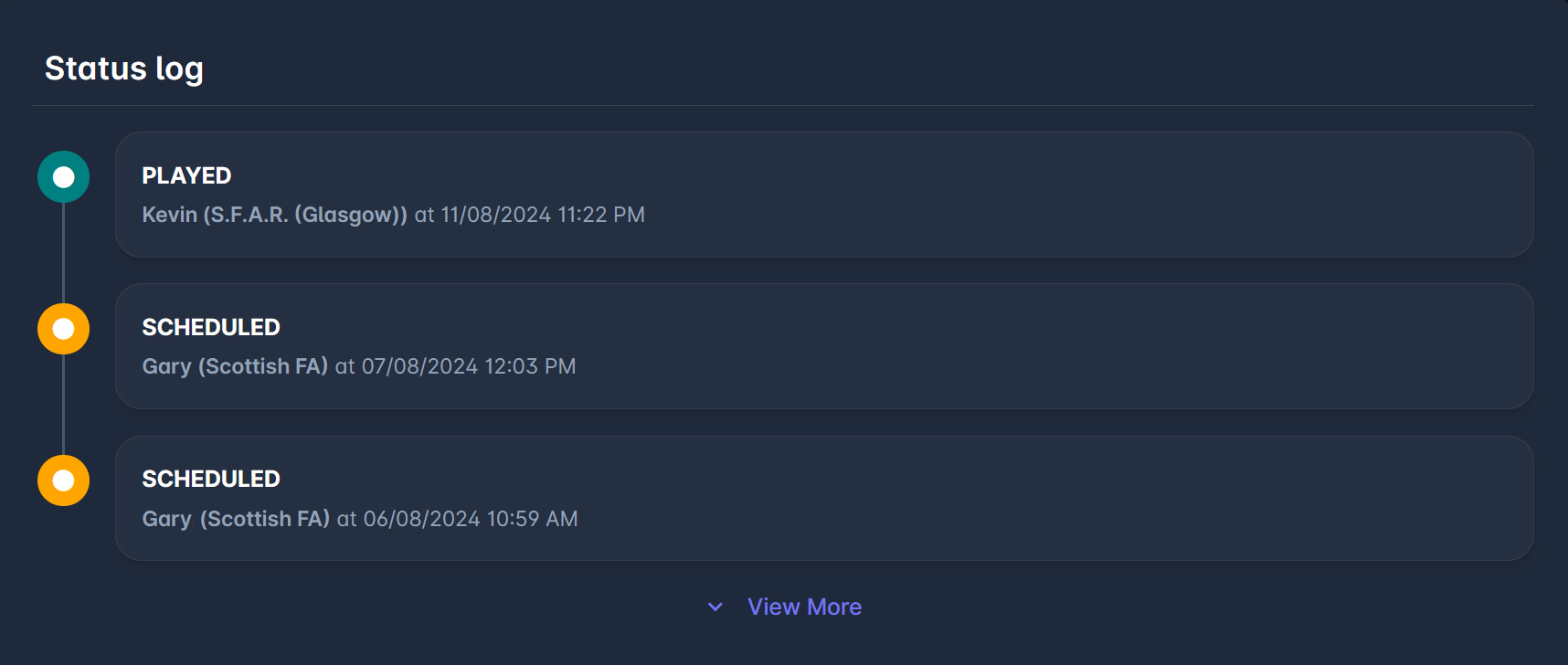
The Status Log can be opened by clicking the ⌚ watch icon next to the current status. This section displays the full timeline of status changes, including previous match statuses, the user who performed each change, and the date and time of the transition.
All transitions can be executed by Superusers, Competition Admins of the organization and above, and Competition Managers who have been appointed to that specific competition. Transitions into statuses Played and Abandoned can be executed by Match Managers (e.g., Main Referees).
For more details about the match statuses, transitions, and related authorizations, please refer to the Match Workflow article.
Competition Details
The Competition Details panel displays key information about the competition associated with the match.
This section provides an overview of the competition context, including:
-
Competition name and logo in the header of the section
-
Round and match number
-
Season and age category
-
Gender and discipline
-
The organization responsible for organizing the competition
If the competition is linked to a parent competition, its short name is displayed in the Parent competition field.
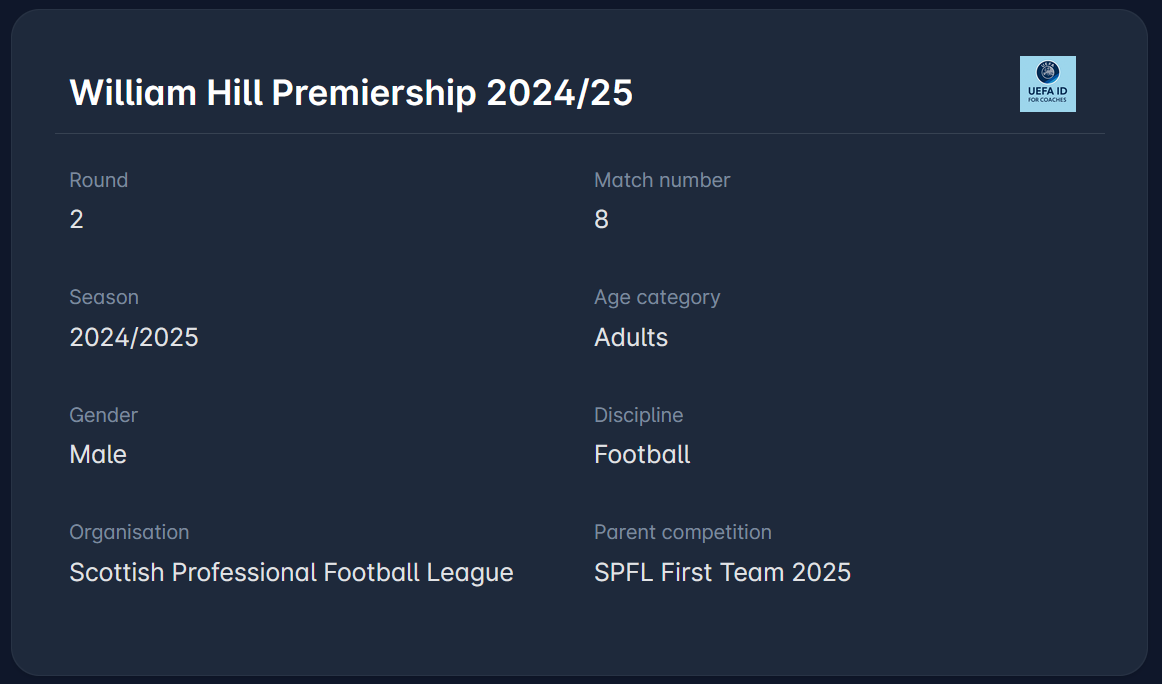
All of the information above is competition-specific and can't be edited on the match site.
Schedule and Location
The Schedule panel contains all information related to match timing and venue assignment.
Stadium Information
-
Stadium - name of the stadium where the match will be played. A click on the link next to the stadium name transfers you to the Stadium/Facility detail form in MyCOMET
-
Pitch - if the stadium has defined pitches, it can be selected from the drop-down
-
Next to the stadium name is a link leading to the facility site in MyCOMET
Date and Time
-
The match date and time are displayed in the user's time zone (the operating system's time zone).
-
Corresponding local time - time at the facility (stadium) location. It is shown only if the stadium's timezone differs from the user's timezone.
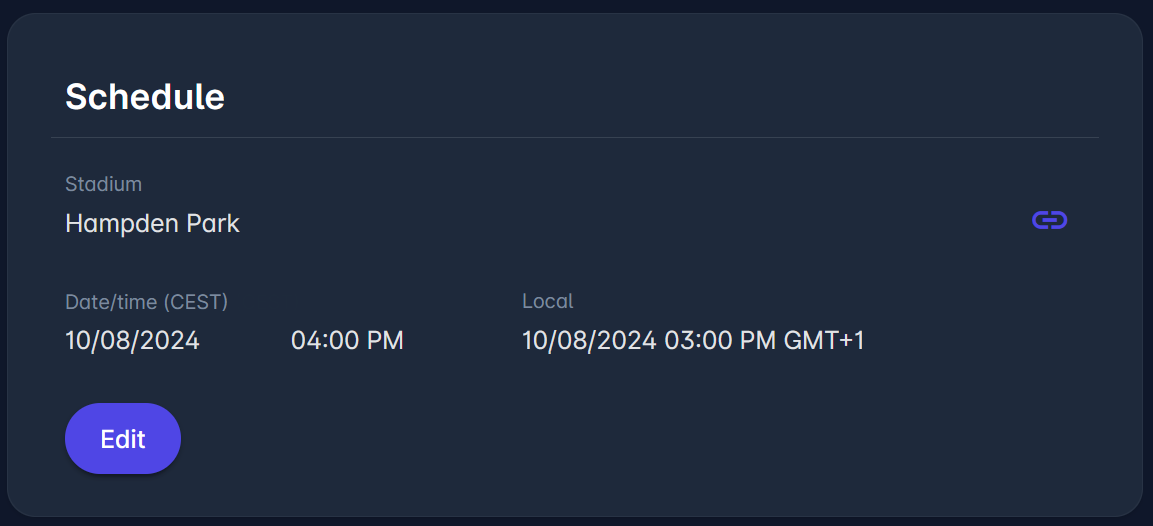
To edit the data in the Schedule panel, e.g., to update the start date or stadium, click on the Edit button. Please refer to Match Data Edit Authorizations at the bottom of this article.
The Location panel provides detailed address information for the match stadium, including a location preview on the map when latitude and longitude are defined.
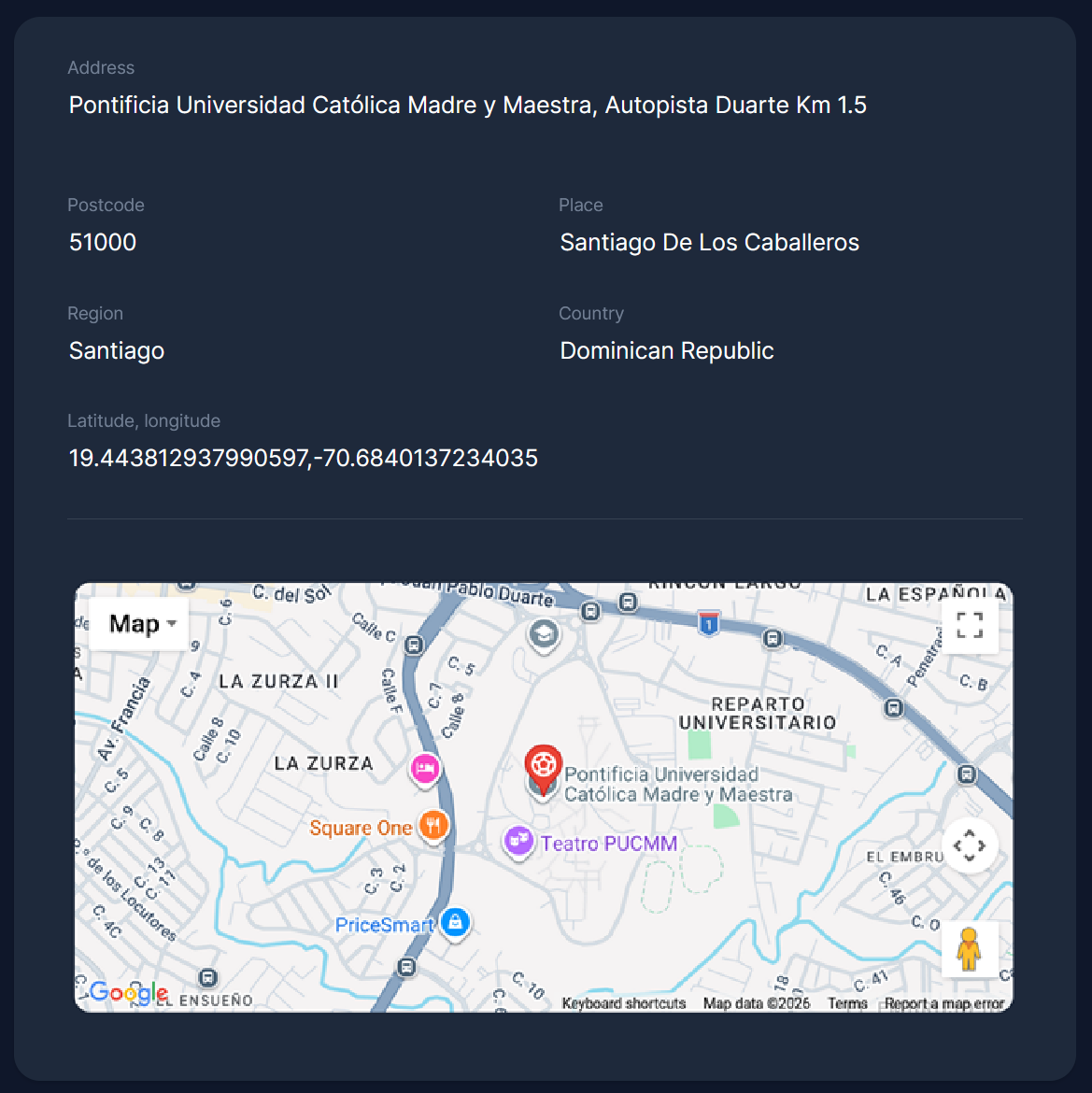
Notes
The Notes panel displays additional match-related information and remarks.
This section allows authorized users to enter and edit free-text notes associated with the match. Notes can be used to record important administrative information, scheduling updates, or any additional context relevant to the match organization.
PDF Reports
The standardized PDF versions of the Start List (pre-match) and Match Report (post-match) feature a contemporary design and configurability for header coloring and Lineup Personal Descriptors (e.g., each tenant can configure whether to show age, date of birth, national ID, or COMET ID) on the Start List and Match Team Tab in MyCOMET.
The following descriptors can be configured per organisation:
-
Age
-
Year of Birth
-
Date of Birth
-
National ID
-
COMET ID
-
Registration Type Abbreviation
-
License Abbreviation
Multiple descriptors can be selected and will be displayed together. When selected, COMET ID, National ID, and License Abbreviation are also shown for Team Officials (Coaches, Team Staff, Officials) in addition to players.
The Youth descriptor (shown as YTH or ML depending on the competition) is applied automatically to players born after the Youth Max Age Reference Date configured on the competition - no separate descriptor selection is required.
By default, Lineup Personal Descriptors are shown on the Start List only. To also display them on the Match Report, the Descriptors in the Match Report system parameter must be enabled for your organisation. Note that when this parameter is enabled, match events are not displayed in the lineup section of the Match Report.
To configure Lineup Personal Descriptors on Start List or on a Match Report, open a Support ticket.
In addition, the Start List shows rendered Tactical Formations, and both reports will include a deep link to that specific match in COMET LIVE Apps, if your Association has implemented them.
The PDF version of the match reports can be printed directly from the Status panel of the Info tab. A click on the Print button opens the dropdown for choosing the desired document:
Start List – the official list of players and officials before the match. If tactical formations are used, they are rendered to the second page of the Start List PDF.
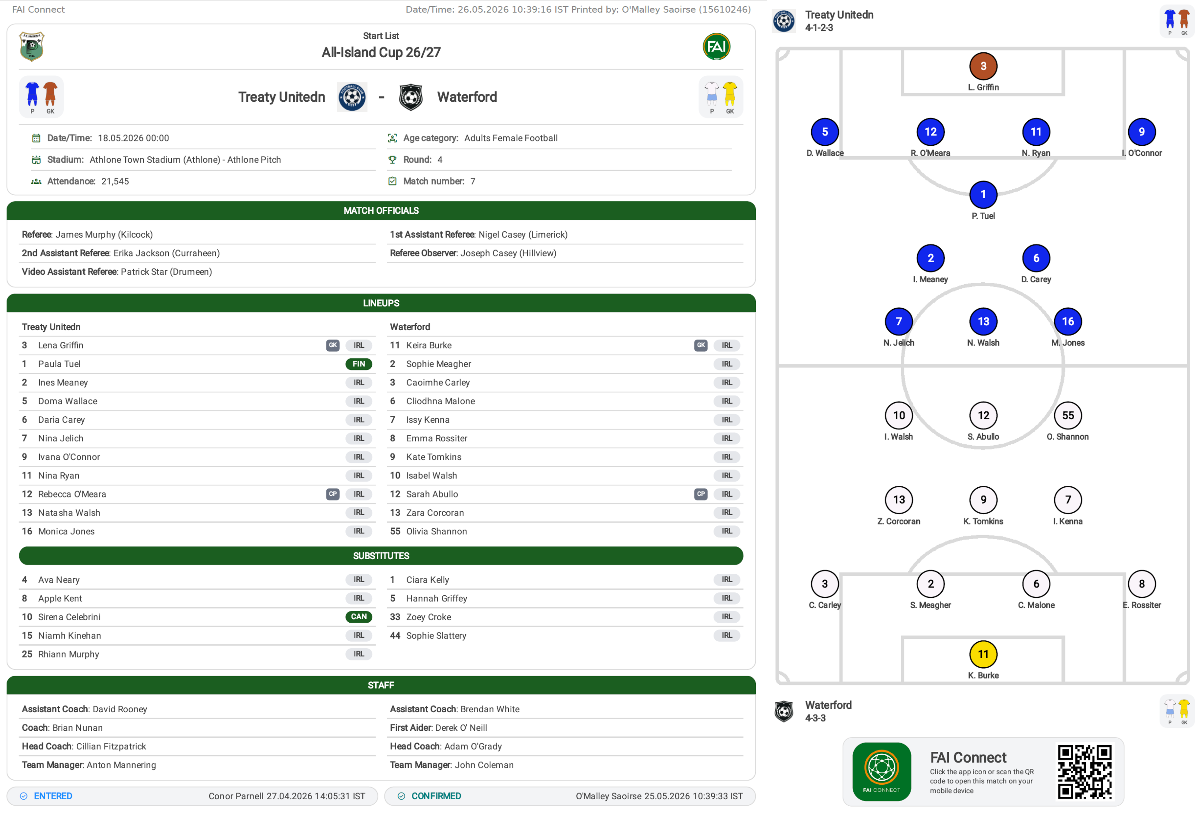
Match Report – the official post-match report
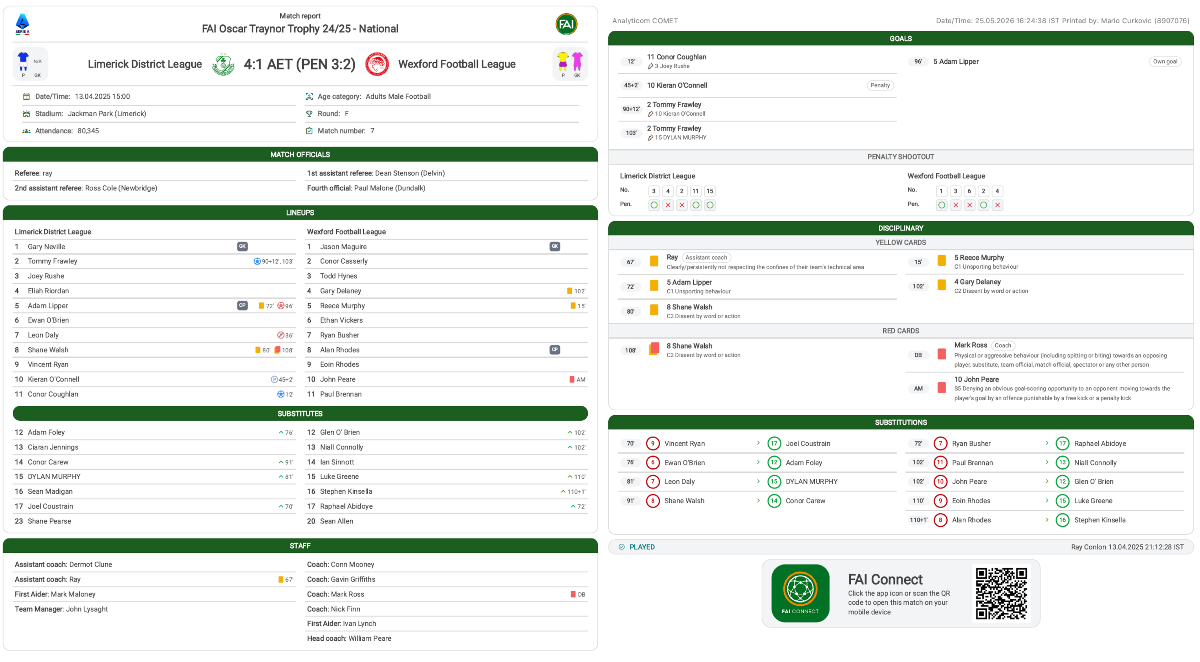
These documents can be downloaded or printed for official records, or distributed to media and other interested parties. Both reports will contain a Deep Link/QR Code to that specific match in COMET LIVE Apps, in the event that your Association implemented them.
Note that these PDF reports contain lineups that are considered confidential before being made public and are therefore secured in accordance with rules of Lineups Visibility | General Rules.
By default, the Match Report for a Played match can only be generated by users with system access (Match Managers, Event Editors, Administrators/Managers). If the Match Report Public parameter is enabled for your organization, any user - including non-members - can generate the Match Report. Open a Support ticket if you would like this parameter enabled.
Match Data Edit Authorizations
All the general match fields listed in the table below can be edited in all match statuses by:
-
Superusers and Competition Administrators of the organization or above
-
Competition Managers appointed to that Competition
Match Manager and Events Editor
In addition to the above, these fields can also be edited in statuses SCHEDULED and RETURNED by:
|
|
Match Manager |
Events Editor |
|---|---|---|
|
Edit Schedule Facility, Pitch, Start Datetime |
If Competition Type Attribute Match Manager Updates Schedule switched on. |
No |
|
Edit Events Attendance, Notes |
Yes |
Yes |
The Match Manager roles are
-
Appointed Officials (Referees, Match Officials, Delegates, Assessors) with the Match Manager checked on the Match Role Configuration
-
Club Referent or Lineup manager if Match Manager Permissions are selected on Competition Type Settings
Most commonly, the Match Manager is the Referee. In some instances, especially in youth competitions, when there are no referees, the Home Club is configured to be the Match Manager (aka Club Manages Match).
The Events Editor roles are:
-
Appointed Officials (Referees, Match Officials, Delegates, Assessors) with the Events Editor checked on the Match Role Configuration
-
Club Referent or Lineup manager if Events Editor Permissions are selected on Competition Type Settings
Most commonly, the Events Editor is the Home Club, with the purpose of entering the match events in real-time during the match. The Events Editor is often the Venue Data Coordinator, or a similar match official role. The Permissions of Home and Away Club on the match (e.g. Events Editor, Match Manager or NA) can be defined per Competition Type.
Home Club Prepares Schedule
In addition to the above, the Schedule fields (Facility, Pitch, Start Datetime) can also be edited in status ENTERED by the Home Club for their home matches, if the Home Club Prepares Schedule is defined on Competition Type with any of the following options:
-
Prepare: the Home Club can only update the schedule data while the match remains in ENTERED.
-
Prepare and Schedule: the Home Club can, in addition, transition the match to status SCHEDULED.
Once the match is SCHEDULED, match stakeholders are notified and the Home Club can no longer make unilateral changes. This is a very useful feature for Competition Admins, allowing them to collect schedule data from clubs digitally, instead of receiving information offline, and then administratively retyping it into the system.
Also in statuses ENTERED and SCHEDULED, the Facility, Pitch, and Start Datetime can be updated as a result of a confirmed Match Update Request.