
The COMET Football app allows authorized users to add a Streaming Source to a match, so that all public users know where to watch the game. Once saved, the streaming link is displayed on the Match Info screen and in the COMET LIVE apps.
This option is enabled only when at least one Streaming Source is defined for your organization, and when your user role has permission to edit the match schedule data.
To define streaming sources for your organization, please open a support ticket.
Add Streaming Source
To add a Streaming Source:
-
Open the match from the My Matches or Calendar screen
-
On the Info tab, tap Add Streaming URL (shown below the Date/Time and Attendance fields)
-
The Select streaming source dialog opens
-
Choose the source from the list of available streaming sources (e.g., YouTube, Twitch TV, TikTok) and confirm with the check icon
-
The URL field is pre-filled with the URL prefix of the selected source (e.g., https://www.twitch.tv)
-
Complete the URL with the link to the specific stream or channel
-
Tap the check icon to save
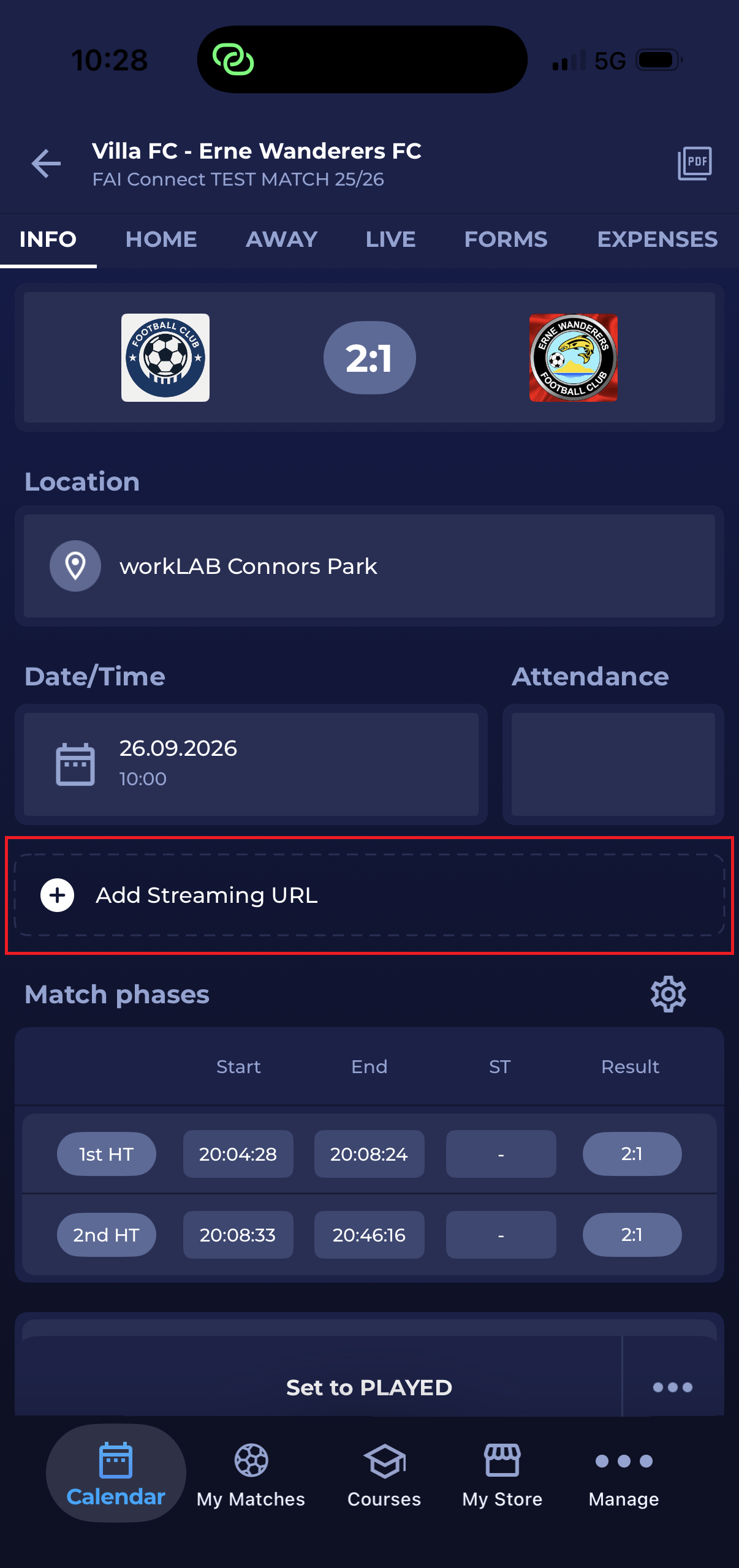
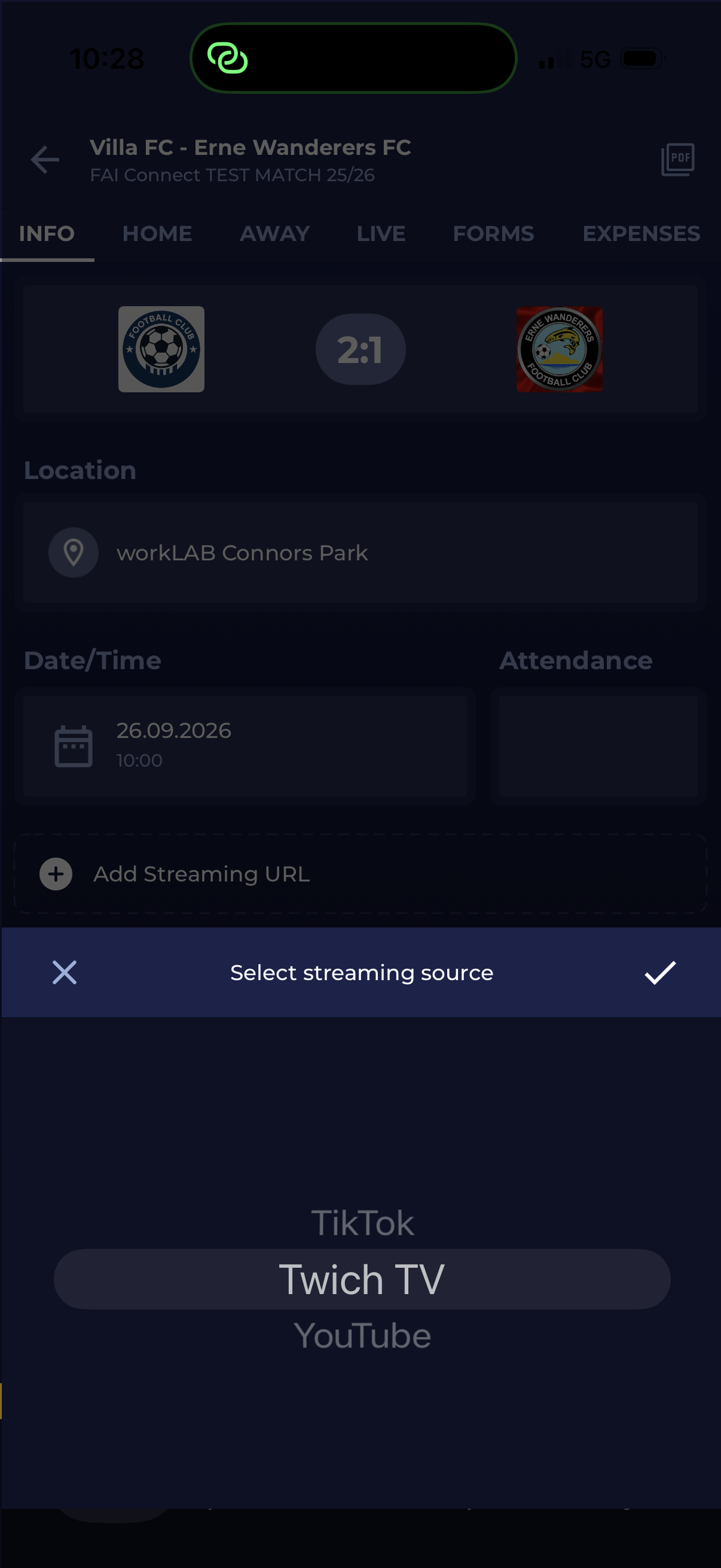
On save, the system checks whether the URL starts with the selected streaming source's prefix. If it does not, a validation message shows which prefixes can be used.
View Streaming Source
Once the Streaming Source is saved, the Info tab displays the streaming source icon and the Watch here label. If no icon is defined for the source, the default TV icon is shown.
-
Tapping Watch here opens a confirmation dialog informing you that you are leaving the app
-
Tap Yes to open the stream in the respective app (e.g., YouTube, Twitch) or in your web browser
If no Streaming Source has been added to the match and you do not have permission to add one, this field is not displayed.
Edit or Remove Streaming Source
To edit the Streaming Source:
-
Tap the Edit icon to the right of Watch here
-
The Streaming source dialog opens with the current source and URL pre-filled
-
Change the source and/or the URL
-
Tap the check icon to save
To remove the Streaming Source from the match, tap Clear value in the same dialog.
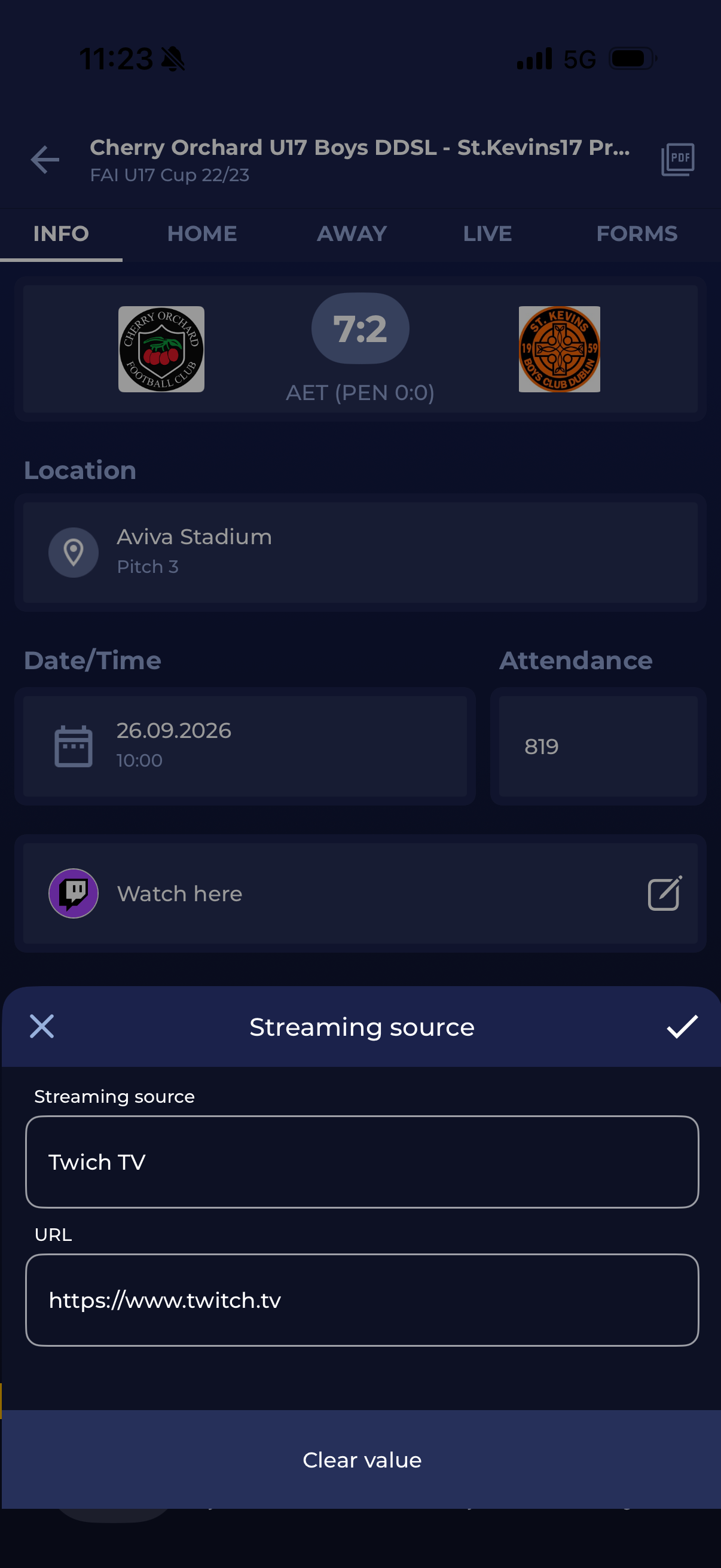
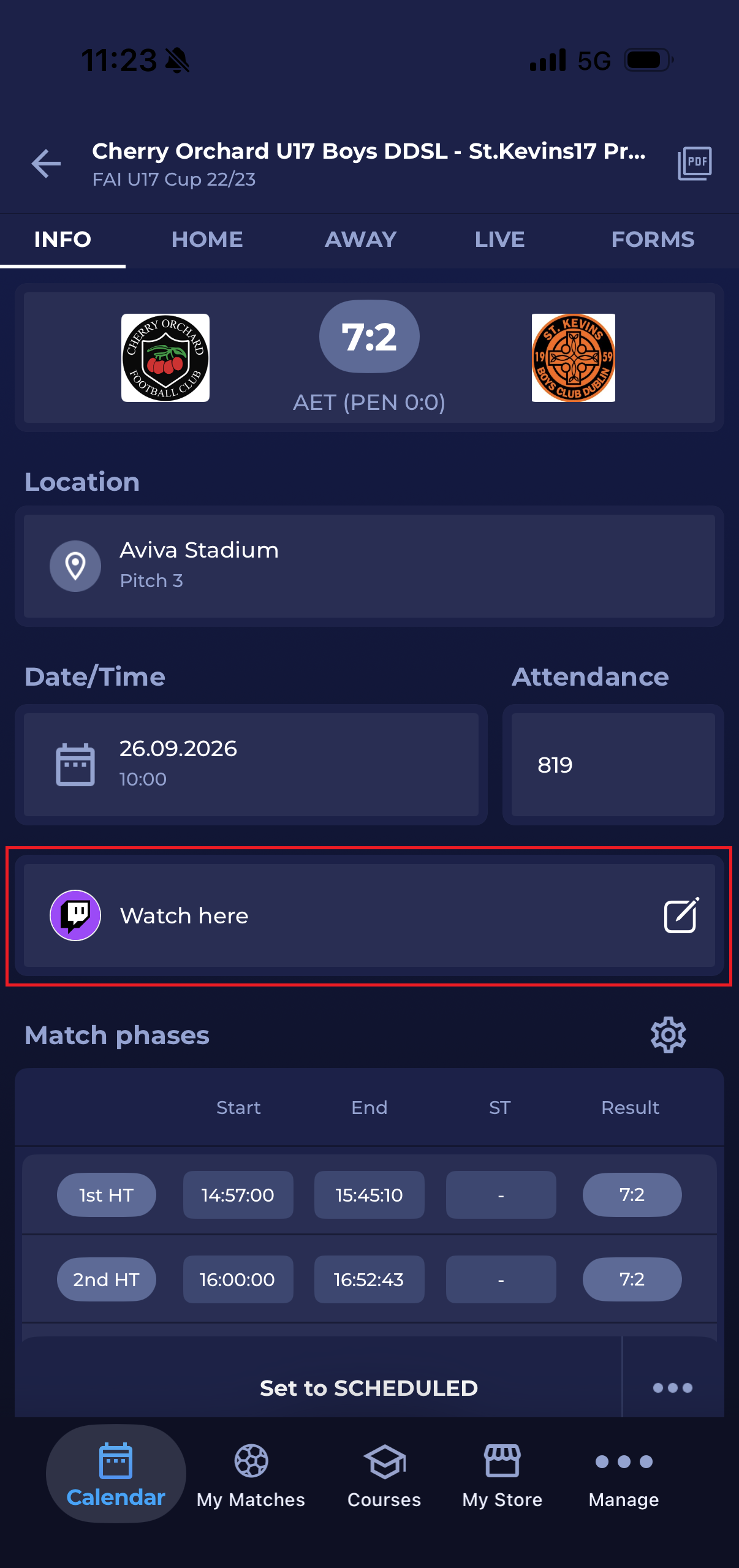
For more details on how the streaming link is presented to public users, please check the Where to Watch article.
The Streaming Source can also be added from MyCOMET, in the Schedule panel of the match Info tab.