
MyCOMET Features described in this article will be deployed on all Demo instances by 28 October 2026 and migrated to Production on 05 January 2027.
The Competition Roster (also known as the Catalogue) defines which players and team officials are eligible to represent a team in a specific competition. Each team participating in a competition has its own roster, managed on the Roster tab of the Competition Team in MyCOMET.
Depending on the competition's Catalogue Restriction Level (see Restriction Level below), the roster can also limit which players are available for selection in the match lineups.
Clubs can prepare and submit their roster within the Roster Submission Period defined for the competition. For details, see Roster Workflow.
Access
The Roster tab is available in both the Club View and the Admin View of the Competition Team.
Club View (Club Managers and Lineup Managers):
-
Open the Competitions menu in MyCOMET.
-
Click the competition on the Active tab.
-
Open your team and select the Roster tab.
Admin View (Superusers, Competition Administrators, and appointed Competition Managers):
-
Select Competitions under the Administration menu.
-
Open the competition and go to the Teams tab.
-
Click the team and select the Roster tab.
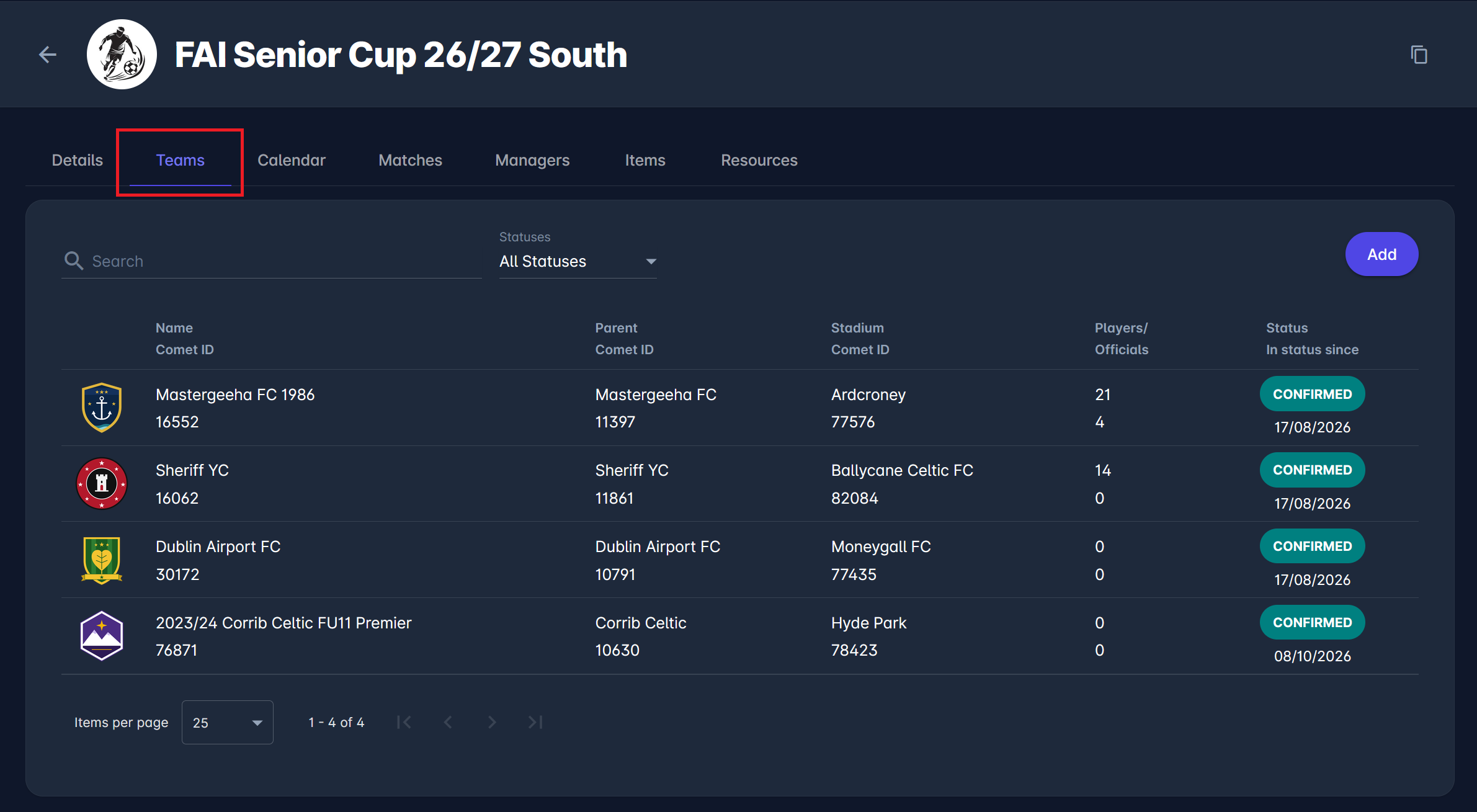
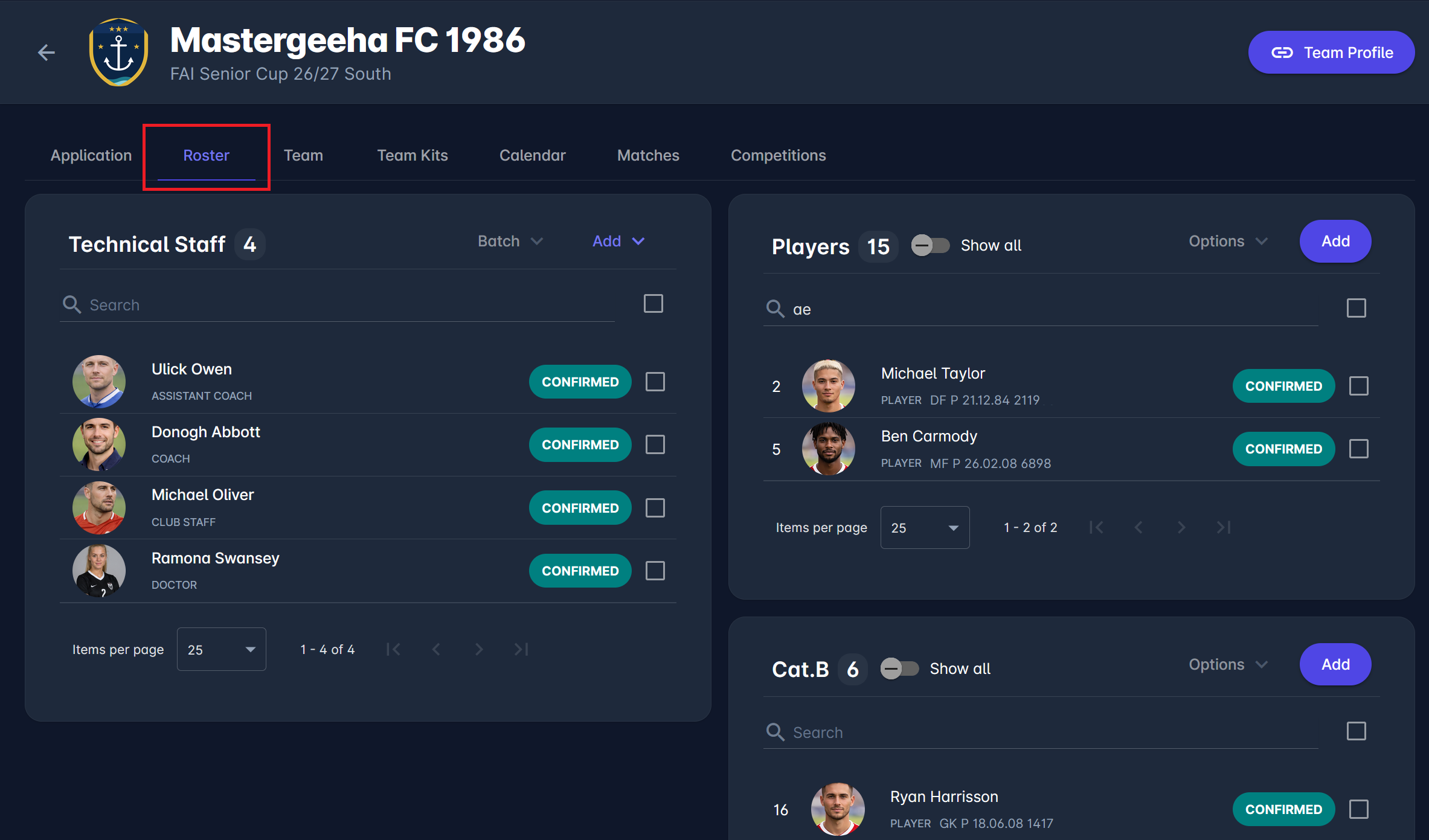
The roster can also be opened in the legacy COMET UI: on the competition's Clubs tab, click the Open in MyCOMET icon next to the team.
The Roster tab is visible to the same users who can view the Competition Team details. Whether the roster can be edited and by whom depends on the competition's Roster Submission Mode. See Who Can Edit the Roster.
In combination competitions, rosters are maintained either on the parent competition or on its competition elements, depending on the parent's Roster Submission Mode. Where rosters are not maintained, the Roster tab displays an info box instead, e.g., with a direct link to the team's roster on the parent competition. See Combination Competitions.
Layout
The Roster tab follows the same layout as the team lineups on the match report:
-
Left side - the list of available players, i.e., players registered for the club who are eligible for the competition
-
Right side - the roster, split into Players and Team Officials
Above the players on the roster, a counter shows the number of players on the roster relative to the maximum allowed, e.g., 15/22. The maximum is defined by the Max Players in Roster setting in the Roster panel of the competition.
B Roster
If the B roster is used in the competition, the roster is split into two player panels, and a +B button is shown next to each available player for adding them to the B roster. The B roster label can differ per association, e.g., Cat.B or Injury Reserve List. The maximum number of players is defined by the Max Players in the B Roster setting in the Roster panel.
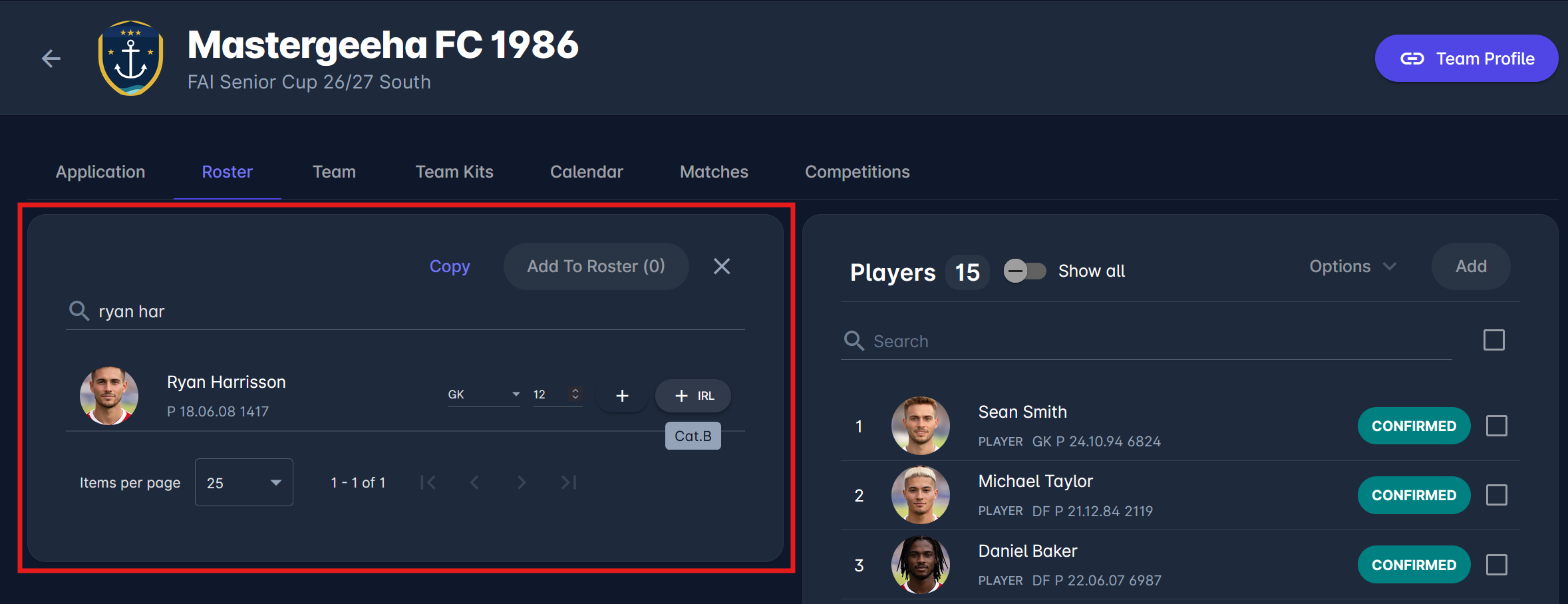
Show All
By default, the roster panels show only persons in Confirmed, Submitted or Returned status, and the counters count only these persons. Switch on Show All to also display persons in other statuses, e.g., Terminated. The switch is not displayed if no persons are in these statuses.
Add Players
-
Find the player in the list of available players on the left side.
-
Click the + button next to the player.
The player is moved to the roster on the right side. Depending on the Roster Submission Mode, the player is either Confirmed directly or Submitted for individual approval. See Person Statuses.
Confirm whether multiple players can be selected and added at once (select-all checkbox mentioned in MYCOMET-1017 code review), and what happens when the maximum number of players is reached.
Add Team Officials
The Team Officials panel shows the roles configured for the competition in Competition Roles | Team Official Roles:
-
Static roles are always listed in the panel. Click the Add link next to the role to assign a person.
-
Dynamic roles are added via the Add dropdown above the panel.
Only persons registered for the club under the registration types accepted for the role can be selected, and the same person cannot be added twice. Once added, the team official is listed with the role from the Competition Role configuration, not with their own registration type, e.g., a person registered as Assistant Coach added to the Head Coach role is listed as Head Coach.
If a role is set as Mandatory, the roster cannot be saved while the role is empty. If no Team Official roles are configured, no roles are displayed in the panel.
Team officials are added the same way as on the match. See Team Officials.
Person Details
Each player and team official is presented with their photo and the same personal descriptors as in the match lineups, on both the available list and the roster:
-
COMET ID and age
-
Nationality flag - shown or hidden according to the Show Nationality system parameter, e.g., hidden for non-foreign players
-
Highlighted licenses - licenses set to be highlighted in the Admin app, with details displayed on hover
-
Registration type
-
Player descriptors
Verify whether hiding the flag for non-foreign players is controlled by the Show Nationality system parameter or is a separate Non-Foreign descriptor rule (MYCOMET-1017).
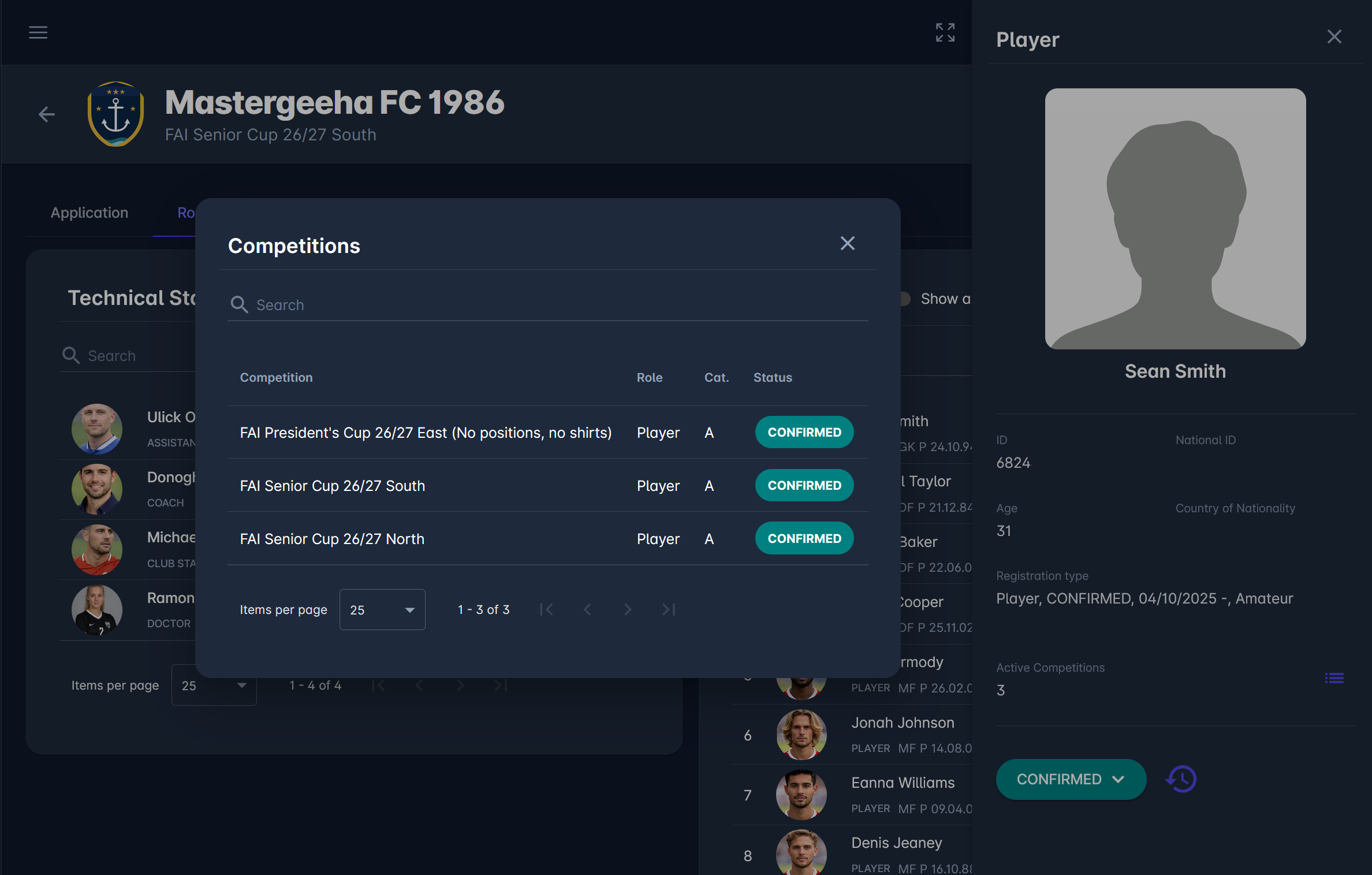
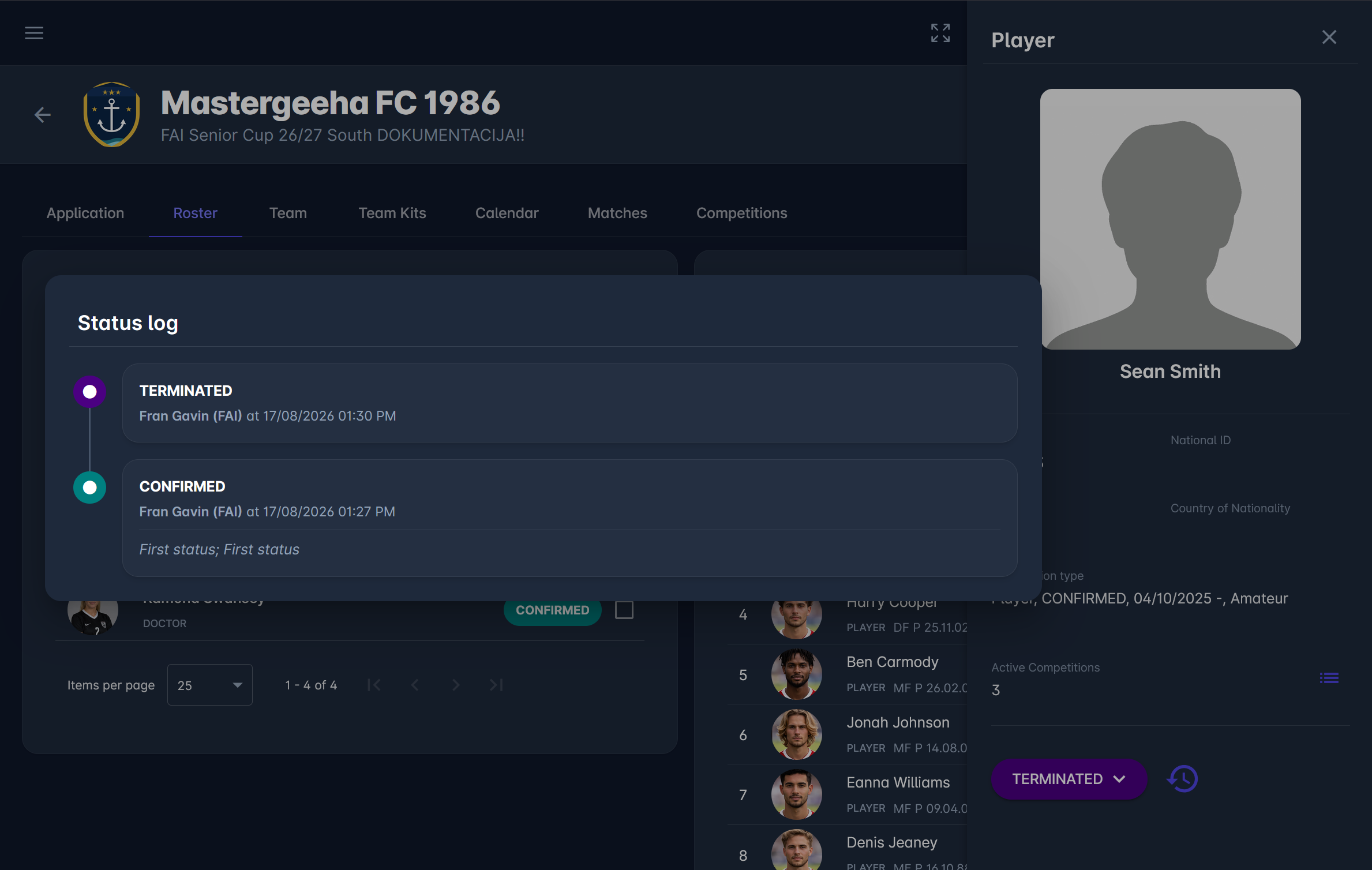
Click any person in the roster to open the person dialog with full details, including the registration type data and active competitions described below. The dialog also shows the person's status history, and Competition Administrators and Managers can change the person's status from it.
Registration Type
The registration type is displayed to the right of the flag and highlighted licenses. Hover over it to see:
-
Registration status
-
Validity dates (from - to)
-
Level (if applicable)
-
Age category (if applicable)
The same data is shown in the person dialog.
If a person's registration is no longer Confirmed (e.g., it was terminated or expired after the person was added), the registration type is marked red in the roster. This allows clubs and administrators to spot persons who may no longer be eligible. This marking applies only to persons already in the roster, since only persons with confirmed registrations appear in the list of available players.
Active Competitions
The person dialog shows the number of active competitions in which the person is registered in the roster with one of the following statuses: Returned, Submitted, or Confirmed.
Click the number to open a list of these competitions, showing for each:
-
Competition
-
Role, including the A/B roster indicator
-
Status
This helps clubs and administrators avoid conflicts, e.g., when the same player is registered in rosters of several teams or competitions.
Confirm whether the count includes the current competition.
Roster Status
The roster of each team has its own status: Roster Pending, Roster Submitted or Confirmed, depending on the competition's Roster Submission Mode. For the complete workflow, see Roster Workflow.
Each person in the roster also has their own status, displayed on the right side of the entry.
|
Status |
What it means |
|---|---|
|
Submitted |
Waiting for individual approval by the Competition Administrator or Manager (Individual Approval modes only). |
|
Returned |
Returned to the club, which can update and resubmit the person. |
|
Rejected |
Rejected; the person cannot represent the team in the competition. |
|
Confirmed |
The person is in the roster and eligible to represent the team in the competition, subject to the competition's lineup rules. |
|
Terminated |
The person is no longer in the roster. Hidden unless Show All is switched on. |
For details on when each status is used, see Person Statuses.
Batch Actions
To change the status of several persons at once, select them using the checkboxes on the right side of their entries and open the Batch menu:
-
Confirm - confirms all selected Submitted persons. Available only to Competition Administrators and Managers, in the Individual Approval modes.
-
Terminate - terminates all selected Confirmed persons, e.g., to remove them from the roster.
The transition comment you enter is applied to all selected persons, and a summary dialog shows how many persons were confirmed or terminated. Batch actions are not available if the selection includes both Submitted and Confirmed persons.
Screenshot placeholder: Batch menu on the Roster tab
Restriction Level
The Catalogue Restriction Level in the Lineups settings of the competition defines how strictly the roster limits player selection on matchday. It is set separately for players and team officials:
-
Ignore - the roster is informational only; all registered players are available.
-
Optional - if at least one player is listed in the roster, only roster players are available; otherwise, all registered players are available.
-
Mandatory - only players listed in the roster are available for selection.
The roster is also relevant for disciplinary sanctions: if the competition setting Only persons in the competition roster to serve suspensions is enabled, a player must be in the roster for a suspension to be served by not being added to the lineup. For details, see the Disciplinary Settings.
Legacy COMET
Rosters are managed only in MyCOMET and cannot be edited in the legacy COMET UI. The Clubs tab of the competition in COMET shows a plain list of teams, each with a direct Open in MyCOMET link to its Competition Team, where the roster is managed.