
A slash team is a single team made up of players from two or more clubs. Associations use slash teams when clubs do not have enough registered players to enter a competition on their own, most often in youth age categories. The clubs join forces and play as one team, e.g. B71/Hoyvik Team.
A slash team belongs to one club, the parent club, and is linked to one or more associated clubs. In competitions that allow slash teams, players and team officials from all of these clubs can be added to the team's match lineup.
Access
Slash teams are managed in legacy COMET, under Clubs > Slash teams. What you can do depends on your role:
|
Role |
Access |
|---|---|
|
Superuser |
View and create slash teams |
|
Admin of Clubs (top-level association) |
View slash teams |
|
Competition Admin (tenant level) |
View slash teams |
Slash Teams List
To open the list, go to Clubs > Slash teams in the left navigation bar.
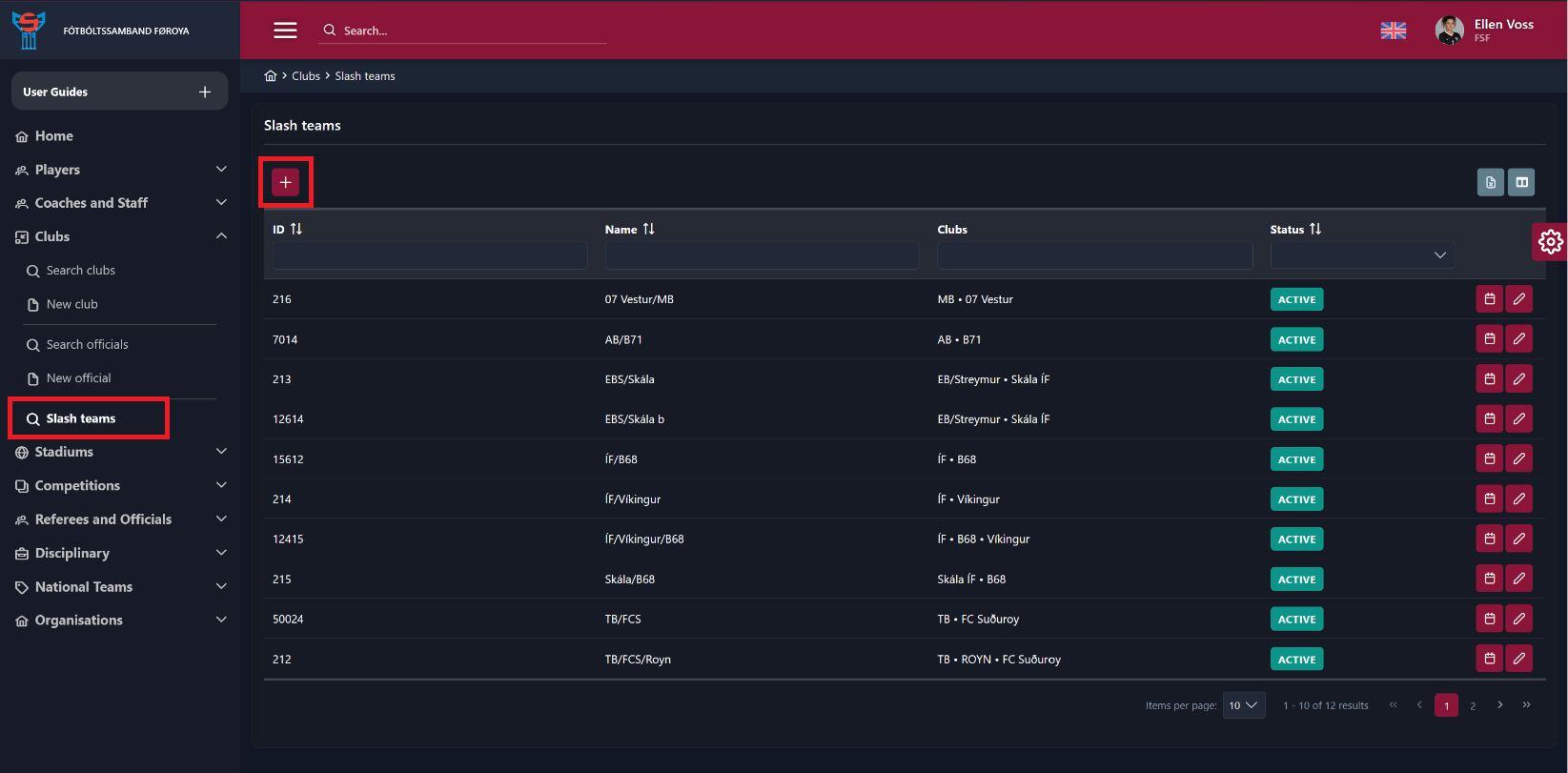
The list shows all slash teams under your organization, with the following columns:
-
ID - the team's COMET ID
-
Name - the slash team's name
-
Clubs - all clubs that make up the team
-
Status - Active or Inactive
Use the filter field below each column header to narrow the list. For example, type a club's name in the Clubs filter to find all slash teams that club is part of. To filter by multiple clubs at once, separate the club names with spaces.
The icons at the end of each row let you view the team's status history and open the team for editing.
Create a Slash Team
-
Go to Clubs > Slash teams.
-
Click the + button above the list. The New Slash team form opens.
-
Select the Status. Teams are ACTIVE by default.
-
Select the Club type, e.g., Football club.
-
Enter the team's Name, e.g., B71/Hoyvik Team.
-
Click the magnifier icon next to Clubs and select the clubs that make up the team. Add the parent club first.
-
Click Save.
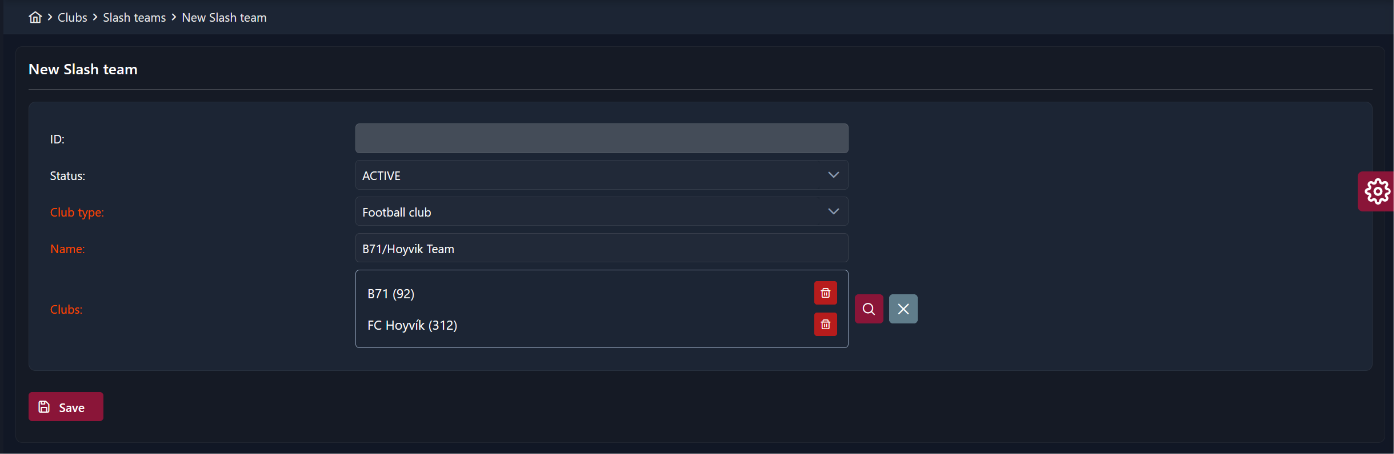
The ID is assigned automatically when the team is saved.
Parent Club
The first club in the Clubs list becomes the parent club. The team is created under that club, and all other clubs in the list are linked to it as associated clubs. Make sure the parent club is listed first before saving.
The parent club has the following role in matches:
-
Only users of the parent club can edit the team's match sections, such as the match lineup. Users of the associated clubs can view the matches but cannot edit them.
-
When searching for the team (e.g., when adding it to a competition), the parent club's name appears next to the team name.
To remove a club from the list, click the delete icon next to it. To clear the whole list, click the X button.
Edit a Slash Team
-
Go to Clubs > Slash teams.
-
Click the edit icon at the end of the team's row.
-
Make your changes, e.g. status, club type or documents, and click Save.
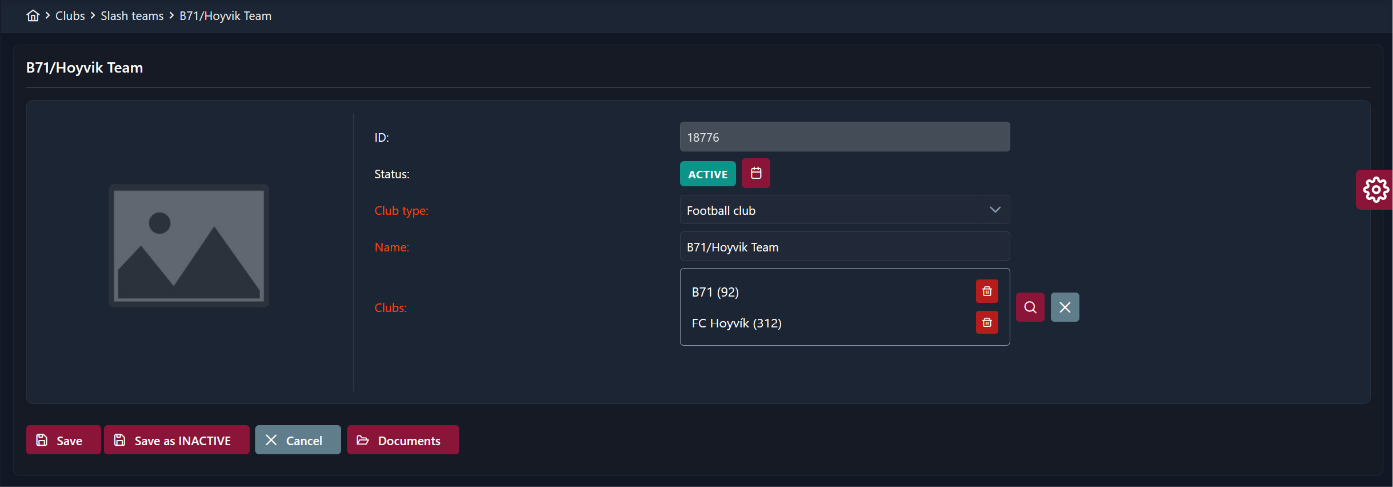
The slash team page offers the following actions:
-
Save - saves the changes
-
Save as INACTIVE - saves the changes and deactivates the team. Inactive teams can no longer be added to active competitions.
-
Cancel - discards the changes
-
Documents - opens the team's documents, including the logo
Changing the Name or Clubs
Once a slash team is saved, its name and list of clubs can no longer be changed, not even by Superusers. If a different name or a different combination of clubs is needed, create a new slash team instead.
Logo and Documents
-
Open the slash team for editing.
-
Click Documents.
-
Click + next to the section you want to upload to: Logo, Club Identification or Other.
-
Select the file. A confirmation message is displayed once the upload is complete.
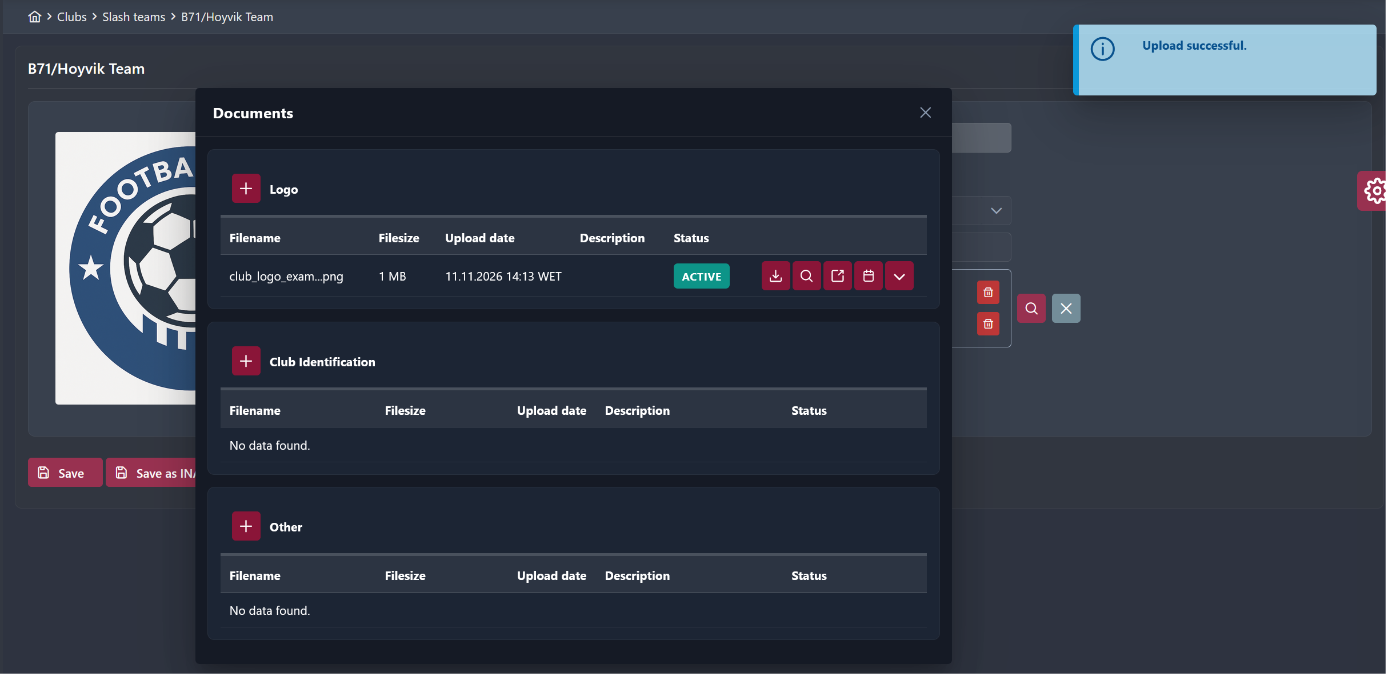
Since a slash team is made up of several clubs, you can combine the logos of all clubs into a single image and upload it as the team logo.
Add a Slash Team to a Competition
Slash teams are added to competitions in the same way as any other team.
-
Open the competition in MyCOMET and select the Teams tab.
-
Click Add.
-
In the Add Teams dialog, search for the slash team by name or ID. The parent club is shown next to the team name.
-
Optionally, enter a Comment.
-
Click Add.
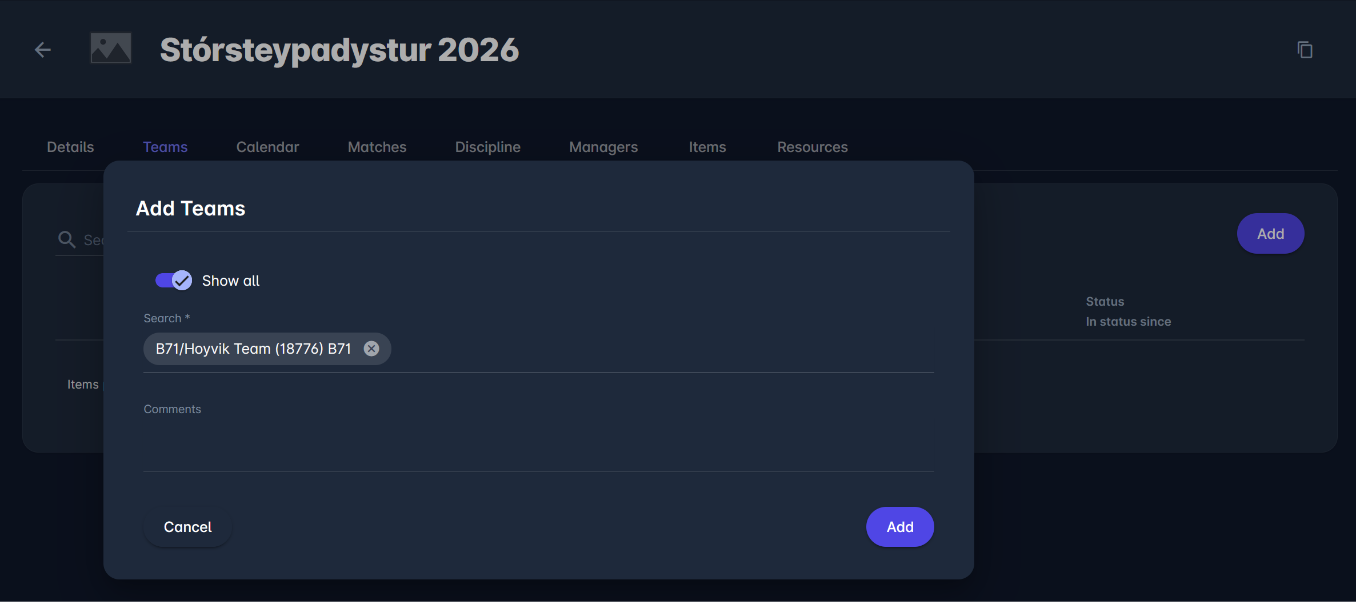
The same rules apply as for all other teams; for example, only active teams can be added to an active competition. If you cannot find the team, enable the Show all switch. For details, see Add Clubs and Start Competition.
Players and Team Officials
If the Slash teams setting is enabled on the competition, the slash team's match lineup lists players and team officials from all clubs that make up the team, not only from the parent club. See the Registration Settings in Create and Configure Competition.
To enable this setting, please open a support ticket.
Matches
Users from all clubs that make up the slash team see the team's matches in their My Matches console. Only users of the parent club can edit the match.