
When you install the app for the first time and choose to open it, you will be presented with several options.
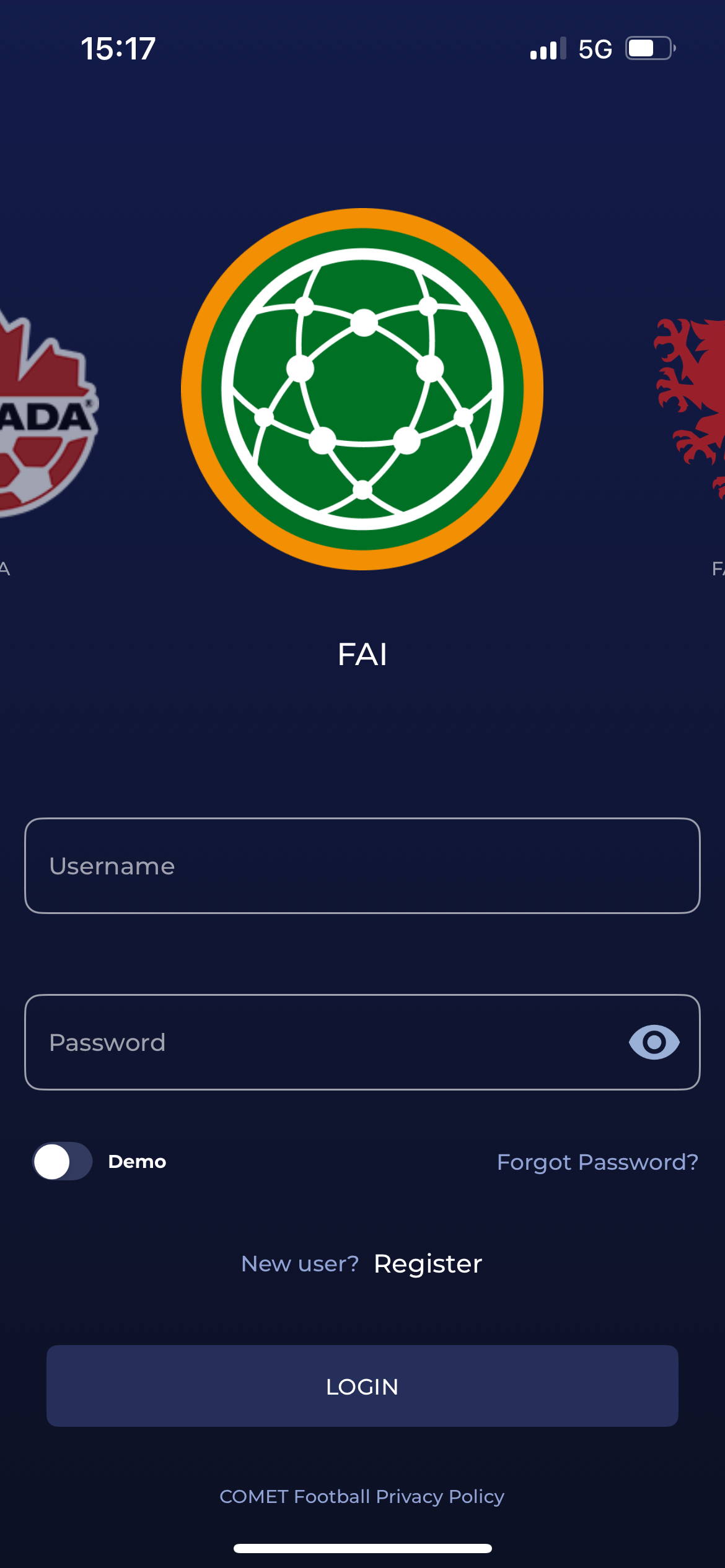
In the image below, you’ll see the login screen for the app, where you must provide the following information:
-
Your association (choose by selecting the correct logo at the top)
-
Choose to access the DEMO environment or production environment (this is the same as accessing the demo or production environment of the COMET web application)
-
Your Comet username and
-
Your Comet account password (same as for accessing the Comet web)
Once you are logged in, your mobile device will remain logged in until you choose to log out or make changes to your phone.
To switch between the DEMO and PROD environments, you must log out first and then select the appropriate option on the login screen.
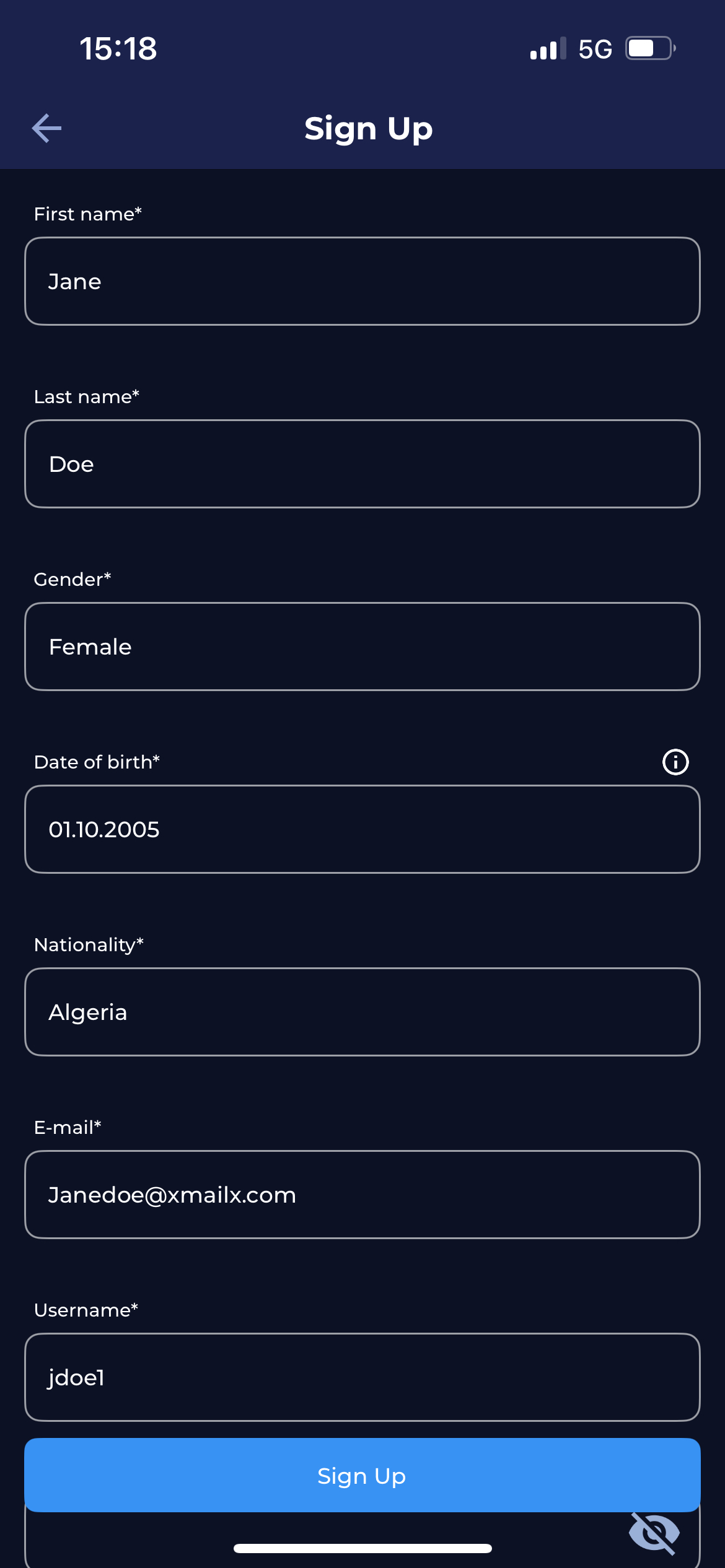
If you are an existing COMET user without a profile, the screen for profile creation will appear, requesting that you add more information to complete your profile.
Enter the required information and tap on Sign up to proceed with the login.
To log out:
-
Click on the profile icon in the bottom left of your screen
-
This will open a Mange Menu with the updated set of functionalities
-
Log out of the app by clicking the Logout button at the bottom of the Screen
Please visit the following article for more details about general account settings: https://analyticom.atlassian.net/l/cp/N101T6zr