
To access the User Menu:
-
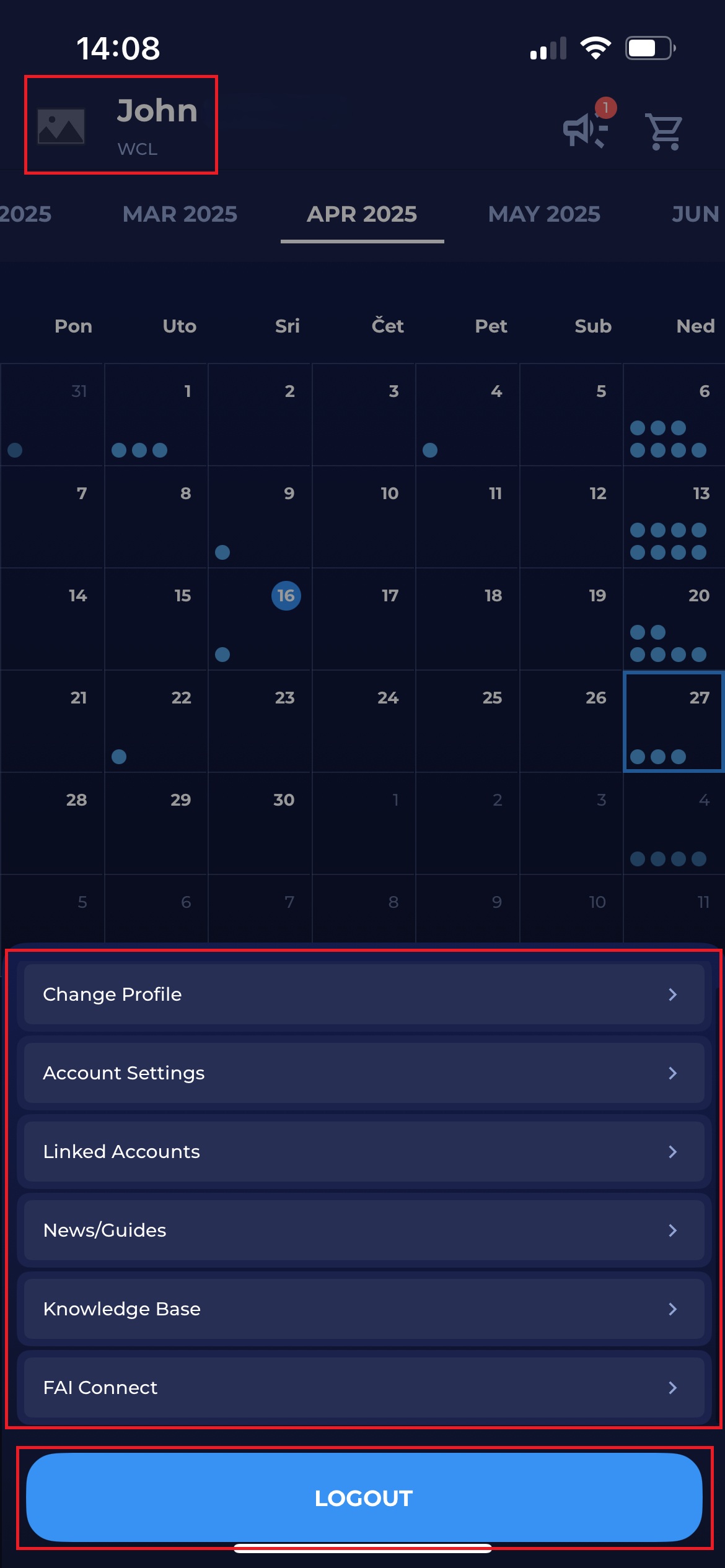
Click on the profile icon in the bottom left of your screen. Take into account that the profile information (the name of your organization and assigned roles) is displayed next to the profile icon
-
This will open a Mange Menu with various functionalities
-
For more information on Account Settings, please refer to the article: Account Settings .
Log out function → log out of the app by clicking the Logout button at the bottom of the screen
Change Profile
-
Open the User Menu by tapping on the bottom right of your screen, or by tapping the profile icon in the bottom left of your screen.
-
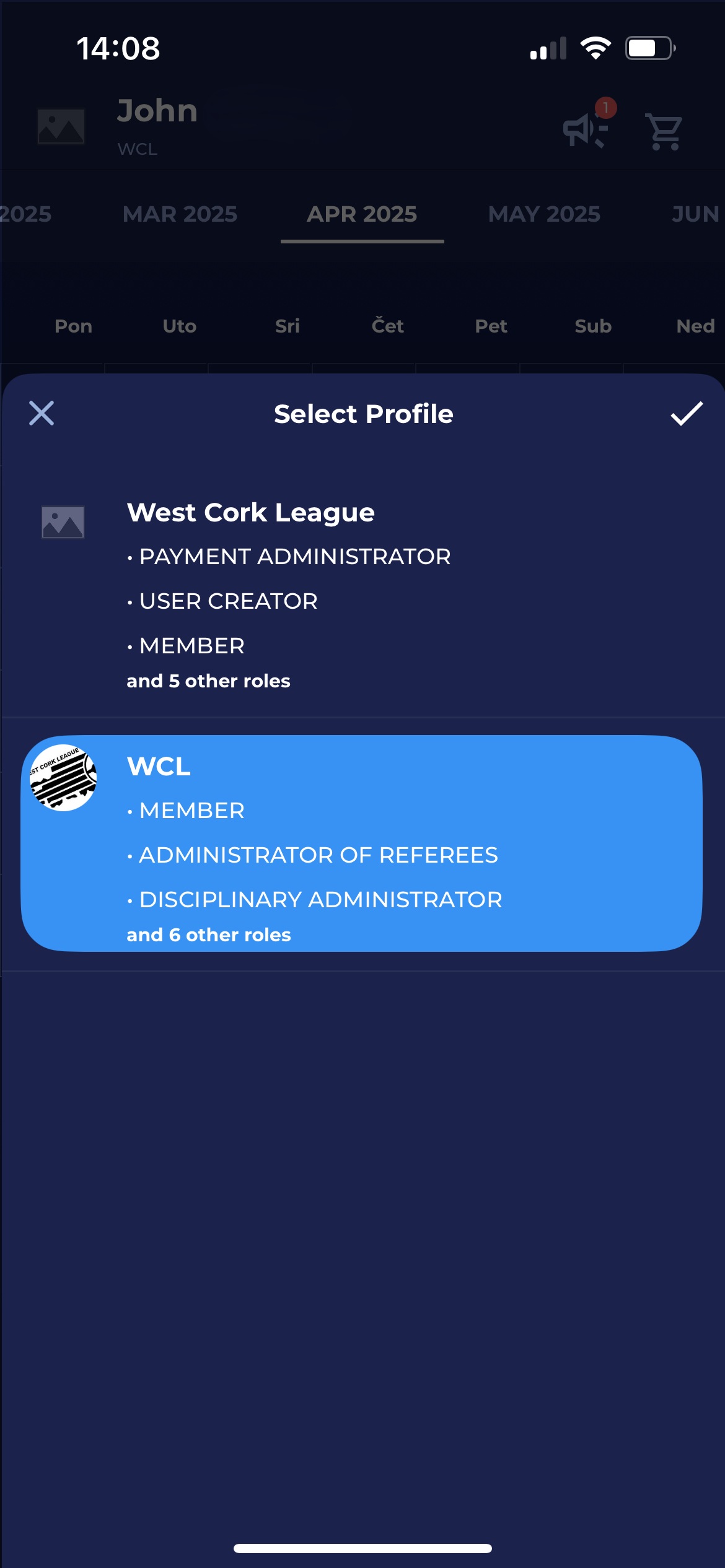
Hit the Change Profiles button.
-
If you have a multiple-profile User account, a modal window will be displayed.
-
Select the profile you want to switch to by tapping on it
-
You will be switched to the preferred profile
News/Guides
-
Choose Settings Menu on the top left of your screen
-
Hit the News/Guides button
-
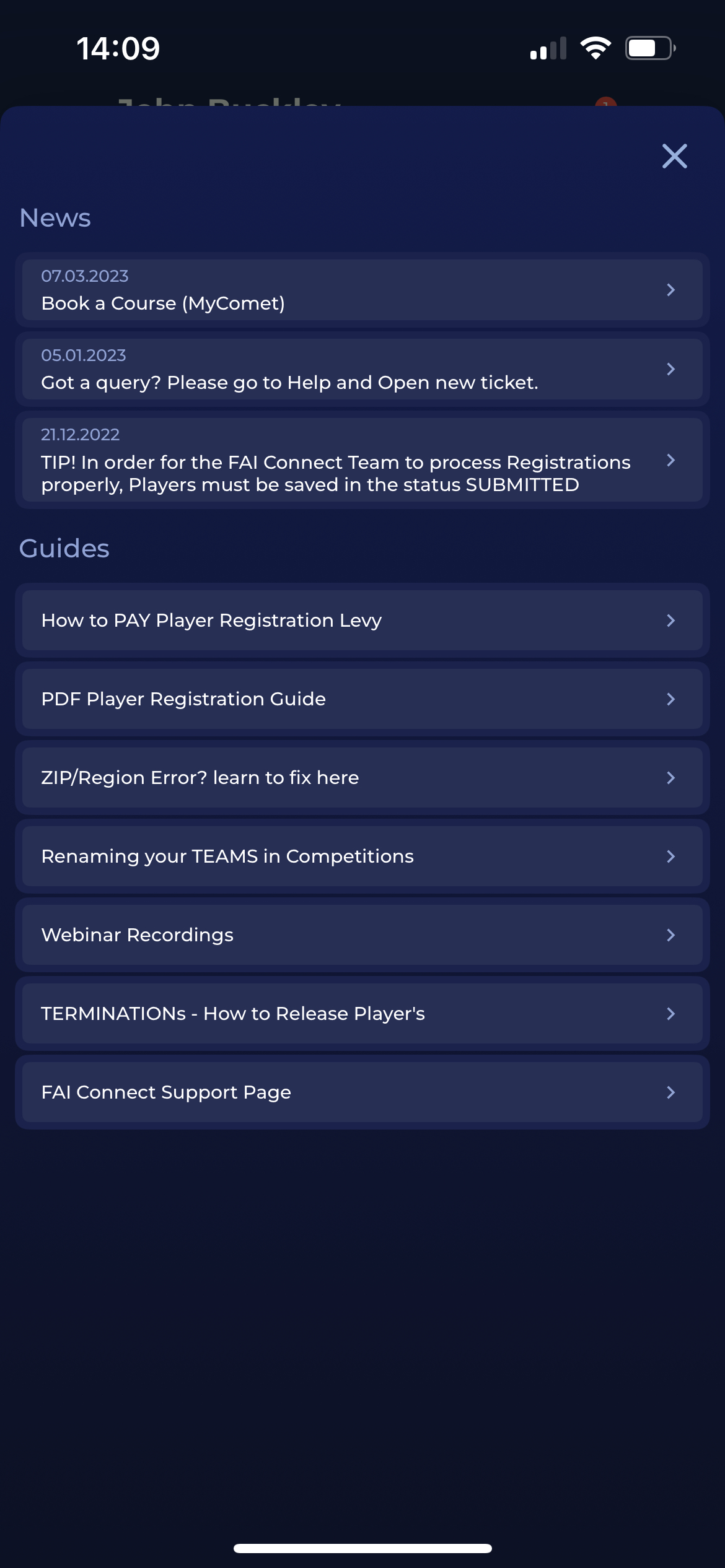
You will be redirected to the News Guides Menu
-
Click on the link/ document from the list to open the News or Guide
-
News/Guides will be opened in another window, outside the app
COMET Knowledge Base
-
Choose Settings Menu on the top left of your screen
-
Click the Wiki button
-
You will be redirected to the https://analyticom.atlassian.net/l/cp/tEdzRFWE page in your browser
Access the COMET LIVE App
-
Choose Settings Menu on the top left of your screen
-
If your organization has the COMET Live App, the button with the App name will be displayed
-
Hit the COMET Live App button
-
You will be redirected to the App, or, in case you have not downloaded the App on your device, you will be redirected to the store.
.PNG?cb=ac449f05d6eb8517608e0c20528ffef2)