
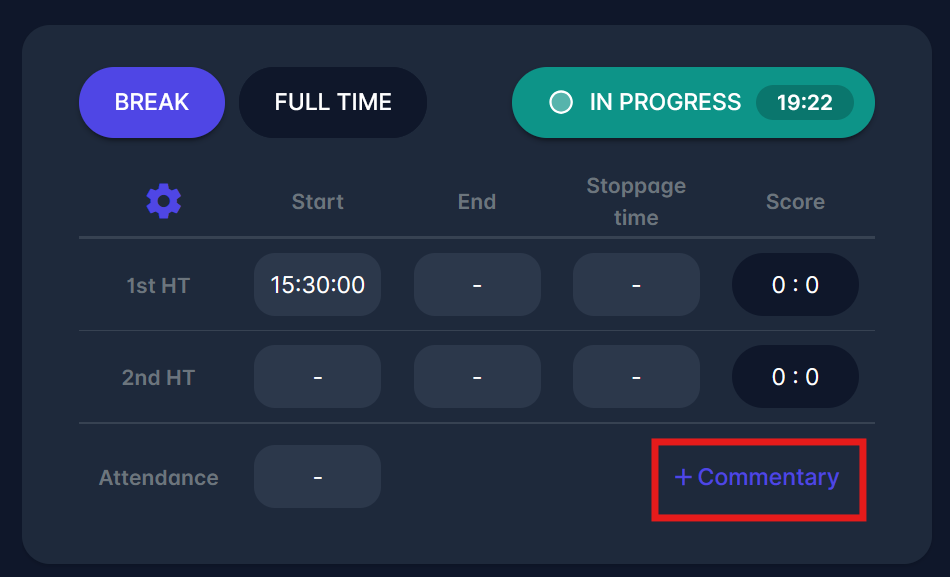
The + Commentary option in the Match Timer panel lets you add live match updates that appear on the Live Tab and on the COMET LIVE Apps. Commentary entries are shown in a descending chronological timeline jointly with match events.
The purpose of commentaries is to provide public users additional interesting information about the events on a specific match, including current attacking or possession momentum, unofficial events such as good chances, free kicks, and anything else that may be interesting or informative for the public audience.
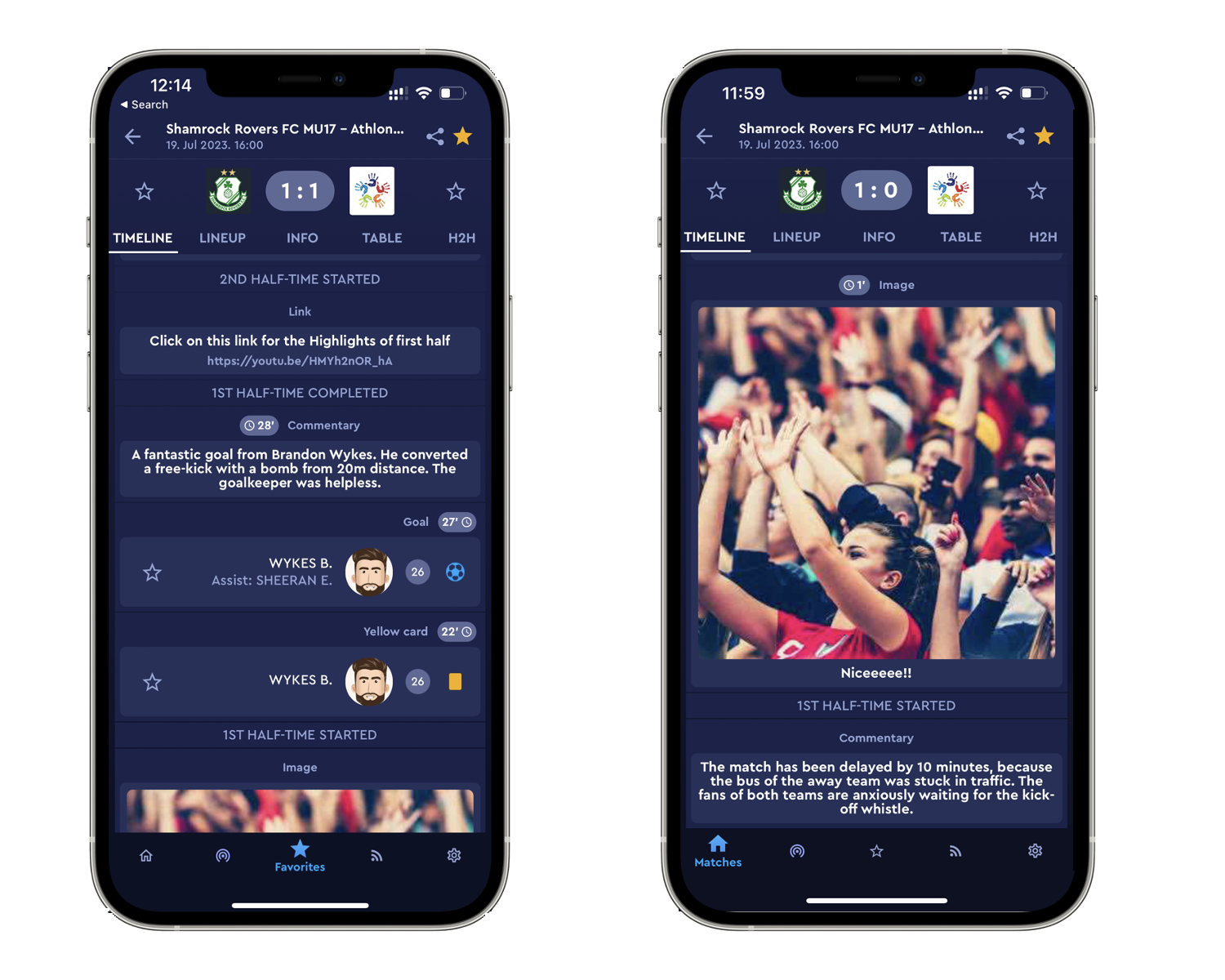
Beyond standard textual comments, COMET allows you to also provide match-related images and links to other apps and websites, such as video highlights on YouTube or other streaming platforms.
Add commentary
To add a commentary:
-
In the upper left panel of the Lie Tab, click + Commentary.
-
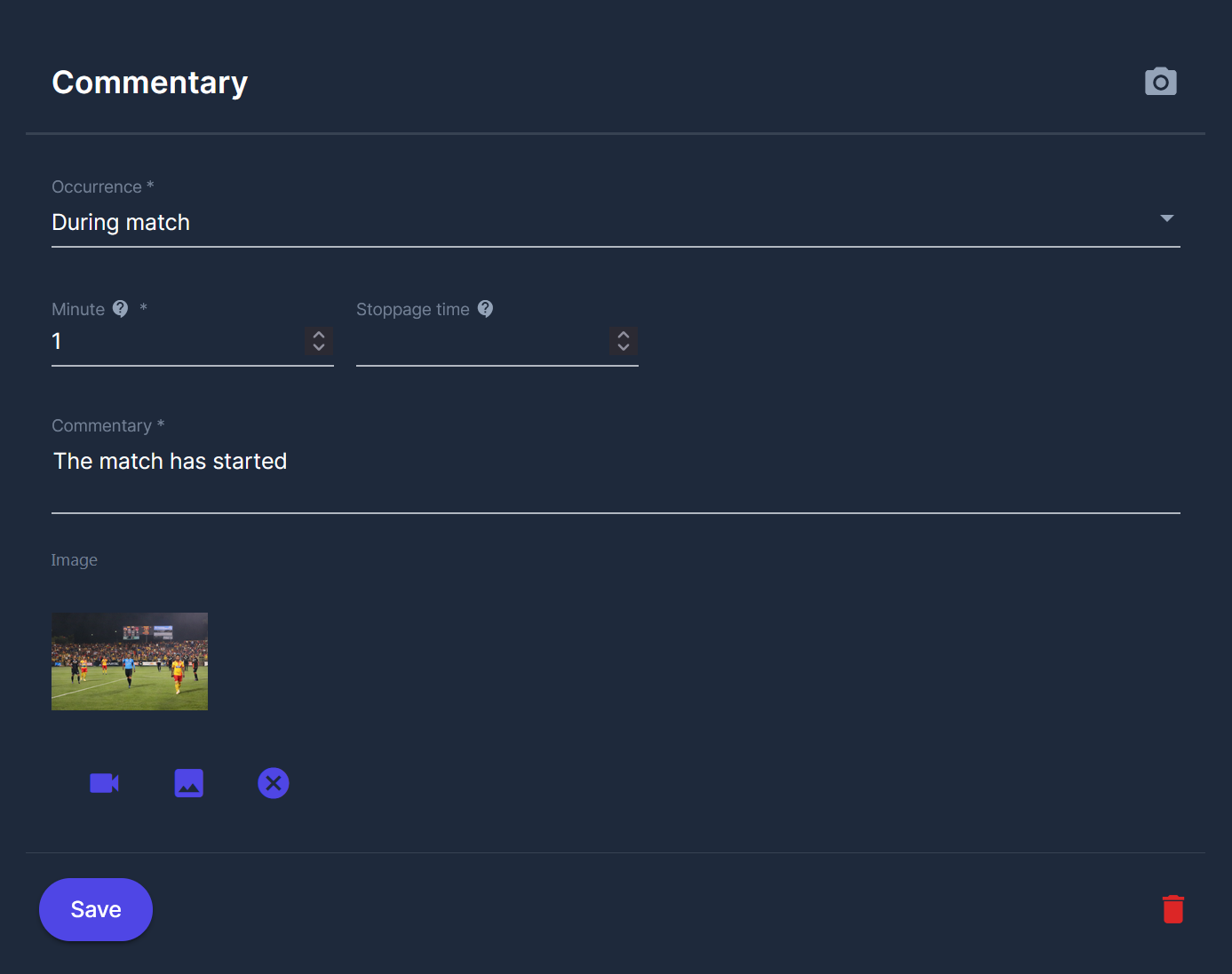
The Commentary form opens.
-
Select the type of commentary:
-
Text
-
Image
-
Link
-
-
Fill in the required fields.
-
Click Save.
Commentary Types
Text commentary
You can use this option for standard textual match updates
Fields:
-
Occurrence* – usually During/Before/After match, During break.
-
Minute* – match minute (e.g., 21).
-
Stoppage time – optional (e.g., 2 for 45+2).
-
Commentary* – textual description of the event.
After saving, the entry appears in the match timeline with the minute indicator.
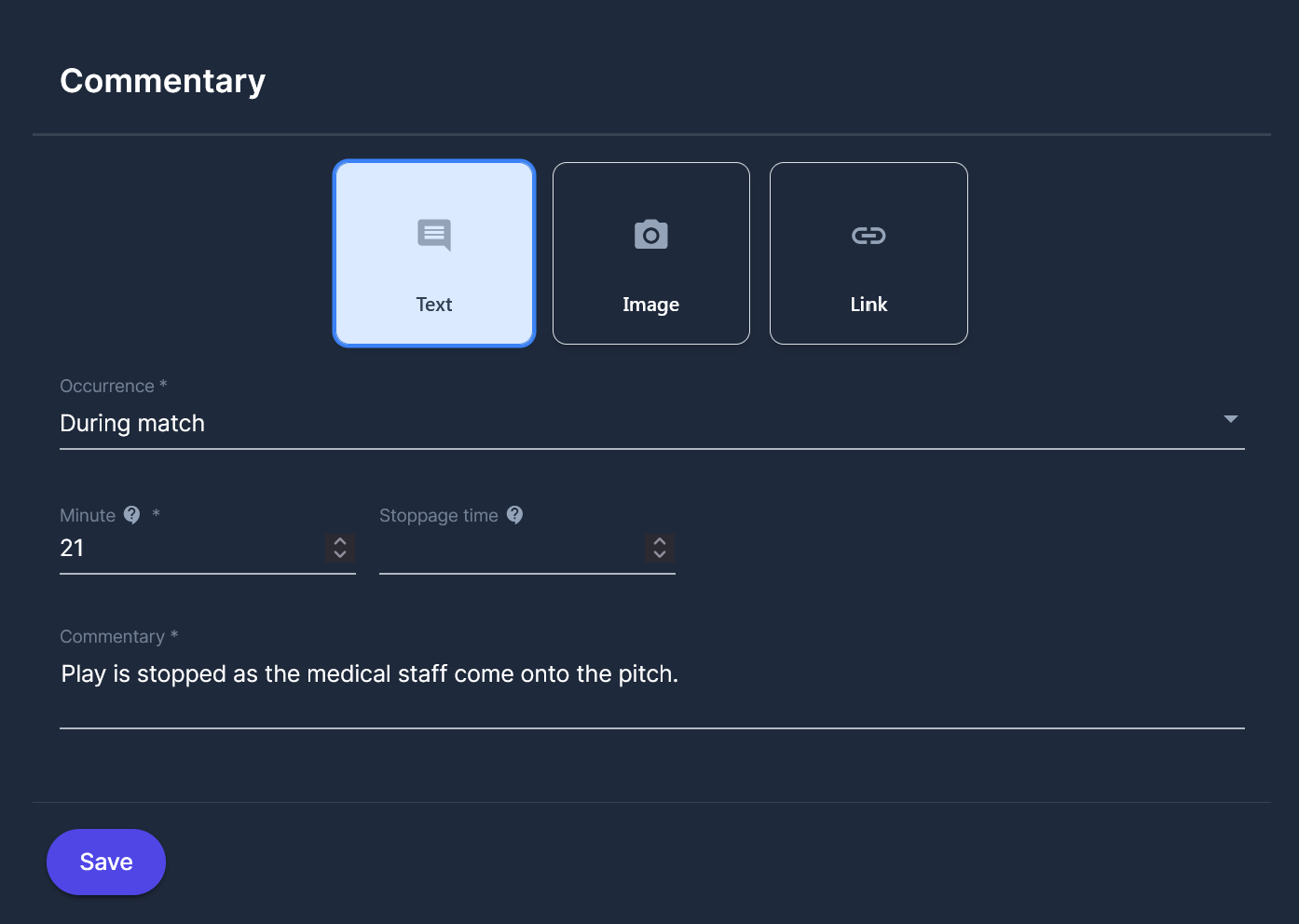
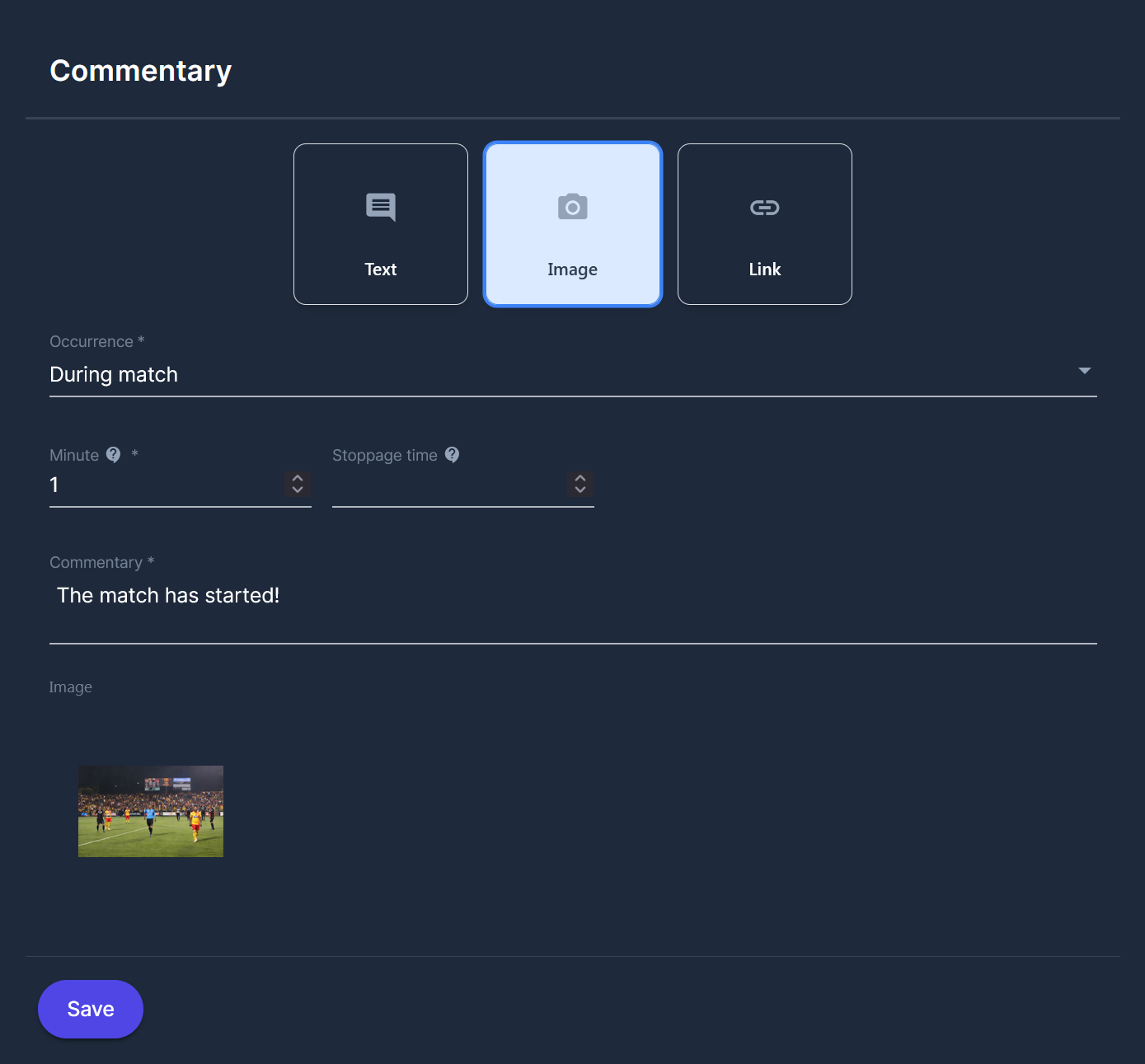
Image commentary
Use this option to attach an image to a commentary entry. An additional field is enabled:
-
Image – upload an image file.
The uploaded image is displayed together with the commentary text in the timeline on the match page.
Link commentary
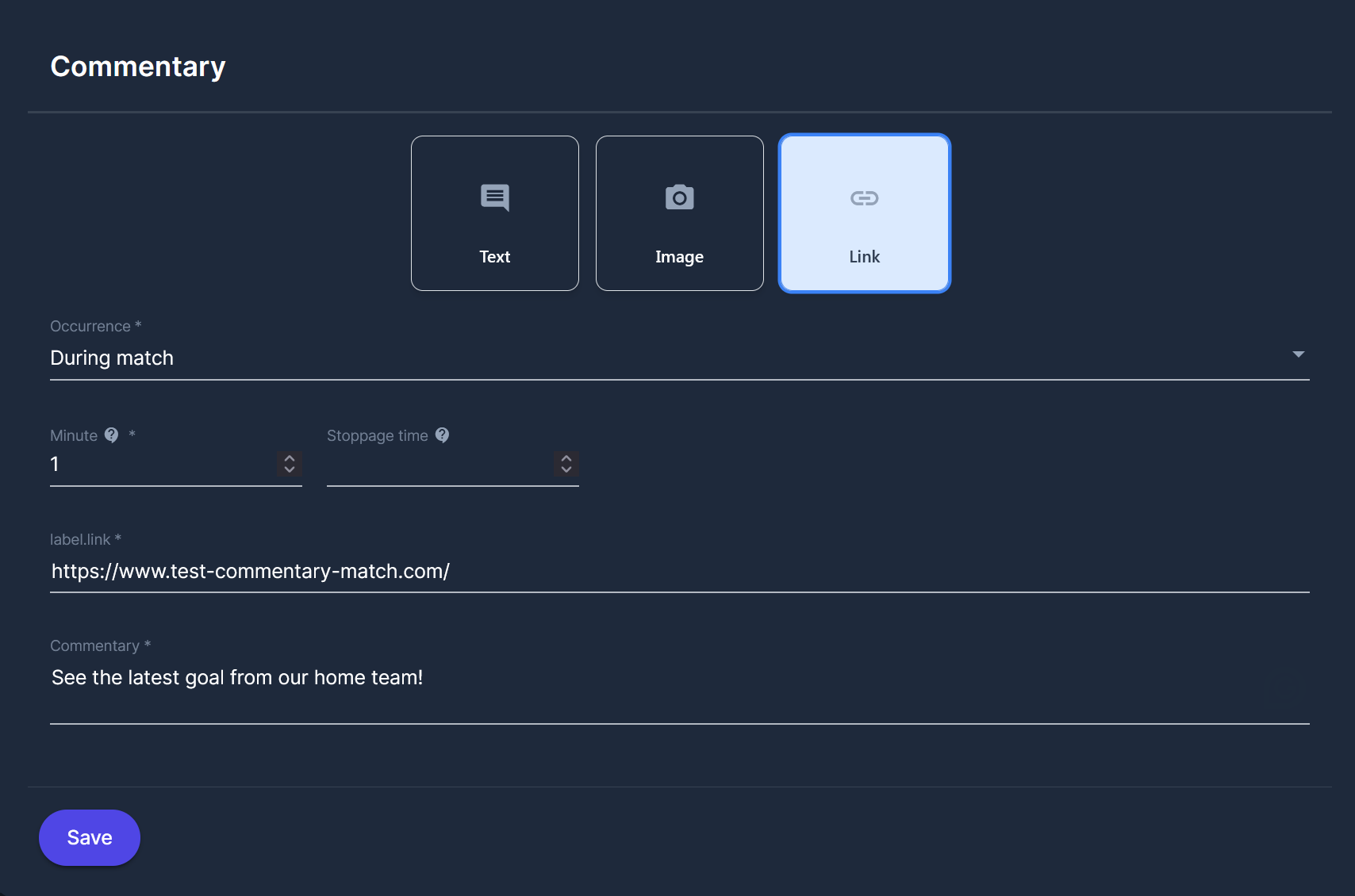
Use this option to share an external resource (e.g., video highlight, goal clip, external article). An additional field is enabled:
-
Link – full URL (e.g., https://www.test-commentary-match.com/)
The link is clickable in the public match view.
Edit existing commentary
To edit a commentary entry:
-
Open the match timeline.
-
Locate the commentary entry.
-
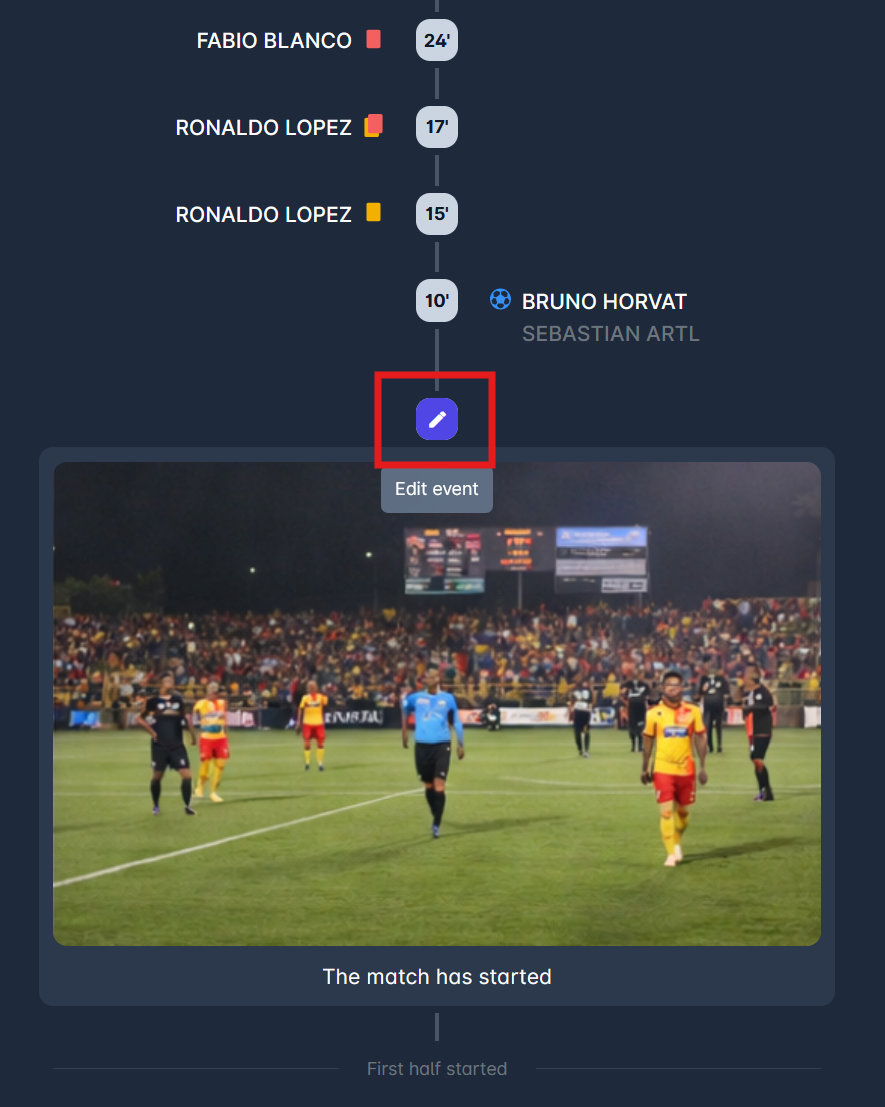
Click the Edit (pencil) icon on the entry.
-
The Commentary form opens with existing data pre-filled.
-
Modify:
-
Minute
-
Stoppage time
-
Text
-
Image (replace or remove)
-
Link (if applicable)
-
-
Click Save.
Changes are immediately reflected in the timeline.
How commentaries appear on the site/mobile app
As shown in the images above, entries are displayed in order of minutes.
Each entry shows:
-
Minute (and stoppage time if entered)
-
Commentary text
-
Image (if added)
-
Link (if added)
The timeline visually separates events and shows the match's progression.
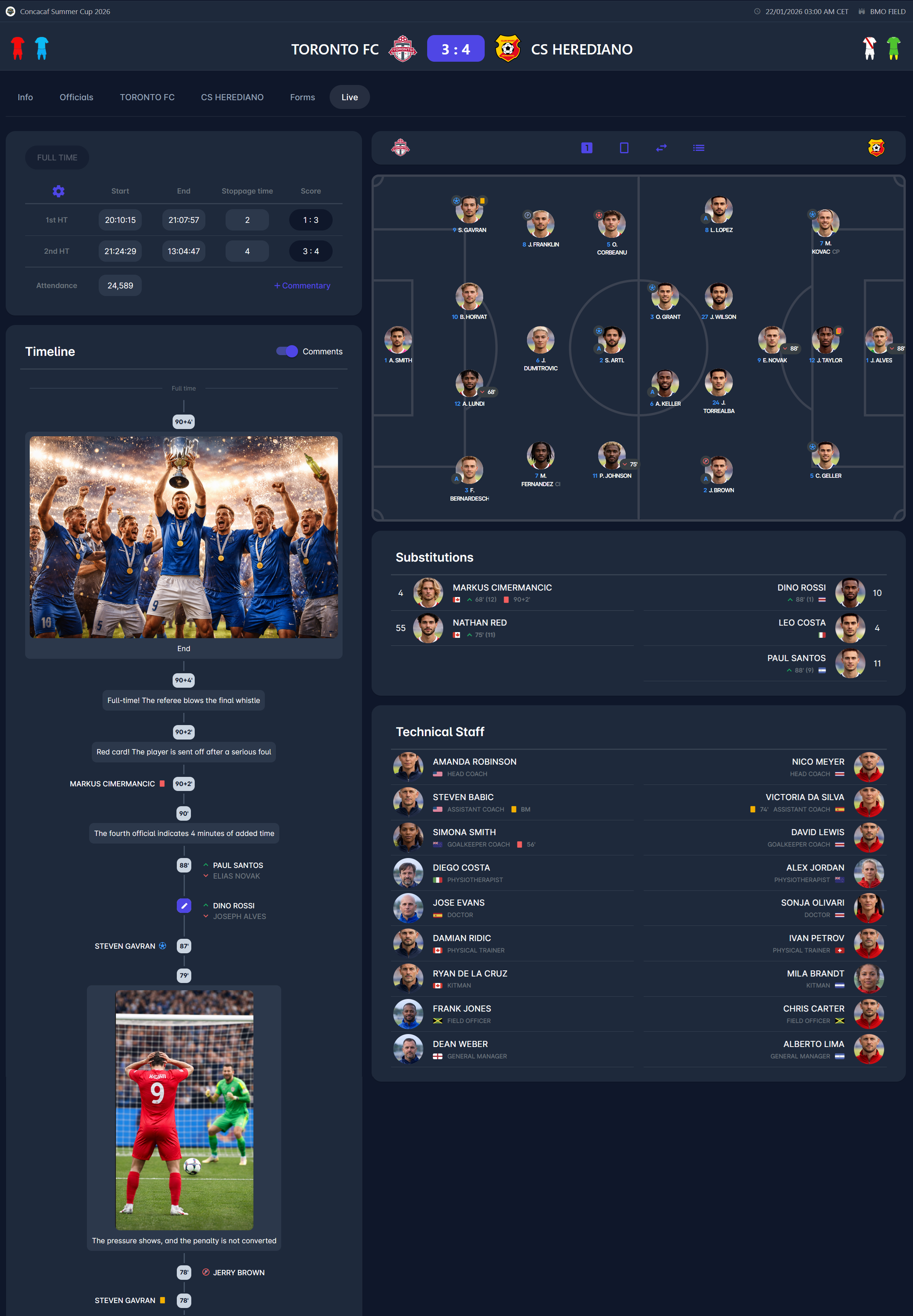
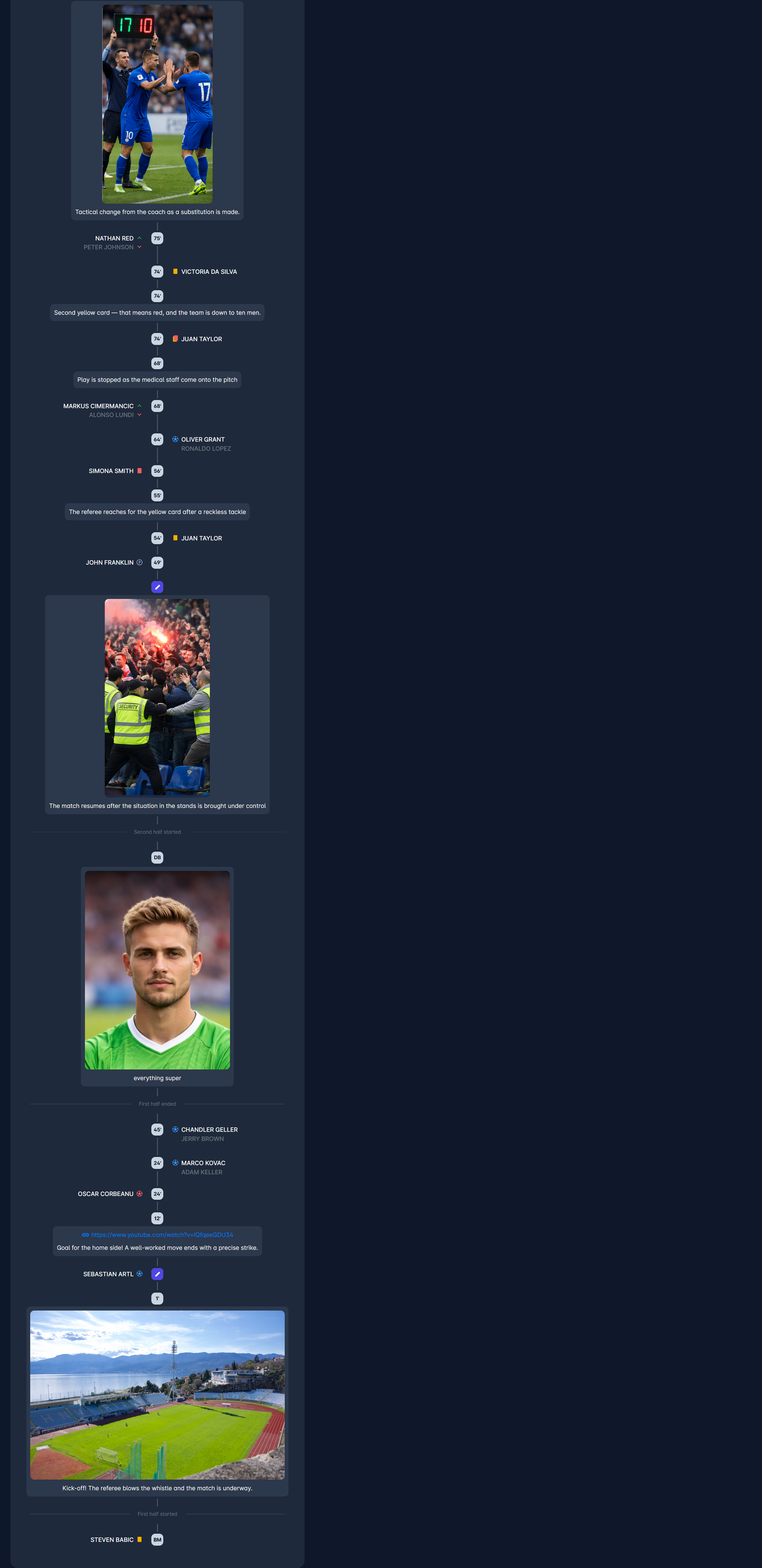
Just as any official match event, the match commentaries are published in the public COMET LIVE iOS and Android Apps in real-time. Therefore, any textual comment, image, or link will be accessible to all public app users, immediately after it has been entered, either in MyCOMET or COMET Football.
To add Live Commentaries from the COMET Football Mobile Apps, please check the instructions: Match Commentaries