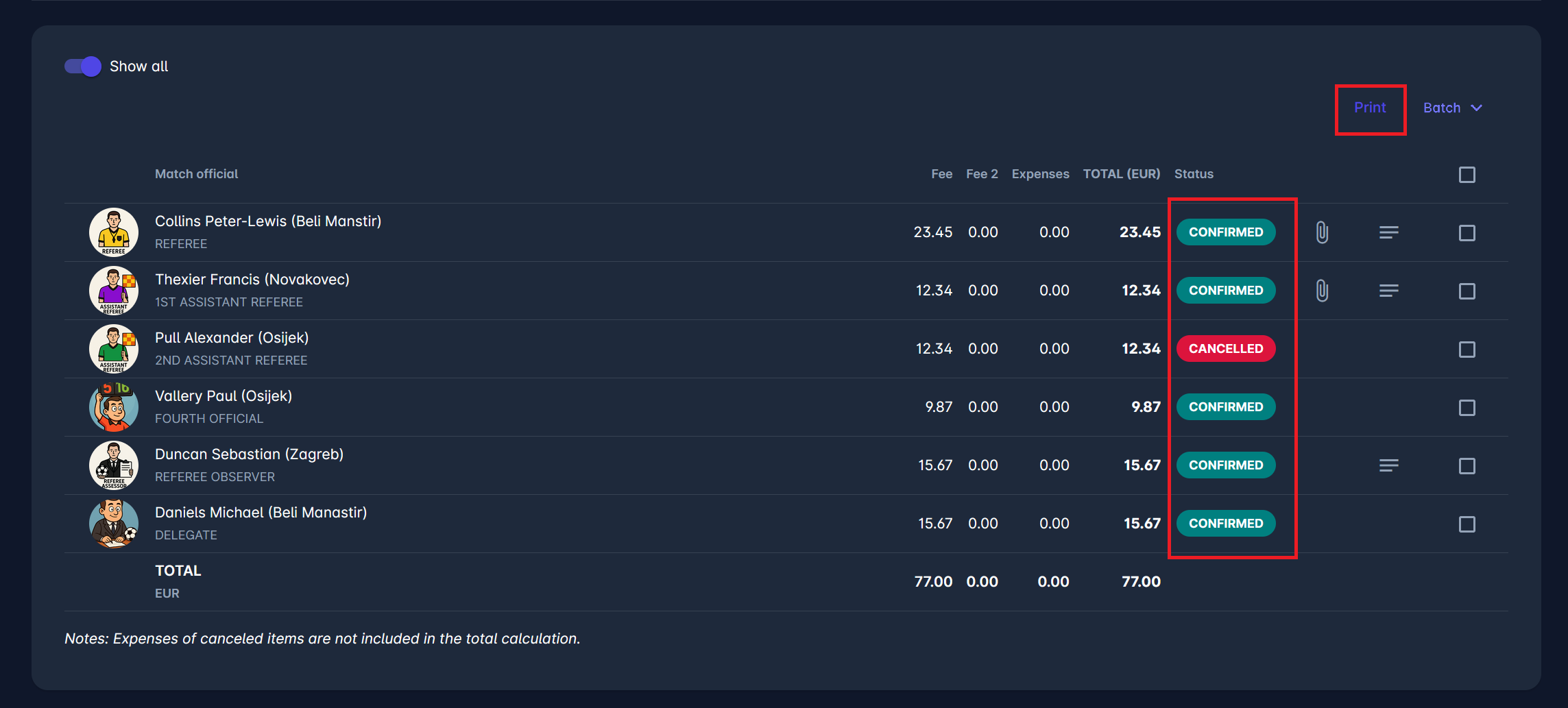
An Administrator or a Responsible match role will be able to access expense items of all match officials appointed to the match.
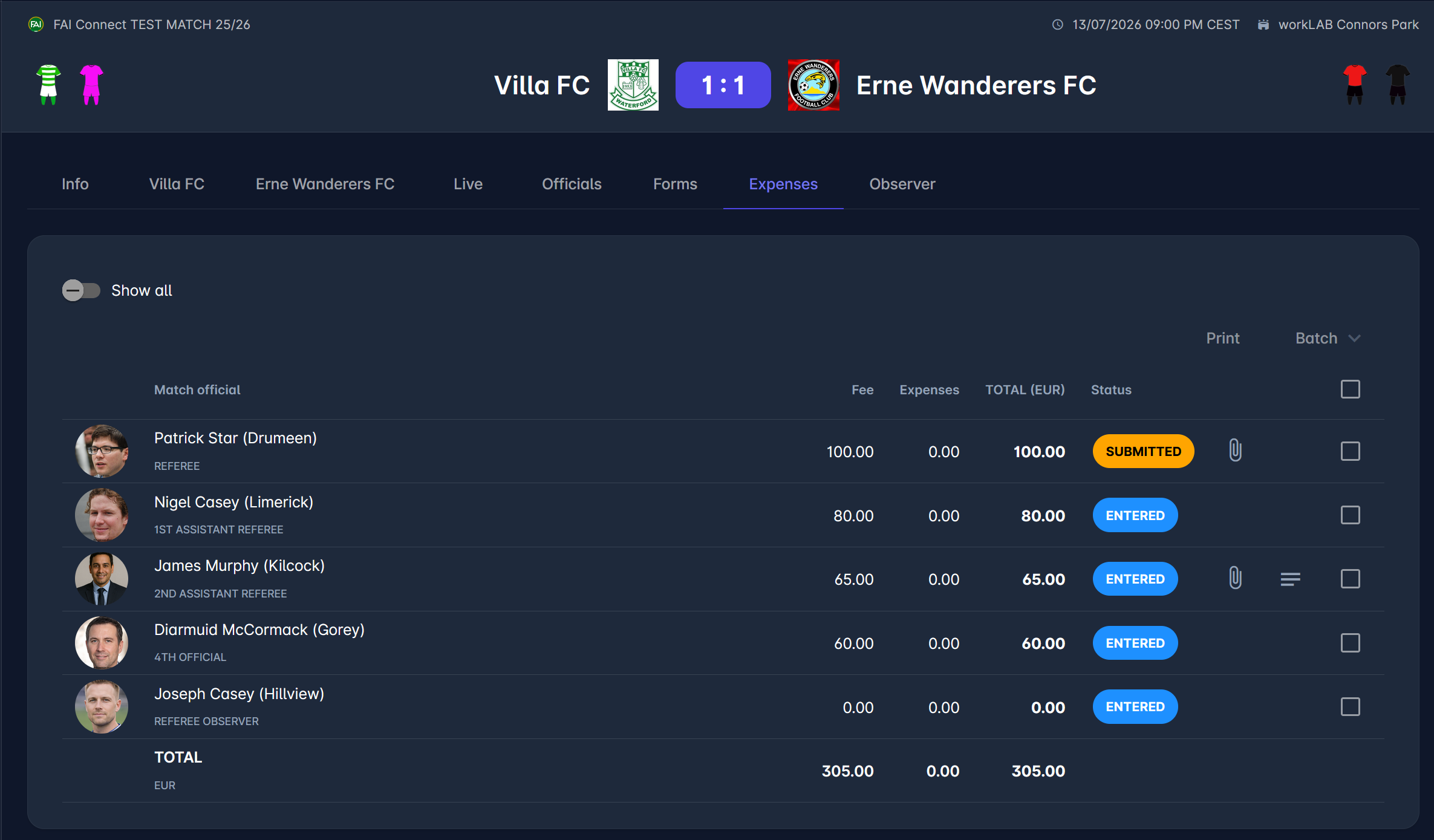
The last row in the table is the Total, which presents the total amount of match expenses. It is shown only if there is more than one match official in the costs.
The 📎 Attachment icon here means an expense item has at least one file linked to it (possible to add/remove them later in the detail view), while the ≡ Notes icon indicates that this expense item has description/notes, and these can be displayed on mouse hover.
Irrespective of the expense item status, a match official's appointment status may differ from CONFIRMED, e.g., if the official had to cancel a previously confirmed appointment due to illness, or if the match was postponed and the official was replaced by someone else.
In these cases, the Match Official's name will be marked red. However, his expenses can still be claimed and CONFIRMED in some cases, e.g., if he made the trip to the match, the match was postponed due to weather, and his appointment was canceled, as he could not officiate on an alternative date. The reason behind the name marked red can be seen by hovering the mouse over the official's name.
Batch Submit/Confirm
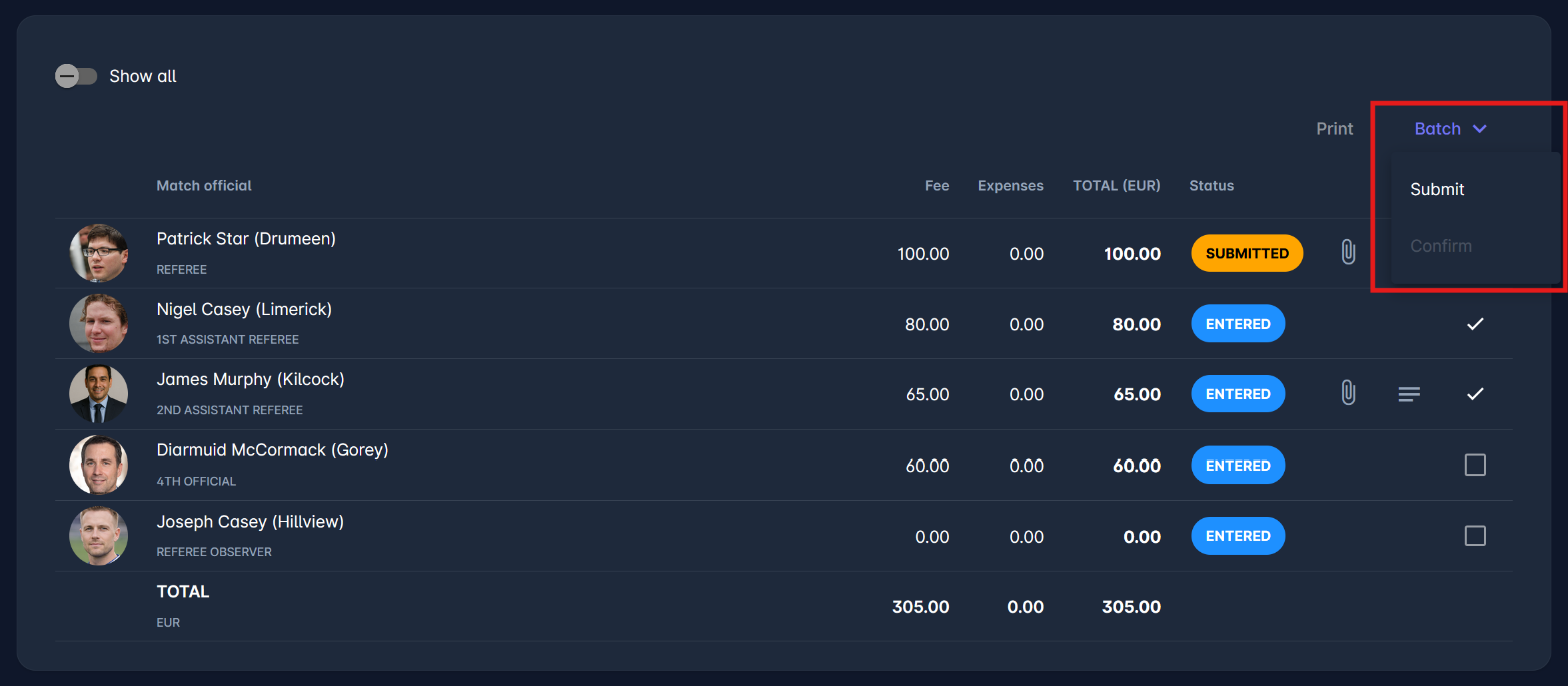
The Batch feature allows authorized users to act on multiple match Expense Items at once instead of handling each one individually. This option is available on the Expenses tab within the match details screen. The available batch action depends on whether Expense Approval Required is enabled for the Competition Type:
-
If disabled (default), users can Batch Confirm selected items, moving them directly to CONFIRMED.
-
If enabled, users can Batch Submit selected items, moving them to SUBMITTED. Administrators/Managers can then review and confirm them.
The batch option streamlines this process by acting on all selected expense items in one bulk action. In fact, this feature replaces the confirmation of the entire Expense Report, which was used in the legacy module, but was redundant - the Expense Report is considered confirmed once all its Items are confirmed (or cancelled) and there are no pending expense items.
To use the batch action on expense items:
-
Navigate to the Expenses tab within a specific match.
-
Check the boxes next to the officials whose expenses you want to act on.
-
Only officials whose expense items are in ENTERED status can be selected.
-
-
Click the Batch Confirm or Batch Submit button in the top-right corner of the table, depending on whether Expense Approval Required is enabled.
-
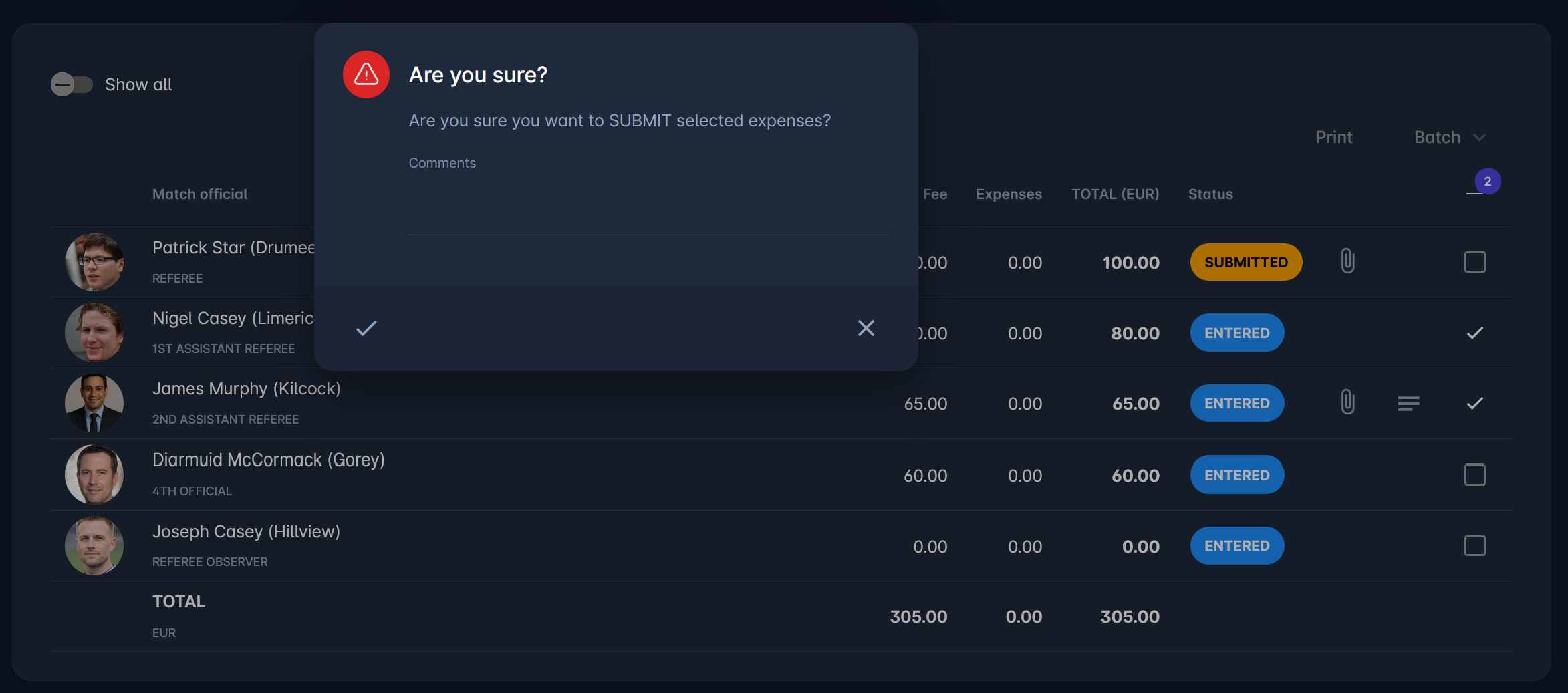
A confirmation dialog will appear asking either "Are you sure you want to CONFIRM selected expenses?" or "Are you sure you want to SUBMIT selected expenses?", depending on the mode.
You can optionally add a comment before proceeding. -
Click ✔️ Confirm to finalize.
All selected expense records will now be updated to CONFIRMED or SUBMITTED status, depending on the batch action used.
Batch Confirm and Batch Submit can only be used by users with the proper authorization (typically the Responsible Match Role or Admin/Manager). Once expenses are confirmed, they cannot be edited by anyone except the Competition or Referee Managers and Administrators.
Show All
If one or more Expense Items have been set to CANCELLED, a new switch button, named Show all, appears above the list of Expense Items. The Show all switch allows users to view even CANCELLED items. This switch does not occur if there are no CANCELLED expense items or if the user lacks the authorization to see the option.
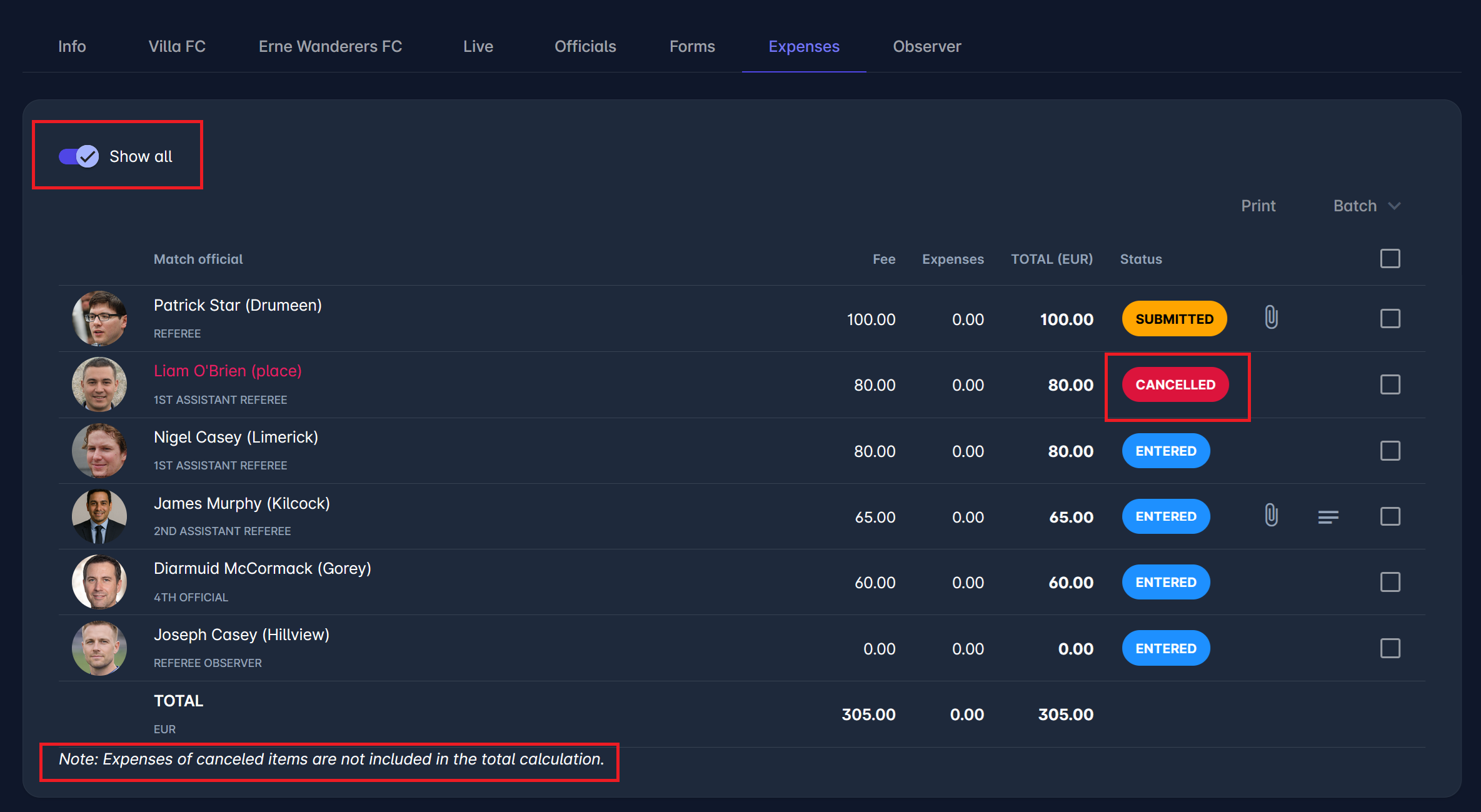
Note that the expenses for canceled items are not included in the total calculation.
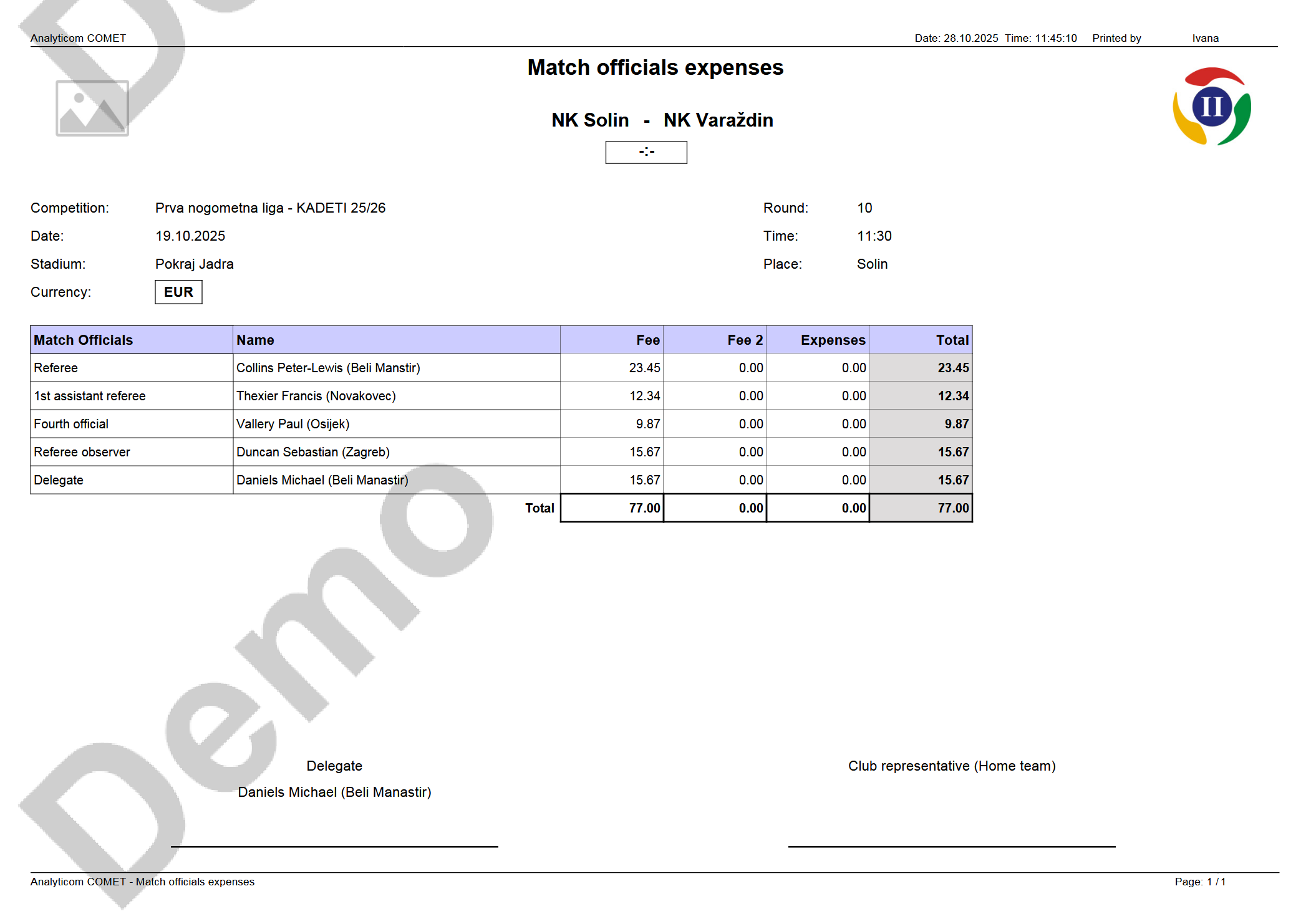
Print Expense Report
The expense report becomes printable when all items are CONFIRMED (or CANCELLED), and there are no pending (ENTERED) items. The print version will only contain CONFIRMED expense items.