
Access to Expense Reports
To find out more about accessing and filling out Match Expense Reports via the COMET Football mobile apps, please check the instructions for the mobile version: Expense Report.
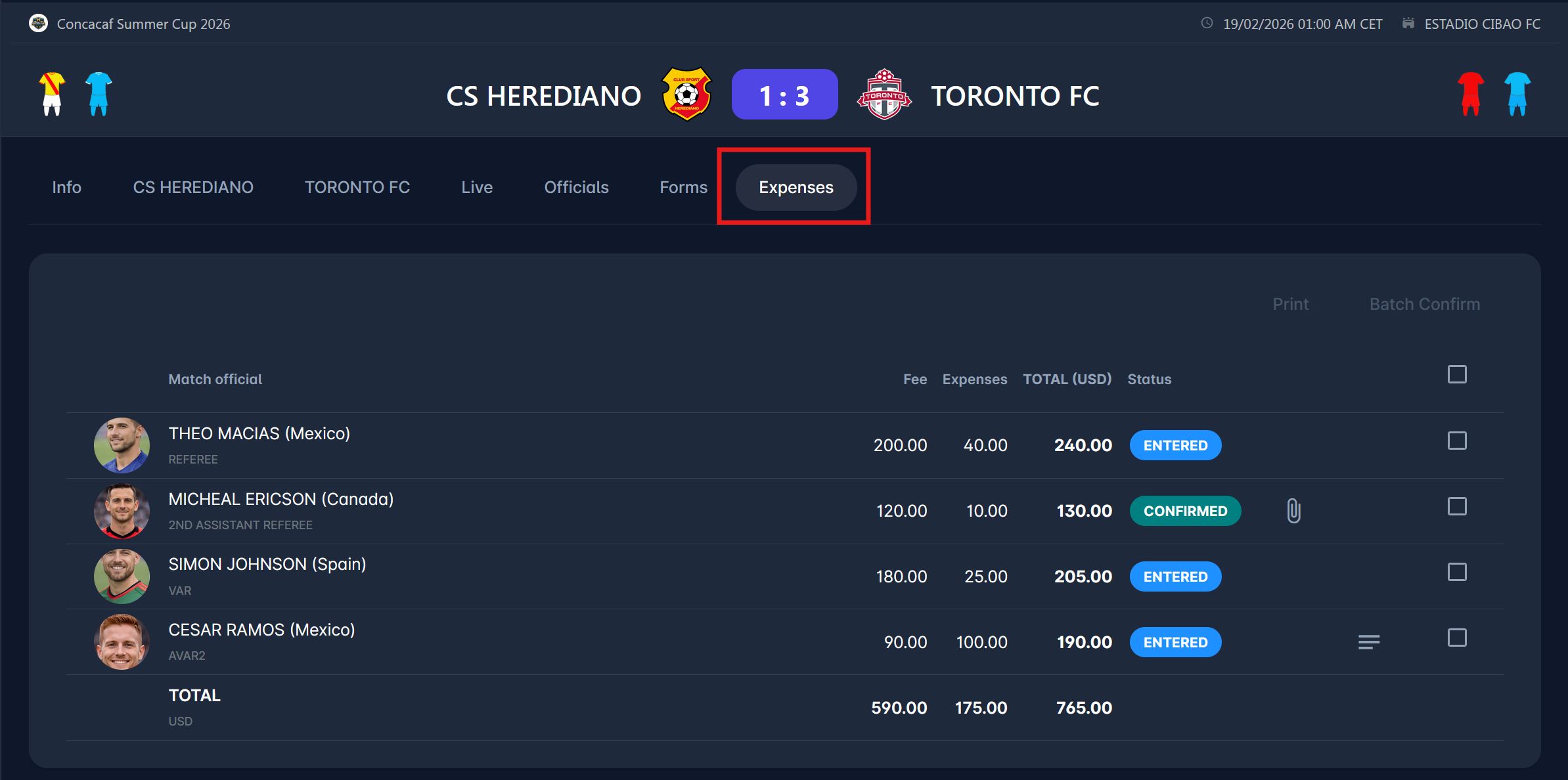
To view and edit the Expense Report for a match, navigate to a specific match site in MyCOMET. Click on the Expenses tab. This action will open the Expenses site in MyComet.
If you have been appointed to the match, e.g., as a Match Official, you can also navigate to the MyCOMET site and select My Matches from the menu on the left to access that match.
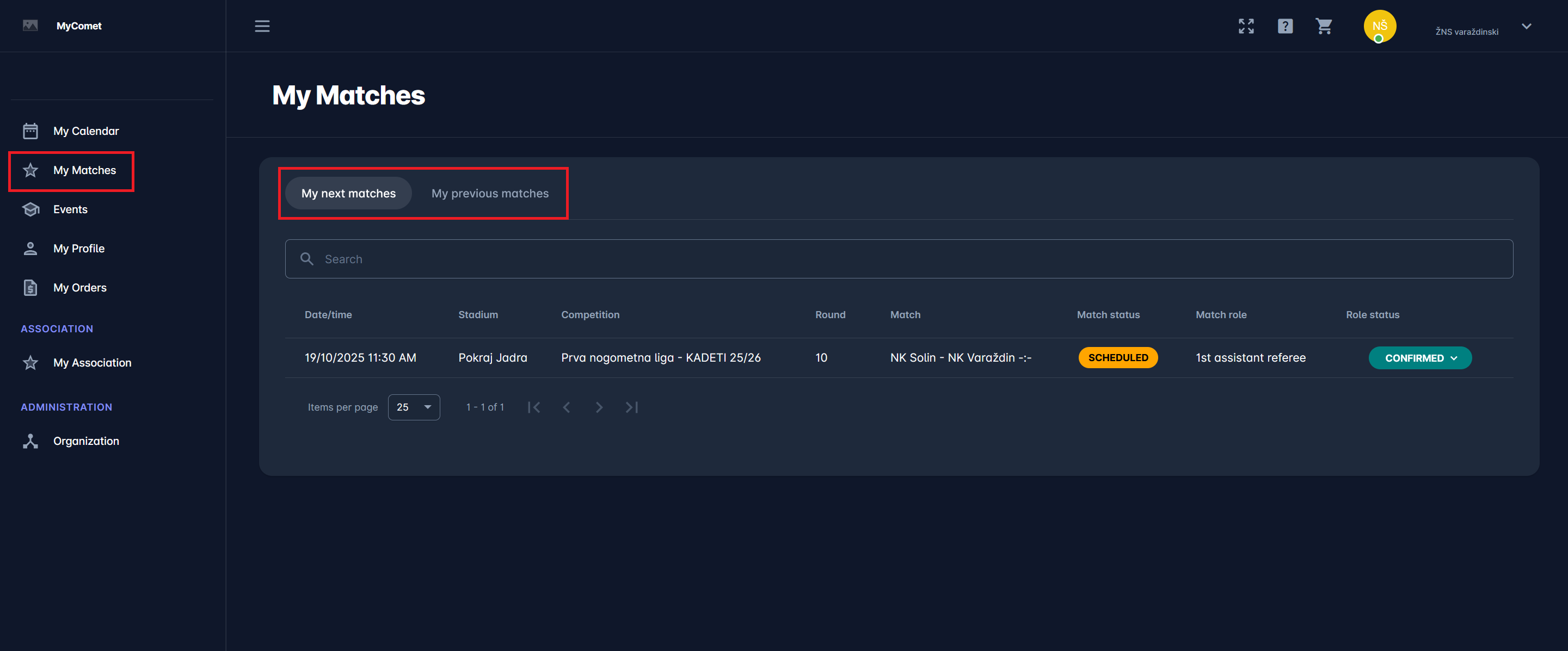
On this site, you can see all previous and following matches you’ve been appointed to by simply switching between the My next matches or My previous matches windows (accessible by clicking on the same-named button).
Please note that your match will remain in My next matches as long as you haven't completed all your responsibilities for the match, including submitting Expenses. As explained above:
-
In the case of the mode Self-Submission, each match official is responsible for submitting their own expenses. And the match will remain in My next matches of the official, as long as they don't submit their expenses.
-
In the case of the mode Responsible Match Role, the responsibility is on the Responsible Match Role for submitting the expenses of all match officials. And the match will remain in My next matches of the Responsible Match role, as long as they don't submit expenses for all officials.
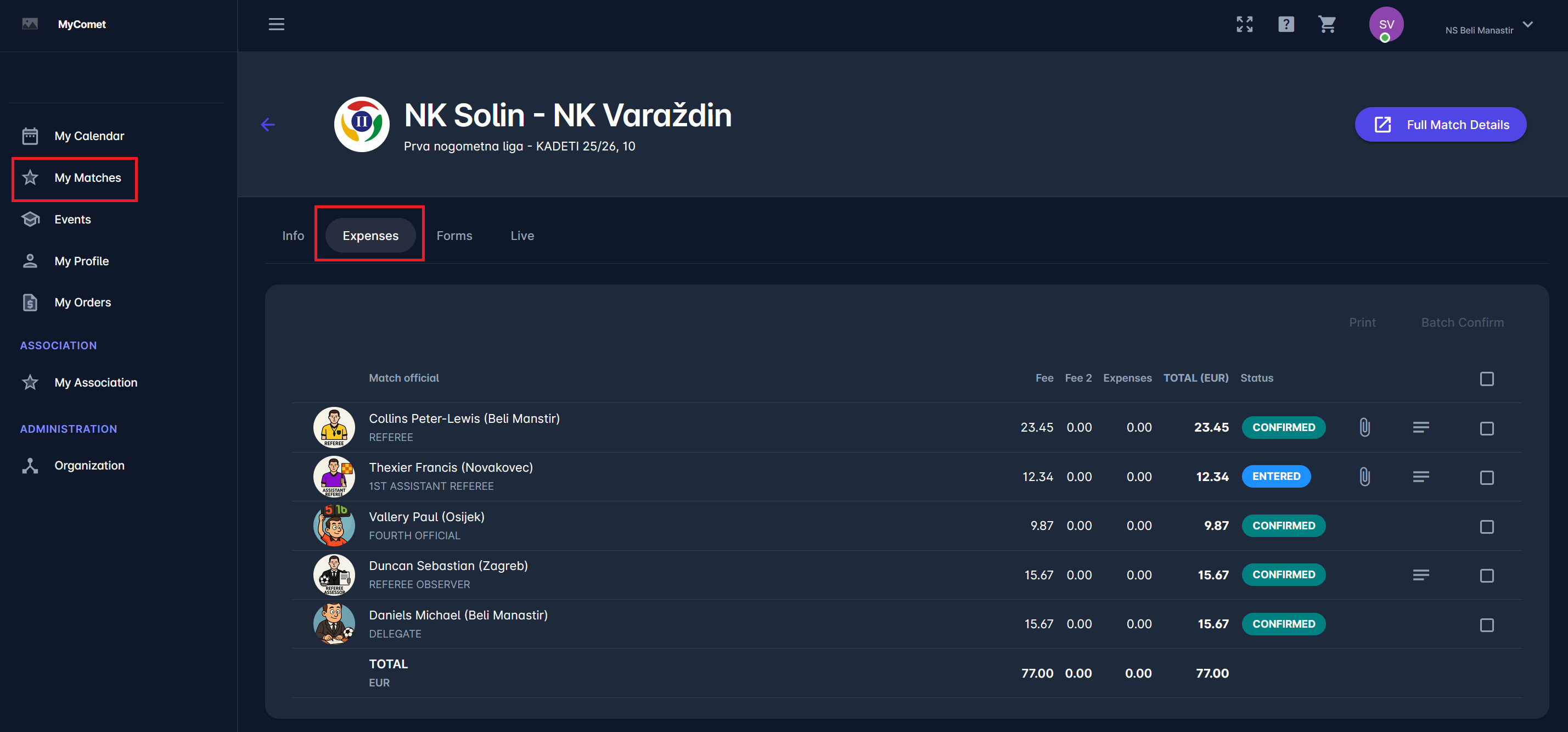
Select a match for which you want to edit or preview the Expense Report. On the home page of the match, click on the Expenses tab, and you will see the expense items in accordance with your Match Role.
If you are the Responsible Match Role or Administrator, you will see all the expense items for all match roles on that match.
Whereas, if you are any other match official (except the Responsible Match Role) appointed to the match (e.g., 1st Assistant Referee), you will only see your own expense item.
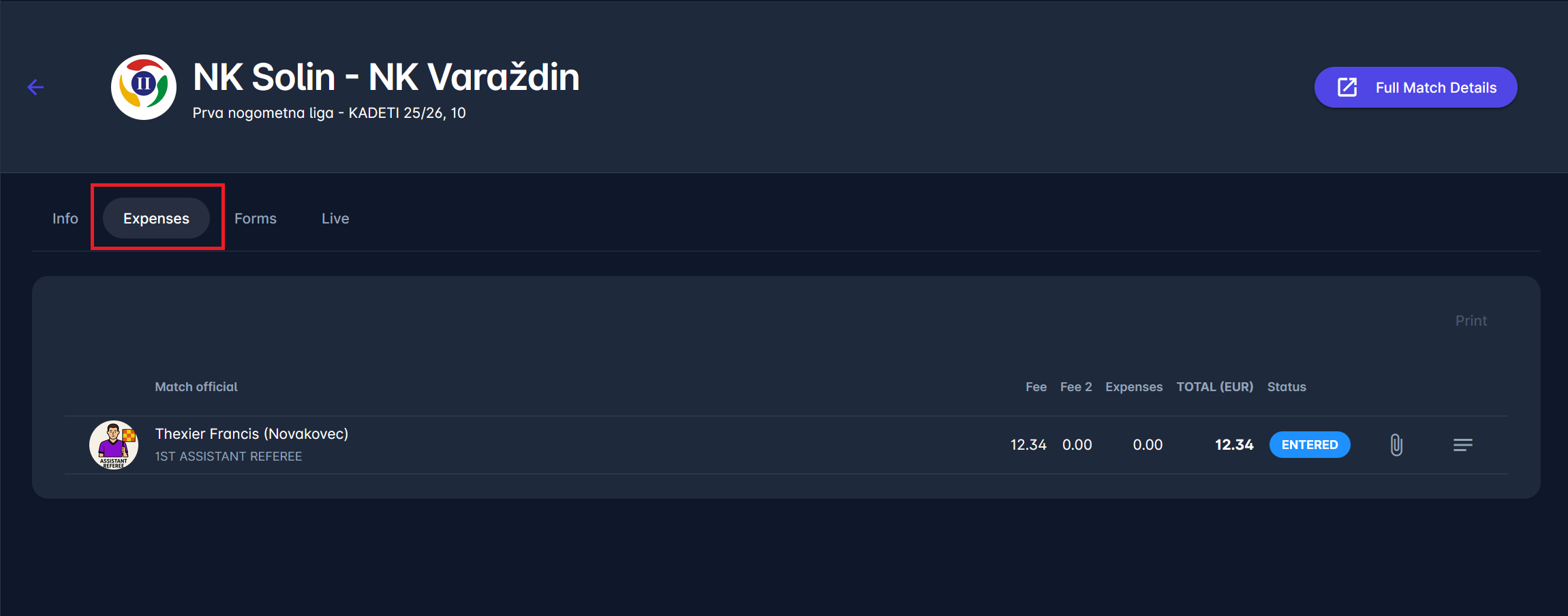
Please note that the expense item for a match official will only be initialized and accessible once his/her appointment to the match reaches the status CONFIRMED. You can find more info about appointment statuses in this article: Respond to Appointments-old
Submit Expenses
Clicking any item from the above list opens the detail form for the expense item for that specific match official. If you are authorized, you will see the Edit button, and upon clicking, you will enter the Edit mode, where you can:
-
Update the fees
-
Add Notes in free text
-
Upload documents (e.g., invoices or receipts)
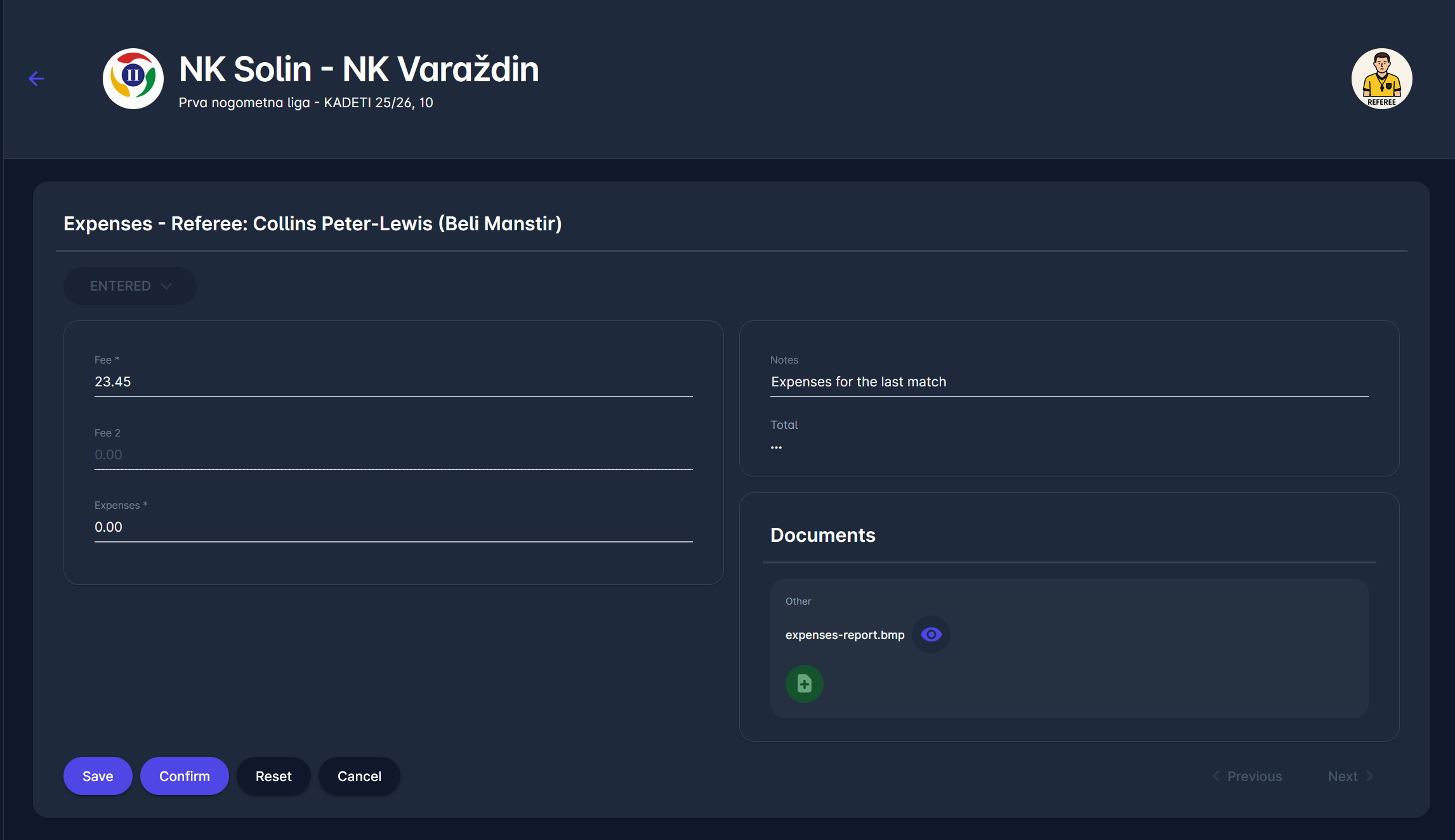
You can then:
-
Save: saves the changes but keeps the report in status ENTERED.
-
Confirm / Submit: the label and effect of this button depend on whether Expense Approval is enabled for the Competition Type.
-
If disabled (default), this button is labeled Confirm and saves and confirms the report directly, moving it to CONFIRMED.
-
If enabled, this button is labeled Submit and saves and submits the report, moving it to SUBMITTED. The report is not yet final - it still needs to be reviewed and confirmed by an Administrator or Manager.
-
-
Reset: Reset the fees to the values defined in the competition.
-
Cancel: Return to view mode without saving any changes.
Once CONFIRMED, the report is considered final and cannot be updated anymore by any match officials, including the Responsible Match Role. If any corrections are needed, Administrators can edit the report or return it to the status ENTERED.
If Expense Approval is enabled, a submitted report first moves to status SUBMITTED, where it awaits review. It is not yet final at this stage: an Administrator or Manager authorized for the relevant match role can either confirm it by moving it to CONFIRMED or return it to ENTERED if corrections are needed.
Notifications: whenever an expense item is Confirmed or Returned to ENTERED, an e-mail is sent to whoever is responsible for that item - the Match Official if the Competition Type uses Self-Submission, or the Responsible Match Role for Expenses otherwise. The e-mail names who made the change and includes any comment left with the status transition, along with a link to view the report.
The reset option is helpful if the expense types or default competition fees change for some reason. It is available only for ENTERED reports. If expenses are to be reset, already CONFIRMED reports should be returned to ENTERED status.
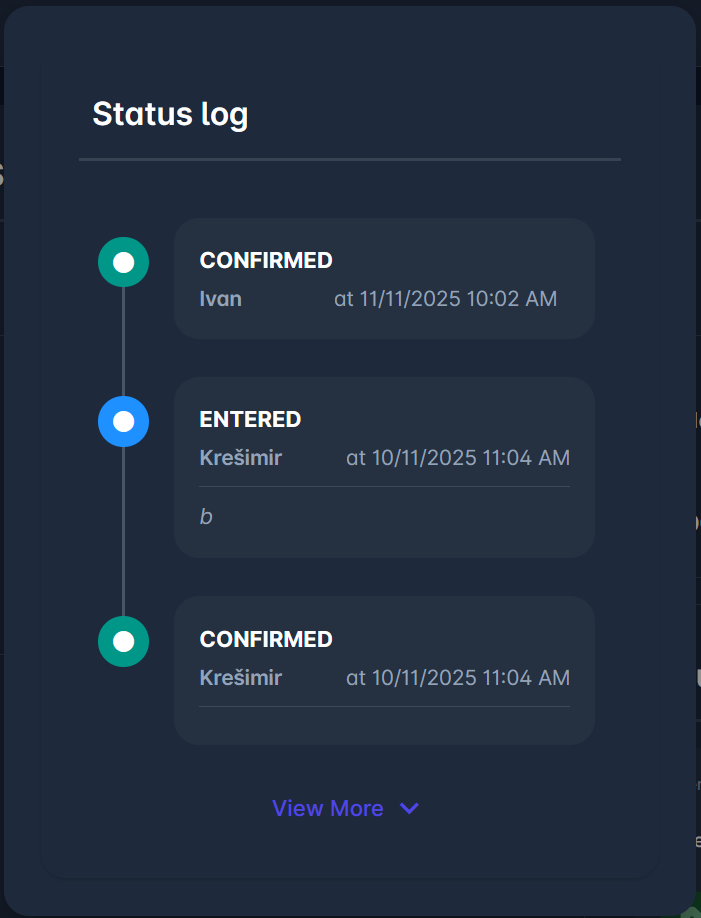
A click on the 🕐 Status log icon next to the current status of the item opens a window with all previous status changes of this item.
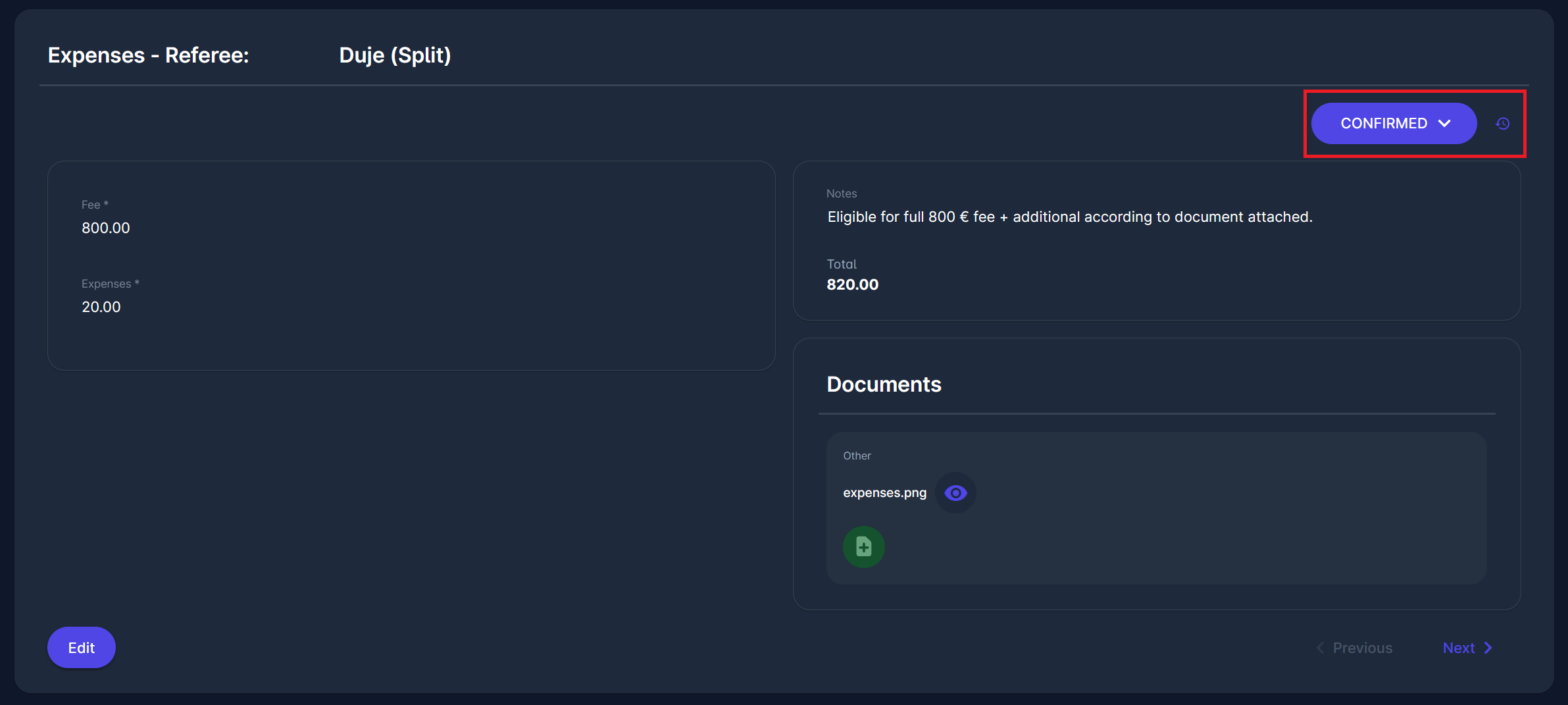
In View mode, the Total amount, shown on the right, is calculated by summing all expenses on the left and includes the currency (defined on Competition).
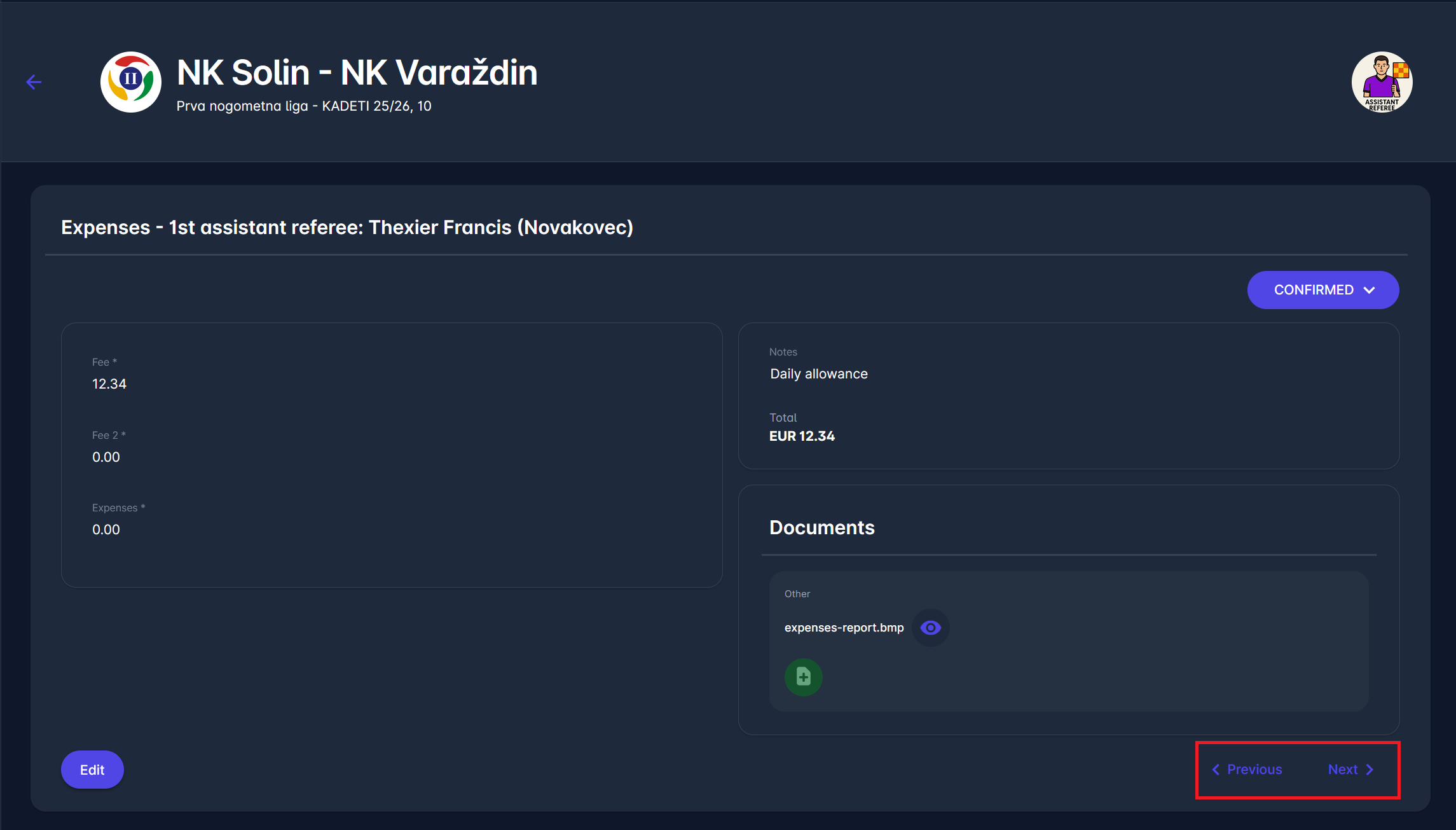
On the bottom right are ⏮️ Previous and ⏭️ Next control buttons, allowing you to move to the previous or next expense item in the expense report. In case you are on the first expense item in the report, only the ⏭️ Next button is available. Similarly, on the last expense item detail page, only the ⏮️ Previous button is available. All other middle expense items have both buttons enabled.