
Expense Submission
The expense submission mode defines, for each Competition Type, whether the expense report is used. If yes, it can be configured whether each match official submits their own expenses or a responsible match role submits them on behalf of all match officials. Here are the options for the Expense Submission mode:
-
None: expenses are NOT used nor visible in the competitions and in the matches of this competition type
-
Self-Submission: each match official is responsible for submitting his/her own expenses
-
Responsible Match Role: A specific match official role (e.g., main referee) is responsible for submitting the expenses of all appointed match officials.
You can configure this setting when either adding a new or editing an existing Competition Type.
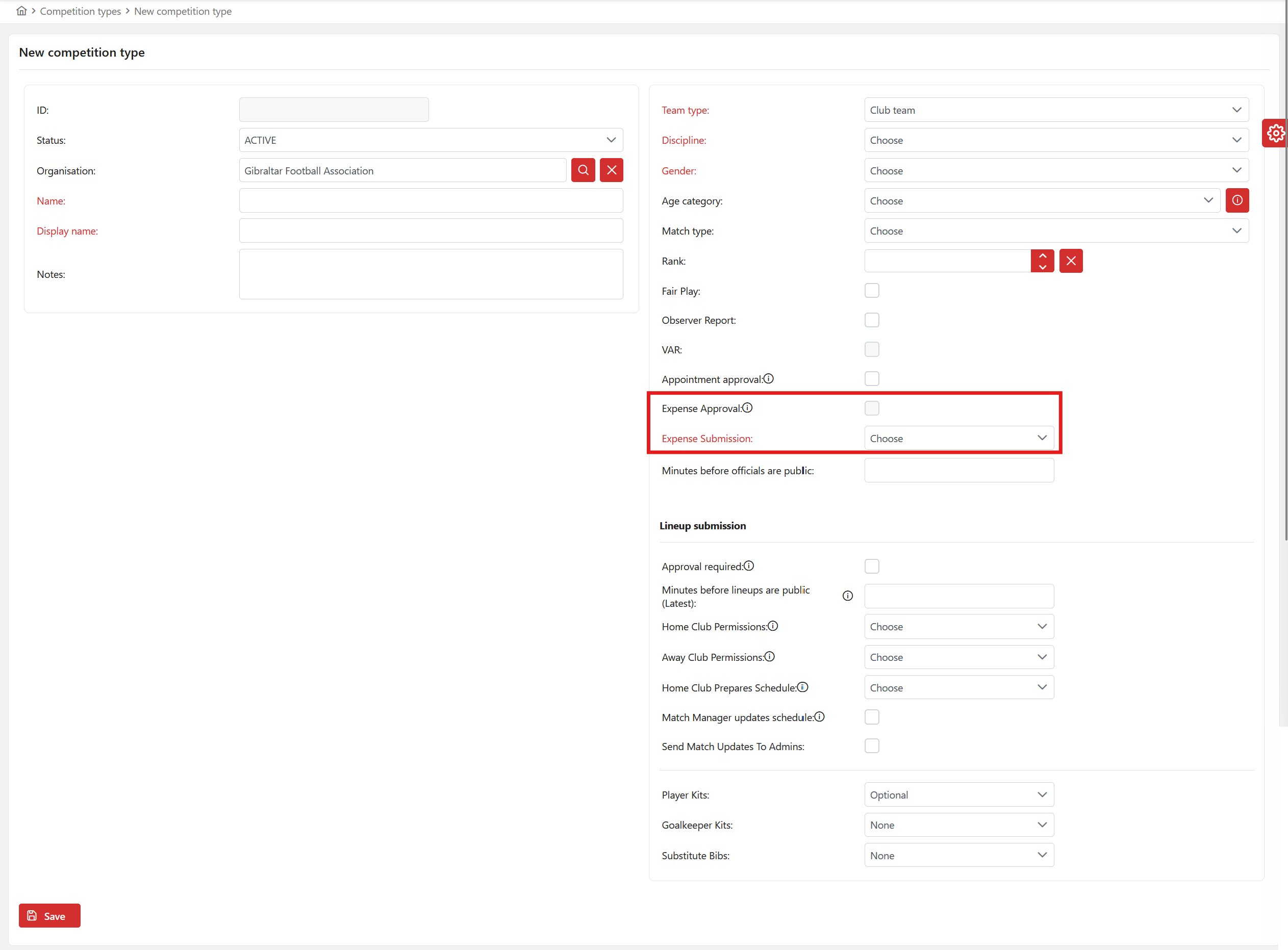
In the next step, you can configure the Responsible Match Role for Expenses. In case of the selected submission mode being:
-
Self-Submission: selecting the Responsible Match Role is optional. It has the authorization (but not the responsibility) to enter the expenses for all other match officials. Each match official is responsible for submitting their own expenses.
-
Responsible Match Role: selecting the Responsible Match Role is mandatory. This role is responsible for submitting the expenses of all match officials. Other match officials can view their own expenses only, but are not authorized to update them.
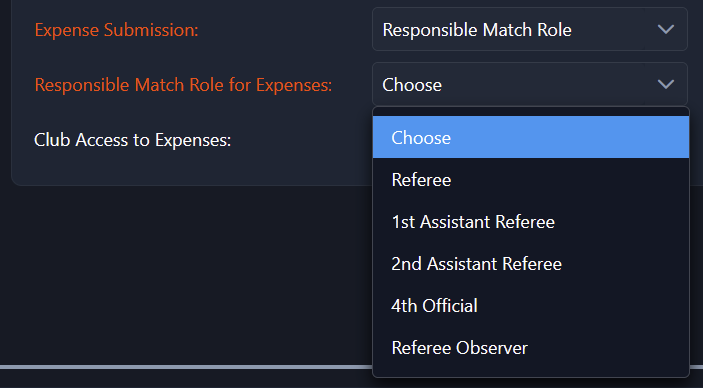
In addition to the Expense Submission mode, you can enable Expense Approval for the Competition Type. This option is available whenever Expense Submission is not set to None, and is disabled by default.
-
Disabled (default): once the Match Official (or the Responsible Match Role for Expenses) submits an expense item, it is confirmed directly, moving from ENTERED straight to CONFIRMED.
-
Enabled: submitted expense items are not confirmed automatically. The Match Official (or the Responsible Match Role for Expenses) submits their expenses, moving the item from ENTERED to SUBMITTED, but it is confirmed only after it has been reviewed and approved by a relevant Administrator or Manager.
Club Visibility
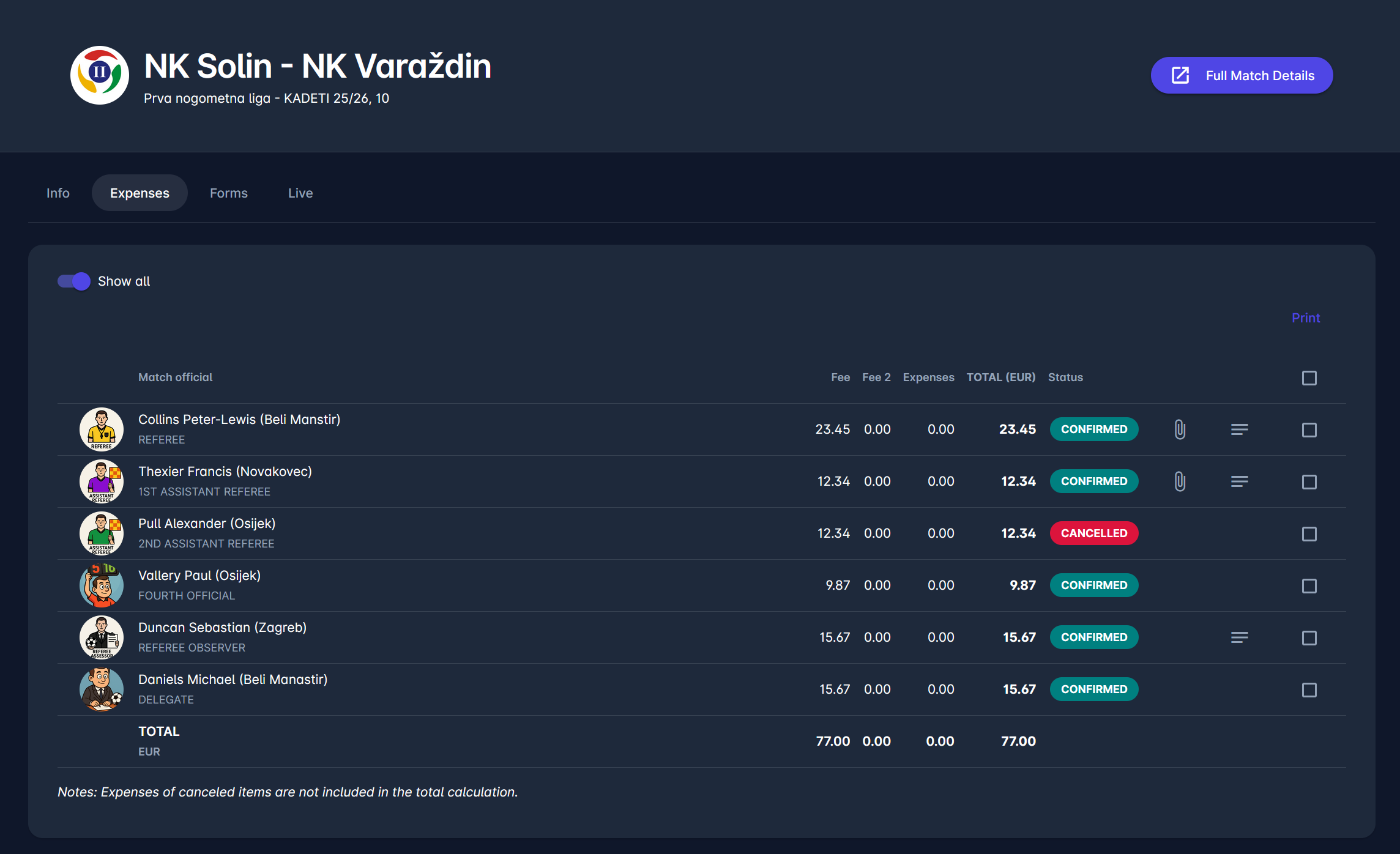
The Club Visibility functionality ensures that clubs have controlled access to expense information for matches where they are financially responsible for paying match officials.
When a club is designated as the payer of match expenses, users with the roles CLUB MANAGER and LINEUP MANAGER (within the respective club) are granted read-only access to the Expenses tab of those matches.
This access includes:
-
viewing the List of Expenses,
-
opening the Expense Details, and
-
using the Print option.
To configure Club Visibility, in the Competition type administration, the user can select whether a club has access to the Expense report.
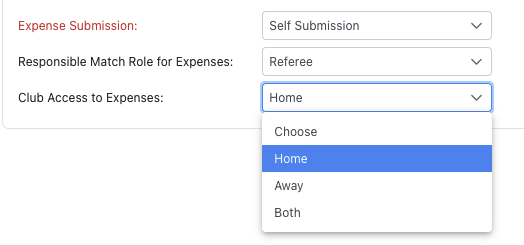
As mentioned, depending on the administrator's choice, home, away, or both clubs can see and print the report. However, this does not allow them to edit the report.
Default Competition Values
Default competition values, such as the match officials’ fees, can be defined directly in the competition settings. These values will automatically populate for all matches created within that competition once they are updated to status PLAYED.
To set the Default Values:
-
Navigate to the competition site in the Legacy COMET:
-
Go to the Competitions module.
-
Select the competition you want to configure.
-
-
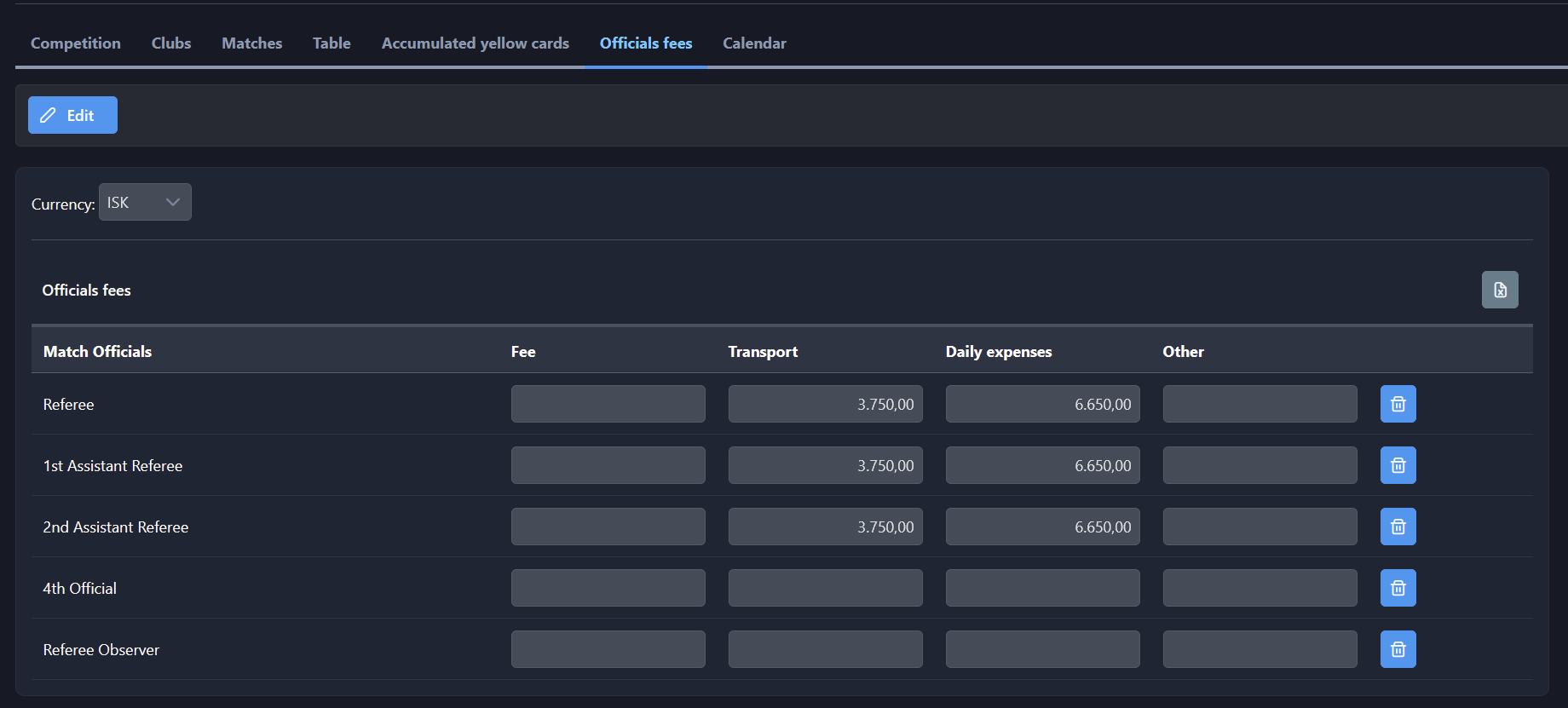
Open the tab labeled Officials' fees in the competition menu.
-
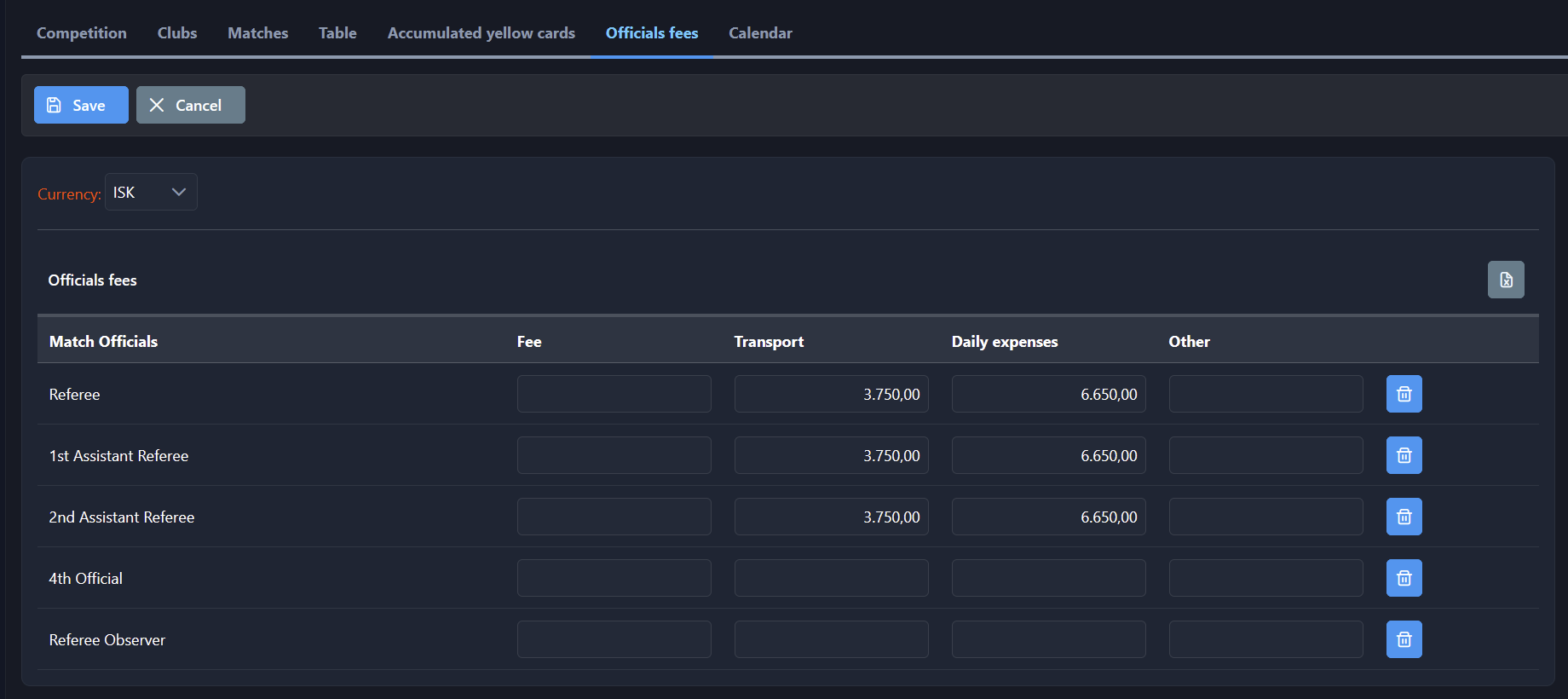
Click the Edit button to enable editing of the officials’ fees.
-
Define the default fees.
-
Enter the amount for each Match Official role (e.g., Referee, Assistant Referee, Delegate, etc.).
-
Use the Fee and Fee 2 columns depending on your setup.
-
You can remove a value using the trash can icon on the right side. A confirmation window will appear before deletion.
-
-
Select the desired currency from the Currency dropdown menu.
-
Click the Save button to apply the default values for this competition.
Once saved, these fees will be automatically applied to all matches in this competition. You can adjust or update them at any time by returning to the same screen and editing the values, or by editing them on each Expense Report. Editing some values also depends on the configuration of each item (default or final).