MyCOMET Features described in this article will be deployed on all Demo instances by 28 October 2026 and migrated to Production on 12 January 2027.
Club Guide
-
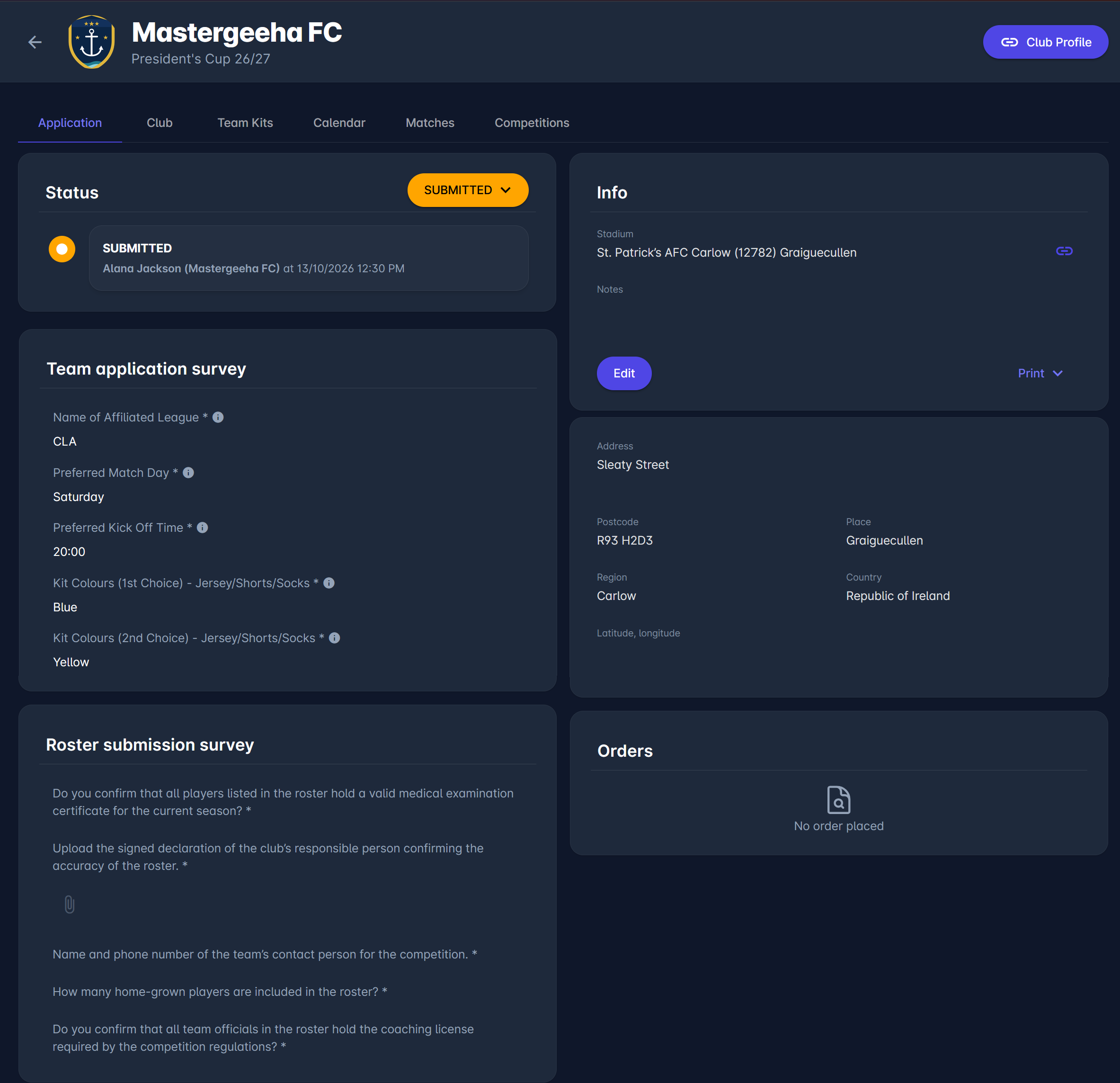
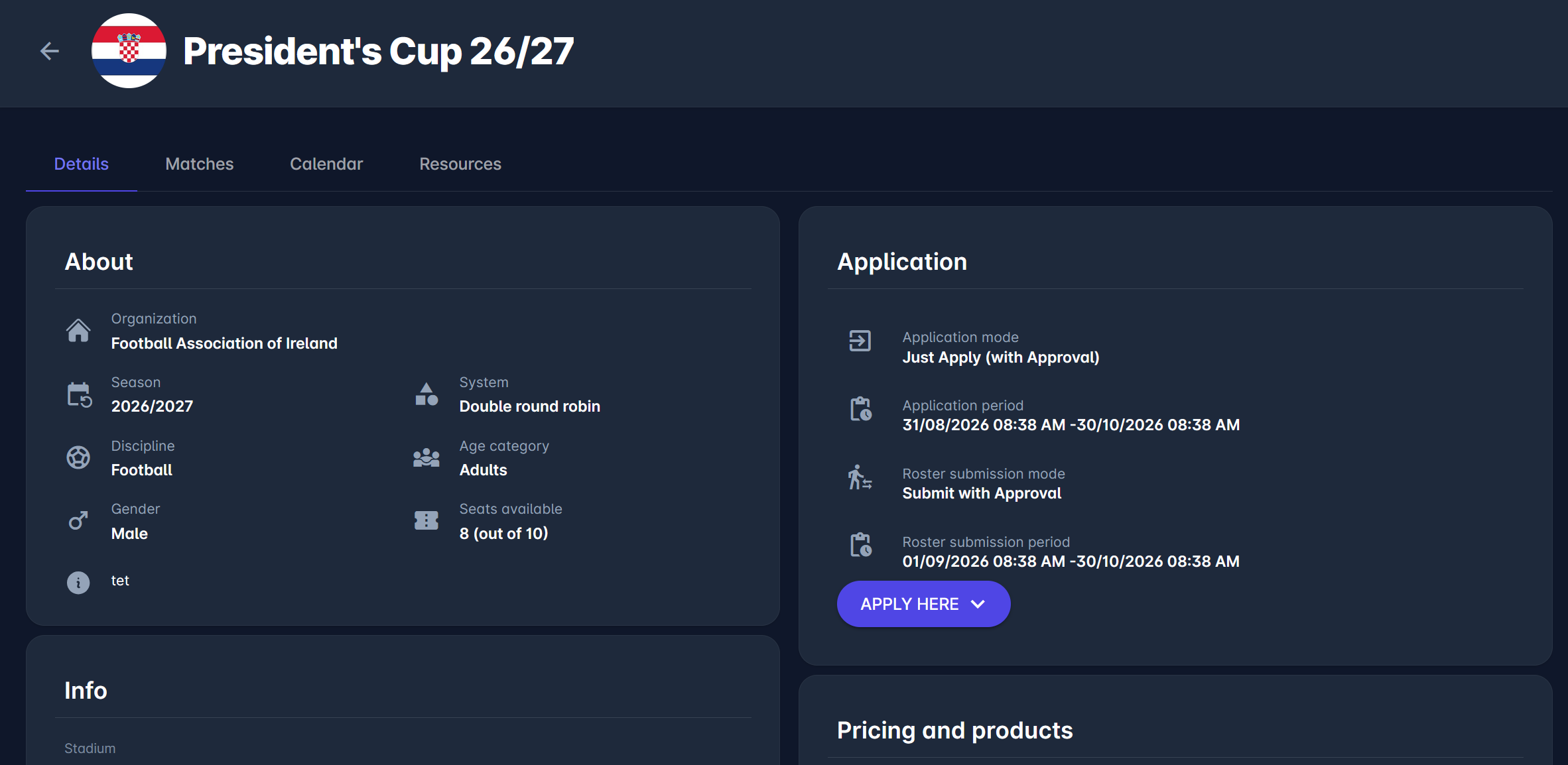
Open the Competitions menu and click the competition to open your Competition Team page. The Application tab shows the roster submission mode, the roster submission period and, if defined, the roster submission survey. The roster submission mode and period are also shown in the Application panel on the competition's Details tab.
-
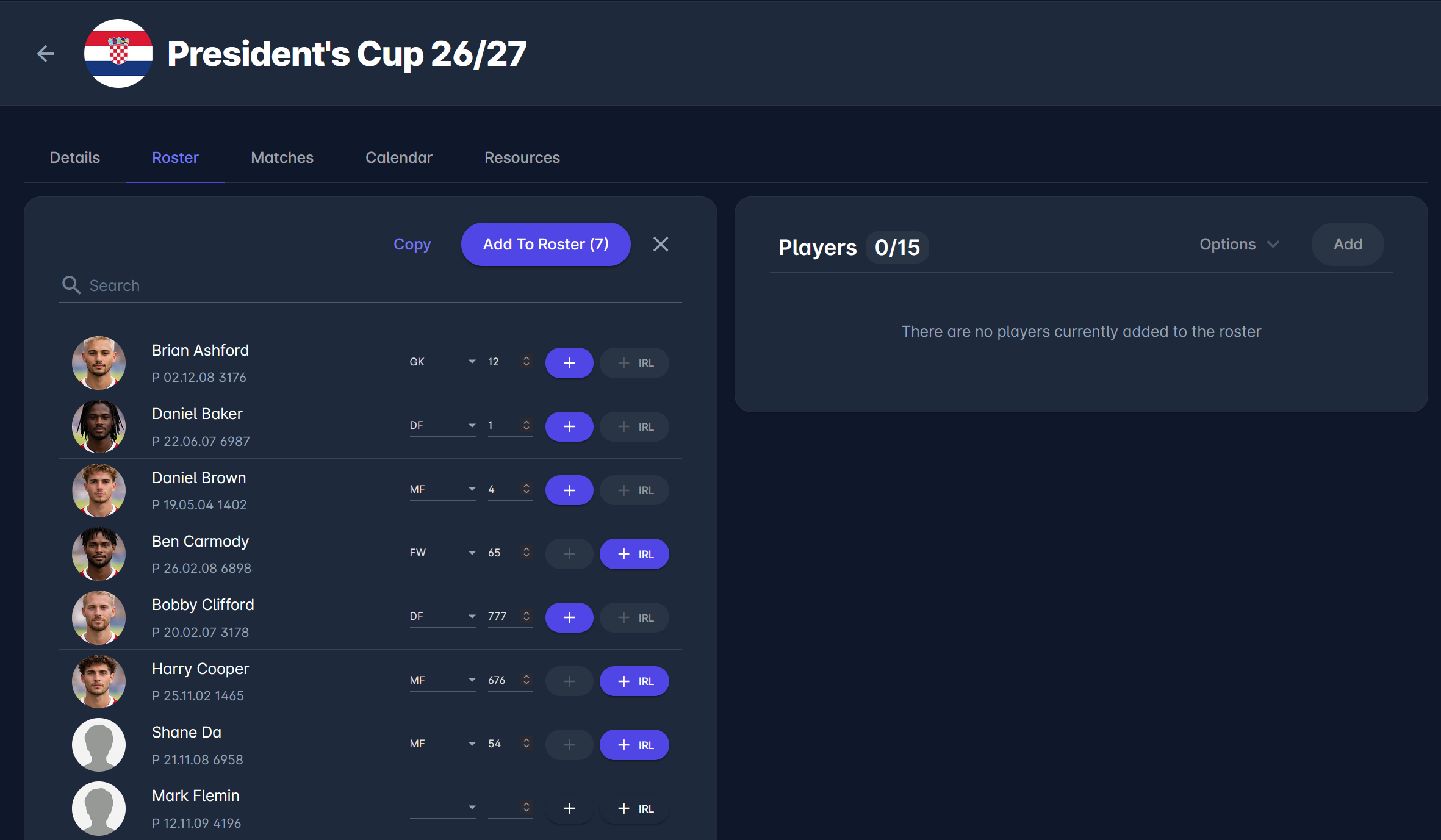
On the Roster tab, add the players and team officials while the roster is in Roster Pending status. To save time, use Copy to prefill the roster from another competition of your club, e.g., the league roster for the cup. For details, see Competition Roster and Copy from Other Competition.
-
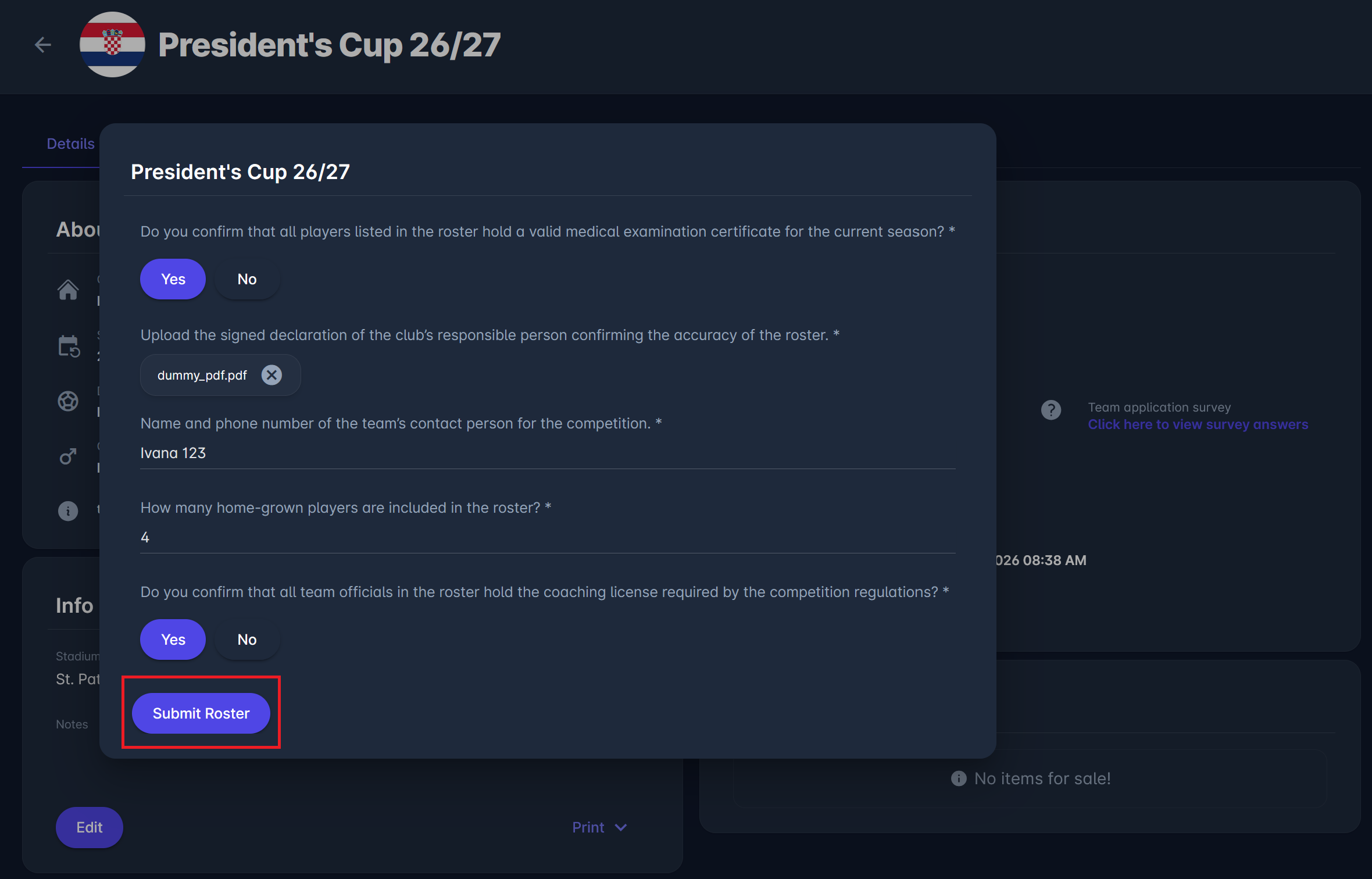
Submit the roster within the roster submission period. If a roster submission survey is defined, it is displayed in a dialog: answer the questions and click Submit Roster.
-
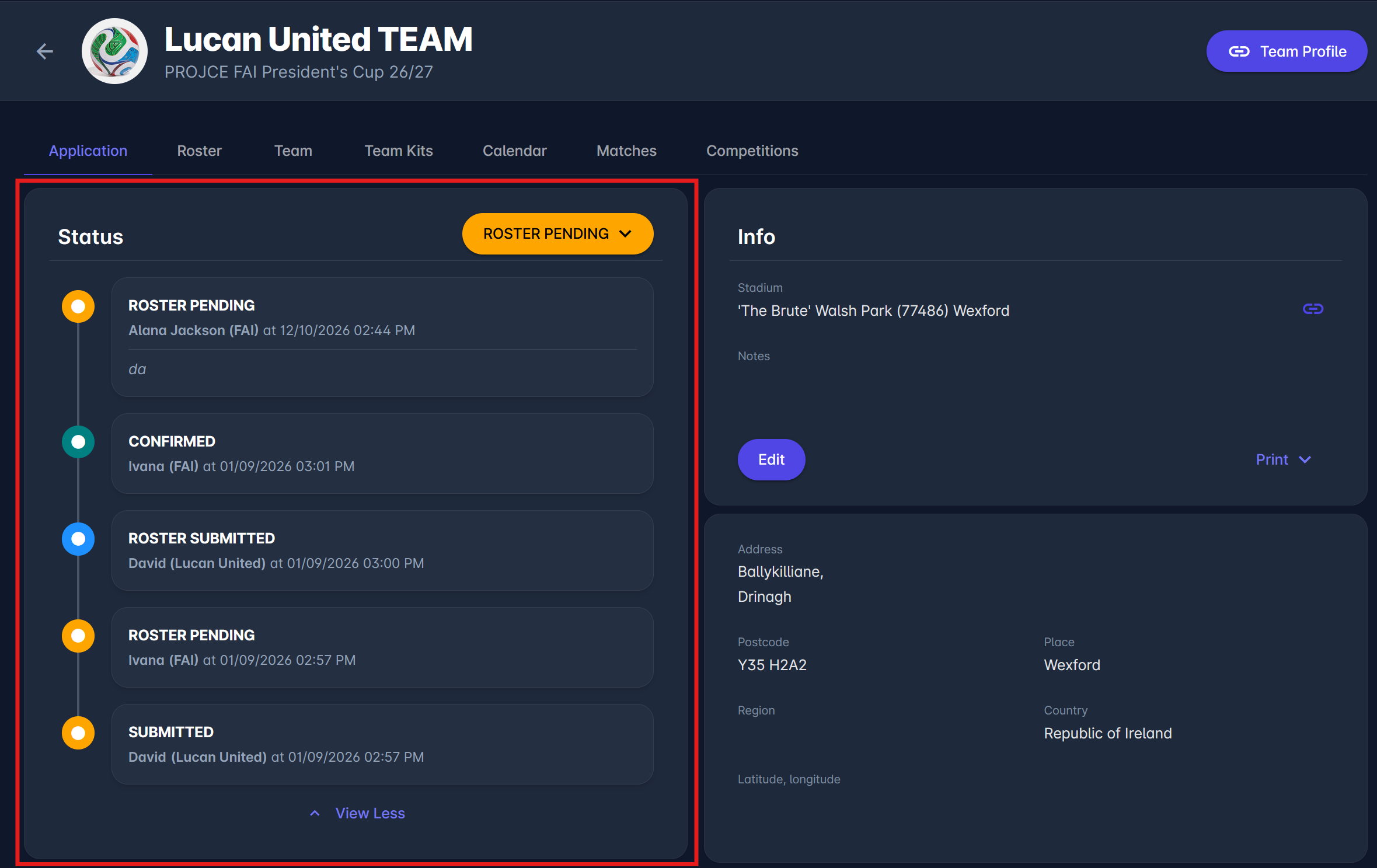
Depending on the submission mode, the roster is either Confirmed right away (Just Submit) or moves to Roster Submitted and waits for review (Submit With Approval).
Individual Approval Modes
In the Individual Approval modes, the roster itself is not submitted. Instead, within the roster submission period, add the players (and, in Individual Approval of Players and Staff mode, the team officials) to the roster one by one. Each submitted person moves to Submitted and waits for review by the Competition Administrator or Manager. If a person is Returned, update and resubmit them. In Individual Approval of Players mode, team officials are added without approval and are Confirmed right away.
The roster is available for adding persons once your team's application is confirmed and the roster submission period has started.
Terminate Persons
Within the roster submission period, you can terminate your own Confirmed persons, e.g., to free up a roster slot, and revert a termination:
-
in Just Submit and Submit With Approval modes, while the roster is in Roster Pending
-
in the Individual Approval modes, while the roster is Confirmed
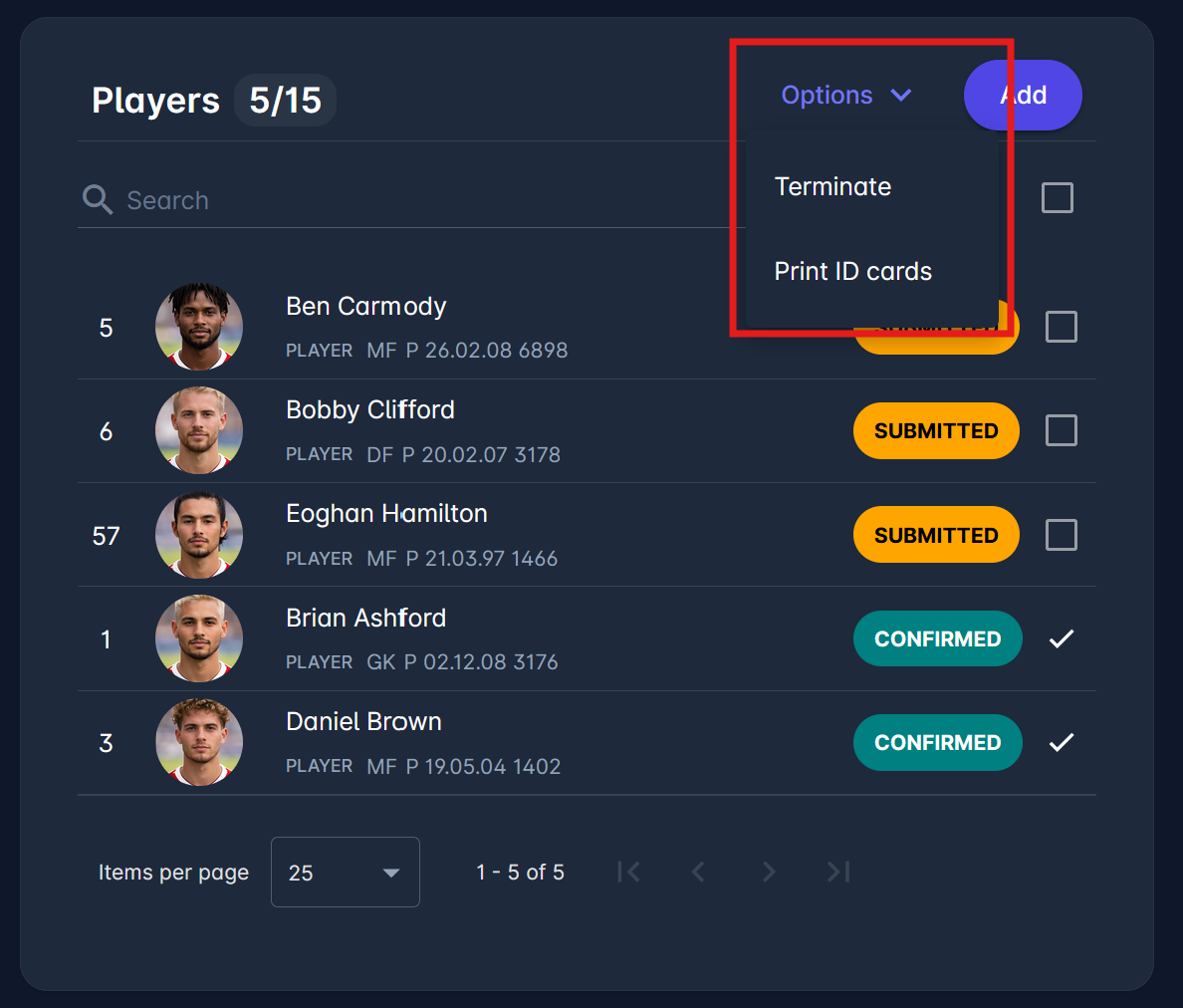
To terminate several persons at once, select them on the Roster tab and select Terminate in the Options menu. In Manual and Defined on Competition Element modes, persons can be terminated only by administrators.
Admin Guide
Superusers, Competition Administrators of the organizing association or above, and Competition Managers appointed to the competition can:
-
Find rosters requiring attention - on the Teams tab, a circle indicator highlights teams with submitted players or team officials, or with confirmed roster entries whose underlying registration is no longer active. Switch on For Review to show only teams that require action.
-
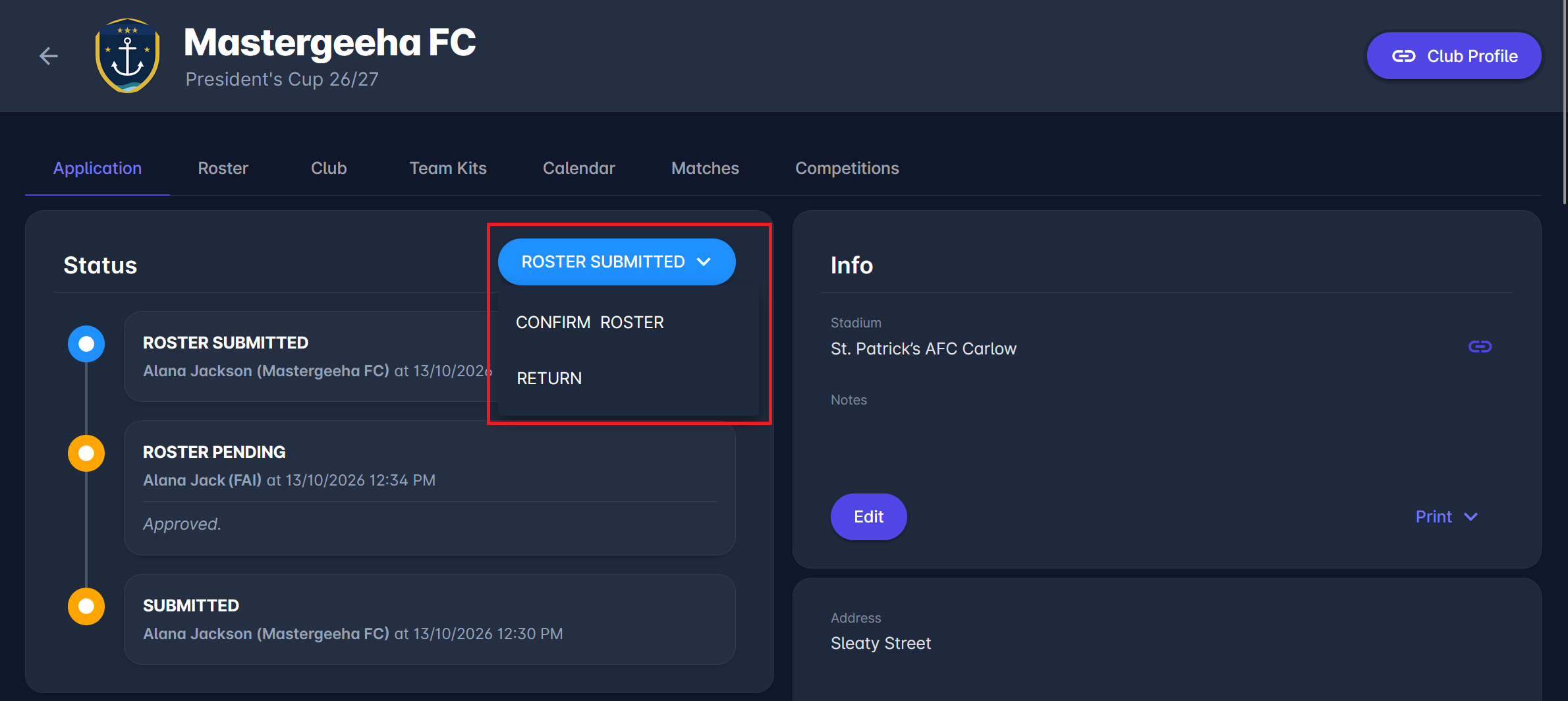
Review submitted rosters - in Submit With Approval mode, open the team on the Teams tab. On the Application tab of the Competition Team, open the status menu and select Confirm Roster, or Return to send the roster back to the club. The submitted roster submission survey is displayed in the Roster Submission Survey panel on the same tab.
-
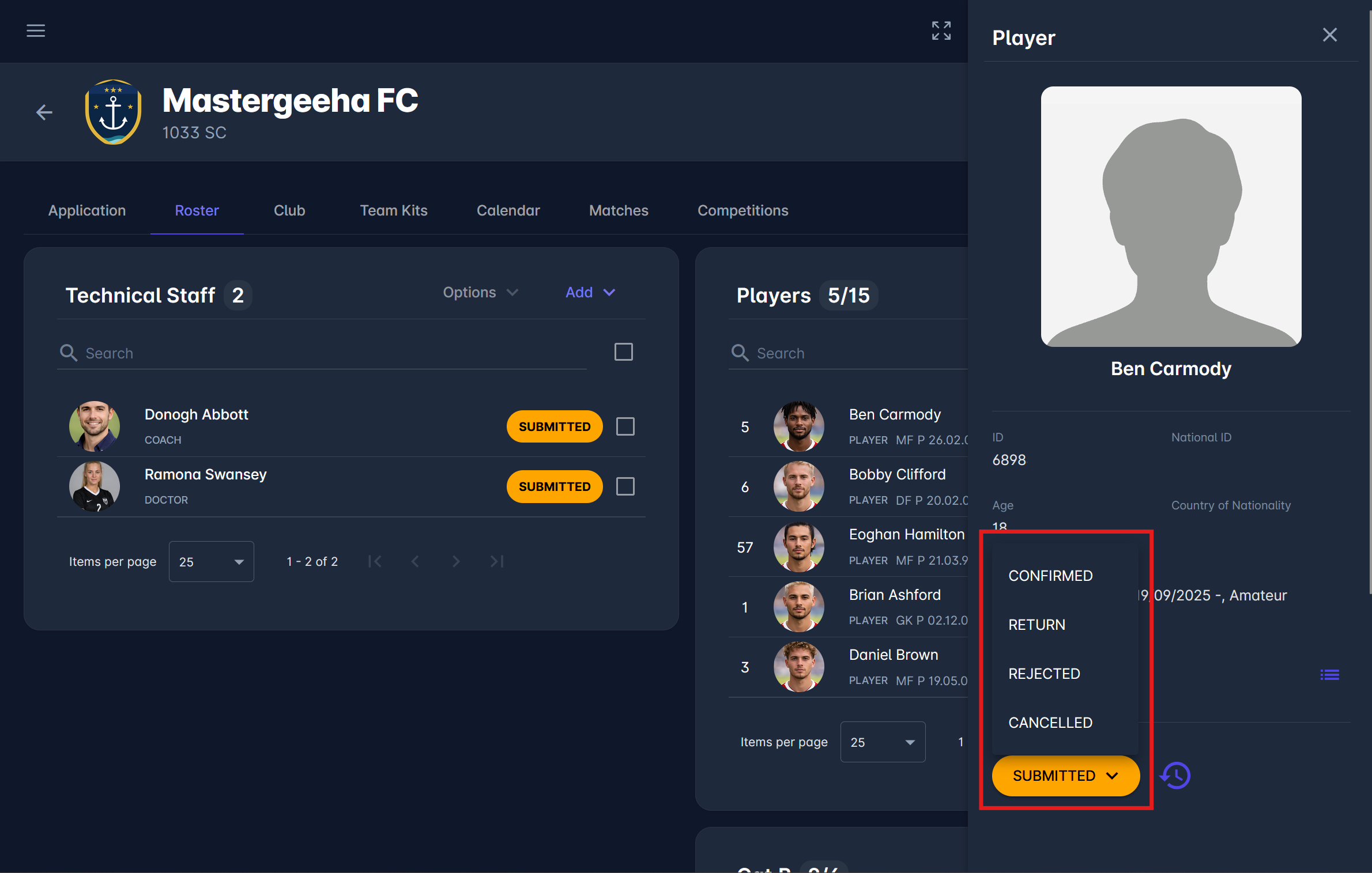
Review submitted persons - in the Individual Approval modes, open the team's Roster tab and click a submitted person to open the person dialog, where you can change their status. The dialog also shows the person's status history.
-
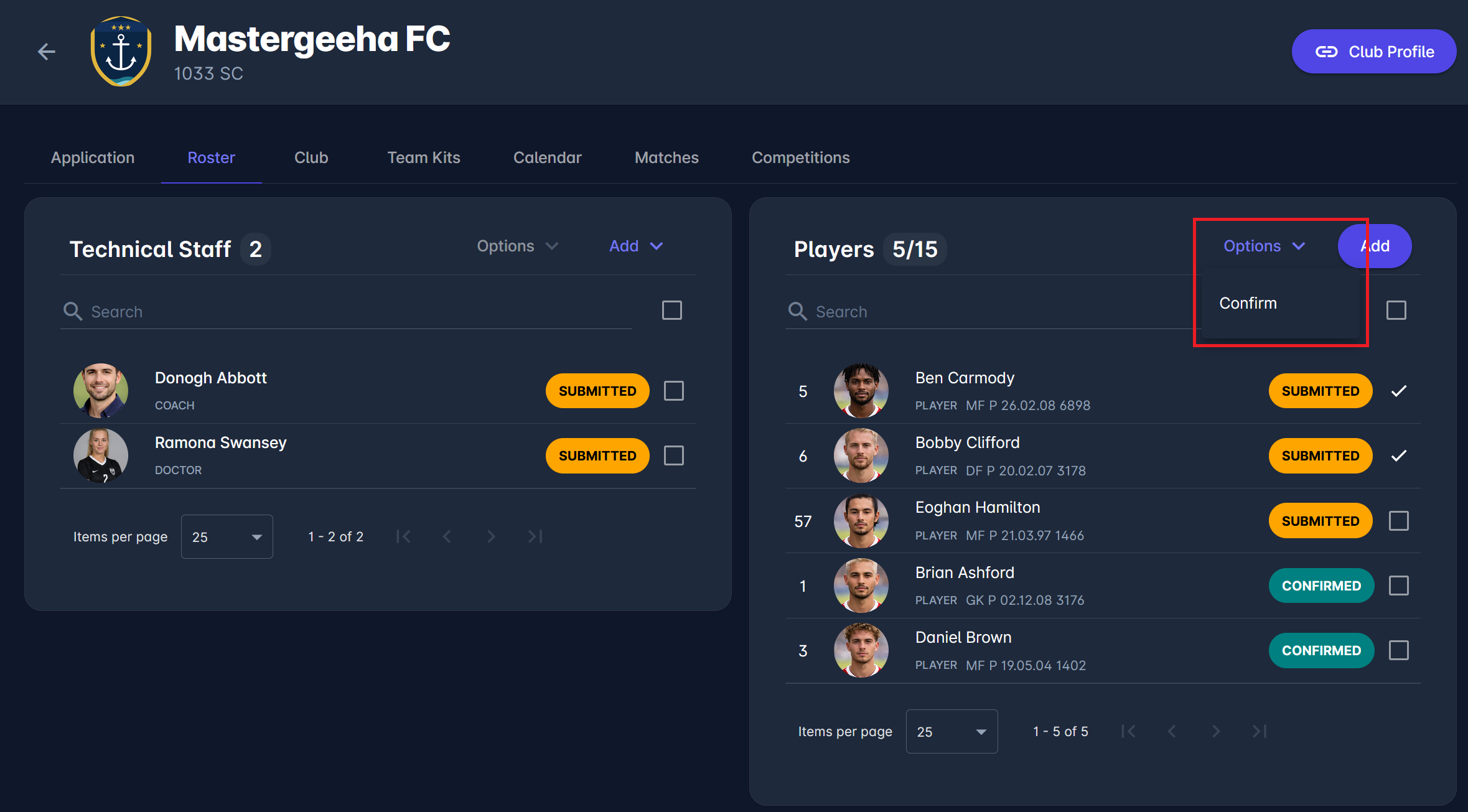
Confirm, terminate, or print persons in batch - on the Roster tab, select several persons and use the Options menu:
-
Confirm - available in the Individual Approval modes when at least one Submitted person is selected.
-
Terminate - available in all modes when at least one Confirmed person is selected.
-
Print ID cards - prints ID cards for the selected persons. See Print ID Cards from the Competition Roster.
-
-
For Confirm and Terminate, the transition comment you enter applies to all selected persons, and a summary dialog shows how many persons were confirmed or terminated. These actions are not available if the selection mixes Submitted and Confirmed persons.
-
Act on behalf of clubs - carry out any roster action available to clubs in place of the club, e.g., submit a roster that is still in Roster Pending. The usual email notifications are sent.
-
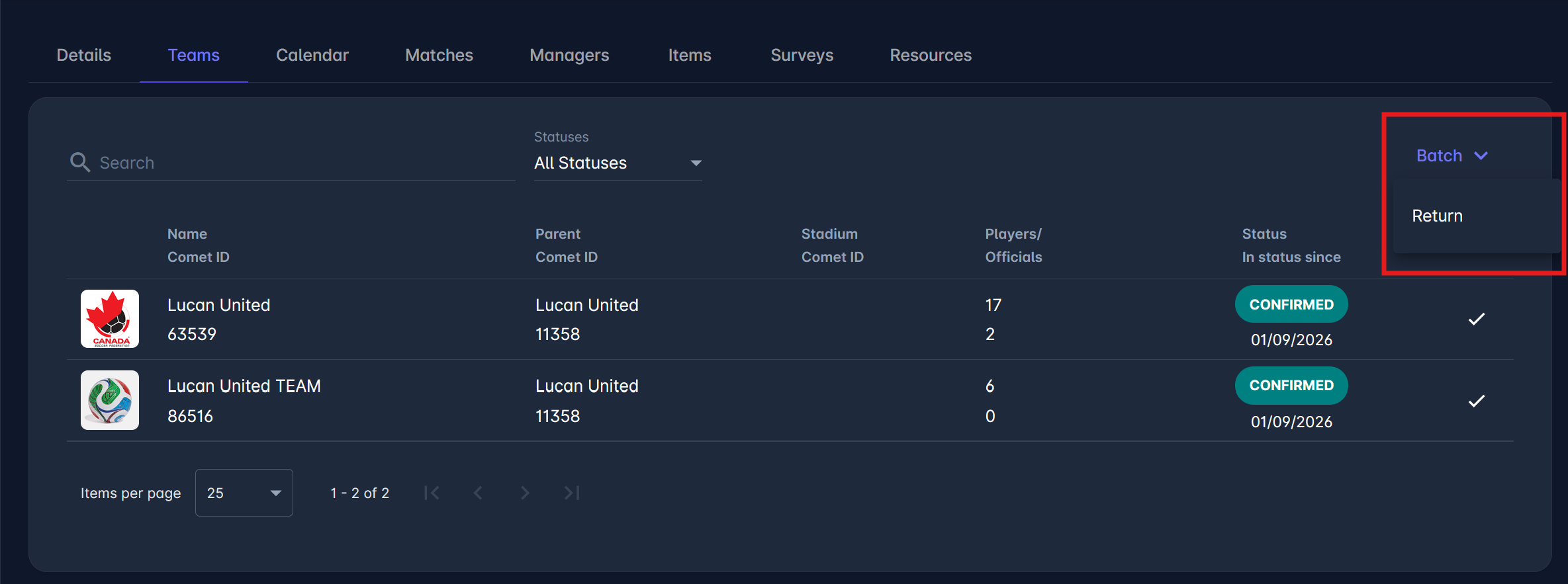
Return rosters in batch - on the Teams tab, select one or more teams with a Confirmed roster and click Batch Return. After confirmation, the selected rosters are returned to Roster Pending, so the clubs can update and resubmit them. This is useful when reopening rosters for all teams during the mid-season registration window. Batch Return is available only in Just Submit and Submit With Approval modes, and only for Confirmed rosters. In combination competitions where rosters are defined on competition elements, Batch Return is not available on the parent competition: use it on each competition element that uses Just Submit or Submit With Approval.