
MyCOMET Features described in this article will be deployed on all Demo instances by 28 October 2026 and migrated to Production on 12 January 2027.
The Roster Workflow defines how clubs prepare and submit their Competition Roster, and whether the roster, or each person in it, must be approved by the competition organizer. The workflow is set per competition by the Roster Submission Mode and applies in the same way to all associations using COMET.
Roster Settings
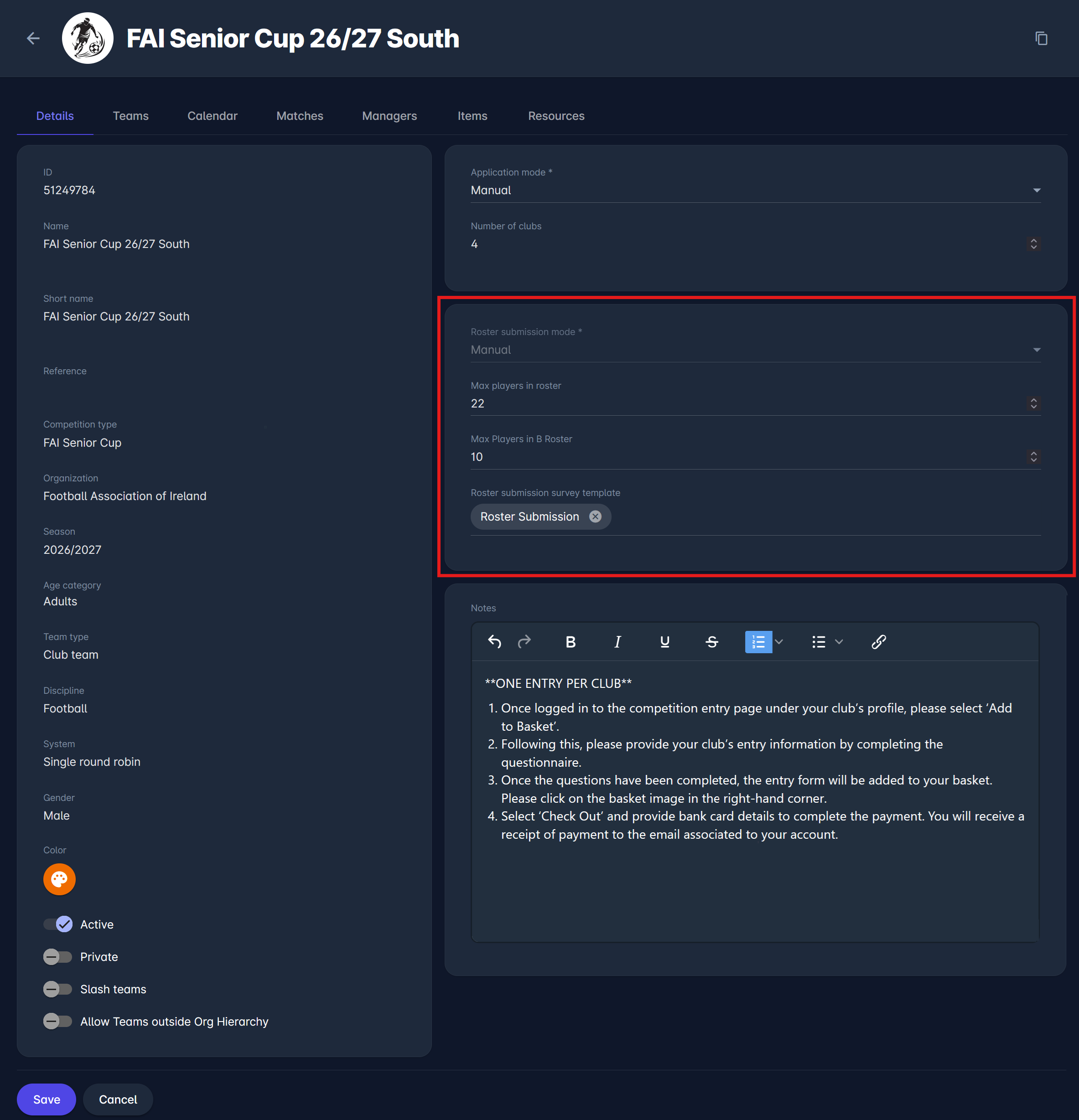
The roster settings of a competition are managed in the Roster panel on the Details tab of the competition in the MyCOMET Admin View, below the Application panel. To change them, click Edit.
|
Setting |
What it means |
|---|---|
|
Roster Submission Mode |
Defines whether clubs submit their rosters and whether approval is required for the roster as a whole or for each person. See Submission Modes below. |
|
Roster Submission Period (Date/Time From - To) |
The period during which clubs can prepare and submit their rosters. Both start and end are set with a specific time. Displayed only if a submission mode other than Manual is selected. When the submission period ends clubs will not be able to do anything anymore. Only Admins will be able to make any changes. |
|
Max Players in Roster |
The maximum number of players in the team roster, shown on the Roster tab as a counter, e.g., 15/22. Always displayed. |
|
Max Players in B Roster |
The maximum number of players in the B roster. Displayed only if Use B Roster is enabled on the Competition Type. |
|
Roster Submission Survey Template |
The survey that clubs must complete when submitting their roster, in both Just Submit and Submit With Approval modes. The survey may include any type of questions, e.g., information or declarations required by competition regulations. The survey questions are managed in the Roster Submission panel of the Surveys tab of the competition. For details, see Roster Submission Survey. |
In the legacy COMET UI, the roster settings are displayed in read-only mode on the competition's Registrations tab, with a link to the competition in MyCOMET where they can be edited.
Submission Modes
Manual
Clubs do not submit rosters. Rosters are managed only by Competition Administrators and, if needed, by appointed Competition Managers.
Just Submit
The club submits the roster and all persons in it. No approval is required: once submitted, the roster is Confirmed right away.

Submit With Approval
The club enters the persons while the roster is in Roster Pending and then submits the roster, which moves to Roster Submitted. The relevant Competition Administrator or Manager reviews the roster as a whole and confirms it. Persons do not require individual approval.
Individual Approval of Players
The roster as a whole does not require approval. The club submits players one by one, and each player requires individual approval. Team officials are added without approval. See Roster Person Statuses below.
Individual Approval of Players and Staff
The roster as a whole does not require approval. The club submits players and team officials one by one, and each person requires individual approval. See Person Statuses below.
Defined on Competition Element
Available only on Combination (Parent) Competitions. Rosters cannot be added to the parent competition. The roster submission mode is defined, and rosters are added separately on each competition element. See Combination Competitions section below.
Roster Statuses
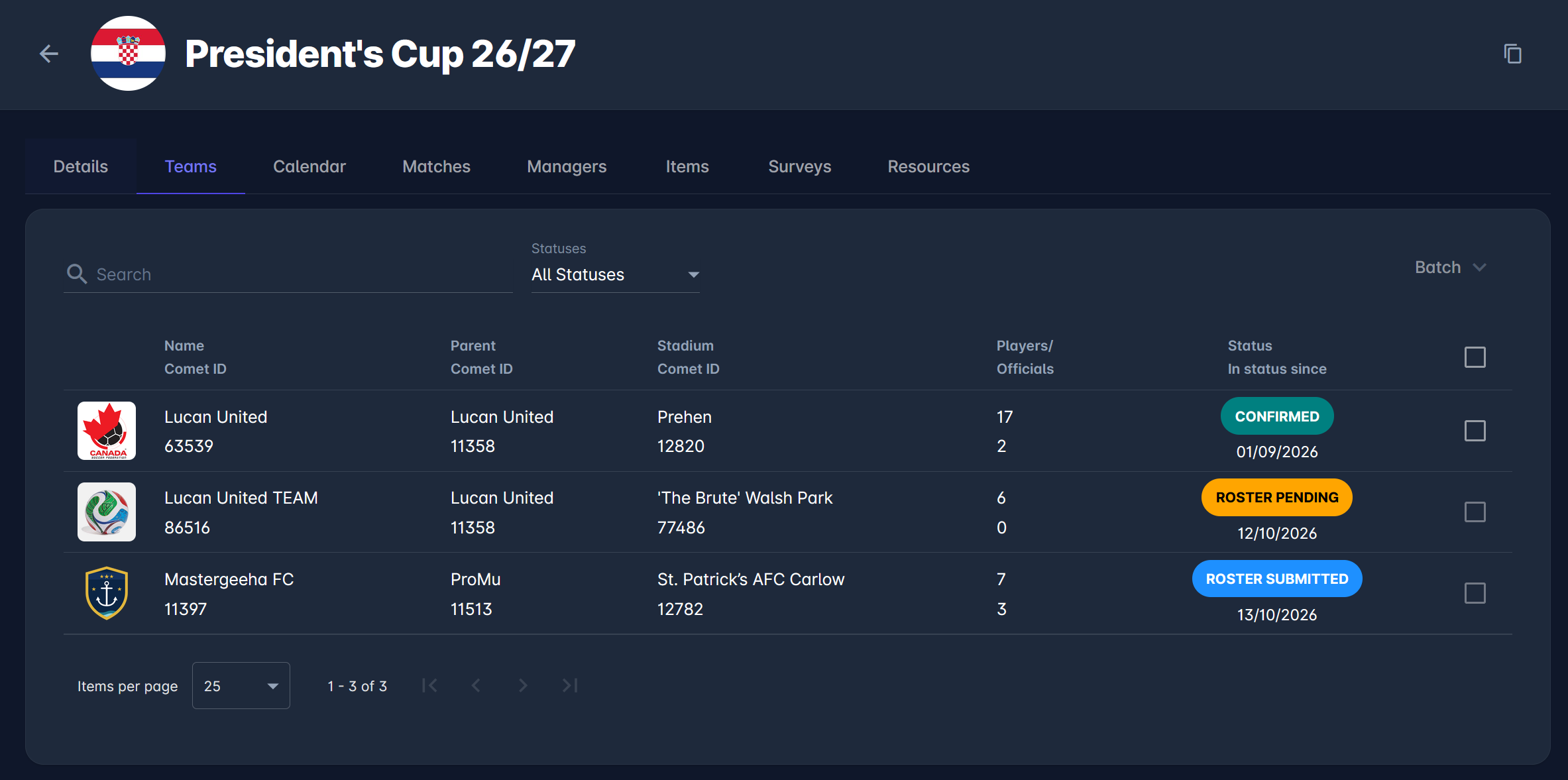
The status of the team roster is shown on the Competition Team page and on the Teams tab of the competition.
|
Status |
What it means |
|---|---|
|
Roster Pending |
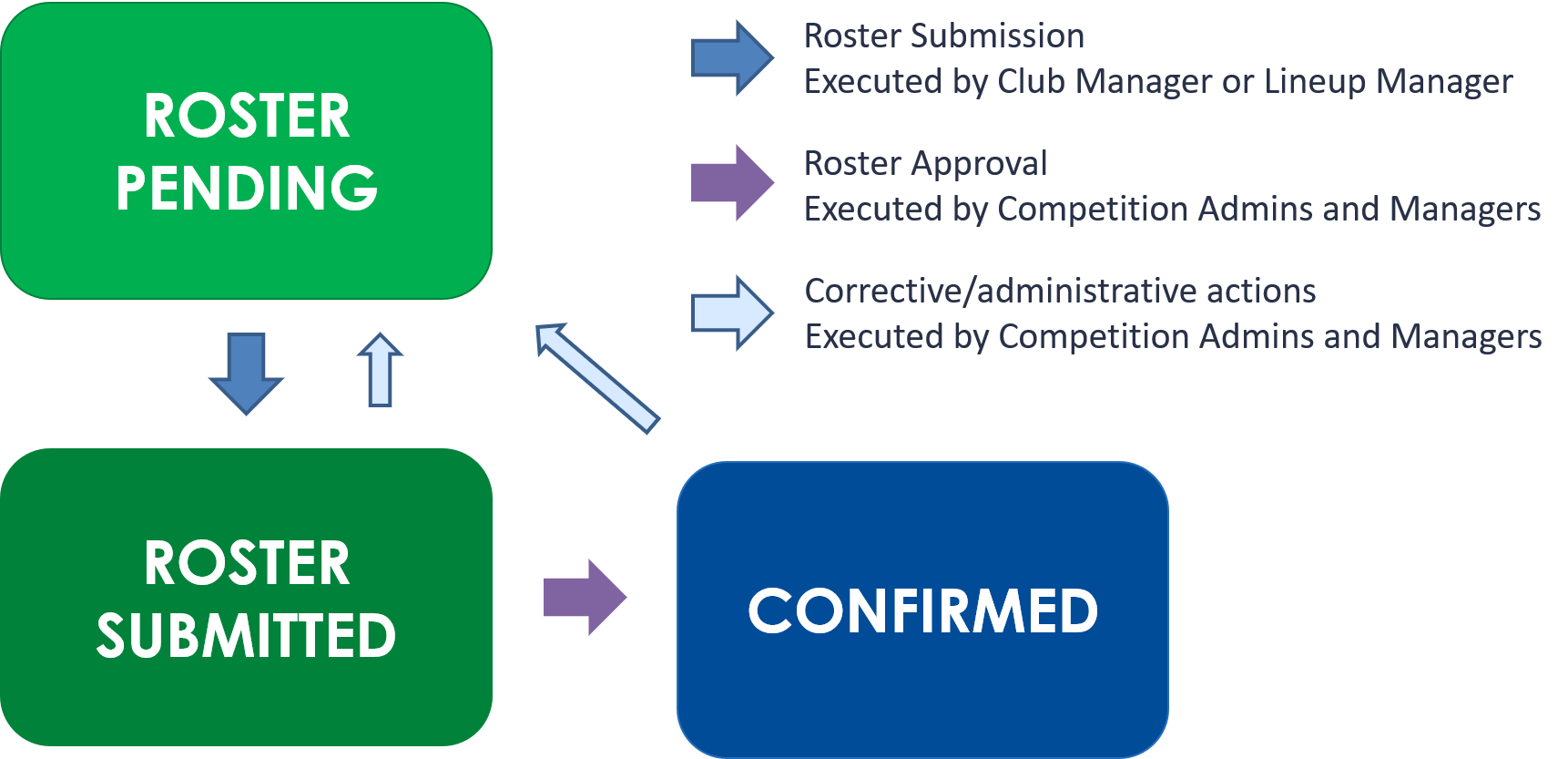
Used in Just Submit and Submit With Approval modes. The club is preparing the roster. Players and team officials can be added and removed. The club submits the roster when it is complete. |
|
Roster Submitted |
Used only in Submit With Approval mode. The roster has been submitted and is waiting for review by the Competition Administrator or Manager. |
|
Confirmed |
The roster is confirmed. In Just Submit mode, the roster becomes Confirmed directly upon submission. In Submit With Approval mode, after approval by the Competition Administrator or Manager. In the Individual Approval modes, the roster is Confirmed as soon as the team's application is confirmed. The roster itself is never submitted or approved, and persons are submitted and approved individually. Confirming the application does not confirm any persons in the roster. |
Roster Person Statuses
Each player and team official in the roster also has their own status, shown on the right side of their entry on the Roster tab. In Manual, Just Submit, and Submit With Approval modes, persons are Confirmed directly when added to the roster. In the Individual Approval modes, persons who require approval go through the following workflow:
|
Status |
What it means |
|---|---|
|
Submitted |
The club has submitted the person for review by the Competition Administrator or Manager. |
|
Returned |
The person has been returned to the club by the Competition Administrator or Manager. The club can update and resubmit them. |
|
Cancelled |
The club has cancelled the submitted person from the roster. That person cannot represent the team in the competition. |
|
Rejected |
The person has been rejected by the Competition Administrator or Manager and cannot represent the team in the competition. |
|
Confirmed |
The person is in the roster and eligible to represent the team in the competition, subject to the competition's lineup rules. |
|
Terminated |
The person is no longer active in the roster. Terminated persons are hidden by default on the Roster tab. |
Below is the diagram of all individual status transitions, related to Persons (Players and Team Officials in the Competition Roster.
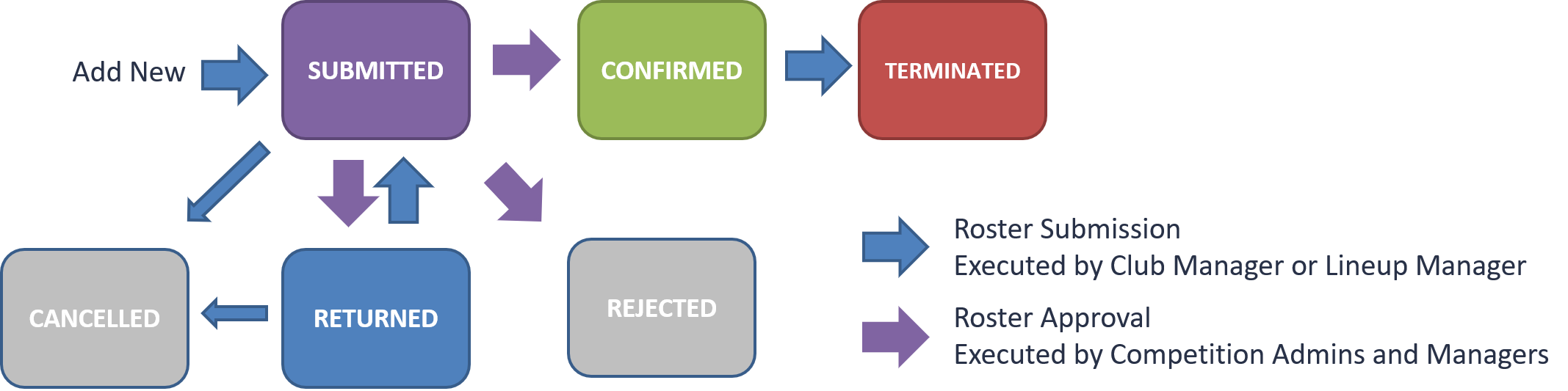
The above workflow applies only to modes Individual Approval of Players and Individual Approval of Players and Staff. In all other modes, only Confirmed and Terminated statuses apply.
Combination Competitions
Competitions with several phases, e.g., a regular season and play-offs, are set up as a Combination (Parent) Competition with competition elements. The Roster Submission Mode selected on the parent competition defines where rosters are maintained:
|
Roster Submission Mode on the parent |
Where rosters are maintained |
|---|---|
|
Defined on Competition Element |
On each competition element separately. The other roster settings are hidden on the parent competition, and the Roster panel is available on each competition element, where its own Roster Submission Mode, period, and limits are defined. Each element can use any of the other modes (Manual, Just Submit, Submit With Approval, Individual Approval of Players, Individual Approval of Players and Staff), independently of the other elements, and its rosters follow the workflow of that mode. The Roster tab for the team in the parent competition displays an info box stating that rosters can only be added to competition elements. |
|
Any other mode |
Only once, on the parent competition, and the roster applies to all its elements. The Roster panel is not displayed on the competition elements. The Roster tab for each competition element displays an info box with a direct link to the team's roster in the parent competition. |
The parent competition can be switched from Defined on Competition Element to another mode only when all its competition elements are set to Manual.
-20261014-083354.png?cb=ffb69c77f06909d87c9144080b3aecb7)
In combination competitions that existed before the introduction of the Roster Workflow, the Roster Submission Mode was set separately for the parent competition and each competition element, allowing them to use different modes. To maintain rosters on the competition elements, set Defined on Competition Element on the parent competition.
Team applications are not affected: application settings can still be defined, and clubs can apply to both the parent competition and its elements.
Who Can Edit the Roster
Superusers, Competition Administrators of the organizing association or above, and Competition Managers appointed to the competition can manage rosters at any time, in all modes. They can also carry out every roster action available to clubs on the club's behalf, e.g., submit a roster that is still in Roster Pending.
Club Managers and Lineup Managers of the club can add players and team officials only within the roster submission period, and only in the following cases:
|
Roster Submission Mode |
When clubs can edit the roster |
|---|---|
|
Manual |
Never. Rosters are managed only by administrators. |
|
Just Submit, Submit With Approval |
While the roster is in Roster Pending. |
|
Individual Approval of Players, Individual Approval of Players and Staff |
While the roster is Confirmed, by submitting persons one by one. |
In the same cases, clubs can also terminate their own Confirmed persons, individually or in batch, and revert a termination. In Manual and Defined on Competition Element modes, clubs cannot terminate persons.
Once the roster submission period has ended, clubs can no longer add persons or change their statuses. Other club roles, e.g., Registration Managers, cannot edit rosters.
Email Notifications
Stakeholders are informed by email about every relevant status transition, e.g., a roster being submitted, returned, or confirmed. On the club side, Club Managers and Lineup Managers receive the notifications on behalf of their club or team. On the organizer side, only Competition Administrators of the organizing association and appointed Competition Managers receive administrative notifications. Notifications are also sent when an administrator acts on behalf of a club. For details, see Roster Submission Notifications.