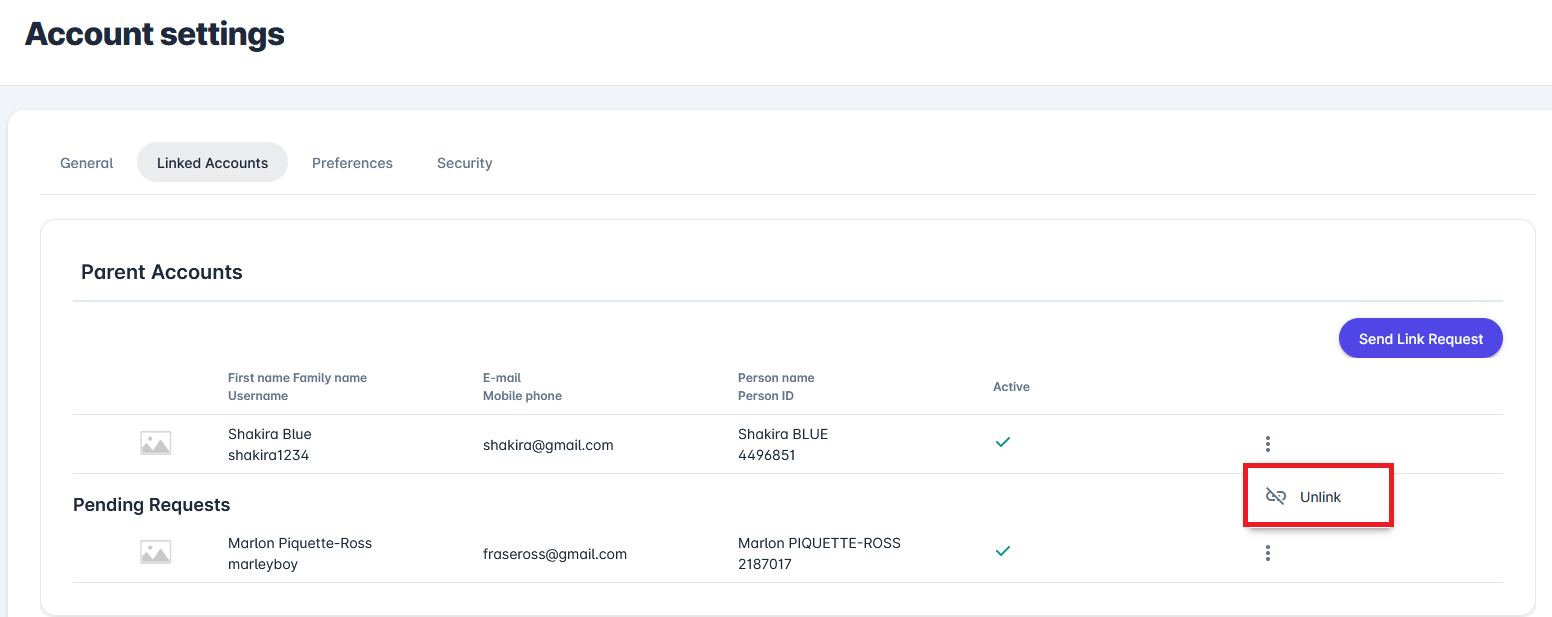
Create child accounts and seamlessly link existing accounts, whether they are designated as your child or parent account. These functionalities aim to enhance the family experience on our platform, and allow Parents to manage all their child accounts from their own parent account..
Linked Accounts Tab
Log in to your account and open Account Settings at the top right corner.
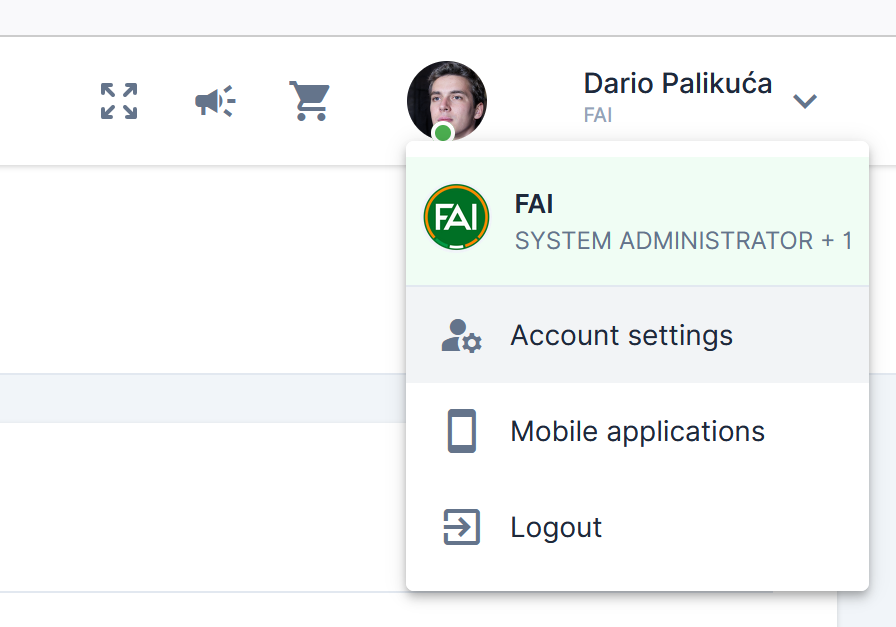
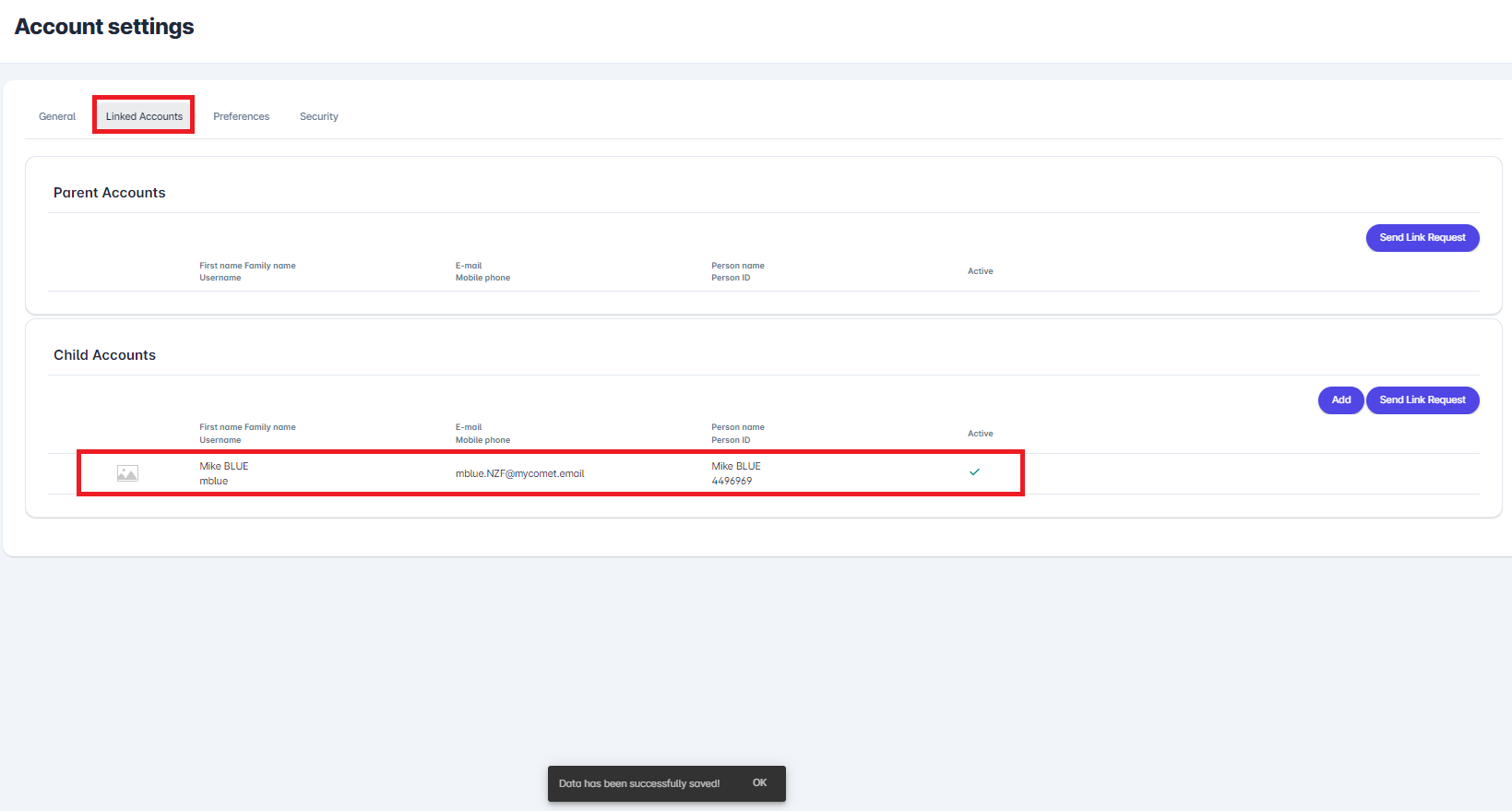
Switch to the tab Linked Accounts to see if your account has been connected to any child or parent accounts.
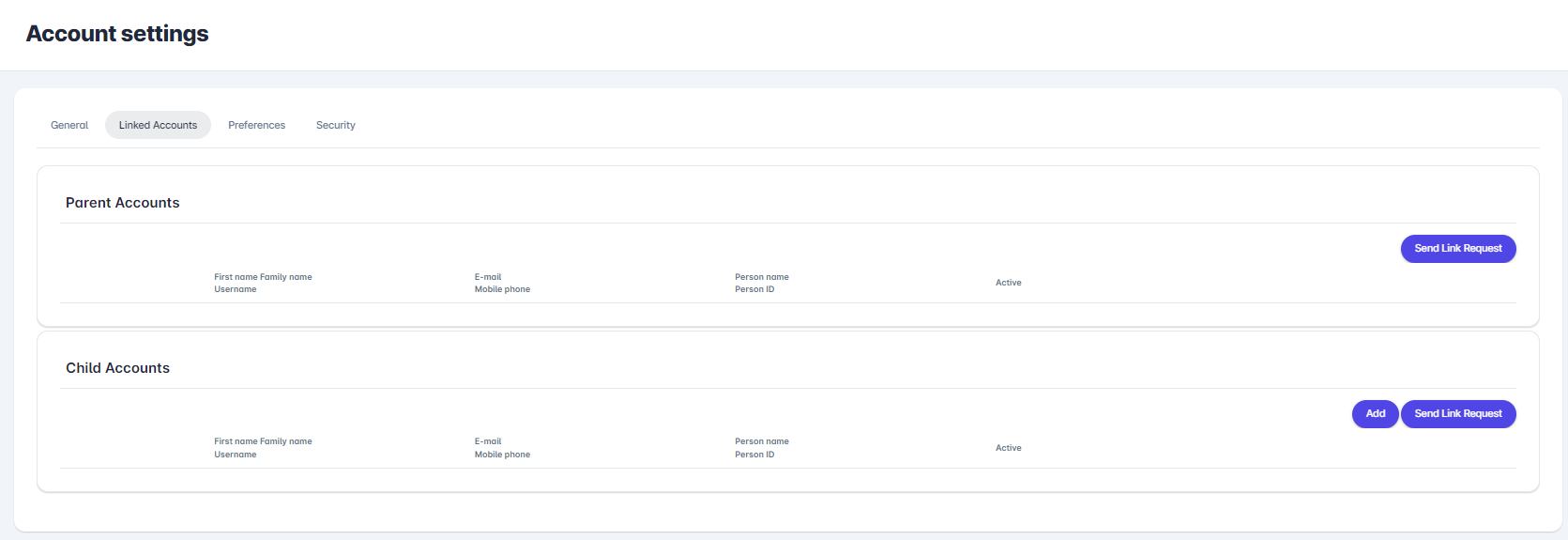
You can now click on the button:
-
Add: to create a new child account
-
Send Link Request: to request another user to connect to you
New Child Account
To create a new child account (for non-existing profile), click the button Add and complete the form with mandatory information.
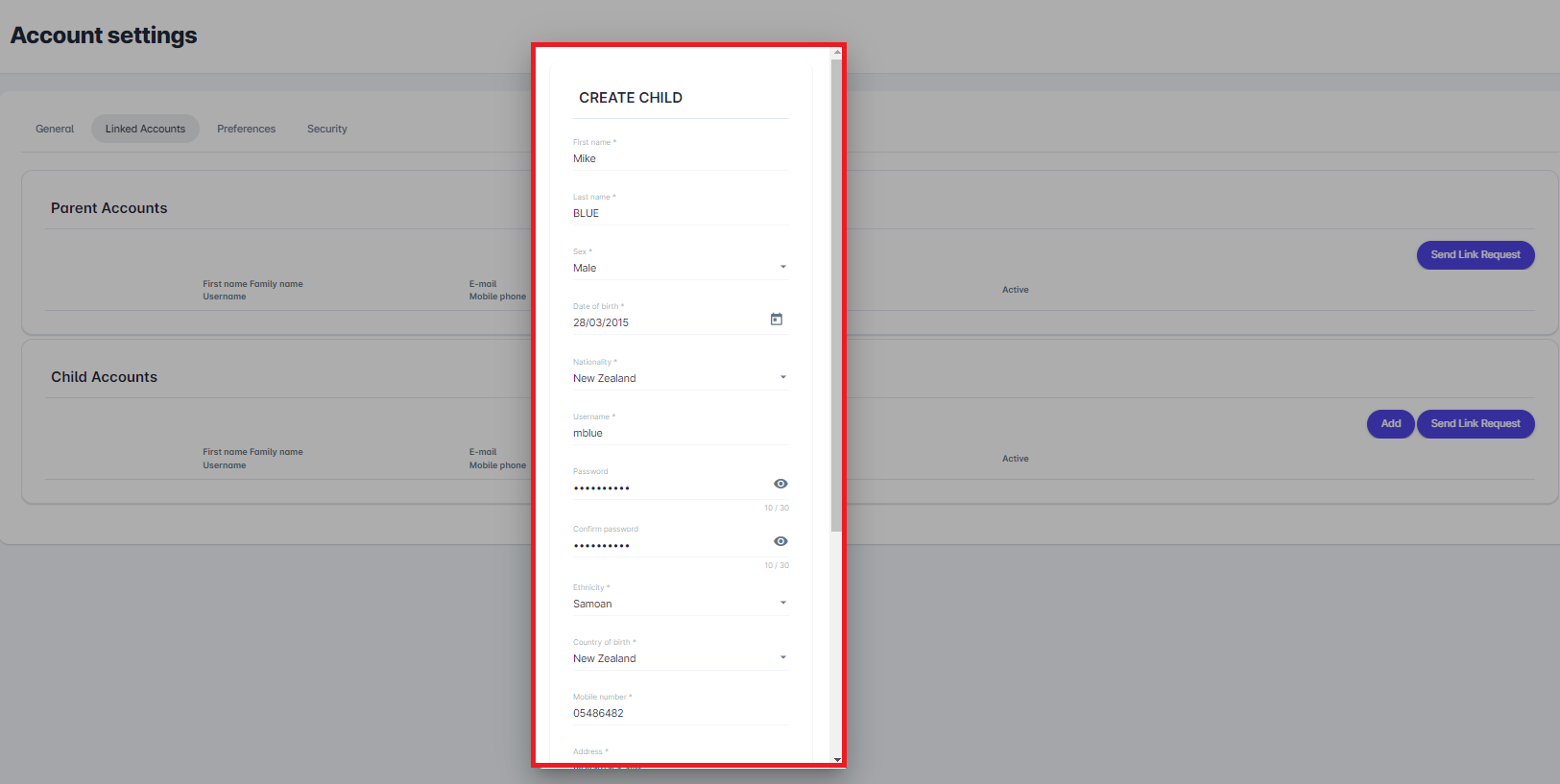
You will notice that there is no email address on the Create Child form, as children dependent on the parent account do not need to have an email address.
The child may use the username and password entered here to access the platform independently using their own child account. The parent account will be able to act on behalf of all their children at all times by using the User Switcher feature.
Once you’re done, click the Save button. The Child Profile will be visible under the Child Accounts.
In case the system encounters potential duplicates of your child, you will be redirected to Profile Mapping form. If your child already exists in the system, you will be instructed to send a link request.
Send Link Request to your Child
To connect with an existing profile that is your Child, click on the button Send Link Request in the Child Accounts section and start typing your child’s name.
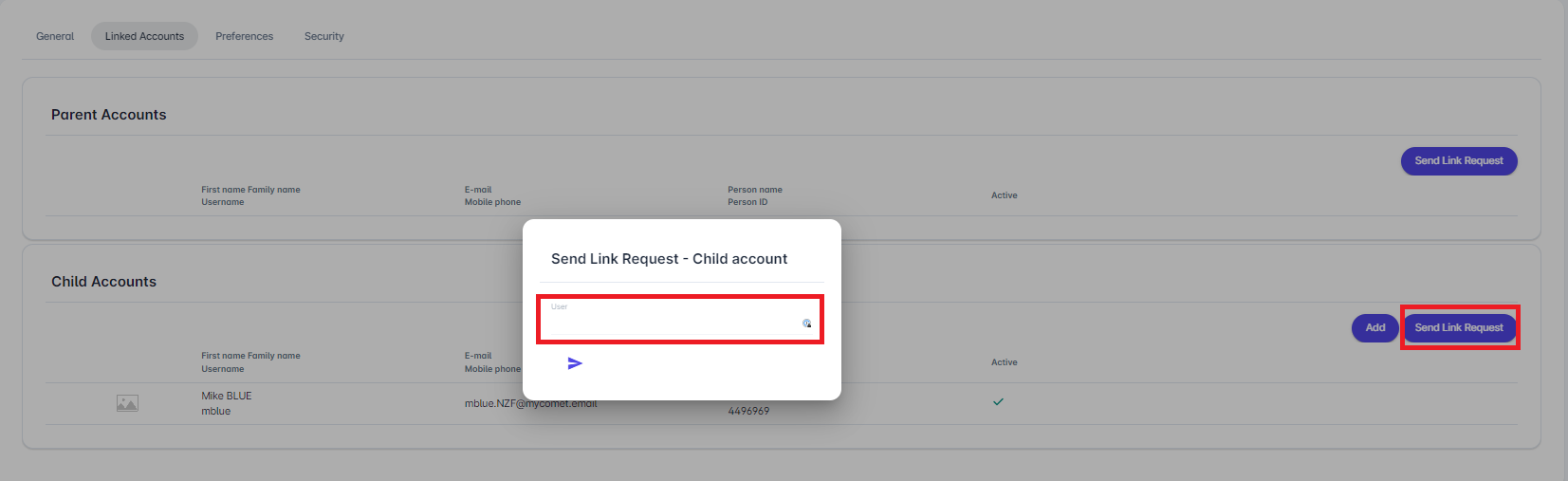
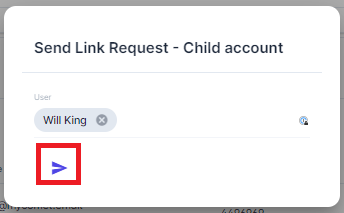
Once your child’s name appears, click the send icon to send the request.
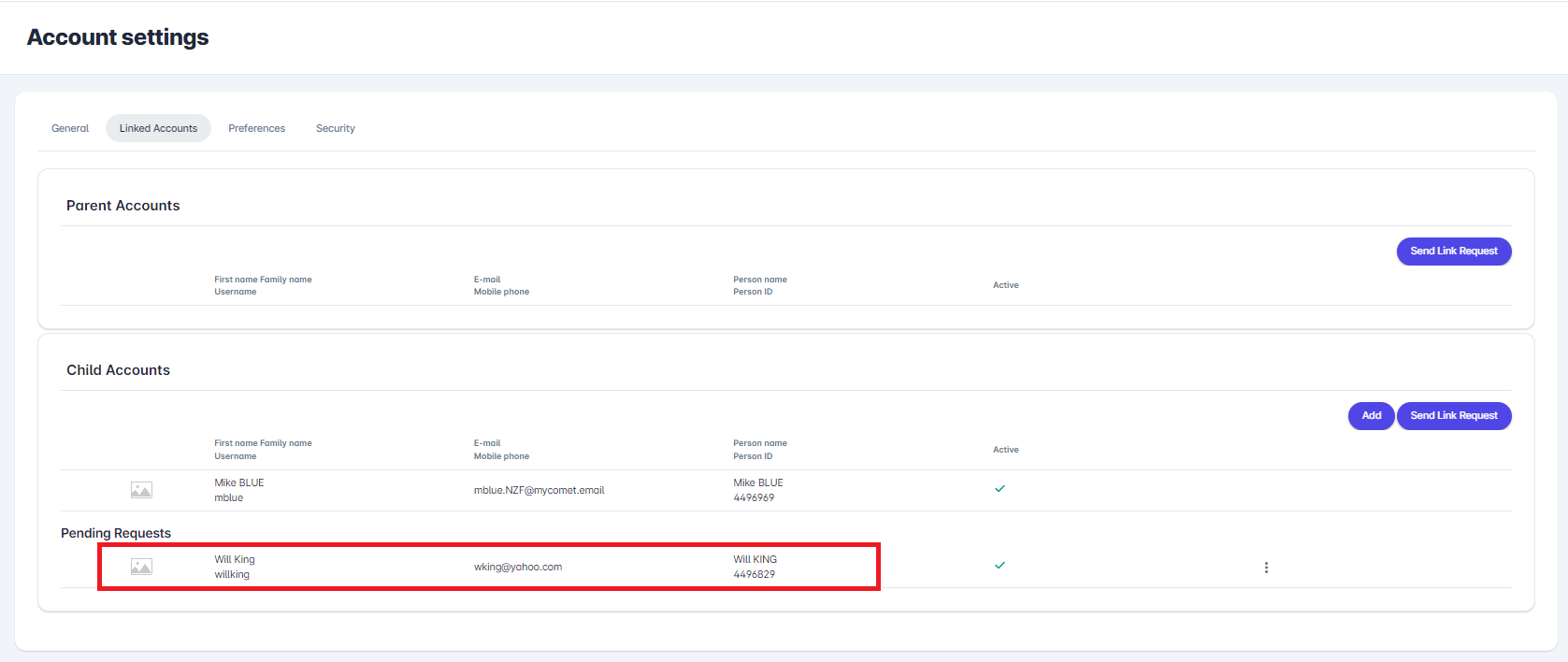
Accepting Request
The child will be notified via email of the request, and will see the request under Pending Requests in the Parent Accounts section, and will be able to accept or reject the request.
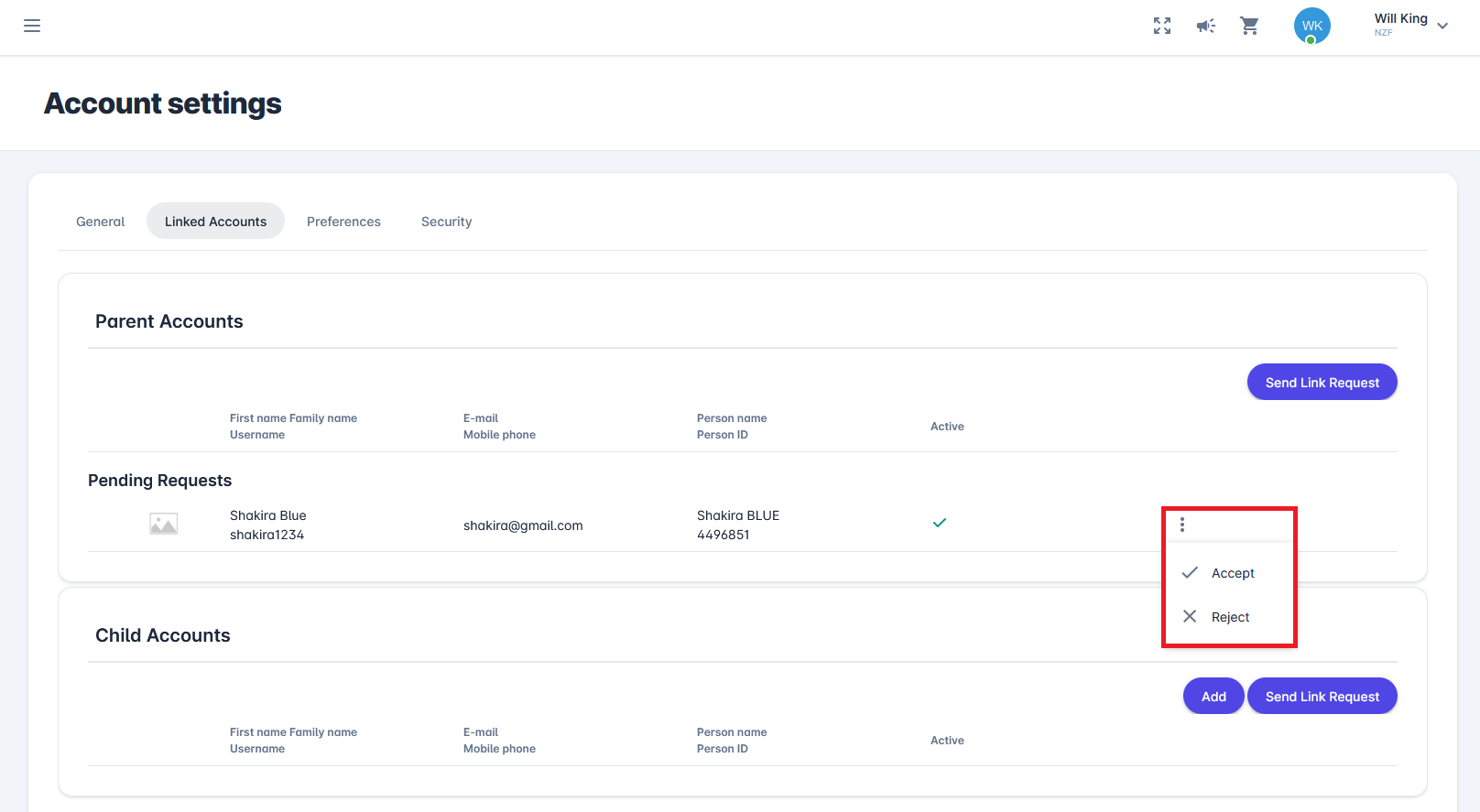
Send Link Request to your Parent
To connect with an existing profile, which is your Parent, click on the button Send Link Request in the Parent Accounts section and start typing your parent’s name.
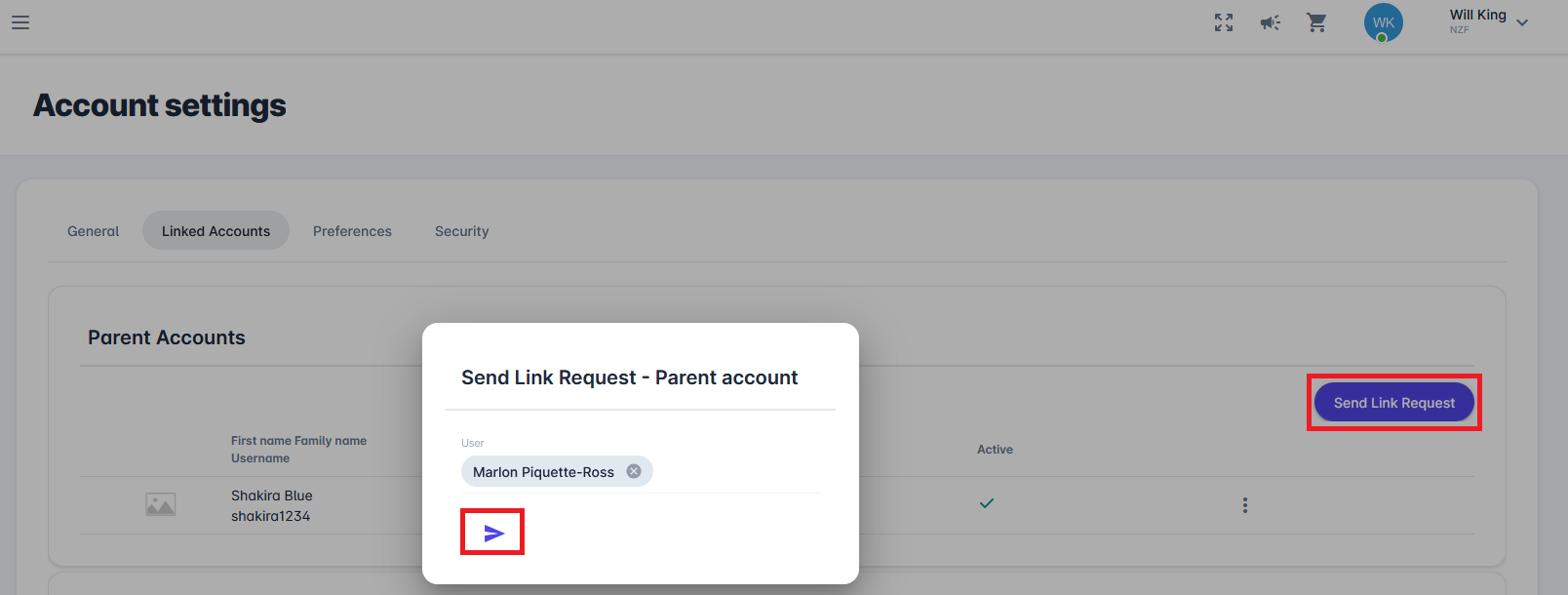
Accepting Request
The parent will be notified via email about the request and will view it under Pending Requests in the Child Accounts section, where they can accept or reject it.
Unlinking Accounts
Any party can unlink a Linked Account from another, as long as this party is over the Age of Consent and has a valid, verified email address. E.g., Children without an email cannot be unlinked from their parents. They need to update and verify their real email first.
To unlink from another linked account, whether parent or child, click on the three dots and select Unlink. The other party will be notified by email about your action.