
The implementation of specific modules (e.g., Event Management, PLAY Self Registration, LIVE User Management) requires the signup and inclusion of new system users who do not have a User Account, yet are already registered Persons in the COMET database.
When users sign up from scratch, the system compares the signup data with existing User data (to prevent duplication of User Accounts) and with existing Person Data (to avoid the duplication of Person Profiles).
However, the effectiveness of the above process depends on both the quality of the signup data being entered and the judgment of the user, as in the case of non-exact matching. They can decide to ignore it and still create a new User Account or Person instead of reusing an existing one.
Furthermore, during the signup process, the user is required to enter all mandatory personal data, which may not be necessary if the person already exists in the COMET database.
For this reason, you can access a sign-up link for each Person that exists in the COMET database and does not have an allocated User Account. In most cases, when accessing this link, the user will need to set their password, and their newly created User Account will be automatically linked to their Person Profile in COMET.
For more information on how to generate personalized sign-up links as an authorized user, please refer to: Personalized Sign-Up Links | Sign Up Links.
Signing up as a person above the Age of Consent
If you click on the personalized link of a person who is above AOC, or copy it and paste it into your browser (where you are NOT logged in to COMET), you will be presented with the sign-up form. Additionally, you can choose to open this form within the COMET Football mobile app.
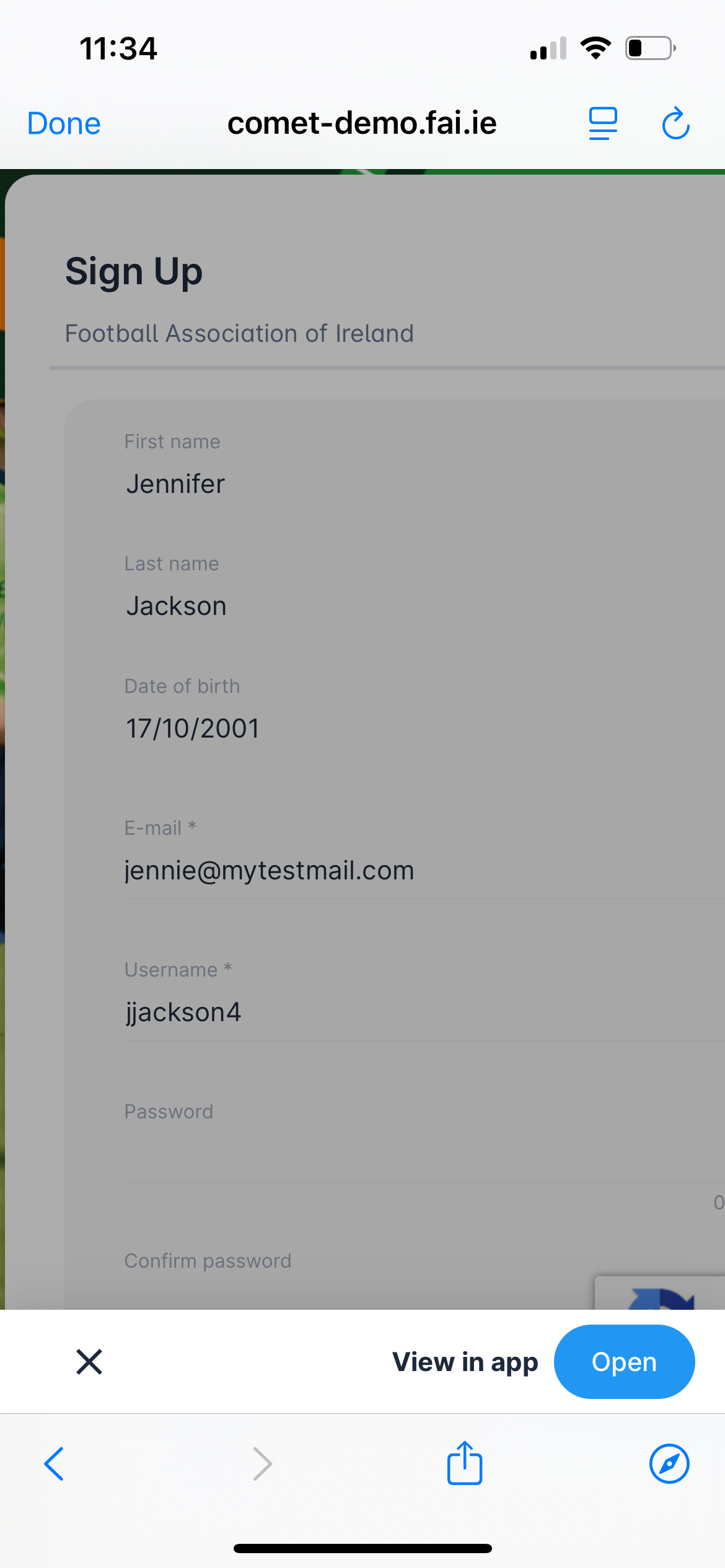
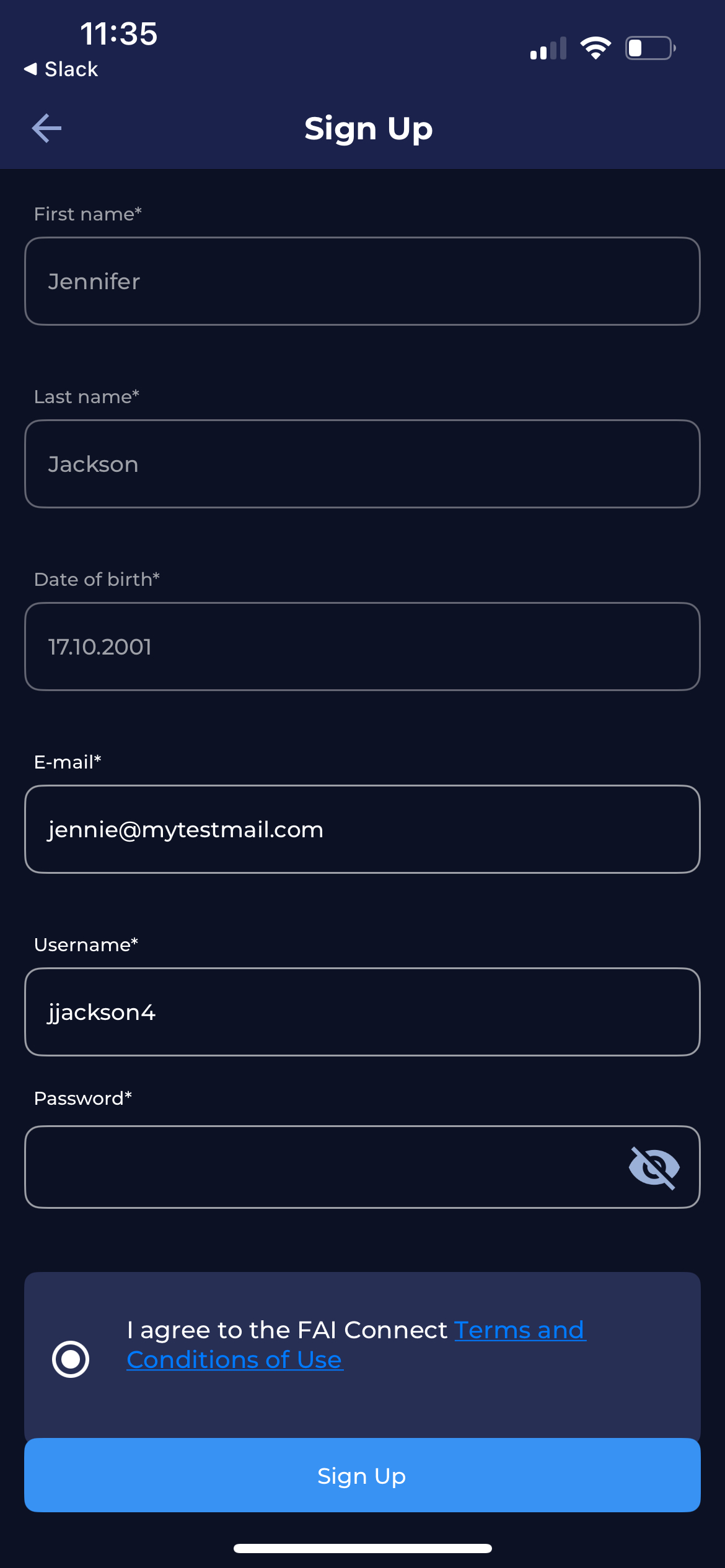
This form will contain prefilled person information from the COMET system. After entering the password and confirming it, click the button below the form to confirm that you want to sign up as the specified Person. By that, the new User is created and linked to the Person.
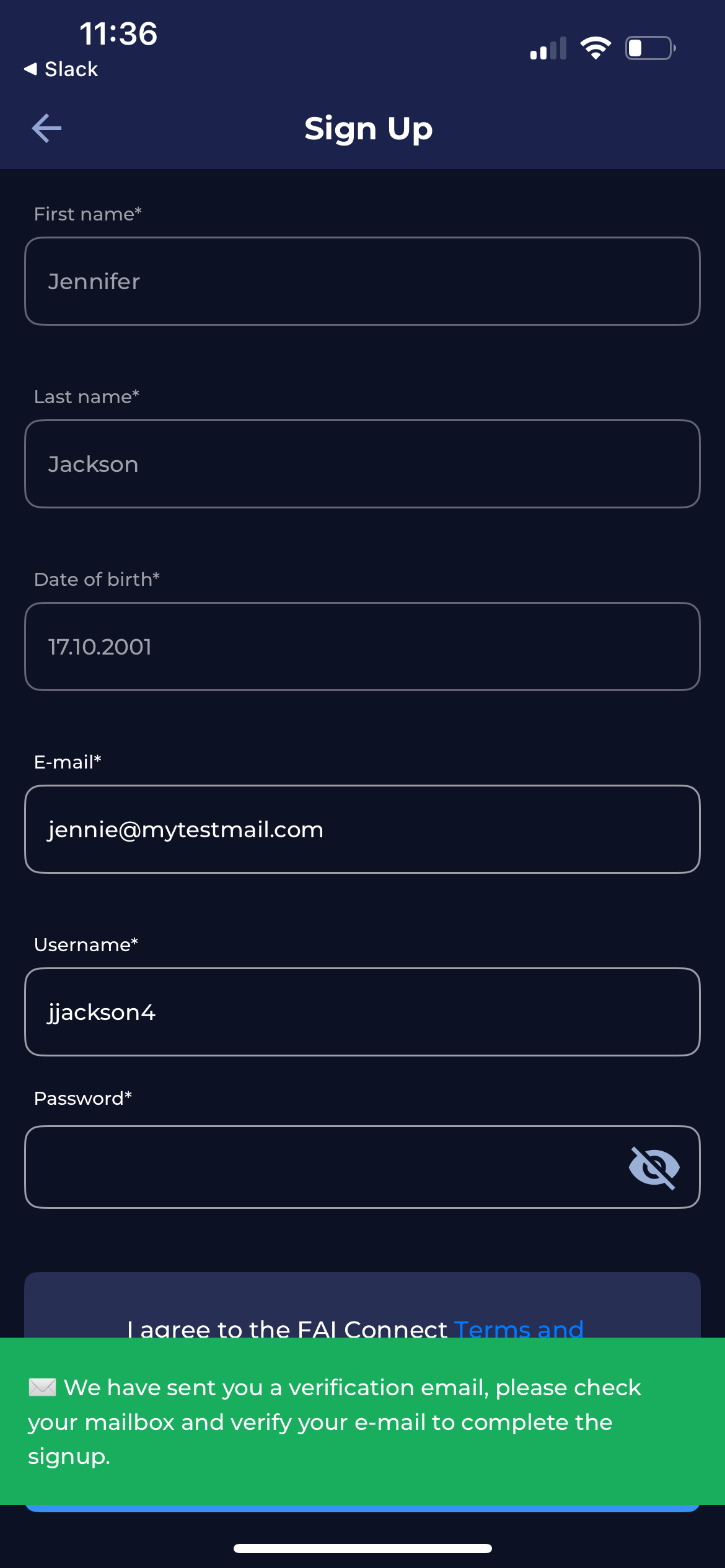
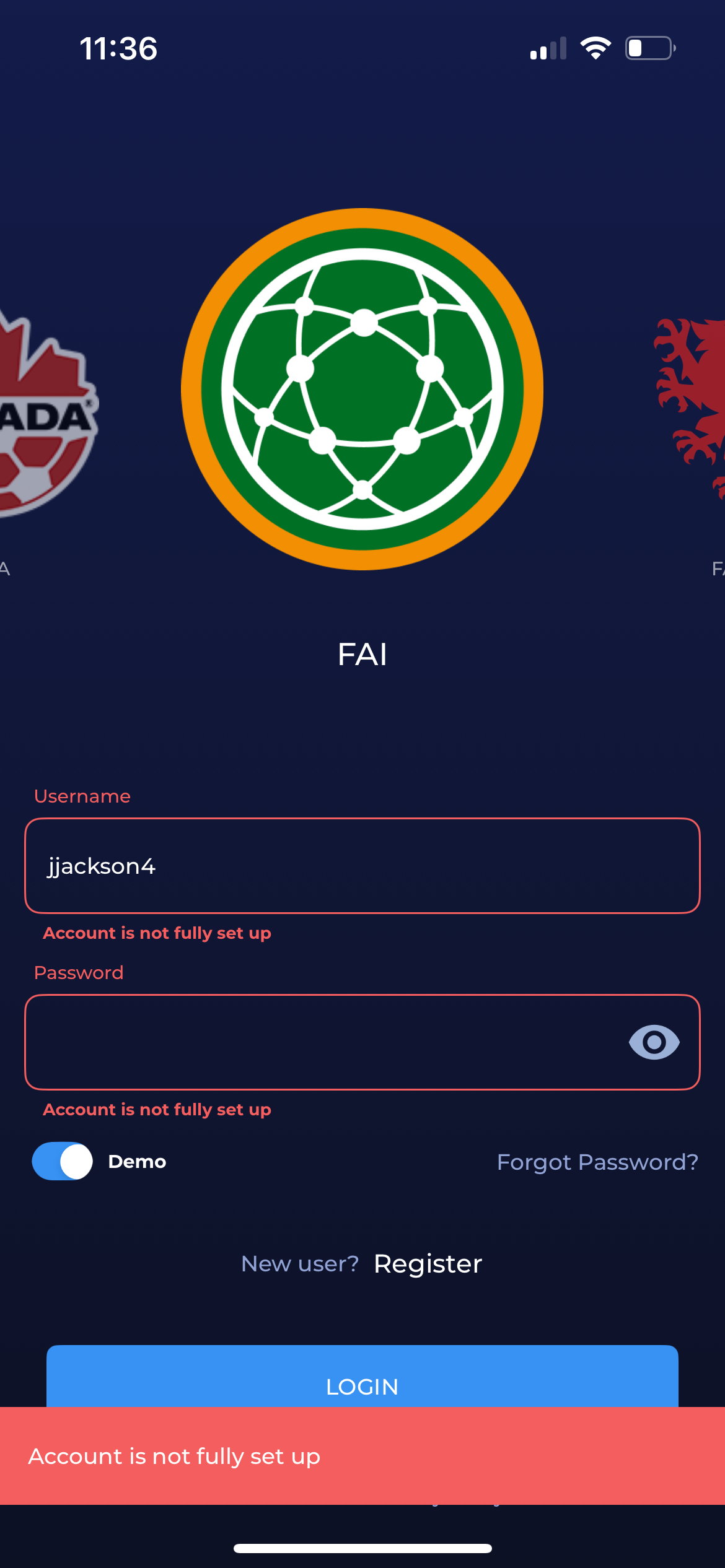
Note that you’ll be able to log in with your newly created account only after you’ve verified your e-mail address.
Signing up someone who is above the Age of Consent
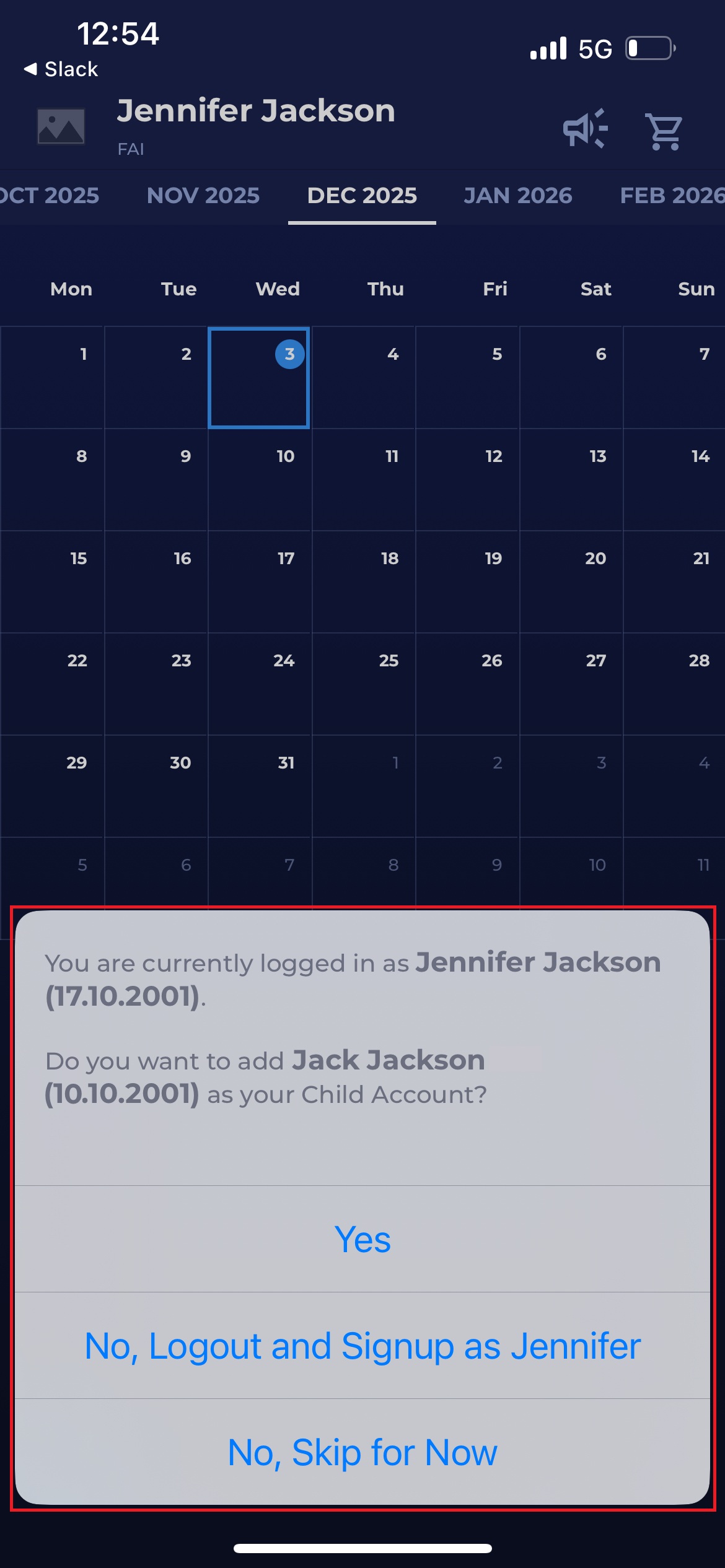
If you already have a user account and are logged in, and are using the personalized signup link of someone else, the following options will show up:
-
Create a child account for that Person (you will become the Parent)
-
Log out and proceed with regular/standalone signup for that Person
-
skip for now
Option 1. Create a child account for Person
To create a child account for the person, select the first option on the form. By clicking on the Continue button, you will be transferred to the Create Child window.
This window will contain prefilled person data from the COMET system. Enter the password for the new user, confirm it, and click on the Save button to finalize the creation of a new user. That user will become your Child Account, and your user profile will become its Parent Account.
Option 2. Log out and proceed with regular signup for Person
If you decided that you want to create a standalone user for that Person, select the second option from the form.
Clicking the Continue button will open a standard “from scratch” sign-up form, and the process then follows the same steps as the one above.
Option 3: Skip for now
Clicking on the third option from the form will take you back to the COMET Football interface, leaving you logged in with your current user account. Select this option if you don’t want to proceed with the sign-up process for the time being.
Signing up a person below the Age of Consent
Individuals under the Age of Consent cannot sign up for the system on their own behalf, as they are not old enough to provide consent, i.e., accept the legal obligations outlined in the Terms and Conditions of your Association.
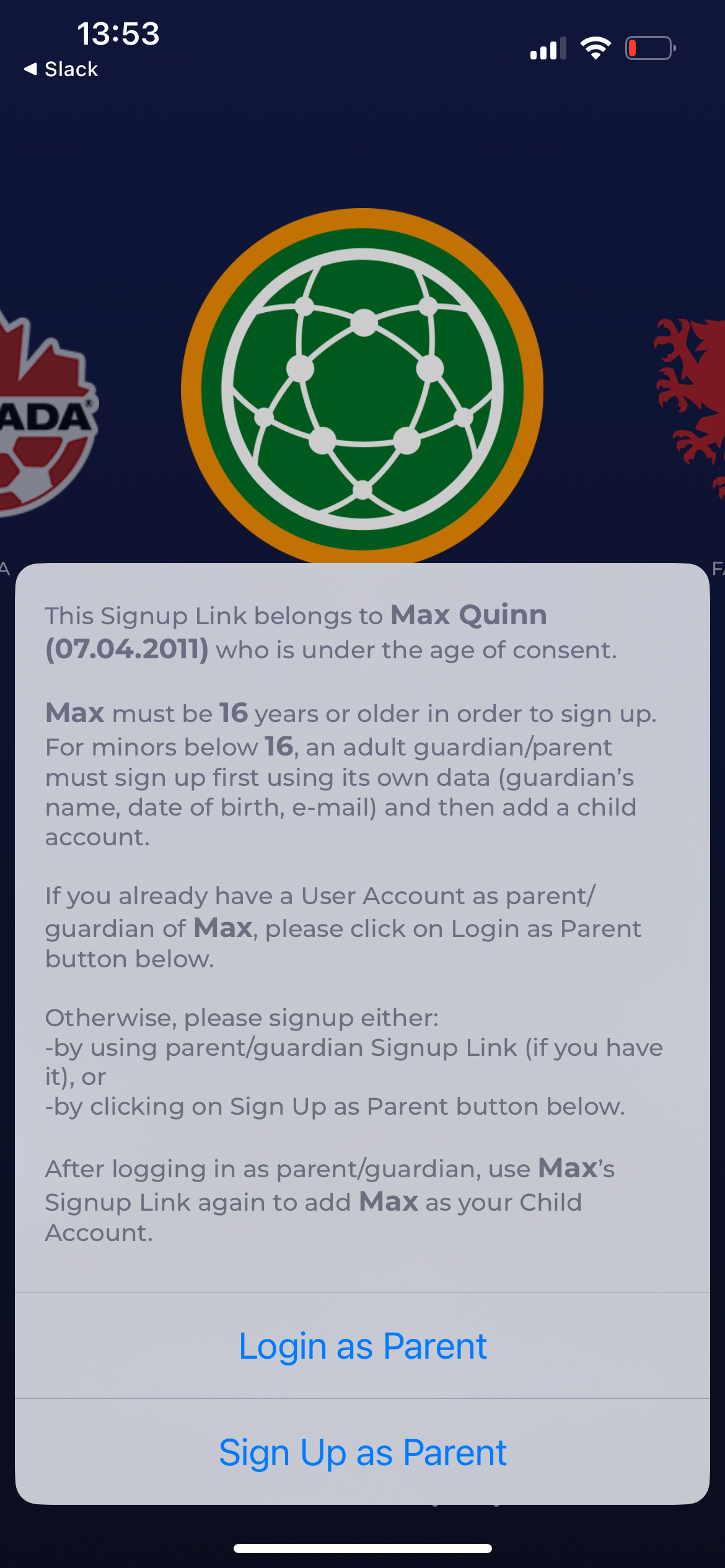
If you click on the personalized link of a person below AOC (e.g., your child), or copy it and paste it into your browser (where you are NOT logged in to COMET), you will be presented with the following options:
-
If you already have a User Account, proceed to log in, and then use the Child’s link again.
-
If you don’t have a User Account, first sign up as a Guardian/Parent by using your own Personalized link, if available, or by following the regular signup process, then proceed to log in.
You can see all of your linked child/parent accounts under the Linked Accounts tab that you get by tapping on your profile photo.