
License Extension Plans define which Event Types contribute to the extension of which License Types. As such, holders of a specific License can have their License automatically extended upon expiry, provided that they have met all defined extension requirements.
A common example is the extension of the UEFA Coach licenses. Holders of UEFA licenses must participate in CPD events and complete 15 hours of CPD over 3 years to have their license automatically extended for another 3 years.
Extension plans are highly configurable and can cover many scenarios involving any license type, different hours/points thresholds, required event types, etc.
Extension Plan Configuration
To configure an Extension Plan, navigate to the Admin App.
Access to the Admin app is available to Superusers via a link in the Users menu (upper right corner) or by adding /appadmin to your COMET homepage address, e.g. http://comet.concacaf.com/appadmin or http://comet.irishfa.com/appadmin. As mentioned, access is authorized to users with a Superuser role on the National Association or Confederation (tenant level).
Select Registration → Extension Plans from the left navigation bar.
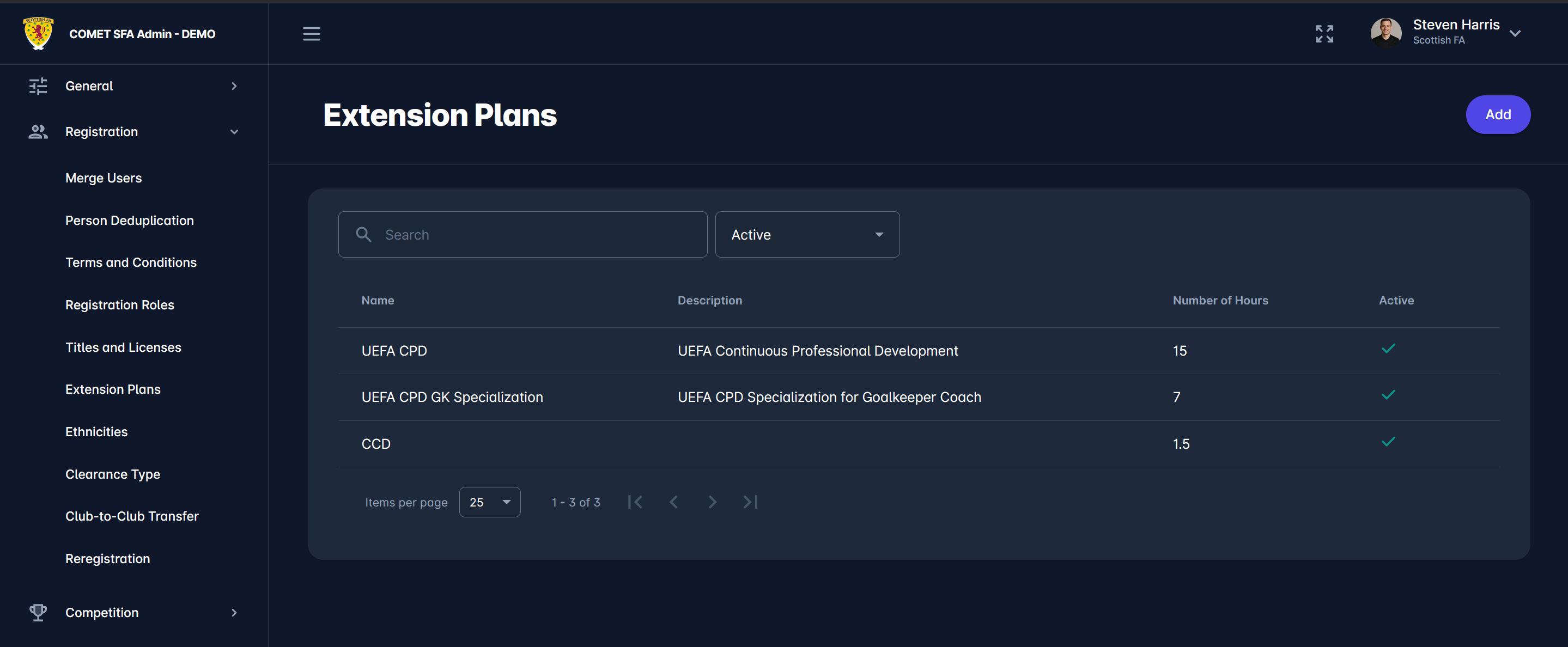
You can add new extension plans or edit existing ones from this section.
To add a new plan, click the Add button in the top-right corner of the screen.
This opens a new window where you can input details for the new extension plan. Complete the required fields as follows:
-
Name - enter a name for your extension plan,
-
Number of hours - specify the total number of hours needed for the extension,
-
Title/License - indicate which titles and licenses the extension plan applies to,
-
Event Types - define the types of events that will contribute to this extension plan.
If needed, you can add a description for the extension plan in the Description field and change its status from Inactive to Active using the toggle switch at the bottom of the window.
Once all details are complete, click the Save button to finalize and save your changes.
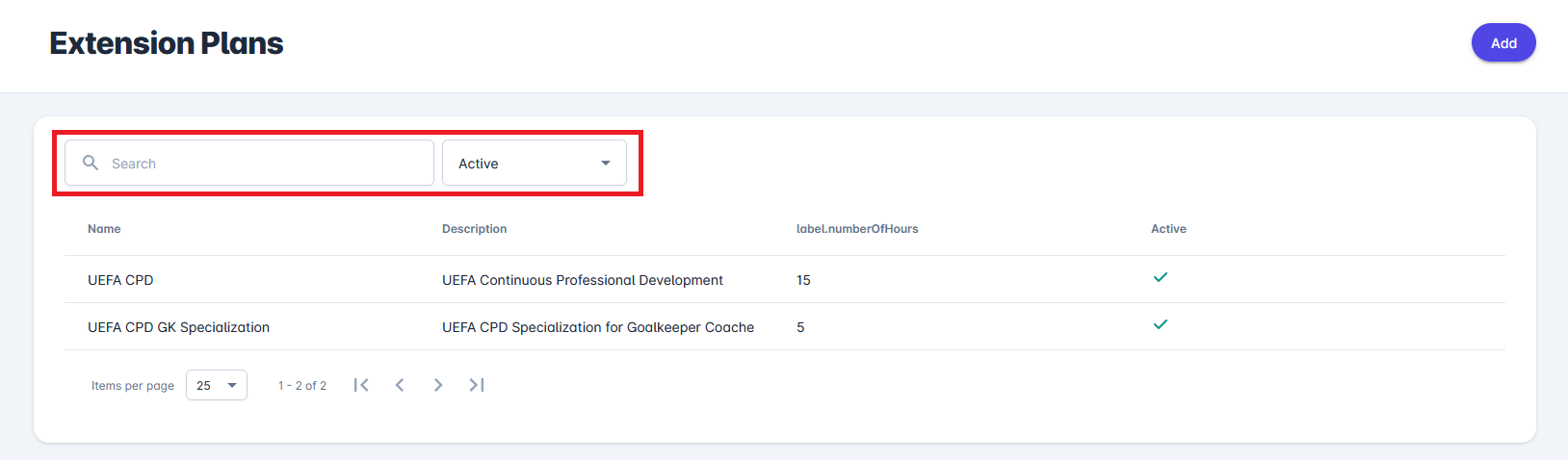
To edit an existing extension plan, use the 🔍 Search bar or the dropdown menu (Active/Inactive/All) to filter the list of plans. Select a plan by clicking anywhere in the row displaying its name and details.
In the edit window, you can modify the plan's details, description, or status. To delete the plan, click the 🪣 Bin icon in the top-right corner of the screen.
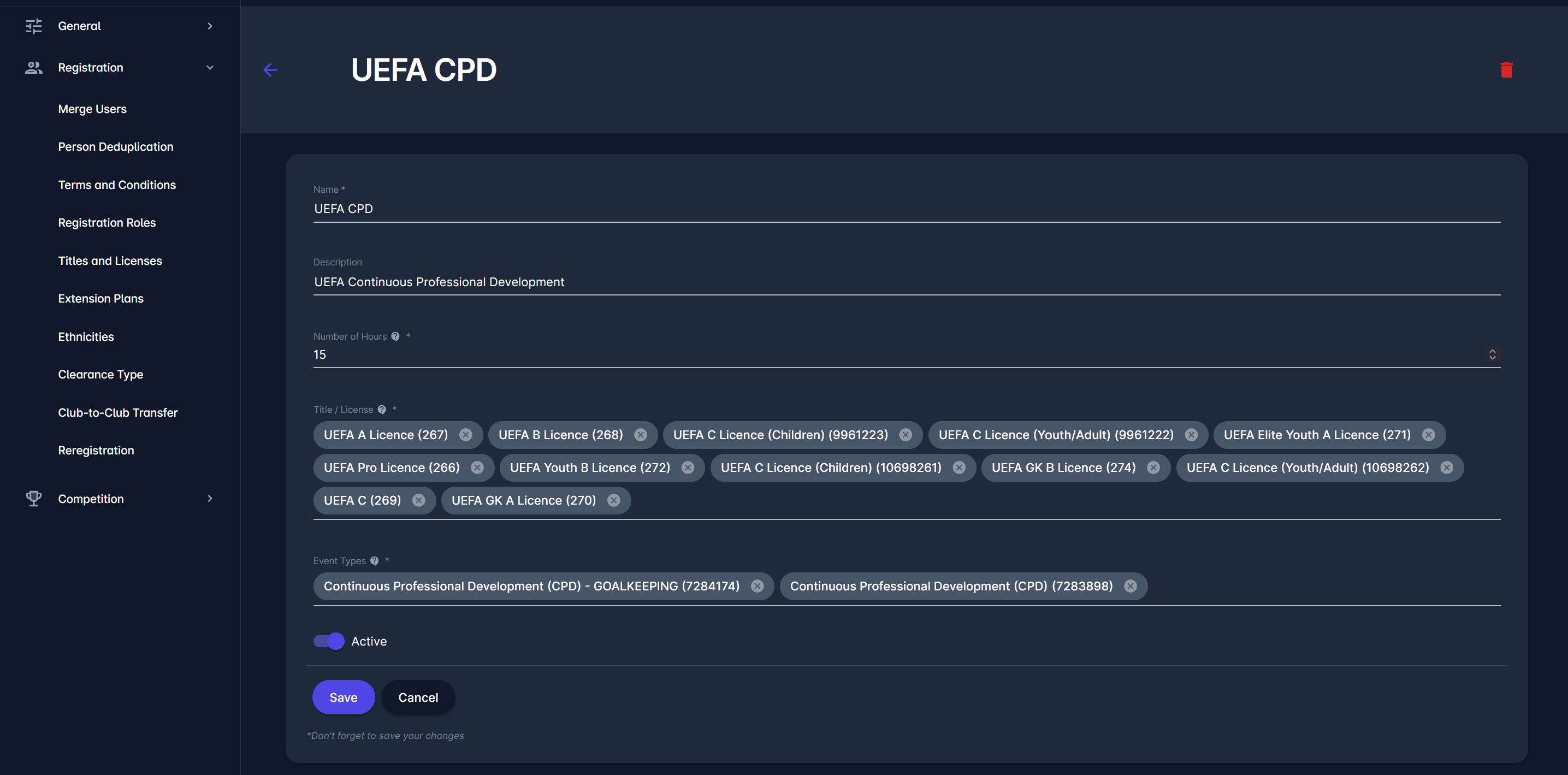
Each Plan can relate to one or more Titles/Licenses or Event types, as seen in the figure above. Different plans can relate to the same Titles/Licenses or the Event types.