
This article describes features applicable to all match events, i.e. on what components can a match evenet be added, what are the variations of time/occurrence of an event in the match, adn which roles are authorized to add/edit match events.
Add Match Events
Any player in the lineup or team official can be assigned to a match event. To assign a match event to a player, click on the specific player in the lineup list or formation on the Live or Team tab. When selected, a panel will appear showing the available event actions. Assigning the match event to a team official follows the same principle.
Adding Match Events from the Live Tab
The Live tab is the primary and most efficient way to add match events during a match. From this view, users can record events quickly while following the match in real time.
A key advantage of the Live tab is that events for both teams can be added from the same screen, allowing match officials or operators to manage the entire match timeline without switching between team tabs.
Within the Live tab, the match interface displays:
-
the starting lineup and substitutes
-
the match timeline
-
the match formation view
-
the technical staff list
To add an event on this view, simply click on the player (either in formation or a list view) or team staff member involved in the event. Once selected, a dialog window opens where the event details can be entered.
After clicking the ➕ Add button, a pop-up window appears showing all the available event types for that person.
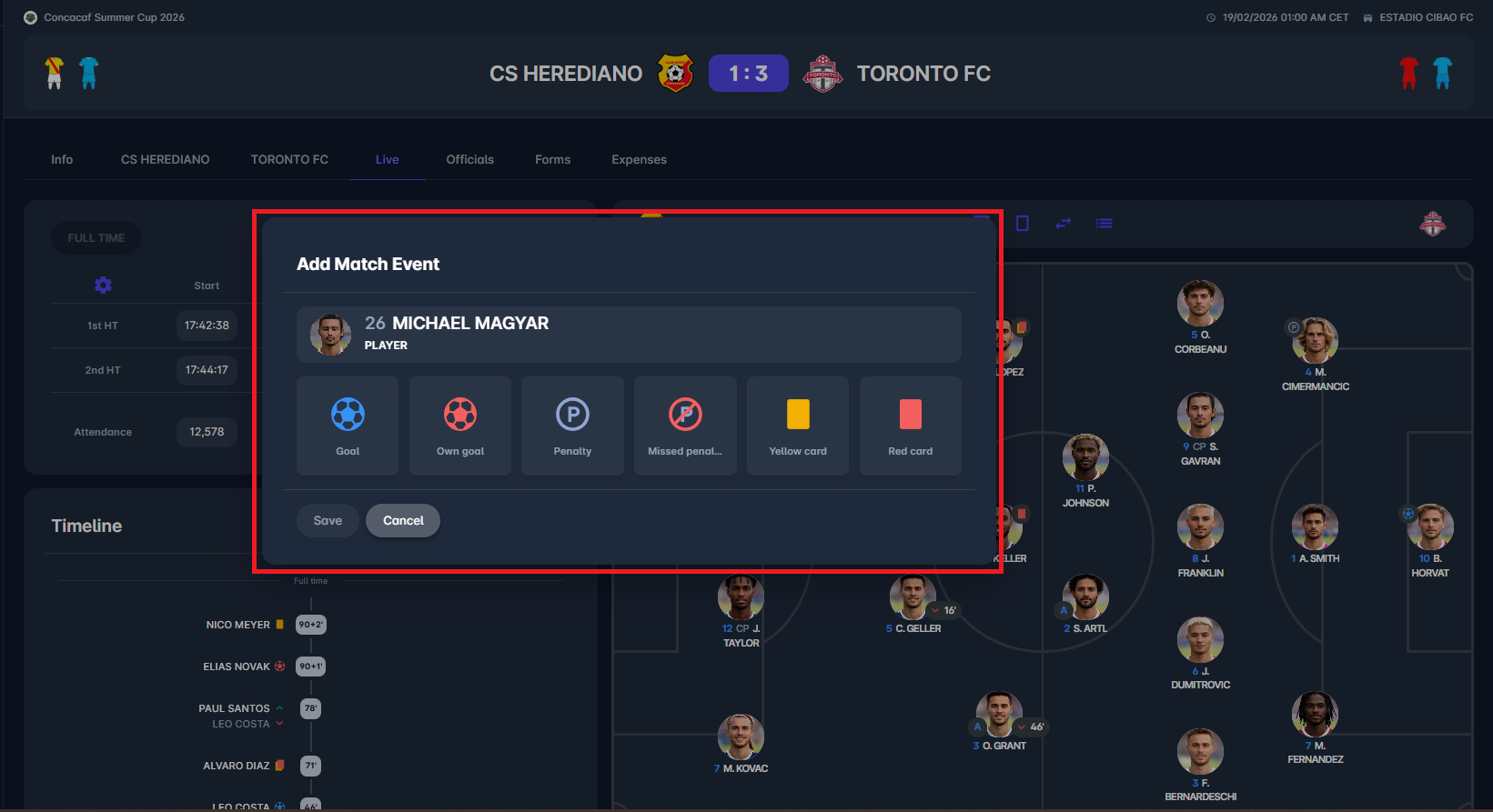
For players, the available event types depend on the sport. For example, for football, they include:
-
Goal
-
Own goal
-
Penalty (including missed penalty)
-
Yellow card
-
Red card
-
Substitution
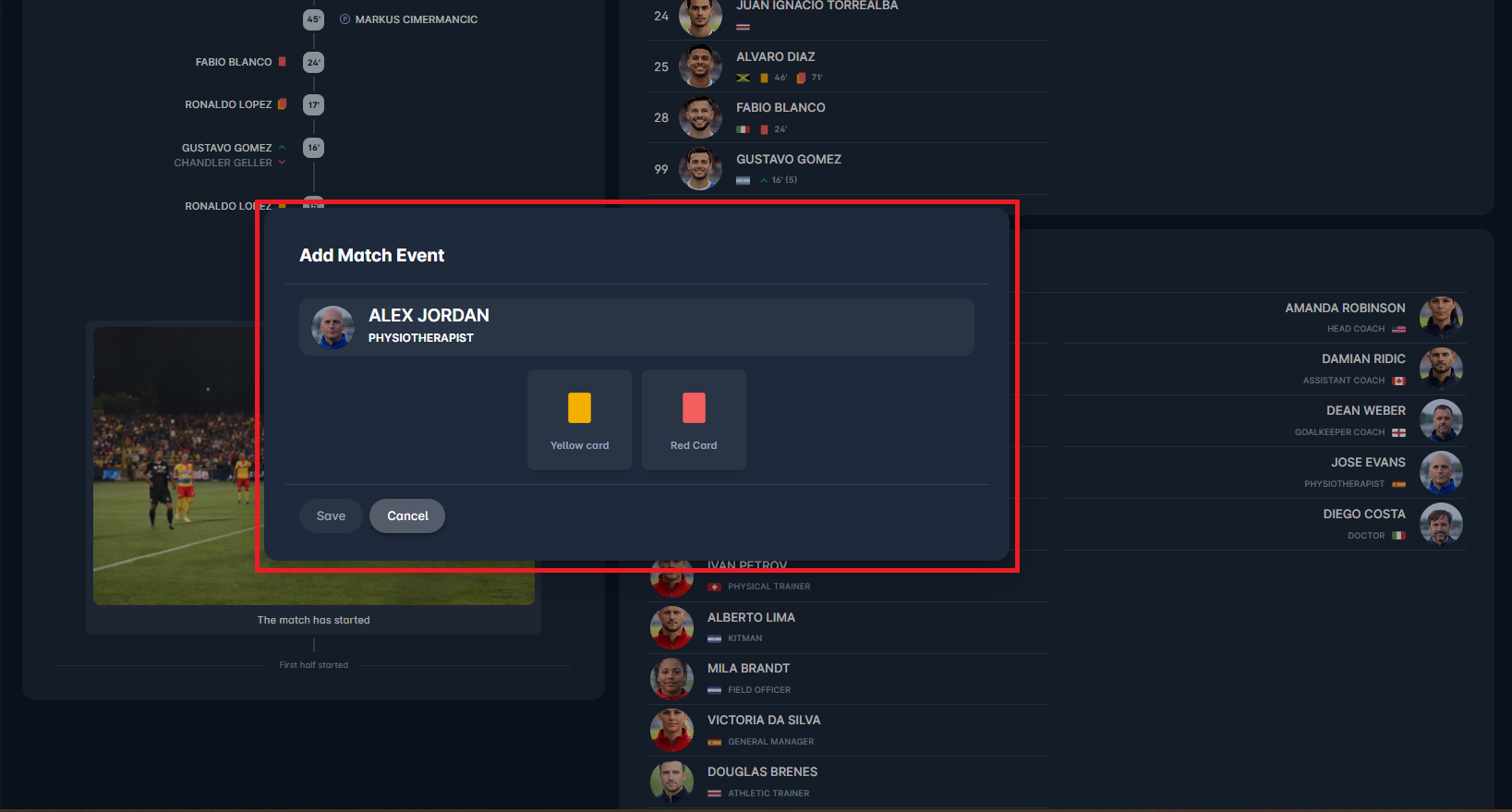
For team officials, the available events typically include:
-
Yellow card
-
Red card
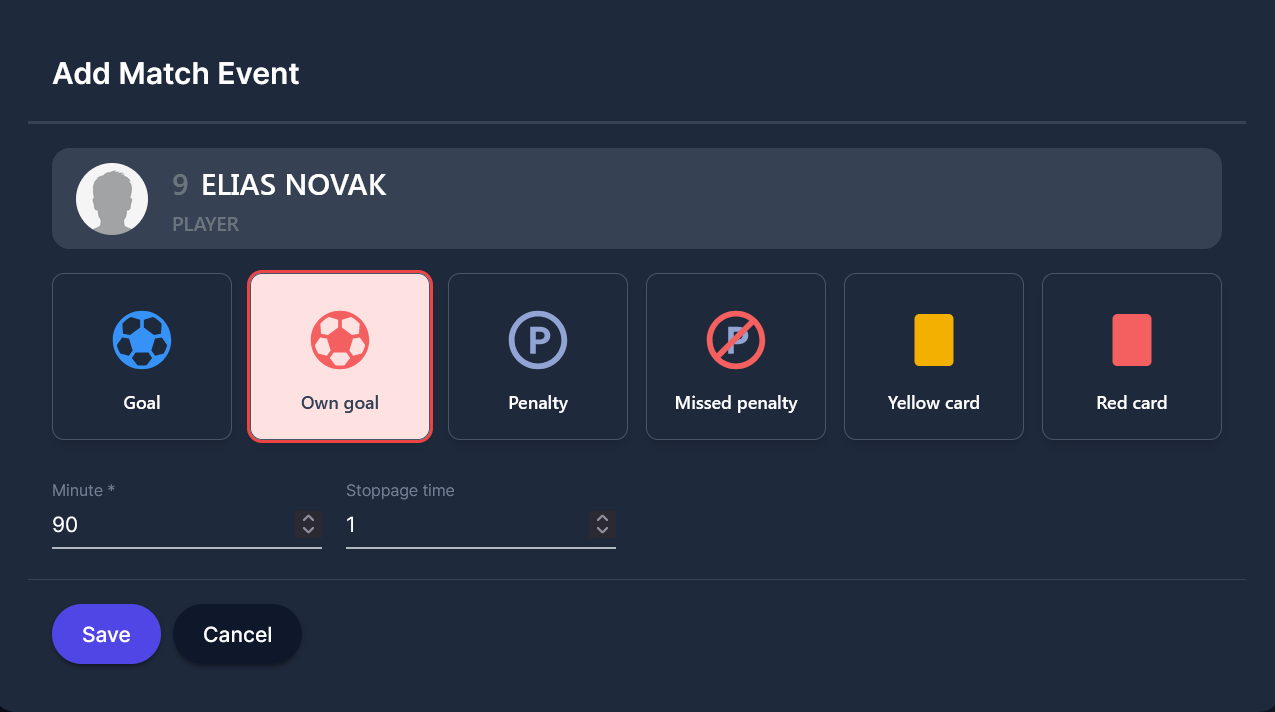
After selecting the event type, enter the required information (such as minute or stoppage time, if applicable) and click Save to record the event.
Multiple events can be added for the same person by clicking the ➕ Add button again.
Adding Match Events from the Team Tabs
Match events can also be added from the Team tabs for each team separately. This approach is generally slower, since the user must switch between team views, but the event entry procedure remains the same.
Two methods are available within the Team tab:
Using the Add Button in the Player List
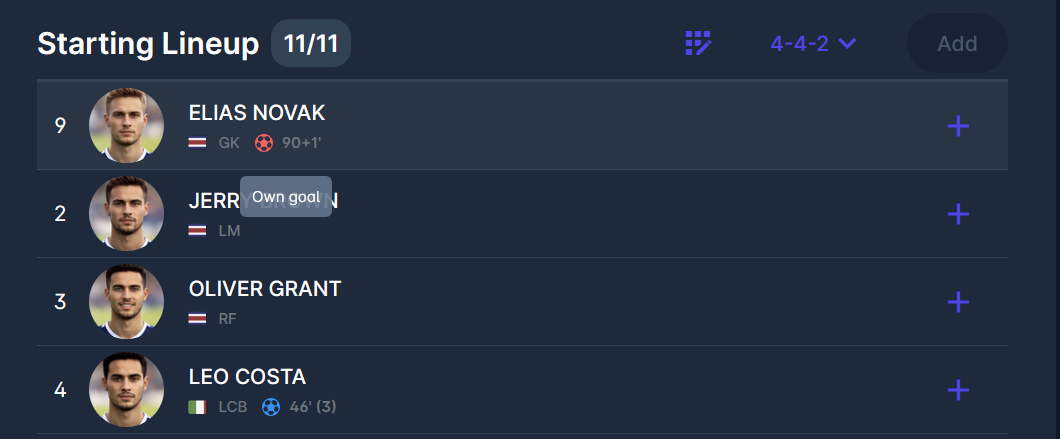
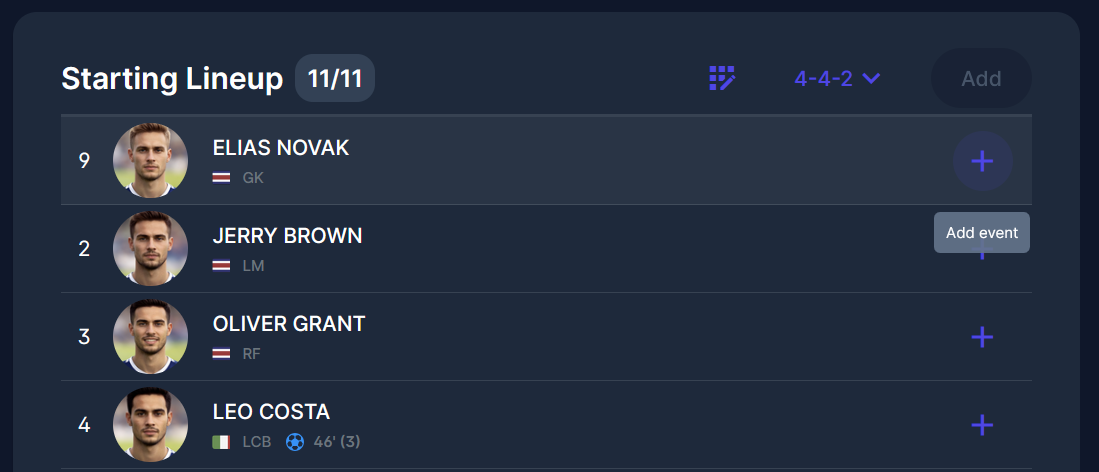
In the team’s Lineup list, click the ➕ icon next to the player’s name. This opens the event dialog where the event type and details can be entered.
Adding Events from Player Details
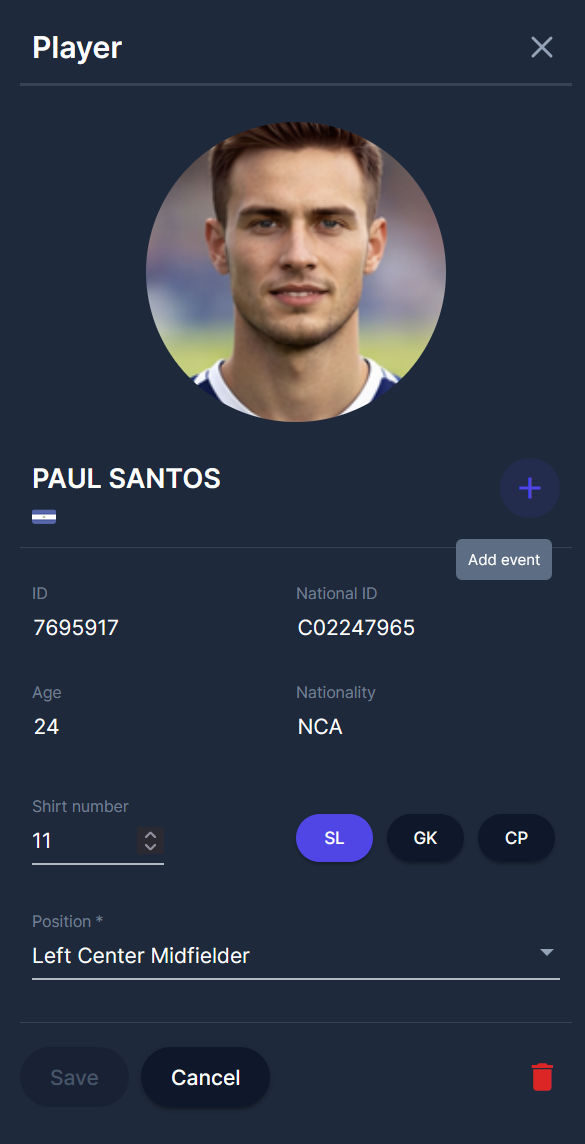
Alternatively, click on a player’s profile in the lineup. The Player Details panel opens on the right side of the screen. From there, click the ➕ Add event button to open the event selection dialog and record the event.
Edit Match Events
You can edit an already added event both on the Live Tab and on the Team Tab:
-
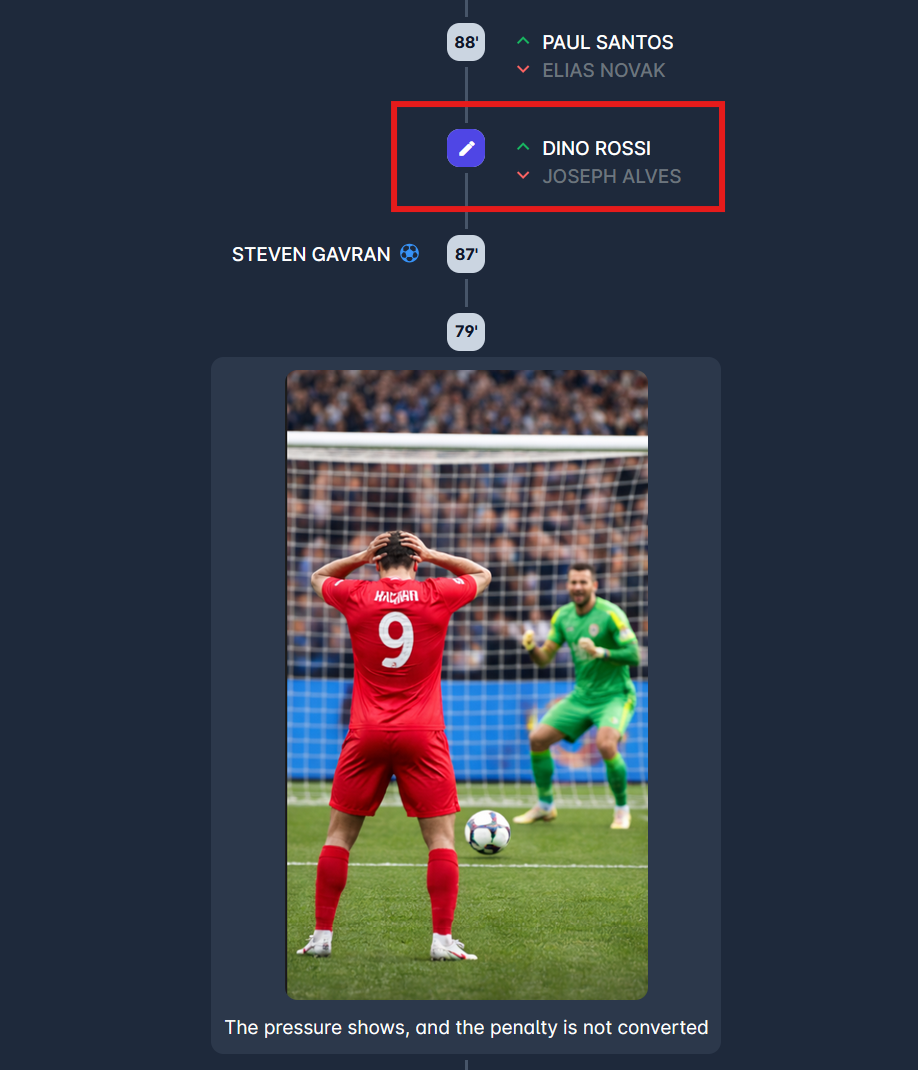
On the Live Tab, click on the minute on the timeline (left side of screen), or
-
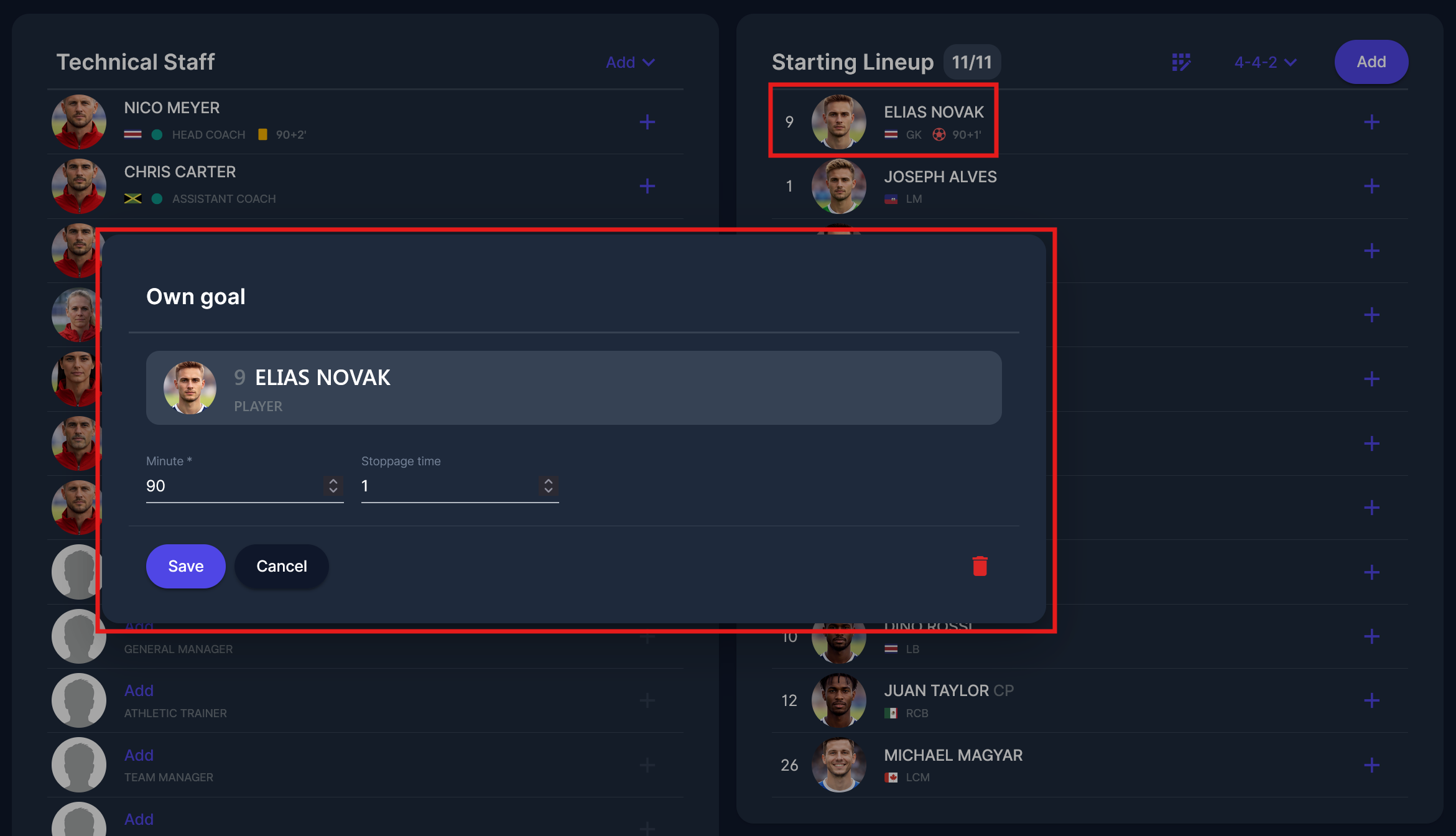
On the Team Tab, open the event pop-up by clicking on an event below the player's name in the lineup list view or on the player’s right-side window view.
In the event dialog, you can edit or delete the event you added.
Match Event Occurrence
When adding a match event in COMET, the user must specify the time when that match event occurred. This is done using the Event Occurrence dropdown in the Add Match Event form.
The Event Occurrence defines the moment of the match in which the event took place. The following options are available:
-
During Match: the event occurred during active play in one of the match phases.
-
Before Match: the event happened before the match officially started.
-
During Break: the event occurred during the interval between two match phases, described in detail below.
-
After Match: the event happened after the match ended.
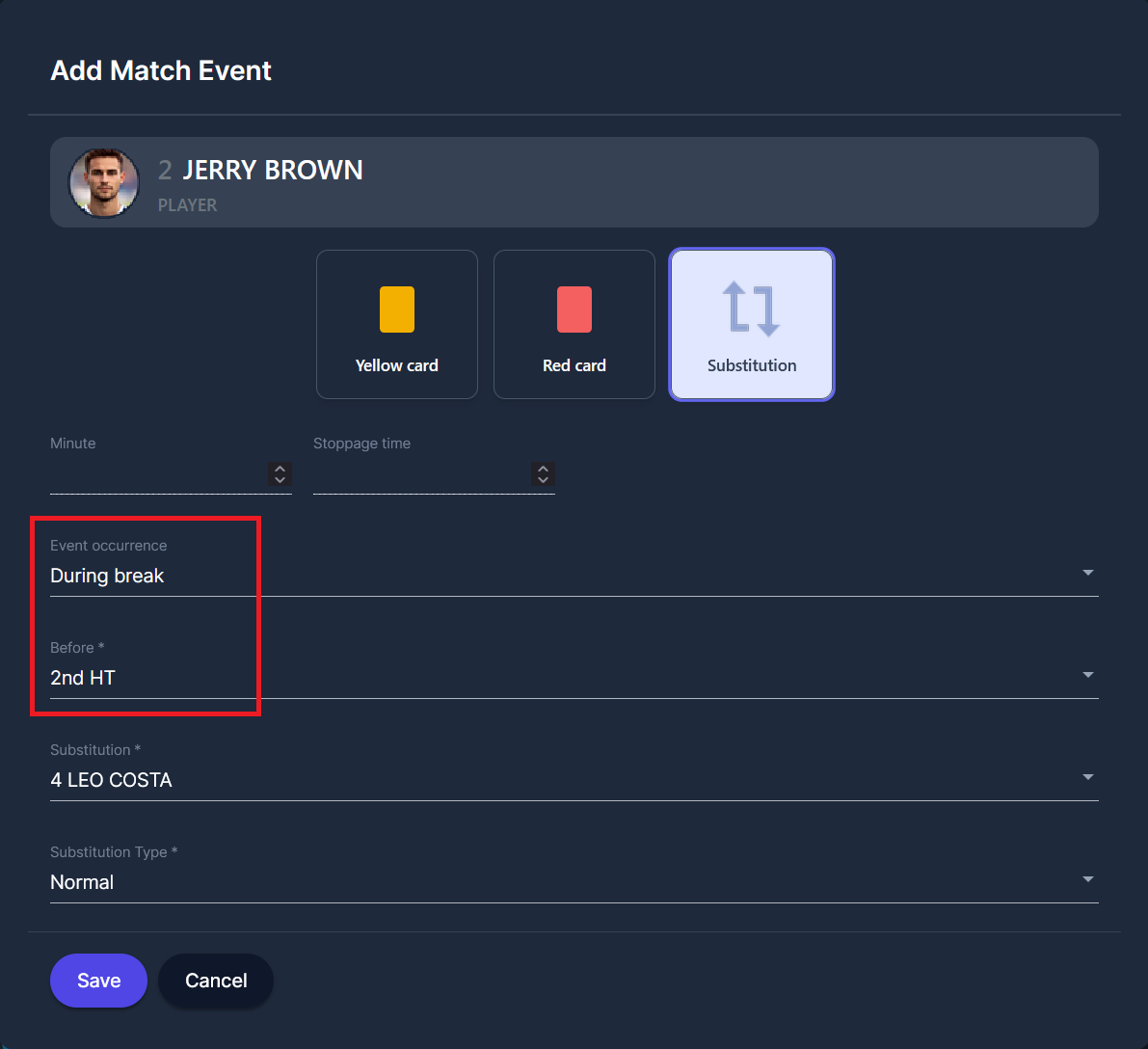
During Break
The During Break option is available when adding or editing certain match events, such as substitutions or cards. When this option is selected, the user must also specify which match phase the event occurred before.
The Before dropdown displays all match phases for the selected match, excluding the 1st Half-Time. This addition applies to all match events where the user can choose "During the break" (substitutions, cards).
Event Occurrence by Event Type
Not all event types support every occurrence option, e.g. the goal cannot be scored during the break. Available occurrences depend on the event type, as specified in the table below.
|
Event Type |
During Match |
Before Match |
During Break |
After Match |
|---|---|---|---|---|
|
Goals |
✅ |
|
|
|
|
Cards |
✅ |
✅ |
✅ |
✅ |
|
Substitutions |
✅ |
✅ |
✅ |
|
|
Team Events |
✅ |
|
|
|
Card Reasons
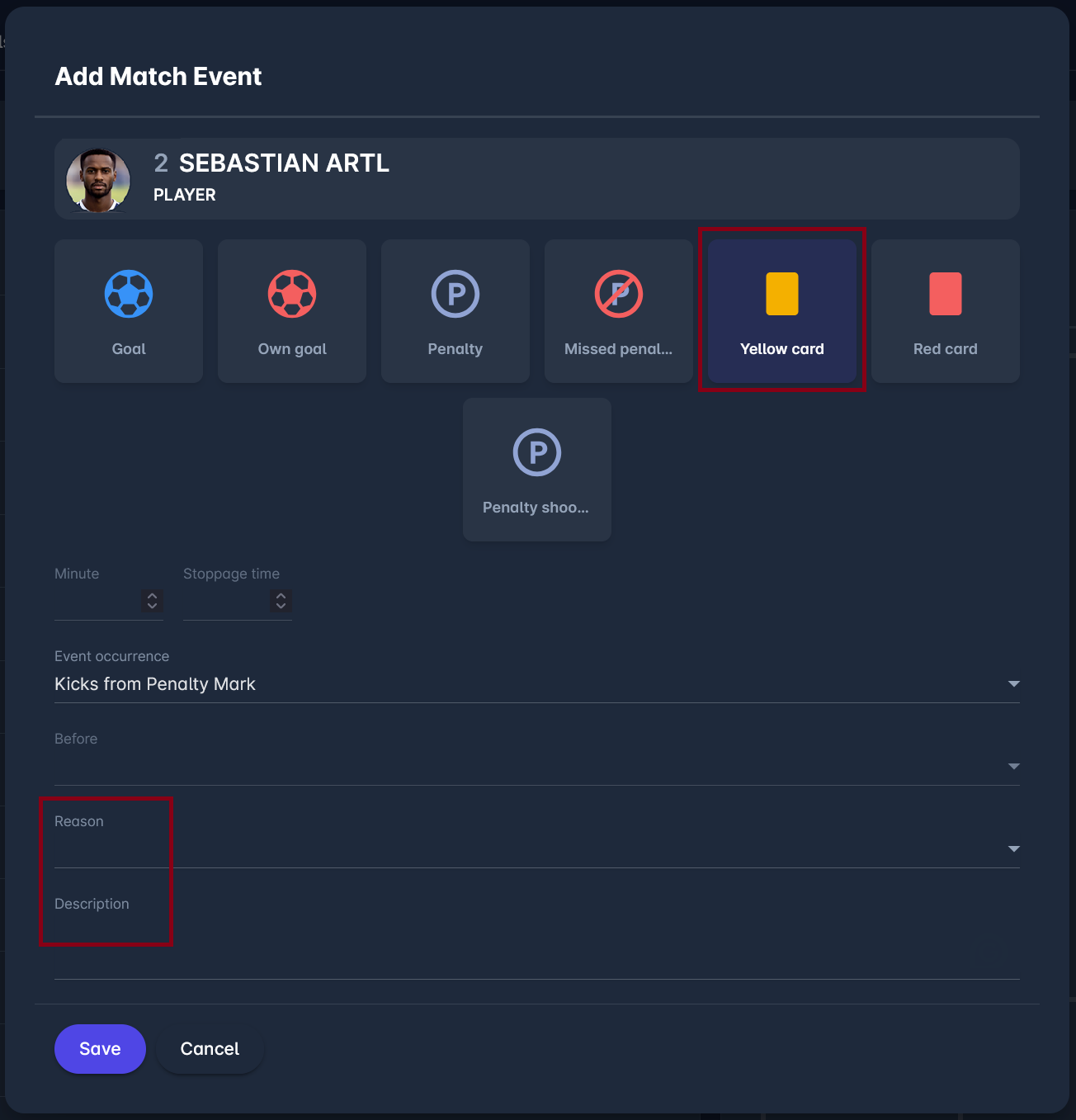
When adding yellow or red card events, the availability and requirement of the Reason and Description fields depend on the match status and card type.
While the match is in ENTERED or SCHEDULED status, entering a card reason is optional. However, once the match is set to PLAYED (officialized), the Reason becomes mandatory for all card events.
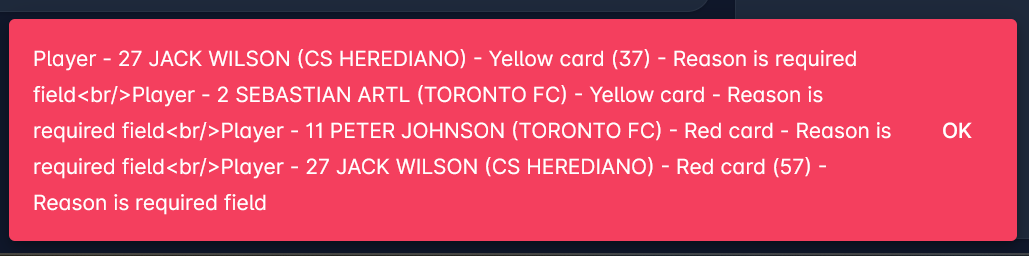
If any card event is missing a reason when the match is set to PLAYED, the system will block the action and display an error listing all incomplete entries.
For red cards, an additional rule applies: the Description field is always mandatory, regardless of match status. For yellow cards, the description remains optional at all times.
If the Card Description Confidential parameter is enabled, Card Descriptions will not appear on the Match Report PDF once generated; they remain visible in-app only to Match Managers, Event Editors, and relevant Administrators/Managers. Open a Support ticket if you would like this parameter enabled.
Managing Card Reasons is available from the Admin App. It is possible to add new card reasons, edit existing ones, or remove those that are no longer needed. Moreover, you can create Default Sanctions for your card reasons.
Authorizations
Match Events as well as Live Status, Phases, and Commentaries can be added/edited by:
-
Superusers and Competition Admins above in hierarchy, in all match statuses
-
Appointed Competition Managers for all match statuses
-
Match Managers and Events Editors, in match statuses SCHEDULED, RETURNED
The Match Manager roles are
-
Appointed Officials (Referees, Match Officials, Delegates, Assessors) with the Match Manager checked on the Match Role Configuration
-
Club Referent or Lineup manager if Match Manager Permissions are selected on Competition Type Settings
Most commonly, the Match Manager is the Referee. In some instances, especially in youth competitions, when there are no referees, the Home Club is configured to be the Match Manager (aka Club Manages Match).
The Events Editor roles are:
-
Appointed Officials (Referees, Match Officials, Delegates, Assessors) with the Events Editor checked on the Match Role Configuration
-
Club Referent or Lineup manager if Events Editor Permissions are selected on Competition Type Settings
Most commonly, the Events Editor is the Home Club, with the purpose of entering the match events in real time during the match. The Events Editor is often the Venue Data Coordinator, or similar match official role.
Match Manager and Events Editor have equivalent rights regarding adding/editing/deleting match events. However, the Match manager can also complete the Match Report, i.e., set the Match status to PLAYED. After that, neither the Match Manager nor the Events Editor can make changes to match events.