
The new observer report can be flexibly configured by superusers in the Admin App, with separate setups for all 3 disciplines (Football, Futsal, Beach Soccer).
The list of match roles used in the Referee Observer Report (ROR) is defined in the Match Role configuration in the Admin App.
If at least one Assessment Editor role is added to the Match Role configuration, that Match Role will be used in the Referee Observer Report (ROR).
Report Configuration per Sport
Only the Tenant Superuser can configure the observer report for their tenant.
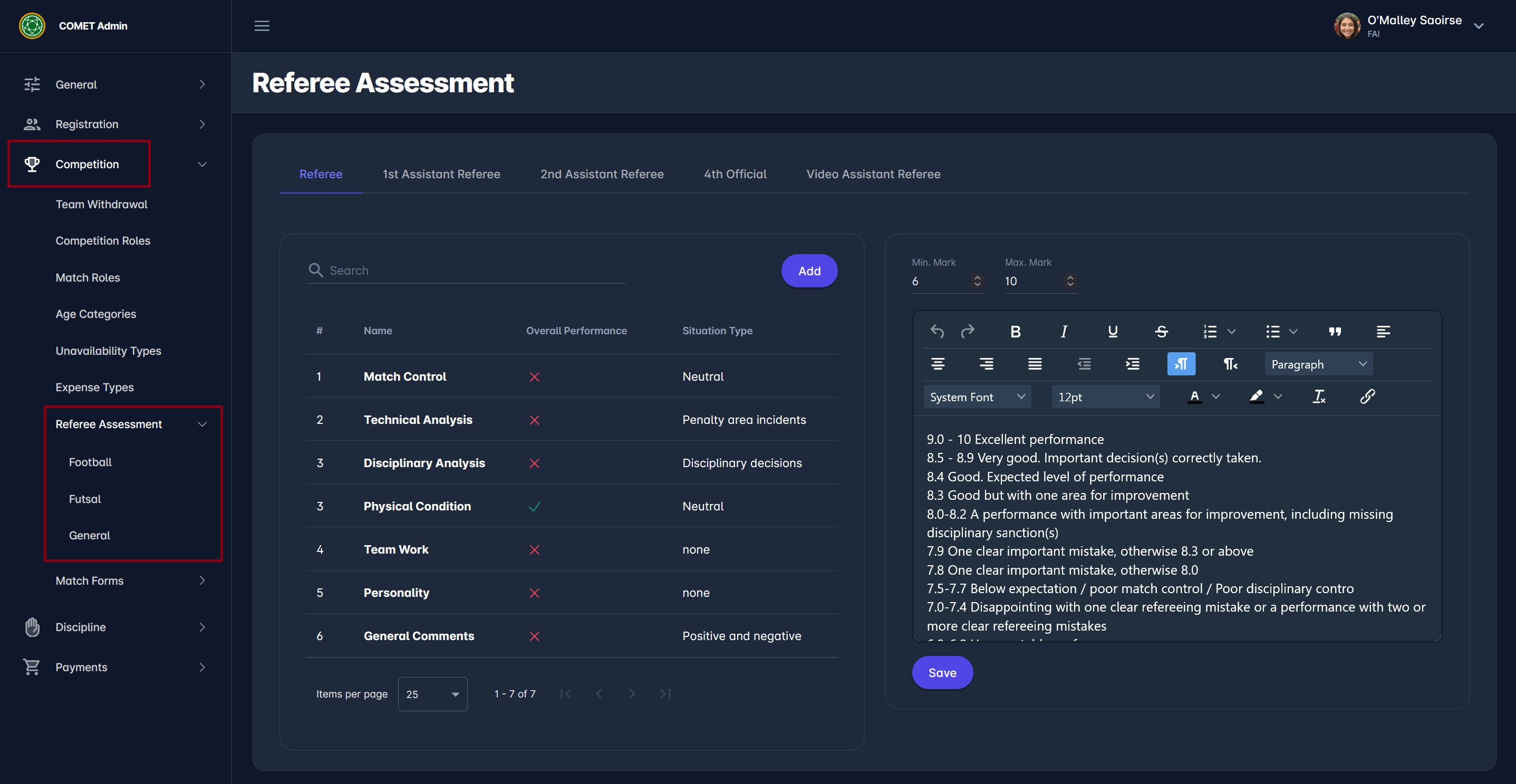
Observer report configuration options are the same for each match official role and consists of:
-
observer report sections configurations in the left panel
-
minimum and maximum mark (e.g usually for referees it is 6-10, and for VAR 4-10)
-
rating scale instructions (as a rich text input) in the right panel
Report Sections
Select a Sport/Discipline from the left menu (e.g Football) and a Match Official Tab (e.g Referee), and you will access the report list of sections in the left panel
-
Clicking the Add button in the top-right corner of the left panel opens a dialog to define a new item in this section.
-
Clicking a row in the list of the sections opens the same screen for editing the existing section configuration.
The form for defining a section consists of:
-
ID → auto-generated value
-
Name → mandatory, not empty, and a unique value per match official role, used as section title
-
Description → optional text area input field, used as section subtitle
-
Order Number → mandatory, defines the ordering of that section
-
Overall Performance → a switch button telling if overall performance is used or not on a specific section. If enabled, the observer will be required to put a grade for that section specifically. Performance options can be defined under General.
-
Situation→ a dropdown consisting of options to enter match situations
-
None → Situations are not used
-
Neutral → neutral descriptions of situations are used: observer enters just minute and description, without indication whether the situation is positive or negative/improvement.
-
Positive and negative → two groups of descriptions of situations are used: Positive Points and Negative/Improvement Areas. Observer enters minute and description and categorizes the situation into one of these two groups.
-
Penalty area incidents → shows inputs for numbers of correct/incorrect decisions and special descriptions of penalty area situations, following UEFA standards
-
Disciplinary decisions → shows inputs for numbers of correct/incorrect/missed decisions and special descriptions of disciplinary situations, following UEFA standards
-
VAR → shows inputs for the number of correct/incorrect/missed VAR decisions, following UEFA standards
-
-
Description template: allowing observers to select a predefined description on a situation, which is a time saver when the same text is reused in many similar situations. If DEFAULT or FINAL is selected, you will be able to specify the predefined descriptions.
Section Details
Once the section is saved, the user can define the list of its details, and each such detail will be assessed by observer using a standard scale with three options:
-
Above expectation (+)
-
Expected (o)
-
Below expectation (-)
The “Add” button to add a Section Detail appears in the top right corner of the right panel.
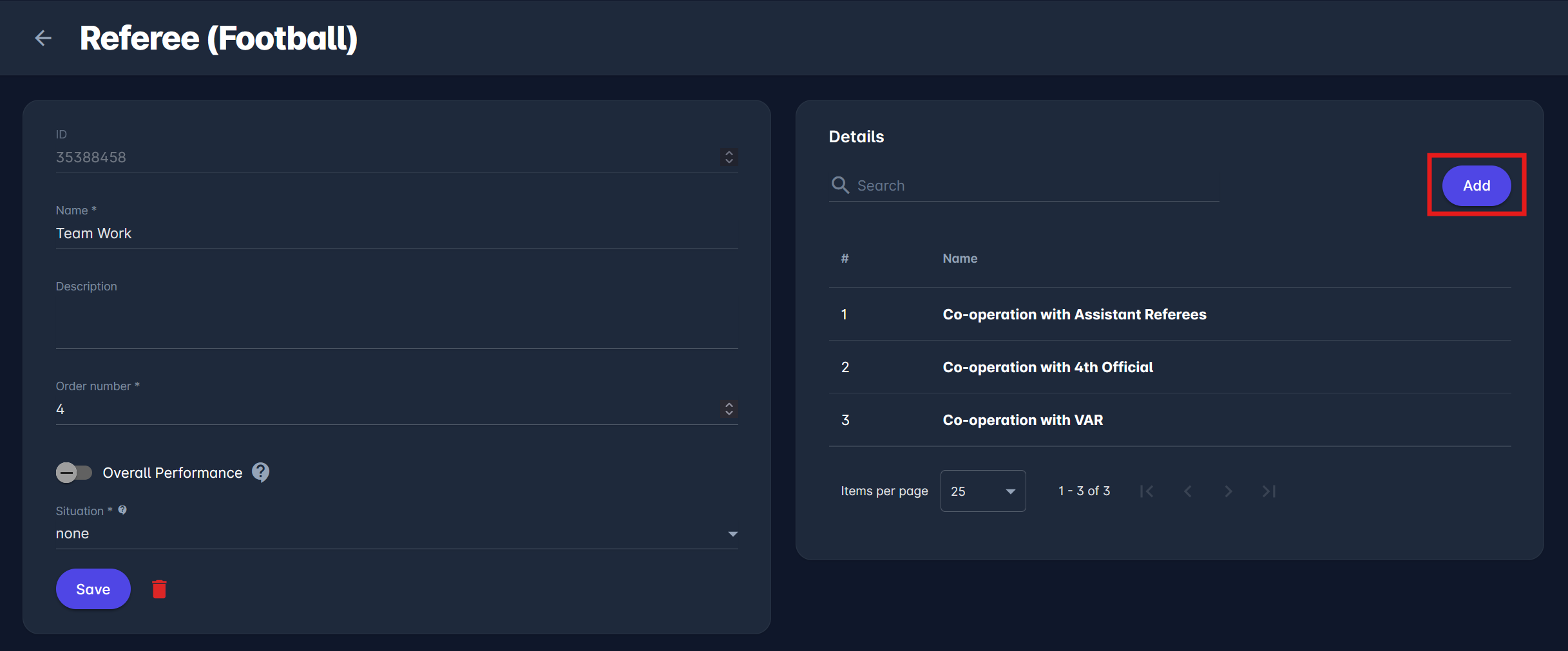
A click on the Add button opens a dialog to enter the name, description, and order number for each “Detail”.
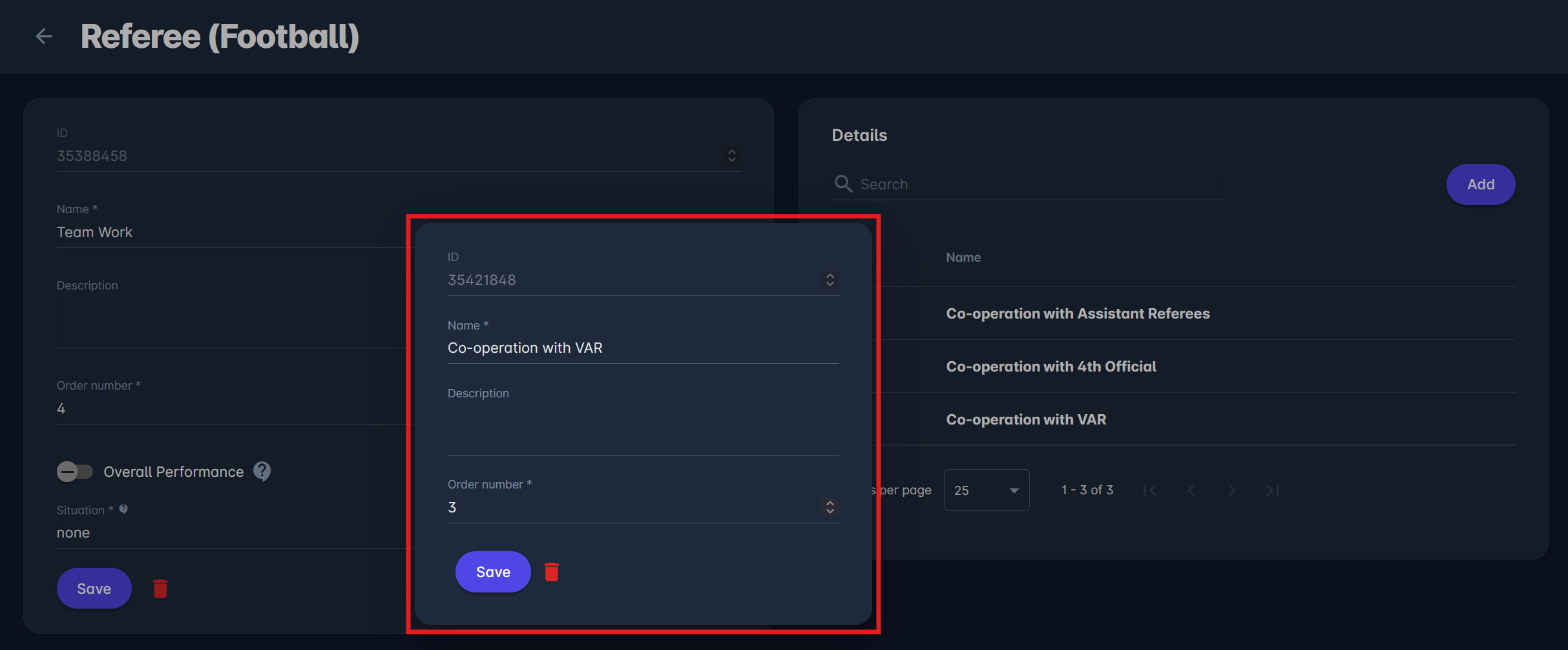
While editing the official’s report, this “Detail” will be presented as an element that the observer can rate using the available indicators.
Description Templates
If a Situation option other than None (e.g. Neutral) is selected, then the Description Templates field appears with the following options:
-
NONE → description templates are not used
-
DEFAULT → description templates are used and can be changed when chosen in a situation, on filling the observer report. E.g., choosing “Recognizes simulations” fills the description of the situation, but the user can additionally change the situation’s description to “Recognizes simulation for a free kick in a dangerous area outside the penalty area”.
-
FINAL → description templates are used and cannot be changed when chosen in a situation on filling the observer report. User may only choose one of the options, which is then copied into the description of the situation; such value cannot be changed with additional text, only another option may be chosen instead.
Selecting DEFAULT or FINAL displays the panel to define the options for describing the situations.
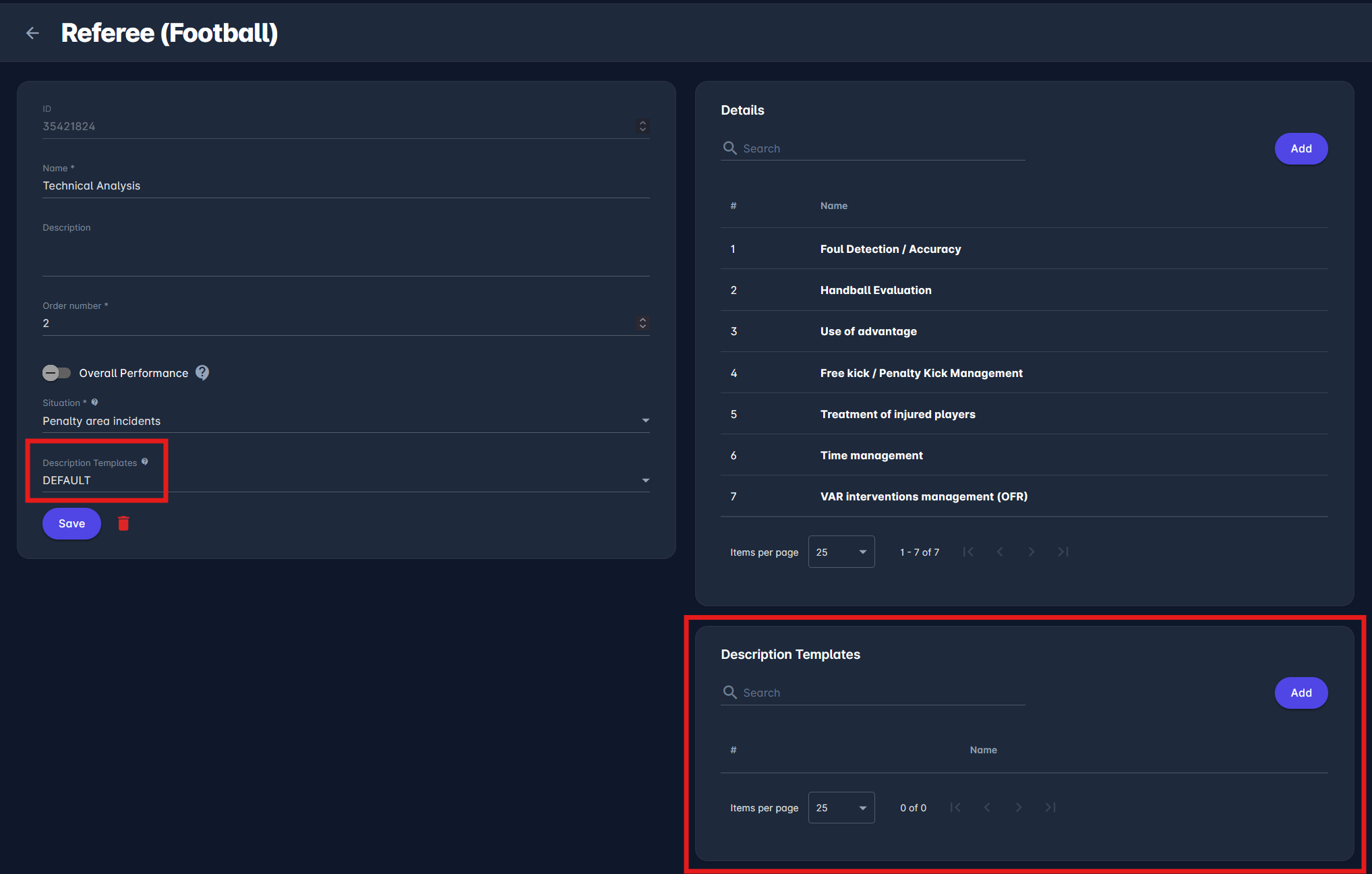
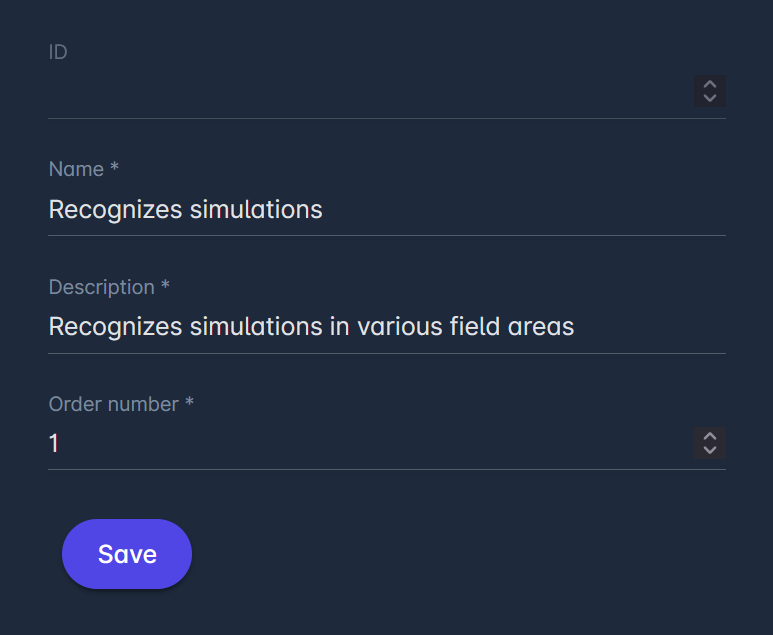
To add a new description template, click on the Add button at the top of the Description Templates section.
Enter the Name, Description, and Order number of the template. This template will be available for selection from a drop-down, as shown in the Observer Report article.
Special Situation Types
In this part, we are describing advanced situational components for specific match events, aligned with UEFA recommendations, such as penalty area incidents and disciplinary decisions where the assessor can distinguish correct vs incorrect decison, and specify whether VAR intervened and what was the final decision.
Penalty Area Incidents
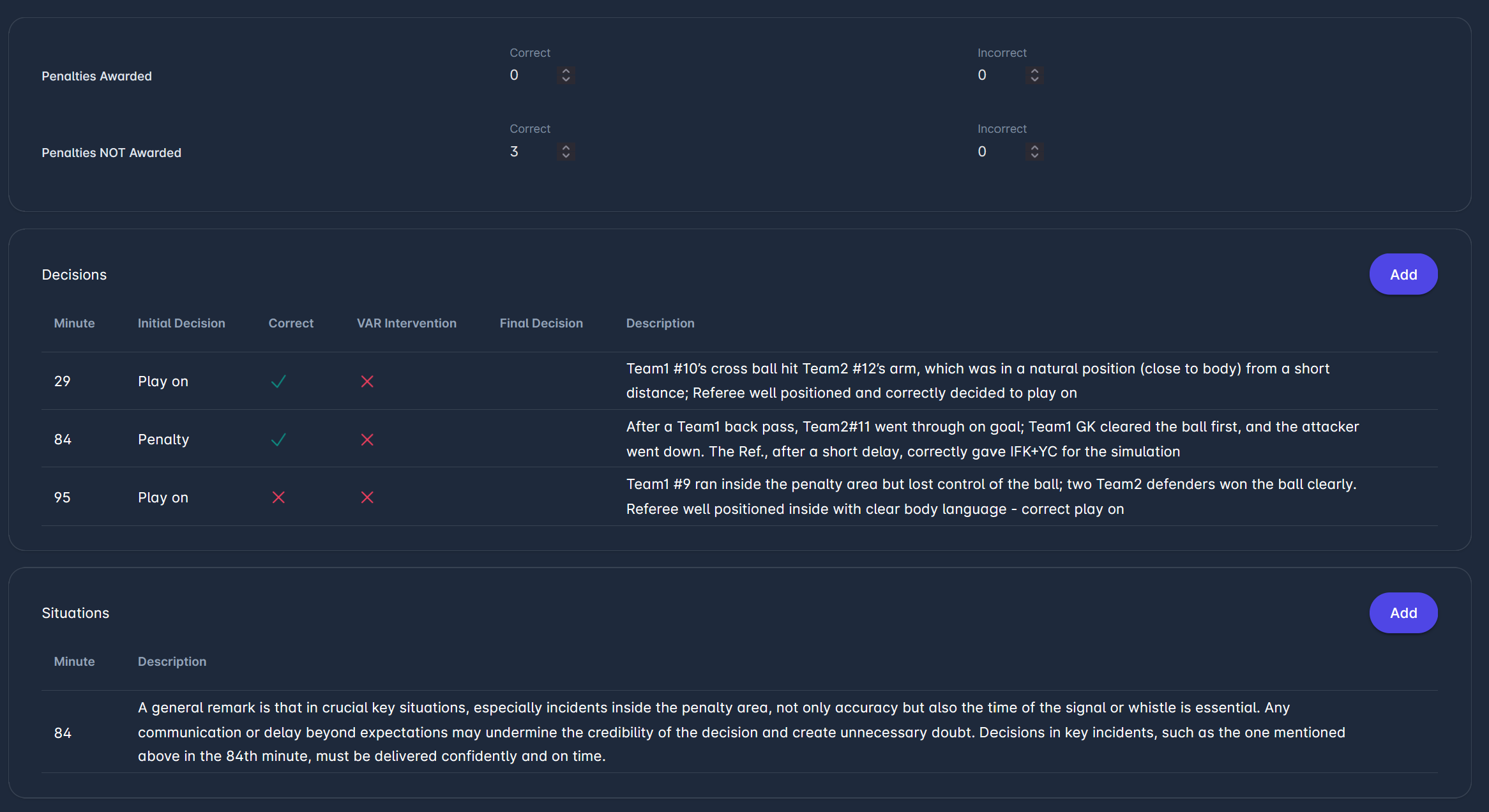
The Penalty Area Incidents component is used to assess and document all relevant situations that occurred inside the penalty area during the match. At the top of the section, the assessor records the number of penalties awarded and not awarded, distinguishing between correct and incorrect decisions.
The Decisions section is used to list individual incidents. For each situation, the assessor can specify the minute, the initial referee decision (Play On, Penalty, Indirect Free Kick, or Direct Free Kick), whether the decision was correct, and whether there was VAR intervention. If it differs from the initial one, the final decision can also be recorded, as Play On, Penalty, Indirect Free Kick, Direct Free Kick, or Drop Ball. Each entry includes a short description to explain the context and reasoning behind the evaluation.
The Situations section is intended for additional remarks that may not be tied to a single decision but are still important for the overall assessment. This typically includes general observations about decision-making in the penalty area, such as positioning, timing of the whistle, communication, or consistency.
Disciplinary Decisions
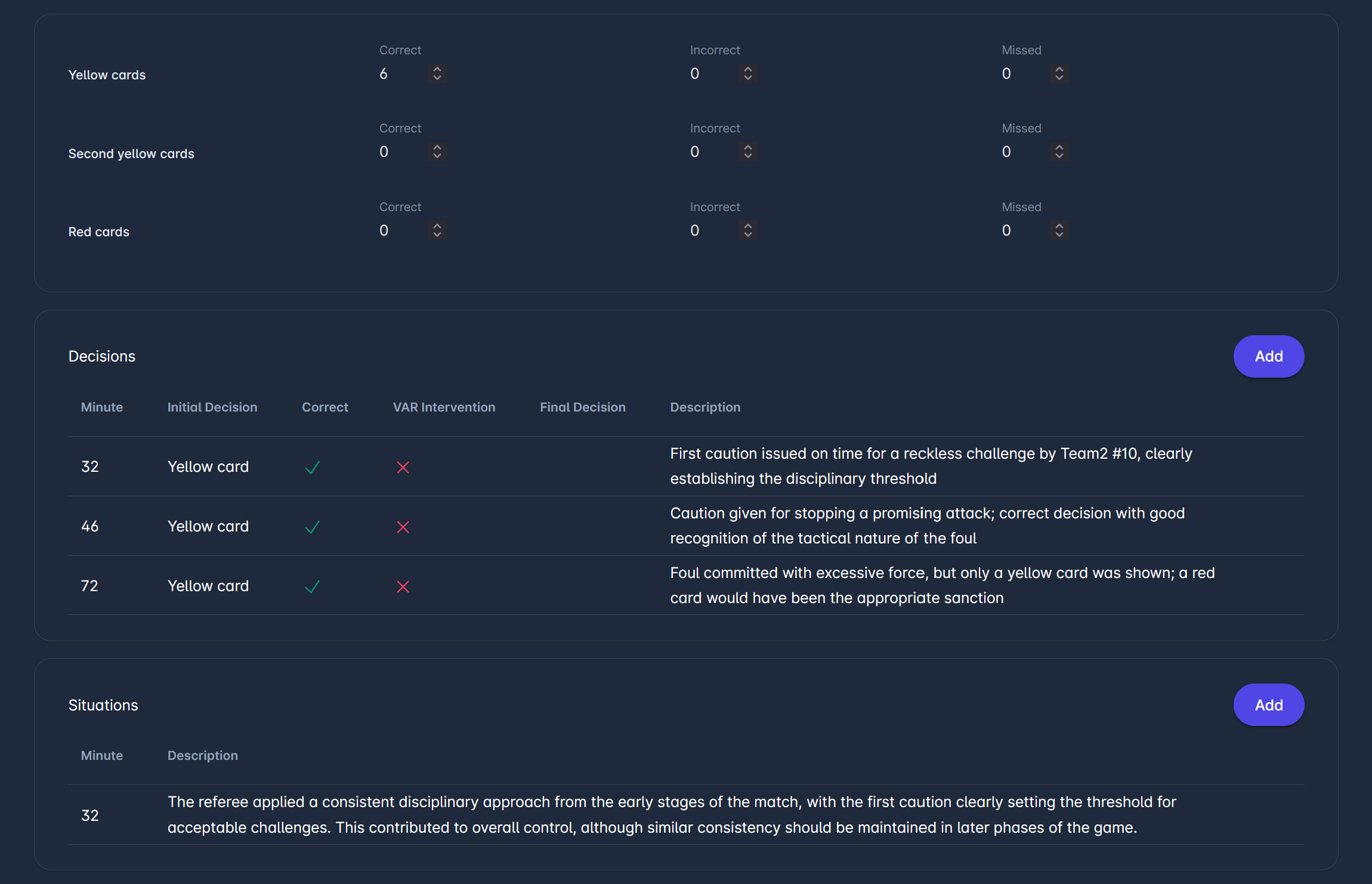
The Disciplinary Decisions component is used to evaluate how the referee managed disciplinary sanctions throughout the match. At the top of the section, the assessor records the number of correct, incorrect, and missed decisions for yellow cards and red cards.
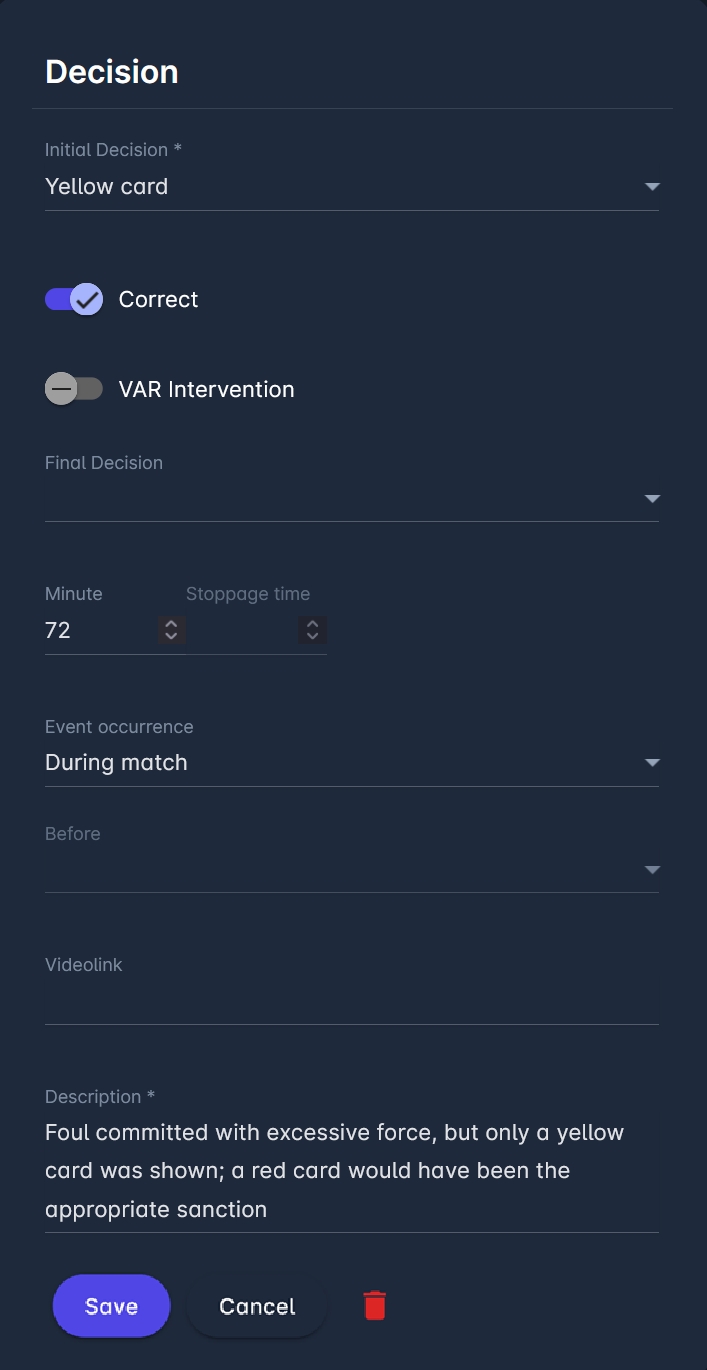
The Decisions section is intended for logging specific incidents. For each case, the assessor can enter the minute, the initial referee decision (No Card, Yellow Card, Second Yellow, Red Card), whether it was correct, any VAR involvement, and, if applicable, the final decision. A brief description is included to explain the assessment's context and rationale.
The Situations section is used for broader observations that go beyond individual decisions. This may include comments on the referee’s disciplinary line, consistency in sanctioning, recognition of tactical fouls, or overall match control.
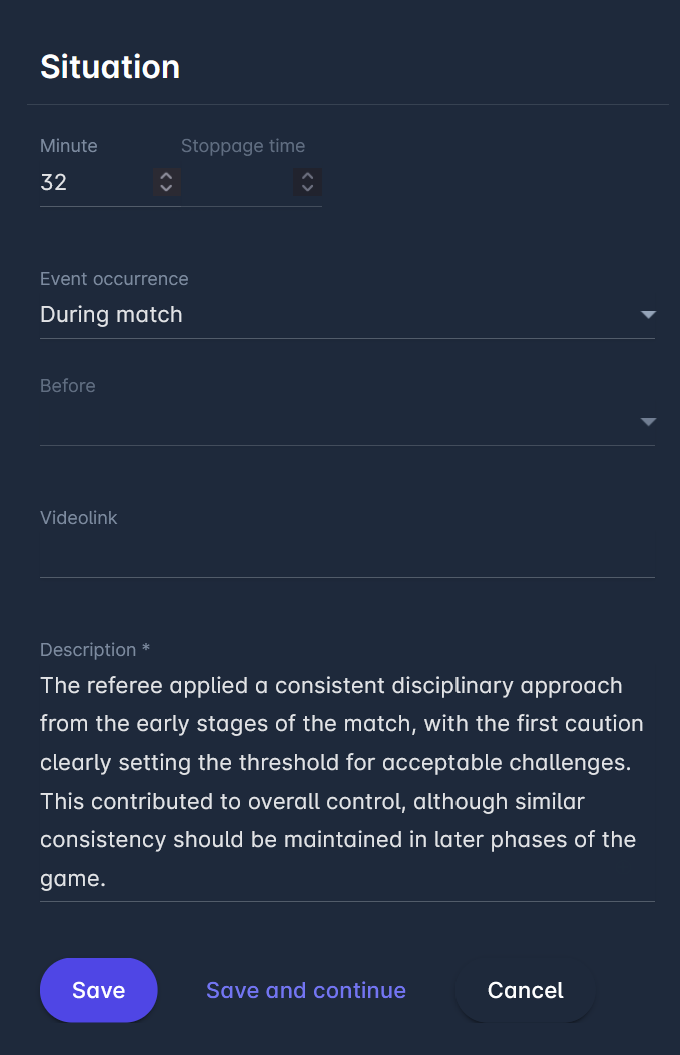
When adding or editing a Decision or Situation, the available action buttons control how the entry is handled. Save stores the current entry and returns the user to the list view. Save and continue (in the Decision dialog) saves the entry but keeps the form open, allowing the user to immediately add another item. Cancel discards any changes and closes the form without saving. Delete is available when editing an existing entry and permanently removes it from the report.
VAR
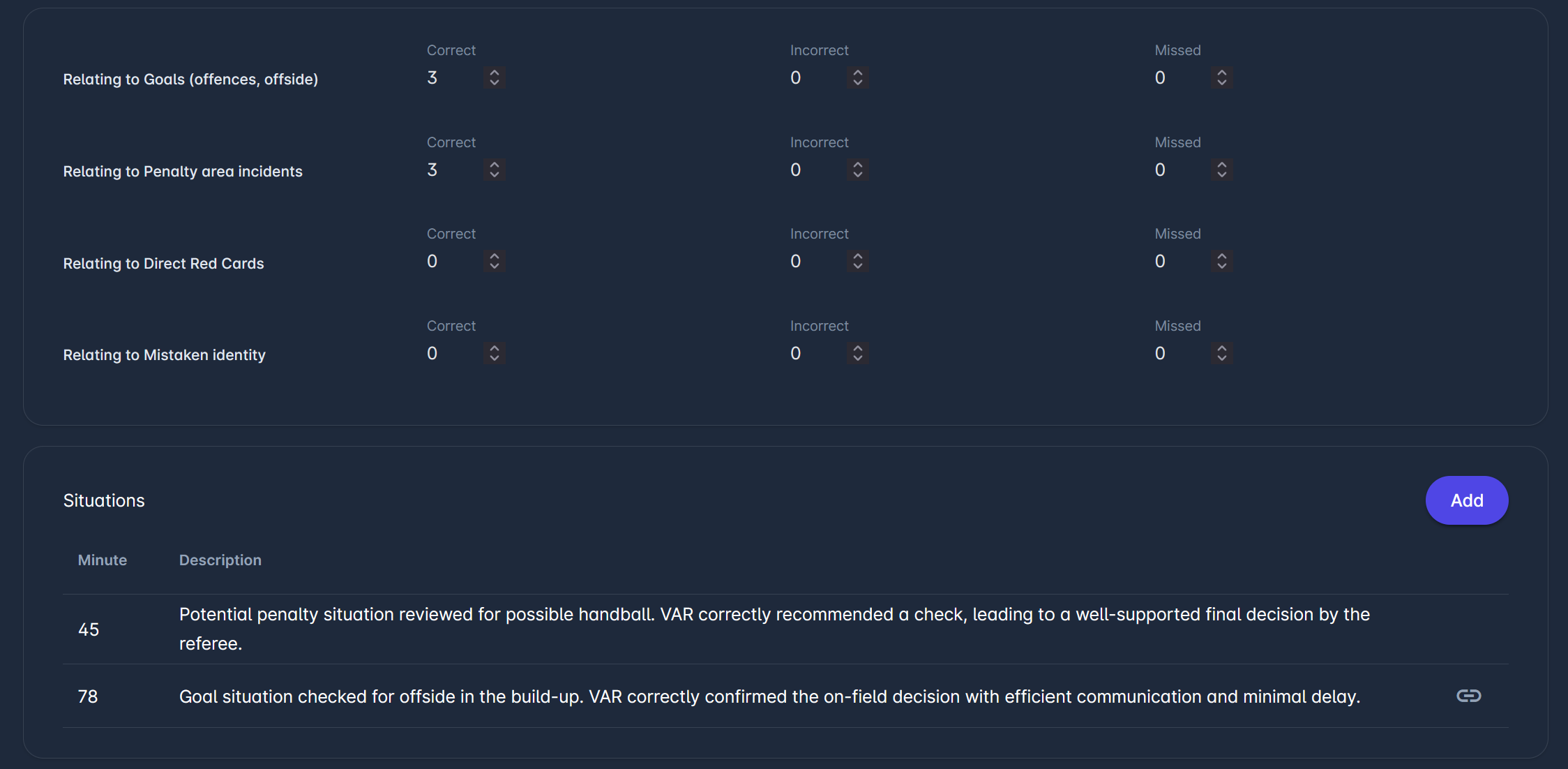
The VAR component evaluates the accuracy of VAR-related decisions across categories such as goals, penalty-area incidents, direct red cards, and mistaken identity. This component provides input fields for recording the number of correct, incorrect, and missed decisions.
Situations section allows assessors to add general remarks about VAR performance. This may include observations on communication, intervention timing, or overall cooperation between the referee and VAR.
General Configuration
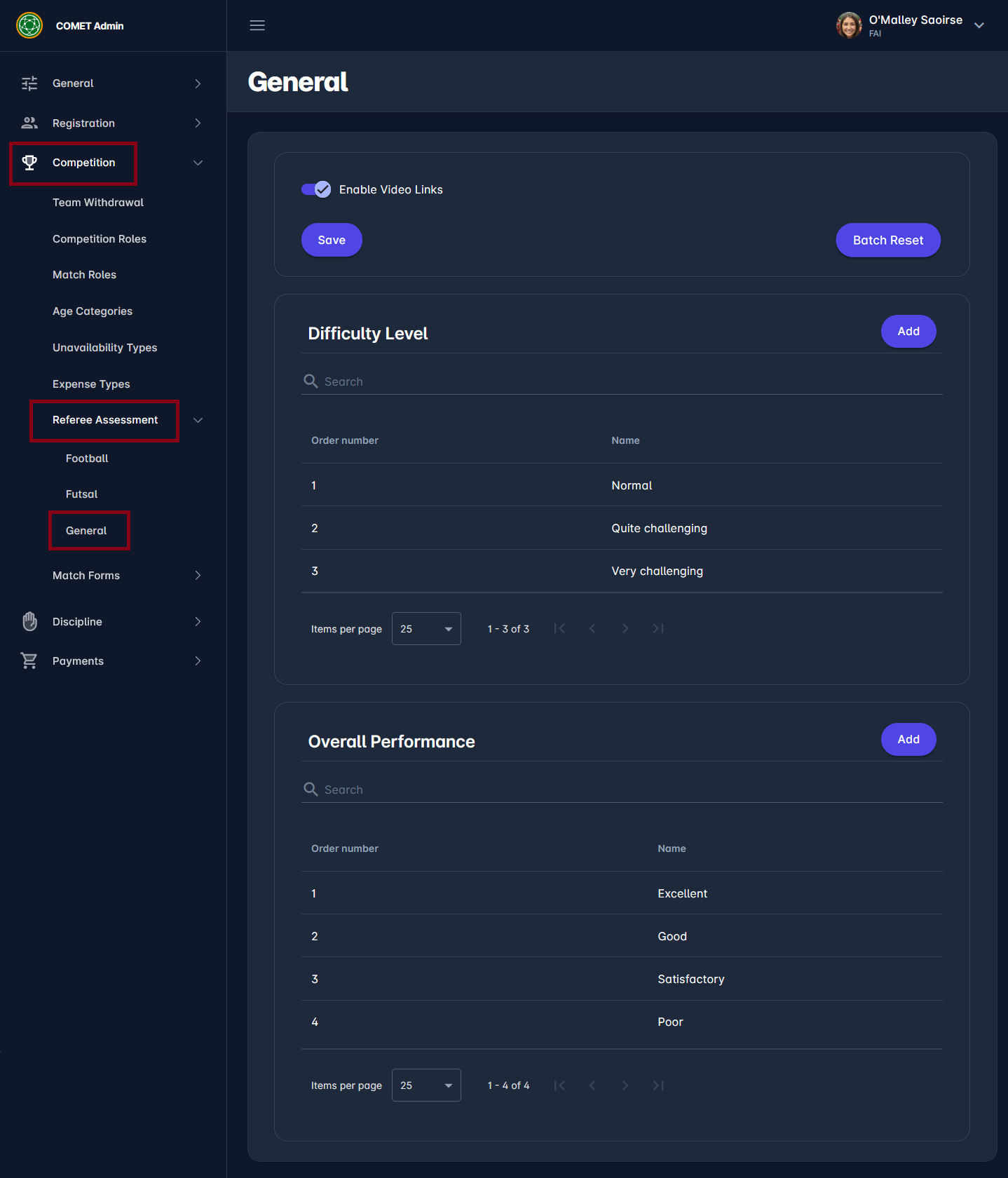
General observer report settings, used in all sports, can be configured in COMET Admin under Competition → Referee Assessment → General. From here, Tenant Superusers can define the following components:
-
Enable Video Links - switch for enabling the display of the field for video links in the Situation or Decision dialog
-
Difficulty Level
-
Overall Performance
These values are later used when observers complete referee assessments for matches.
Batch Reset
Any change in configuration does not override existing reports and only applies to referee appointments that will be confirmed in the future, but NOT to already confirmed future appointments of referees.
The Batch Reset option is available in the Administration application, under Competition → Referee Assessment → General tab.
It resets all ENTERED observer report items on all future matches (where the match is scheduled on a future datetime). Meaning it removes all existing report details, decisions, and situations and sets them to the (currently active) empty observer configuration. This ensures that any changes to ROR configuration are consistently applied to all future match official ROR items which were not yet submitted/confirmed.
Before continuing, the user is presented with a warning dialog showing the number of matches/officials to be affected.
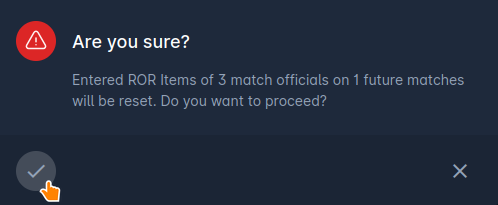
ROR items entries for matches with a start date in the past are not affected, nor are affected ROR items in the future that are already confirmed.
For consistency purposes, we recommend updating the configuration only after the competition season has been completed in your Association, and in such cases the Batch Reset will not be needed.
Important: Batch Reset does not automatically prepare reports for newly added match roles. These roles will still appear in MyCOMET, but their Status will be empty.
To activate the report for a newly added role, open it in Edit mode and click Save. This needs to be done for each newly added role.
Difficulty Level
The Difficulty Level defines how challenging a match was from the referee’s perspective. Observers select one of the predefined levels when completing a referee report for an official.
The configured levels are displayed in a list with the following attributes:
-
Order – Determines the position of the difficulty level in the list.
-
Name – The label that will be available to observers when filling out the report.
Typical examples may include: Very Challenging, Quite Challenging, or Normal.
Adding a Difficulty Level
To add a new difficulty level:
-
Navigate to Competition → Referee Assessment → General.
-
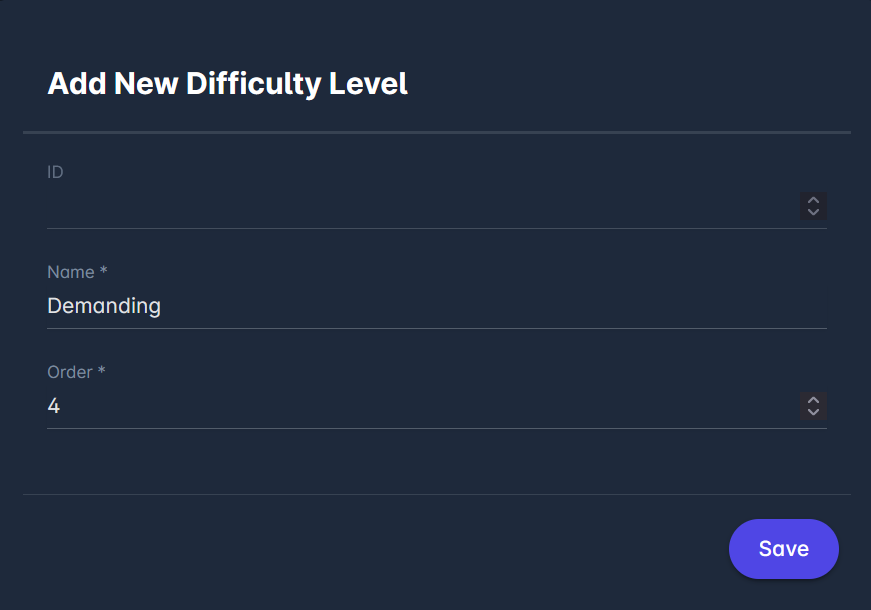
In the Difficulty Level section, click Add.
-
Enter the following information:
-
Name – The difficulty level description.
-
Order – The display order in the list.
-
-
Click Save.
The newly created difficulty level will appear in the list and will be available in observer reports.
Overall Performance
The Overall Performance scale defines how the referee’s performance is evaluated for a specific section of the observer report. It is used on Sections where the Overall Performance switch is enabled.
Examples of commonly used performance levels may include: Excellent, Very Good, Good, Poor, or Very Poor.
Adding an Overall Performance Level
To add a new performance leel:
-
Navigate to Competition → Referee Assessment → General.
-
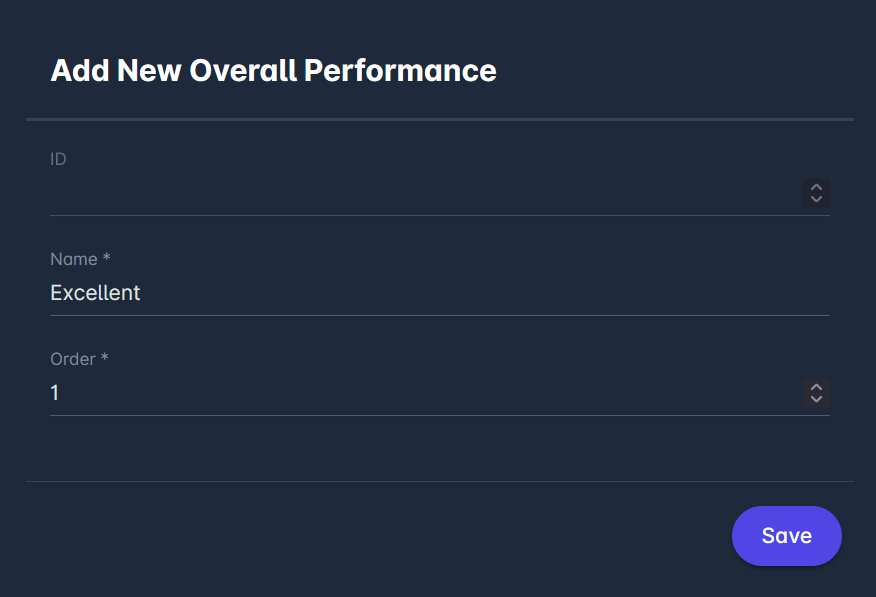
In the Overall Performance section, click Add.
-
Enter the following information:
-
Name – The performance rating label.
-
Order – The position in the rating scale.
-
-
Click Save.
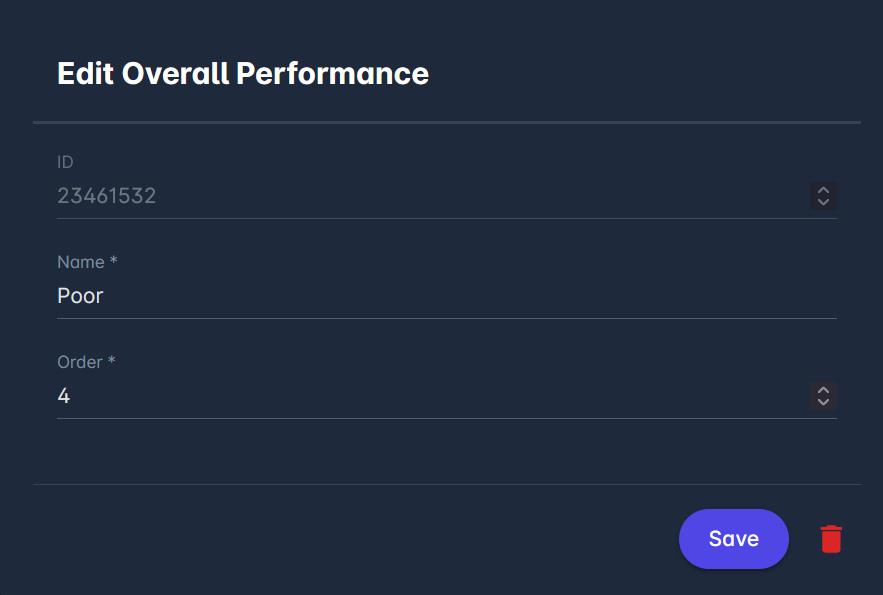
Editing or Removing a Difficulty or a Performance Level
Existing performance levels can be modified if necessary:
-
Open the Difficulty Level/Overall Performance list.
-
Select the entry you want to edit.
-
Update the Name or Order fields.
-
Click Save to apply the changes.
If a difficulty/performance level is no longer needed, it can be removed using the delete option.
Competition Type Setting
You can decide on each specific competition type, whether an observer report is used (shown) or not (hidden), which is useful for many youth and amateur competitions where this feature is unnecessary. The Observer Report parameter in the Competition Type configuration controls that.
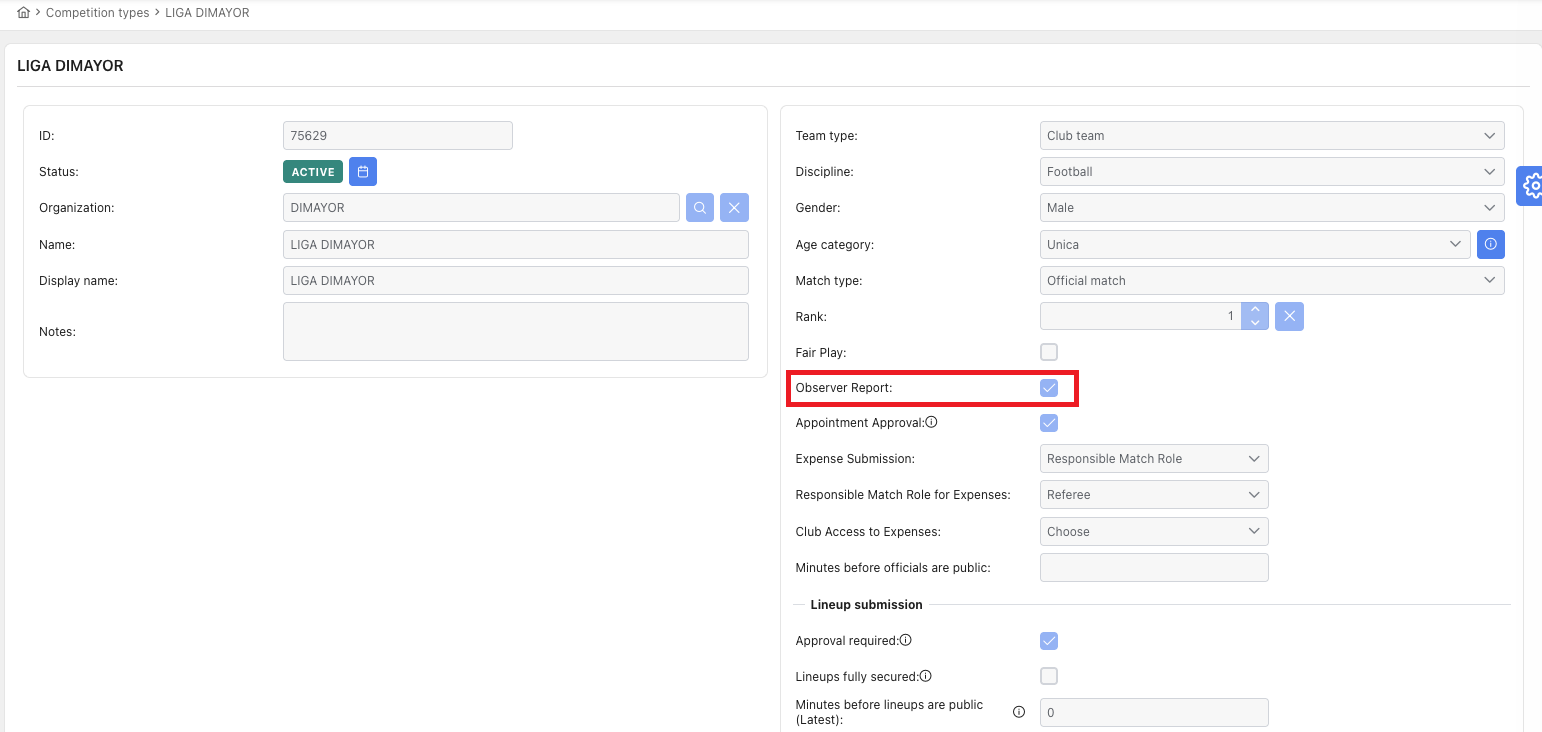
When Observer Report is enabled:
-
The Observer Report tab is visible in the user interface.
-
Referee Observation Report for a Match Official is created automatically when:
-
the Match Official Appointment status changes to Confirmed,
-
the Competition Type has Observer Report enabled,
-
the responsible assessors for that match role are defined (on the Match Role in the Admin App)
-
Responsible Assessor is appointed to the match.
-
-
As a result, a new ROR item is generated with status ENTERED for the corresponding match role.
When Observer Report is disabled:
-
The Observer Report tab is not visible in the user interface.
-
No ROR items are created when appointment statuses change
Whether the VAR Intervention and Final Decision fields are displayed on the Penalty Area Incidents and Disciplinary Decisions situation types is controlled by the VAR parameter in the Competition Type configuration, which is selectable only when Observer Report is enabled. See Create Competition Type for details.